

Introduction
Archiving retires a business you no longer trade under. The business disappears from your dashboard, its API keys stop working, and its checkout, payment links, storefront, and Customer Portal stop serving your customers. Archiving is not deletion. Dodo Payments is your Merchant of Record, so your payments, refunds, invoices, and tax records must be kept for compliance long after you stop trading. Archiving closes the business to new activity and leaves those records intact.Eligibility Requirements
A business can be archived only once it is fully settled. Dodo Payments checks seven requirements and shows a live checklist of them. You clear each outstanding item yourself, with the same tools you use day to day.A subscription scheduled to cancel at its next billing date blocks archiving until it ends. Dodo Payments doesn’t cancel subscriptions on your behalf, so you stay in control of what your customers are charged.
How to Archive Your Business
Only the Owner of a business can archive it. Editors and Viewers can see the checklist but can’t archive. If you aren’t the Owner, ask the Owner to complete this flow. Ownership can’t be transferred from the dashboard. Archiving is available in live mode only. If the dashboard is in test mode, turn on the Live Mode switch in the sidebar first.1
Open the Danger Zone
Go to Settings → Business and scroll to the Danger Zone panel. Select See Details next to the status line to expand the checklist.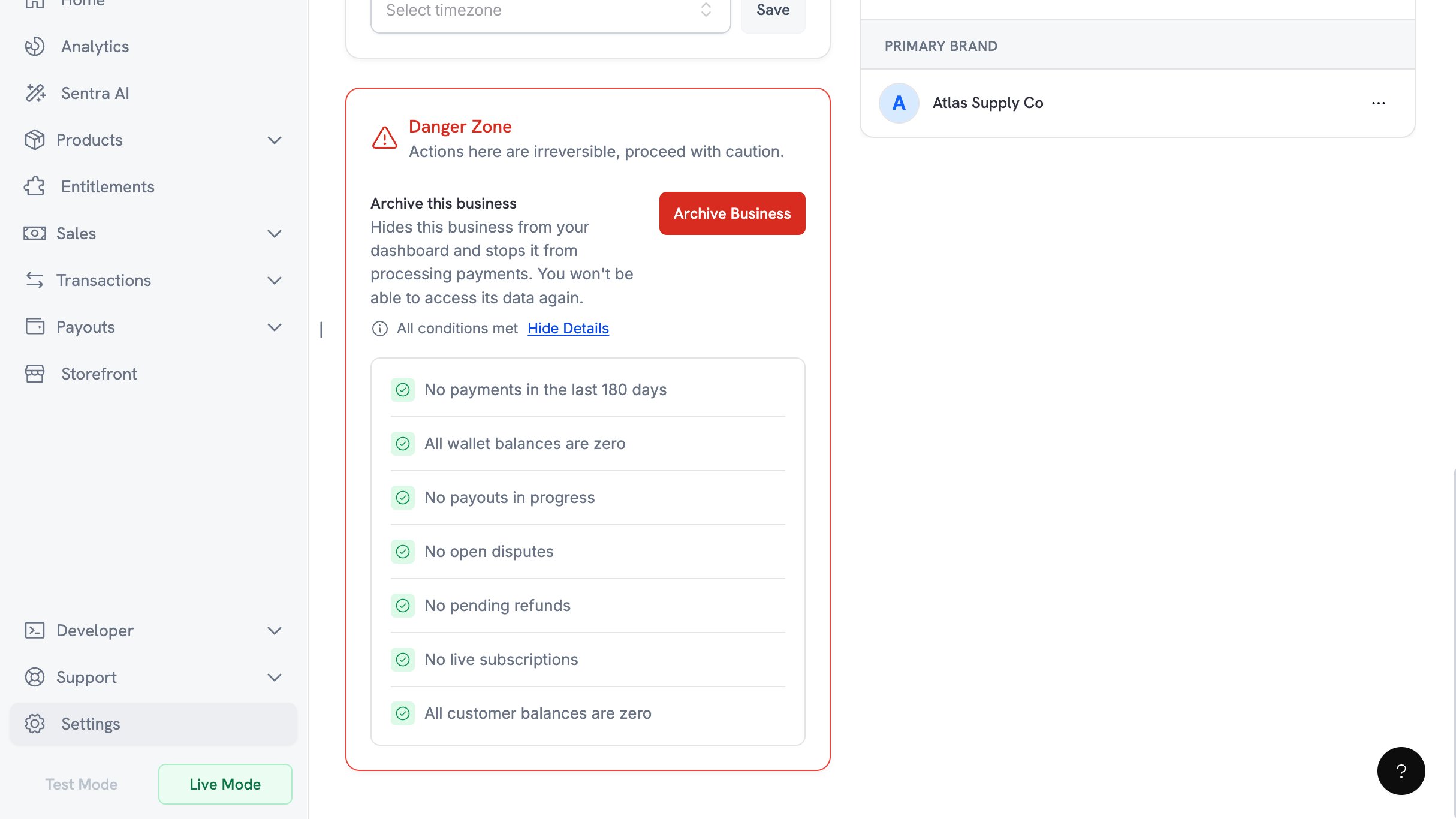
2
Clear Every Outstanding Requirement
Work through the items that haven’t passed, using the links in the eligibility table. Return to the panel and expand the checklist again as you go. The status line above the checklist reads All conditions met when nothing is left to clear.
3
Confirm You Want to Archive
Select Archive Business and read the confirmation dialog. Select Continue to send a confirmation code to the Owner’s email address.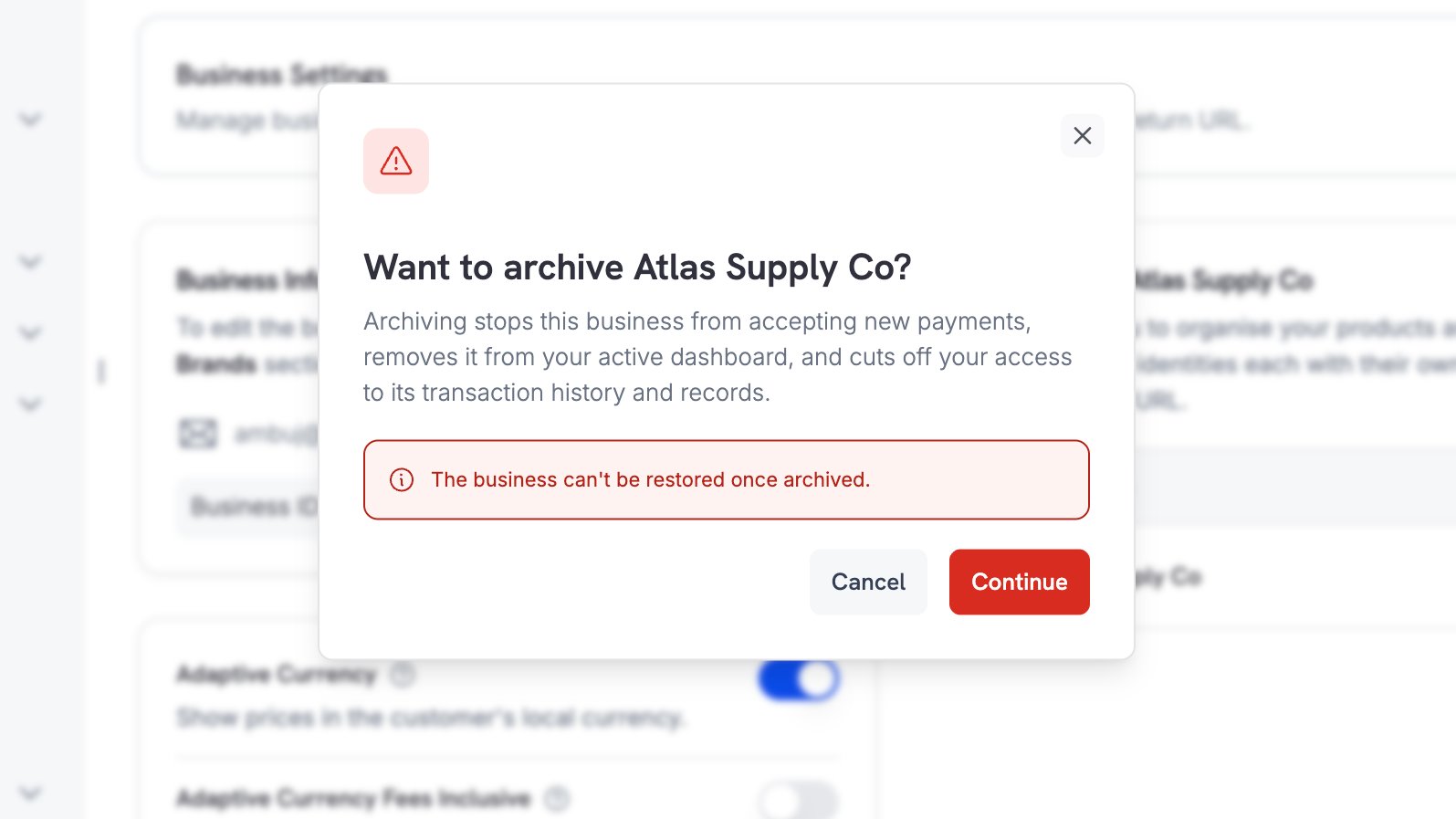
4
Enter the Code from Your Email
Dodo Payments emails a 6-digit code to the Owner’s login email address. The code expires after 10 minutes, and you can request a new one every 60 seconds. After 3 wrong attempts, you need a new code.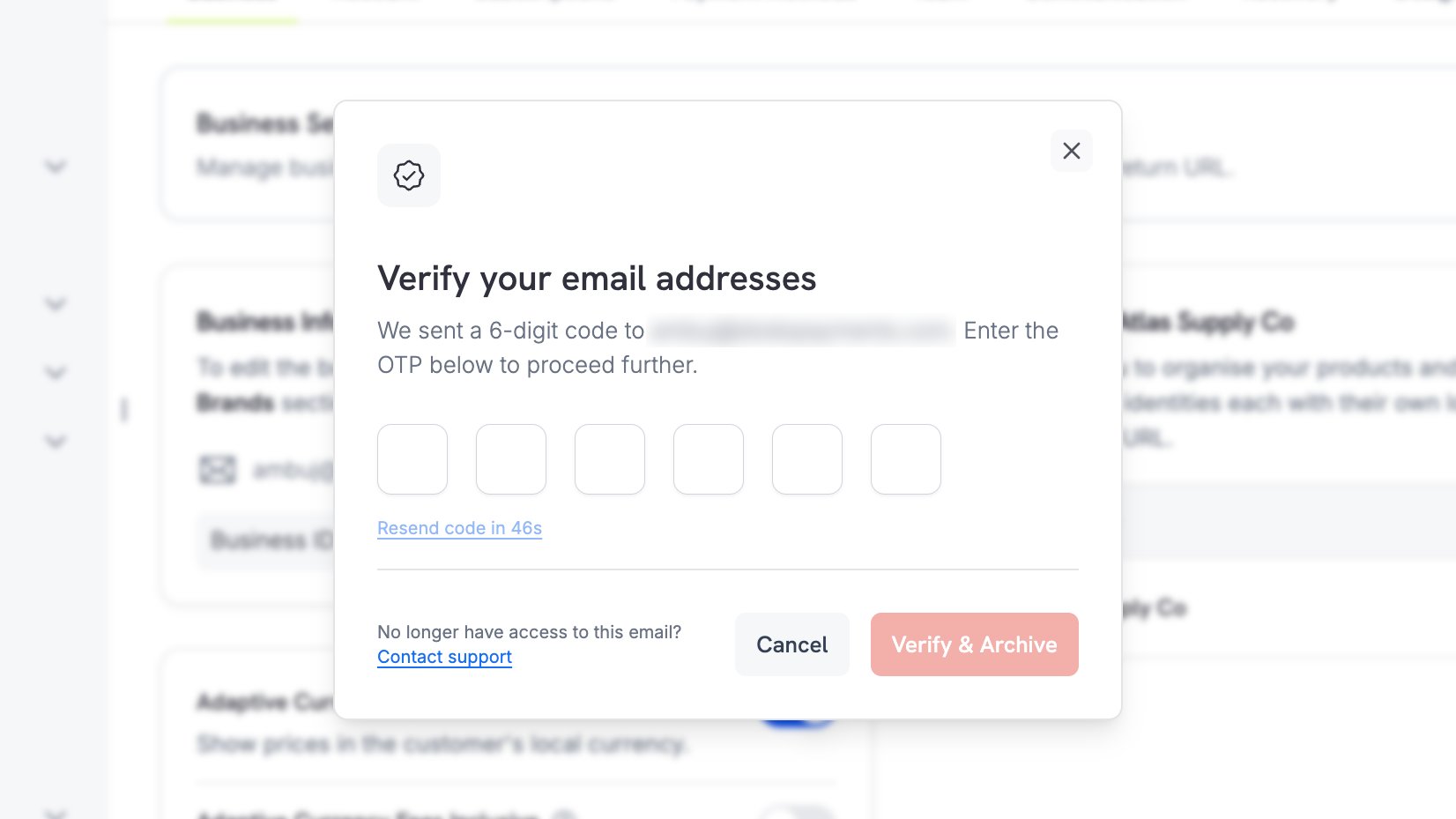
5
Verify and Archive
Enter the code and select Verify & Archive. This step can’t be undone: Dodo Payments archives the business as soon as it accepts the code.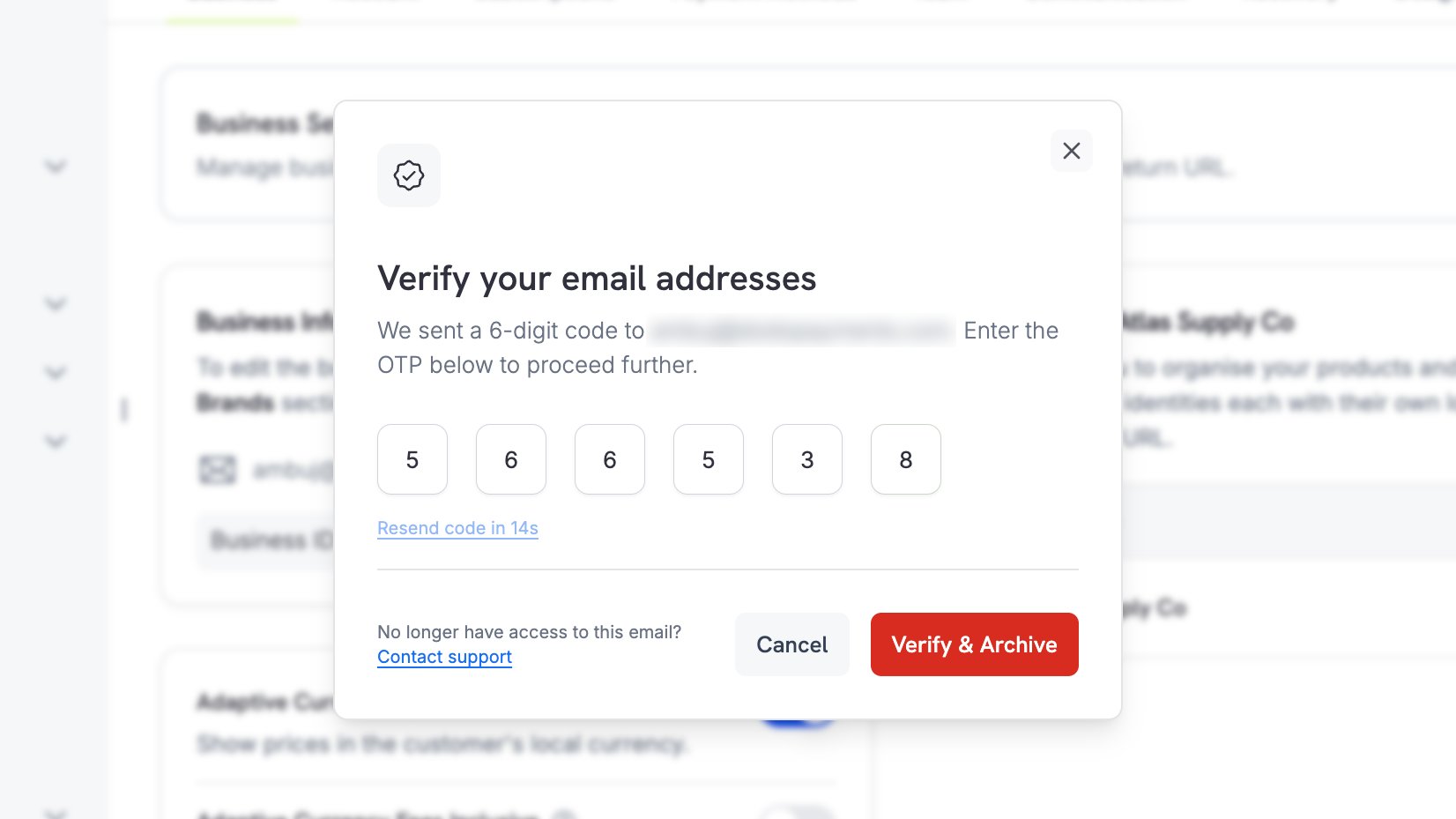
6
Switch to Another Business
Dodo Payments confirms the archive and moves you to another of your businesses after a short countdown. Select Switch Now to go there immediately.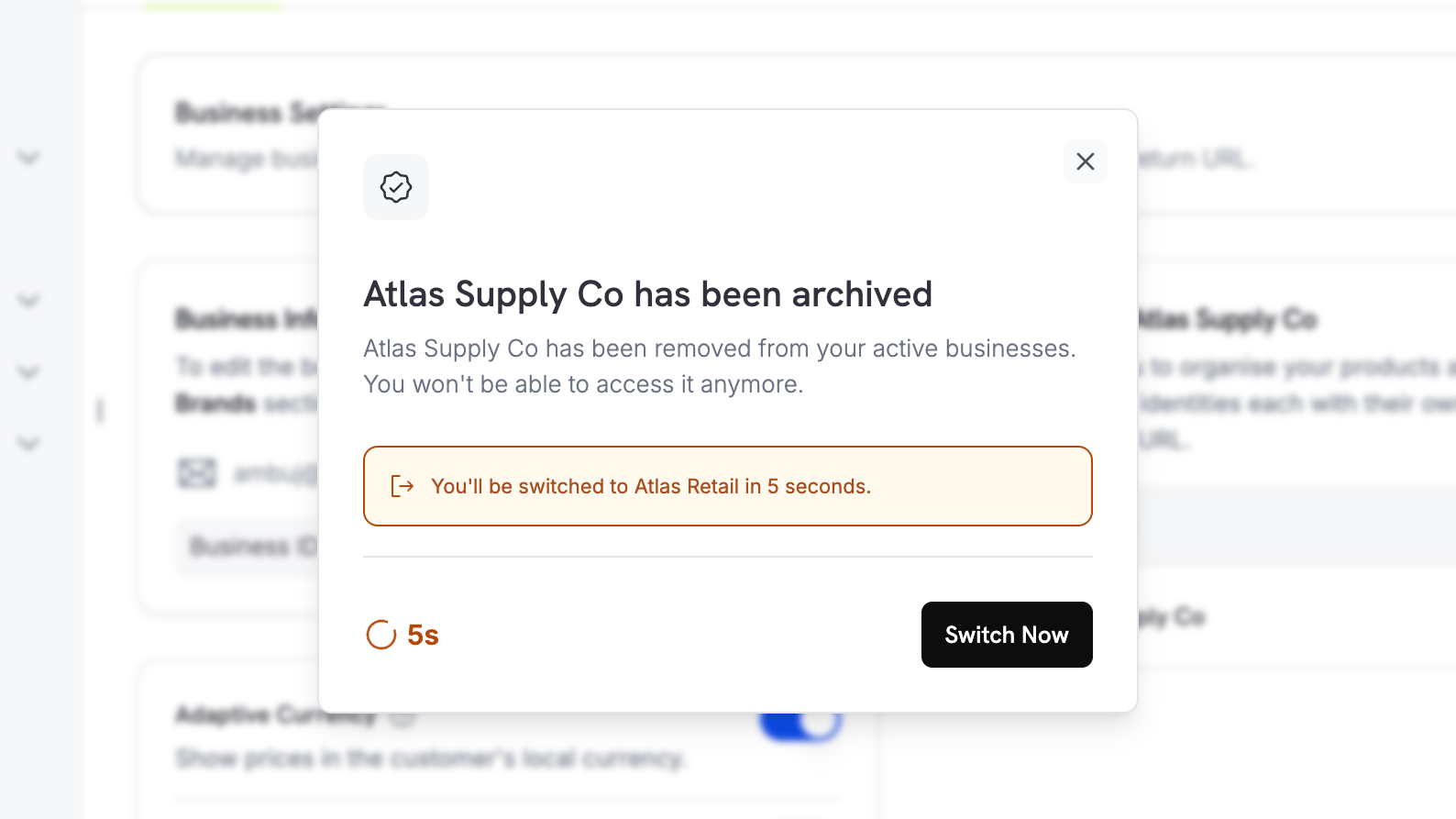
What Happens After Archiving
For you- The business no longer appears in your dashboard or in the business switcher. Dodo Payments moves you to another of your businesses right after the archive.
- Live mode and live payments are turned off.
- Every API key for the business stops working, in both live mode and test mode. Cached credentials can take up to a minute to expire, so an integration may keep working briefly after you archive.
- Checkout sessions, payment links, and static checkout pages stop accepting payments.
- Your storefront stops serving products.
- Customer Portal sessions end, and customers can no longer sign in to manage their purchases.
- License key activation and deactivation stop.
Limits
- Archiving can’t be undone. The action is permanent for merchants and support alike.
- You can’t archive your last business this way. If the business is the only one you own, contact support to close your account instead.
- Archiving is all or nothing. To retire part of your catalog and keep trading, archive a brand instead of the business.
Multi-Brand Setup
Archive a single brand and keep the rest of the business trading.
Account Summary and Payout Wallet
Withdraw your remaining balance before you archive.
My Account
Manage business profiles and switch between businesses.
Help and Support
Get in touch about account closure or record requests.