

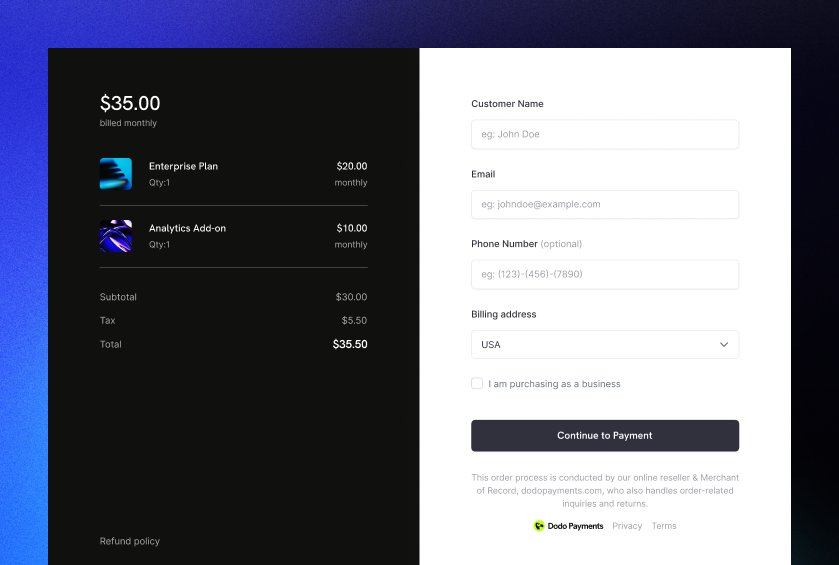
How It Works
Inline checkout renders a secure Dodo Payments frame into a container on your page. The frame handles collecting customer information and payment details. Your page displays items, totals, and other information. The SDK lets your page and the checkout frame communicate with each other. When checkout completes, Dodo Payments creates the payment, or the subscription for a subscription product, and sends a webhook so you can provision access.What Makes a Good Inline Checkout
Customers need to know who they’re buying from, what they’re buying, and how much they’re paying. Your implementation must include: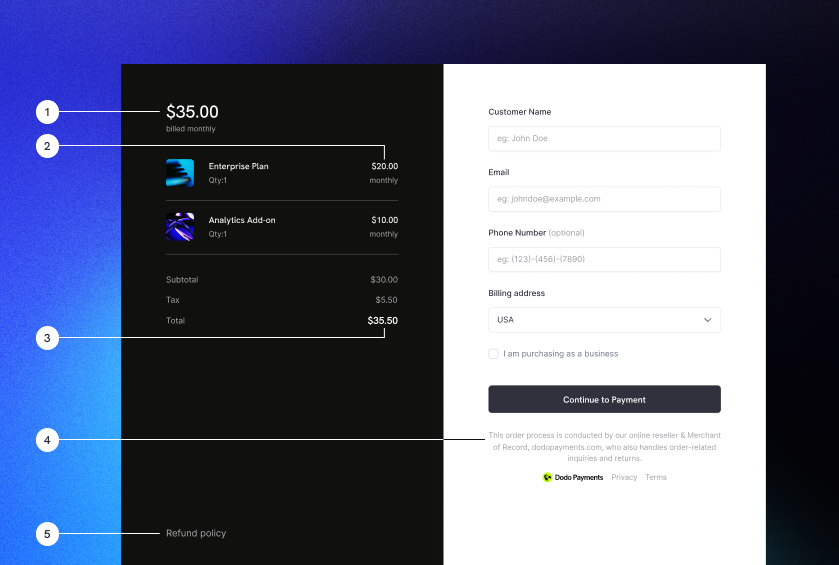
Example inline checkout layout showing required elements
- Recurring information: If recurring, show how often it recurs and the total to pay on renewal. If a trial, show the trial duration.
- Item descriptions: A description of what’s being purchased.
- Transaction totals: Subtotal, total tax, and grand total, including currency.
- Dodo Payments footer: The complete inline checkout frame, including the footer with Dodo Payments information, terms of sale, and privacy policy.
- Refund policy: A link to your refund policy, if it differs from the Dodo Payments standard refund policy.
Customer Journey
The checkout flow depends on your checkout session configuration. Depending on how you configure the session, customers may see all information on a single page or across multiple steps.Customer opens checkout
checkout.breakdown, to show and update on-page information.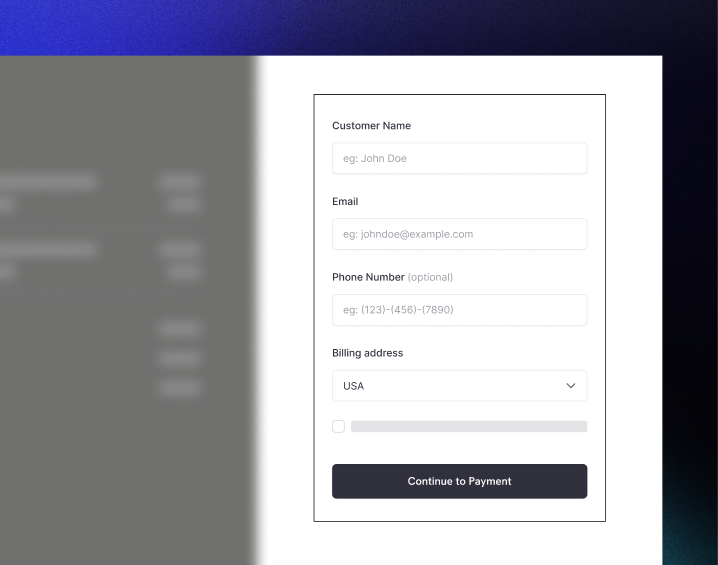
Customer enters their details
Customer selects payment method
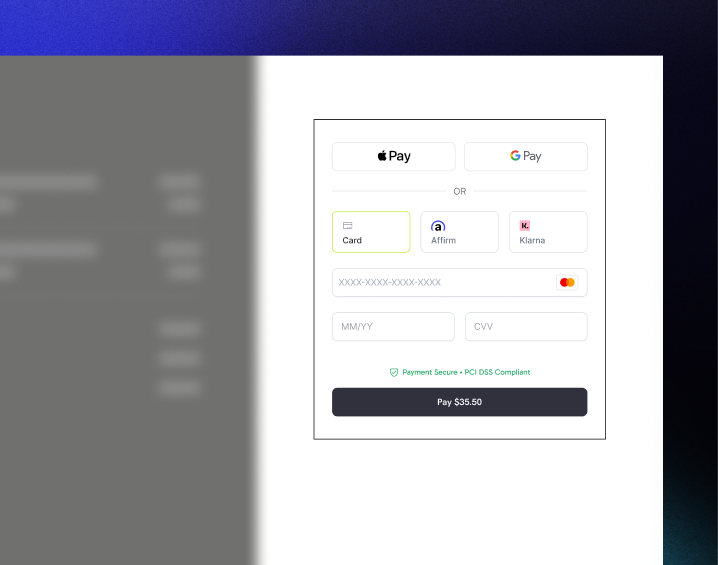
Checkout completed
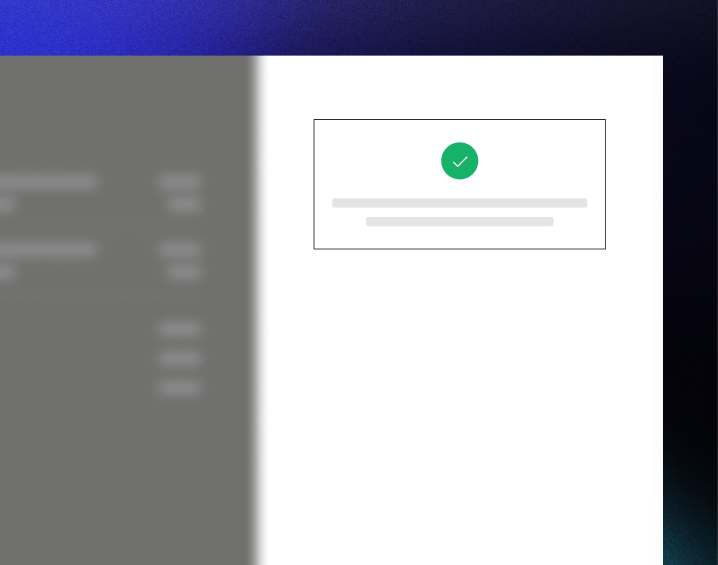
Dodo Payments creates the payment or subscription
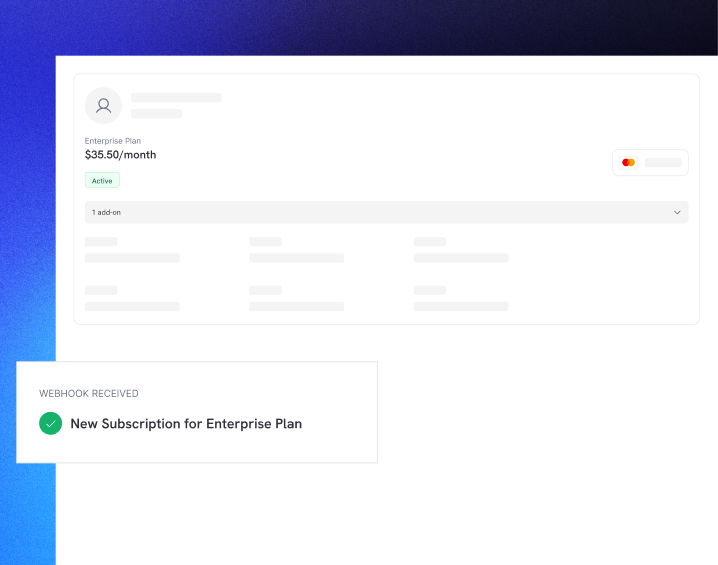
Quick Start
Install the SDK, initialize it for inline mode, and open checkout in a container element:Step-by-Step Integration
Install the SDK
Initialize the SDK for Inline Display
displayType: 'inline'. Listen for the checkout.breakdown event to update your UI with real-time tax and total calculations:Create a Container Element
Open the Checkout
DodoPayments.Checkout.open() with the checkoutUrl and the elementId of your container:Test Your Integration
- Start your development server:
- Test the checkout flow:
- Enter your email and address details in the inline frame
- Verify that your custom order summary updates in real-time
- Test the payment flow using test credentials
- Confirm redirects work correctly
checkout.breakdown events logged in your browser console if you added a console log in the onEvent callback.Go Live
- Change the mode to
'live':
- Update your checkout URLs to use live checkout sessions from your backend
- Test the complete flow in production
Complete React Example
This example demonstrates how to implement a custom order summary alongside the inline checkout, keeping them in sync using thecheckout.breakdown event:
API Reference
Initialize
CallInitialize once to set up the SDK:
Open Checkout
Open the checkout frame in a container:Close Checkout
Programmatically remove the checkout frame and clean up event listeners:Check Status
Check if the checkout frame is currently injected:Events
The SDK provides real-time events through theonEvent callback. For inline checkout, checkout.breakdown is particularly useful for syncing your UI:
Checkout Breakdown Data
Thecheckout.breakdown event provides pricing and tax information:
- Currency Formatting: Prices are integers in the smallest currency unit, for example cents for USD. For two-decimal currencies, divide by 100 before formatting with
Intl.NumberFormat. Zero-decimal currencies such as JPY have no smaller unit, so don’t divide them. - Handling Initial States: When the checkout first loads,
taxanddiscountmay be0ornulluntil the user provides their billing information or applies a code. Handle these states gracefully (e.g., showing a dash—or hiding the row). - The “Final Total” vs “Total”: While
totalgives you the standard price calculation,finalTotalis the source of truth for the transaction. IffinalTotalis present, it reflects exactly what will be charged to the customer’s card. - Real-time Feedback: Use the
taxfield to show users that taxes are being calculated in real-time. This provides a “live” feel to your checkout page and reduces friction during the address entry step.
CDN Implementation
For quick integration without a build step, load the SDK from CDN:Update Payment Method
Inline checkout supports payment method updates for subscriptions. When a customer needs to update their payment method for an active subscription or to reactivate an on-hold subscription, you can render the update flow directly within your page layout.How It Works
- Call the Update Payment Method API to get a
payment_link:
- Pass the returned
payment_linkas thecheckoutUrlto open inline checkout:
For On-Hold Subscriptions
When updating the payment method for a subscription inon_hold status, Dodo Payments automatically creates a charge for any remaining dues. Monitor the payment.succeeded and subscription.active webhooks to confirm reactivation.
Error Handling
Always implement error handling in youronEvent callback:
Best Practices
- Responsive Design: Ensure your container element has enough width and height. The iframe will typically expand to fill its container.
- Synchronization: Use the
checkout.breakdownevent to keep your custom order summary or pricing tables in sync with what the user sees in the checkout frame. - Skeleton States: Show a loading indicator in your container until the
checkout.openedevent fires. - Cleanup: Call
DodoPayments.Checkout.close()when your component unmounts to clean up the iframe and event listeners.
#0d0d0d as the background color for optimal visual integration with the inline checkout frame.Payment Status Validation
Why Server-Side Validation is Essential
While inline checkout events provide real-time feedback, they should not be your only source of truth for payment status. Network issues, browser crashes, or users closing the page can cause events to be missed. To ensure reliable payment validation:- Listen to webhook events - Dodo Payments sends webhooks for payment status changes
- Implement a polling mechanism - Your frontend should poll your server for status updates
- Combine both approaches - Use webhooks as the primary source and polling as a fallback
Recommended Architecture
Implementation Steps
1. Listen for checkout events - When the user clicks pay, start preparing to verify the status:payment.succeeded or payment.failed webhooks. See our Webhooks documentation for details.
Troubleshooting
Checkout frame is not appearing
Checkout frame is not appearing
- Verify that
elementIdmatches theidof adivthat actually exists in the DOM - Ensure
displayType: 'inline'was passed toInitialize - Check that the
checkoutUrlis valid
Taxes are not updating in my UI
Taxes are not updating in my UI
- Ensure you are listening for the
checkout.breakdownevent - Taxes are only calculated after the user enters a valid country and postal code in the checkout frame
Digital Wallets
For detailed information about setting up Apple Pay, Google Pay, and other digital wallets, see the Digital Wallets page.Quick Setup for Apple Pay
Open Wallet domains
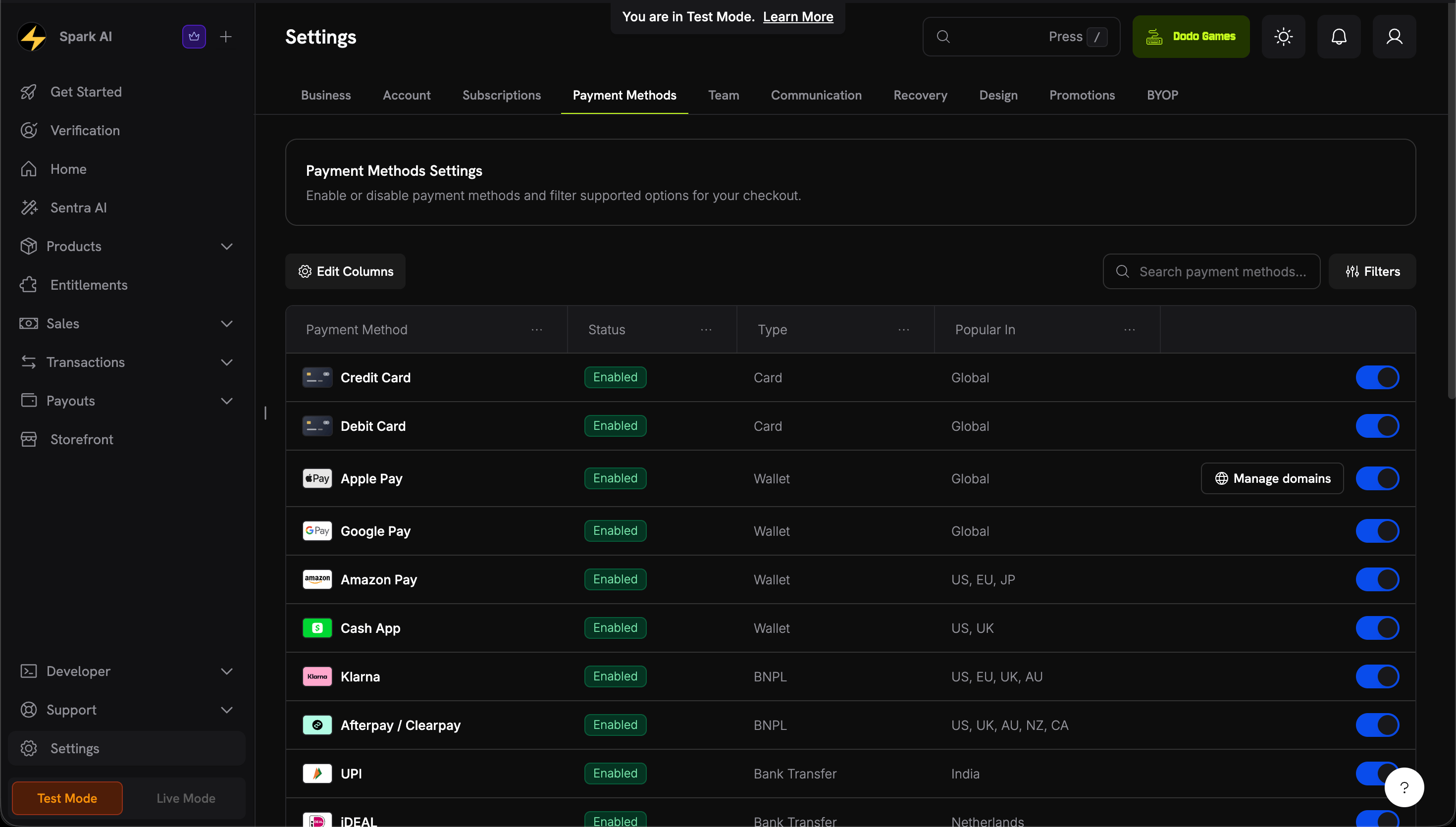
Open Wallet domains from the Apple Pay row
Download the domain association file
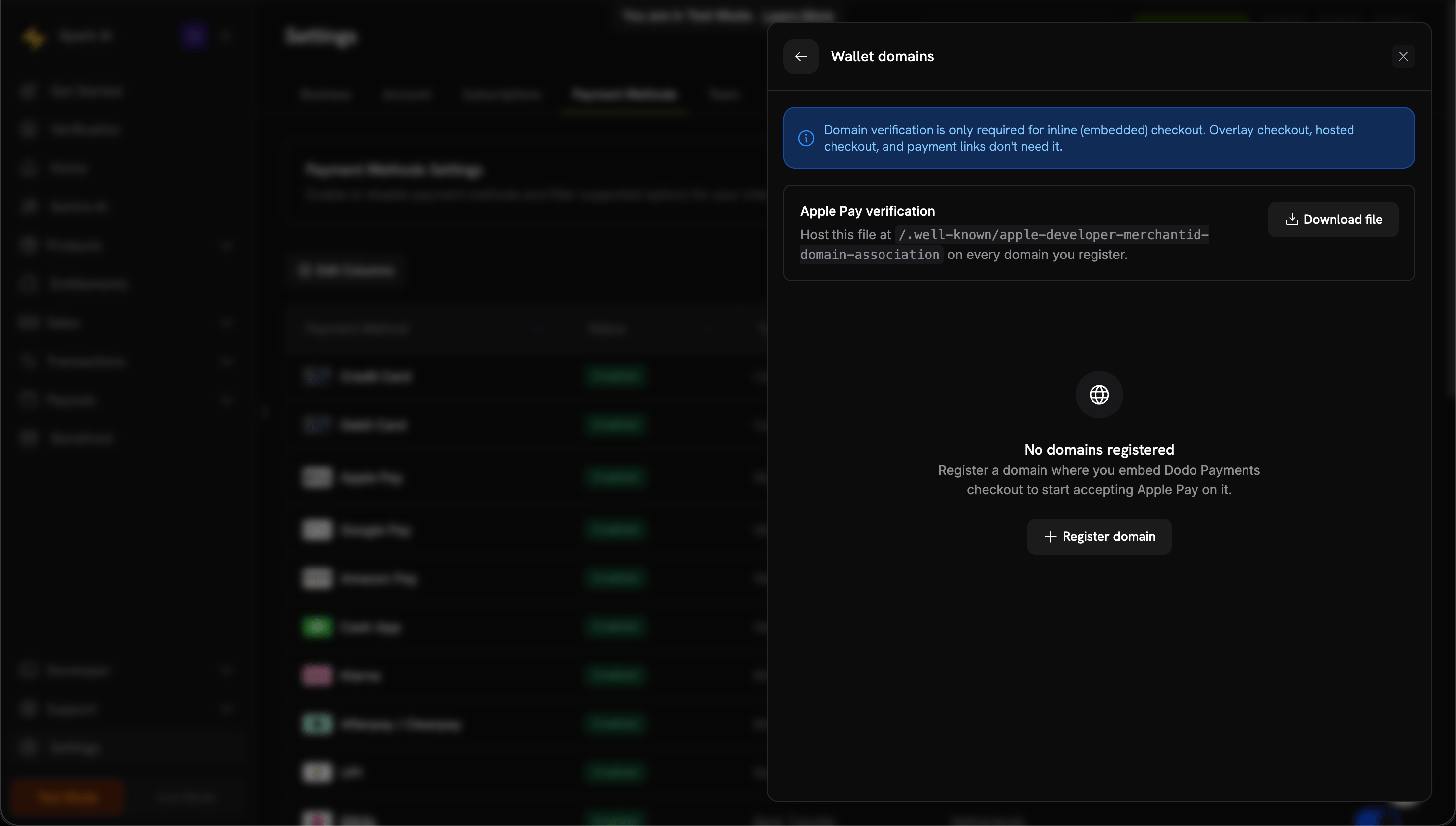
Download the Apple Pay domain association file
Register your domain
shop.example.com), then Continue.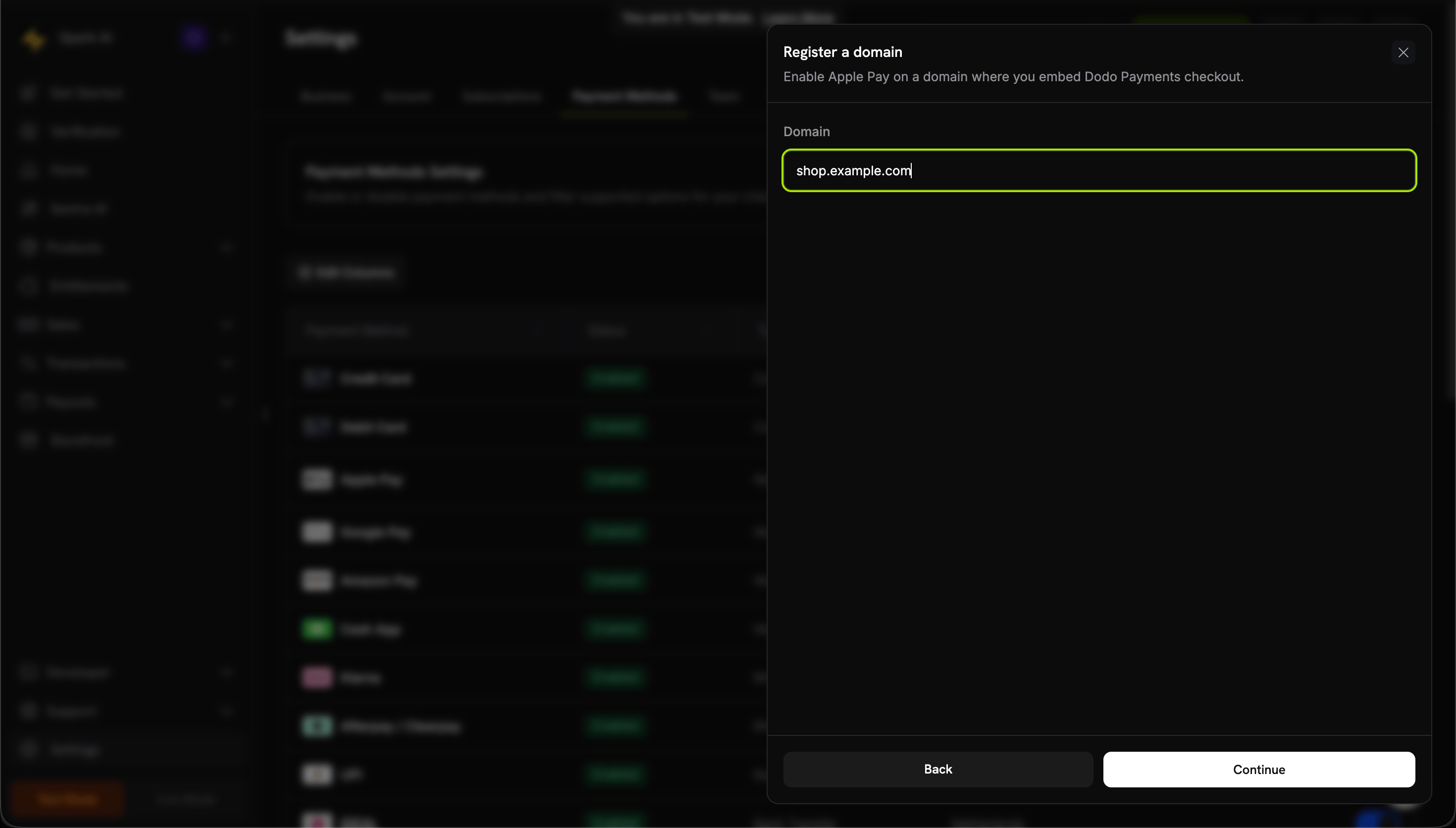
Register the domain where you embed inline checkout
Host the file on your domain
Content-Type: application/octet-stream or text/plain.Verify the domain
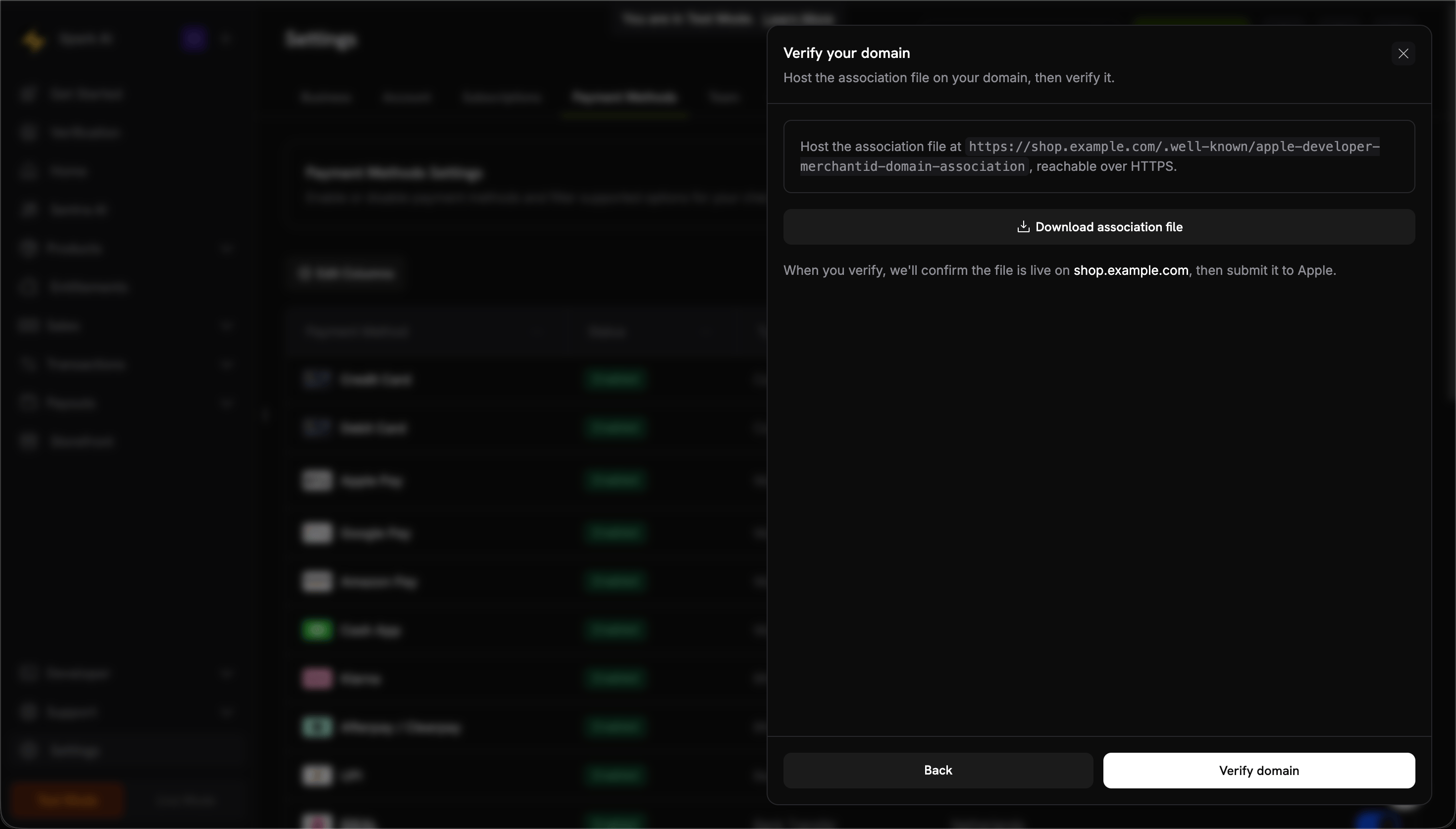
Verify the hosted association file
Confirm it's active
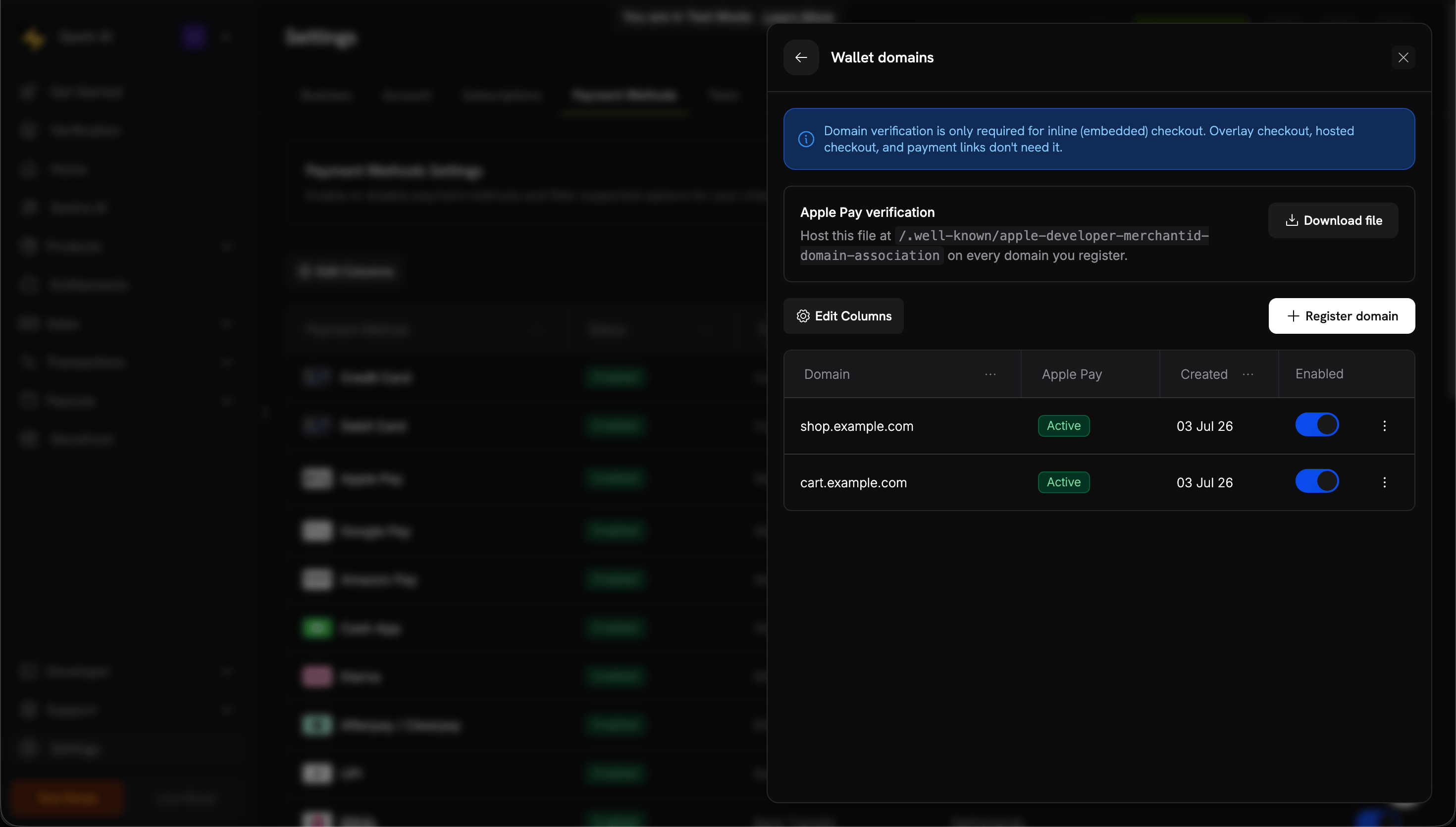
Verified domains show an Active status
Test the integration
- Open checkout on an Apple device
- Verify Apple Pay button appears
- Complete a test transaction
Browser Support
The Dodo Payments Checkout SDK supports:- Chrome (latest)
- Firefox (latest)
- Safari (latest)
- Edge (latest)
- IE11+