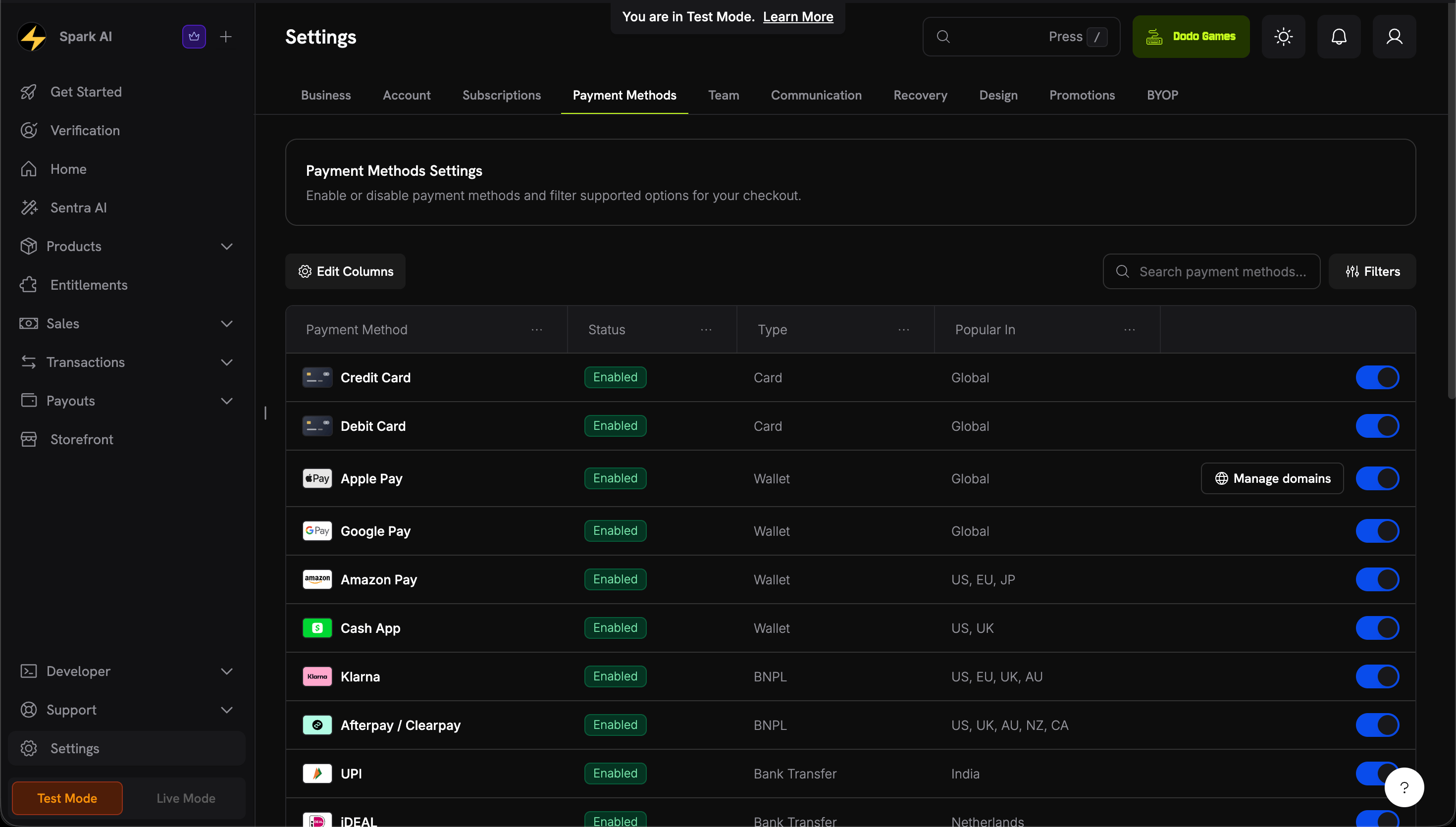
Accept Apple Pay, Google Pay, Amazon Pay, Cash App Pay, and RevolutPay at checkout. Covers availability, Apple Pay domain verification, and testing.
Digital wallets let customers pay with a card or account already saved on their device, without typing card details. The wallet sends a token instead of the card number, and the customer confirms the payment with a tap or biometric check.
Apple Pay lets customers pay with cards saved in Apple Wallet and confirm with Face ID or Touch ID.
Apple Pay appears for subscriptions even when the first charge is $0, such as a free trial, so the payment mandate is set up at signup. For one-time payments, Apple Pay appears only when the amount is greater than $0.
Customers in India can pay with Apple Pay on checkouts billed in INR.Apple Pay in India works under these conditions:
Currency: The checkout is billed in INR. A payment billed in INR must meet the INR minimum.
Cards: The customer has a card in Apple Wallet from an Indian bank that supports Apple Pay. Apple controls which banks and cards are eligible.
Desktop: In a desktop browser, customers can scan a code with their iPhone and confirm the payment on the phone.
Subscriptions: Apple Pay subscriptions in INR run on RBI mandates. Each renewal charge completes about 48 hours after the renewal date, as with other Indian-issued cards.
To bill a customer in India in INR, follow the India Payment Methods requirements for billing country and Adaptive Currency.
Browsers: Chrome on desktop and Android, and Firefox on desktop. Checkout doesn’t show Google Pay in Safari or in any browser on iOS. On those browsers, customers can pay with Apple Pay or a card.
Devices: Android devices with the Google Pay app.
Settings: In Chrome, Allow sites to check if you have payment methods saved must be on.
The Android, iOS,
React Native, and
Flutter checkout SDKs open Dodo Payments hosted
checkout in the platform’s system browser (SFSafariViewController on iOS,
Chrome Custom Tabs on Android), not in a WebView. Apple Pay and Google Pay work
there the same way they do on the web. See the Mobile Integration Guide for setup.
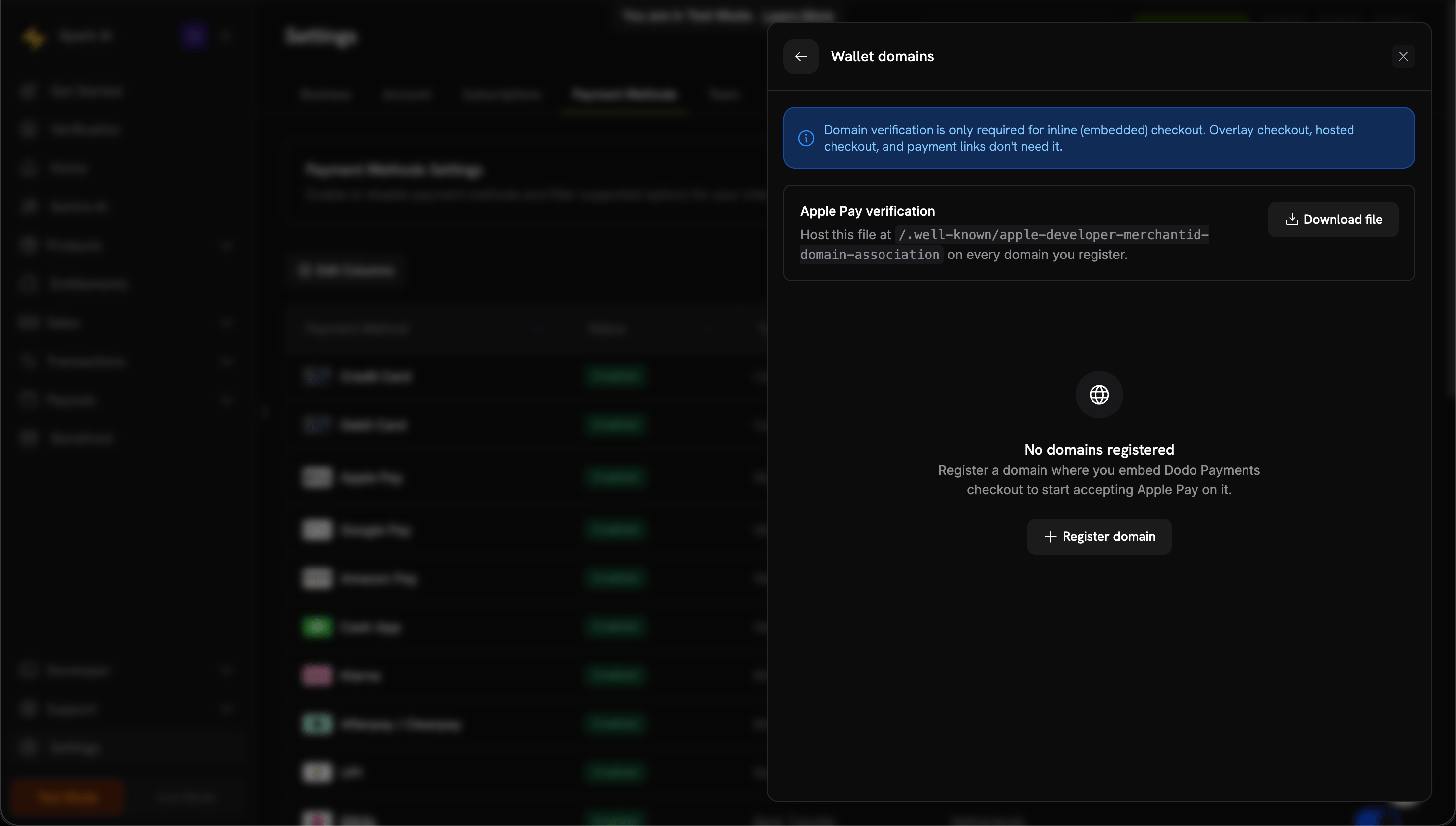
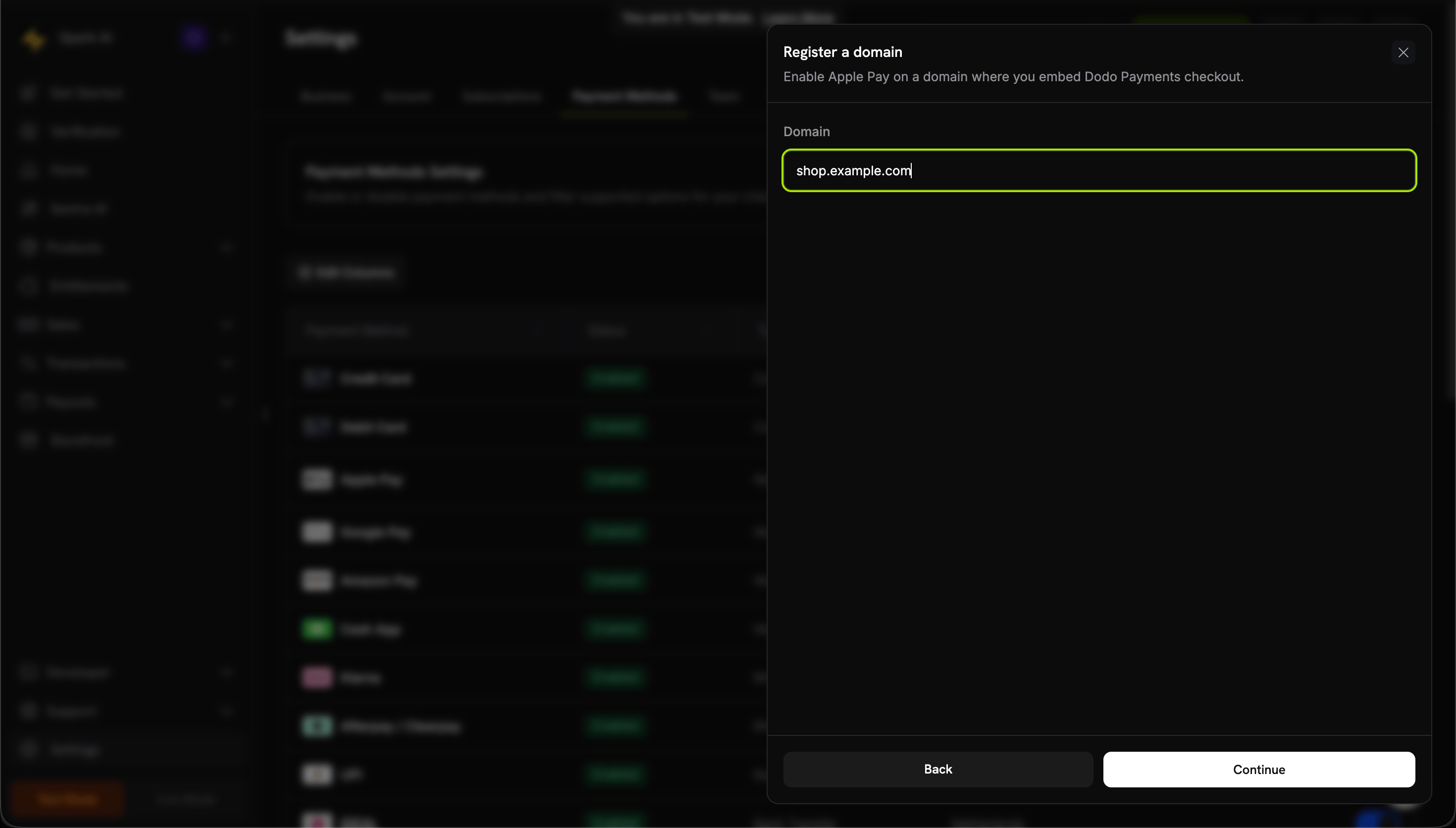
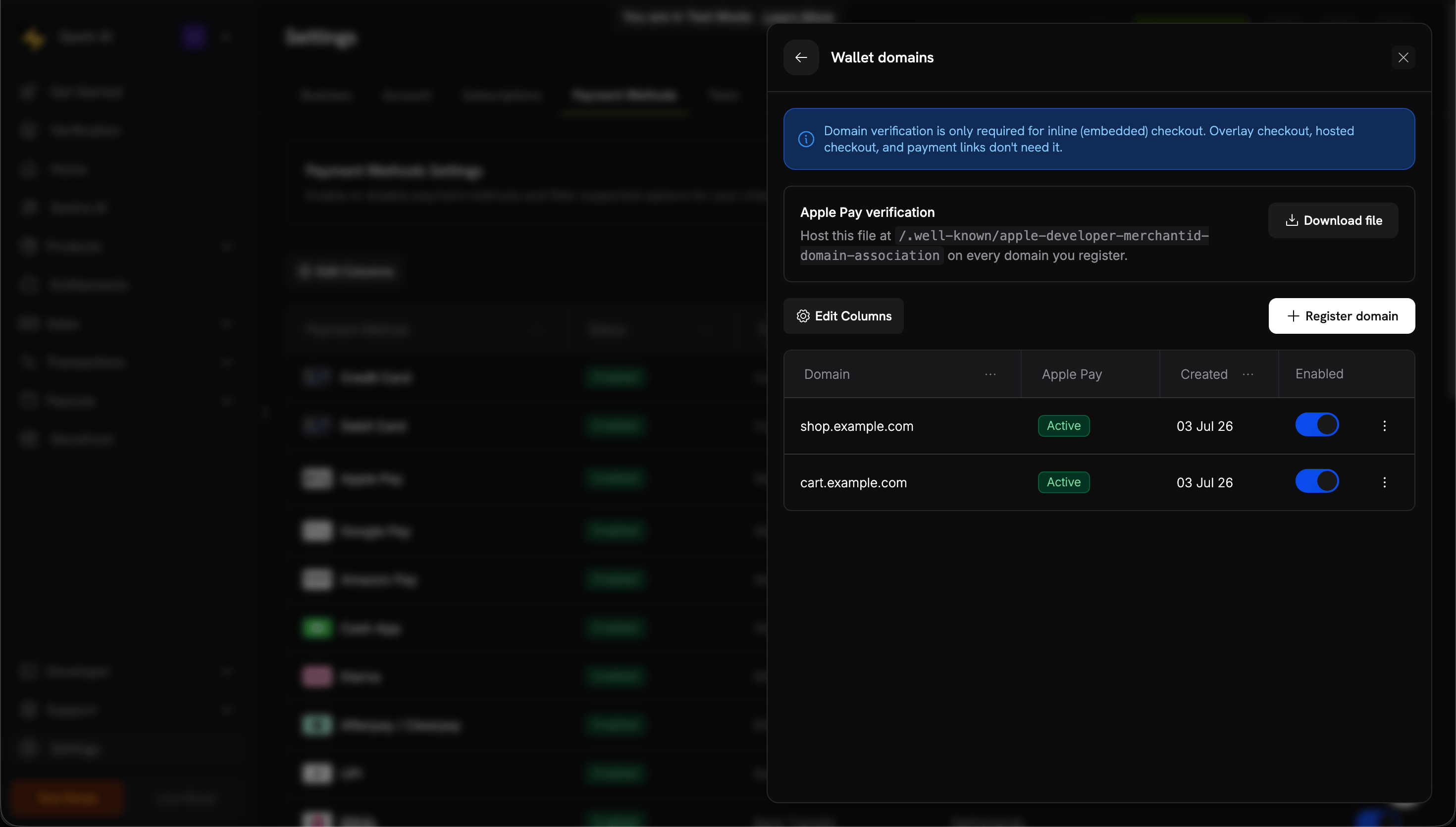
For inline checkout, is the domain verified in Manage domains?
Does the page load over HTTPS?
Is the device on iOS 17, iPadOS 17, or Safari 17 or later?
Does the customer have cards in Apple Wallet?
Is apple_pay included in allowed_payment_method_types?
Is the checkout an overlay? Apple Pay isn’t available in overlay checkout.
Solution: Complete domain verification and serve the page over HTTPS. Test on a real Apple device.
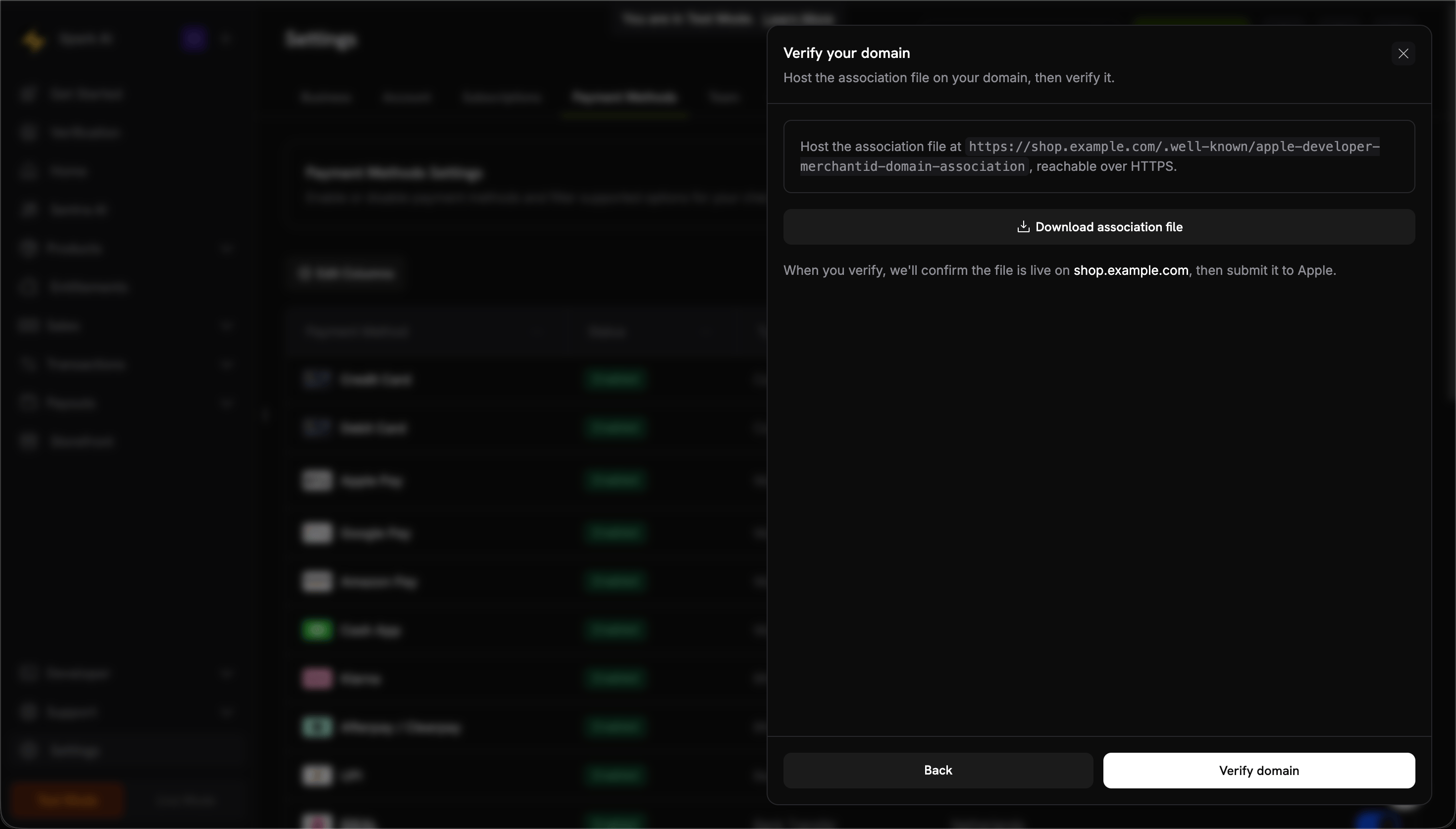
Apple Pay domain stuck on Pending
After you click Verify domain, Dodo Payments fetches the association file from your domain and submits the domain to Apple. A domain that stays on Pending usually has a file that Dodo Payments can’t fetch as expected.Check:
The file is reachable at https://<your-domain>/.well-known/apple-developer-merchantid-domain-association.
It is served over HTTPS with a valid certificate.
It resolves without redirects. A redirect to www, to another host, or to an error page fails the check.
It is served as Content-Type: application/octet-stream or text/plain, not text/html.
It is the file downloaded from Manage domains for this business, not one reused from another account or provider.
To confirm the file is publicly reachable, request the URL from outside your own network, such as in a private browsing window. Staging passwords, authentication walls, and firewall rules often let the request succeed for you but fail for Dodo Payments.Solution: Fix the hosting issue, then click Verify domain again. If the domain doesn’t become Active after a successful check, contact support@dodopayments.com with the domain name.
Google Pay button not appearing
Check:
Is the customer using a supported browser? Google Pay doesn’t appear in Safari or in any browser on iOS.
Does the customer have cards in Google Pay?
Is the Chrome setting Allow sites to check if you have payment methods saved on?
Is google_pay included in allowed_payment_method_types?
Solution: Check the browser and the customer’s Google Pay setup.
Wallet payment failed
Common causes:
The card in the wallet is expired or invalid.
The bank declined the transaction.
A network connection problem interrupted the payment.
Solution: Ask the customer to check the card in their wallet or to use a different payment method.
Wrong device type
Digital wallets appear only on compatible devices:
Apple Pay: Apple devices only.
Google Pay: Chrome or Android devices.
Solution: This is expected. Keep card payments available as a fallback.