

Supported Platforms
Google Analytics 4
Page views and e-commerce tracking with GA4.
Google Tag Manager
Add and manage marketing tags.
Meta Pixel
Track Facebook and Instagram ad conversions.
Getting Started
You need an ID from at least one platform: a Google Analytics 4 Measurement ID, a Google Tag Manager Container ID, or a Meta Pixel ID.1
Open Tracking Integrations
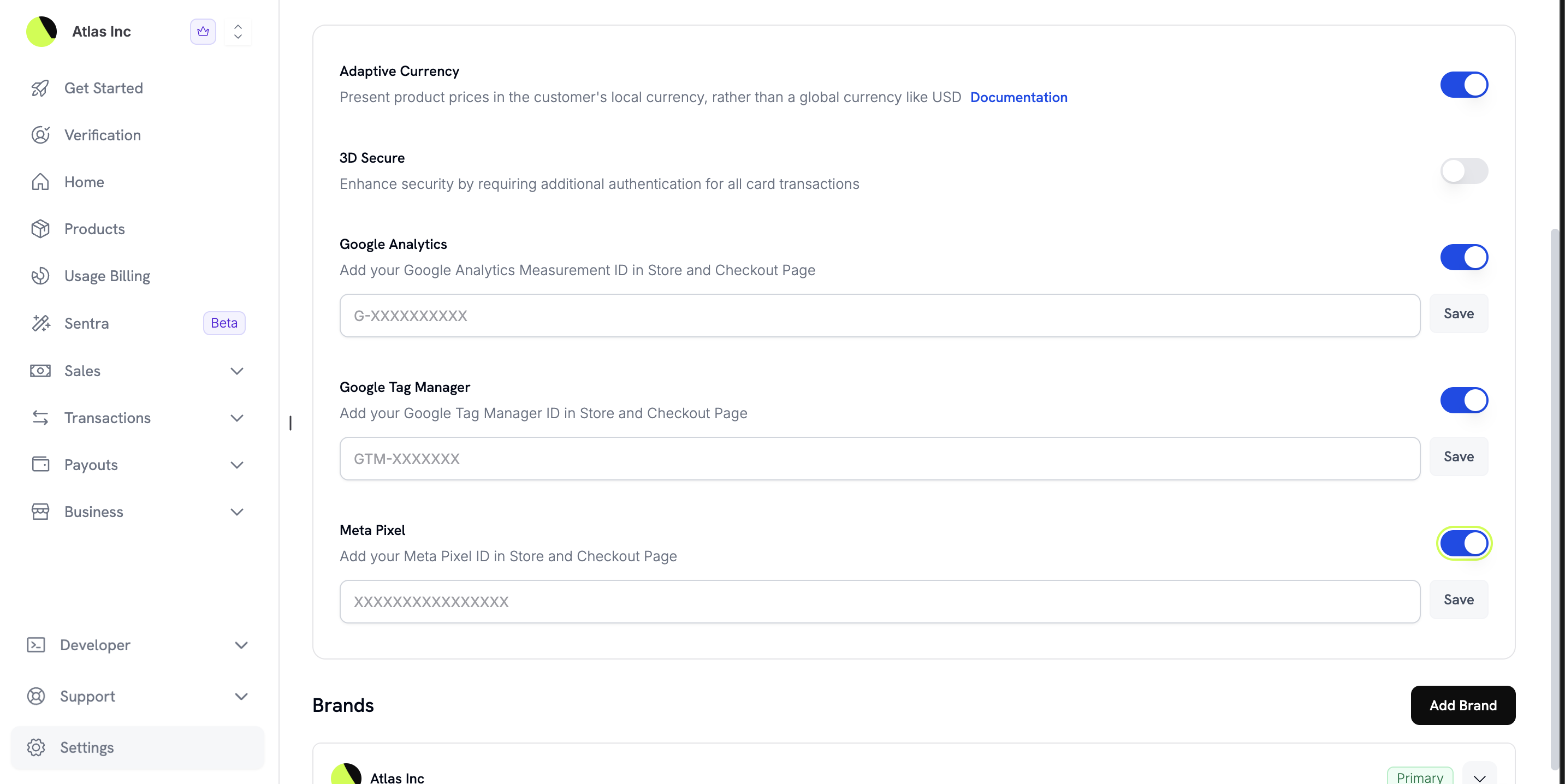
In the Dodo Payments dashboard, go to Settings → Tracking Integrations.
2
Enable Your Tracking Platform
Turn on the toggle for the platform you want to use, then enter its tracking ID:
- Google Analytics: your Measurement ID, which starts with
G-(format:G-XXXXXXXXXX). - Google Tag Manager: your Container ID, which starts with
GTM-(format:GTM-XXXXXXX). - Meta Pixel: your Pixel ID, a number of 10 to 20 digits.
3
Save Your Settings
Click Save next to the ID. To change a saved ID, click Edit. To stop tracking, turn the toggle off, which removes the ID.
4
Verify Tracking
Open your storefront or a test checkout, then confirm that the events arrive in your analytics dashboard.
Google Analytics 4
Google Analytics 4 reports web traffic and e-commerce activity. With your Measurement ID added, it records the customer journey from browsing your store to completing a purchase.Add Your Google Analytics Measurement ID
- In Google Analytics, go to Admin → Data Streams and select your web stream.
- Copy the Measurement ID, which starts with
G-. - In the Dodo Payments dashboard, go to Settings → Tracking Integrations.
- Turn on Google Analytics and paste your Measurement ID.
- Click Save.
Events Tracked in Google Analytics
Dodo Payments sends these events from your hosted storefront and checkout pages. Events carry product details, amounts, and currency where they apply.Storefront Events
Checkout Events
apply_discount and remove_discount are custom events. They aren’t part of the standard Google Analytics e-commerce events.Using GA4 with Overlay/Inline Checkout
To track Google Analytics events in overlay or inline checkout on your own website, install the Google Analytics tracking code on the page where you embed checkout. The embedded checkout then sends the checkout events listed above to your Google Analytics property. No other configuration is needed.Google Tag Manager
Google Tag Manager manages marketing and analytics tags without code changes. Dodo Payments loads your GTM container on your storefront, checkout, and Customer Portal pages, so the tags you publish in the container fire there. The payment status page, which reports thepurchase event, doesn’t load your GTM container.
Add Your GTM Container ID
- In Google Tag Manager, copy your Container ID, which starts with
GTM-. - In the Dodo Payments dashboard, go to Settings → Tracking Integrations.
- Turn on Google Tag Manager and paste your Container ID.
- Click Save.
You can add more tracking in your GTM container, such as Google Ads conversions. Dodo Payments injects both the GTM script and its
noscript fallback.Using GTM with Overlay/Inline Checkout
For overlay or inline checkout embedded on your website, install GTM on your own site. The embedded checkout loads the Container ID saved in your dashboard and fires its events inside the checkout frame.Meta Pixel
Meta Pixel tracks customer actions on your store, so you can measure your Facebook and Instagram ad campaigns from ad click to completed purchase.Add Your Meta Pixel ID
- In Meta Events Manager, create or select your Pixel.
- Copy the Pixel ID, a number that is typically 15 or 16 digits long.
- In the Dodo Payments dashboard, go to Settings → Tracking Integrations.
- Turn on Meta Pixel and paste your Pixel ID.
- Click Save.
Events Tracked with Meta Pixel
These events appear in your Meta Events Manager. Events carry content IDs, values, and currency where they apply.Events can take several minutes to appear in Meta Events Manager.
Storefront Events
Checkout Events
ApplyDiscount and RemoveDiscount are custom events. They aren’t part of Meta’s standard events.Complete Events Reference
This table maps each trigger to its Google Analytics 4 and Meta Pixel events:Platform Coverage
Tracking support differs by Dodo Payments surface:*For overlay and inline checkout, install the tracking code on your own website for full attribution. The embedded checkout tracks its own events automatically.
Event Data Included
Each event carries the e-commerce data you need to analyze customer behavior. Amounts are in major currency units, for example10.5 for $10.50.
Product Data
- Product ID
- Product name
- Price
- Currency
- Quantity
Transaction Data (Purchase Events)
- Payment ID, sent as the transaction ID
- Total amount
- Tax amount
- Currency
ApplyDiscount and RemoveDiscount events.
Customer Data
Events don’t include customer data. Dodo Payments sends no customer ID and no email address to Google Analytics, Google Tag Manager, or Meta Pixel.Best Practices
Test Your Integration
Test Your Integration
After you add your tracking IDs, open your storefront and complete a test checkout, then confirm that the events appear in your analytics dashboards. Use the Google Analytics Realtime report or the Test Events tool in Meta Events Manager.
Use UTM Parameters
Use UTM Parameters
Add UTM parameters to your marketing links to see which campaigns drive conversions.
Set Up Conversion Goals
Set Up Conversion Goals
In Google Analytics, create a conversion event for
purchase to track your conversion rate. In Meta Ads Manager, use the Purchase event as the optimization goal for your campaigns.Enable Enhanced E-commerce
Enable Enhanced E-commerce
If you use Google Tag Manager, consider setting up Enhanced E-commerce reports for funnel analysis and product performance metrics.
Troubleshooting
Events not appearing in Google Analytics
Events not appearing in Google Analytics
- Check that your Measurement ID is correct (format:
G-XXXXXXXXXX). - Check the Google Analytics Realtime report, where events appear first.
- Confirm that the Google Analytics toggle is on in Settings → Tracking Integrations.
- Wait a few minutes, because Google Analytics can take time to process events.
- Test in a private browser window to rule out ad blockers.
Events not appearing in Meta Events Manager
Events not appearing in Meta Events Manager
- Check that your Pixel ID is correct: a number of 10 to 20 digits.
- Debug with the Meta Pixel Helper browser extension.
- Check the Test Events tab in Events Manager.
- Wait several minutes, because events can take that long to appear.
- Turn off ad blockers while you test.
Overlay/Inline checkout not tracking
Overlay/Inline checkout not tracking
- Install the tracking code on your own website first.
- Make sure the tracking code loads before the checkout overlay opens.
- Check the browser console for JavaScript errors.
- If you use GA4, check that cross-domain tracking is configured.
Purchase events showing wrong amounts
Purchase events showing wrong amounts
- Amounts are sent in major currency units, for example
10.5for $10.50, not in the smallest currency unit. - Check that your analytics tool displays the correct currency.
- Check whether tax is included or excluded as you expect. The
purchaseevent reports tax in its owntaxfield.
Related Resources
Segment Integration
Send payment events to Segment for analytics and customer data platform workflows.

Dub Integration
Track sale conversions and affiliate attribution with Dub.
Customer.io Integration
Trigger automated email campaigns from payment events.
Webhooks
Build custom analytics integrations with webhook events.