

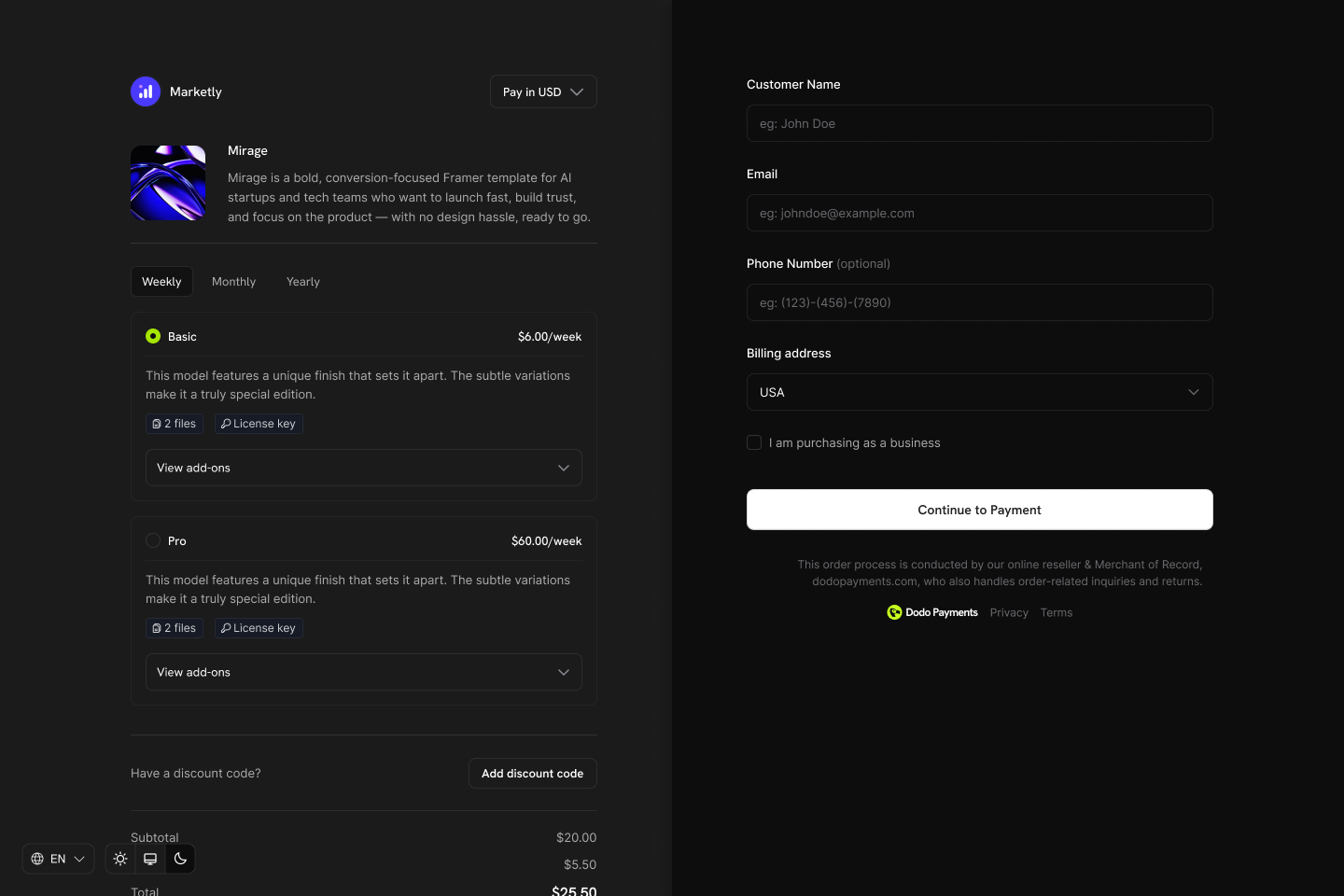
Product Collections group related products (e.g., Starter, Pro, Enterprise plans) under one umbrella. Display all options in a single checkout, define upgrade/downgrade paths, and let customers switch plans directly from the Customer Portal.
Key Highlights
Product Collections let you:- Group related products (plans, tiers, pricing options) for organized management.
- Include multiple products, such as Starter, Pro, and Lifetime, each with its own pricing model.
- Display all products in one checkout view, so customers compare and choose their preferred plan.
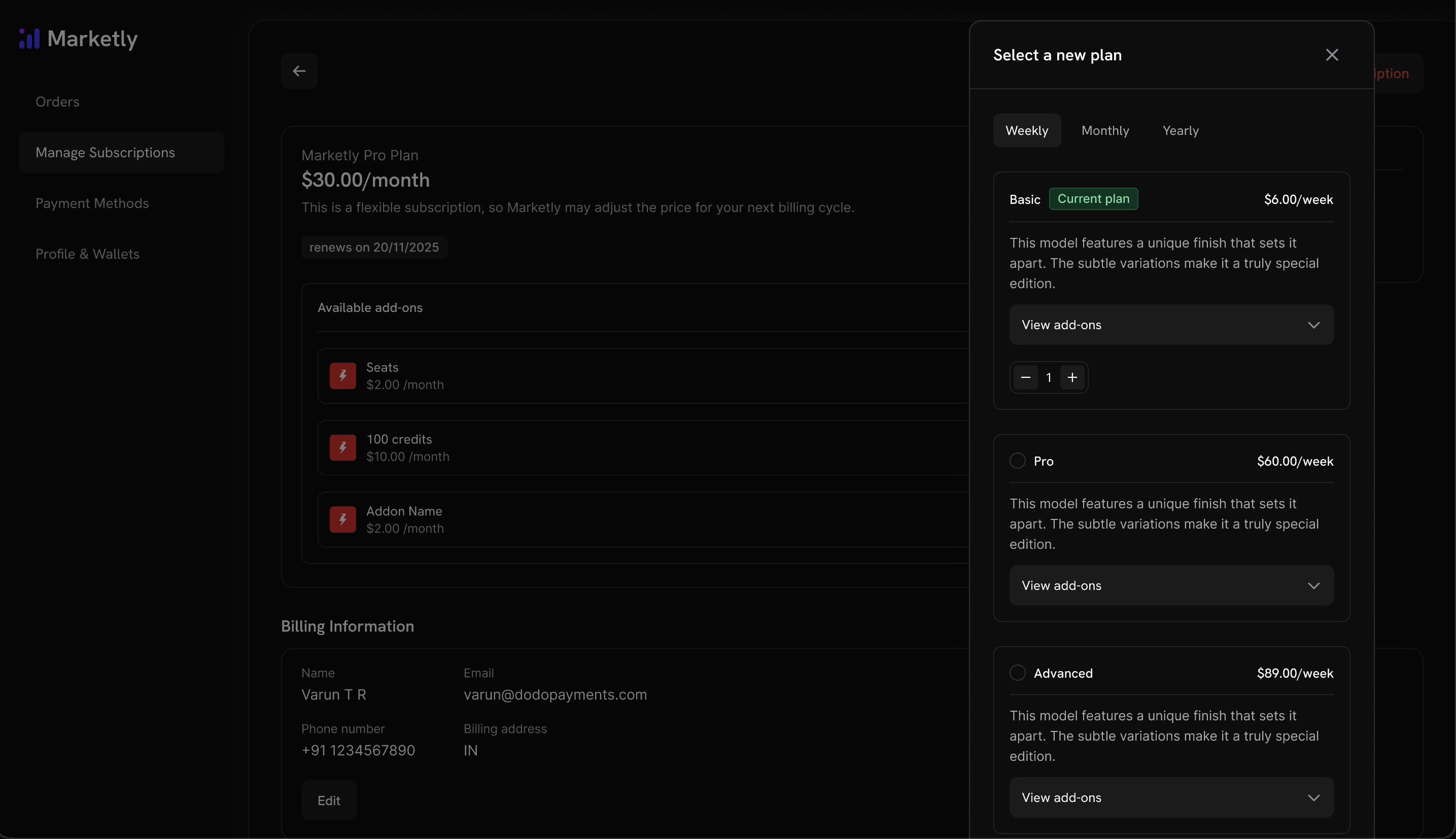
- Enable customers to upgrade or downgrade between products in the same collection via the Customer Portal.
- Control which products are visible, in what order, and which is pre-selected at checkout.
Creating a Product Collection
Create and manage collections from the dashboard or via API.1
Create the collection
Define the collection with a name and optional description. Upload an image to represent it in checkout.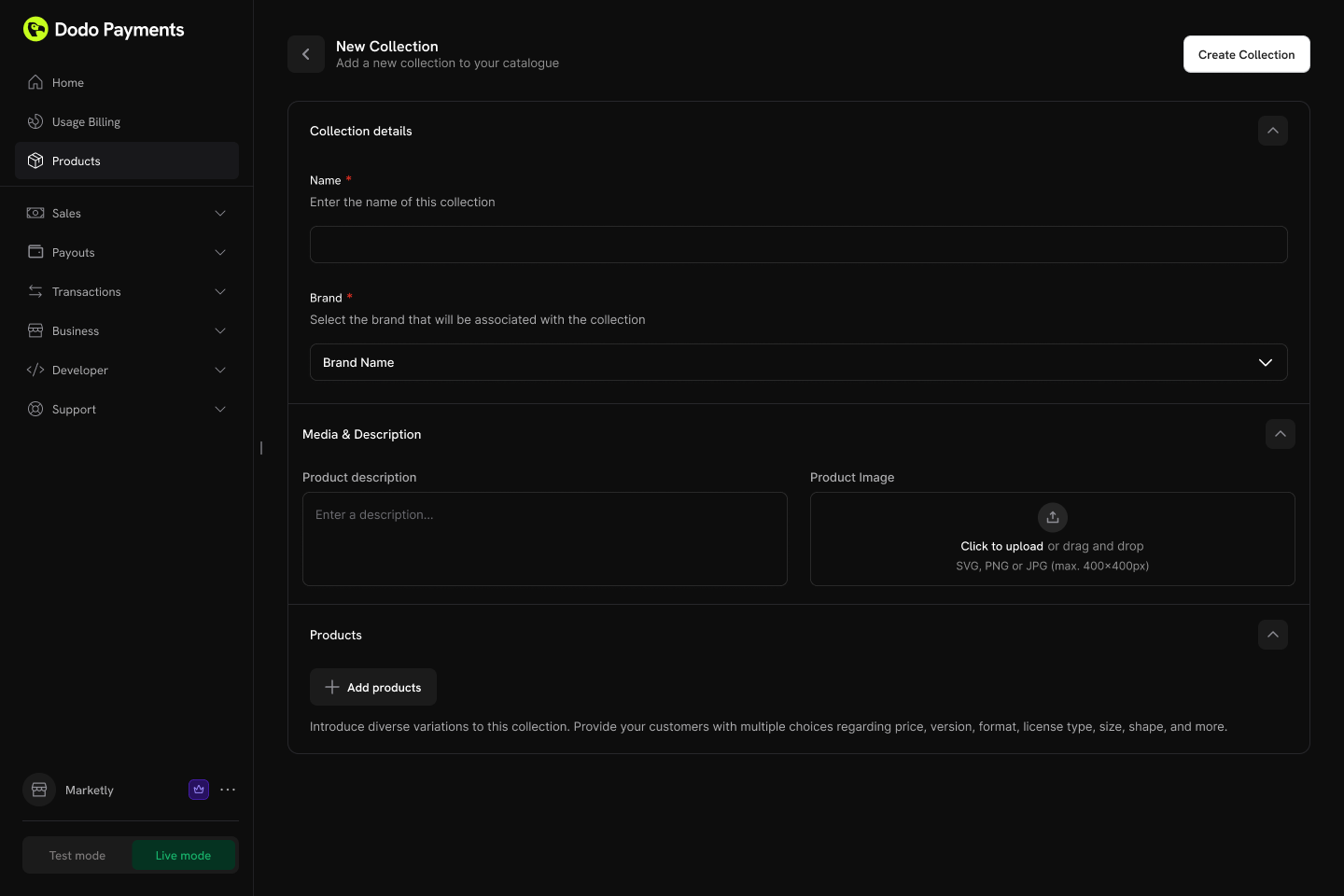
- Name (required): Display name (e.g., “SaaS Plans”, “License Tiers”).
- Description (optional): Brief explanation shown in checkout.
- Image (optional): Visual branding for the collection.
2
Add products to the collection
Add existing products to your collection. Organize them into groups for better structure.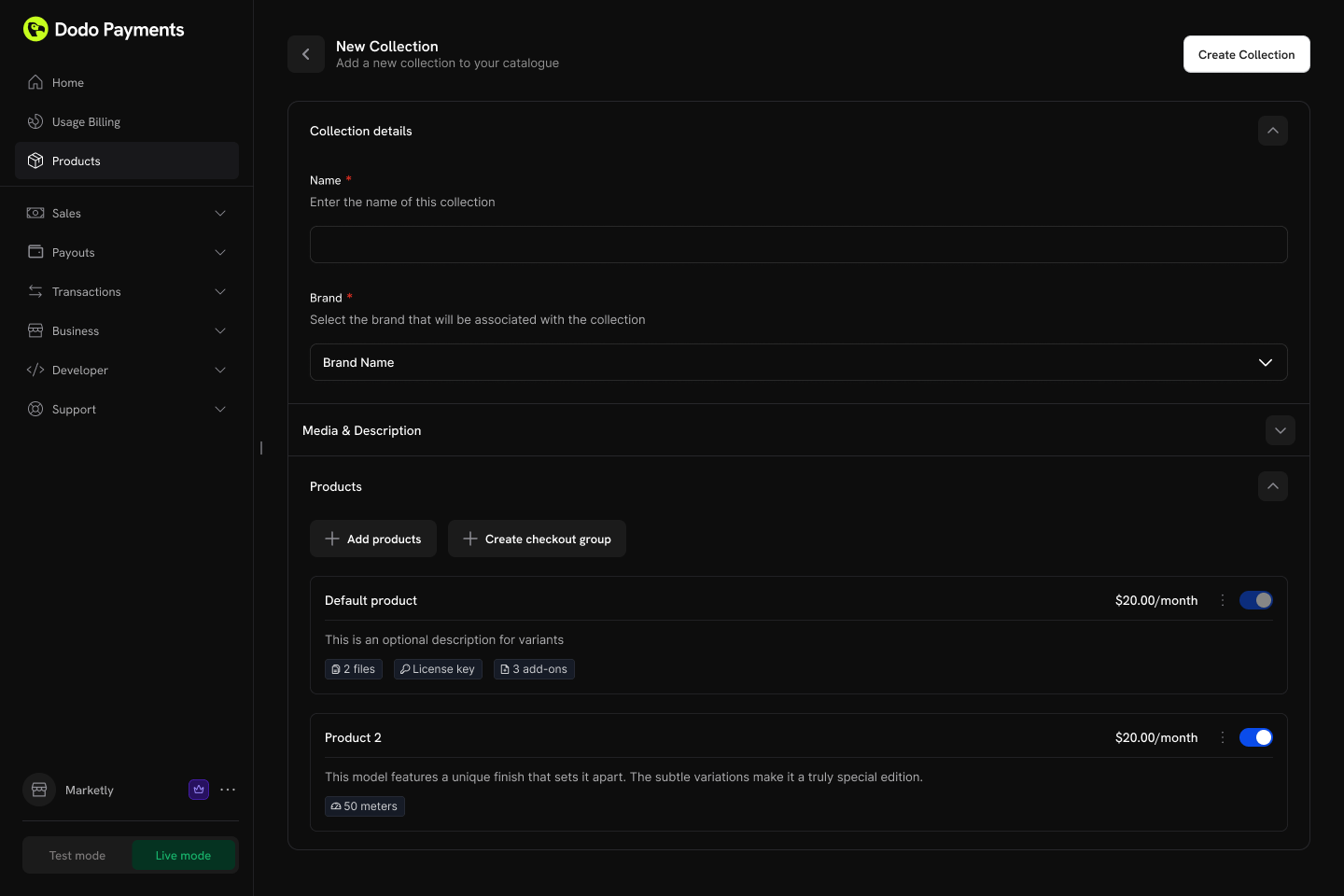
- Groups: Optionally organize products into named groups (e.g., “Monthly Plans”, “Annual Plans”).
- Ungrouped products: Products without a group appear at the collection level.
- Ordering: Drag and drop to set the display order.
3
Configure ordering and visibility
Control the display order and visibility of products within the collection.Configuration options:
- Product status: Enable or disable individual products within the collection.
- Display order: Drag and drop to set the sequence products appear in checkout.
The first product in the collection is automatically pre-selected at checkout. Reorder products to change which one is selected by default.
Collection Checkout
Collections enable a unified checkout experience where customers view and select from all available products in one place.Checkout Types
Collection Checkout Experience
When using a collection checkout:- All active products in the collection are displayed.
- The first product in the collection order is automatically pre-selected.
- Each product shows its name, description, and pricing.
- The customer selects one product to purchase.
- Checkout proceeds with the chosen product’s pricing and billing settings.
API Integration
Create a checkout session for a collection:Customer Portal Integration
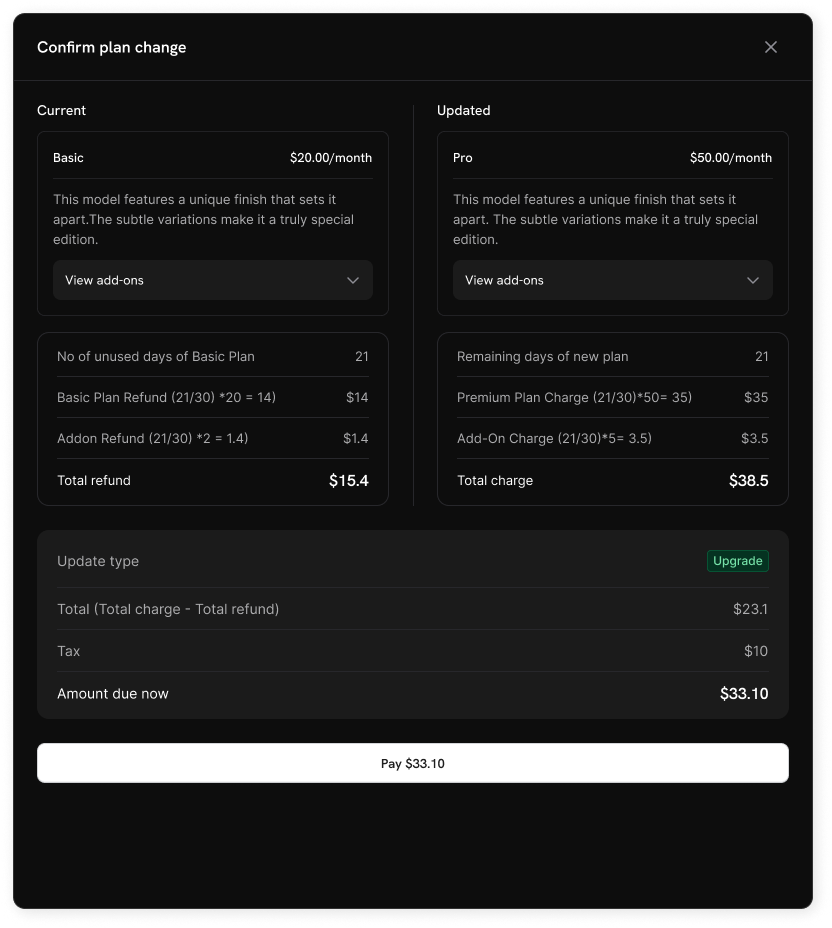
Customers can upgrade or downgrade between products within the same collection directly from the Customer Portal.Plan Management Actions
Upgrade/Downgrade Rules
- Upgrades and downgrades are only available between products within the same collection.
- Proration for Customer Portal plan changes follows the default upgrade and downgrade behavior in Settings → Subscriptions, and each collection can override those defaults. Plan changes made through the Change Plan API use the
proration_billing_modesent with the request. - Email notifications are sent to the business on every upgrade, downgrade, or cancellation.
Customers cannot change to products outside their current collection. Create separate collections for distinct product lines.
Subscription Settings
Configure how subscriptions and plan changes work across your business from Settings → Subscriptions in your dashboard.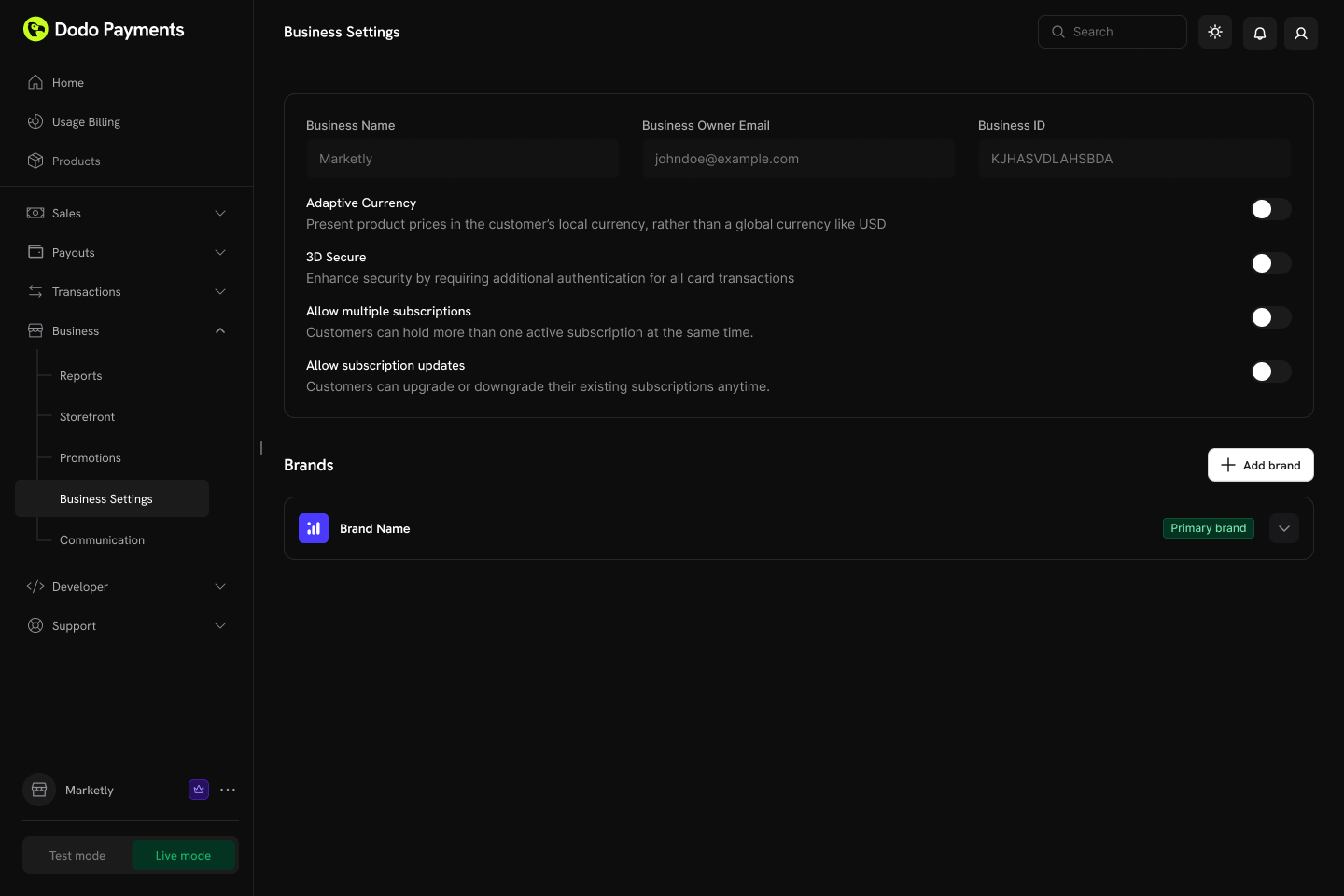
Available Settings
Plan changes via Customer Portal are disabled by default. Enable “Allow Subscription Updates” in Settings → Subscriptions to let customers upgrade or downgrade between products in the same collection.
The two cancellation settings are independent, so you can let customers see out the period they have already paid for while keeping instant cancellation to yourself, or the reverse. Turning one off hides that option in the Customer Portal and rejects requests for it through the Customer Portal API. Your own merchant-side cancellations are unaffected. See Cancelling a Subscription.
“Allow Subscription Pause” governs the Customer Portal only — you can pause and resume from the dashboard or the API whichever way it is set. “Bill Usage at Pause” applies to usage-based subscriptions only, and is recorded per billing cycle, so changing it mid-cycle does not change how the cycle in progress settles. See Pausing and Resuming Subscriptions.
For details on how trial redemptions are matched and recorded, see Preventing Trial Misuse.
“Payment Method Reminder” only matters for subscriptions with Card-Optional at Zero Price enabled — it has no effect on subscriptions that already require a card. See What Happens Without a Card for the full sequence, including what happens if the reminder is ignored.
Subscription Plan Changes
Managing Collections
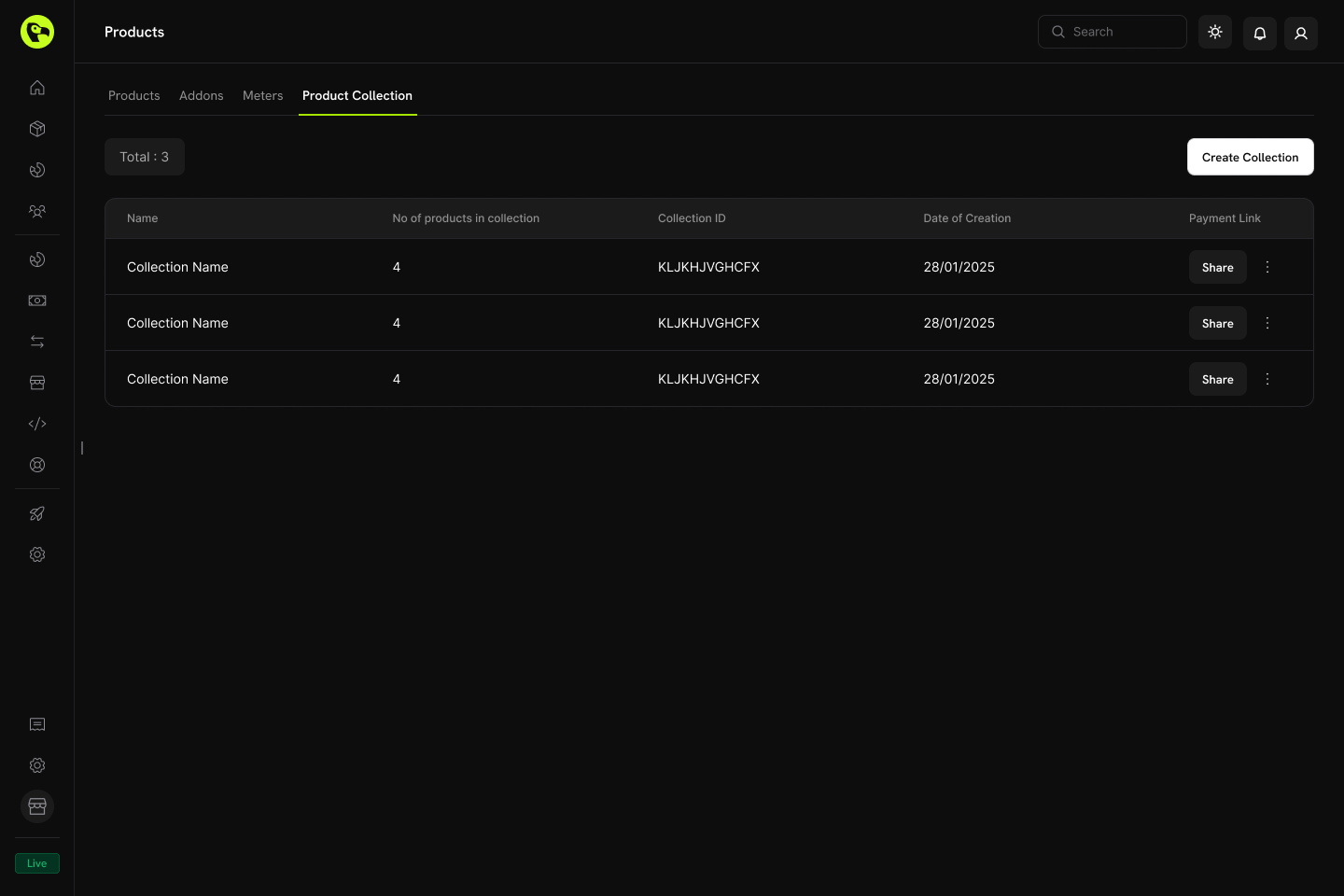
Manage collections through the dashboard or programmatically via API.Dashboard Operations
- Create: Set up new collections with products and groups.
- Update: Modify name, description, image, and product organization.
- Reorder: Drag and drop to change product display order.
- Enable/Disable products: Control which products appear in checkout.
- Archive: Hide a collection without permanently deleting it (can be unarchived later).
API Management
Use the following endpoints to create, update, retrieve, archive, and organize product collections programmatically, including managing nested groups and products.Listing Product Collections
Listing Product Collections
Fetch all product collections associated with your account using a
GET request to the /product-collections endpoint. Supports pagination, filtering by brand, and including archived collections.List Product Collections API
Creating a Product Collection
Creating a Product Collection
Create a new product collection by sending a
POST request to the /product-collections endpoint with the required name and groups of products, plus optional details such as description and brand.Create Product Collection API
Retrieving a Product Collection
Retrieving a Product Collection
Get detailed information about a specific product collection — including its groups and product items — using a
GET request to the /product-collections/{id} endpoint.Get Product Collection API
Updating a Product Collection
Updating a Product Collection
Modify a product collection’s details (name, description, brand, etc.) by sending a
PATCH request to the /product-collections/{id} endpoint.Update Product Collection API
Uploading Collection Images
Uploading Collection Images
Associate an image with a collection by uploading it via a pre-signed URL. Request an upload URL from the
/product-collections/{id}/images endpoint, then PUT the image to the returned URL within 60 seconds.Update Collection Images API
Archiving a Product Collection
Archiving a Product Collection
Archive a collection by sending a
DELETE request to the /product-collections/{id} endpoint. This hides the collection from new use but does not permanently remove it.Archive Product Collection API
Unarchiving a Product Collection
Unarchiving a Product Collection
Restore an archived collection by sending a
POST request to the /product-collections/{id}/unarchive endpoint.Unarchive Product Collection API
Managing Groups within a Collection
Managing Groups within a Collection
Groups let you organize products inside a collection (for example, “Monthly Plans” vs. “Annual Plans”). Use the groups endpoints to add, update, or remove groups within a collection.
- Create a group:
POST /product-collections/{id}/groups - Update a group:
PATCH /product-collections/{id}/groups/{group_id}. To clear a group’s name, sendgroup_name: null. A collection can have only one group without a name, so the API returns422if another group in the collection already has no name. - Delete a group:
DELETE /product-collections/{id}/groups/{group_id}
Create Group
Update Group
Delete Group
Managing Products within a Group
Managing Products within a Group
Manage the individual product items inside a group — add new products, update existing items (such as display order), or remove them entirely.
- Add products to a group:
POST /product-collections/{id}/groups/{group_id}/items - Update a group item:
PATCH /product-collections/{id}/groups/{group_id}/items/{item_id} - Delete a group item:
DELETE /product-collections/{id}/groups/{group_id}/items/{item_id}
Add Products to Group
Update Group Item
Delete Group Item
Best Practices
- Group logically: Organize products by billing interval (monthly/annual) or feature tier (starter/pro/enterprise).
- Order strategically: Place your most popular or recommended plan first, as it will be pre-selected at checkout.
- Use clear naming: Product names should clearly communicate value differences.
- Enable both directions: Allow both upgrades and downgrades to give customers flexibility.
- Consider proration: Choose a proration mode that aligns with your business model.
- Test thoroughly: Verify checkout and plan change flows in test mode before going live.