


How to Add a Teammate?
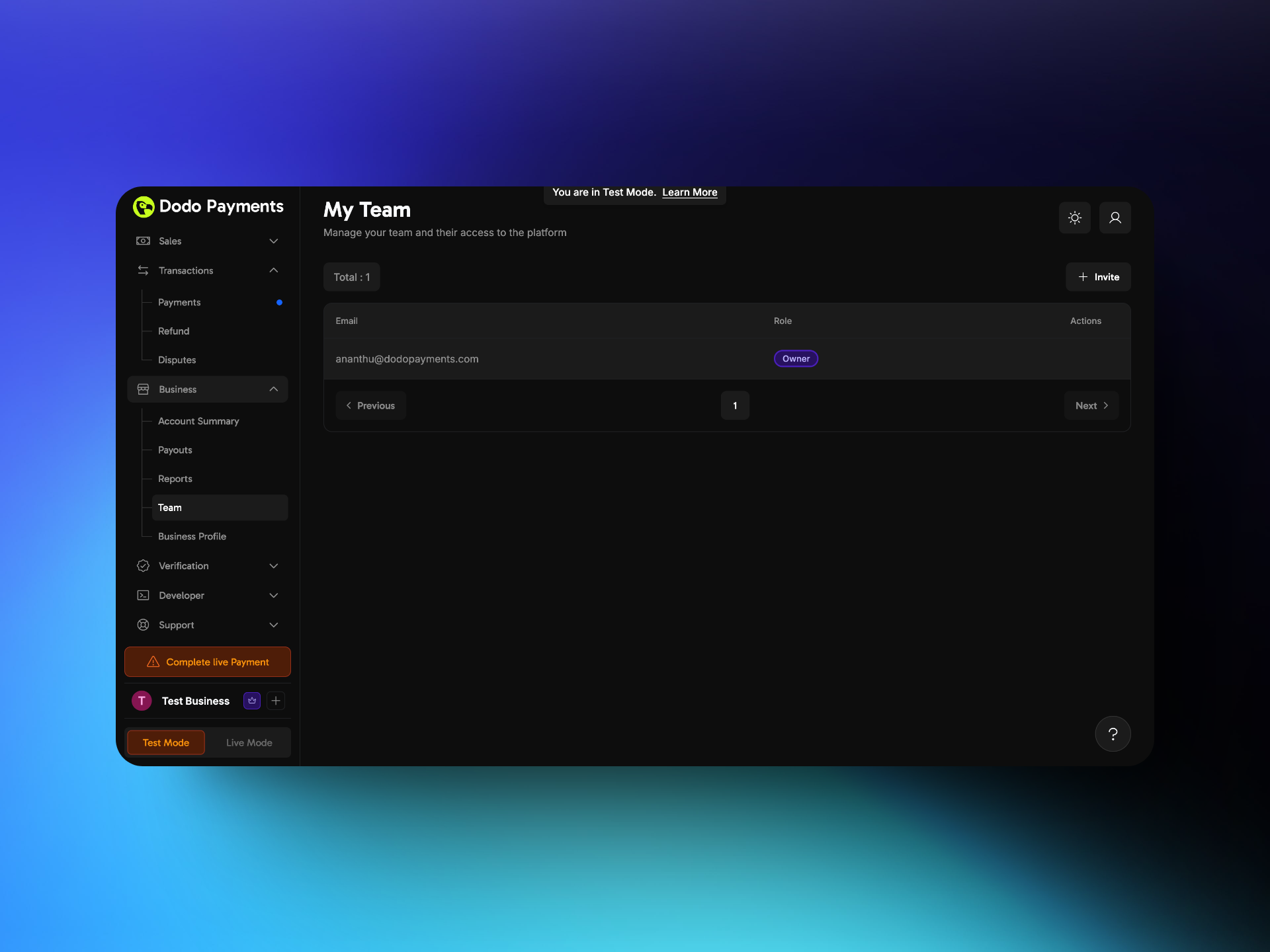
- Go to Settings → Team.
- Click Invite Member in the top-right corner.
- Enter the email address of each teammate. Press space, comma, or Enter after each address to add another, or paste a list.
- Select one role for everyone in this invite. To give teammates different roles, send separate invites.
- Click Send Invite.
How Can a Teammate Access the Dashboard?
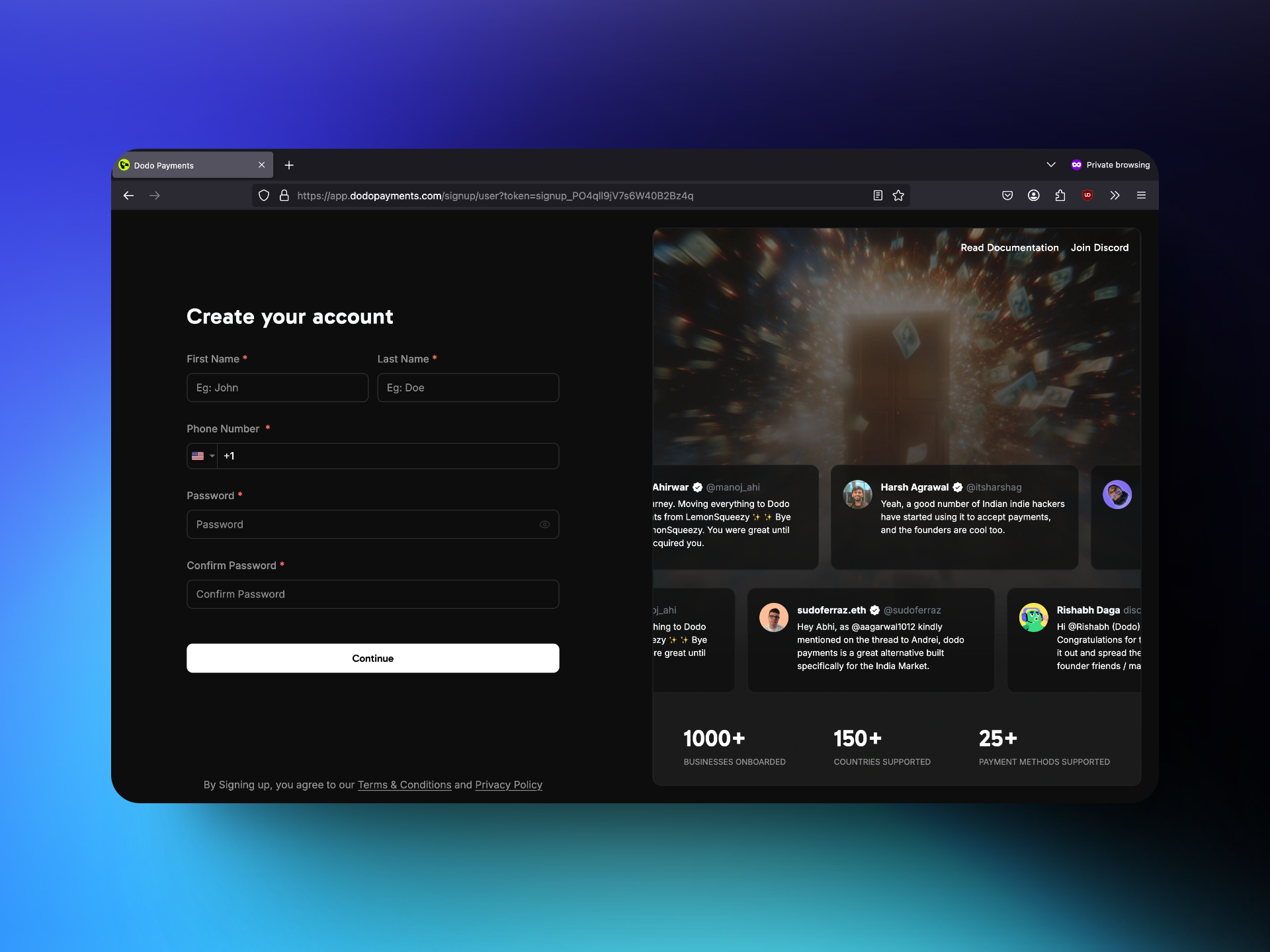
- The teammate opens the invitation email and clicks the link.
- A teammate without a Dodo Payments account goes to the signup page and creates one. A teammate who already has an account opens the business from the business switcher at the top of the sidebar.
- After signup, the teammate can use the dashboard with the assigned role. Pages and actions outside the role are hidden, or show that the teammate doesn’t have access.
Roles and Permissions
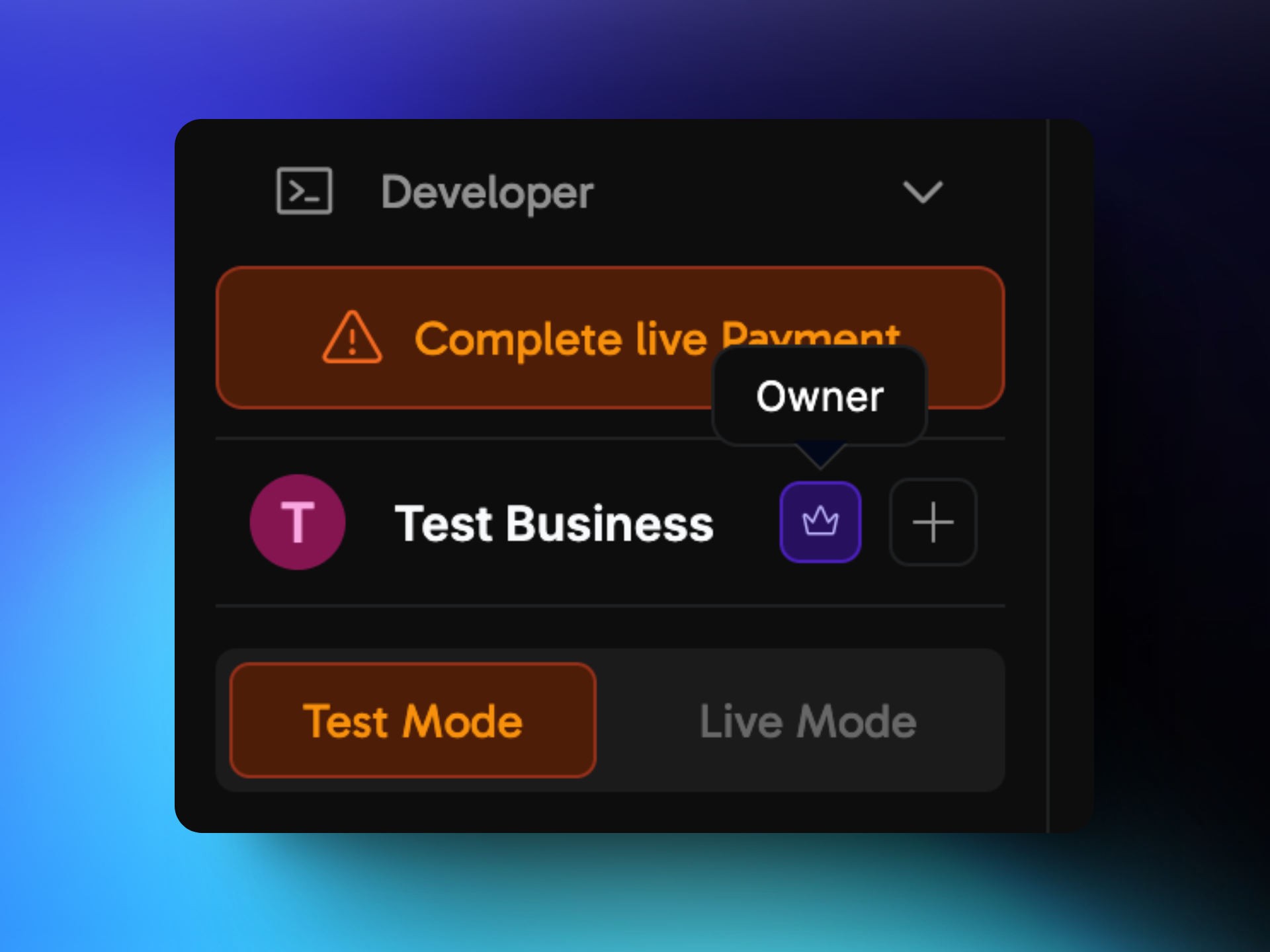
Owner
The Owner has full control of the business. Each business has exactly one Owner. Only the Owner can change a member’s role, and the Owner can’t be removed from the team. To make another teammate the Owner, see Transferring Business Ownership.Predefined Roles
Teammates who joined with the earlier Editor or Viewer roles keep them. Editor has access to everything, and Viewer has read-only access.
Custom Roles
To give a teammate a different mix of access, create a custom role:- On the Team page, click Manage Roles.
- Click Create Custom Role.
- Enter a Role Name, such as Billing Manager.
- Set None, Read, or Write for each resource. Grant access to at least one resource.
- Click Create Role.