

What Is Purchasing Power Parity?
The same price is not equally affordable everywhere. $20 is a small purchase in the United States and a large one in the Philippines. PPP pricing corrects for that difference. Dodo Payments keeps one percentage for each country. The percentage is the share of your list price the customer pays. India is 30, so a customer in India pays 30% of the price. The United States is 100, so nothing changes there. You turn PPP on for each product price you want it to apply to. Products you do not opt in keep their normal price everywhere.PPP requires Adaptive Currency. Turn on Adaptive Currency first.
Key Benefits
- Reach price-sensitive markets — Sell at a local price without lowering your home price.
- No banner and no script — The price is correct at checkout. Nothing is added to your website.
- No discount codes to manage — Nothing to create, rotate, or revoke.
- Per-product control — Opt in a starter plan and leave an enterprise plan alone.
- Works everywhere — One-time, subscription, and usage-based products.
Enable Purchasing Power Parity
1
Enable Adaptive Currency
Go to Settings → Business. In Business Settings, turn on Adaptive Currency. PPP does nothing without it.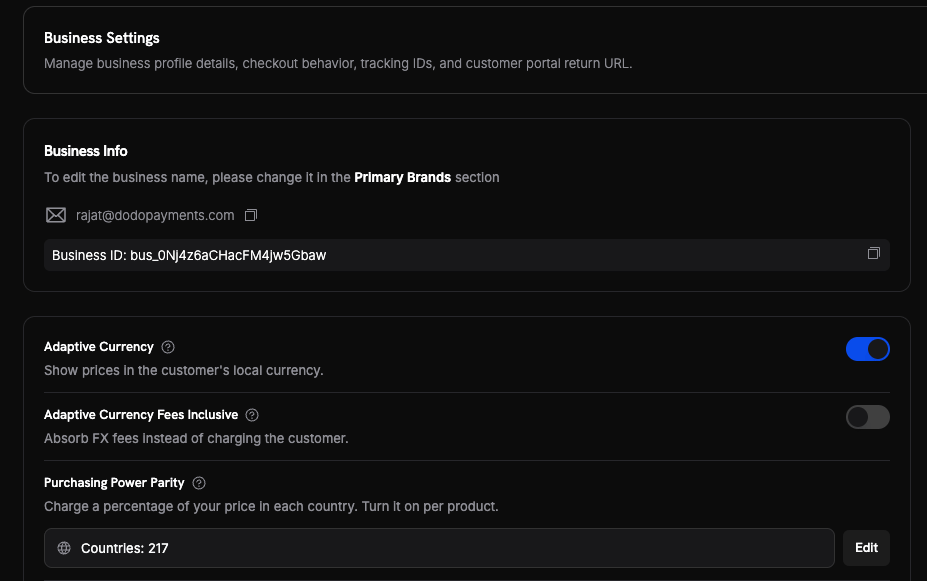
2
Review your country percentages
Under Purchasing Power Parity, click Edit to open Country Prices. Change the percentage for any country, then click Save Changes.Set Example product price to see what each country pays. The Your Price column updates as you type. Use the search box to find a country by name or code.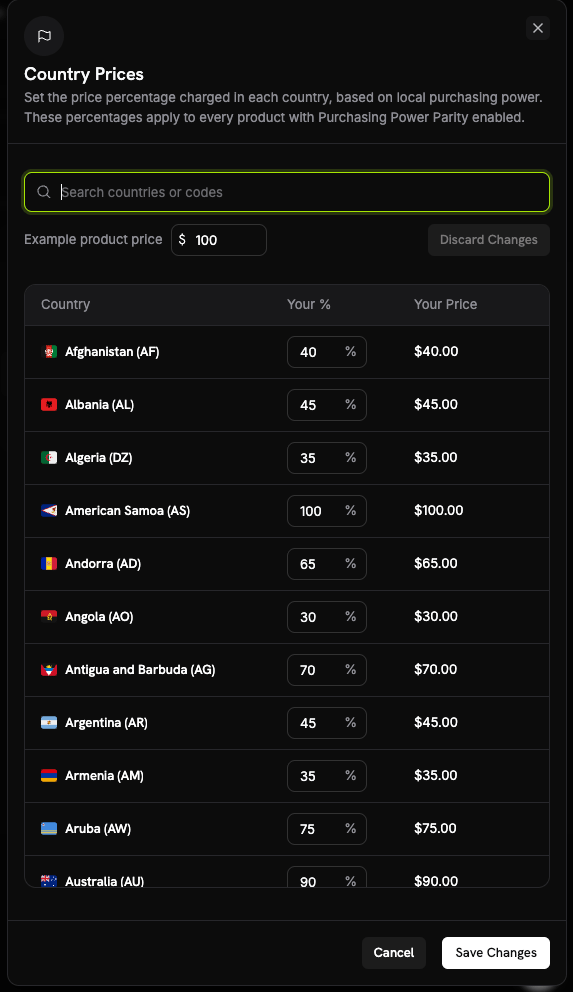
These percentages are business-wide. Every product with Purchasing Power Parity enabled uses them.
3
Turn PPP on for a product
Open the product. In the Pricing section, tick Purchasing Power Parity, then save the product.Products you do not tick keep their normal price everywhere.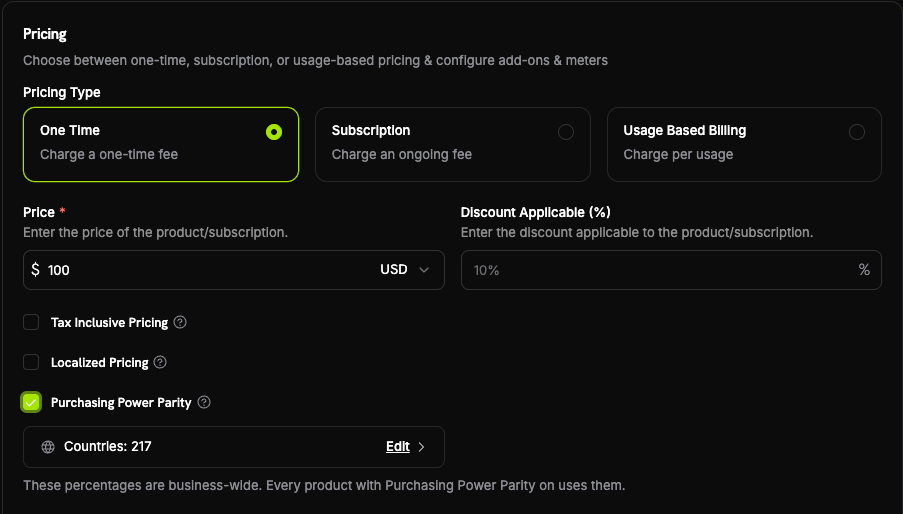
4
Confirm at checkout
Open a test checkout with a billing country that has a percentage below 100. Confirm the reduced price appears.
How the Price Is Calculated
The country percentage multiplies your list price:Dodo Payments reads the country from the customer’s billing country at checkout.
Country Percentages
Each country has one percentage between 30 and 100:- 100 means the customer pays your full price. There is no reduction.
- 30 is the lowest value you can set. The largest reduction is therefore 70%.
The full list covers 217 countries. Open the country table in your dashboard to see every value.
Enable via API
PPP is enabled per product, with thepurchasing_power_parity field. The default is false.
Country percentages are managed in the dashboard only. They are not part of the public API.
API Reference
See the full product create and update endpoints.
Important Behaviors
Best Practices
- Opt in one product first. Confirm the checkout price before you opt in your catalogue.
- Watch the discount stack. A discount code applies on top of the PPP price. A 30% country plus a 20% code leaves 24% of your list price.
- Leave enterprise plans out. A negotiated plan rarely needs a country adjustment.
- Set your own values where it matters. The default numbers are a starting point, not a rule.
- Check the effect on subscriptions. A subscriber who signs up at the reduced price renews at that price.
Related
Adaptive Currency
Required for PPP. Converts the reduced price to the customer’s currency.
Charm Pricing
Round the converted price to a clean ending such as 49.99. Runs after PPP.
Localized Pricing
Set an exact price per country or currency. Overrides PPP.
Discount Codes
Percentage and fixed-amount codes. They apply on top of the PPP price.