

Checkout Sessions API
Create checkout sessions with
feature_flags.single_page.Checkout Features
Currency, tax, discount codes, and address options for every checkout.
Overlay Checkout
Open checkout in a modal on your site.
Inline Checkout
Embed checkout directly in your page.
Why Use Single Page Checkout
Each extra step and field between opening checkout and paying is a point where a customer can leave. Single page checkout removes the steps and fields that the two-page checkout adds before payment:- No second page. The two-page checkout collects details on page one, then loads a separate payment page after Continue to Payment. Single page checkout shows the payment form when the page opens, so the customer pays with no extra click and no second page load.
- Fewer fields before payment. The contact block asks only for the email, and for the phone number only when you require it. Because
minimal_addressis on by default, billing information asks for the full name, the country, and the ZIP code only where tax needs it. - Apple Pay and Google Pay first. The wallet buttons sit at the top of the page. A customer with a card saved in their wallet pays without typing card details, and the checkout takes the email from the wallet when the field is empty.
- The final price before paying. Tax, discounts, and currency changes update the total on the same page, so the customer sees the amount they pay before they press Pay Now, not on a later page.
- No charge for a total the customer did not see. The customer pays the total that the page or the wallet sheet showed. If the total changes before the charge, the payment stops and the page shows the new total.
How It Works
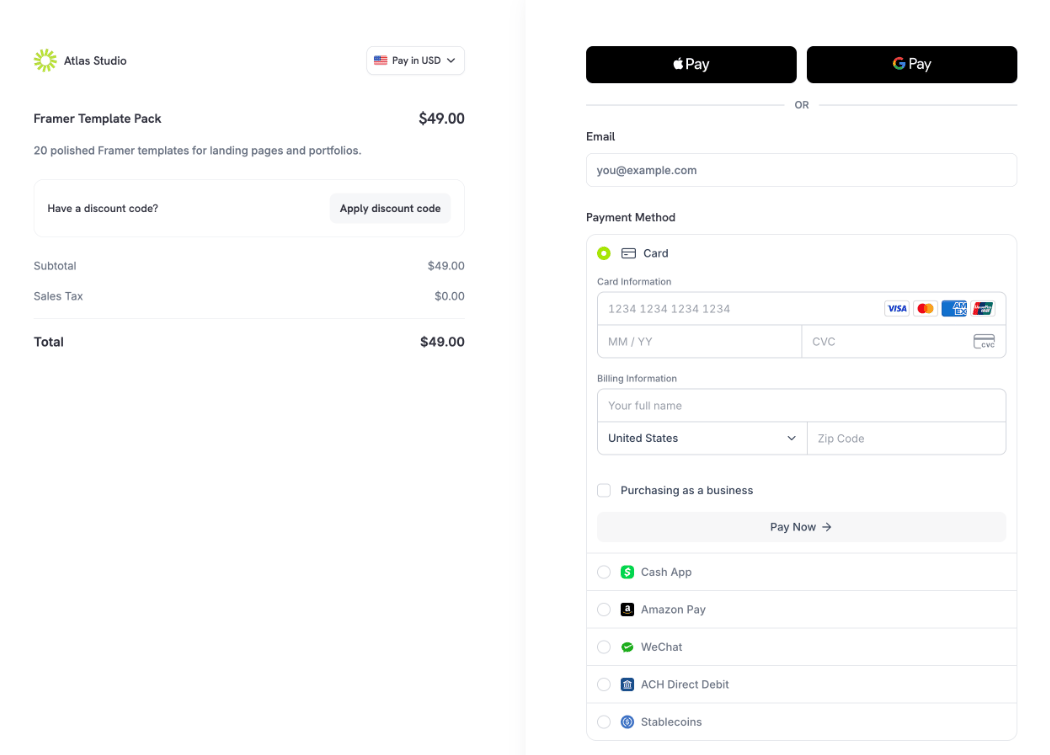
The hosted page keeps the same two-column layout as the standard checkout. The left column shows the order summary: your brand, the product, the discount code field, the subtotal, tax, and total, and the currency selector. The right column holds everything the customer fills in, followed by the page footer, from top to bottom:- Apple Pay and Google Pay: the wallet buttons the customer’s device supports, with an OR line under them. See Apple Pay and Google Pay for when they move into the payment method list.
- Email: the customer’s email address. When you set
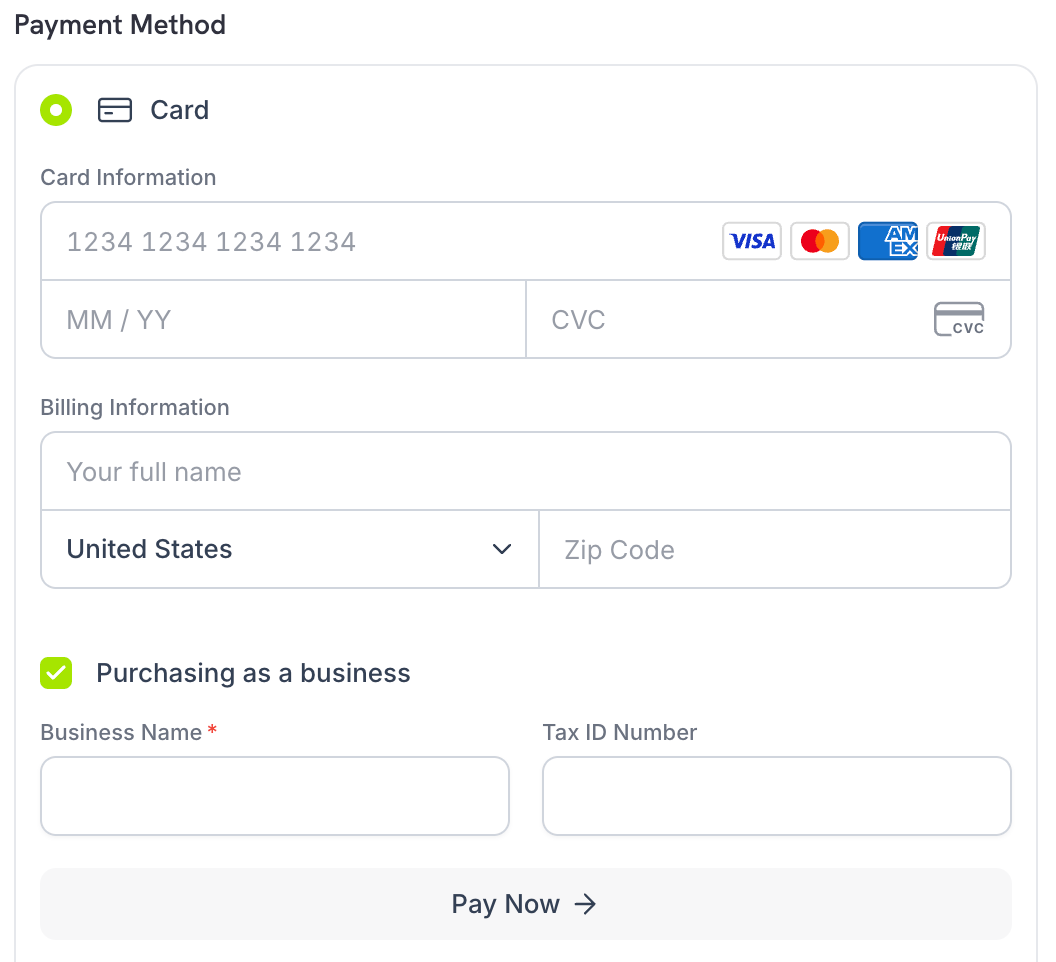
require_phone_number, this block is titled Contact Information and also asks for the phone number. Custom fields appear below this block. - Payment Method: the payment methods, as an accordion list by default. The selected method shows its own fields, then Billing Information (the customer’s full name, country, and ZIP code), the Purchasing as a business checkbox, and the Pay Now button.
- Footer: the security notice, the Merchant of Record notice, and the Privacy and Terms links.
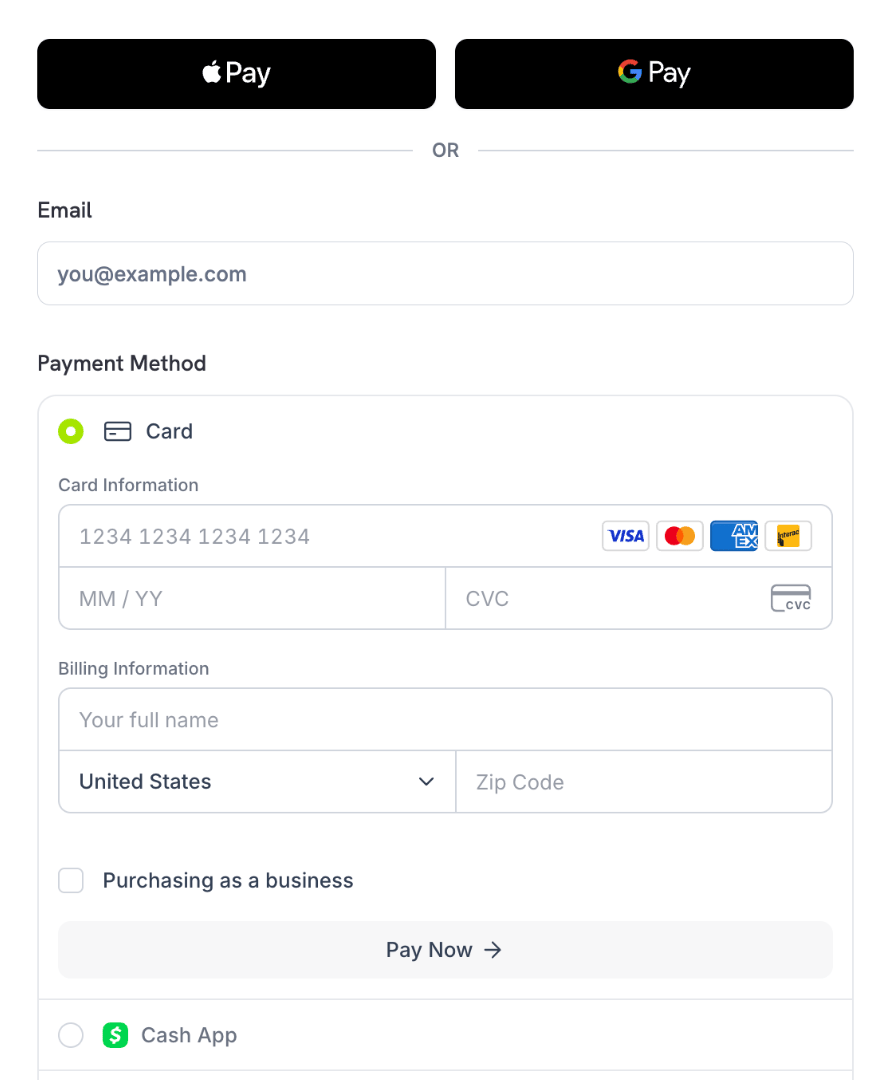
billing_address.country you set on the session. When the customer changes their country, state, ZIP code, tax ID, discount codes, currency, quantity, add-ons, or selected product, the totals in the left column update on the same page.
If you set pay_button_text in customization.theme_config, that text replaces Pay Now.
Enabling Single Page Checkout
To use single page checkout for a session, setfeature_flags.single_page to true when you create the checkout session. The examples use a client set up as in the Checkout Sessions guide:
checkout_url in the response, as you do for any checkout session.
Payment Links
To open a payment link as single page checkout, addsinglePage=true to the link:
/buy/pdt_...) and product collection links (/buy/pdc_...). Only the exact value true turns it on. Any other value keeps the two-page checkout. See Payment Links for the other query parameters.
Overlay and Inline Checkout
Overlay checkout and inline checkout use the flag on the checkout session. Create the session withfeature_flags.single_page: true and pass its checkout_url to the Checkout SDK as usual. The SDK needs no extra option.
Payment Method Layout
Single page checkout shows the payment methods in one of two layouts:- Accordion (default): one row for each payment method. The selected row opens to show its fields and the Pay Now button.
- Tabs: one tab for each payment method. The fields of the selected tab show below the tabs.
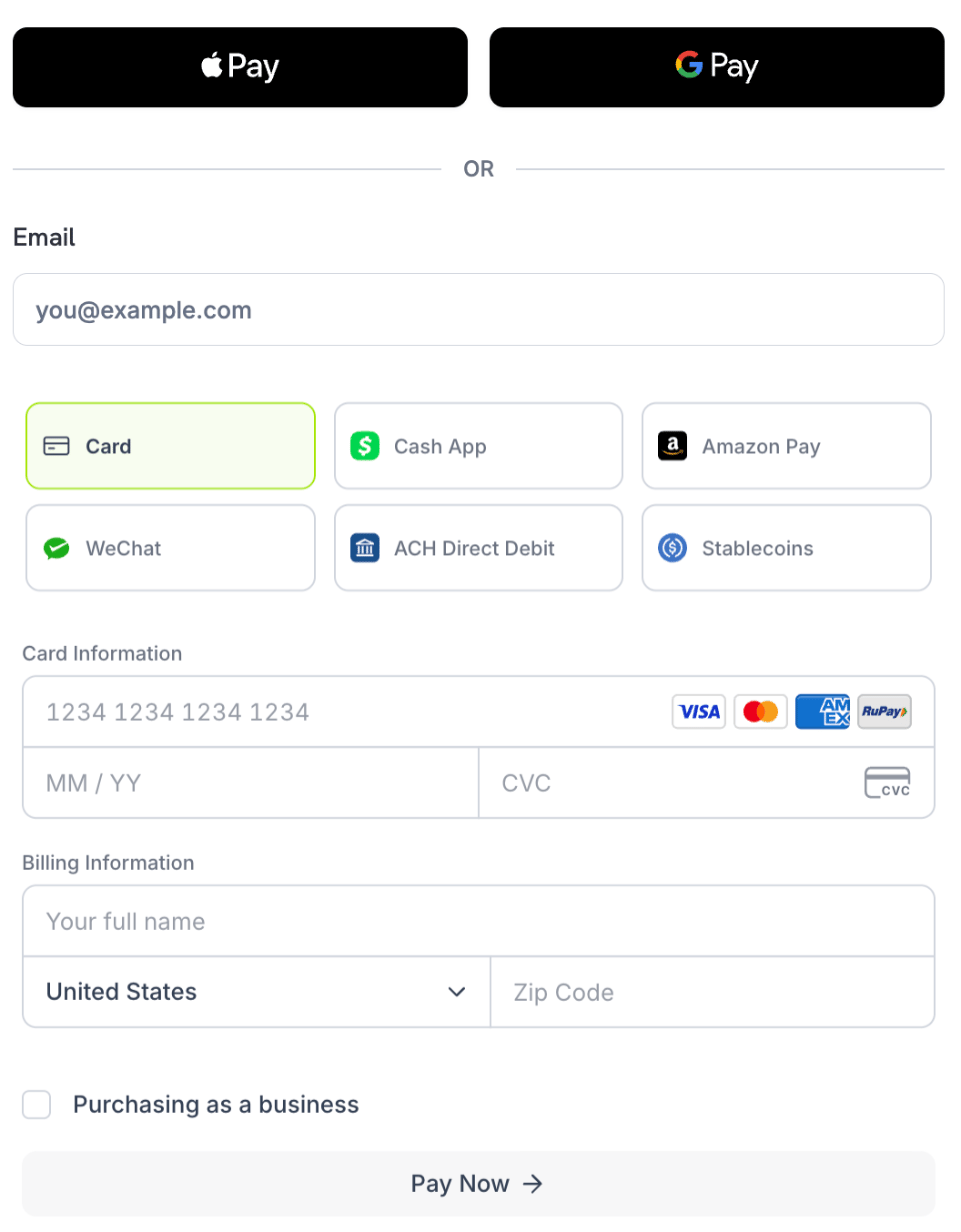
customization.payment_method_layout to accordion or tabs when you create the session:
payment_method_layout is only for single page checkout. If you set it while feature_flags.single_page is false, the request fails with a 422 error.
You can also add layout=tabs or layout=accordion to the checkout_url. The value in the URL takes priority over the value on the session.
Apple Pay and Google Pay
The wallet buttons show at the top of the page, above the email field. Each button shows only when the customer’s device and browser support that wallet. When the customer pays with a wallet and left the email field empty, the checkout uses the email from the wallet. The wallets move from the top of the page into the payment method list when the customer must fill in more than the email first:- You set
require_phone_number. - You set
require_tax_id. - The session has a required custom field.
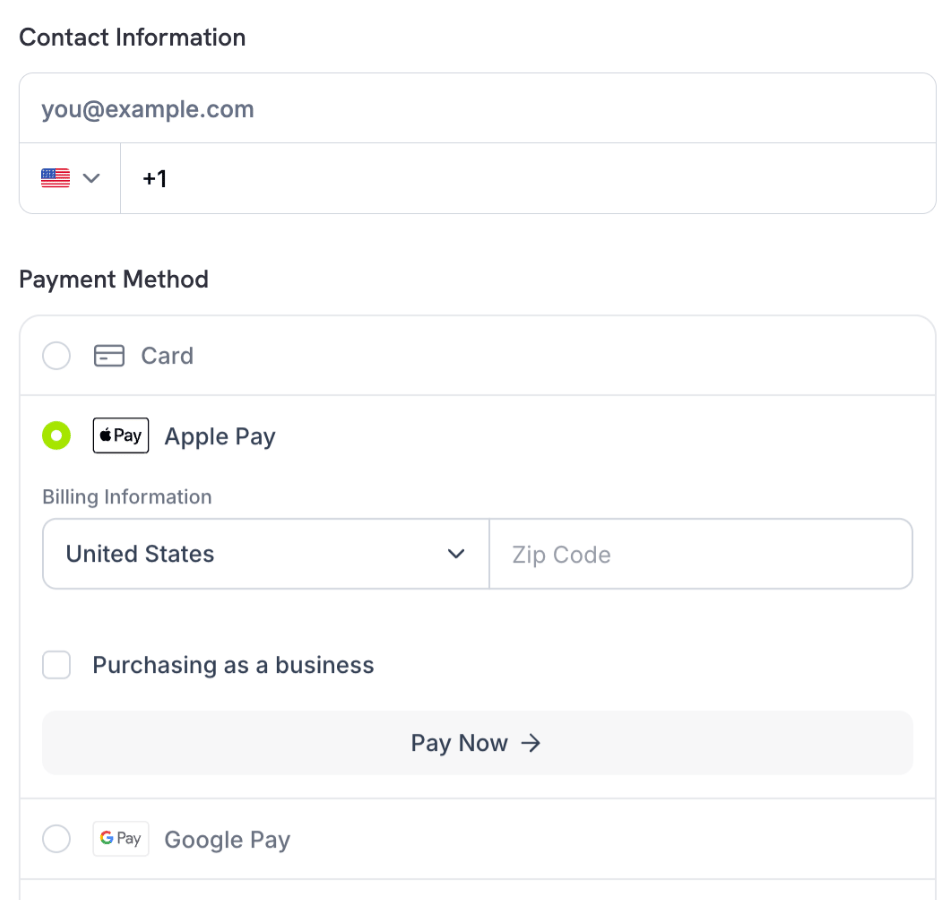
Wallet Totals
The customer always pays the total that the wallet sheet shows:- Apple Pay at the top of the page prices the sheet for the country of the card’s billing address before the customer approves. The sheet keeps the currency it opened with. For example, a $100 product on a US page, paid with a card billed in India, shows $118 USD with India’s GST.
- When Apple shares no billing address, or the postal code is too short to set the tax rate, the Apple Pay sheet shows the tax as pending. The customer then pays the exact tax for their full billing address.
- If the card’s country needs another currency, for example for a country-specific price, the Apple Pay sheet shows “Please use a card billed in” followed by the page’s country. The customer picks another card.
- Apple Pay and Google Pay in the payment method list charge the total on the page, for the address the customer entered. The card’s billing address does not change the total.
- Google Pay at the top of the page shares the card’s billing address only after the customer approves. If that address changes the total, the payment stops before any charge, and the page shows the new total. The customer pays again with the new total.
Address Collection
Single page checkout turns onminimal_address by default. Billing information then asks only for the country, and for the ZIP or postal code in regions where tax needs it.
To collect the full billing address, set minimal_address to false:
Business Purchases and Tax ID
Customers who buy for a company check Purchasing as a business inside the selected payment method. The business name and tax ID fields then appear in the same place. Theallow_tax_id and require_tax_id feature flags behave the same as in the two-page checkout.
Subscriptions
Single page checkout supports subscription products. The order summary shows the subscription, and the customer pays for it on the same page. See Subscriptions for billing cycles, trials, and plan changes.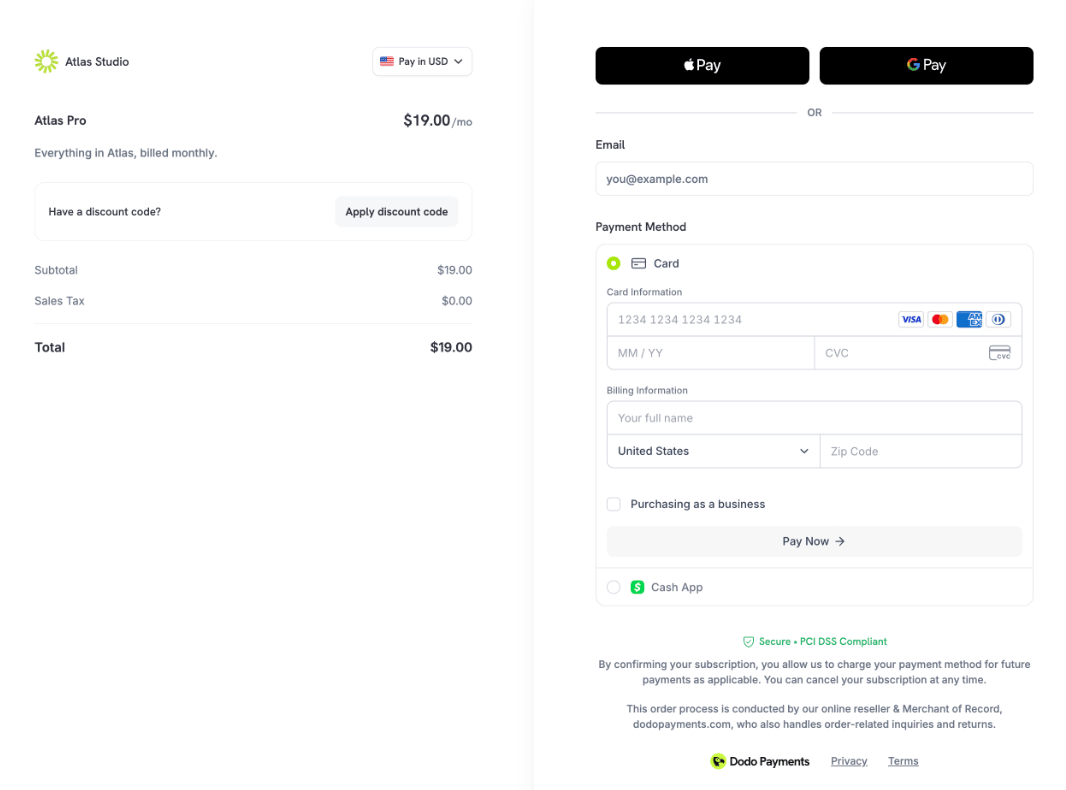
Mobile and Dark Mode
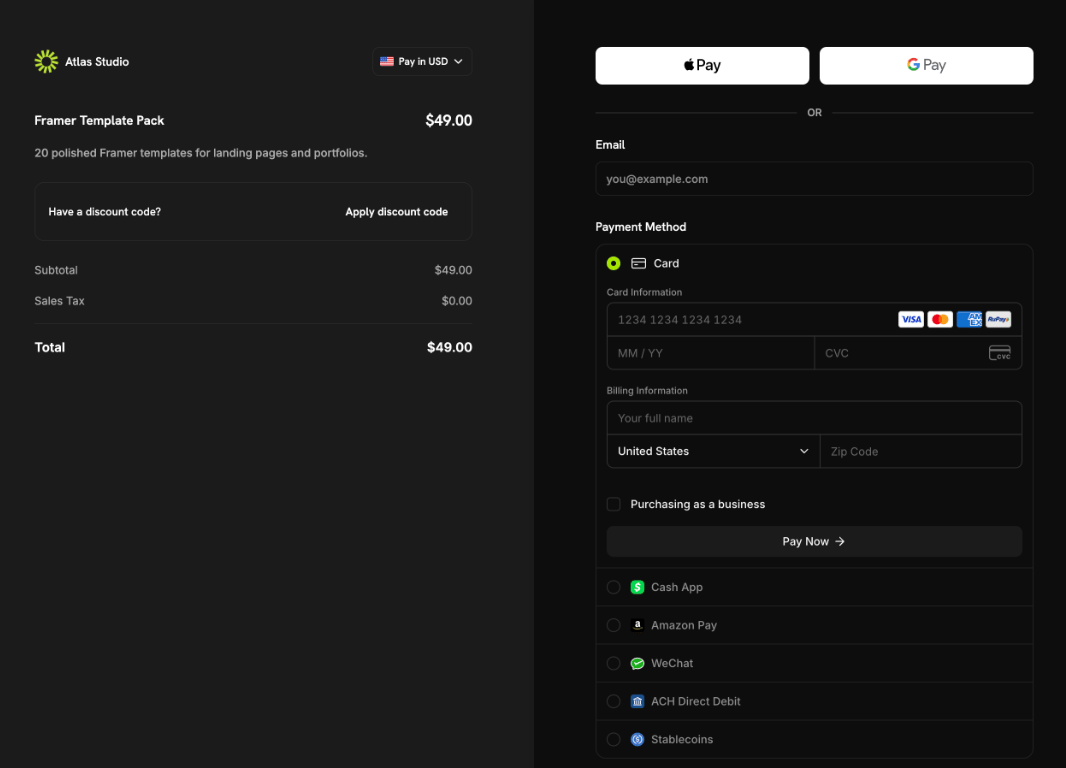
On a phone, single page checkout fits the same fields to the narrow screen.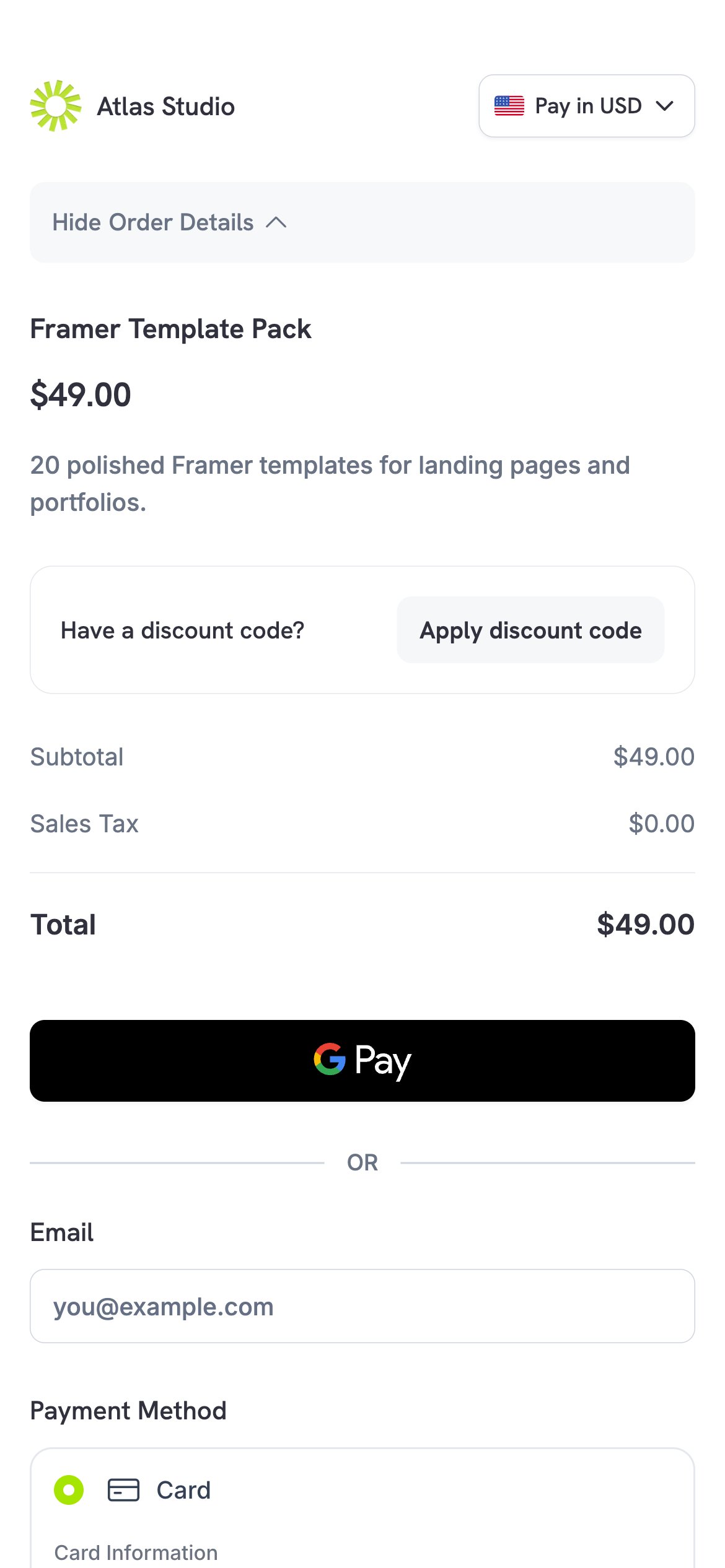
customization.theme_config on the session. See Design & Theme Customization.
Embedded Checkout Events
The Checkout SDK sends the same events for a single page session as for a two-page session. See Overlay Checkout and Inline Checkout for each integration’s event list. Two events fire at a different point:
The payment methods offered inside overlay and inline embeds are the same as in the two-page flow. See Digital Wallets for Apple Pay and Google Pay availability by integration.
After Payment
After payment, single page checkout behaves the same as the two-page flow. The customer sees the payment status page, then goes to yourreturn_url with the same query parameters. If you set redirect_immediately, the customer goes to your return_url without the status page. Webhooks are the same. See the Checkout Sessions guide for the query parameters.
FAQ
Why are Apple Pay and Google Pay in the payment method list instead of at the top?
Why are Apple Pay and Google Pay in the payment method list instead of at the top?
The session asks for more than the email before payment: a required phone number, a required tax ID, or a required custom field. The wallets then move into the list, so the customer fills in those fields first. See Apple Pay and Google Pay.
What happens if the customer opens the checkout in two tabs?
What happens if the customer opens the checkout in two tabs?
The most recently opened tab holds the payment. The other tab shows “This checkout is open in another tab.” with a Continue in this tab link. The customer clicks the link to pay from that tab instead.
What does the customer see if the price changes when they press Pay?
What does the customer see if the price changes when they press Pay?
When the customer presses Pay Now, the page locks their details and shows “Your payment details are locked while this payment is processed.” If the total changed since the page last priced the order, the page shows “The price changed. Check the total and try again.” The customer checks the new total and presses Pay Now again.
Can customers edit details I set on the session?
Can customers edit details I set on the session?
Customer details, billing address, tax ID, and business name that you set on the session are locked, the same as in the two-page checkout. To let the customer change one, set the matching
allow_customer_editing_* feature flag to true, for example allow_customer_editing_country.Does single page checkout change what the API returns?
Does single page checkout change what the API returns?
No. The create response, the payment and subscription objects, and the webhooks are the same as for a two-page checkout session.
Checkout Sessions Guide
All checkout session fields and feature flags.
Payment Links
Query parameters for static payment links.
Design & Theme Customization
Set checkout colors, fonts, and button text.
Digital Wallets
Apple Pay and Google Pay setup.