

Introduction
Reports explains how money moves through your balance and builds exports for your accounting. To open it, go to Settings → Reports. The page has three parts:Track Money Movement
Download Reports
Generated Reports
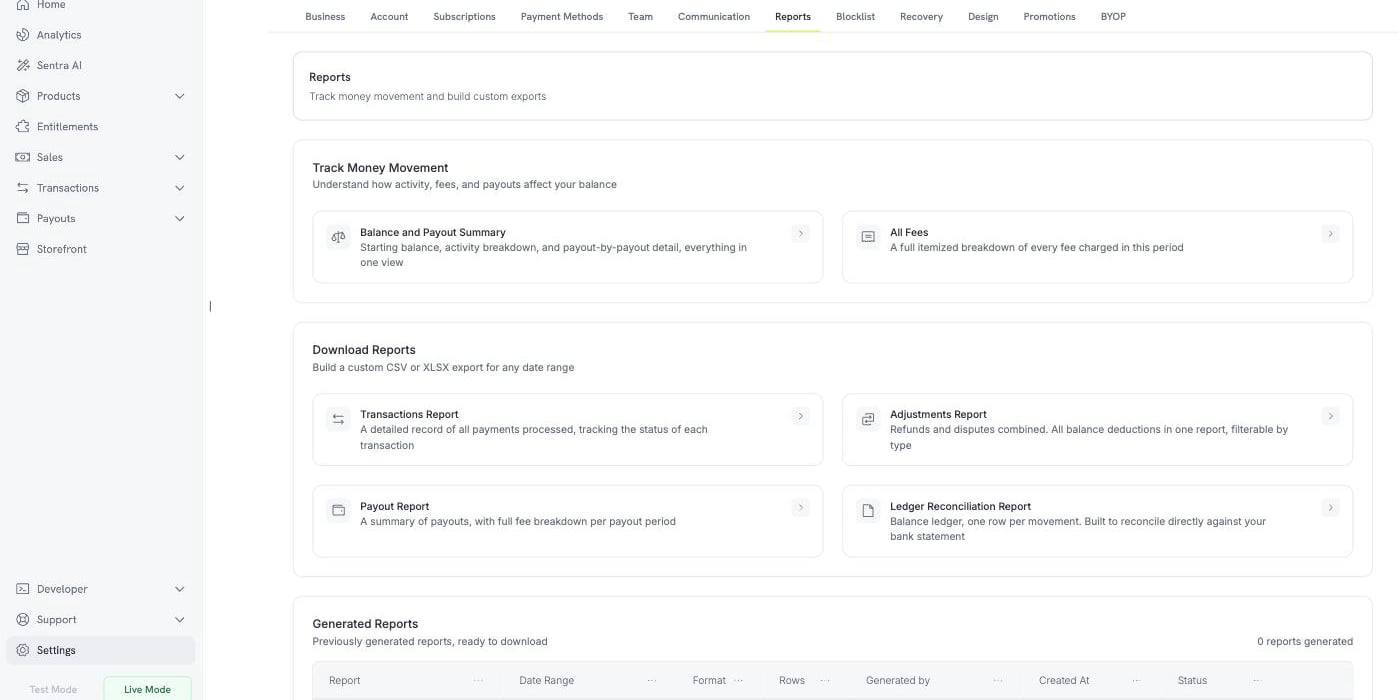
Settings → Reports: live views, custom exports, and your report history
Reports are available in Live Mode only. They read the live balance ledger, which test mode activity doesn’t reach, so in Test Mode the Reports page shows a message instead of the reports. Turn on the Live Mode switch in the sidebar before you build a report.
Track Money Movement
Two views answer a question on screen, with no download. Each takes a date range and has an Export button that saves the same view as a file.Balance and Payout Summary
This view reconciles your balance for the period. It has three blocks.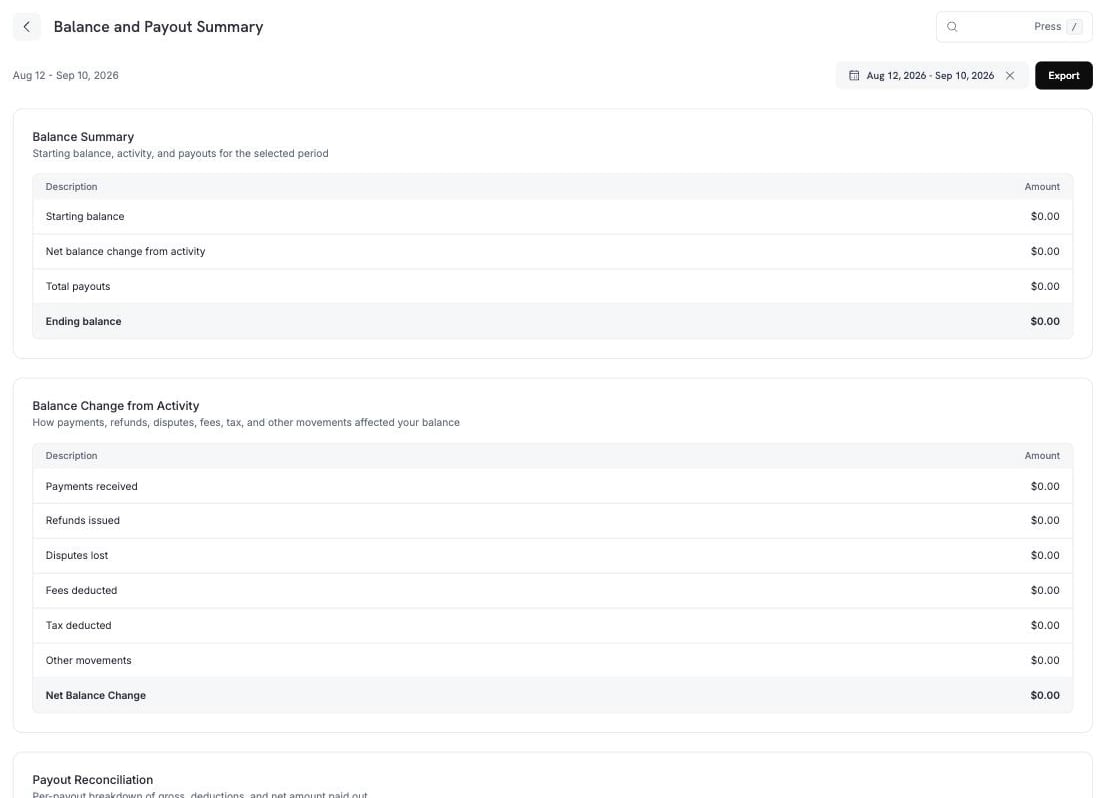
Balance and Payout Summary: starting balance, activity breakdown, and payout detail
Balance Change from Activity breaks the middle row into its parts.
Other movements holds the entries that fit no named row above: Dodo Credits (credits Dodo Payments applies to your balance), manual adjustments (corrections posted by the Dodo Payments team), and currency conversion (the difference recorded when a balance is converted between currencies).
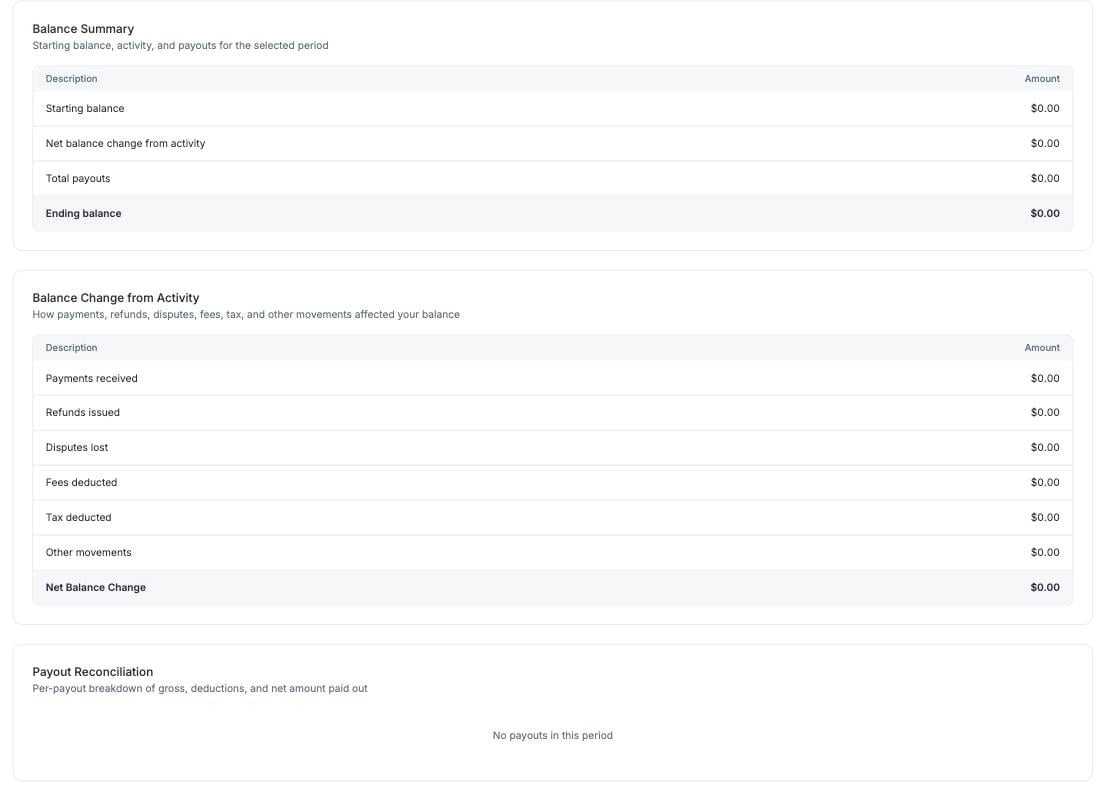
Payout Reconciliation: one row per payout, gross to net
All Fees
All Fees lists every fee taken from your balance in the period, with a total and a per-transaction breakdown.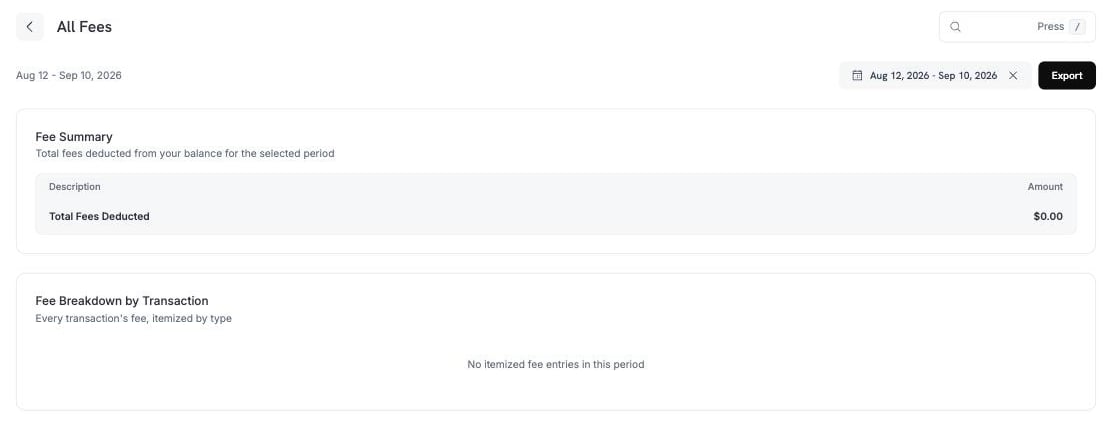
All Fees: a total, then every fee itemized by transaction
Download Reports
Four reports build a file for any date range. Each opens a panel where you choose the period, the format, and the filters for that report. Every report exports as CSV or XLSX. The four reports contain:Transactions Report
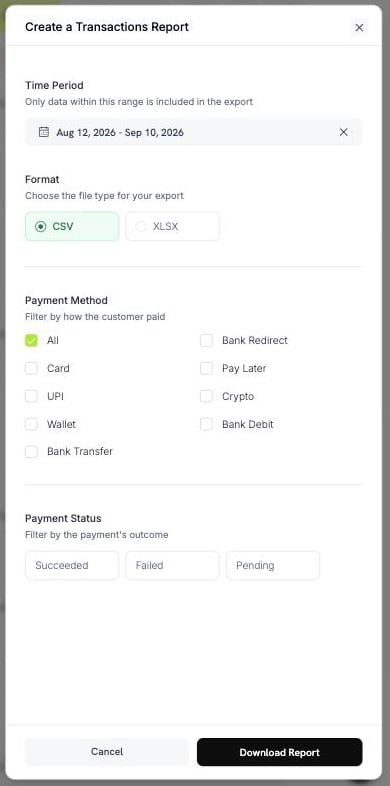
Create a Transactions Report
- Payment Method: Card, UPI, Wallet, Bank Transfer, Bank Redirect, Pay Later, Crypto, or Bank Debit. Select All for every method.
- Payment Status: Succeeded, Failed, or Pending.
Adjustments Report
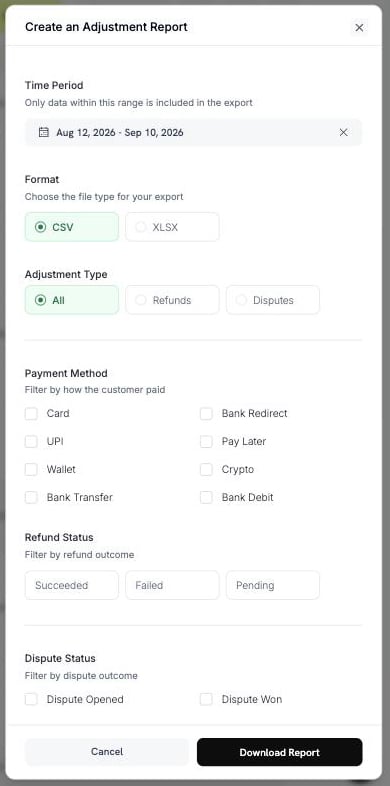
Create an Adjustment Report
- Adjustment Type: All, Refunds, or Disputes.
- Payment Method: the same eight methods as the Transactions Report.
- Refund Status: Succeeded, Failed, or Pending.
- Dispute Status: Opened, Challenged, Accepted, Lost, Won, Cancelled, or Expired.
Payout Report
Choose a period and a format. This report has no other filters.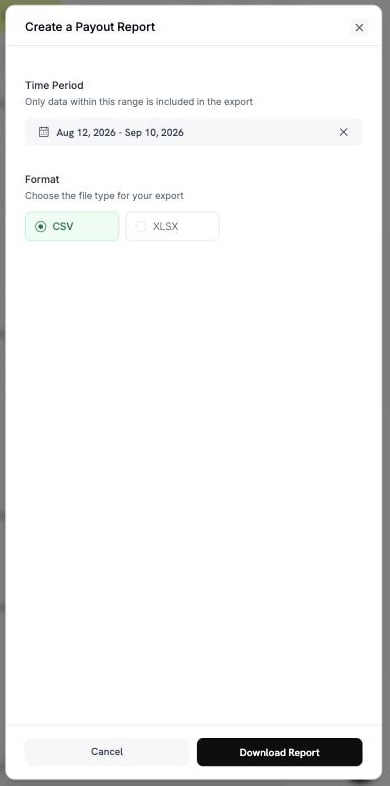
Create a Payout Report
Ledger Reconciliation Report
This report has two modes. To choose one, use Reconciliation by.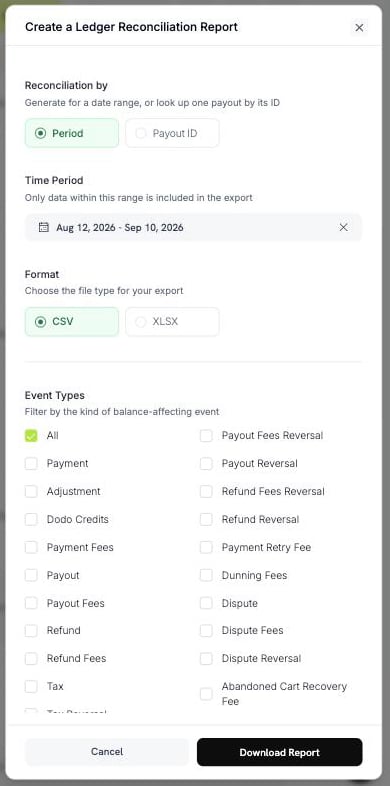
Create a Ledger Reconciliation Report, by period
pyt_kxncrebha, to get the exact rows that payout settled.
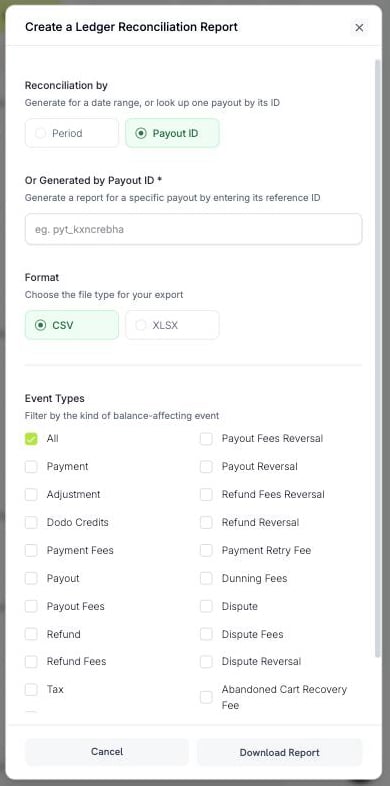
Look up one payout by its reference ID
A payout ID that doesn’t exist returns an error, not an empty file.
Not every type has a reversal. Only Payout, Payout Fees, Refund, Refund Fees, Dispute, Dispute Fees, Deflection Fees, and Tax do.
Building and Downloading a Report
To build a report and download it:1
Open the report
Go to Settings → Reports and select the report you need.
2
Choose the period
Pick a date range. Only data inside this range goes into the file.
3
Choose the format and filters
Select CSV or XLSX, then set the filters for that report.
4
Download
Select Download Report. The file downloads, and the report is added to Generated Reports.
dodo_ledger_1Jun2026-30Jun2026.csv.
A CSV export starts with a UTF-8 byte order mark, so Excel displays accented characters and non-Latin scripts correctly.
Row Limits
A single export has a row limit, so you may need to split a large period.
If your date range exceeds the limit, the export is refused with a message. Narrow the range or add a filter, then build the report again.
Generated Reports
Every report you build is recorded, so you can download it again without rebuilding it. The Generated Reports table has these columns:
A download link is valid for a short time. If the stored file has expired, Dodo Payments rebuilds it from the same parameters and marks the row as regenerated.