

Introduction
An entity transfer changes the legal entity behind your business. Use it when you incorporate as a company, move the business to a different registered company, or go back to trading as an individual. Your business keeps receiving payments throughout. Products, customers, subscriptions, API keys, and integrations stay as they are. Dodo Payments verifies the new entity’s details and bank account again, and pauses auto payouts until that verification is complete.To hand the business to a different person, use an ownership transfer instead. An entity transfer keeps the same Owner.
Supported Changes
The entity transfer dialog offers two business types: Individual and Registered entity. What Dodo Payments verifies again depends on the type you move to. Your identity verification (KYC) is never repeated.
A change from one individual to a different individual isn’t an entity transfer, so the dialog doesn’t offer it. Use an ownership transfer.
To choose between the two types, see Account Type.
Requirements
- Only the Owner can start an entity transfer.
- The business must have a business type. If the dashboard asks you to contact support to set the business type, do that first.
- A business can have one open transfer at a time. An open entity transfer or ownership transfer blocks a new one until it closes.
Start an Entity Transfer
1
Open the Danger Zone
Go to Settings → Business and scroll to the Danger Zone panel. Next to Entity transfer, select Start Transfer.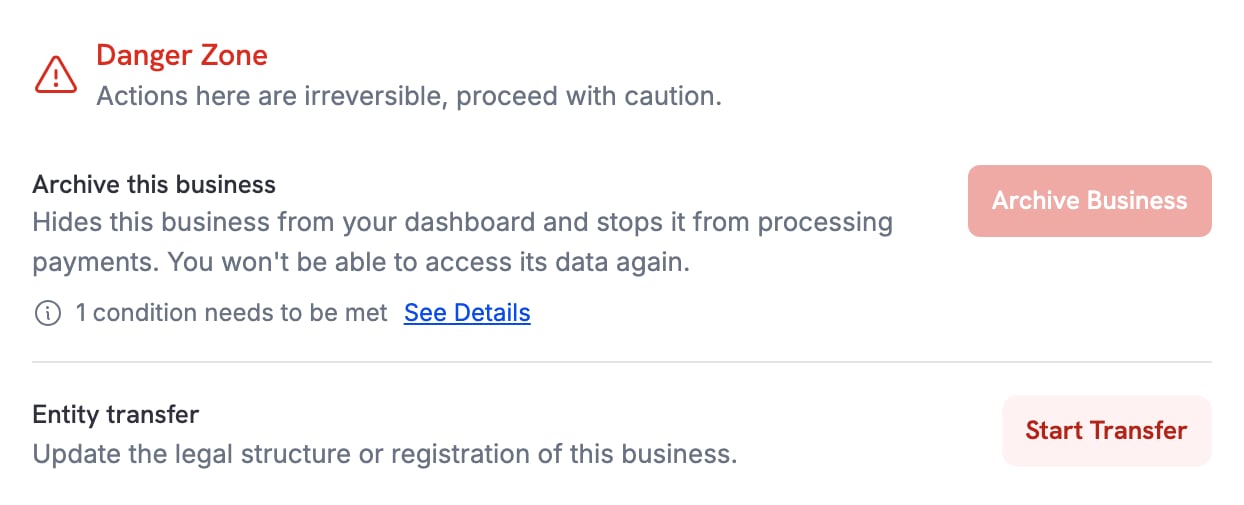
2
Select the New Business Type
Current setup shows the type your business has today. Under Moving to, select the type of the new entity, then select Continue.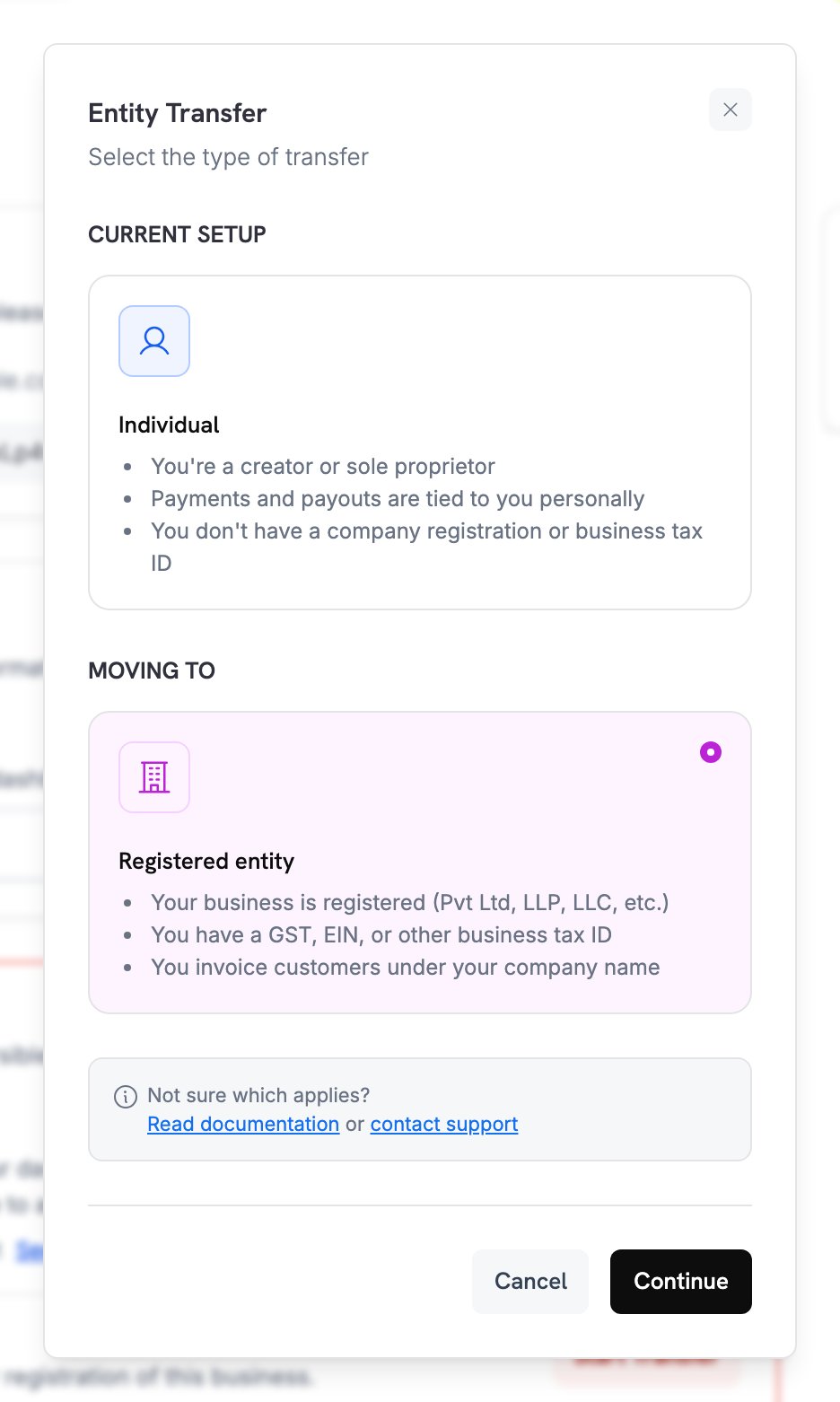
3
Review the Changes and Confirm
Read what happens to your business. Enter a Reason for the change of up to 1,000 characters. Type 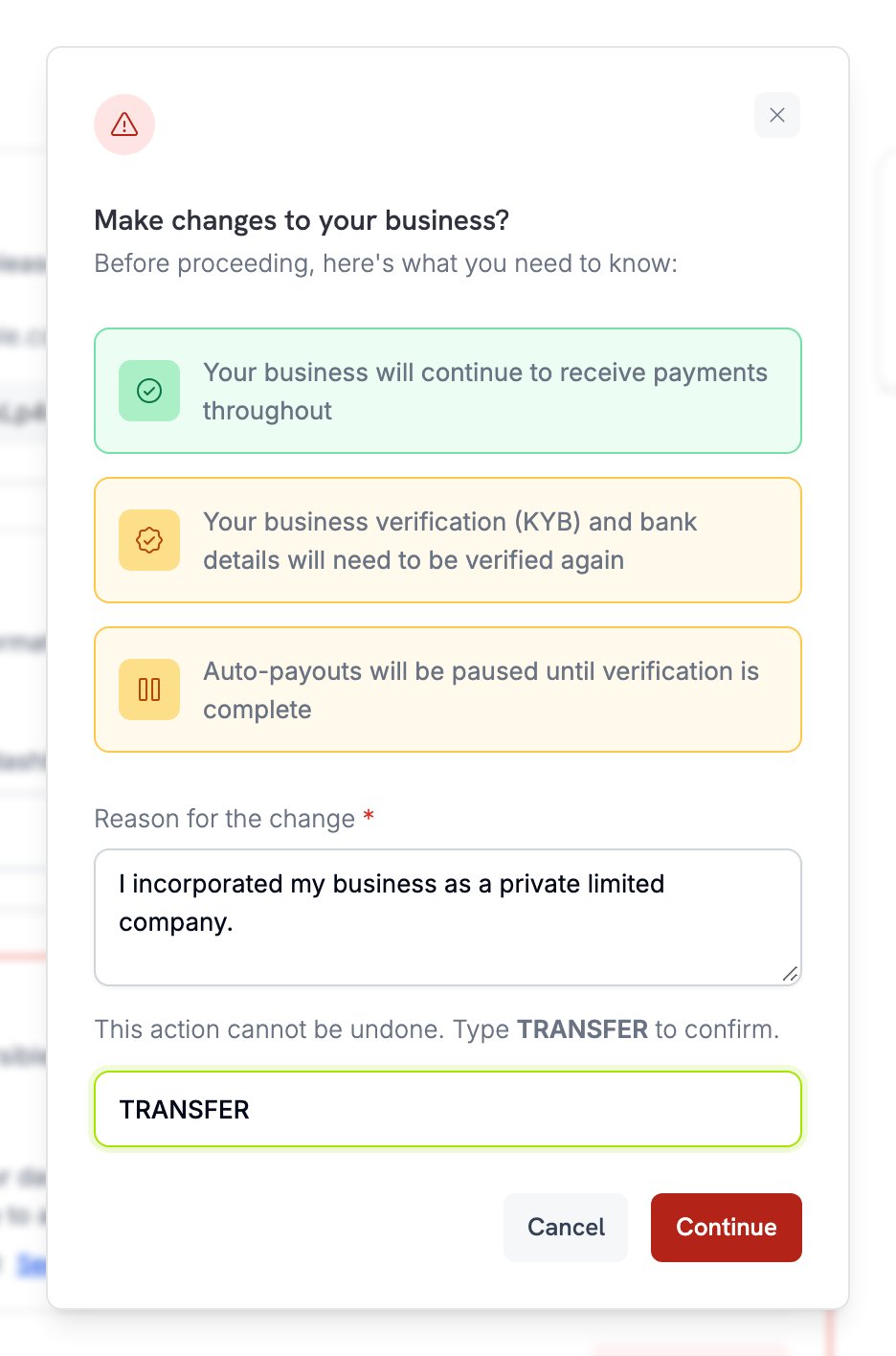
TRANSFER in the confirmation field, then select Continue. Dodo Payments emails a confirmation code to your login email address.4
Enter the Code from Your Email
Enter the 6-digit code and select Confirm Transfer. The code expires after a short time, and too many wrong attempts mean you need to start again.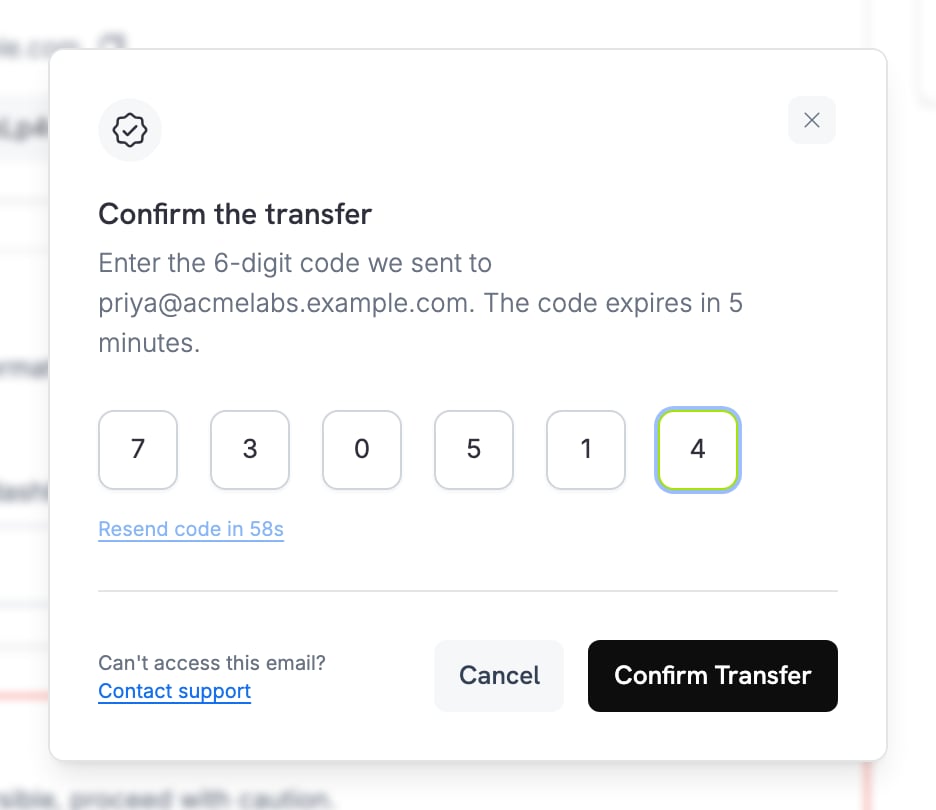
5
Verify the New Entity
The dashboard opens Verification and lists the forms you need to submit again. Select Start Verification and complete each form. See Business Verification and Bank Verification.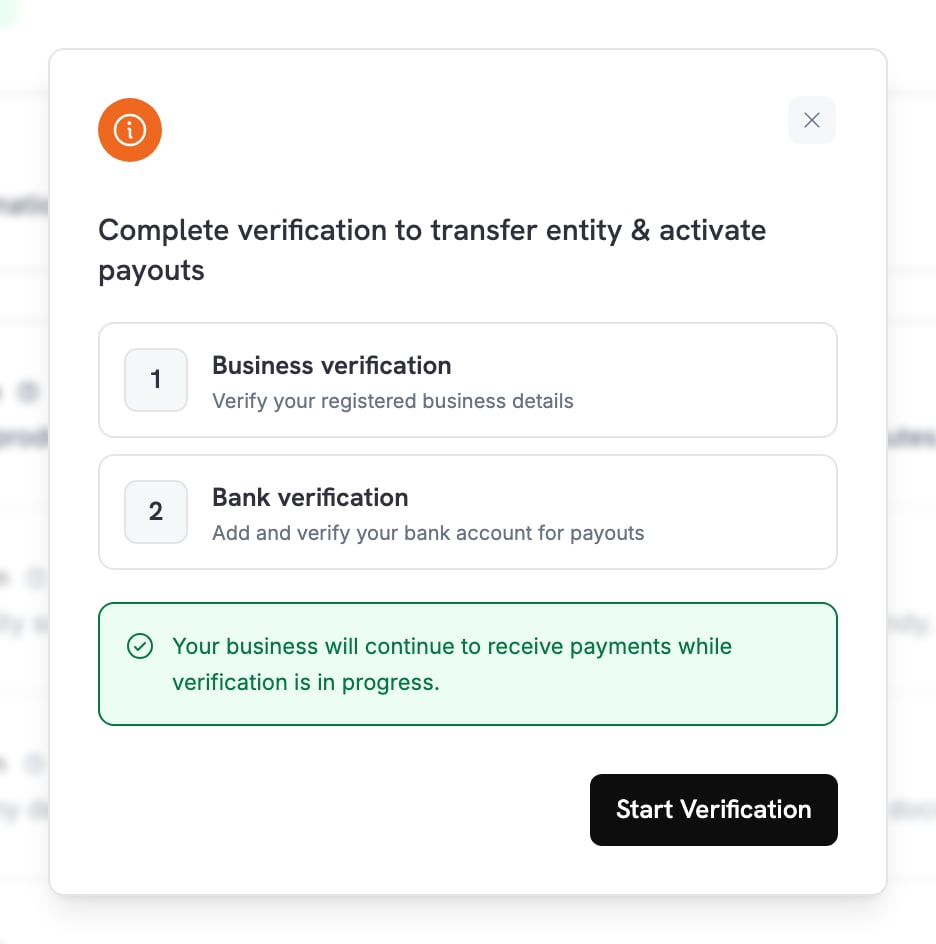
While the Transfer Is in Progress
The transfer stays open until Dodo Payments approves every verification of the new entity. During that time:- A strip at the top of every page reminds you what is left to verify, with a Complete verification link.
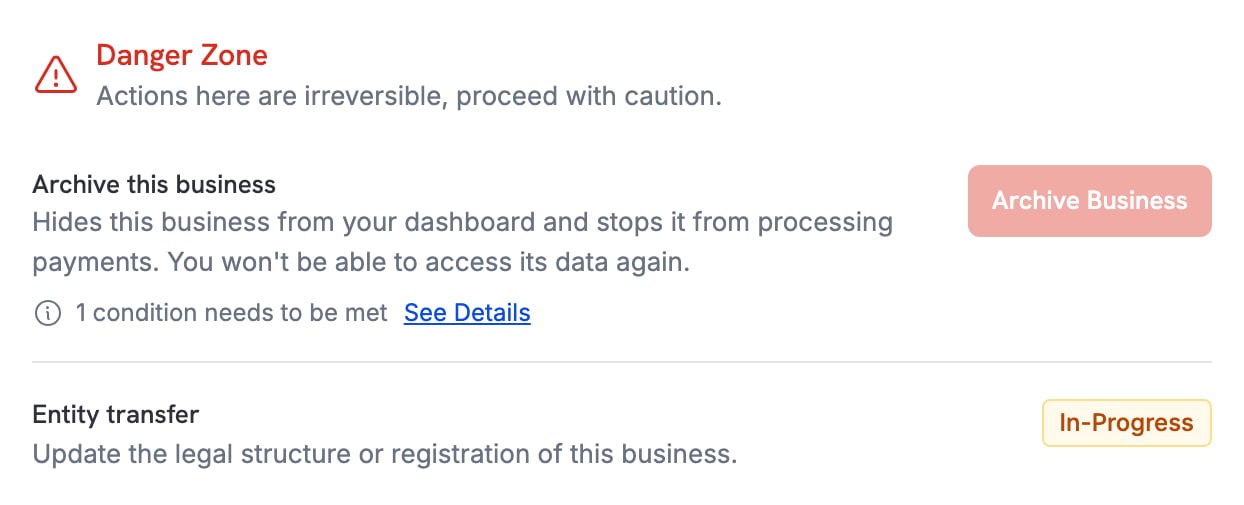
- The Danger Zone shows In-Progress next to Entity transfer.
- Your business keeps receiving payments.
- Auto payouts stay paused.
After the Transfer Completes
When every verification is approved, the transfer completes and the dashboard shows a one-time confirmation.- Your business is set up as the new entity type.
- Payouts go to the bank account you verified for the new entity.
- Auto payouts stay off until you turn them back on.
Verification Process
See what each verification form asks for.
Ownership Transfer
Make a teammate the Owner of your business.
Payout Structure
Learn how and when payouts are sent.
Help and Support
Get help with an entity transfer.