

Introduction
An ownership transfer makes another member of your team the Owner of the business. The new Owner gets full control of payouts, team management, business settings, and API keys. You stay on the team as an Admin. The business keeps everything else: its products, customers, payments, payouts history, and integrations. Customers see no change.To change the legal entity behind the business, such as moving from an individual to a registered company, use an entity transfer instead. Changing from one individual to a different individual is an ownership transfer.
How It Works
An ownership transfer moves through three steps. The current Owner starts it, the new Owner accepts it, and the transfer completes once the new Owner’s identity verification (KYC) is approved.Requirements
Check these before you start:- Only the Owner can start a transfer. Admins and other roles can’t.
- The new Owner must be a team member with an account. Invite them to the team first. A teammate whose invitation is still open can’t be picked until they sign up.
- The new Owner can own at most 10 businesses, including this one.
- A business can have one open transfer at a time. An open ownership transfer or entity transfer blocks a new one until it closes.
Start an Ownership Transfer
1
Open Change Role for the New Owner
Go to Settings → Team. In the row of the teammate who will become the Owner, open the actions menu and select Change Role.
2
Select the Owner Role
Under Pre-Defined, select Owner, then select Continue.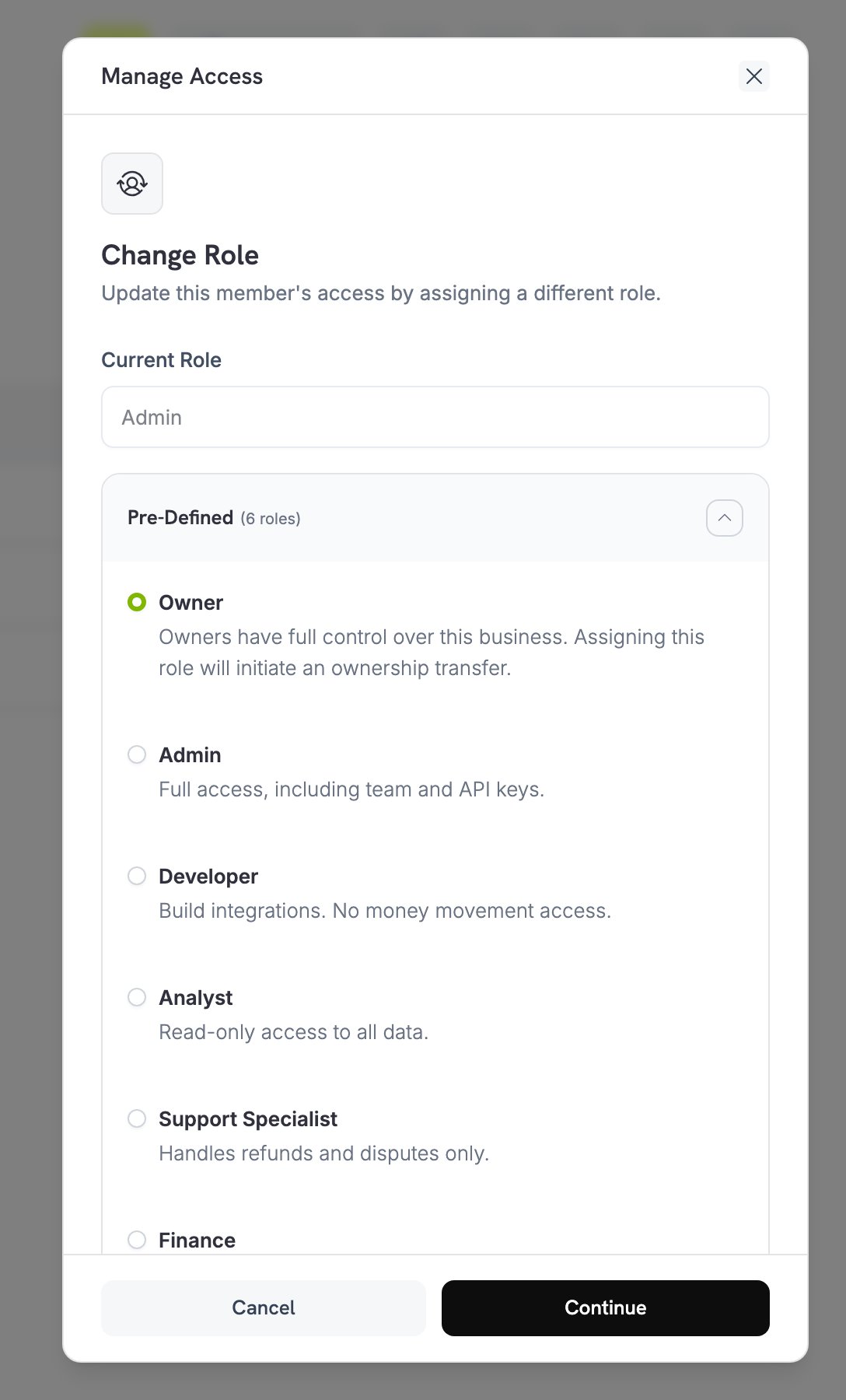
3
Enter a Reason
Read the summary of what the new Owner receives. Enter a Reason for transfer of up to 1,000 characters, then select Transfer Ownership. Dodo Payments emails a confirmation code to your login email address.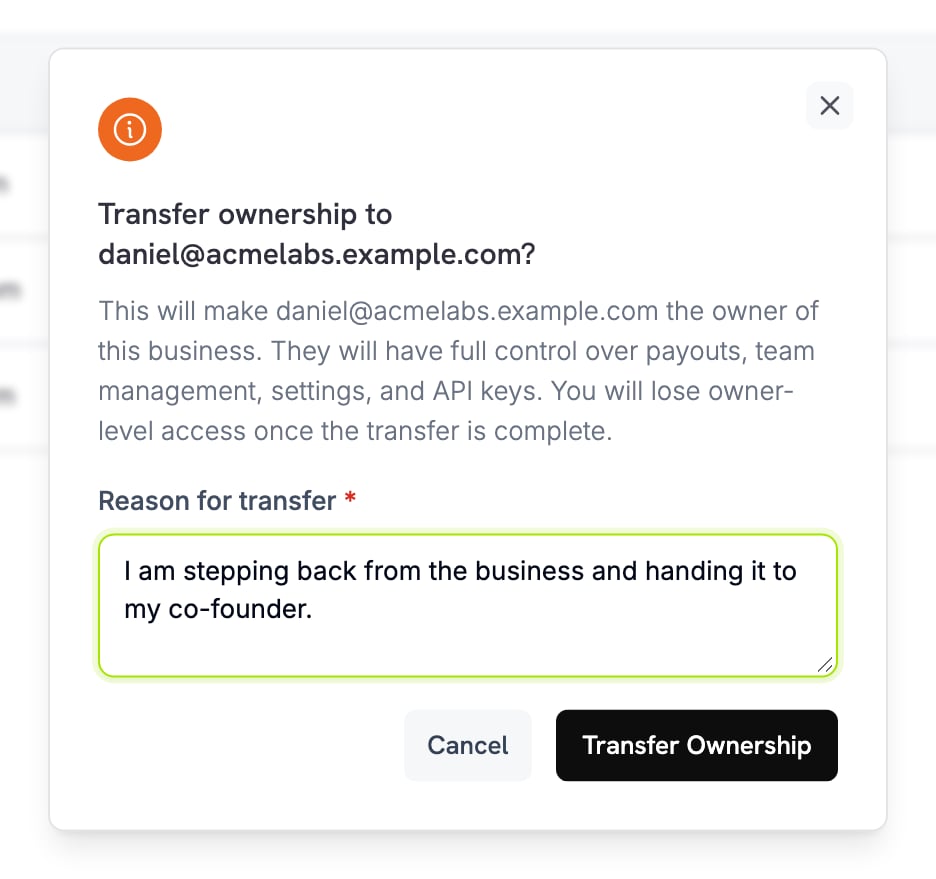
4
Enter the Code from Your Email
Enter the 6-digit code and select Confirm Transfer. The code expires after a short time, and too many wrong attempts mean you need to start again.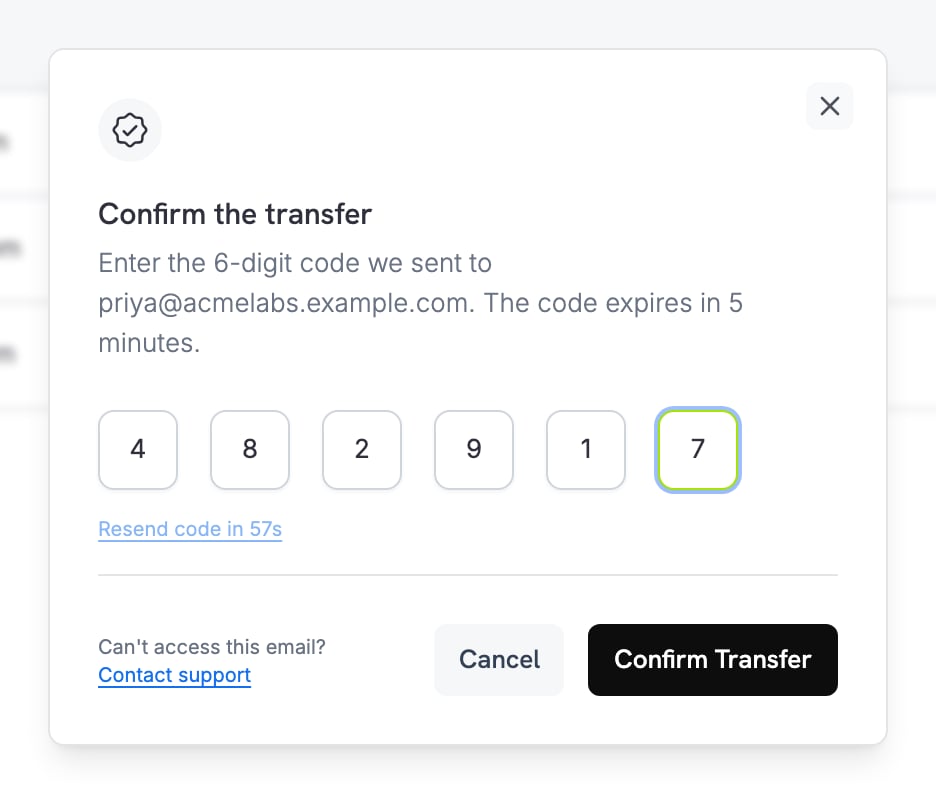
5
Wait for the New Owner
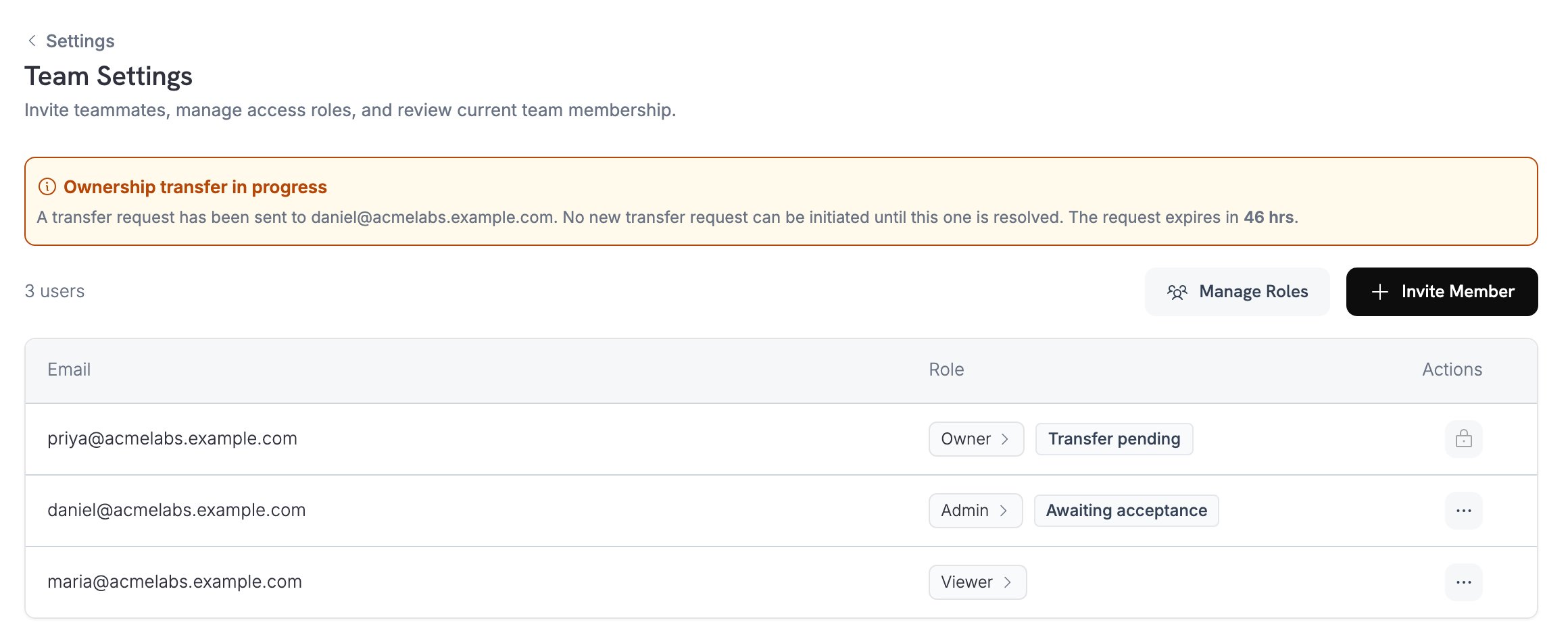
Dodo Payments emails the new Owner a link to the request. You stay the Owner until they accept it. Select Done to close the dialog.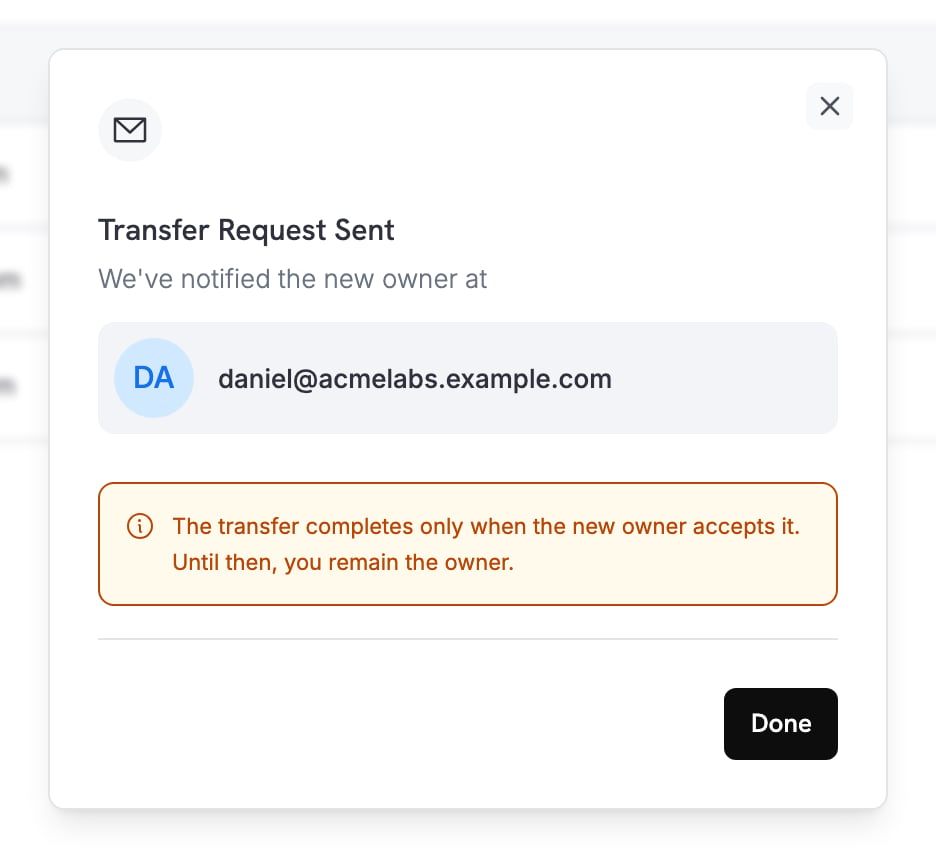
Accept or Decline a Transfer
This section is for the teammate who receives the request.1
Open the Request
Select the link in the ownership transfer email. The dashboard opens the request with the business, the current Owner, their reason, and the time left before it expires.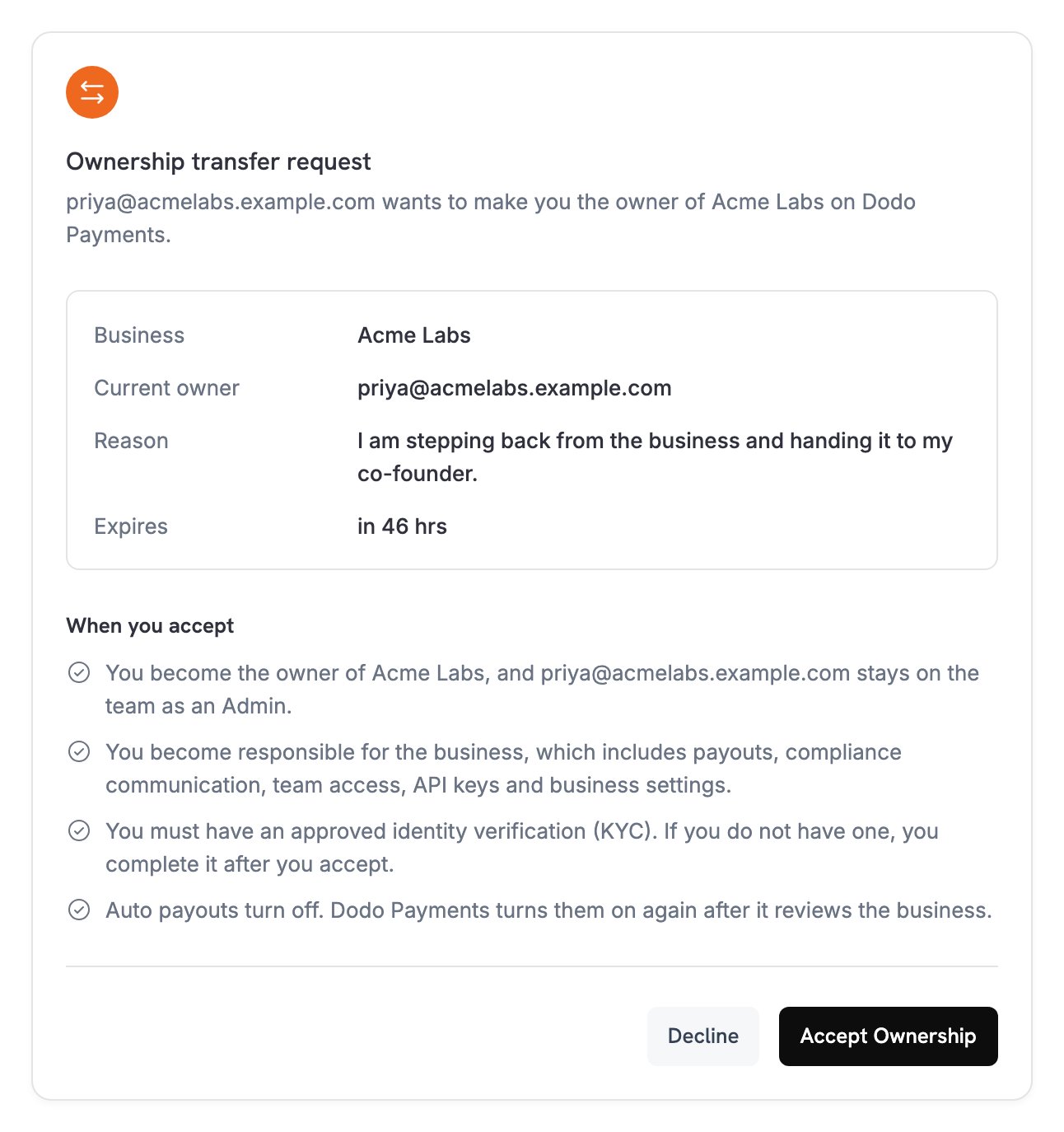
2
Accept or Decline
Read When you accept, then select Accept Ownership. To refuse, select Decline and confirm. The current Owner stays the Owner and can start a new transfer later.
3
Complete Identity Verification
If you already have an approved identity verification (KYC) on Dodo Payments, the transfer completes as soon as you accept.If you don’t, the dashboard takes you to Verification. You are already the Owner, and a reminder appears at the top of every page until your verification is approved. The transfer completes automatically after approval. See Identity Verification.
What Happens After Acceptance
- The new Owner gets full control of the business: payouts, compliance communication, team access, API keys, and business settings.
- The previous Owner stays on the team with the Admin role.
- Auto payouts turn off. Dodo Payments turns them on again after it reviews the business.
- Payments continue. Your checkout, payment links, subscriptions, and API integrations keep working with no change.
- Both parties get an email when the transfer is accepted, declined, expired, or completed.
Team
Invite the new Owner to your team and manage roles.
Entity Transfer
Change the legal entity behind your business.
Verification Process
Complete identity verification as the new Owner.
Help and Support
Get help if you can’t access the Owner’s email.