

Connections
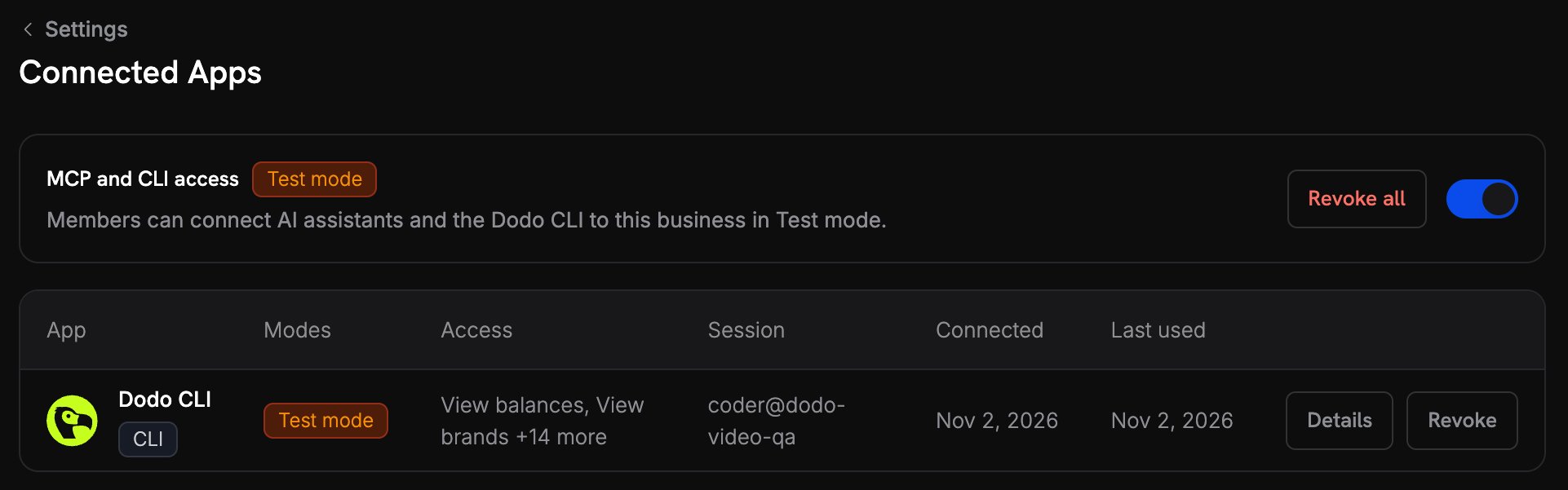
Click a connection to open its Details sheet. It shows the full permissions for each resource.
Revoke a Connection
Click Revoke on a connection, then confirm. Revoke does this:- The refresh token of the connection is revoked, and no new tokens are issued.
- An access token already issued stops working within about a minute. The API caches token checks for 60 seconds.
- For MCP calls, the next exchange for a 5-minute API token is refused.
dodo logout all in the CLI also revokes the CLI connection on the server.Admin Controls
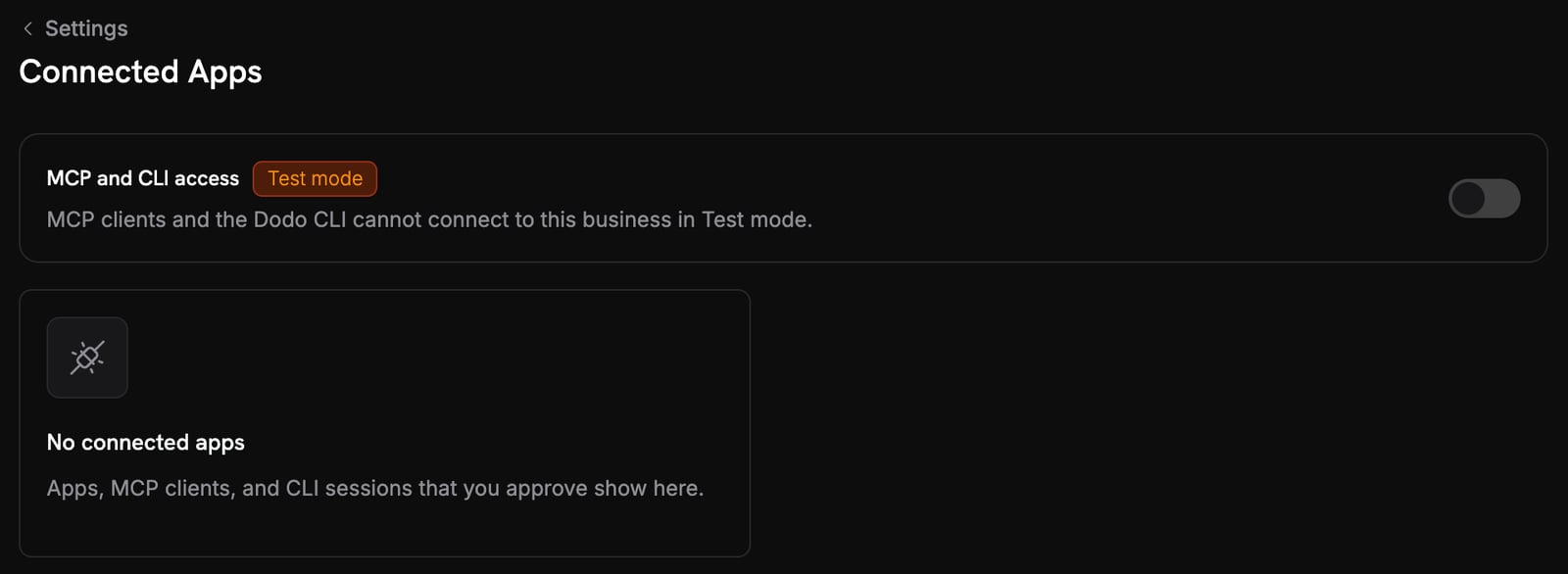
Admins with Write permission on API keys see extra controls:- MCP and CLI access: one switch for each mode, test and live. When you turn a switch off, all MCP and CLI connections in that mode are revoked, and no new connection can be approved in that mode. Turn it on again to allow new connections.
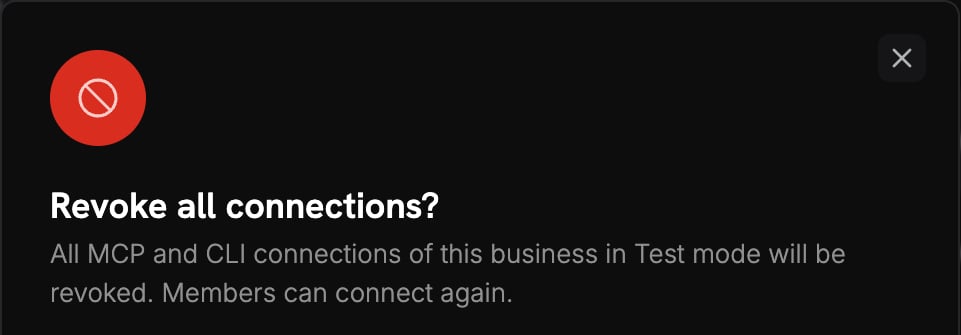
- Revoke all: revokes every connection for the business in that mode.
Related
MCP Server
Connect AI assistants with OAuth.
Dodo CLI
Sign in from your terminal.