


How the Limit Works
A cart value limit may apply to your business. Dodo Payments sets a default limit. The risk team can set a higher limit for a business after it reviews a request. The limit follows these rules:- Live mode only. The limit applies to live mode payments. Test mode is not limited. See Test Mode.
- Before tax. Tax never counts toward the limit. The amount the customer pays can be higher than the limit by the tax amount.
- In USD. The limit is a USD amount. Dodo Payments converts a cart in another currency to USD before it compares the cart with the limit.
- Per checkout. The limit applies to the cart of one checkout, not to the total of all your sales.
- Up to the limit. A cart equal to the limit is allowed. A cart above the limit is refused.
What Counts Toward the Limit
The cart value is the subtotal of the checkout before tax. This table lists what is in it.
Dodo Payments compares the prices you set, before Adaptive Currency conversion and Charm Pricing rounding.
For example, a business with a limit of 10,000 USD can sell a 4,000 USD product with a quantity of 2. The cart value is 8,000 USD. A quantity of 3 makes the cart value 12,000 USD, so Dodo Payments refuses the checkout. The tax on top of the 8,000 USD does not count.
Finding Your Limit
To see the limit that applies to your business, go to Settings → Pricing and find the Cart value limit row. It shows your limit in USD. The limit shown is your business’s own limit if the risk team set one. Otherwise, it is the default limit.Requesting a Higher Limit
To sell a product, plan, or cart above your limit, request a higher limit. Your business can have one open request at a time.1
Open the Request Form
Go to Settings → Pricing. In the Cart value limit row, click Request increase.You can also open the form from a product. When a product price is above your limit, click Request a higher limit under the price field.
2
Enter the New Limit
In New maximum cart value, enter the limit you need in USD. The amount must be above your current limit.
3
Explain Why You Need It
In Why do you need a higher limit?, describe what you sell and why a customer pays more than your current limit in one checkout. The reason can be up to 2,000 characters.
4
Attach Supporting Documents
Optionally, upload files that help the risk team review your request. For example, a paid invoice or emails with your customer. You can upload up to 5 files in PDF, PNG, or JPG format, up to 10 MB each.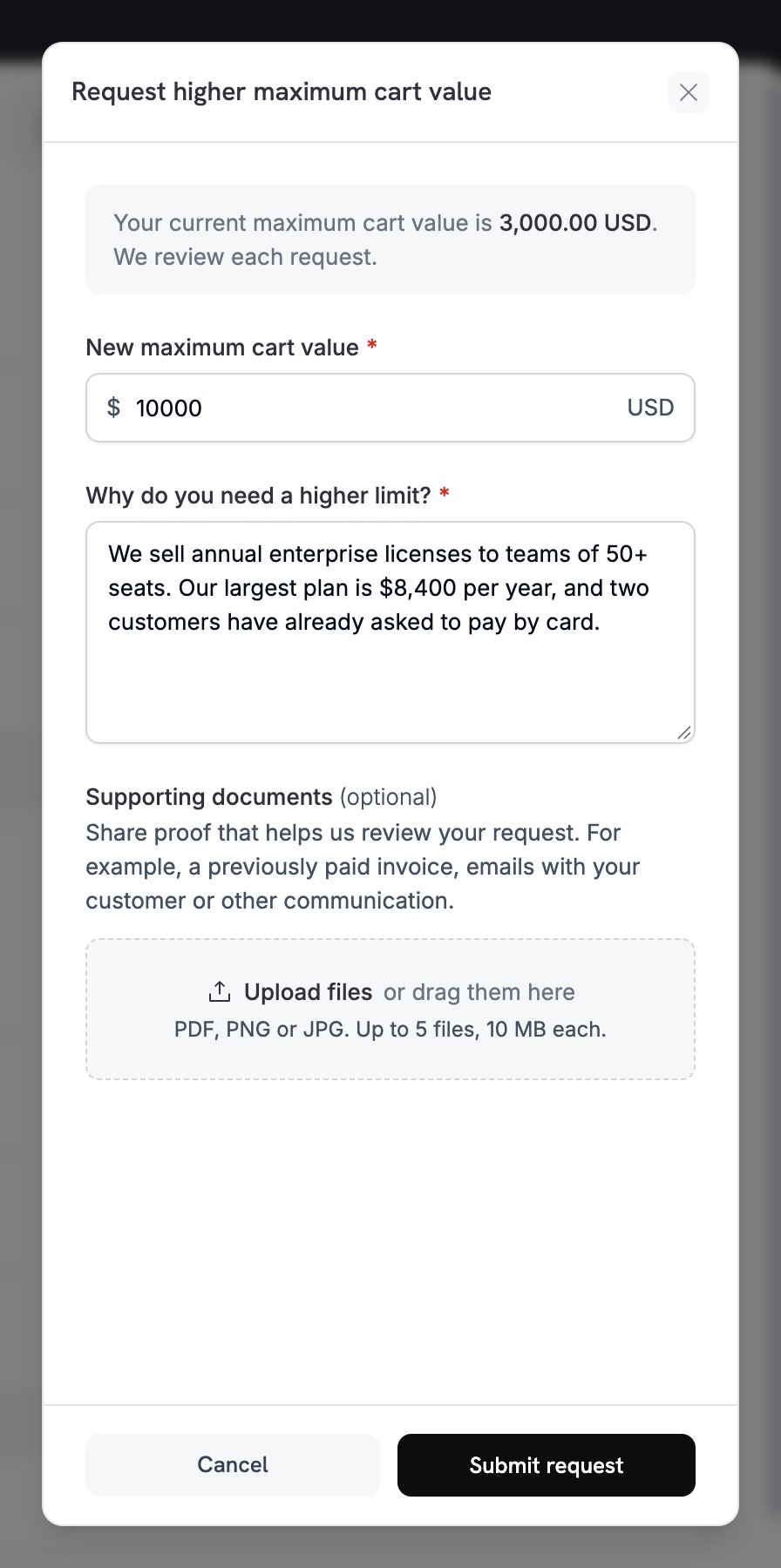
5
Submit the Request
Click Submit request.
The Cart value limit row shows an Under review badge with the amount you requested. Request increase is unavailable until the risk team reviews the request.
After the Review
Dodo Payments sends you an email when the risk team reviews your request.Products Priced Above the Limit
In live mode, you cannot create or update a product, an add-on, or a localized price with a price above your limit. This applies to the dashboard and the API. For a Pay What You Want product, the check uses the Minimum Price. In the dashboard, the price field shows The price is more than the cart value limit of this business. and the product is not saved. Click Request a higher limit to open the request form. A single product can be priced up to the limit. A product priced at your limit can be sold, but the customer cannot add more units or paid add-ons to that checkout.What Customers See at Checkout
Dodo Payments checks the cart when the checkout is created. It checks the cart again each time the customer changes a quantity, an add-on, or a Pay What You Want amount. The message does not show your limit to the customer.Subscriptions
The limit also applies to subscriptions:- Subscription checkout. It follows the same rules as any other checkout.
- Renewals. Dodo Payments checks each renewal payment before it charges the customer. This includes a renewal that goes above the limit because of more seats or add-ons. See Seat-Based Billing and Add-ons. Usage-based meter charges do not count toward the limit.
- Plan changes. A plan change that goes above the limit is refused.
- On-demand charges. Dodo Payments checks each on-demand charge on its own. A charge above the limit is refused with the message: The charge amount is more than the cart value limit of this business. Split it into smaller charges.
- The payment is marked as failed with the error code
CART_AMOUNT_EXCEEDS_LIMIT. - Dodo Payments sends the
payment.failedwebhook and the failed payment email to the customer. - Dodo Payments retries the payment on the usual retry schedule.
Handling the Limit in the API
When a request goes above the limit, the API returns HTTP422 with the code CART_AMOUNT_EXCEEDS_LIMIT. These endpoints return it:
- Create Product and Update Product, when the price or Pay What You Want minimum price is above the limit.
- Create Add-on and Update Add-on, when the price is above the limit.
- Create Checkout Session and Preview Checkout Session, when the cart is above the limit. Create Checkout Session does not create the session.
- Create Charge, when the on-demand charge is above the limit.
code, not on message. The checkout endpoints return the customer-facing messages listed in What Customers See at Checkout.
Building Your Own Quantity Controls
To disable a quantity control before the customer reaches the limit, use Preview Checkout Session. Each add-on in the response has amax_quantity_reached field:
The response has no matching field for product quantity. To check a product quantity, preview the cart with the new quantity. A cart above the limit returns
CART_AMOUNT_EXCEEDS_LIMIT.
Test Mode
The limit does not apply in test mode. You can create a test product at any price and test a checkout of any cart value. To test what customers see when a cart is above the limit, use live mode. See Test Mode vs Live Mode.Frequently Asked Questions
Why does the amount charged go above my limit?
Why does the amount charged go above my limit?
The limit compares the cart value before tax. Tax is added after the check, so the total the customer pays can be above the limit by the tax amount.
Does the limit apply to the total of my sales?
Does the limit apply to the total of my sales?
No. The limit applies to the cart of one checkout. Dodo Payments checks each checkout on its own.
I sell in EUR. How is my cart compared with a USD limit?
I sell in EUR. How is my cart compared with a USD limit?
Dodo Payments converts the cart value to USD, then compares it with your limit. A cart of the same amount in EUR can be above or below the limit as exchange rates change.
Can I see the status of my request?
Can I see the status of my request?
Yes. While the request is open, the Cart value limit row in Settings → Pricing shows Under review and the amount you requested. Dodo Payments emails you the result.
Related
Products
Create and manage the products in your catalog.
Pay What You Want
Let customers choose their price above a minimum.
Add-ons
Sell extra units and features with a subscription.
Error Codes
Every error code the API returns.