

Seat-Based Billing
Usage Extensions
What Are Add-ons?
Add-ons are supplementary products that customers can purchase alongside their main subscription. They’re perfect for seat-based billing, feature upgrades, usage extensions, and service add-ons.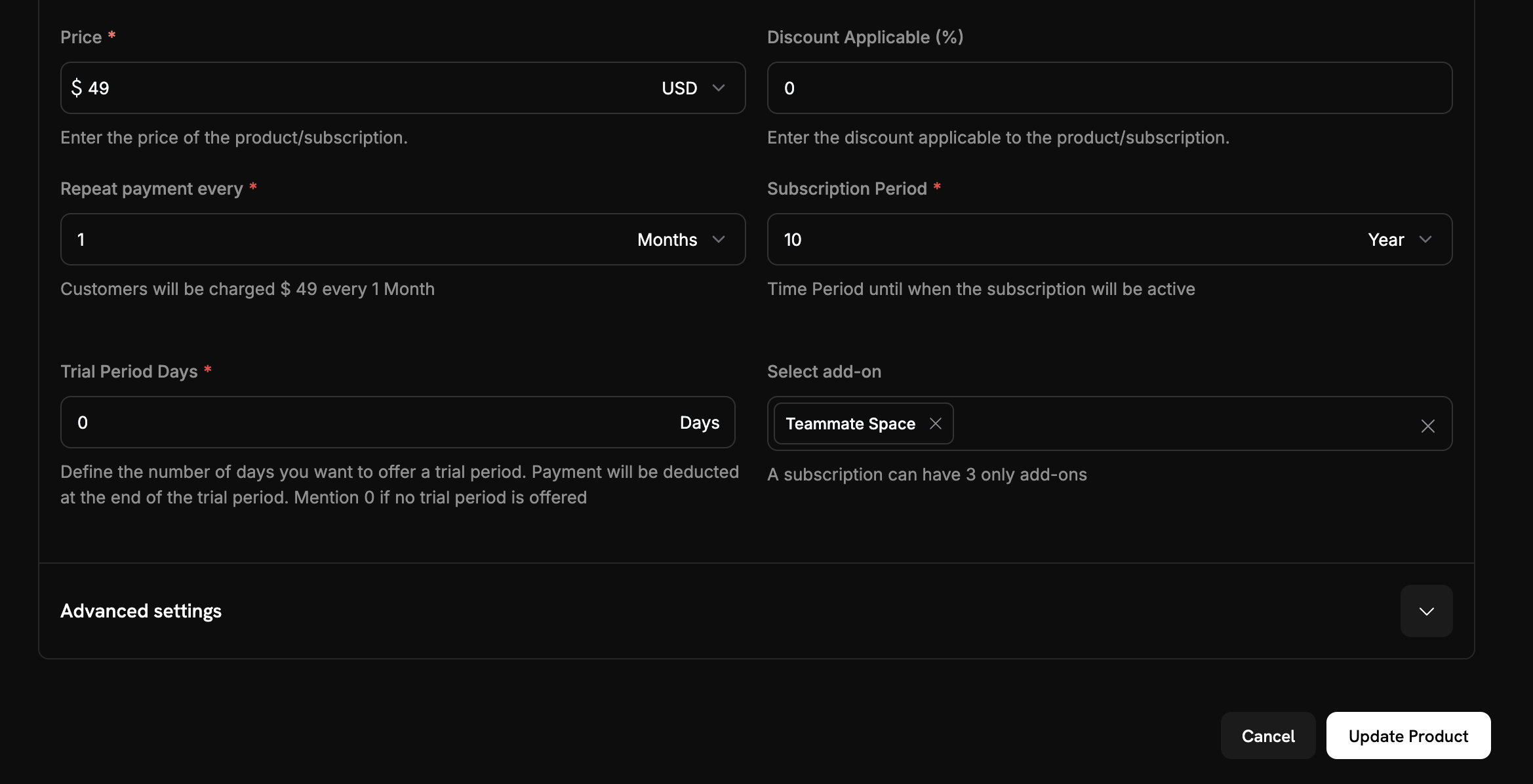
Key Benefits
Add-ons enable flexible pricing models, revenue optimization through upsell opportunities, simplified management from one dashboard, and customer choice in customizing their subscriptions.Creating Add-ons
Add-ons are created as separate products in the dashboard, then attached to subscription products. This lets you reuse add-ons across multiple subscriptions and manage pricing independently.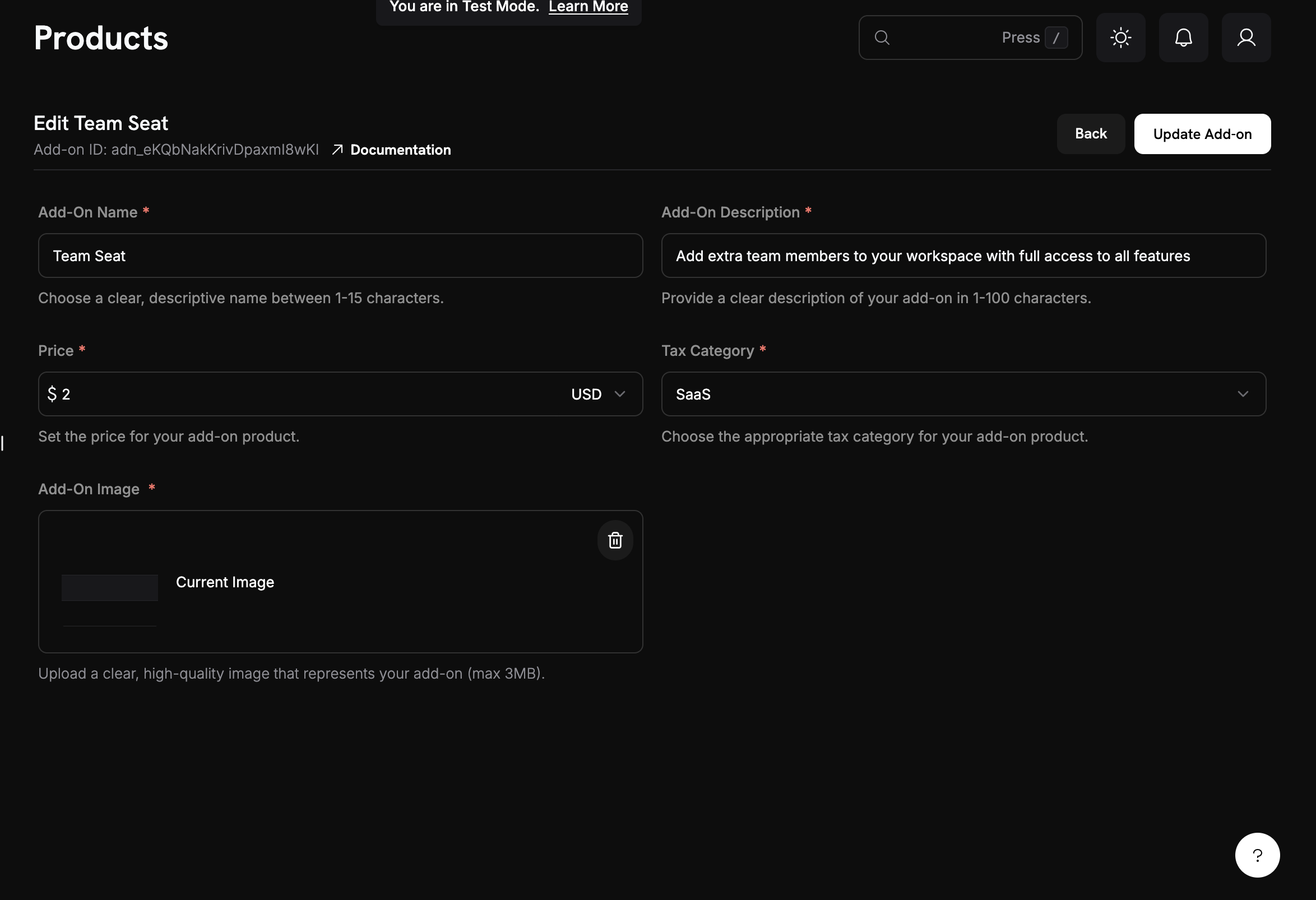
Add-on Configuration
When creating add-ons, you can configure:- Pricing: Set the add-on amount (
price) in the smallest currency unit. The add-on is billed on the parent subscription’s cycle - Currency: Set the base price in any currency Dodo Payments can charge. The searchable currency selector pins USD, GBP, EUR, and INR to the top; customers outside your base currency are billed through Adaptive Currency
- Quantity: Customers choose a quantity when the add-on is attached to a subscription
- Availability: Attach the add-on to subscription products through each product’s
addonslist. The add-on itself has no availability setting - Tax settings: Configure the appropriate
tax_category
Getting Started
Ready to implement add-ons in your subscription business? Here’s how to get started:1
Plan Your Add-ons
Identify the additional features, services, or capacity that would benefit your customers as add-ons.Consider:
- What do customers frequently request?
- What features could be monetized separately?
- What would create natural upgrade paths?
2
Create Your First Add-on
Use the Dodo Payments dashboard or API to create your first add-on product.
Dashboard Guide
3
Attach to Subscriptions
Connect your add-ons to the appropriate subscription products where they should be available.
4
Test Integration
Create test checkout sessions with different add-on combinations to ensure everything works correctly.
5
Monitor Performance
Track add-on adoption rates and revenue impact to optimize your pricing strategy.
Common Use Cases
- Seat-based billing: Additional team members, user licenses, or concurrent users
- Feature upgrades: Premium features, advanced analytics, or priority support
- Usage extensions: Extra storage, API calls, or bandwidth allowances
- Service add-ons: Professional services, training, or consultation hours
Integration Examples
Checkout Sessions with Add-ons
When creating a checkout session, include add-ons with quantities:Plan Changes with Add-ons
Modify existing subscriptions to add, remove, or update add-ons:Dynamic Pricing
Calculate total costs dynamically based on add-on selections:API Management
Dodo Payments provides a comprehensive API for managing add-ons programmatically:Create Add-ons
Create Add-ons
Use the
POST /addons endpoint to create new add-ons with custom pricing, descriptions, and configuration options.API Reference
Update Add-ons
Update Add-ons
Modify existing add-ons using the
PATCH /addons/{id} endpoint to update pricing, descriptions, or tax categories.API Reference
List and Retrieve
List and Retrieve
Use
GET /addons to list all add-ons or GET /addons/{id} to retrieve specific add-on details.API Reference
Image Management
Image Management
Update add-on images using the
PUT /addons/{id}/images endpoint for better product presentation.API Reference
Best Practices
- Start simple: Launch with 2-3 core add-ons and expand options based on customer feedback and usage.
- Maintain pricing clarity: Clearly communicate add-on pricing and value, so customers understand what they’re getting for the extra cost.
- Test thoroughly: Validate add-on combinations to ensure pricing calculations remain accurate and checkout flows function smoothly.
Design Considerations
- Clear Value Proposition: Each add-on should have a clear benefit that customers can understand
- Logical Grouping: Group related add-ons together in your checkout flow
- Flexible Quantities: Allow customers to adjust quantities of add-ons as needed
- Transparent Pricing: Show total costs clearly throughout the checkout process