

What Is Localized Pricing?
Every product has a base price in a base currency. Localized Pricing lets you override that base with fixed prices you set per currency or per country. Turn it on by setting apricing_mode on the product, then attach one rule per market.
It’s one of several independent levers for international pricing, each solving a different problem:
Localized Pricing and Adaptive Currency work together. When no localized rule matches, the product falls back to its base price — charged directly if the customer is already in your base currency, or converted through Adaptive Currency if not.
Use Cases
Exact Prices for One Market
Exact Prices per Currency Zone
Reversible Market-Entry Promotions
Competitive Price-Matching
Core Concepts
- Pricing modes — A product is in exactly one mode at a time, set by its
pricing_mode:by_currency: one price per currency, regardless of country. Everyone paying in EUR sees €9.99.by_country: a price specific to a country (₹999 in India), even when several countries share a currency.
- Fixed amounts, in the smallest unit — A rule’s
amountis an integer in the currency’s smallest unit, the same as everywhere else in the API:99900is ₹999.00,999is €9.99. It’s a price you set, never a converted value. - A matched rule wins over automatic pricing — When a localized rule applies to a line, Purchasing Power Parity and Charm Pricing are both skipped for that line. At checkout, the customer pays the amount you set, unchanged. On a subscription plan change, a rule in a different currency from the subscription is converted; see How It Applies on Subscription Plan Changes.
- When no rule matches — The product keeps its existing behavior: customers in your base currency pay the base price directly; everyone else gets it converted through Adaptive Currency.
- Fees are inclusive when a rule matches — The customer pays exactly the amount you set. The Adaptive Currency FX fee is absorbed by you (treated as fees-inclusive for that transaction) rather than added on top, so your stated local price is always the price charged.
Set Up in the Dashboard
1
Open the product form
In your Merchant Dashboard, go to Products and create a product (or open an existing one to edit). Set the base Price and currency as usual.
2
Enable Localized Pricing and choose a mode
In the Pricing section, tick Localized Pricing, then choose By Country or By Currency.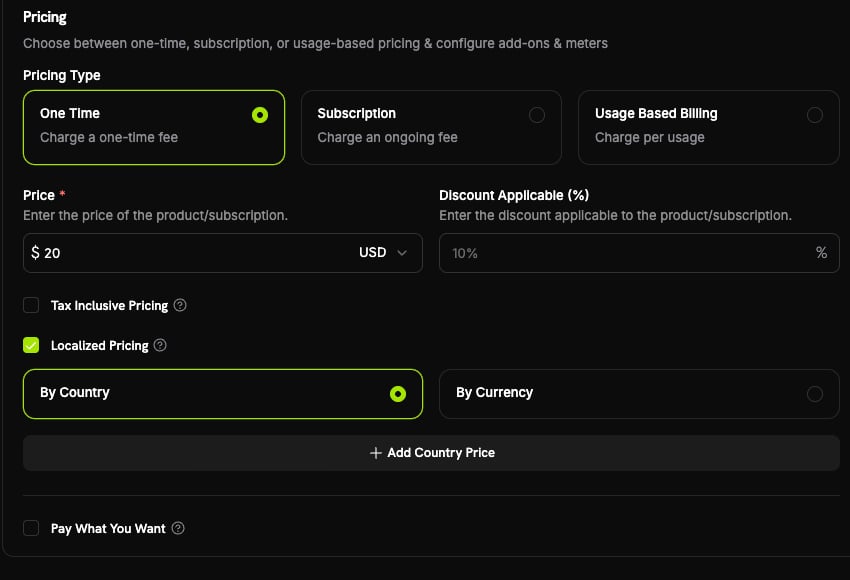
3
Add a price for each market
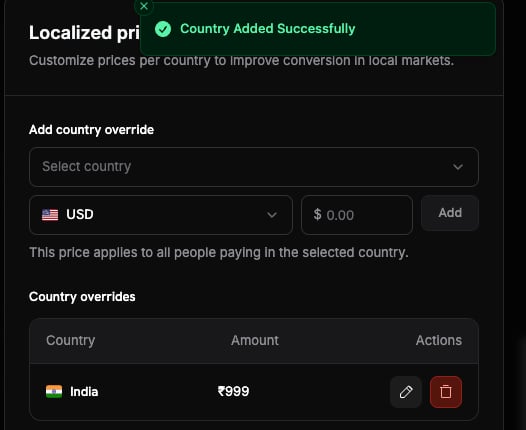
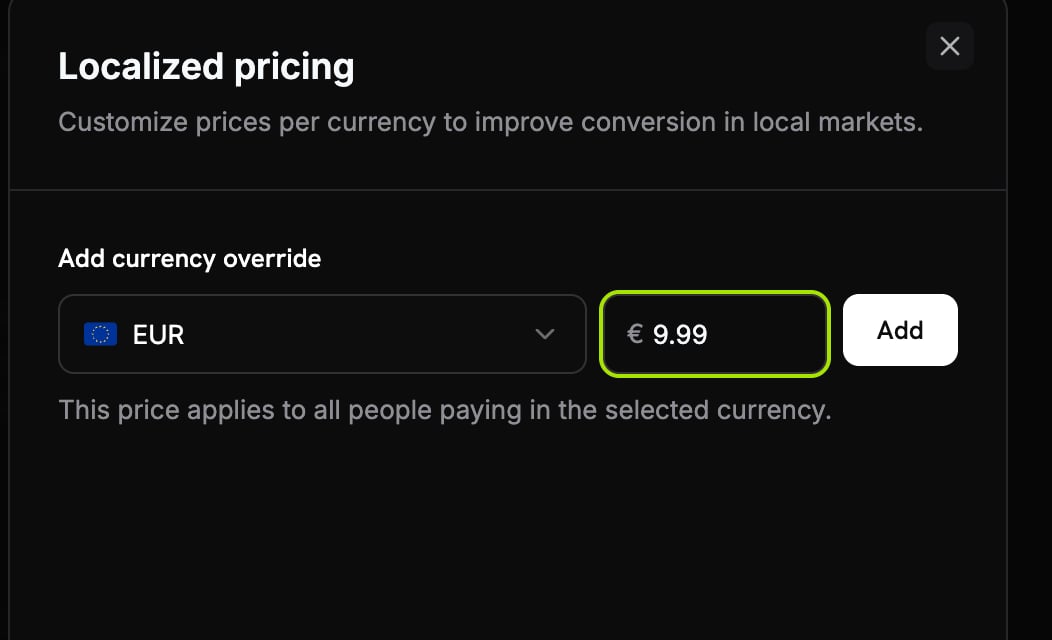
Click Add Country Price or Add Currency Price, fill in the Localized pricing panel, and click Add. Each market you add appears in the overrides table, where you can edit or remove it later.
- By Country
- By Currency
Pick a country, choose the currency, and enter the amount (for example ₹999 for India), then click Add.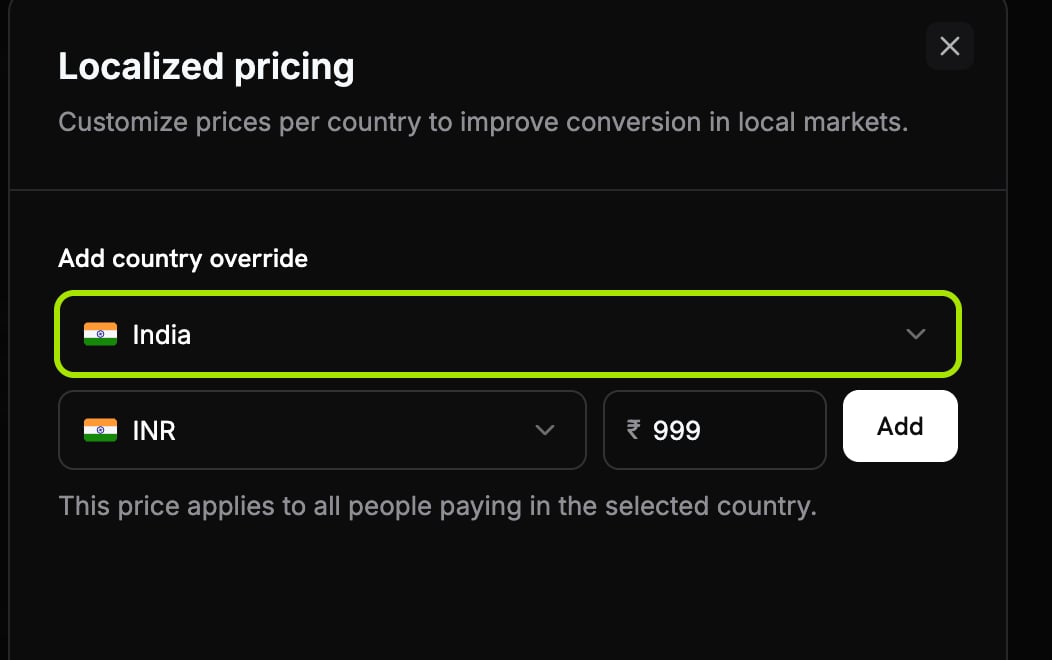
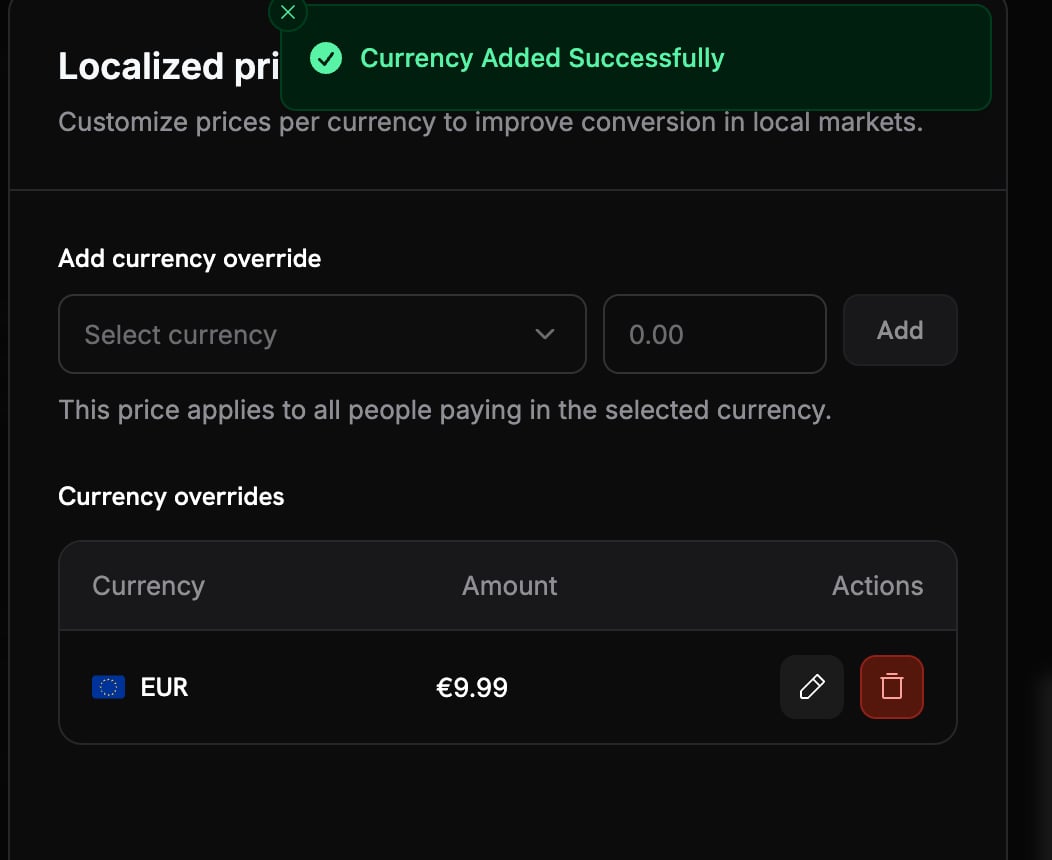
4
Save the product
Save with Add product. Localized prices apply to future checkouts immediately.
Run a test checkout with a billing country that has a rule, and confirm the localized amount appears.
Manage via API
Localized Pricing is fully available over the API. First set the product’s pricing mode, then attach rules.Set the Pricing Mode
Setpricing_mode when you create the product (or update an existing one). null means base-only, the existing behavior.
Add a Localized Price
Attach a rule to the product. Inby_country mode country_code is required; in by_currency mode it must be omitted.
by_currency product, omit country_code. For example, a flat €9.99 for everyone paying in EUR (currency: 'EUR', amount: 999).
List, Update, and Archive
You can update only a rule’samount; currency and country are fixed once created. Archiving is an idempotent soft-delete, so the rule stops matching but stays in your history.
API Reference
How It Applies at Checkout
Localized pricing is resolved per cart line, and only for products that have apricing_mode set. Dodo Payments reads two signals from the request: the customer’s billing country, and an optional billing_currency (when omitted, a currency is derived from the billing country).
- By Country: looks for a rule matching the billing country. If one exists, the customer is charged the rule’s amount in the rule’s currency.
- By Currency: looks for a rule matching the customer’s currency (the
billing_currency, or the currency derived from their country). If one exists, the customer is charged the rule’s amount in that currency. - No match, or no
pricing_mode: the base price applies, charged directly when the customer’s currency equals the base currency, otherwise converted through Adaptive Currency.
How It Applies on Subscription Plan Changes
Localized pricing follows your subscribers when they switch plans. When an existing subscription changes plan into a product that has apricing_mode, the new plan’s price is resolved with the same rules as checkout, using the billing country and currency already locked on the subscription:
- By Country: a rule matching the subscription’s billing country applies. If the rule’s currency differs from the currency the subscription is billed in, the rule’s amount is converted at live FX rates — the rule is applied, not skipped.
- By Currency: a rule matching the currency the customer is billed in applies, and the customer is charged exactly the rule’s amount.
- No match, or no
pricing_mode: the new plan’s base price applies, converted through Adaptive Currency when needed — the same fallback as checkout.
- Previews are exact. Preview Change Plan returns the same localized amount the actual change charges.
- Renewals keep the localized price. After the change, the new plan renews at its localized amount — and stays fees-inclusive — exactly like a subscription created at that price.
- Proration uses real amounts. On an upgrade, the credit for unused time is based on what the customer actually paid for the old plan, while the new plan is priced by its localized rule.
- Scheduled changes lock the price when scheduled. A change scheduled for the end of the billing period charges the amount calculated at scheduling time, even if you edit the rule in between.
- The billing currency never changes. A plan change never switches the currency a subscription settles in; a rule in another currency is FX-converted into it.
- Add-ons are not localized. Add-on prices on the new plan always use their base pricing.
Important Behaviors
Localized rule changes do not emit their own webhooks. The resolved amount appears on the resulting payment or subscription exactly like any other price.
Best Practices
- Keep a sensible base price. It is the fallback for every market without a rule, converted through Adaptive Currency.
- Type clean numbers. The whole point of a fixed amount is a tidy price like ₹999, €9.99, or ¥1000, not an FX result. For automatic rounding across every currency, see Charm Pricing.
- Pick the mode for the job. Use
by_countryfor purchasing-power pricing; useby_currencywhen one price per currency zone is enough. - Archive, don’t recreate, for promotions. Archiving a rule reverts the market to base/adaptive while preserving history; recreate or re-price later as needed.
- Mind the tax line before advertising a total. For tax-exclusive products the customer pays the localized amount plus tax, so don’t quote it as the final price in ads.