

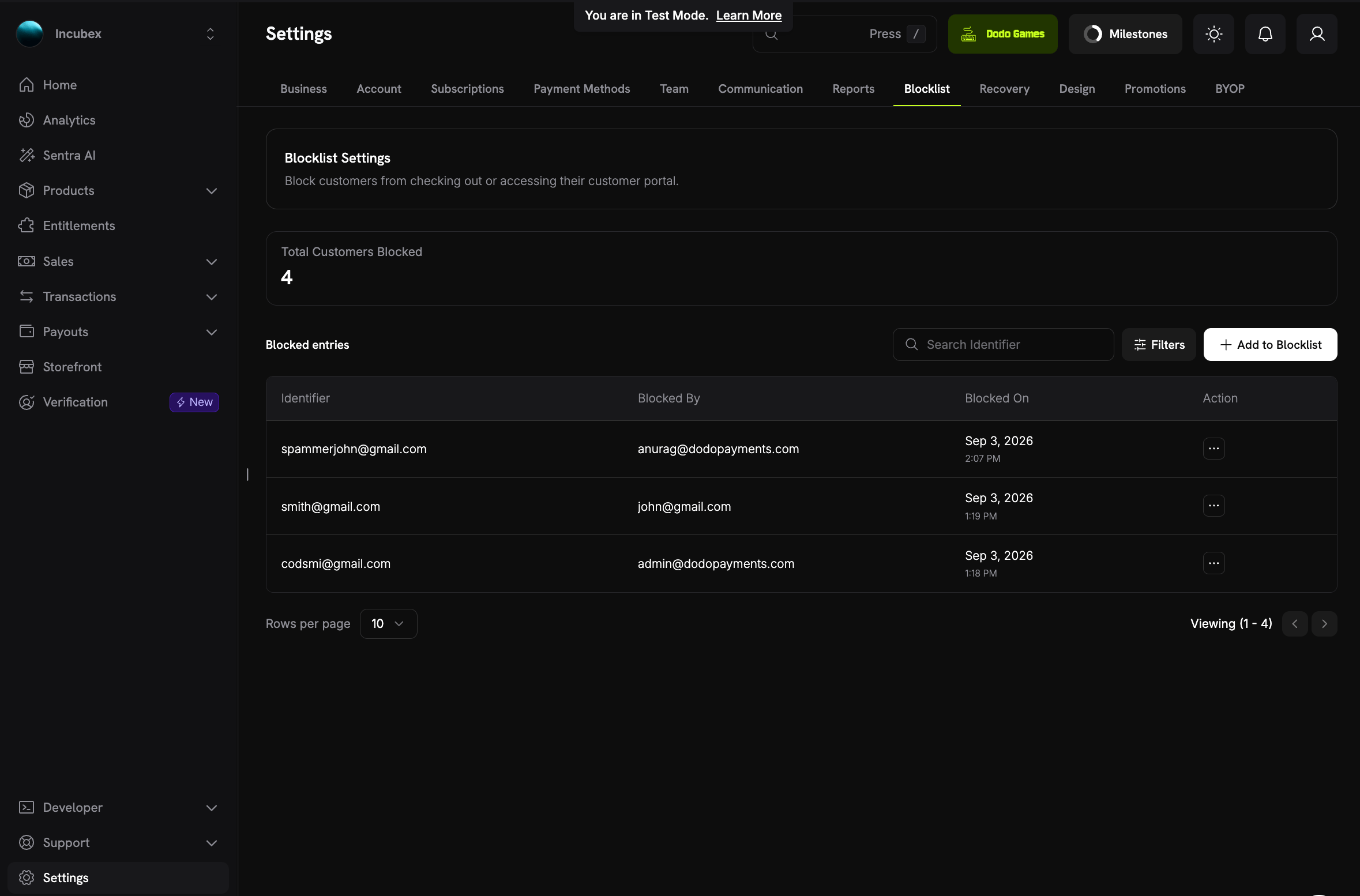
The Blocklist tab under Settings
What Happens When You Block a Customer
A block takes effect as soon as you add it, in each of these areas:Blocking does not refund past payments, and it does not affect open disputes. Issue any refund separately from the Refunds page.
How Blocking Matches Customers
You can block by customer ID or by email. Either way, the block is keyed on the customer’s email, not on the customer record:- Every record with that email is covered. Checkout can create a new customer record for a returning email, so a block on a single customer ID could be bypassed. A block on the email cannot.
- Aliases are covered. Emails are compared in lowercase with any
+aliasremoved, sobuyer+promo@example.comandBuyer@example.comcount as the same customer. Dots in the address are kept as they are. - Scoped to your business. A block applies to your business only. The same email can still buy from other businesses on Dodo Payments.
- The email must belong to an existing customer. You cannot block an email that matches none of your customers, and you cannot block a customer record that has no email.
Blocking a Customer
You can block a customer from the Blocklist page or from the customer’s own page.- From Settings
- From the customer's page
1
Open the Blocklist
Go to Settings → Blocklist in your dashboard.
2
Add to Blocklist
Click Add to Blocklist, then enter the customer’s email or customer ID in Customer ID or email. The panel shows the matching customer.
3
Confirm
Click Add to Blocklist in the panel. The customer’s live subscriptions are cancelled immediately, and the entry appears in the Blocked entries table. If some subscriptions are still being cancelled, the dashboard shows a notice. Refresh the page in a moment to check.
reason when you block through the API.
Managing Blocked Customers
The Blocklist page lists every active block:- Total Customers Blocked: How many customers are currently blocked.
- Blocked entries: One row per block, with the Identifier you entered (email or customer ID), Blocked By, and Blocked On. Blocked By shows the team member who added the block, or API for a block added with an API key.
- Search Identifier and Filters: Find an entry by email or customer ID, or filter by Blocked By and Blocked Between.
- Action: See Details opens the blocked customer’s page, and Unblock removes the block. Team members without Write access to Customers, such as the Viewer or Analyst role, cannot unblock.
The Blocked Customer’s Page
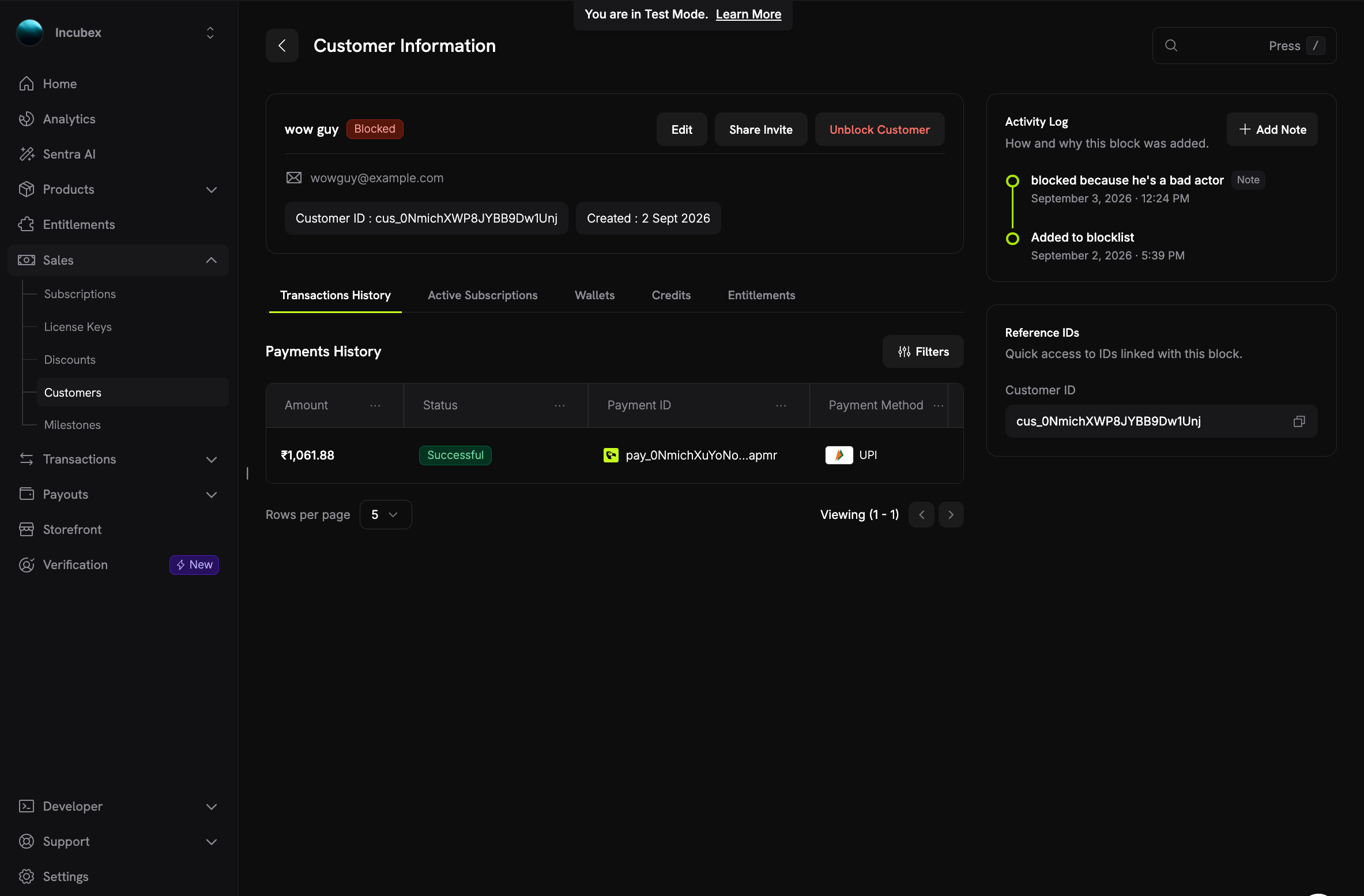
A blocked customer's details page
- A Blocked badge next to the customer’s name, and an Unblock Customer button.
- Activity Log: When the customer was added to the blocklist, the reason, and any notes your team has added since. Click Add Note to record new context, such as the outcome of a chargeback. You can edit a note later through the API.
- Reference IDs: The customer ID linked to this block, ready to copy.
Unblocking a Customer
To unblock a customer, click Unblock Customer on the customer’s page, or select Unblock in the Action column of the Blocklist page. Then confirm with Unblock.- Checkout and Customer Portal changes are restored immediately.
- Cancelled subscriptions are not reactivated. The customer has to purchase again.
- The entry is kept as an audit record together with its notes, but it no longer appears in the active list.
- You can block the same customer again later. That creates a new entry.
What the Customer Sees
A blocked customer is never told that they were blocked.- At checkout, the payment fails with a generic decline: “This payment cannot be processed.” The API returns HTTP
403with the error codePAYMENT_NOT_PERMITTED, which names no cause. The real reason is written to Dodo Payments’ logs only. - In the Customer Portal, everything is visible, but every action that changes the account is refused. A refused action returns HTTP
403withPORTAL_ACTION_NOT_PERMITTEDand the message “This action is not available.” The portal profile carriesread_only: true, so a custom portal integration can disable its own controls. The portal never exposes the blocklist entry or its notes.
Using the API
The Blocklist API lets you block from your own tooling, for example when a chargeback arrives. It requires your secret API key. The Blocklist API uses the Customers permission. A key with Read access to Customers can list entries and read notes. A key with Write access to Customers can block, unblock, and manage notes. The dashboard applies the same split to team roles: a role with Read access to Customers reads the list, and a role with Write access makes changes. The Blocklist API has six endpoints:
The list returns active blocks only. To filter it, pass
identifier (a partial, case-insensitive match on the email or the customer ID), blocked_by_email, created_at_gte, or created_at_lte. It returns 10 entries per page by default: set page_size to return up to 100, and page_number to page through.
Block a Customer
Send eithercustomer_id or email at the top level of the body. If you send both, the block uses customer_id. reason is optional and shows on the entry’s page. A new block returns HTTP 201.
Response
Blocking a customer who is already blocked returns HTTP
409 with CUSTOMER_ALREADY_BLOCKED, unless subscriptions are still waiting to be cancelled. In that case, the call continues the cancellation instead and returns HTTP 200.Check Whether a Customer Is Blocked
Get Customer Detail returns two extra fields:blocked_at, the time the active block was added (null when the customer is not blocked), and blocklist_entry_id, the entry behind it. The List Customers endpoint leaves both empty.
Unblock a Customer
204 on success, and HTTP 404 when the ID matches no active block. Unblocking restores checkout and portal writes, and reactivates no subscription.
Best Practices
- Record the reason. A short reason on the block, plus notes for anything that happens later, gives your support team the full story without leaving the dashboard.
- Block after a chargeback. Open the customer’s page from the dispute or the payment and block them there, or automate it from the
dispute.openedwebhook withPOST /blocklist/customers. See Disputes. - Check
subscriptions_swept. When you block through the API, repeat the call until the response reportstrue, so no live subscription is left behind. - Refund separately. A block stops future purchases only. If you owe the customer money, refund the payment as usual.
- Review the list. Unblock customers whose issue is resolved. Unblocking is immediate and keeps the history.