

Introduction
The Payouts page shows the earnings that go out in your next payout, net of fees, refunds, and taxes. It also holds your payout schedule, your minimum payout threshold, your linked bank accounts, and your payout history.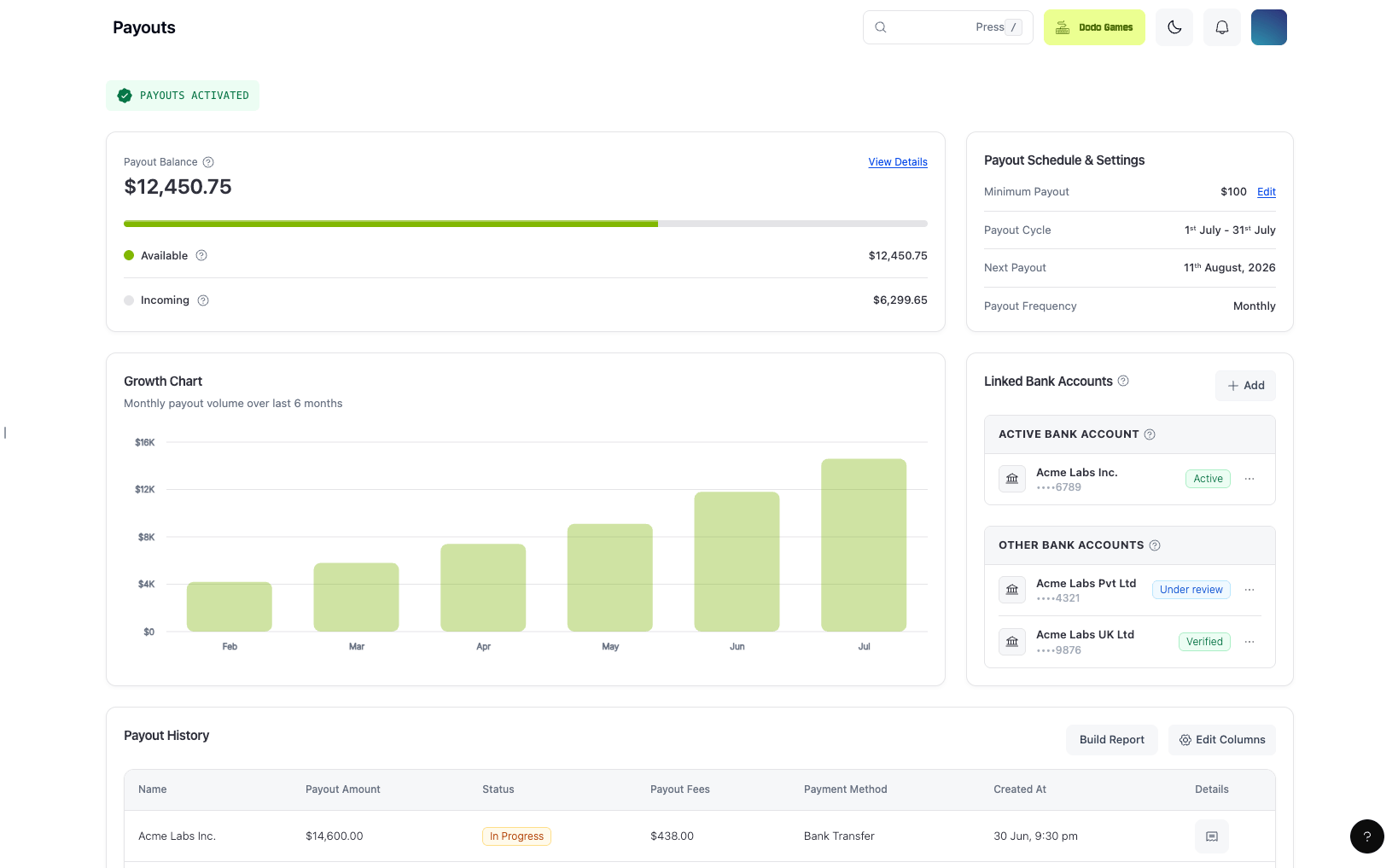
Key Features
- The Payout Balance card shows the balance eligible for your next payout in USD, split into Available and Incoming. When part of your balance is held in a reserve, the card also shows a Reserved row. See Reserved Balance.
- Balances in GBP and EUR are converted to USD for display.
- The Payout Schedule & Settings card shows your Minimum Payout, Payout Cycle (the current billing period), Payout Frequency, and Next Payout date. Click Manage to change your payout frequency and minimum payout in Settings → Payouts.
- Next Payout comes from your payout schedule, which skips weekends and bank holidays. It shows
-when no payout is due, for example when your balance is below your minimum payout. The date is never in the past: a payout that missed its date and is still due shows today’s date and runs on the next payout run.
The displayed amount is for reference only. The final payout amount depends on the exchange rate at the time of transfer. Charges from your own bank or from intermediary banks can reduce the credited amount further. See Payout Currency and Bank Conversion.
Payout Cycles
Each payout cycle has fixed billing periods and payout dates:1
Bi-Monthly (Default)
Billing Period 1: 1st to 15th of the month
Payout Date 1: 18th of the same monthBilling Period 2: 16th to the end of the month
Payout Date 2: 4th of the following month
Payout Date 1: 18th of the same monthBilling Period 2: 16th to the end of the month
Payout Date 2: 4th of the following month
2
Weekly
Billing Period 1: 1st to 7th
Payout Date 1: 11th of the same monthBilling Period 2: 8th to 14th
Payout Date 2: 18th of the same monthBilling Period 3: 15th to 21st
Payout Date 3: 25th of the same monthBilling Period 4: 22nd to the end of the month
Payout Date 4: 4th of the following month
Payout Date 1: 11th of the same monthBilling Period 2: 8th to 14th
Payout Date 2: 18th of the same monthBilling Period 3: 15th to 21st
Payout Date 3: 25th of the same monthBilling Period 4: 22nd to the end of the month
Payout Date 4: 4th of the following month
3
Monthly
Billing Period: 1st to the end of the month
Payout Date: 11th of the following month
Payout Date: 11th of the following month
- A payout is initiated only when all verifications are approved and your payable balance meets your payout threshold for the billing period.
- The default payout cycle for all businesses is bi-monthly. Your current cycle appears as Payout Frequency on the Payouts page.
- Businesses with higher transaction volumes can request weekly payouts by contacting support@dodopayments.com.
- Certain high-risk businesses may be placed on a monthly payout cycle at our discretion.
Change Your Payout Cycle
You can move your payout cycle to a less frequent cycle from the dashboard. You can’t move back to your current cycle or to any more frequent cycle afterwards.1
Open Payout Settings
Go to Settings → Payouts, or click Manage on the Payout Schedule & Settings card of the Payouts page.
2
Select a New Frequency
Under Customise Payouts, open the Payout Frequency list. It shows only the cycles you can move to. Select one and click Save.
3
Confirm the Change
In the Change payout frequency? dialog, click Change.
Team members with the Viewer role see payout settings as read-only.
Why Payouts Show as Inactive
If your dashboard shows Payouts Inactive, no payout is scheduled on your payout cycle while the account stays in that state. This differs from a payout that is scheduled but not yet sent. The Payouts page also shows a banner: “Payouts to your bank account are currently inactive. Review our Merchant Acceptance Policy to understand what might be affecting your account.” The banner links to the Merchant Acceptance Policy and does not name a specific reason. Most often, payouts have not been enabled yet. Live payments and payouts are enabled separately, so your account can take live payments while payouts still show as inactive. Payouts also require an approved Bank Verification, an approved Business Verification for registered entities, and a completed Monitoring Review.1
Check Your Verification Forms
Open the Verification section of your dashboard. A form that is still in draft, under review, or on hold is the usual reason. Complete it to move your account forward. See Verification Process for what each state means and how to respond to a form placed on hold.
2
Check the Threshold and the Cycle
When payouts are active, a payout is initiated only when your eligible balance meets your payout threshold and your next payout date arrives. A balance below the threshold carries forward to the next cycle.
3
Contact Support If Every Form Is Approved
If all forms are approved and payouts remain inactive, email support@dodopayments.com from your registered email address.
Active payouts do not mean a payout was sent. An active account with a balance under the threshold, or one that has not reached its next payout date, shows no scheduled payout.
If Payouts Were Previously Active
Payouts that have been running can return to inactive. The dashboard shows the same Payouts Inactive label, so check your verification status before you assume your account was never enabled. The usual reasons are:- An open information request. As part of ongoing monitoring, our compliance team may ask for additional information. An unanswered request can pause payout processing until you respond. See Additional Information Requests.
- A review in progress. Payouts can be held while a compliance review of your account is completed, in line with our Review and Monitoring Policy.
Payout Processing and Bank Timelines
- The payout dates above are initiation dates. The payout is created at 00:00 UTC on that date.
- After a payout is sent, the time it takes to reach your bank account depends on the receiving bank and the payout rail.
- If a payout date falls on a weekend or a US Federal Reserve bank holiday, the payout moves to the next business day. The billing period does not change. The Next Payout date on the Payouts page already reflects the move.
When Your Payout Date Moves
When the bank holiday calendar moves your next payout date, Dodo Payments sends a Payout date moved in-app notification that names both dates, for example “Payouts scheduled for 2026-10-05 now run on 2026-10-06.”- The notice covers only your next payout date, not later ones.
- It is sent only while your payouts are active.
- Every team member with in-app notifications receives it, subject to your payout notification settings in Communication Preferences.
- When the new date is later than the old one, the Payouts page shows the move as a banner until you dismiss it, and the next payout card on Home shows a “Moved to” note under it.
If a Payout Shows Success but Has Not Arrived
A payout with the status Success has been sent to your bank. A payout that shows Initiated or In Progress has not been sent yet. See Payout Status. After a payout is sent, the receiving bank and the payout rail decide when the funds appear, and a cross-border transfer can pass through intermediary banks first. To locate a payout that shows Success but is not in your account:1
Check Which Account Received It
On the Payouts page, check your Active Bank Account. If you changed the active account recently, a payout processed before the change is credited to the previous account.
2
Ask Your Bank to Trace the Transfer
Give your bank the payout amount, the currency, and the payout date. Your bank can search for incoming and pending transfers that have not yet been credited to your account.
3
Contact Support If Your Bank Can't Find It
Email support@dodopayments.com from your registered email address. Include the payout amount, the payout date, and the payout ID if you have it. Payout IDs begin with
pyt_.Payout Currency and Bank Conversion
Payout balances are held in your USD, GBP, and EUR wallets. After a transfer leaves Dodo Payments, two things outside our control can change the amount credited to your account:- Conversion by your bank. If your account is credited in a different currency from the one the transfer is sent in, your bank converts the transfer on arrival at its own exchange rate. It may also apply its own receiving or conversion charges.
- Intermediary bank charges. Cross-border transfers can pass through correspondent banks, which may deduct their own charges.
Payout routes and currencies vary by country. Contact support@dodopayments.com to confirm how your payouts are sent and credited before you link a bank account.
Minimum Payout Threshold
If your payable balance does not meet the threshold, it carries forward to the next payout cycle.
Flexible Minimum Payout Threshold
You can set the balance that must build up before Dodo Payments initiates a payout. The threshold is set in USD. Configuration:- Allowed values: $50 or any higher amount
- Effective from: Your current payout cycle
- Note: A payout that is already scheduled for the cycle keeps its existing amount
How to Edit Your Threshold
1
Navigate to Payout Settings
Go to Settings → Payouts, or click Manage on the Payout Schedule & Settings card of the Payouts page.
2
Enter New Threshold
Under Customise Payouts, enter a value of 50 or more in Minimum Payout (for example,
250).3
Save Changes
Click Save. The dashboard confirms with Minimum payout updated.
The threshold is compared against your combined USD, EUR, and GBP wallet balances, converted to USD.
Payout Accounts
The Linked Bank Accounts card on the Payouts page lists the bank accounts that receive your payouts. To add, activate, or delete an account, click Manage Accounts, which opens Settings → Payouts. You can link up to three payout accounts. Each account is registered for a currency and a transfer method.- Add an account with Add Bank Account, choosing the currency and transfer method you want to be paid in.
- Save a draft if you do not have every detail on hand, and finish the submission later. You can no longer edit an account after you submit it.
- Resubmit an account placed on hold. The hold or failure reason appears on the account so you know what to correct.
- The first approved account is activated automatically. Payouts are always sent to your Active Bank Account.
- Choose Other for an unlisted bank. If your bank is not in the list, select Other and type the bank name.
In Settings → Payouts, open the menu on an approved account and click Set As Active to replace the active account in the same currency. Payouts go to the new account from your next payout cycle, and a payout already processed is still credited to the previous account. You can Delete any account that is not active.
Bank verification during business onboarding uses the same payout accounts flow, so the account you submit while onboarding appears on the Payouts page as your first payout account. See Account Verification.
Which Accounts You Can Use
The account must belong to you: the verified individual or the registered entity on your Dodo Payments account. Within that rule, you have more options than many merchants expect:- The account’s country does not have to match your ID’s country. The country that issued your identity document decides whether you can onboard. Your payout account can be in a different country, provided it is held in your own name. See How Your Eligible Country Is Determined.
- A joint personal account is eligible. If you are one of the named account holders and your name matches your identity verification, a joint account can receive payouts. Compliance may ask for supporting documents before approving it, such as a bank confirmation letter or a recent statement showing the account holders and account identifiers.
- A registered entity must use the entity’s account. If you onboarded as a registered entity, payouts go to an account in the company’s legal name, not to a director’s personal account.
How Your Transfer Method Affects Currency and Cost
A payout account is registered for a specific currency and transfer method. That choice decides the currency your bank credits you in and whether a per-wire fee is deducted. A USD SWIFT account does not guarantee that you keep USD: if the receiving account cannot hold USD, your bank converts the transfer on arrival at its own rate.- To be paid in your local currency, register the account with your local bank details and the Local transfer method instead of Swift. This avoids the wire fee.
- To hold USD, register a USD account that can receive and hold USD, so your bank has no reason to convert the transfer on arrival.
- Payoneer is treated as a regular bank account. Enter its details in the bank form as you would for any other account. There is no separate Payoneer integration.
See the pricing page for current payout and USD SWIFT wire fees. For Swift transfers, intermediary and beneficiary bank fees may also apply and are deducted from the payout amount. See Payout Currency and Bank Conversion.
Available transfer methods vary by country, and not every method is offered for every account. Your dashboard shows the methods available to you when you add an account. If you are unsure which option suits your setup, contact support@dodopayments.com before you link an account.
Reserved Balance
Dodo Payments can hold back a share of your settled payments as a reserve for a set period. When a reserve is held, the Payout Balance card on the Payouts page shows a Reserved row under Incoming.- The reserved amount is still your money. It is not a fee.
- It is released back into your balance automatically.
- It is already excluded from your Available and Incoming amounts, so it is not deducted a second time from your payout.
Payout Deductions
The following amounts are deducted from your sales before payout: Taxes: The tax calculated on each payment is deducted from the sales amount. Dodo Payments remits it to the tax authority. Fees: Dodo Payments transaction fees are deducted from each payment. A payout fee is deducted from each payout. Under standard pricing, the payout fee is $5 for payouts below $1,000 (or the GBP or EUR equivalent). Refunds and Disputes: Refunded amounts, disputed amounts, and their fees are deducted from your balance when they occur. See Balances for each ledger entry.Charges from your own bank or from intermediary banks are not deducted here and do not appear on your payout invoice. See Payout Currency and Bank Conversion.
Payout Status
Your Payout History shows one of the following statuses for each payout:
Every status change emits a webhook, so you can reconcile payouts in your own systems without polling. See Payout Webhooks for the payload and delivery details. To receive email or in-app notifications for the same changes, see Communication Preferences.
Payout Invoice
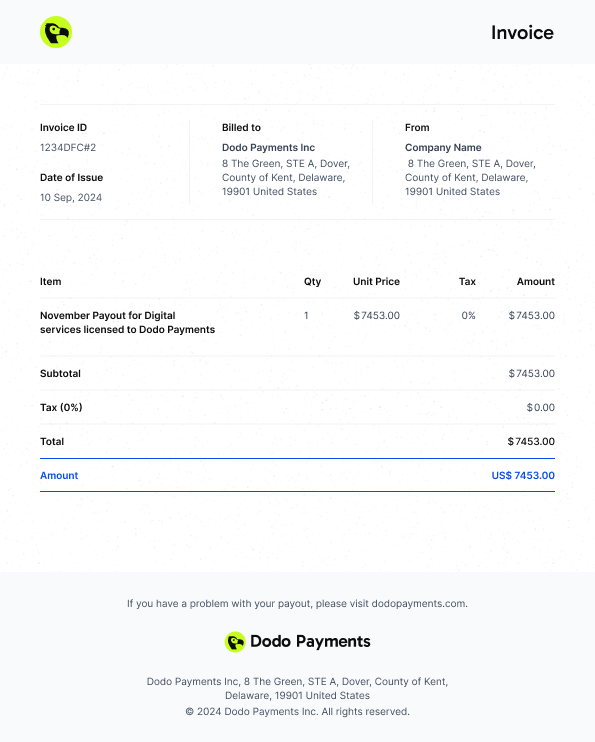
Each payout has a self-billed invoice that records the amount Dodo Payments pays to your business. Your business appears under Billed From, and the Dodo Payments payout entity appears under Billed to. The invoice shows Paid after the payout succeeds and Unpaid before that. To download it, open Payout History, click the payout in the Details column, and in the Payout Details panel click Download → Download Invoice. The Payout Details panel also breaks the payout down by ledger entry type, such as Payments, Tax Deducted, and Payment Fees. When the entries a payout settles do not add up to the payout amount, the difference appears as Unattributed Balance, listed last, directly above the total. A positive amount means the payout drew on balance left over from an earlier period. A negative amount means the entries came to more than the payout, and the remainder funds a later payout.Invoice Structure
Balances & Wallets
View your USD, GBP, and EUR wallet balances, the transaction ledger, and payout-related activity.