

What the Mixpanel app does
The Mixpanel app sends events from your business to your Mixpanel project. Each event has a name likedodo_payment_succeeded. You can use the events in reports and funnels.
Before you start
- You are an owner or an admin of the Dodo Payments business.
- You have a Mixpanel project, its project ID, and a service account that can send data to it. In the Connect dialog, select Where do I find this? to see where to find each value.
- You know the data residency of the project: US, EU, or India.
Install, connect, and configure
1
Install the app
Open Apps, then Explore. Open Mixpanel (publisher Dodo Payments) and select Install.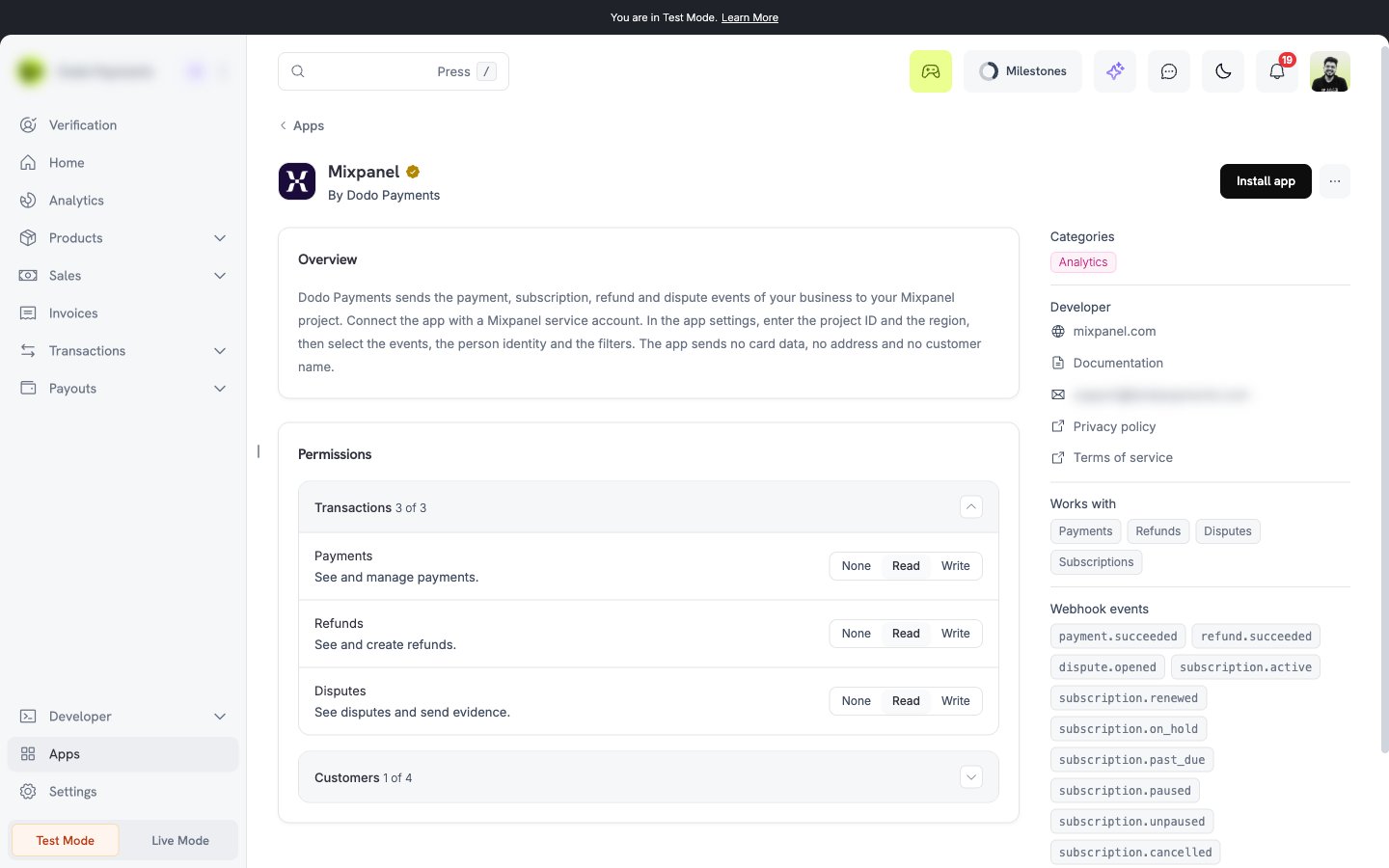
2
Connect Mixpanel
Select Connect. Enter the Service Account Username and the Service Account Secret, then select Connect. Dodo Payments tests them.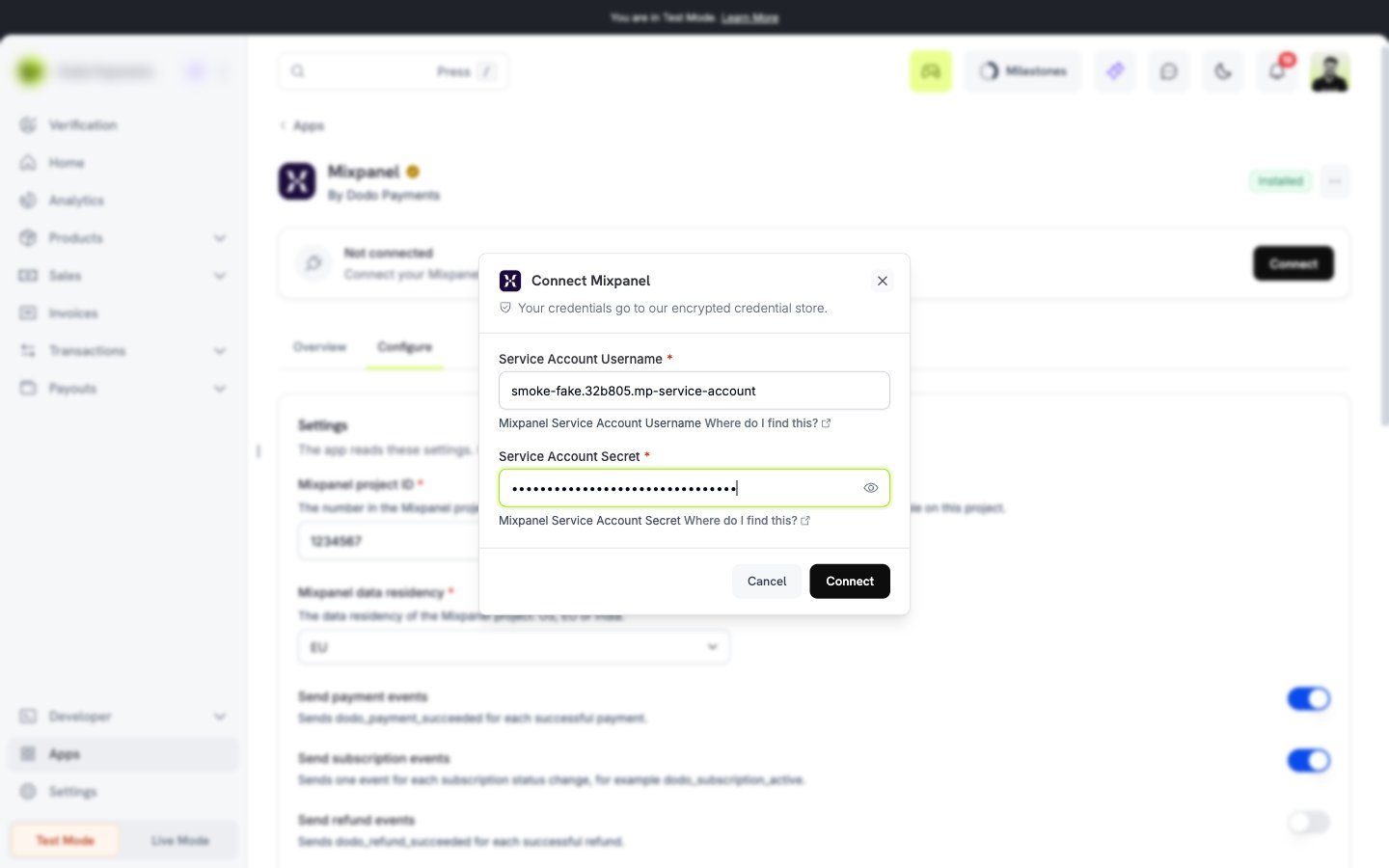
3
Set the project and the events
Open the Configure tab. Enter the Mixpanel project ID, select the Mixpanel data residency, choose the events, and select Save. The project ID and the residency are required. The Configure tab shows Action needed until both have a value.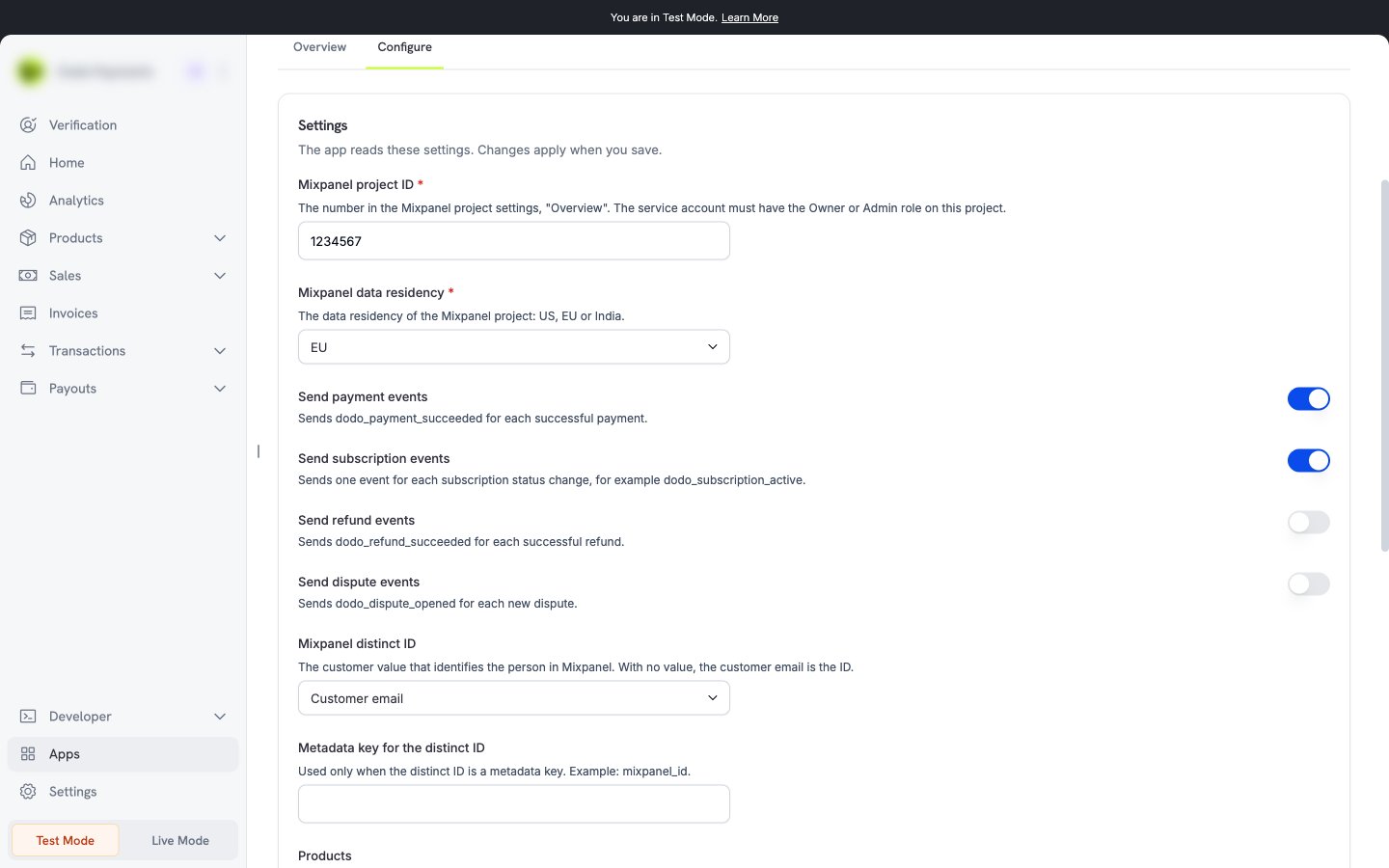
Settings
What is sent and when
Dodo Payments sends one Mixpanel event for each Dodo Payments event, after the event happens. The event name starts withdodo_. The event properties do not contain card data, the address, or the customer name. With the default setting, the customer email is the distinct ID. Amounts go out in the major unit with the currency code.
Test the app
1
Use test mode
Install and connect the app in test mode. Enter the project ID and the residency, and save.
2
Make a test payment
Create a test payment.
3
Check Mixpanel
Open the event view of your project. A
dodo_payment_succeeded event appears.