

Connect an app
An official app sends data to a tool that has its own account, for example Slack or PostHog. You connect that account one time. Dodo Payments stores the connection and uses it to send data for you. An app is Connected, Not connected, or Connection needs attention. The status shows in the connection card on the app page.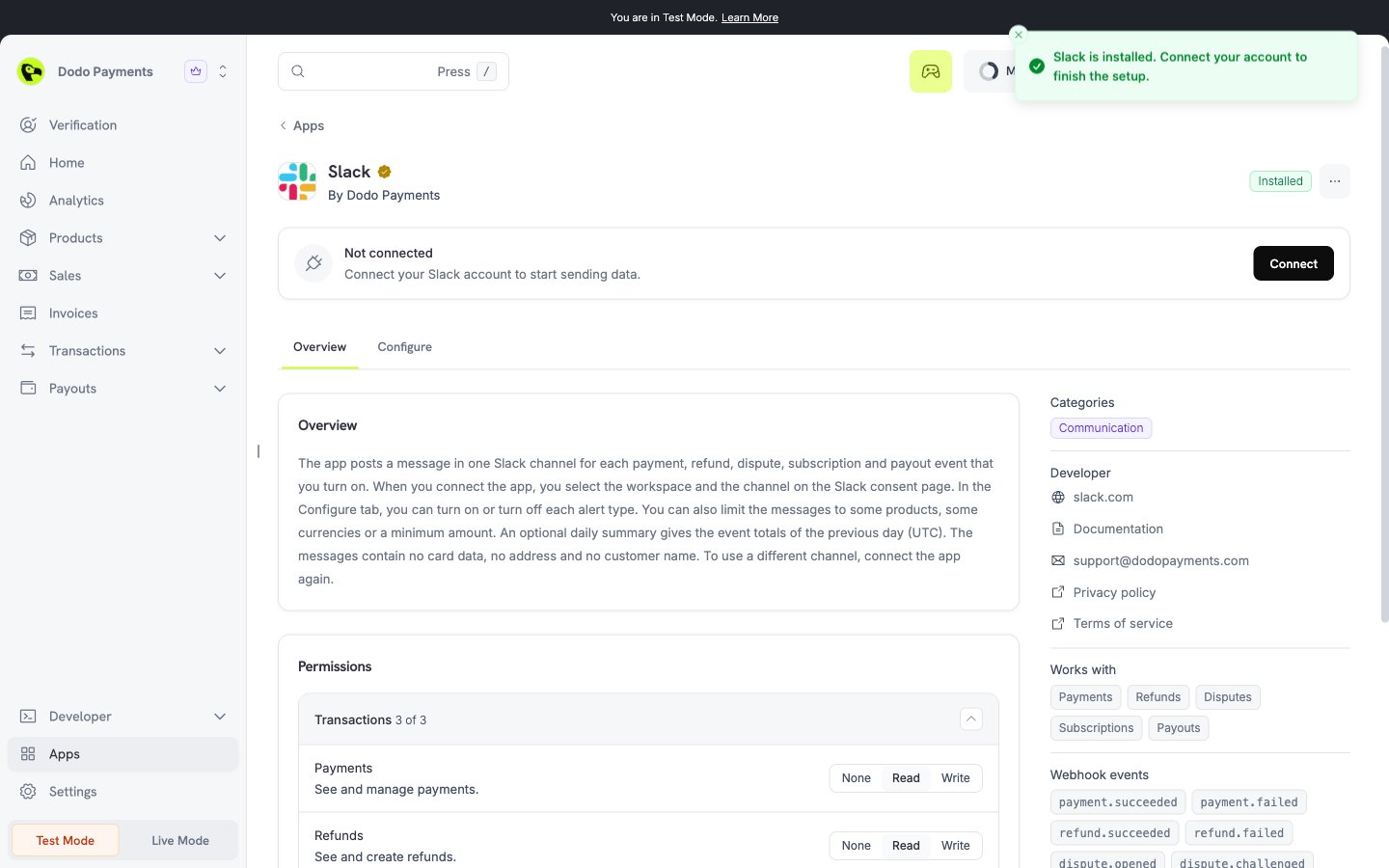
Connection types
Connect with OAuth
1
Select Connect
On the app page, select Connect. Only an owner or an admin can do this.
2
Continue to the tool
The dialog is titled Connect followed by the app name. Select Continue to followed by the app name. A new window opens.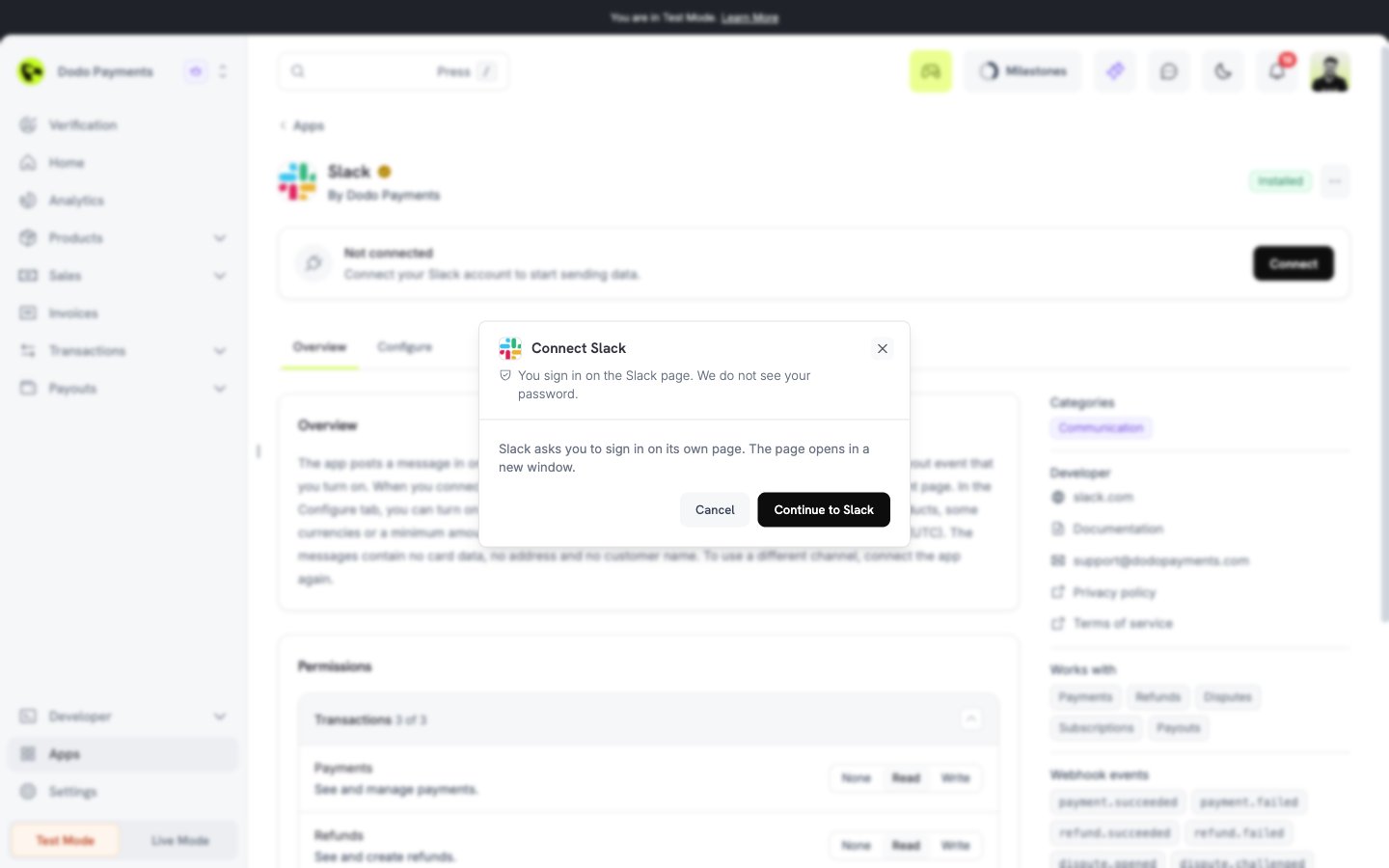
3
Approve in the tool
Sign in to the tool and approve the access. For Slack, the window shows the permission page of the workspace. Choose the channel there, then select Allow. The card then shows Connected and the button Update connection.
Connect with API credentials
1
Select Connect
On the app page, select Connect. A dialog opens on the dashboard page. No new window opens.
2
Enter the credentials
Fill in the form. Select Where do I find this? under a field to see where to find the value in the tool. Select Show to show a hidden value.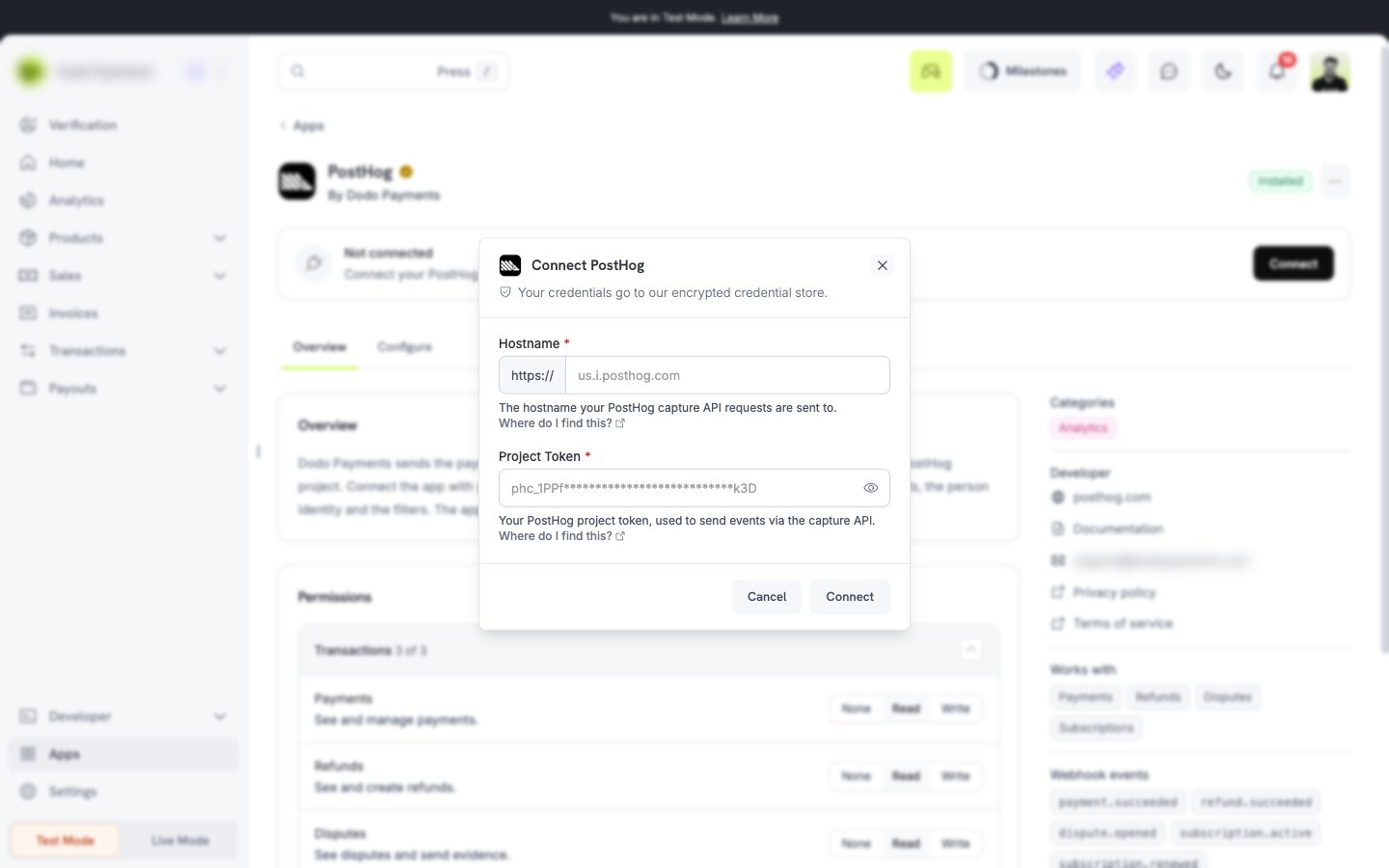
3
Select Connect
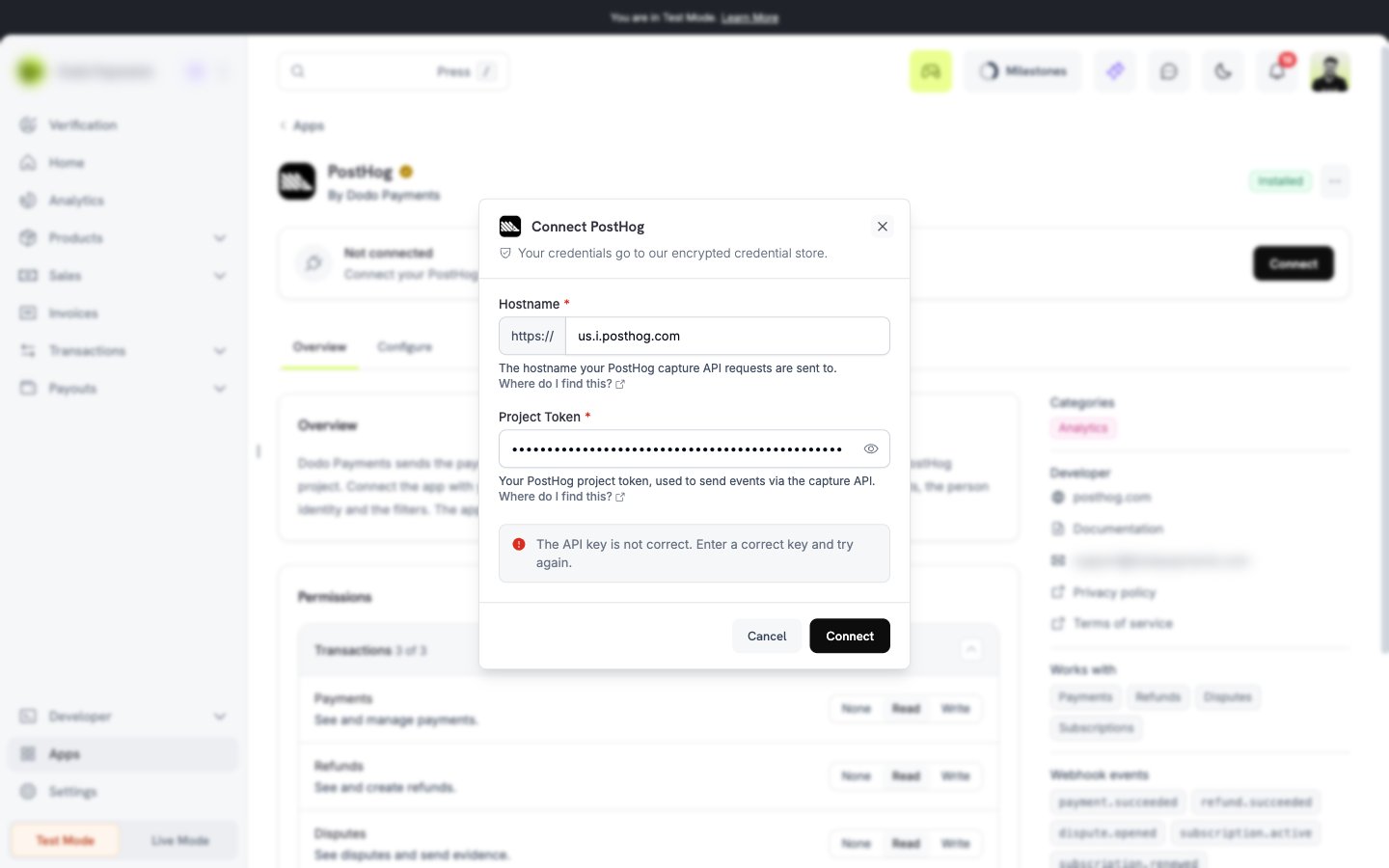
Dodo Payments tests the credentials. The dialog shows Checking the credentials….
Credential test result
Change or repair a connection
- To use other credentials, select Update connection.
- If the card says Connection needs attention, the tool stopped accepting the saved credentials. Select Reconnect. The app does not send data until you reconnect.
Configure an app
Many apps have options that you can set. Open the app from the Installed tab. If the app has options, the page has two tabs: Overview and Configure. You can use the Configure tab before you connect the app. A red Action needed label on the tab means that a required value is missing or that a saved value is not valid now.Set the options
1
Open the Configure tab
Open the app, then select Configure.
2
Change the values
Fields can be text, numbers, switches, lists, and pickers for your products or currencies. A field can show a hint, for example a minimum or a maximum.A secret field shows Set when it has a value. Select Replace to enter a new value, or Remove to delete it. The value is encrypted and is not shown again.
3
Save
A bar shows “You have unsaved changes”. Select Save. The toast says Settings saved. Select Discard to drop the changes.
Save behavior
- Changes apply when you save. The app is told about the change at once.
- Only an owner or an admin can save. Other members see the values, but not the secrets.
- You can install an app and skip the Configure step. The app then uses its default values until you save.
- If someone else saved while you edited, the page says “Settings changed. Review and save again”. Your changes are kept. Check the values and save again.
- If the developer removed a field, your change to that field is dropped, and the page tells you which fields.
- The installation must be active to save. If the page says that the installation is not active, finish the install first.