

Before you start
- You must be an owner or an admin of the business.
- Select the mode that you want to install the app in. The install applies to that mode only.
A member who is not an owner or an admin sees the Install button as disabled. The tooltip says that only an owner or an admin can install apps.
Find an app
1
Open the Explore tab
In the dashboard at app.dodopayments.com, open Apps, then select the Explore tab.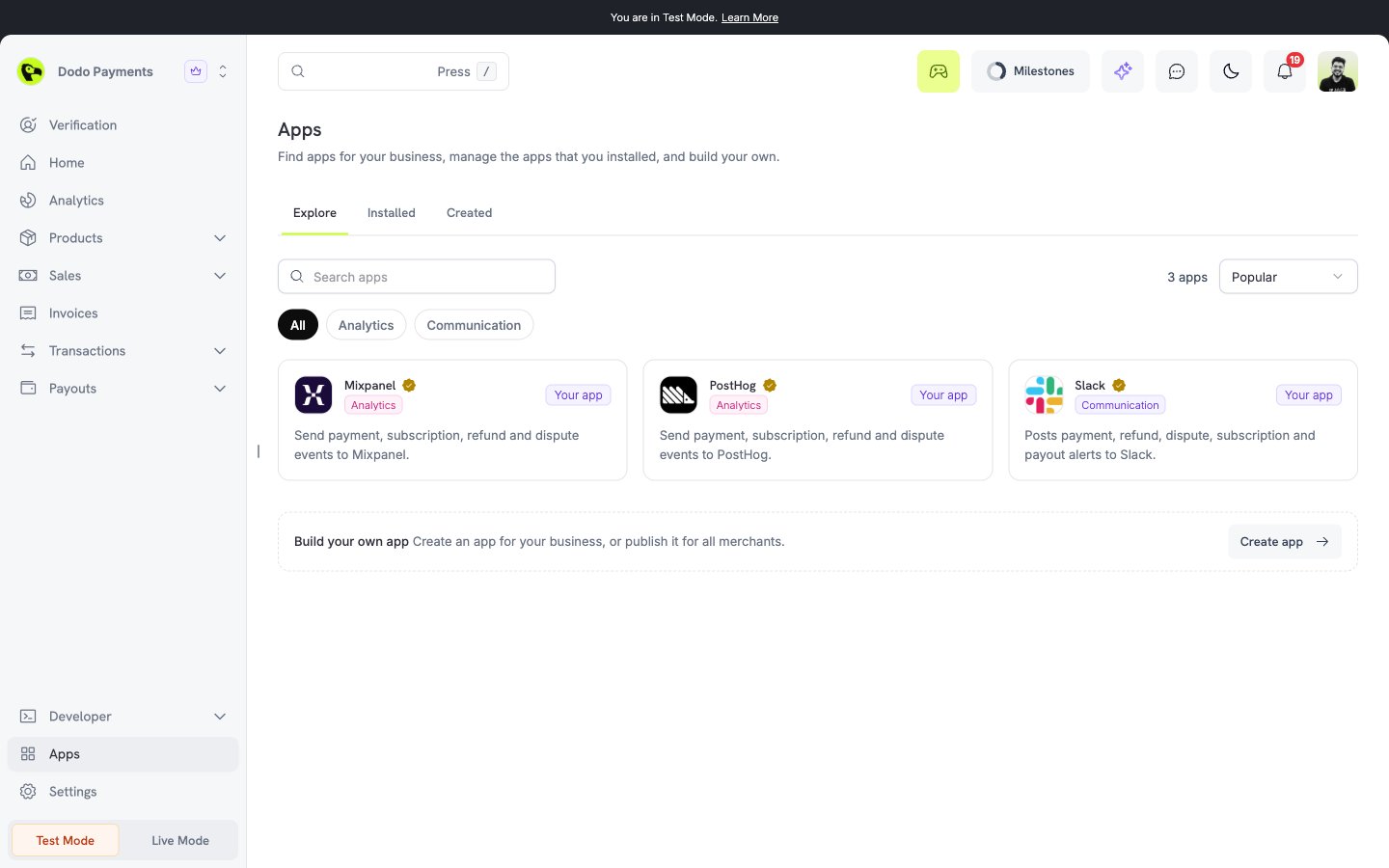
2
Search and filter
Use Search apps to search by name. Use All categories to filter by category, for example Analytics or Communication. Use Sort by to sort by Popular, Newest, or Name.Each card shows the logo, the name, the summary, the number of installs, and the badges Official or Verified.
3
Open the app page
Select a card to open the app page.
Read the app page
The app page has these parts:- Overview: the description and the screenshots of the app.
- Permissions: the resources that the app asks for and the access level of each one (None, Read, or Write).
- Webhook events: the events that the app receives.
- Developer: the website, the documentation, the privacy policy, and the terms of service of the developer.
- Categories and Installs.
An app that you or a developer shared with you for testing shows a Test app badge. See Test an app before it is public.
Install a third-party app
1
Select Install
On the app page, select Install. Dodo Payments sends you to the install page of the developer, and the app then starts the sign-in.If the app has no install link yet, the page says so. Contact the developer.
2
Check the consent screen
The consent screen is titled Install followed by the app name. It shows the mode of the install (Live mode or Test mode) and the business in Install on.Select Show details to see the reason that the developer gives for each permission. The screen warns you that payment access includes customer contact data.
3
Approve or cancel
Select Install to give the app all of the permissions. Select Cancel to stop.You cannot approve a part of the permissions.
4
Go back to the app
Dodo Payments sends you back to the app. The app can start to work at once. The install can show as Pending on the Installed tab for a short time, and then changes to Active.
Install an official app
Official apps do not use the consent screen. Select Install on the app page. The app is installed at once and the dashboard asks you to connect your account in the tool. See Official apps.Where installed apps appear
Open Apps, then the Installed tab. The table has these columns: App, Category, Installed by, Permissions, Status, Installed, and Actions.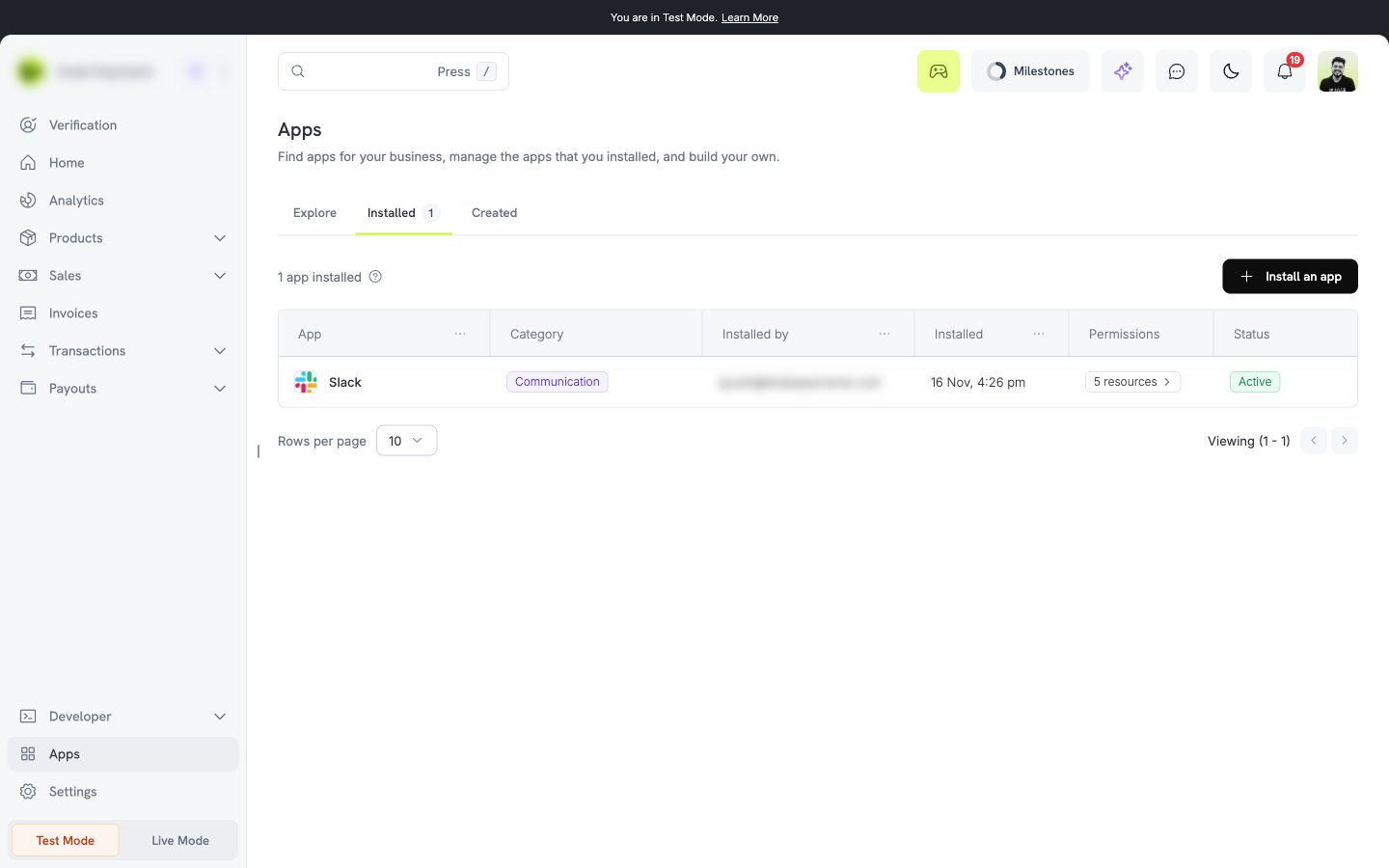
Test an app before it is public
A developer can share a test link for an app that is not public yet. To join:1
Open the link
Open the test link as an owner or an admin of your business.
2
Join as tester
The page is titled Join an app test. Select Join as tester.
3
Open the app
Select Open app. The app shows in the marketplace for your business with a Test app badge. Install it as usual.