

Les clés de licence correspondent au type d’entitlement License Key. Créez une seule fois un entitlement License Key avec la limite d’activation, la date d’expiration et le message d’activation souhaités, puis associez-le à n’importe quel produit. Par défaut, Dodo Payments génère et envoie par e-mail une clé pour chaque unité achetée ou pour chaque siège d’abonnement.
Que sont les clés de licence ?
Une clé de licence est un token unique qui autorise l’accès à votre produit. Utilisez des clés de licence pour :- Licences logicielles : applications de bureau, plugins et CLIs.
- Contrôles par siège : limiter les activations par utilisateur ou appareil.
- Produits numériques : contrôler l’accès aux téléchargements, aux mises à jour ou aux fonctionnalités premium.
Create a License Key Entitlement
1
Open Entitlements
Accédez à Entitlements dans le dashboard et cliquez sur + pour créer un entitlement.
2
Choose License Key
Sélectionnez License Keys, saisissez un Name, puis configurez le comportement de chaque clé émise :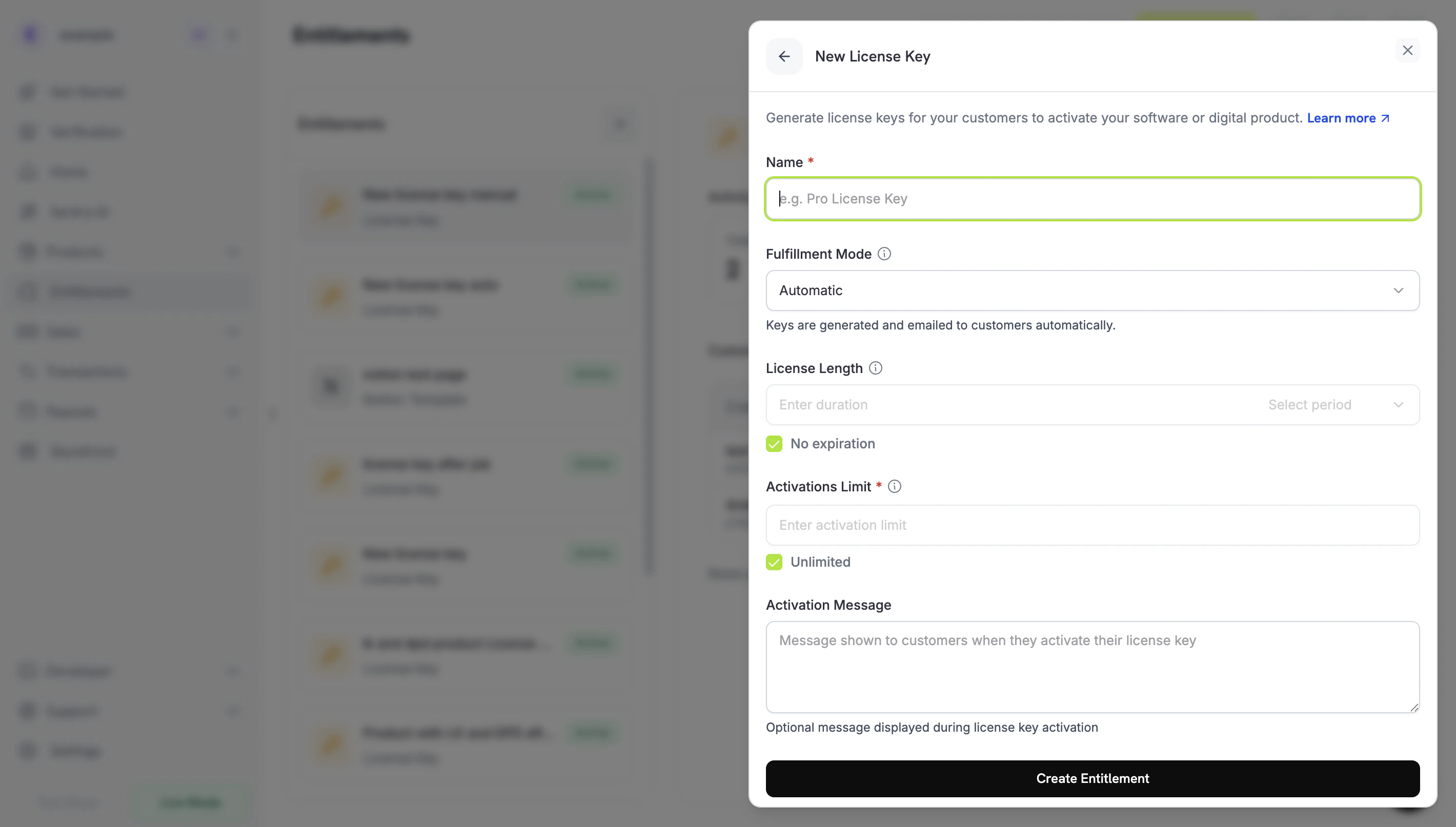
- Fulfillment Mode : Automatic (par défaut) génère et envoie chaque clé par e-mail. Manual vous permet de fournir vous-même chaque clé. Consultez Manual Fulfillment.
- Activations Limit : nombre maximal d’activations actives par clé, par exemple
1pour un utilisateur unique ou5pour une licence d’équipe. Sélectionnez Unlimited pour ne définir aucune limite. - License Length : durée de validité d’une clé après son émission, par exemple 30 jours ou 1 an, ou No expiration. Pour les produits avec abonnement, choisissez No expiration : les clés émises pour un abonnement n’expirent pas et leur validité suit l’état de l’abonnement.
- Activation Message : instructions facultatives destinées au client, de 2 500 caractères maximum, incluses dans l’e-mail qui fournit la clé. Par exemple :
Paste the key in Settings → LicenseouRun: mycli activate <key>.
3
Save the Entitlement
Cliquez sur Create Entitlement. Vous pouvez maintenant associer l’entitlement à n’importe quel produit.
Attach to Products
Ouvrez un produit, accédez à sa section Entitlements, puis sélectionnez votre entitlement License Key. Un produit peut fournir une clé de licence avec d’autres entitlements lors du même achat, comme un accès à Discord, des téléchargements de fichiers ou un accès à un dépôt GitHub.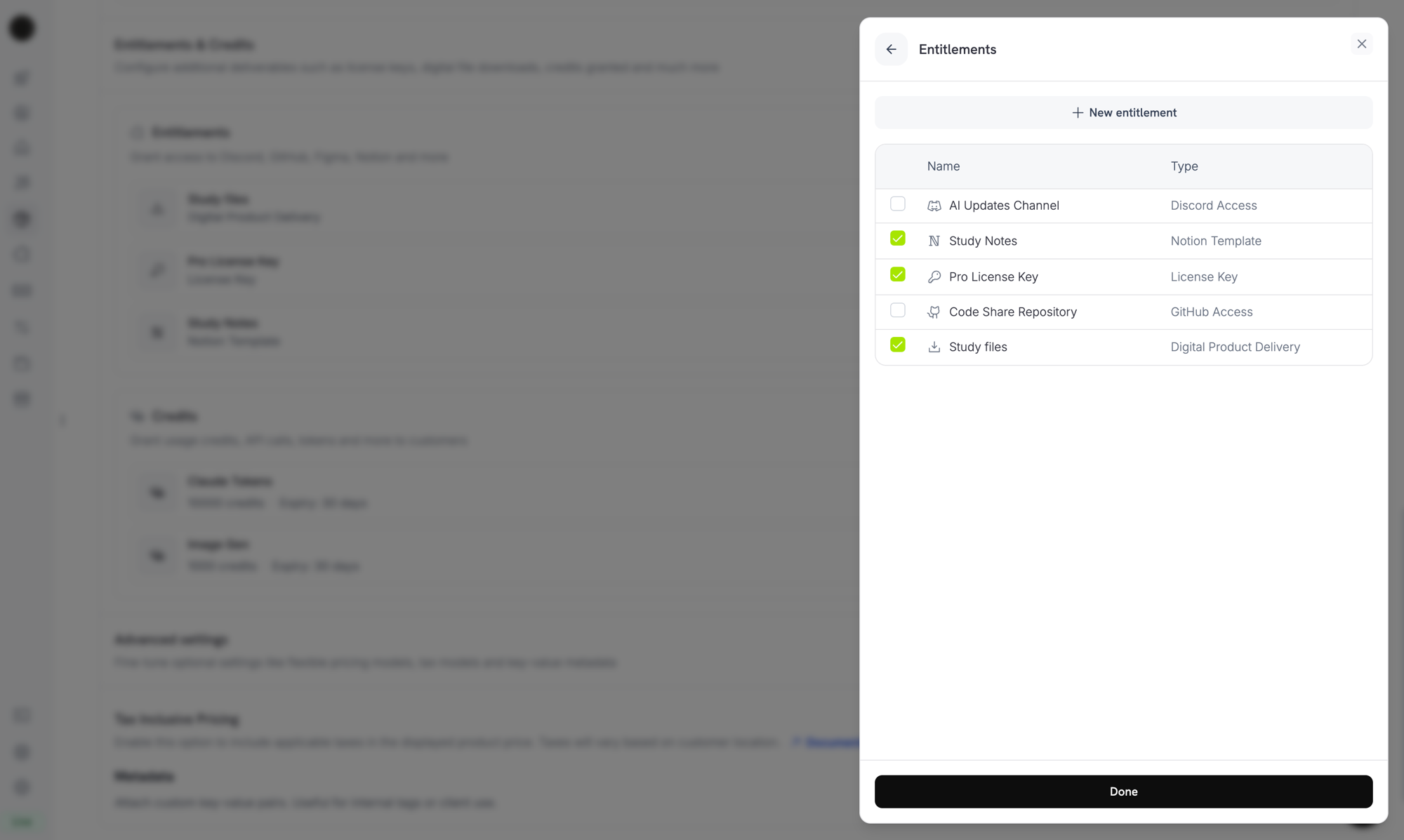
Selecting the License Key entitlement in the product entitlements panel.
How Keys Are Issued
L’émission des clés suit le cycle de vie standard des grants. Chaque événement affecte les clés de licence comme suit :Comportement de la quantité
Le nombre de clés dépend de l’origine du grant. Chaque clé reçoit son propre grant.- Produits avec abonnement : une clé par siège (
subscriptions.quantity). - Produits ponctuels : une clé par unité de l’élément de ligne du panier (
product_cart.quantity). - Grants API manuels : exactement une clé.
Fulfillment Mode
Chaque entitlement License Key possède unfulfillment_mode qui détermine qui fournit la clé :
auto(par défaut, Automatic dans le dashboard) : Dodo Payments génère et envoie la clé par e-mail lors du paiement ou de l’abonnement. C’est le comportement présenté dans le tableau ci-dessus, et il s’applique lorsquefulfillment_modeest omis.manual(Manual dans le dashboard) : chaque unité achetée crée un grantPendingsans clé, et vous fournissez chaque valeur de clé. Consultez Manual Fulfillment.
Manual Fulfillment
Avec le fulfillment manuel, vous fournissez chaque clé de licence au lieu de laisser Dodo Payments la générer. L’achat crée un grantPending sans clé, vous en informe via un webhook et attend que vous envoyiez la valeur de la clé. Utilisez cette option lorsque les clés proviennent de votre propre système, d’un fournisseur tiers ou d’un stock limité de codes préimprimés.
Pour suivre une procédure détaillée, de la création du produit à la remise de la clé, consultez le Guide d’intégration du fulfillment manuel des clés de licence.
Quand l’utiliser
Le fulfillment automatique convient à la plupart des licences logicielles. Choisissez le fulfillment manuel lorsque Dodo Payments ne peut pas générer la clé lui-même :- Utiliser vos propres clés : votre application, un produit de bureau ou votre propre serveur de licences génère la clé.
- Fournisseurs tiers : vous revendez des clés émises par un fournisseur en amont, comme une clé de jeu, un identifiant API ou une licence de plateforme partenaire.
- Stock limité : vous distribuez des codes provenant d’un stock préalloué et les attribuez un par un.
- Vérification humaine : vous souhaitez contrôler un achat avant d’autoriser l’accès.
Activer le fulfillment manuel
Pour activer le fulfillment manuel via l’API, définissezfulfillment_mode: "manual" dans integration_config de l’entitlement License Key. Dans le dashboard, définissez Fulfillment Mode sur Manual.
fulfillment_mode est rétrocompatible. Les entitlements créés avant l’existence de ce paramètre ne possèdent pas fulfillment_mode et se comportent comme auto. Le passage à manual n’affecte que les grants créés après la modification. Les clés déjà remises ne changent pas.Trouver les grants en attente de fulfillment
Lorsqu’un client achète un produit avec un entitlement en mode manuel, Dodo Payments crée le grant avec l’étatPending, sans clé, et vous envoie un webhook entitlement_grant.created contenant integration_type: "license_key" et status: "Pending". Réagissez à ce webhook ou interrogez l’endpoint List Customer Grants avec les filtres integration_type et status :
Remettre la clé
Pour remettre une clé, envoyez-la à l’endpoint Fulfill License Key Grant. Le grant passe à l’étatDelivered et Dodo Payments envoie la clé au client par e-mail. Il s’agit du même e-mail que celui reçu par le client avec le fulfillment automatique.
cURL
activations_limit et expires_at sont facultatifs. Lorsque vous les omettez, Dodo Payments utilise la configuration de l’entitlement. Chaque grant ne peut être traité qu’une seule fois : une nouvelle tentative sur un grant déjà traité renvoie 409 au lieu d’émettre une seconde clé.
Vous n’avez pas besoin d’envoyer vous-même la clé par e-mail. Dodo Payments la remet lorsque le grant est traité. L’importation de clés avec
POST /license_keys fonctionne différemment : elle n’en informe pas le client.Activation, validation et désactivation
Votre logiciel gère une clé au moment de l’exécution via trois endpoints. L’activation enregistre un appareil ou une installation pour la clé, la validation vérifie que la clé peut être utilisée et la désactivation libère une activation.Endpoints publics : les endpoints d’activation, de désactivation et de validation des licences sont publics et ne nécessitent pas de clé API. Appelez-les directement depuis un logiciel de bureau, des CLIs ou des clients basés sur un navigateur sans exposer vos identifiants API. Les constructeurs du SDK nécessitent toujours une valeur de bearer token ; les exemples du SDK transmettent donc une valeur fictive.
Activer une licence
L’activation crée une instance d’activation pour la clé et la renvoie avec un IDlki_. Conservez cet ID, car vous en aurez besoin pour désactiver l’instance. La requête renvoie 403 si la clé n’est pas active, 404 si la clé n’existe pas et 422 si la clé a atteint sa limite d’activation.
Valider une licence
La validation renvoievalid: true lorsque l’état de la clé est active et que la clé n’a pas expiré. Pour vérifier également qu’une instance d’activation précise existe toujours, transmettez son license_key_instance_id.
Désactiver une instance d’activation
La désactivation supprime une instance d’activation et libère une activation sur la clé. Transmettez la clé et l’ID d’instance renvoyé par l’activation. La requête renvoie403 si l’instance n’appartient pas à la clé et 404 si la clé n’existe pas.
Gérer les clés
Pour voir les clés émises, ouvrez l’entitlement License Key sous Entitlements. La liste des grants affiche une ligne par clé client, avec le client, la date d’accès, l’état et une action Revoke. Pour voir l’expiration, le nombre d’activations et la limite d’activation d’une clé, ouvrez-la sous Sales → License Keys. Pour répertorier les grants par programmation, appelez List Grants. Pour chaque grant de clé de licence, l’objetlicense_key contient la clé, l’état, l’expiration, le nombre d’activations utilisées et la limite d’activation. L’objet est null pour un grant en mode manuel qui est toujours Pending.
Importer des clés de licence existantes via l’API
Pour migrer des clés de licence depuis un autre système, importez-les avec l’API Create License Key. Vos clients continuent d’activer, de valider et de désactiver les mêmes chaînes de clés : vous n’avez donc pas besoin de réémettre les clés. La requête nécessitekey, customer_id et product_id. Omettez activations_limit pour des activations illimitées et omettez expires_at pour une clé qui n’expire jamais. L’importation d’une chaîne de clé qui existe déjà renvoie 409.
Différences entre les sources des clés
Le champsource indique comment chaque clé de licence a été créée :
Utilisez
source pour distinguer les clés migrées et fournies manuellement des clés générées par Dodo Payments, par exemple lors du rapprochement ou de l’audit des clés. Le champ figure dans les enregistrements de clés de licence, comme la réponse POST /license_keys. L’objet license_key des grants provenant de List Grants ne l’inclut pas. L’endpoint obsolète GET /license_keys, qui renvoie source et accepte un filtre source, est déconseillé.
Clés de licence dans l’URL de retour
Lorsqu’un client achète un produit avec un entitlement License Key, Dodo Payments ajoute la clé générée à votrereturn_url en tant que paramètre de requête license_key. Votre page de confirmation peut afficher la clé sans appel API supplémentaire :
%2C. Lisez donc le paramètre avec un analyseur d’URL, qui le décode, avant de le diviser :
subscription_id et l’état de l’abonnement au lieu de payment_id :
Gestion via l’API
Lifecycle Operations (Public Endpoints)
Lifecycle Operations (Public Endpoints)
L’activation, la désactivation et la validation sont publiques et ne nécessitent aucune clé API.
Activate License
Deactivate License
Validate License
License Key Management
License Key Management
Créez, répertoriez, récupérez et mettez à jour des enregistrements individuels de clés de licence. Utilisez ces endpoints pour importer des clés existantes ou lire les détails d’utilisation.
Create License Key
List License Keys
Get License Key
Update License Key
Entitlement Management
Entitlement Management
Gérez l’entitlement License Key lui-même : sa limite d’activation, la durée de licence et le message d’activation.
Create Entitlement
Update Entitlement
List Grants
Revoke Grant
Webhooks
La remise et la révocation des clés de licence envoient les quatre événements webhookentitlement_grant.*. Pour les grants de clés de licence, la charge utile inclut un objet license_key contenant la clé, l’état, l’expiration, le nombre d’activations utilisées et la limite d’activation.
L’événement obsolète license_key.created est toujours déclenché lorsqu’un enregistrement de clé de licence est créé. Consultez la page de charge utile webhook License Key.
Clés de licence héritées
Les produits créés avec l’ancien indicateur
license_key_enabled ont été automatiquement migrés vers un entitlement License Key. La migration est transparente : les clés des clients existants continuent de fonctionner, les endpoints publics /licenses/activate, /licenses/validate et /licenses/deactivate continuent de fonctionner, et les endpoints API /license_keys/* lisent et écrivent dans le même stockage de clés.La section autonome Sales → License Keys du dashboard reste disponible sous forme de liste de toutes les clés émises, pour l’audit et la recherche. Pour modifier les limites d’activation, la durée de licence ou le message d’activation, modifiez l’entitlement License Key migré sous Entitlements.Bonnes pratiques
- Choisissez des limites d’activation claires : sélectionnez des valeurs par défaut comme 1 pour les applications mono-utilisateur ou 3 à 5 pour les licences d’équipe, et documentez-les pour vos clients.
- Rédigez des messages d’activation précis : les clients les copient depuis l’e-mail de la clé de licence ; des chemins et commandes exacts évitent les demandes au support.
- Validez les clés auprès de l’API : pour les produits connectés au réseau, appelez
/licenses/validateplutôt que de vous fier à une activation mise en cache localement. - Utilisez les webhooks pour les révocations : gérez
entitlement_grant.revokedafin de désactiver les fonctionnalités de l’application lorsqu’un client annule ou reçoit un remboursement. - Testez les abonnements et les achats ponctuels : le comportement des clés de licence diffère entre les deux ; par exemple, les clés d’abonnement n’expirent pas. Testez donc les deux avant la mise en production.