

Introduction
ParityDeals shows location-based discount banners to eligible visitors on your website and generates the matching discount codes in Dodo Payments. A visitor who sees the banner gets a code to use at checkout. The codes appear in your Dodo Payments dashboard under Sales → Discounts.Dodo Payments has native Purchasing Power Parity, which lowers prices by country at checkout with no banner and no script. ParityDeals is for merchants who want a visible discount banner on their own site, or who want to run holiday and time-based deals.
How It Works
ParityDeals detects a visitor’s location, shows a customizable discount banner on your website, and gives the visitor a discount code to apply at checkout. ParityDeals creates each code in your Dodo Payments account, and the code works on the products you select.- A visitor lands on your website, and ParityDeals detects their location.
- If the visitor is eligible for a discount, a banner appears with a location-based code.
- The visitor enters the code at checkout, and Dodo Payments applies the discount.
- The code appears in your dashboard under Sales → Discounts.
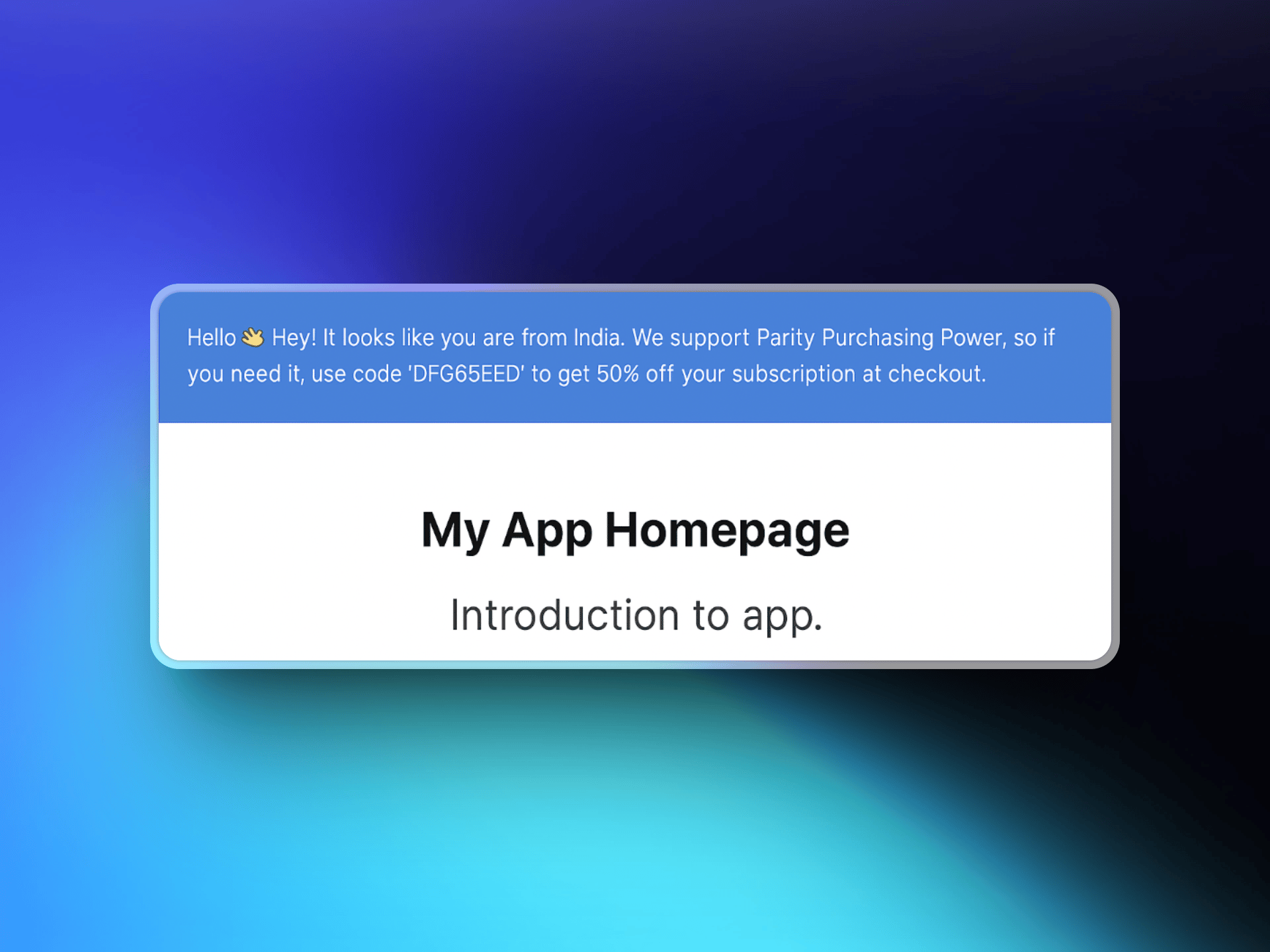
ParityDeals vs Native PPP
Native Purchasing Power Parity is the recommended way to price by country. Choose ParityDeals when you need a discount banner on your own site, or holiday and time-based campaigns.You can’t embed the ParityDeals banner on a Dodo Payments-hosted checkout or storefront, because they don’t support custom scripts. Add the banner to your own website or app.
Prerequisites
Before you set up this integration, you need:- A Dodo Payments account
- A ParityDeals account
- A Dodo Payments API key with write access
Getting Started
1
Sign up on ParityDeals
Go to app.paritydeals.com and create an account.
2
Create Deals
After you sign in, open the option to create deals. From the dropdown menu, select Create Deals via Dodo Payments.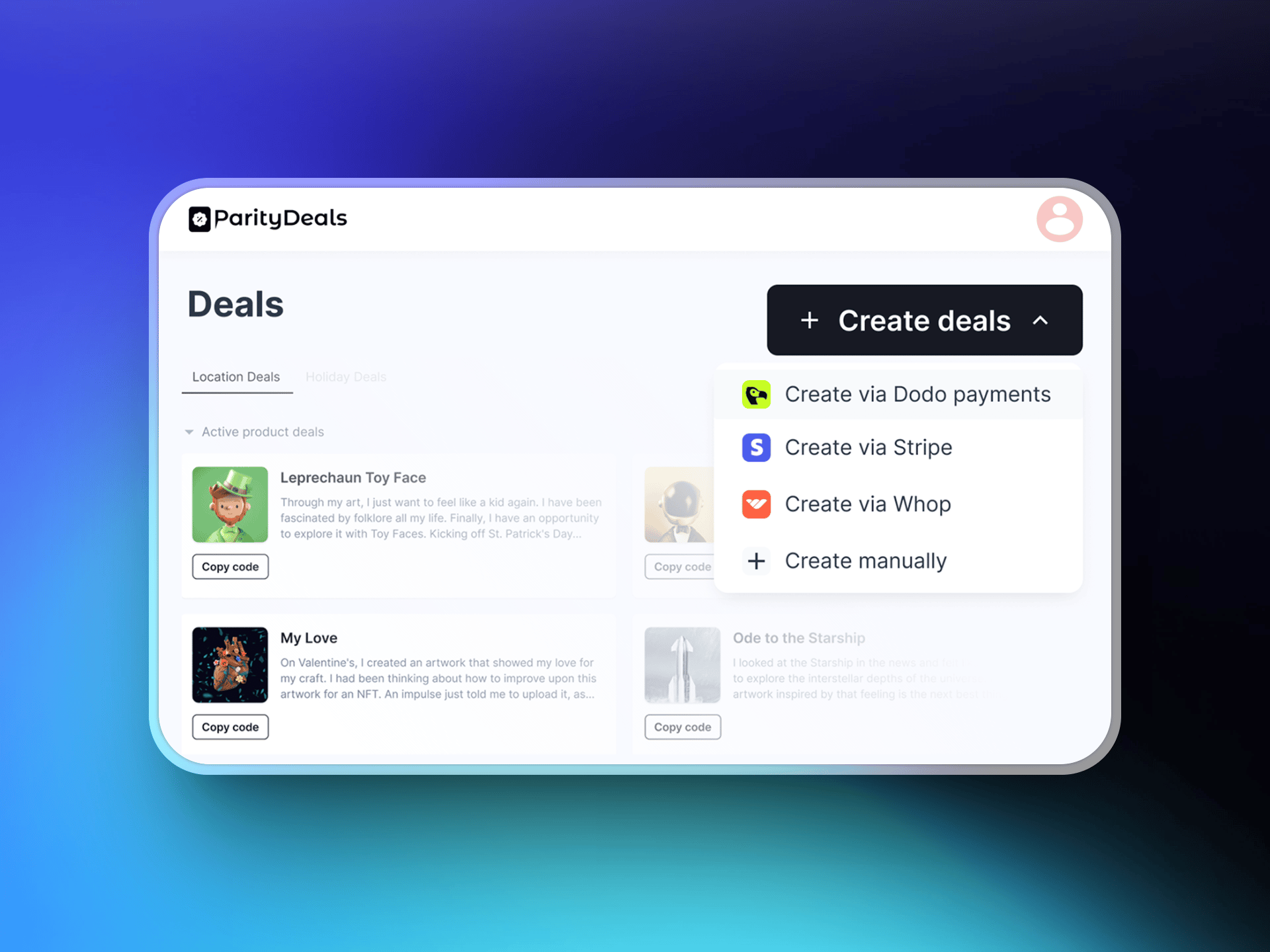
3
Generate a Dodo Payments API Key
In the Dodo Payments dashboard, go to Developer → API Keys and click Add API Key. Keep Enable write access checked: ParityDeals creates discount codes in your account, and a read-only key can’t create resources.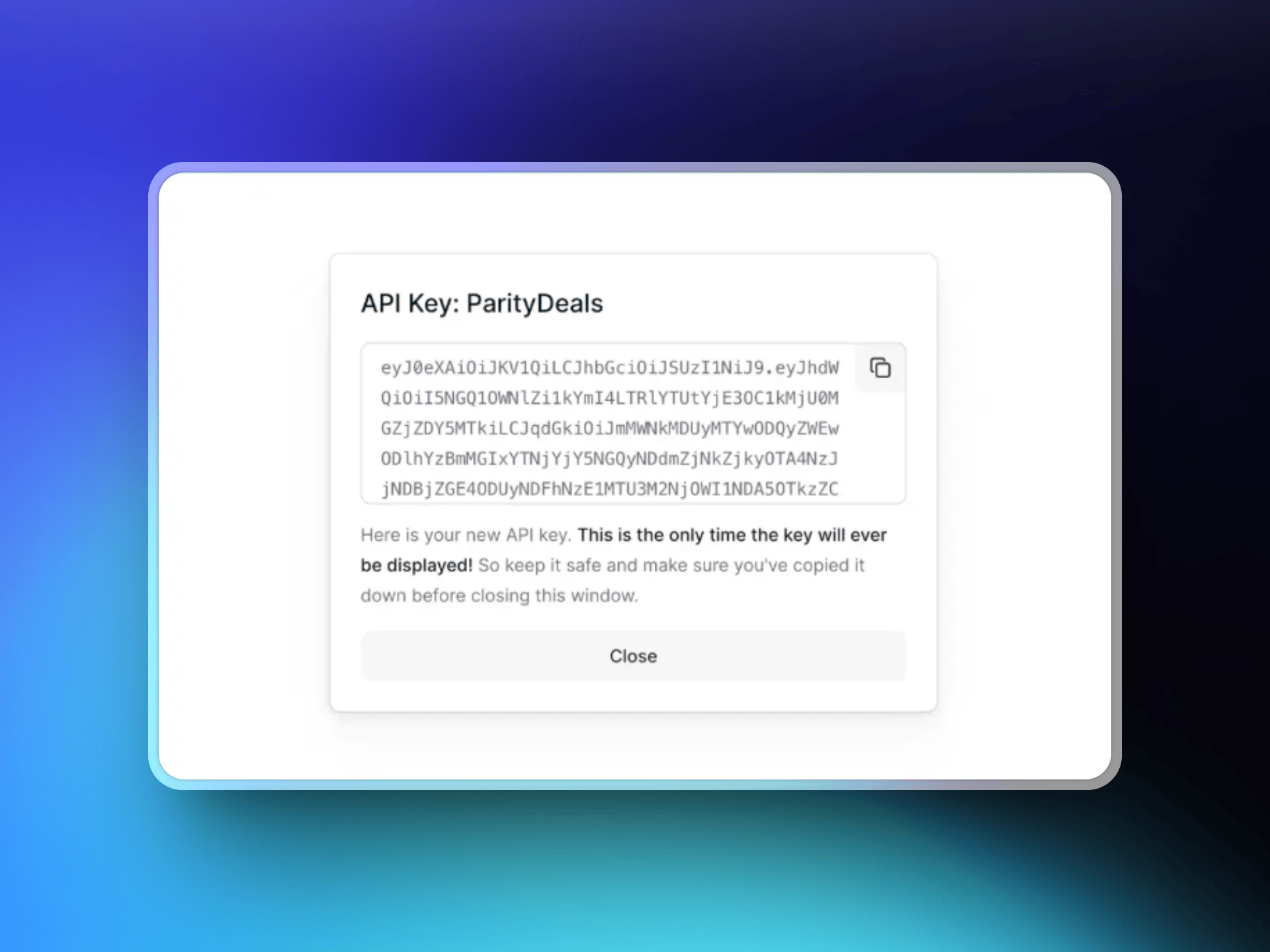
4
Connect Your API Key to ParityDeals
Copy the API key and paste it into ParityDeals to connect your Dodo Payments account. Dodo Payments shows the key only once.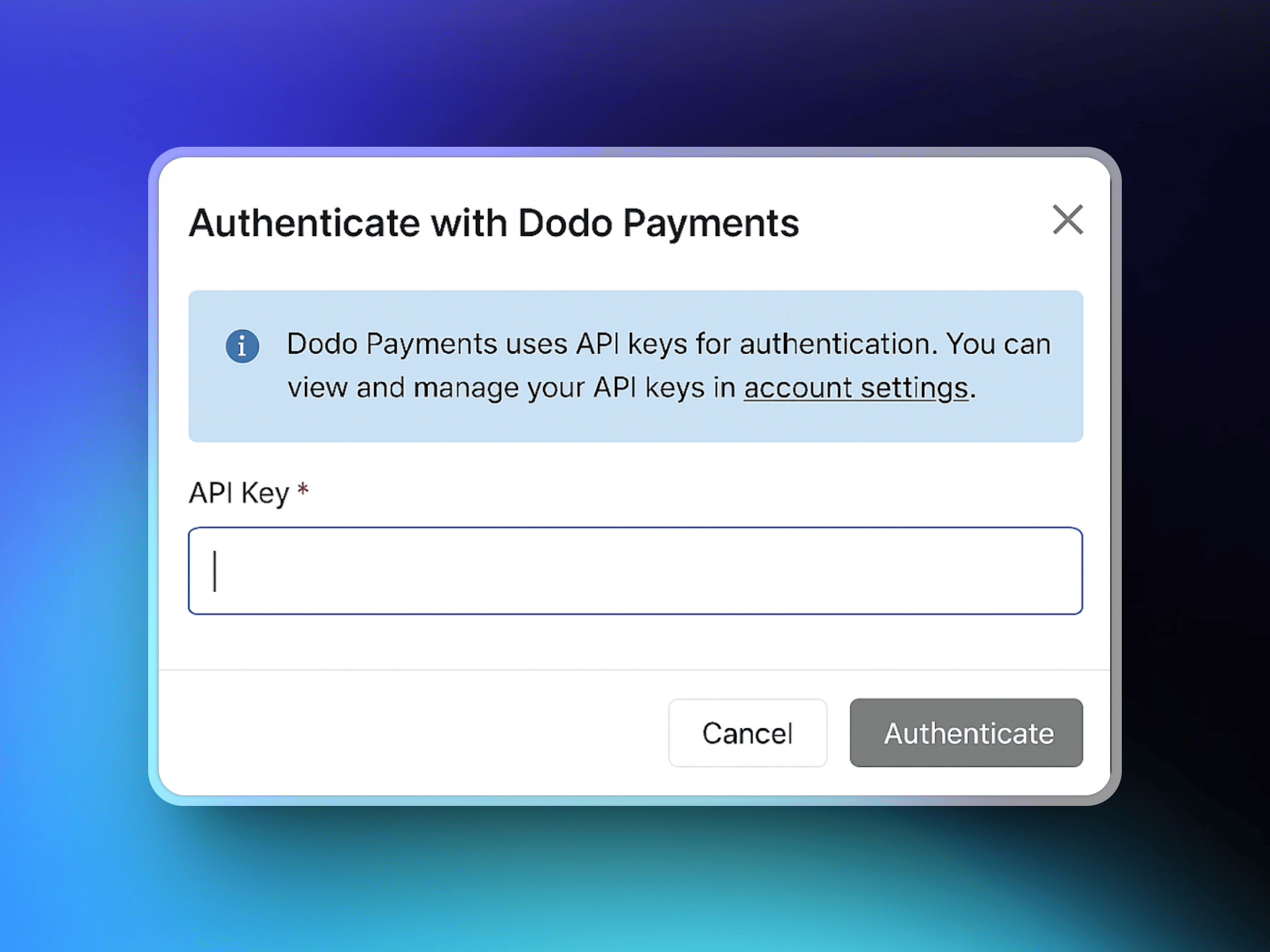
5
Select Products
After you connect, ParityDeals fetches your Dodo Payments product catalog. Select the products your deals apply to.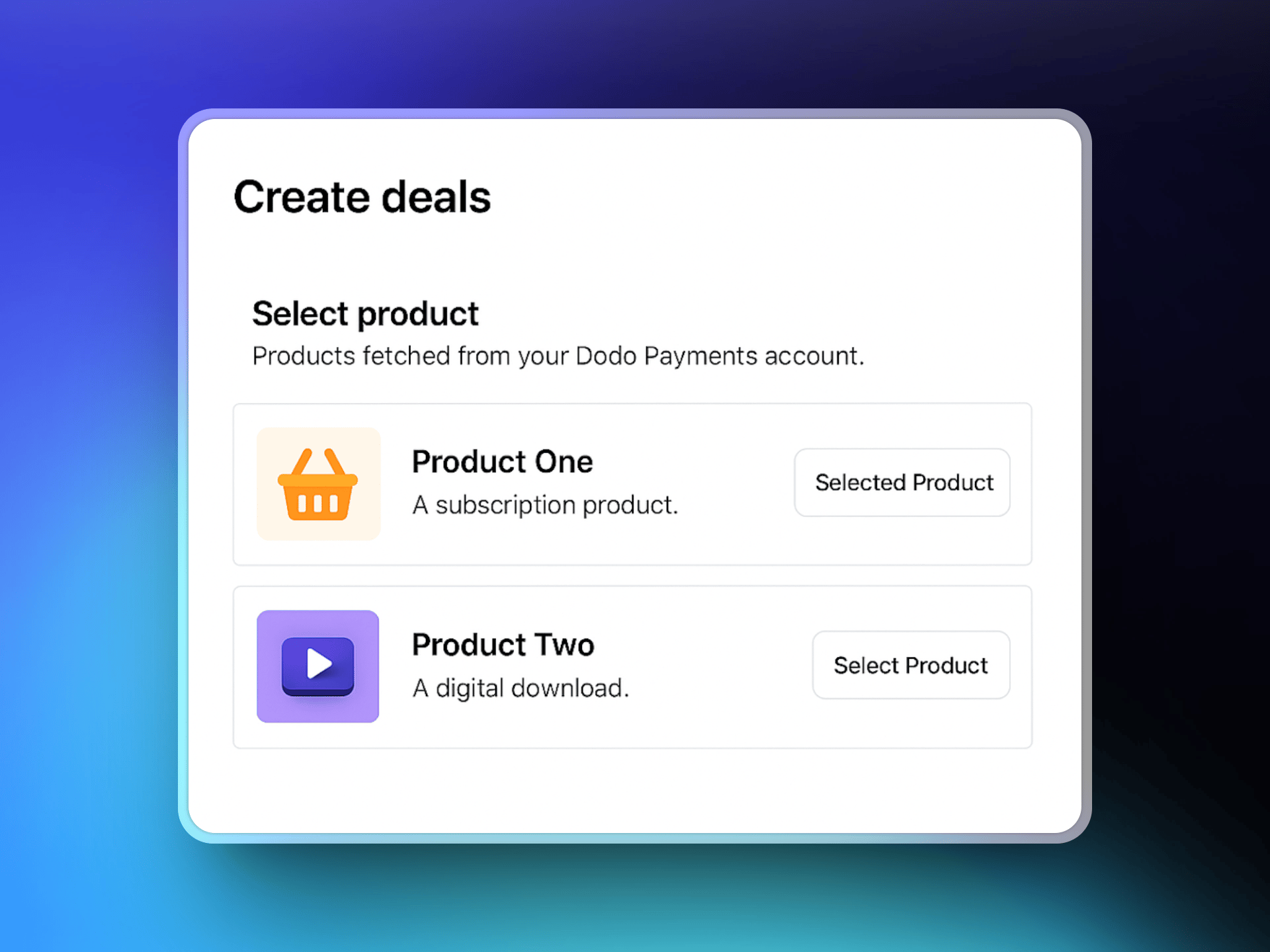
6
Configure Deal Settings
Enter your website URL. Optionally, select the target pages where the discount banner appears. Then choose a deal type: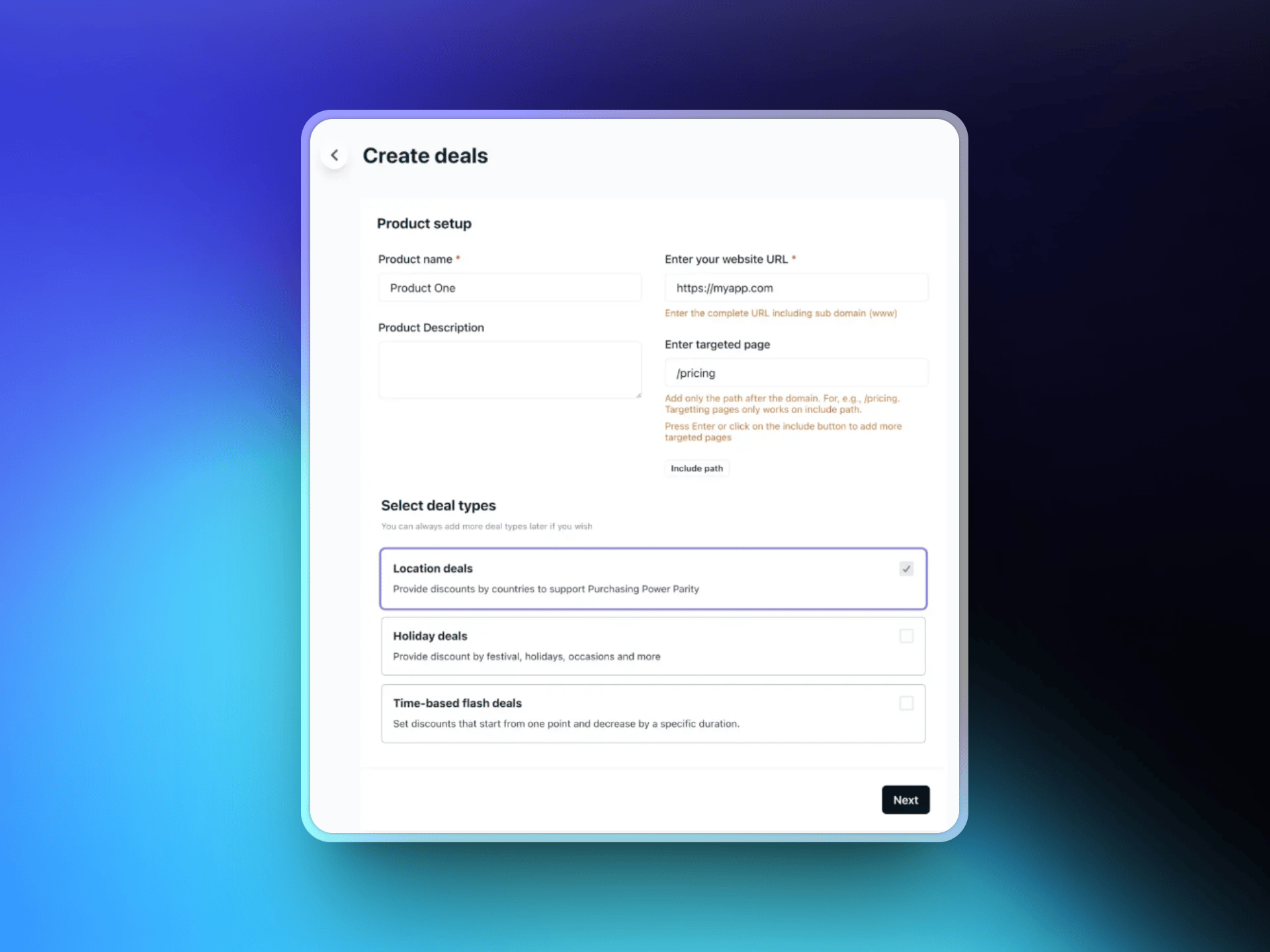
- Location-based deals
- Holiday deals
- Time-based flash deals
7
Set Country-Based Rules
Select the countries that get localized discounts and set the discount percentage for each. ParityDeals suggests default percentages that you can adjust.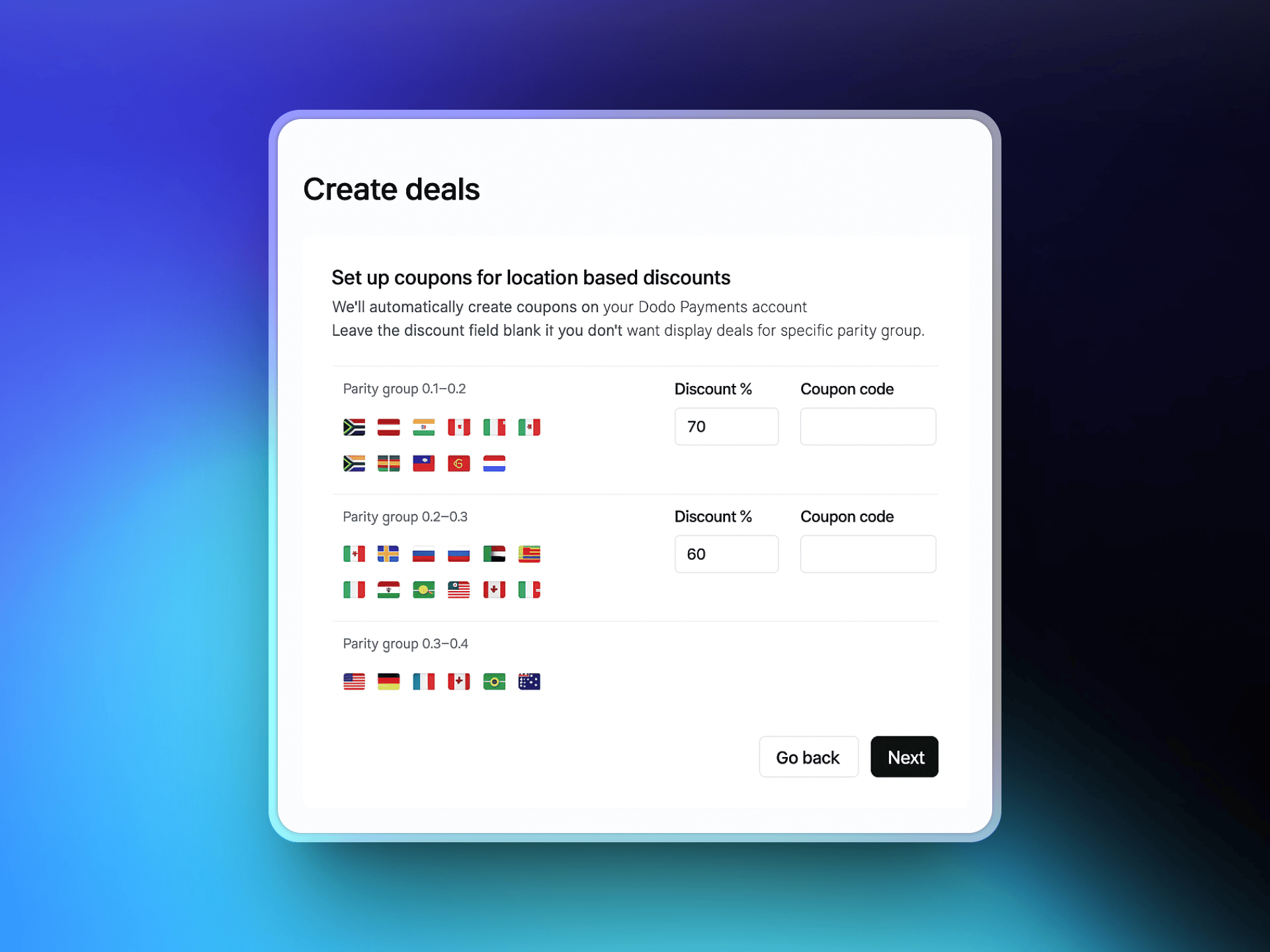
8
Customize the Banner
Design your discount banner: edit the text, choose colors and layout, and place the banner at the top or bottom of the page. Eligible visitors see this banner based on your rules.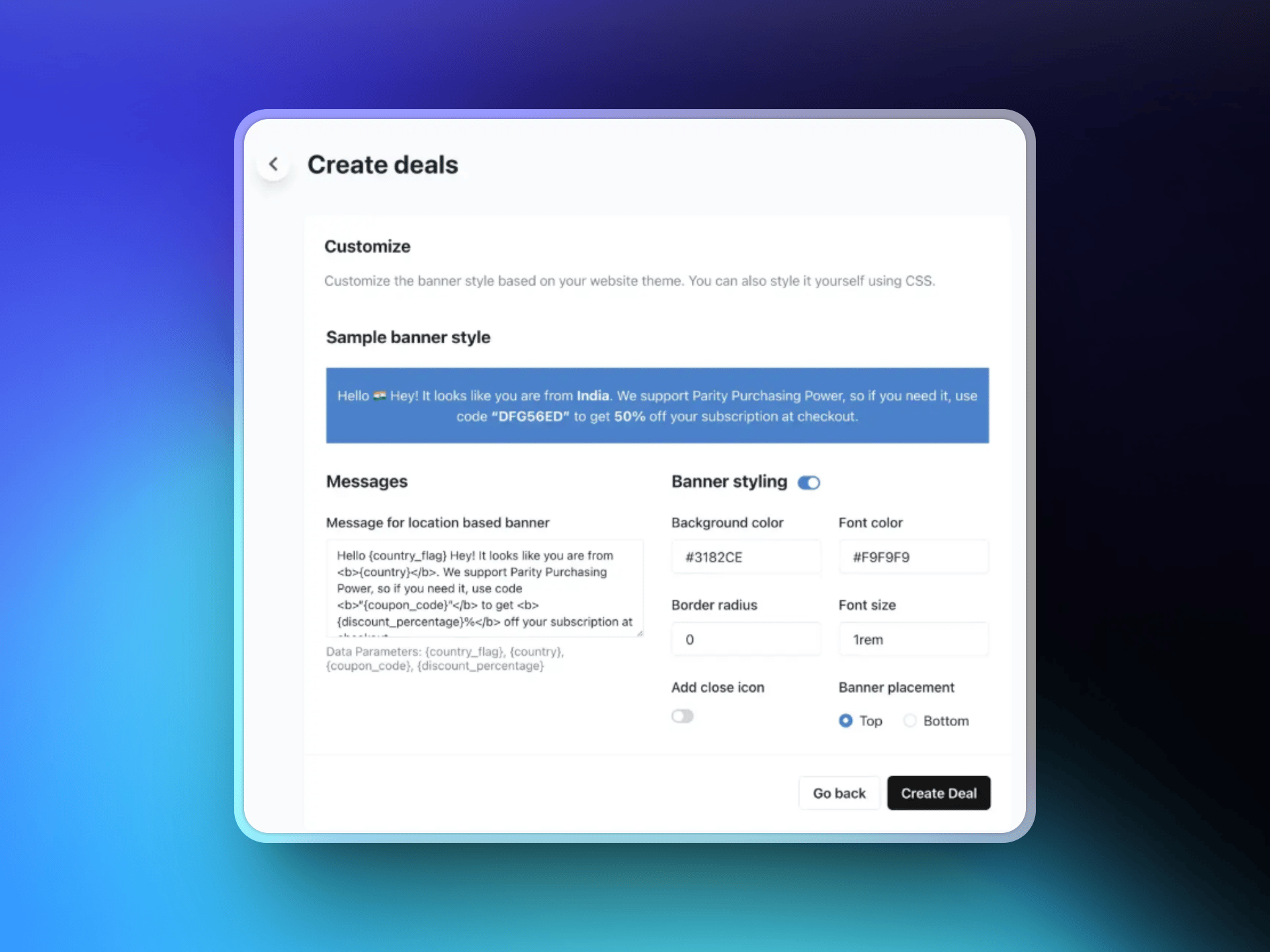
9
Add the ParityDeals Script to Your Website
After you save the deal, ParityDeals generates a script. Add it to your website code, usually in the 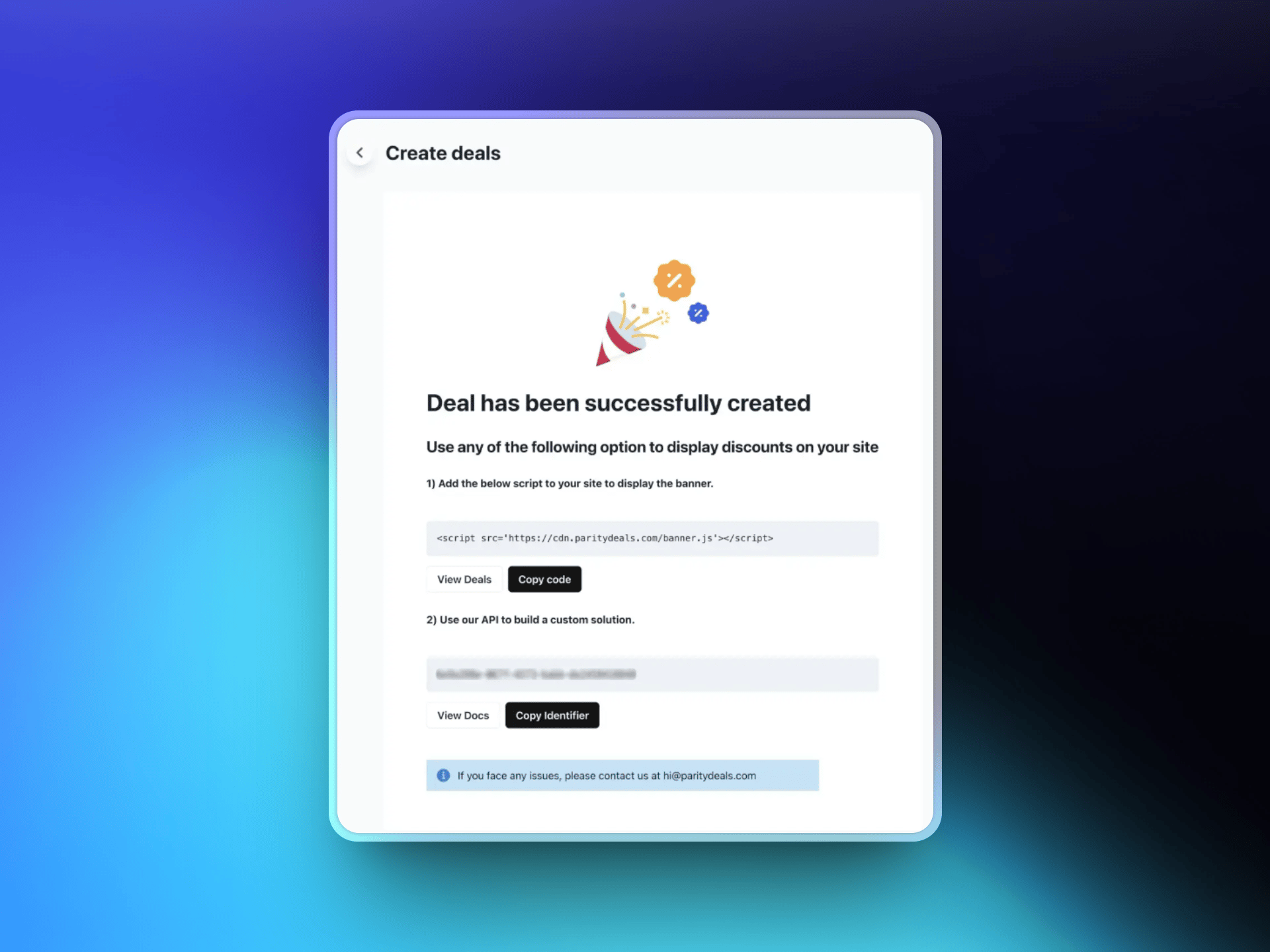
<head> section. The script detects each visitor’s location and shows the matching discount banner.