

Introduction
Dub is a link attribution platform for short links, conversion tracking, and affiliate programs. With this integration, Dub records a sale conversion event each time a customer pays through Dodo Payments, so you can measure the return on your marketing campaigns and referral programs. Dub records a sale when a customer:- Completes a one-time payment
- Subscribes to a paid plan
- Makes a recurring subscription payment
This integration requires a Dub account with conversion tracking enabled on your links. Dub’s conversion tracking requires a Business plan or higher.
How It Works
When a visitor clicks one of your Dub short links, Dub stores a unique click ID in thedub_id cookie. To attribute sales to your links:
- Capture Dub’s click ID from the
dub_idcookie when you create the checkout. - Store the click ID in the payment’s
metadata, along with your customer’s ID in your system (the external ID). - Send the sale to Dub through its Track API when the payment succeeds.
Prerequisites
Before you set up this integration, you need:- A Dub account with a workspace.
- Conversion tracking enabled for your links.
- A Dub API key, which you create in your Dub dashboard under Settings → API Keys.
Getting Started
1
Enable Conversion Tracking in Dub
In your Dub dashboard, enable conversion tracking for the links you want to track sales for. Dub then records sale events for customers who arrive through those links.
To enable conversion tracking, see the Dub documentation.
2
Get Your Dub API Key
In your Dub dashboard, go to Settings → API Keys and create an API key with the
conversions.write scope.3
Capture Click ID in Checkout
When you create a checkout, read the Dub click ID from the cookie and add it to the payment’s
metadata. See Step 1.4
Send Sale Data via Webhook
Create a webhook endpoint that sends each sale to Dub’s Track API when a payment succeeds. See Step 2.
5
Done
Sale conversion events appear in your Dub analytics dashboard, attributed to your links.
Implementation Guide
Step 1: Add Click ID and Customer ID to Checkout Metadata
When you create a checkout, read the Dub click ID from the cookie and include it in the payment’smetadata, along with your customer’s external ID.
The examples below create a Checkout Session (
POST /checkouts). The session’s metadata is stored on the resulting payment. The older POST /payments endpoint is deprecated.Step 2: Send Sale Data to Dub
Create a webhook endpoint that sends sale data to Dub’s Track API when a payment succeeds.1
Open the Webhook Section
In the Dodo Payments dashboard, go to Developer → Webhooks and click Add endpoint.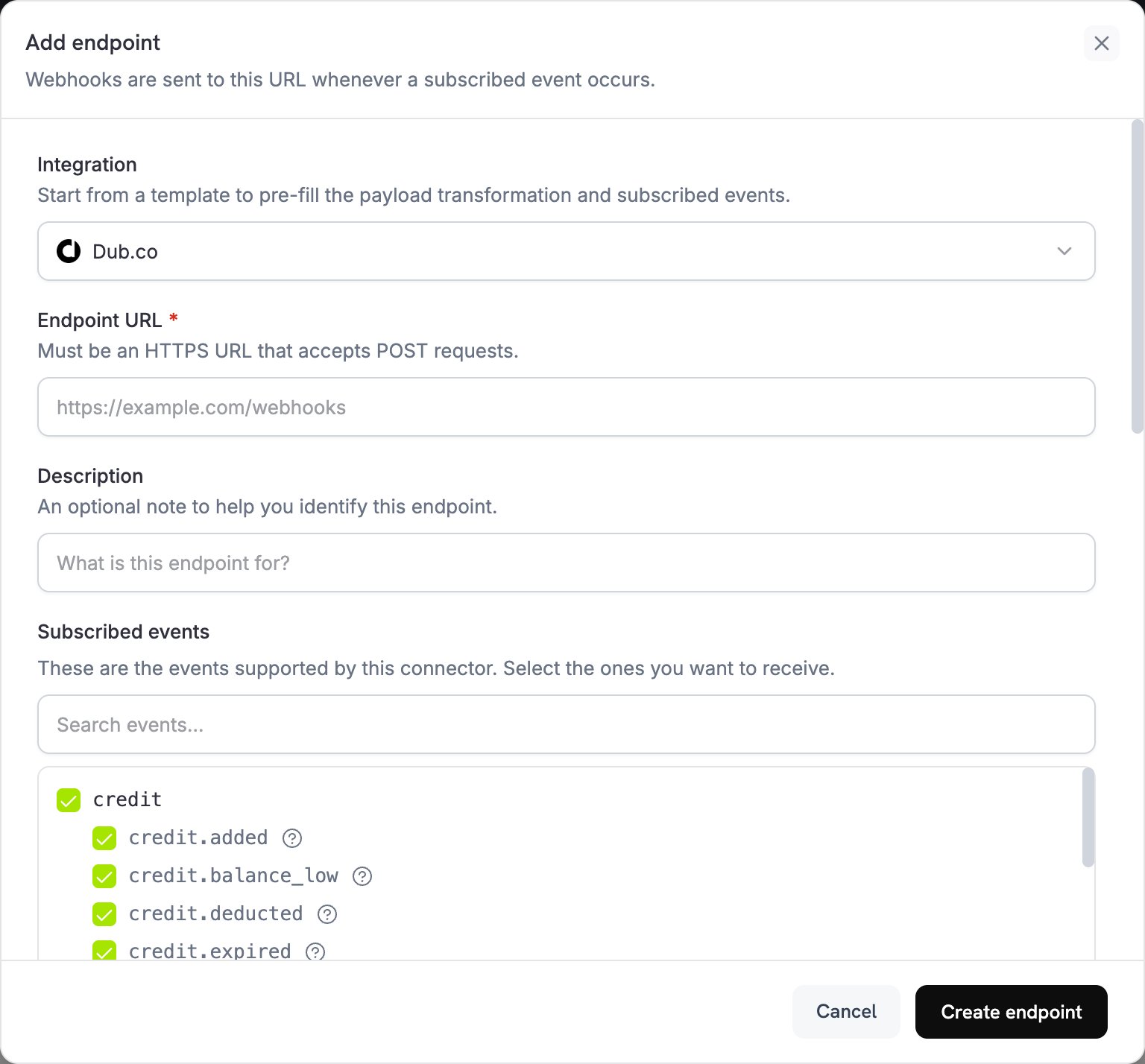
2
Select Dub
In Integration, select Dub.co.
3
Enter API Key
In API key, paste your Dub API key. Dodo Payments sends it in the 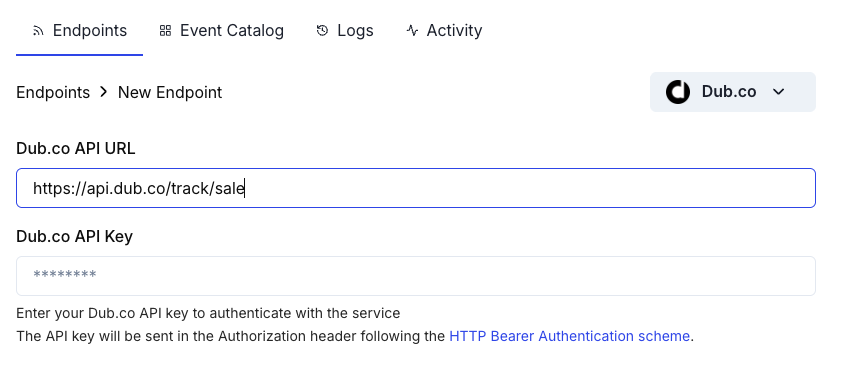
Authorization header of every delivery.4
Check the URL and Events
If Endpoint URL is empty, enter
https://api.dub.co/track/sale. In Subscribed events, select the events your transformation handles, such as payment.succeeded.5
Configure Transformation
Under Transformation code, edit the handler to format payment data for Dub’s Track Sale API. Start from the examples.
6
Test & Create
Under Test this code, click Simulate to run the handler against a sample payload. Then click Create endpoint.
Transformation Code Examples
Each handler sends a sale to Dub only when themetadata has a click ID. For organic traffic, with no click ID, it sets webhook.cancel = true, so no request goes to Dub; the canceled delivery still shows as successful in the webhook logs.
The request body follows Dub’s Track Sale API: customerExternalId and amount are required, and paymentProcessor is custom, because Dub’s list of payment processors has no Dodo Payments value. Dub takes amount in the same unit as Dodo Payments amounts: cents for two-decimal currencies, and the full integer for zero-decimal currencies such as JPY. The examples pass the amount unchanged.
Basic Sale Tracking
Track a sale when a payment succeeds:basic_sale.js
Track Subscription Sales
Track both initial subscriptions and recurring payments. Use this handler for subscriptions instead of thepayment.succeeded handlers, not alongside them: each subscription payment also fires payment.succeeded, so handling both events records every sale twice. See Subscription Integration Guide.
The handler reads the click ID from the subscription’s metadata, so pass the same metadata when you create the subscription. For renewals, invoiceId combines the subscription ID with previous_billing_date, the start of the current billing period, so a retried delivery reuses the same invoiceId.
subscription_sale.js
Track Sales with Tax Exclusion
Send only the pre-tax amount to Dub, so revenue in Dub excludes tax:sale_without_tax.js
Track Sales with Custom Event Names
Use custom event names to categorize different types of sales. The example reads anis_upgrade flag that you set in the payment’s metadata:
custom_events.js
Alternative: Client-Side Implementation
To track sales from your own server instead of through a webhook transformation, call Dub’s Track API directly after a successful payment, for example from yourpayment.succeeded webhook handler. The code uses your Dub API key, so run it on your server, never in the browser.
Best Practices
- Include the click ID in metadata: Without the click ID, Dub can’t attribute revenue to your links.
- Use external IDs consistently: Pass the same customer ID from your system as
customerExternalIdevery time, for accurate customer-level analytics. - Handle organic traffic: Set
webhook.cancel = truewhen there’s no click ID, to avoid unnecessary API calls. - Test with sample payments: Run the handler with Test this code, and confirm the integration works before you go live.
- Monitor your Dub dashboard: Check that sales appear with the expected attribution.
Important Notes
- Amount format: Dub expects amounts in cents for two-decimal currencies (for example, $10.00 is
1000) and the full integer for zero-decimal currencies such as JPY. - Currency: Use ISO 4217 currency codes, such as USD, EUR, and GBP. Dub converts each sale to USD at the latest exchange rate.
- Free trials: Dub’s Track Sale API accepts an
amountof0, and the examples don’t skip $0 payments, so each $0 payment reaches Dub as a sale. To skip $0 payments, setwebhook.cancel = truewhentotal_amountis0. - Refunds: If you need accurate revenue reporting, track refunds separately.
Troubleshooting
Sales Not Appearing in Dub
Sales Not Appearing in Dub
- Verify that your Dub API key is correct and has the
conversions.writescope. - Check that the
dub_click_idis captured and stored in the payment metadata. - Check that the webhook transformation formats the payload correctly.
- Verify that the endpoint is subscribed to
payment.succeeded. - Confirm that conversion tracking is enabled for your Dub links.
- Open the endpoint’s delivery attempts in the Logs tab of Developer → Webhooks to see Dub’s response. A payment with no click ID is canceled and shows as successful.
Revenue Attribution Not Working
Revenue Attribution Not Working
- Confirm that customers click through your Dub short links before checkout.
- Verify that the
dub_idcookie is set on your domain. - Check that the click ID in the payment metadata matches the click the customer made.
- Capture the click ID before you create the checkout.
Transformation Errors
Transformation Errors
- Check that the payload matches Dub’s Track Sale API format.
- Check that the required fields,
customerExternalIdandamount, are present, and thatclickIdis set for attribution. - Check that the amount is an integer in the smallest currency unit, not a decimal.
- Verify that the endpoint URL is
https://api.dub.co/track/sale. - Test the transformation with sample webhook payloads.
Duplicate Sales Being Tracked
Duplicate Sales Being Tracked
- Track sales on
payment.succeededevents only, not onpayment.processing. - Use a unique
invoiceIdfor each sale. Dub records only one sale for eachinvoiceId. - For renewals, build
invoiceIdfrom the subscription ID and the billing period, as in Track Subscription Sales. A value that changes on every delivery, such as the current time, records a duplicate sale when a delivery is retried.
Additional Resources
Dub Conversions Documentation
Dub Track Sale API
Dub Dashboard
Webhook Events Guide
For help with this integration, contact Dodo Payments support at support@dodopayments.com.