

Introduction
DataFast is a revenue-first analytics tool that shows which marketing channels bring paying customers. When you send your Dodo Payments transactions to DataFast, it attributes the revenue to each customer’s original traffic source, so you can see which channels and customer segments generate the most revenue.This integration requires your DataFast API key, which you create in your DataFast dashboard.
How It Works
DataFast identifies each visitor with an ID stored in thedatafast_visitor_id cookie. To attribute revenue to marketing channels:
- Capture DataFast’s visitor ID from the
datafast_visitor_idcookie when you create the checkout. - Store the visitor ID in the payment’s
metadata. - Send the payment to DataFast through its Payment API when the payment succeeds.
Getting Started
1
Install DataFast Script
Install the DataFast tracking script on your website. The script sets the
datafast_visitor_id cookie that identifies each visitor.For installation instructions for your platform, see the DataFast documentation.2
Get Your API Key
In your DataFast dashboard, open your website’s settings, go to API, and click Create API Key.
3
Capture Visitor ID in Checkout
When you create a checkout, read the DataFast visitor ID from the cookie and add it to the payment’s
metadata. See Step 1.4
Send Payment Data via Webhook
Create a webhook endpoint that sends each successful payment to DataFast’s Payment API. See Step 2.
5
Done
Revenue appears in your DataFast dashboard, attributed to the marketing channel that brought each customer.
Implementation Guide
Step 1: Add Visitor ID to Checkout Metadata
When you create a checkout, read the DataFast visitor ID from the cookie and include it in the payment’smetadata.
The examples below create a Checkout Session (
POST /checkouts). The session’s metadata is stored on the resulting payment. The older POST /payments endpoint is deprecated.Step 2: Send Payment Data to DataFast
Create a webhook endpoint that sends successful payments to DataFast’s Payment API.1
Open the Webhook Section
In the Dodo Payments dashboard, go to Developer → Webhooks and click Add endpoint.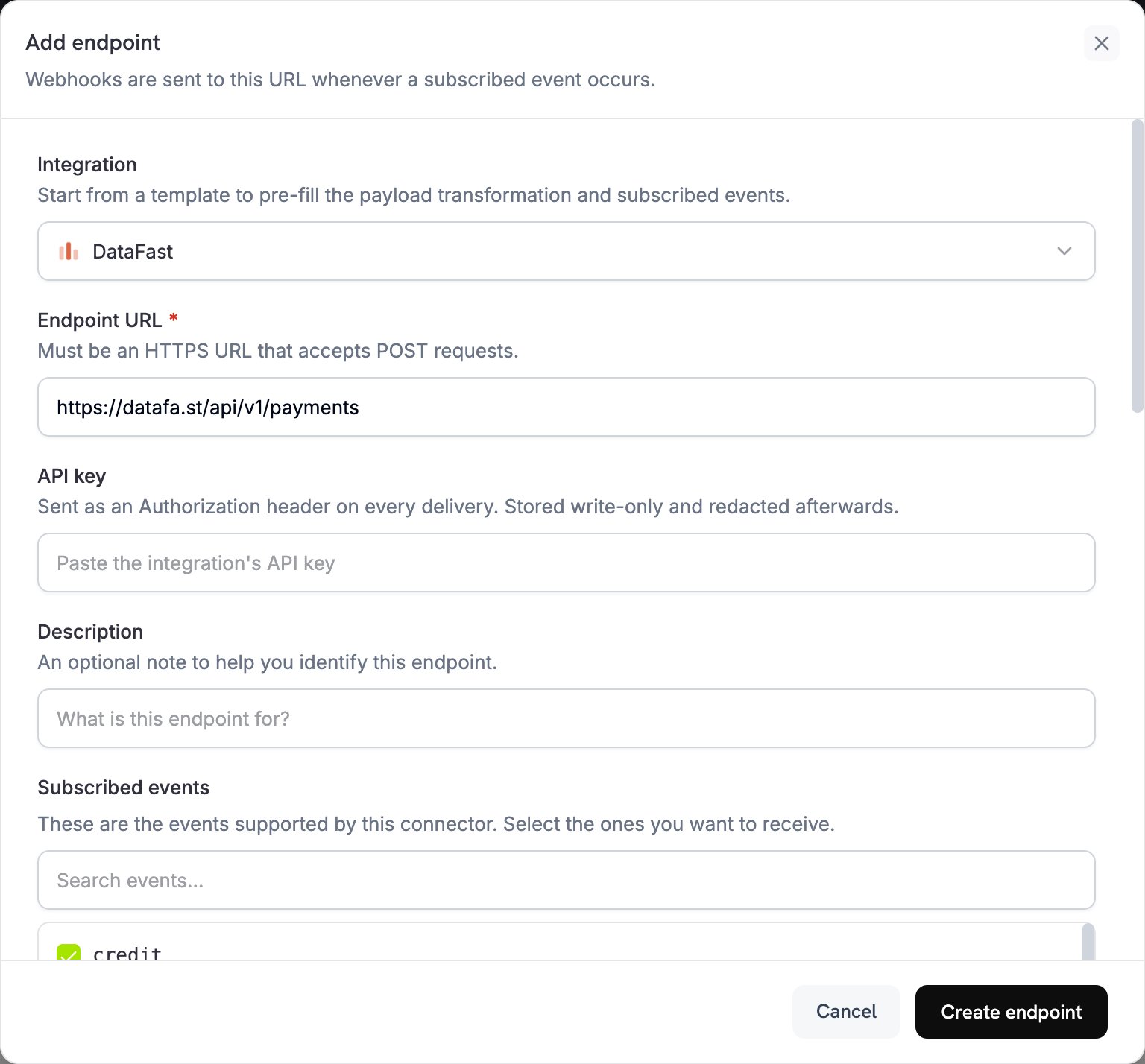
2
Select DataFast
In Integration, select DataFast.
3
Enter API Key
In API key, paste your DataFast API key. Dodo Payments sends it in the 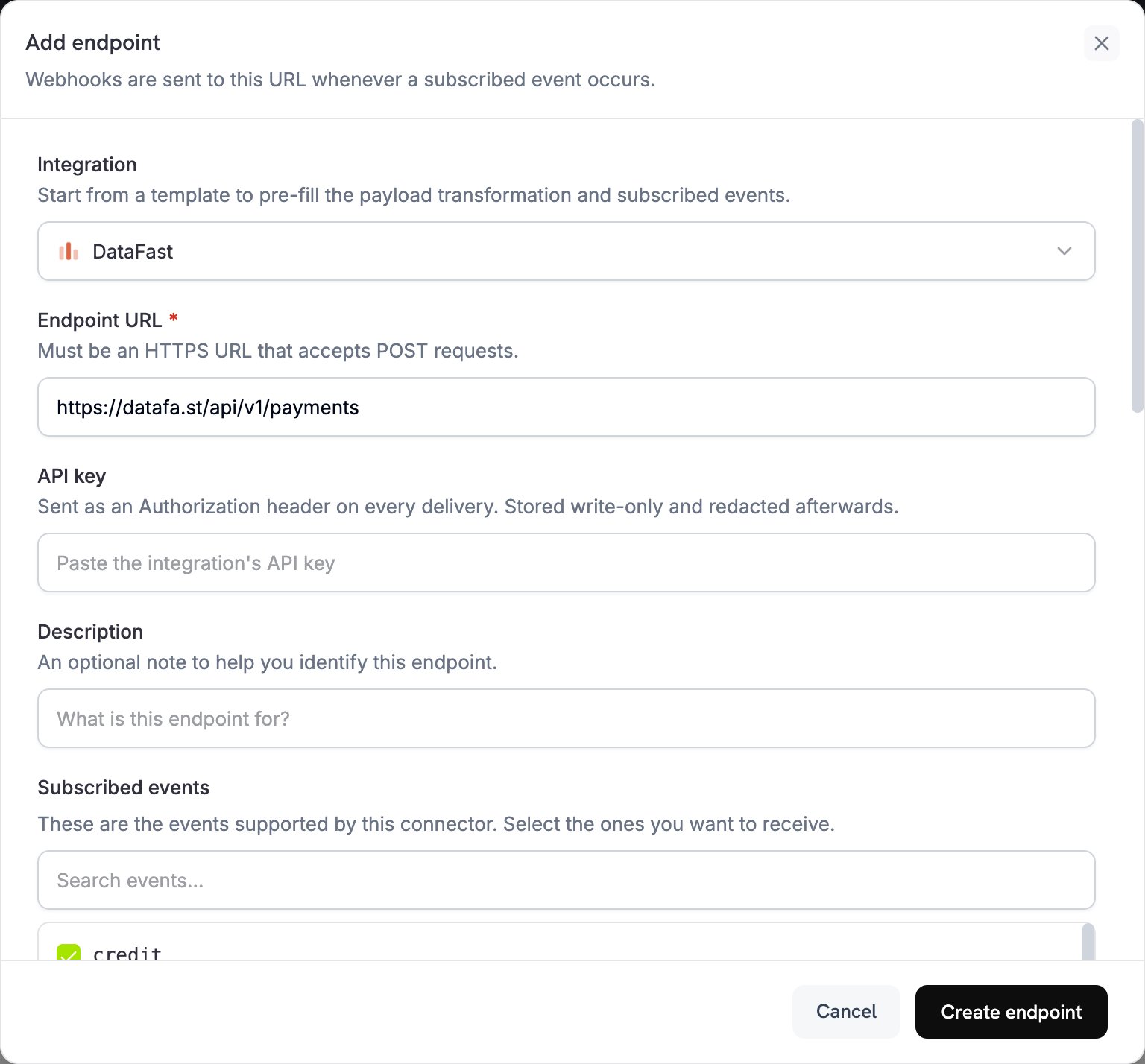
Authorization header of every delivery.4
Check the URL and Events
If Endpoint URL is empty, enter
https://datafa.st/api/v1/payments. In Subscribed events, select payment.succeeded.5
Configure Transformation
Under Transformation code, edit the handler to format payment data for DataFast’s Payment API. Start from the examples.
6
Test & Create
Under Test this code, click Simulate to run the handler against a sample payload. Then click Create endpoint.
Transformation Code Examples
Each handler runs onpayment.succeeded. When the payment’s metadata has no visitor ID, it sets webhook.cancel = true, so no request goes to DataFast. A canceled delivery still shows as successful in the webhook logs.
DataFast’s Payment API takes amount in major currency units, for example 29.99. Dodo Payments sends total_amount in the smallest currency unit, for example cents for USD, so the examples convert it.
Basic Payment Attribution
basic_payment.js
Handle Zero Decimal Currencies
Zero-decimal currencies, such as JPY, have no minor unit, sototal_amount is already in major units. Three-decimal currencies, such as KWD, have 1,000 minor units per major unit. This example converts the amount for each case, using the currencies Dodo Payments treats as zero-decimal and three-decimal:
zero_decimal.js
Subscription Payments
Subscription payments also firepayment.succeeded, with subscription_id set. This handler sends every subscription payment to DataFast and sets renewal: true on renewals, so DataFast can tell a renewal from the first payment.
A renewal is charged off-session, so its payload has subscription_id set and checkout_session_id set to null. The first payment of a subscription created through a Checkout Session has checkout_session_id set. Renewal payments carry the subscription’s metadata, so keep datafast_visitor_id in the subscription’s metadata to attribute renewals.
subscription_payment.js
Best Practices
- Include the visitor ID in metadata: Without the visitor ID, DataFast can’t attribute revenue to marketing channels.
- Handle zero-decimal currencies: Some currencies, such as JPY and KRW, have no decimal places. Adjust your amount conversion for them, and for three-decimal currencies such as KWD.
- Test with sample payments: Run the handler with Test this code, and confirm the integration works before you go live.
- Monitor your DataFast dashboard: Check that payments appear with the expected attribution.
- Rely on webhook retries: DataFast skips a payment whose
transaction_idit has already recorded, so a retried delivery doesn’t create a duplicate.
Troubleshooting
Payments Not Appearing in DataFast
Payments Not Appearing in DataFast
- Verify that your DataFast API key is correct and active.
- Check that the
datafast_visitor_idis captured and stored in the payment metadata. - Check that the webhook transformation formats the payload correctly.
- Verify that the endpoint is subscribed to
payment.succeeded. - Check the DataFast dashboard for error messages or API logs.
- Open the endpoint’s delivery attempts in the Logs tab of Developer → Webhooks to see DataFast’s response. A payment with no visitor ID is canceled and shows as successful.
Revenue Attribution Not Working
Revenue Attribution Not Working
- Confirm that the DataFast tracking script is installed and running on your website.
- Verify that the
datafast_visitor_idcookie is set. - Check that the visitor ID in the payment metadata matches the one DataFast recorded for the visit.
- Capture the visitor ID before you create the checkout.
- See DataFast’s Payment API documentation for more guidance.
Transformation Errors
Transformation Errors
- Check that the payload matches DataFast’s Payment API format.
- Check that all required fields are present:
amount,currency, andtransaction_id. Includedatafast_visitor_idfor attribution. - Check the amount conversion: divide by 100 for most currencies, by 1,000 for three-decimal currencies, and not at all for zero-decimal currencies.
- Verify that the endpoint URL is
https://datafa.st/api/v1/payments. - Test the transformation with sample webhook payloads.
Currency Conversion Issues
Currency Conversion Issues
- For zero-decimal currencies (BIF, CLP, DJF, GNF, JPY, KMF, KRW, MGA, PYG, RWF, UGX, VND, VUV, XAF, XOF, and XPF), send the amount as is.
- For three-decimal currencies (BHD, IQD, JOD, KWD, LYD, OMR, and TND), divide the amount by 1,000.
- For all other currencies, divide the amount by 100 to convert from the smallest unit to the major unit.
- Check that the currency code uses the ISO 4217 format, for example
USD,EUR, orJPY.
Additional Resources
DataFast Documentation
DataFast Dashboard
For help with this integration, contact Dodo Payments support at support@dodopayments.com.