

Introduction
The Slack integration posts Dodo Payments events, such as successful payments, subscription changes, and disputes, to a Slack channel you choose. Your team can follow payments and act on disputes from Slack, without checking the dashboard.The Slack connector turns each Dodo Payments event into a Slack message with a transformation: JavaScript code that runs on the event before delivery. The connector comes with transformation code, so no coding is required to start. You need access to Developer → Webhooks in the Dodo Payments dashboard, and permission to add apps to your Slack workspace.
Getting Started
1
Open the Webhook Section
In the Dodo Payments dashboard, go to Developer → Webhooks and click Add endpoint.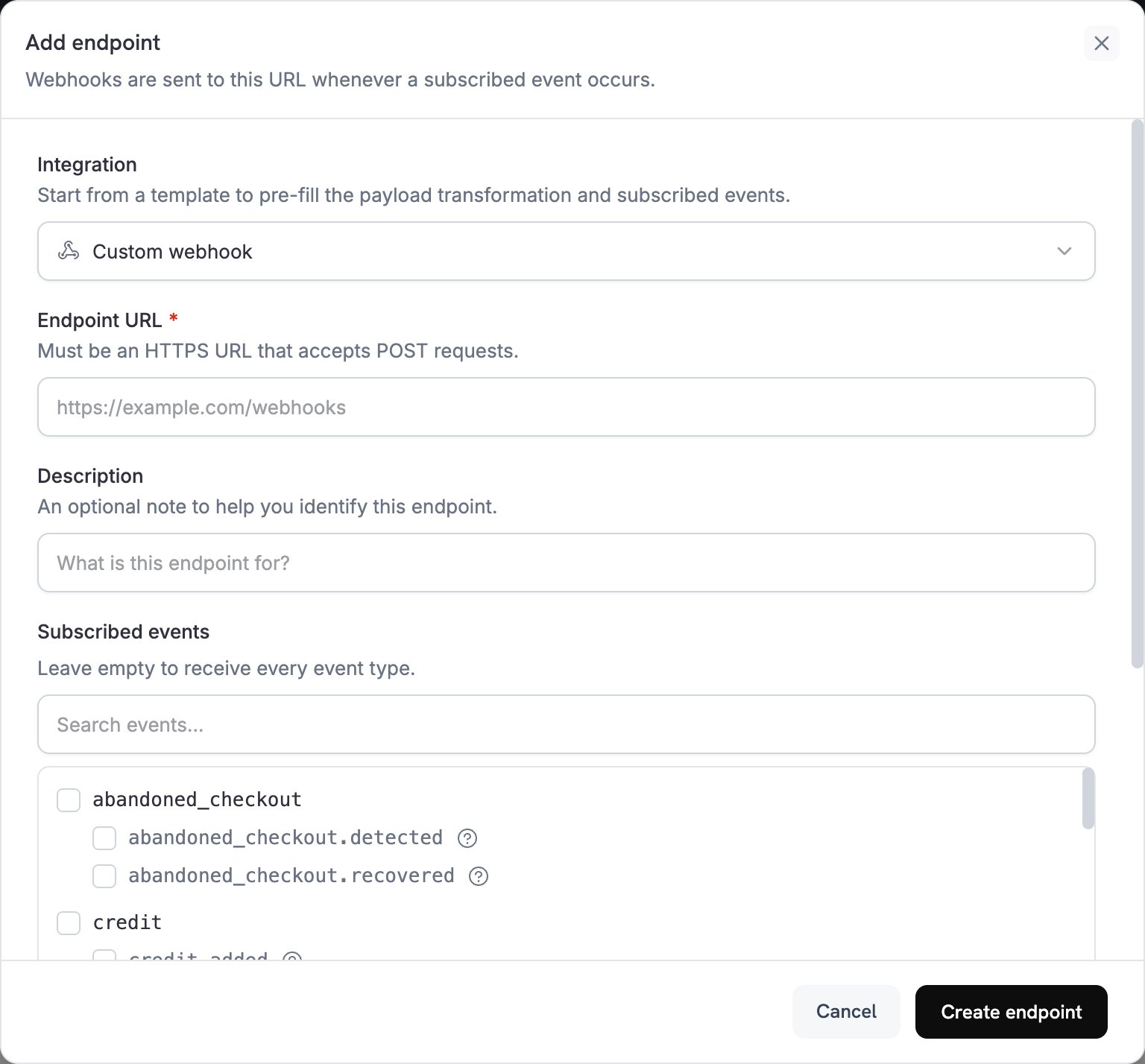
2
Select Slack Integration
In Integration, select Slack. The dashboard loads the Slack transformation code and shows setup steps in the How to connect Slack panel.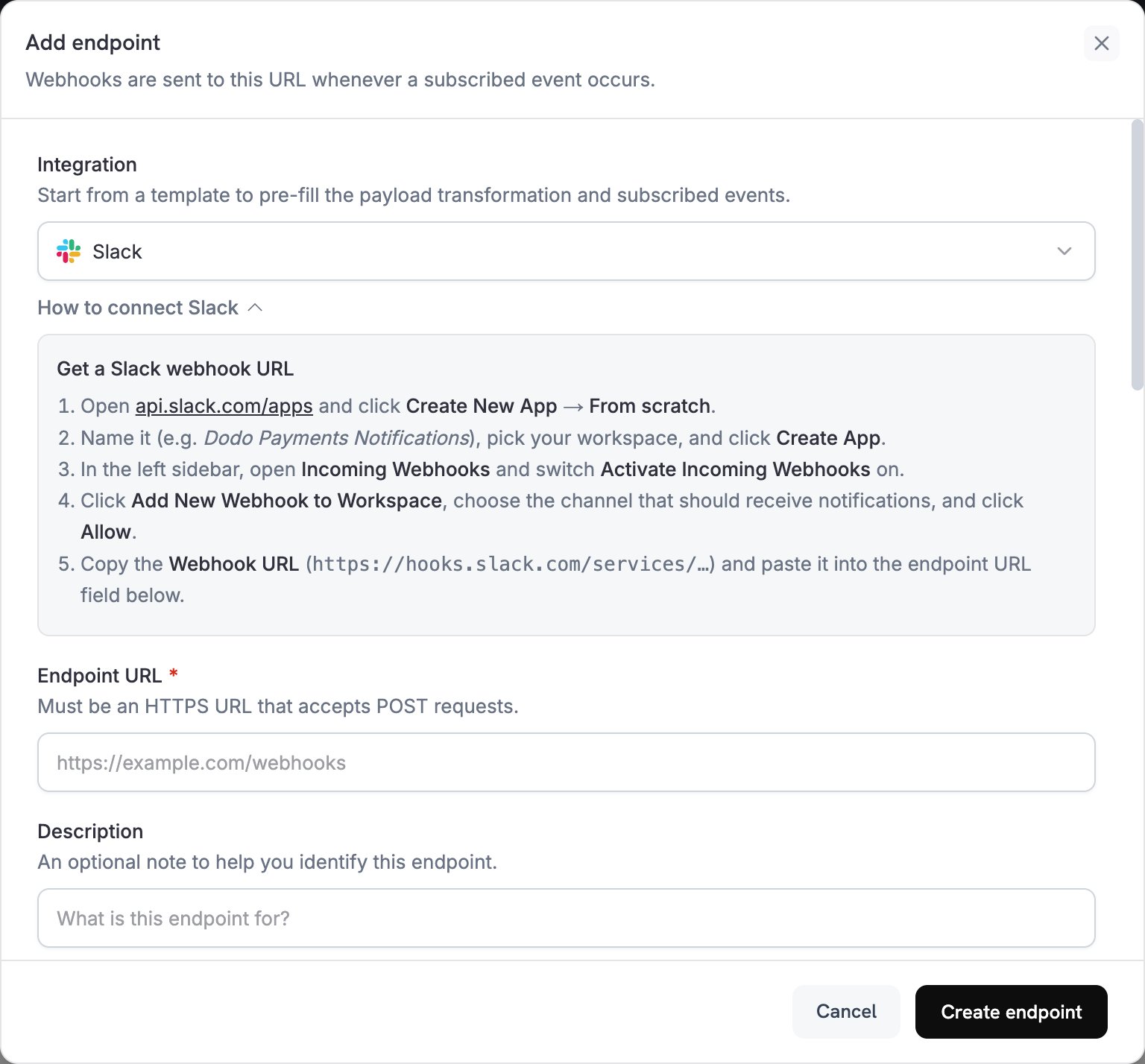
3
Create a Slack Webhook URL
In Slack, create an app with an incoming webhook for the channel that should receive notifications: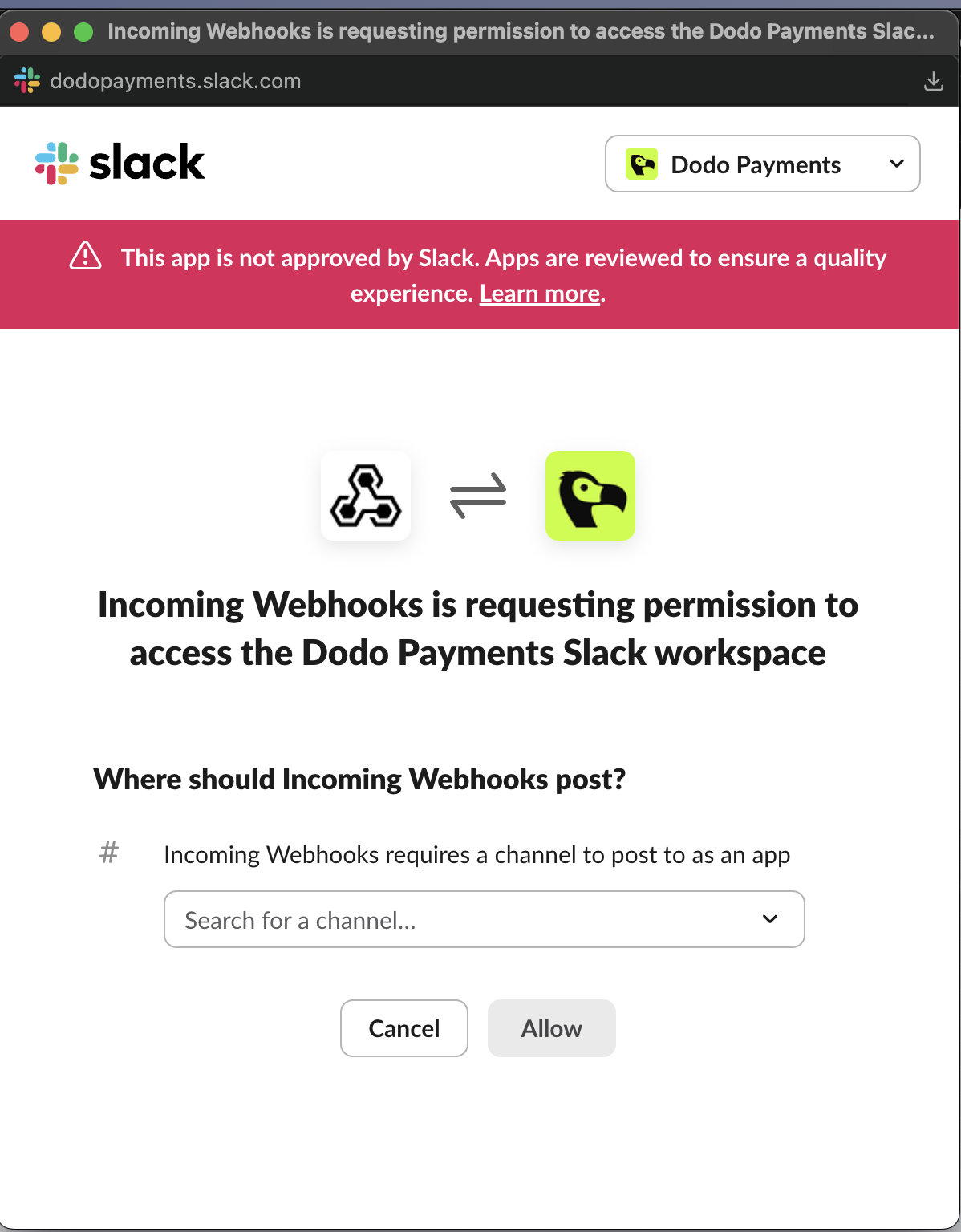
- Open api.slack.com/apps, click Create New App, and choose From scratch.
- Name the app, for example
Dodo Payments Notifications, pick your workspace, and click Create App. - In the sidebar, open Incoming Webhooks and turn on Activate Incoming Webhooks.
- Click Add New Webhook to Workspace, choose the channel, and click Allow.
- Copy the Webhook URL, which starts with
https://hooks.slack.com/services/.
4
Paste the Webhook URL
Paste the Slack webhook URL into Endpoint URL. Slack doesn’t need an API key.
5
Select Events
Subscribed events lists the events the Slack connector supports. If you change the transformation, keep only the events it handles. Slack rejects a request that isn’t a Slack message, so an event that the transformation leaves unchanged fails to deliver.
6
Customize Transformation Code
Under Transformation code, edit the handler to choose which events post a message and how each message looks. Keep the connector’s code, or start from the examples.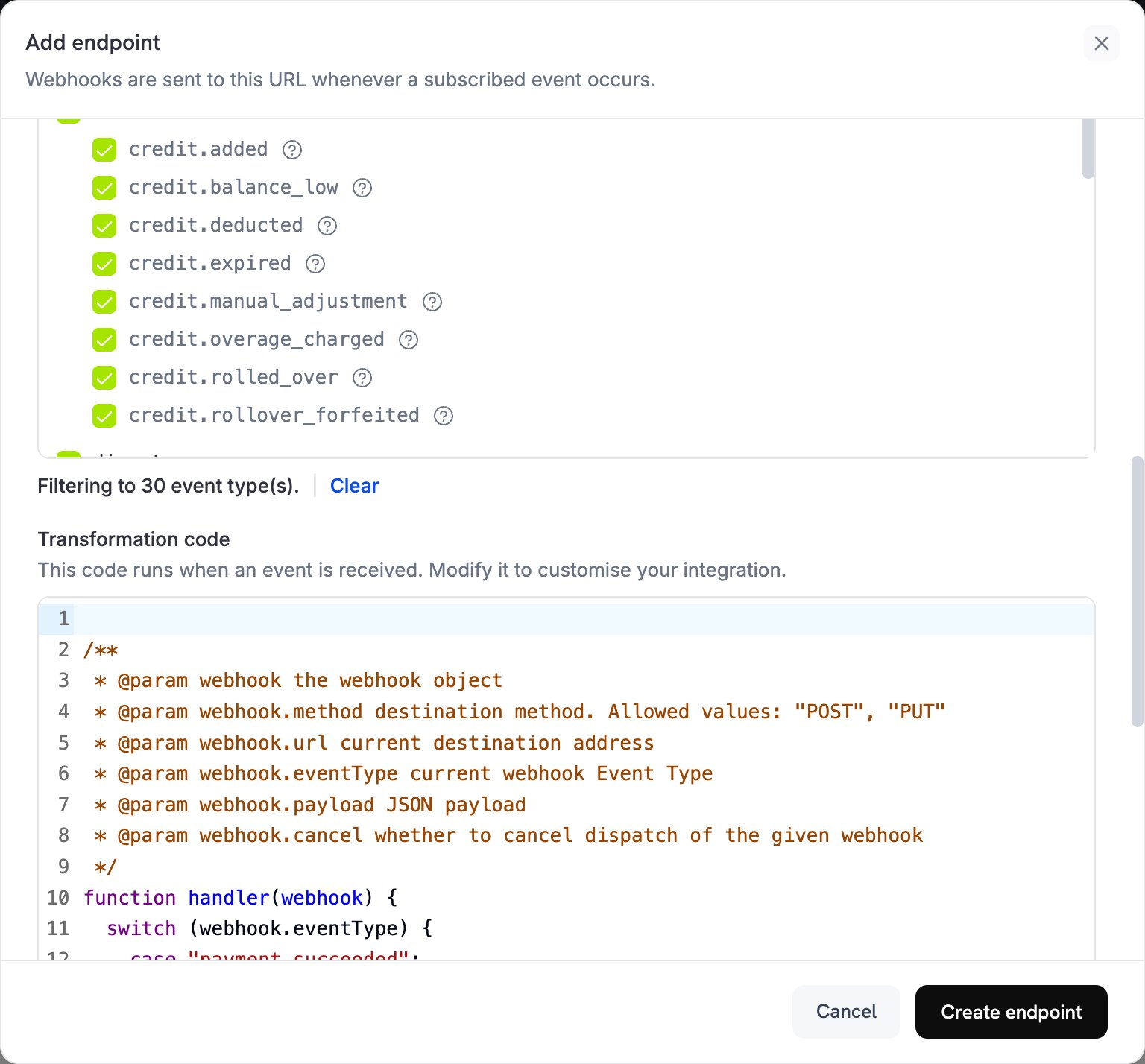
7
Test and Create
Under Test this code, select an event type and click Simulate. The Result shows the message that Slack would receive. Then click Create endpoint.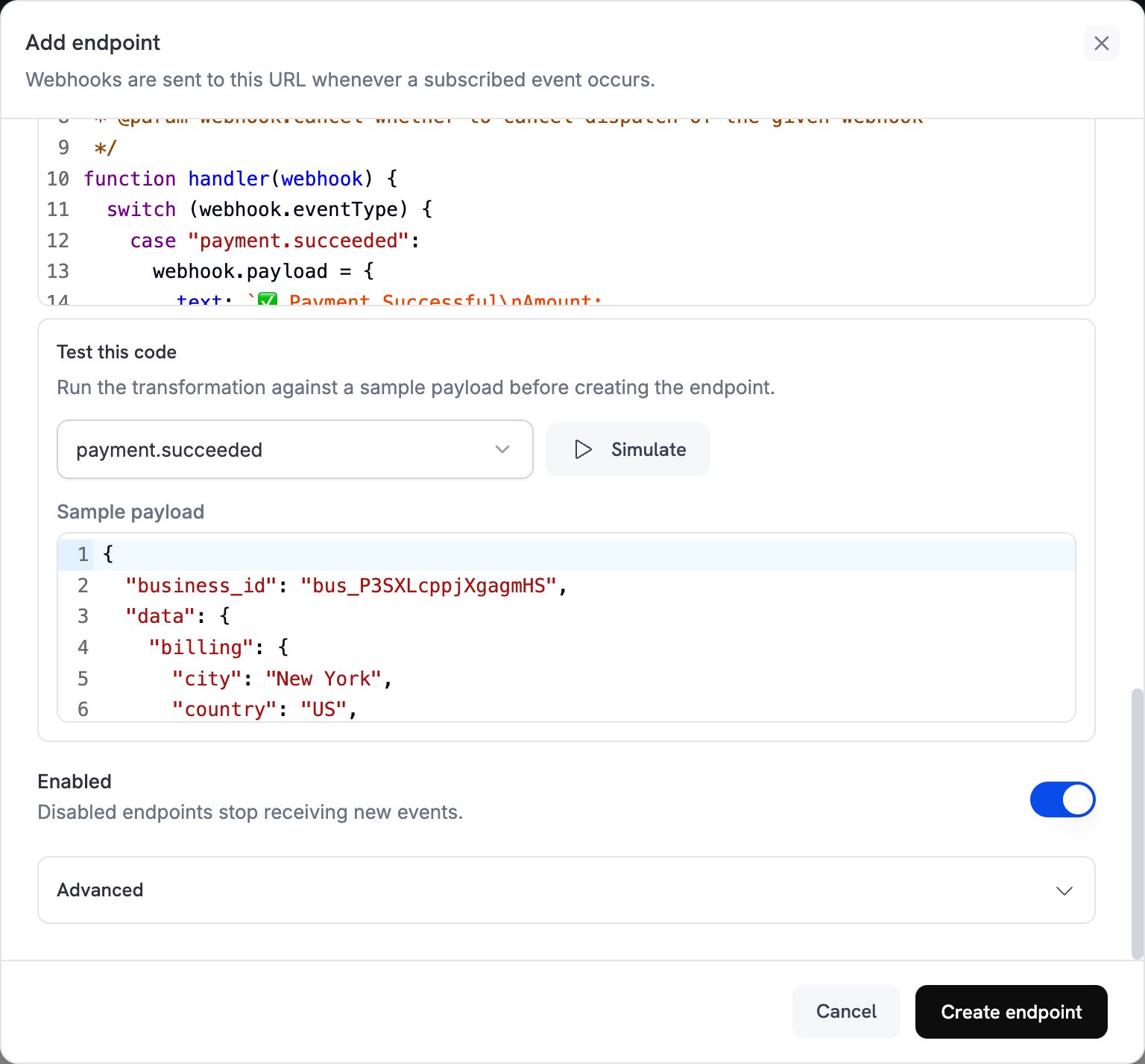
8
Integration Complete!
Dodo Payments now posts each subscribed event to your Slack channel. To post a test message, open the endpoint’s Testing tab, select an event type, and click Send example.
Transformation Code Examples
Each handler replaceswebhook.payload with a Slack message and keeps webhook.url, your incoming webhook URL. Dodo Payments amounts are in the smallest currency unit, so the examples divide by 100 and show the currency code. For zero-decimal currencies such as JPY and KRW, use the amount as is.
Basic Payment Notifications
Post a plain-text message when a payment succeeds, fails, or is processing:payment_notifs.js
Rich Subscription Notifications
Post a color-coded message with attachment fields when a subscription becomes active, is cancelled, or renews:subscription_notifs.js
Dispute Management Notifications
Post a red message when a dispute opens or is lost, and a green one when it’s won:dispute_notifs.js
Comprehensive All-Events Handler
Post a message in the same format for every event type. Events without their owncase get a generic message with the event type and time:
all_events_notifs.js
Best Practices
Follow these practices to keep Slack notifications useful:- Use message attachments with colors and fields, so each event is clear and easy to act on.
- Include key data such as the amount, customer email, and IDs, so your team can find the record quickly.
- Match the color to the event type: green (
good) for success, red (danger) for disputes or failures, yellow (warning) for cancellations, and blue (#3aa3e3) for informational events. - Add a timestamp (
ts), so each message shows when the event occurred.
Troubleshooting
Notifications Not Appearing in Slack
Notifications Not Appearing in Slack
- Check that the Slack webhook URL is correct and that its Slack app is still installed.
- Check that the transformation code is valid JavaScript.
- Check that the subscribed events are occurring. To send one, use Send example on the endpoint’s Testing tab.
- Check that your Slack app has Incoming Webhooks turned on and can post to the channel.
Transformation Errors
Transformation Errors
- Open the Logs tab in Developer → Webhooks and check the failed delivery’s response.
- Check that the payload fields your code reads match the event payload for that event type.
- Test your code with Simulate and a sample payload.
- Check that each field your code reads is present. Optional fields, such as
error_message, can benull.
Missing Event Types
Missing Event Types
- Check that the event is selected in Subscribed events. To change the selection, open the endpoint and click Edit.
- Check that the Slack connector supports the event. Subscribed events lists only the events the connector supports.
- Check that your transformation has a
casefor the event. The examples leave other events unchanged, and Slack rejects them.