

Introduction
PayGlue connects Dodo Payments to a Ghost publication, so you can sell memberships, subscriptions, and one-time access on Ghost with Dodo Payments as the Merchant of Record. When a reader buys, PayGlue creates or updates the matching Ghost member. When a subscription ends, PayGlue removes the paid access. Ghost supports only Stripe for paid memberships. PayGlue adds Dodo Payments alongside it, so an existing Ghost and Stripe setup keeps working. Checkout runs on Dodo Payments, and PayGlue receives only the signed webhook events after each purchase.How It Works
PayGlue reads your products through a Dodo Payments API key and receives purchase events through a webhook endpoint:- You map each Dodo Payments product to a PayGlue buy button, paywall, or pricing table on your Ghost site.
- A reader buys the product on Dodo Payments checkout.
- Dodo Payments sends a signed webhook to PayGlue.
- PayGlue verifies the signature and creates the Ghost member, or updates the member’s access.
webhook-id header to process each event only once.
Prerequisites
Before you start, you need:- A Dodo Payments account with at least one product.
- A PayGlue account with your Ghost publication connected.
Getting Started
1
Open the Dodo Payments Connection in PayGlue
In your PayGlue dashboard, go to Connections → Dodo Payments. Keep this page open. It shows the webhook URL you need in a later step.
2
Create an API Key
In the Dodo Payments dashboard, go to Developer → API Keys and click Create New Key. Name the key 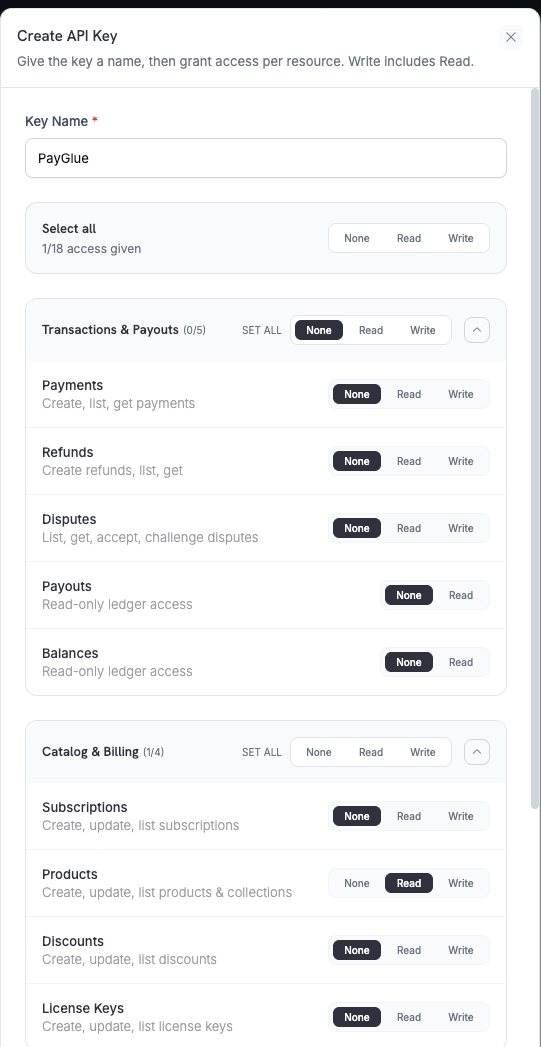
PayGlue, set Products to Read, and leave every other resource on None. PayGlue reads your products to check the key and to list them in its editors.3
Add a Webhook Endpoint
Go to Developer → Webhooks and click Add endpoint. Paste the webhook URL from your PayGlue connection page. Copy the URL instead of typing it, because the key at the end belongs to your publication.Under Subscribed events, select these five events, then click Create endpoint: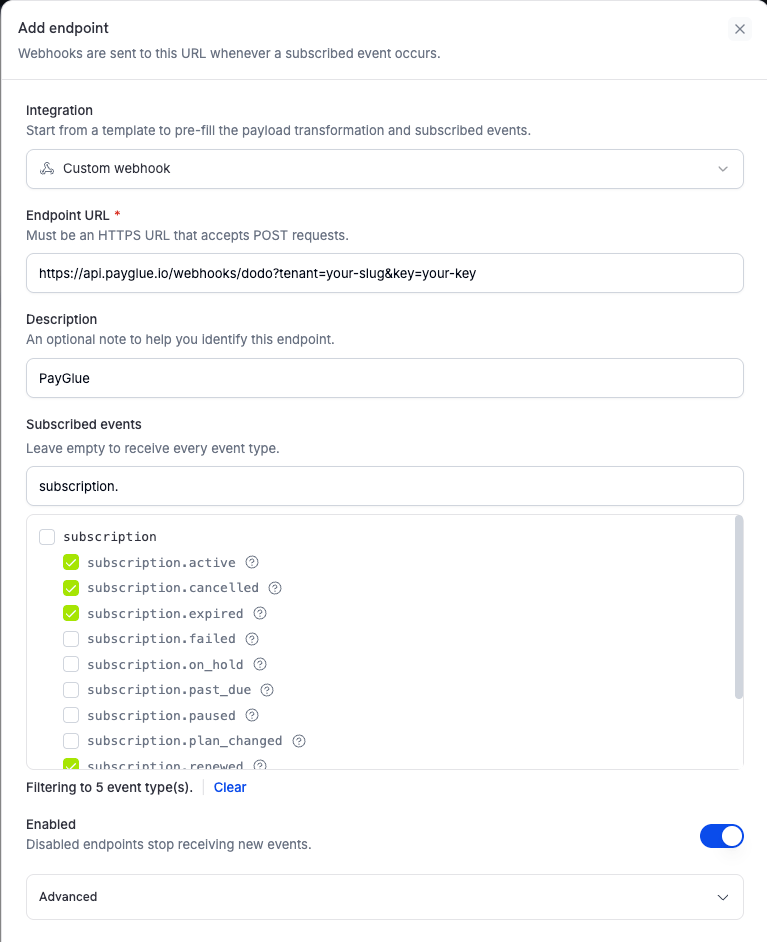
payment.succeededsubscription.activesubscription.renewedsubscription.cancelledsubscription.expired
4
Copy the Signing Secret
Open the endpoint you created. Under Signing secret, click the copy icon. The secret starts with 
whsec_.5
Save the Credentials in PayGlue
On the PayGlue connection page, enter the API key in API Key and the signing secret in Webhook Secret. Click Save credentials.
6
Run a Health Check
Click Run health check. A green Connection established banner means PayGlue can read your Dodo Payments account. The banner also shows whether the key is a test mode or live mode key.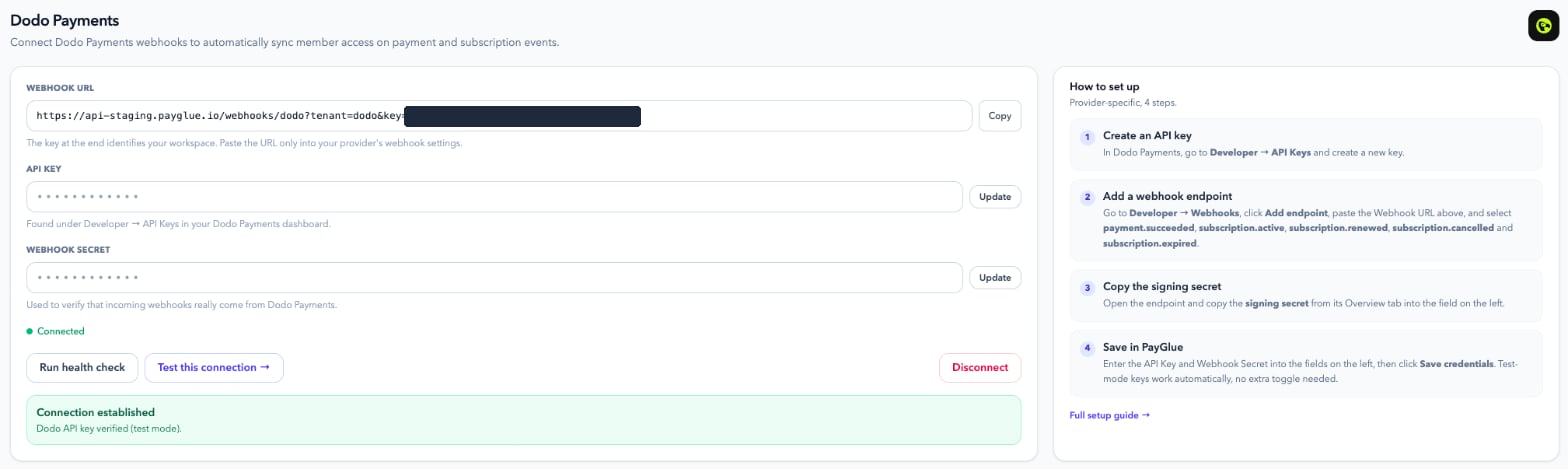
7
Offer Your Products
In PayGlue, go to Features → Buttons, Paywall, or Pricing Table and select your Dodo Payments product. Choose One-time or Subscription, set the newsletter and welcome email options, and save. This creates the mapping PayGlue uses when a purchase arrives.
8
Test the Setup
Buy one of your products in test mode.
In PayGlue, open Analytics → Webhook Events. The event shows as Processed, and the buyer appears in Ghost Admin with the
payglue-test label.Supported Events
PayGlue acts on each subscribed event as follows:
A subscription purchase also sends
payment.succeeded. PayGlue skips that event because the subscription events already cover it, and its event log shows it as Skipped. Events you don’t subscribe to, such as subscription.on_hold, don’t change access. A failed payment doesn’t remove a member.
Cancellations
Access after a cancellation follows the cancellation type in Dodo Payments:- Cancel at the end of the billing period: The reader keeps access until the paid period ends. PayGlue removes access when
subscription.expiredarrives. - Cancel immediately: PayGlue removes access when
subscription.cancelledarrives.
Going Live
Test mode and live mode have separate API keys and separate webhook endpoints. PayGlue detects the mode from the API key, so there is no mode setting in PayGlue. To go live, turn on Live Mode in the Dodo Payments dashboard, then create a new API key and a new webhook endpoint with the same five events. Replace both the API key and the webhook secret on the PayGlue connection page. To remove test members, filter Ghost Admin by thepayglue-test label.
Troubleshooting
The health check fails
The health check fails
Check that you copied the full API key and that the key has Read access to Products. A key without access to products fails the check.
Webhooks show as Failed in PayGlue
Webhooks show as Failed in PayGlue
PayGlue rejects any delivery with a signature that doesn’t match. This usually means the webhook secret in PayGlue belongs to a different endpoint, such as the test mode endpoint while the live mode endpoint sends events. Copy the signing secret again from the endpoint that sends the events.To see each delivery attempt and PayGlue’s response, open the endpoint in Developer → Webhooks. Use Resend to deliver a single event again.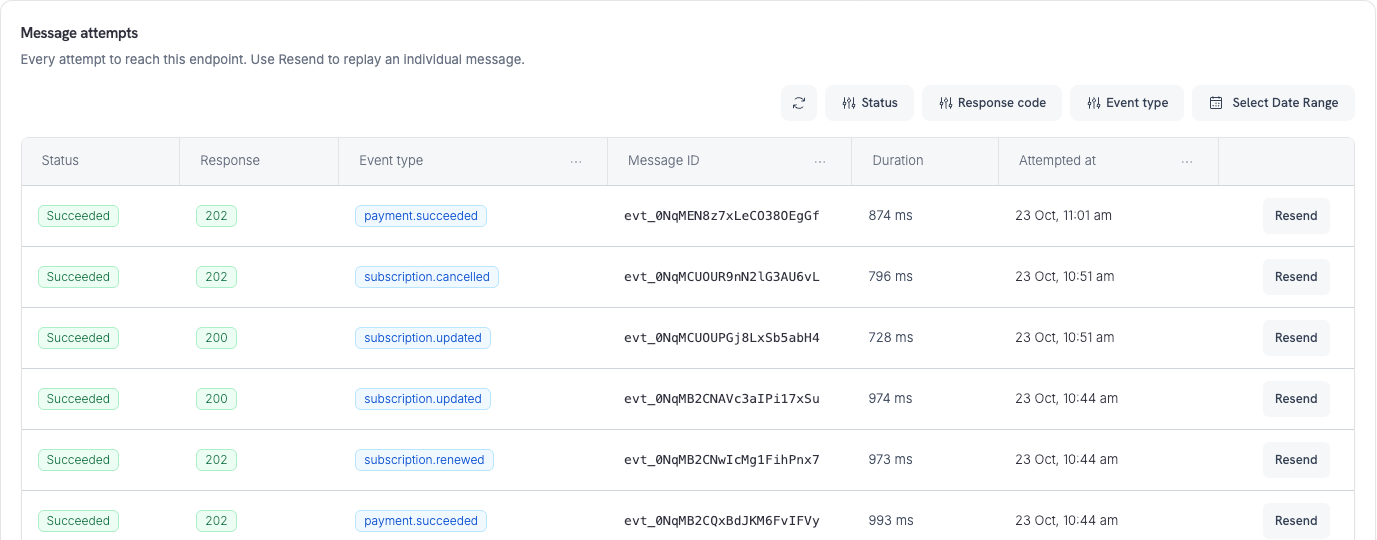
No Ghost member is created after a purchase
No Ghost member is created after a purchase
Check that the product is mapped to a buy button, paywall, or pricing table in PayGlue. Without a mapping, PayGlue receives the event but has no access to grant.
Additional Resources
PayGlue Dodo Payments Guide
The setup guide in PayGlue’s help center, with screenshots of each step.
Subscription Webhooks
The subscription events Dodo Payments sends and their payloads.
For help with the integration, contact PayGlue at team@payglue.io or Dodo Payments support at support@dodopayments.com.