

अवलोकन
Digital Product Delivery, Digital Files entitlement type है। आप अपनी files को एक बार Digital Files entitlement पर upload करते हैं और entitlement को किसी product से जोड़ते हैं। इसके बाद Dodo Payments हर भुगतान करने वाले customer को email और Customer Portal के ज़रिए presigned download links डिलीवर करता है। Digital Files entitlement निम्नलिखित का समर्थन करता है:- Hosted file uploads: Dodo Payments आपकी files को store करता है और उन्हें short-lived presigned URLs के ज़रिए उपलब्ध कराता है।
- External download link: प्रत्येक entitlement के लिए एक URL, जो कहीं और hosted files, जैसे Dropbox, Google Drive या S3, पर ले जाता है।
- Download instructions: free-form text, जो customer को उनके order page और delivery email में दिखाई देता है।
मुख्य सुविधाएँ
File Upload
Multiple Files
External Links
Presigned URLs
Digital Product Delivery सेट अप करें
1
Open Entitlements
Dashboard में Entitlements पर जाएँ और entitlement बनाने के लिए + पर click करें।
2
Choose Digital Files
Digital Files चुनें और entitlement के लिए Name दर्ज करें।
3
Add Files, Links, and Instructions
इन fields में से किसी भी संयोजन को configure करें: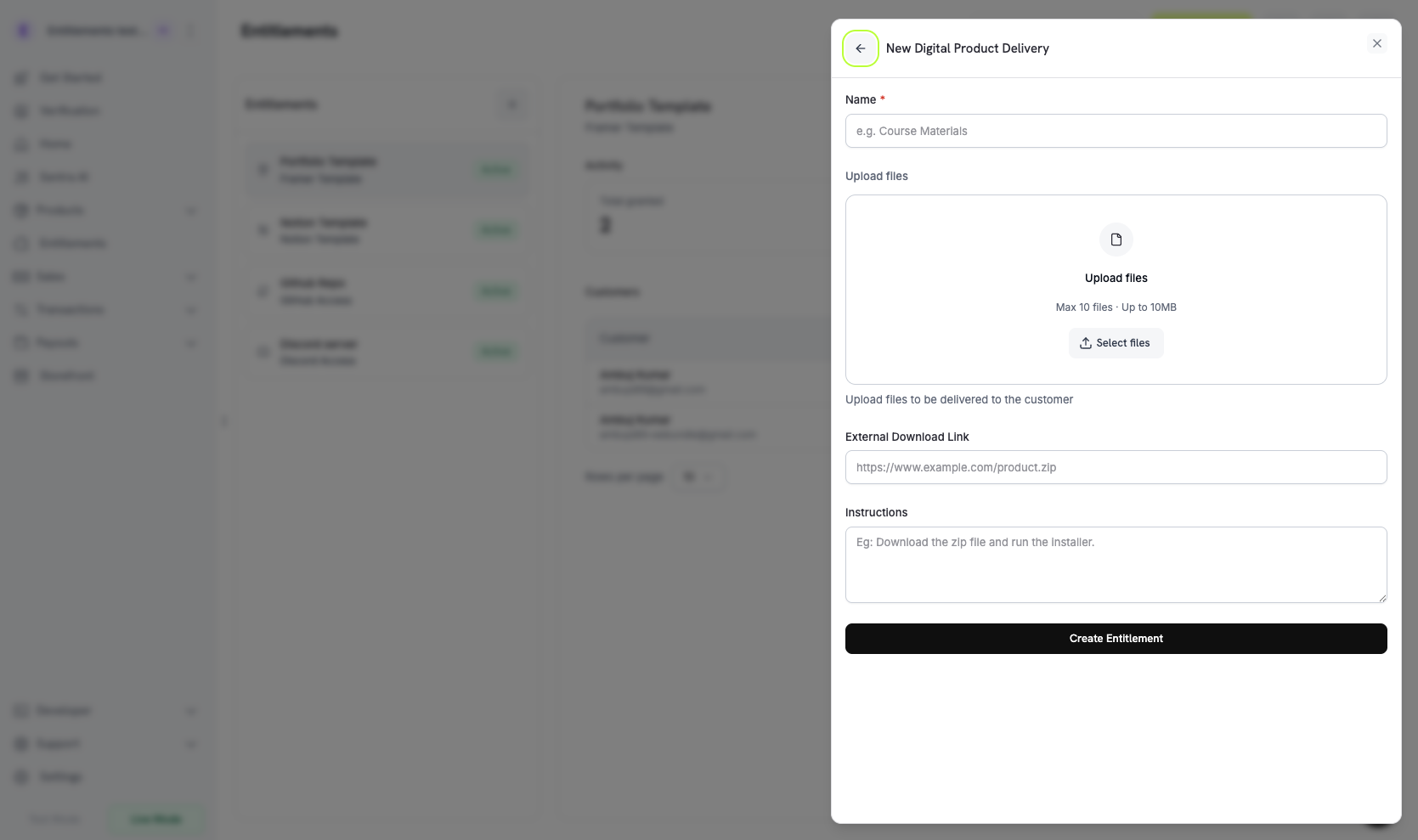
- Upload files: एक या अधिक files upload करें। प्रत्येक upload एक
file_idलौटाता है और file को entitlement केdigital_file_idsमें जोड़ता है। - External Download Link: ऐसा URL, जो
http://याhttps://से शुरू होता है और customers उस तक पहुँच सकते हैं। Dodo Payments इसे hosted files के साथ डिलीवर करता है। - Instructions: customer को दिखाया जाने वाला free-form text, उदाहरण के लिए “Unzip and run setup.sh.”
4
Save the Entitlement
Create Entitlement पर click करें। अब आप entitlement को किसी भी product से जोड़ सकते हैं।
Products से attach करें
किसी product को खोलें, उसके Entitlements section पर जाएँ और अपना Digital Files entitlement चुनें। Dodo Payments उस product की प्रत्येक सफल purchase या active subscription पर entitlement डिलीवर करता है।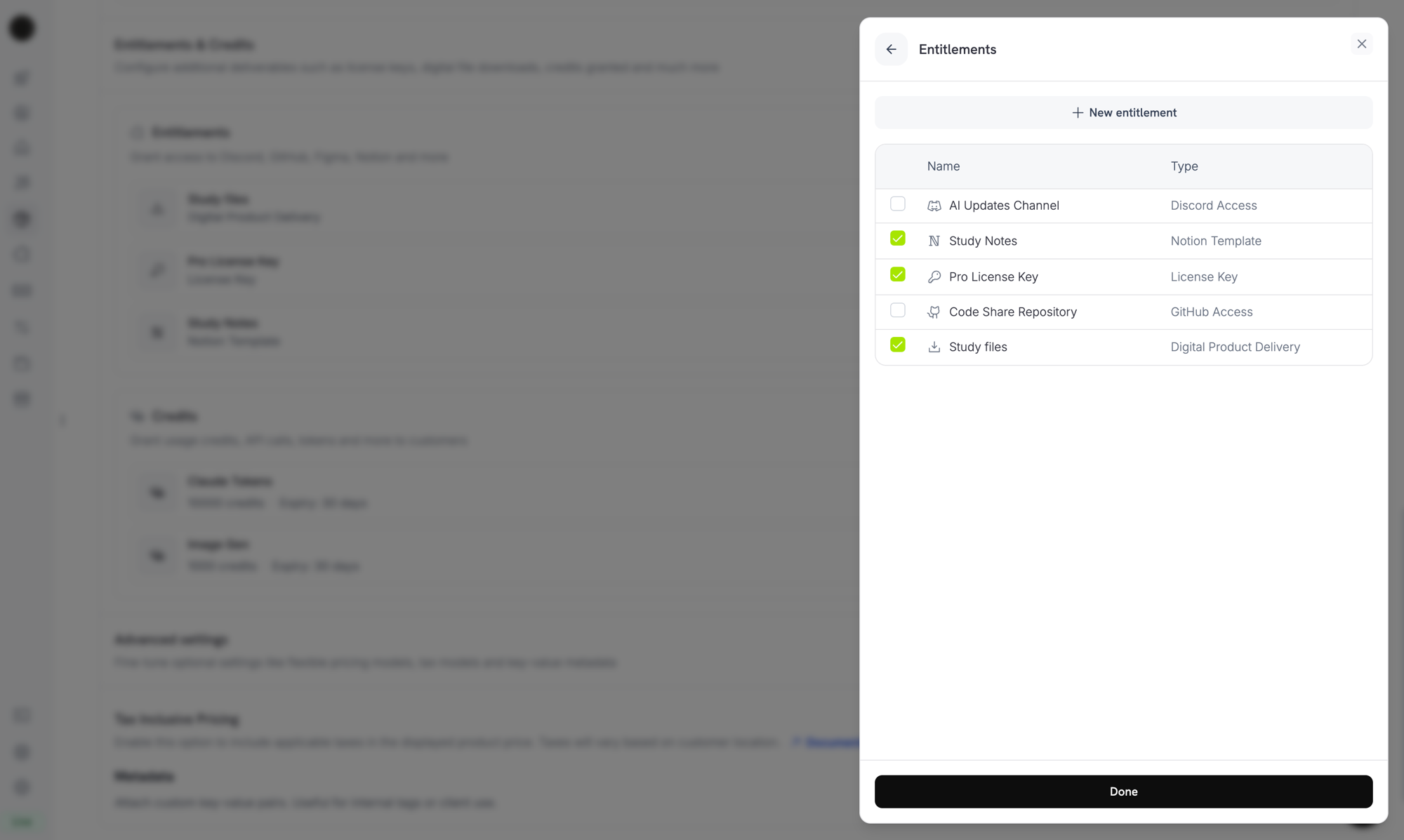
Attaching the Digital Files entitlement to a product alongside other entitlements.
Delivery कैसे काम करती है
Digital Files delivery standard grant lifecycle का पालन करती है। प्रत्येक event Digital Files grant को इस प्रकार प्रभावित करता है:Customer Experience
Purchase Confirmation
सफल payment के बाद customer को download links और आपके configure किए गए instructions वाला email प्राप्त होता है।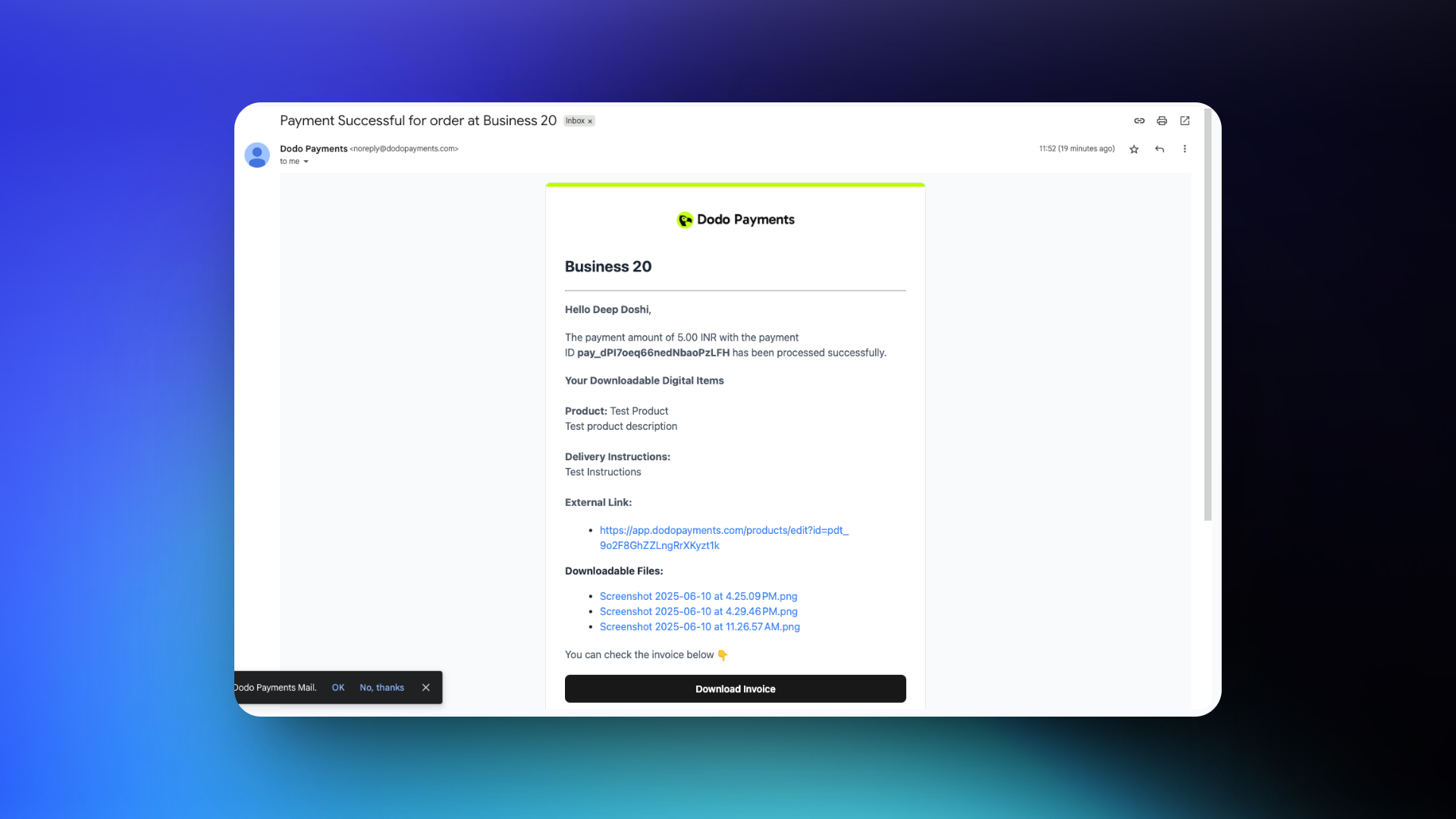
Customer Portal Access
Customers अपना grant active रहने तक Customer Portal से download links फिर से प्राप्त कर सकते हैं। Portal मांग पर fresh presigned URLs generate करता है, इसलिए email में दिए गए links expire होने के बाद भी purchase काम करती रहती है।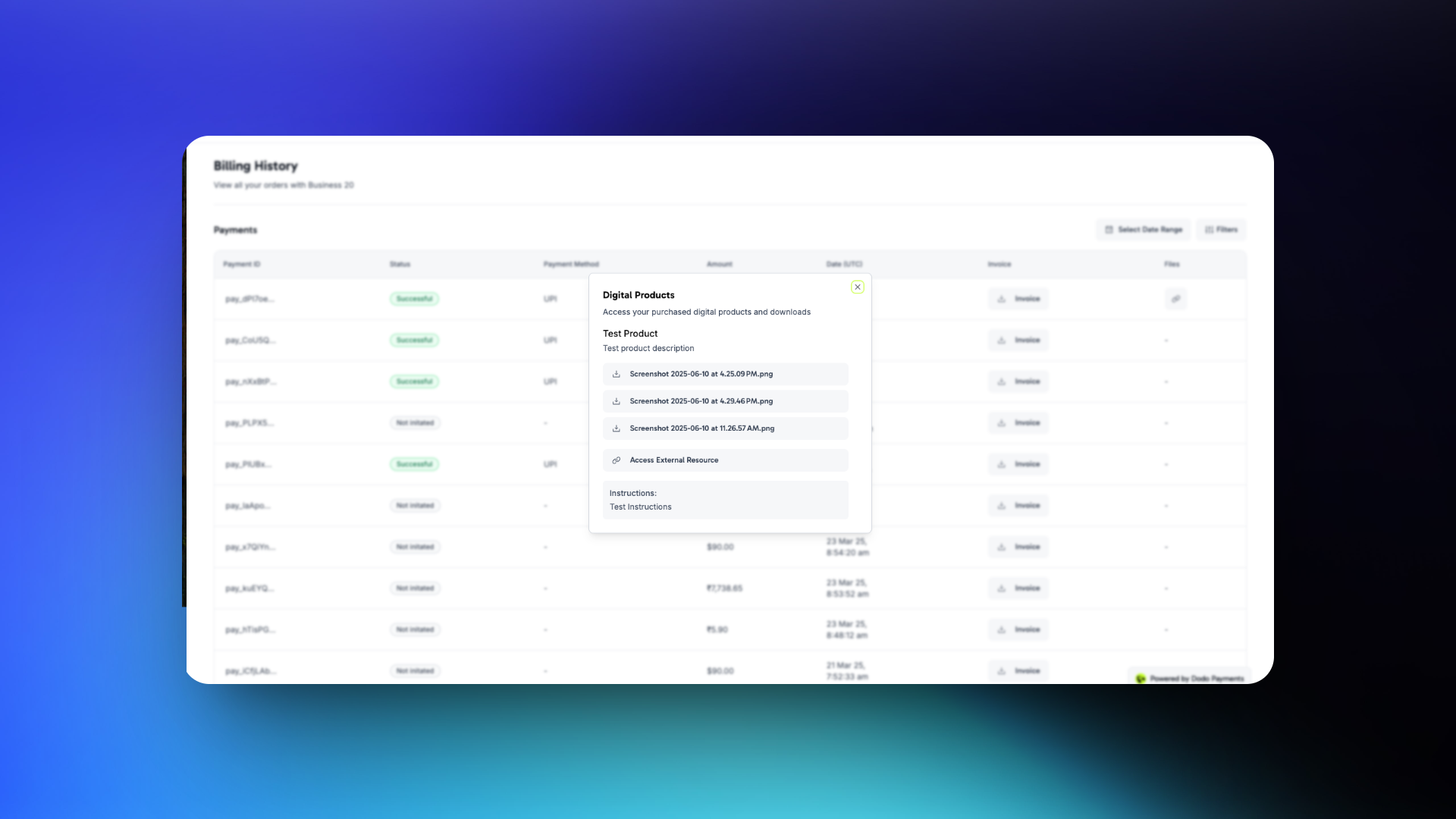
Customers confirmation email से files download कर सकते हैं या किसी भी समय Customer Portal से उन्हें खोल सकते हैं।
Programmatically Files manage करें
Entitlement में File Upload करें
File upload करने के लिए उसेfile field में multipart/form-data के रूप में भेजें। वैकल्पिक filename field, file part से पहले आना चाहिए, क्योंकि Dodo Payments उसके बाद भेजे गए fields को अनदेखा करता है। filename के बिना Dodo Payments uploaded file के नाम का उपयोग करता है। Response नया file_id लौटाता है।
Grants की सूची बनाएँ और Download URLs Resolve करें
प्रत्येक Digital Files grant में एकdigital_product_delivery object होता है, जिसमें प्रत्येक file के लिए fresh presigned URL होता है। URLs पढ़ने के लिए entitlement के grants की सूची बनाएँ:
Entitlement से File हटाएँ
File detach करने के लिए उसकाfile_id और entitlement ID भेजें:
महत्वपूर्ण बातें
- Presigned URLs जल्दी expire हो जाते हैं। Grant payloads और webhook events में मौजूद Download URLs 15 मिनट तक valid रहते हैं। उन्हें store न करें। Customer को दोबारा download करने की आवश्यकता होने पर नए URLs fetch करें।
- Files को update करने से केवल future purchases प्रभावित होती हैं। किसी file को replace या remove करने से पहले जारी किए गए downloads नहीं बदलते। प्रत्येक grant अपने बनाए जाने के समय की entitlement configuration रखता है, इसलिए पुराने customers को उस समय का current version अभी भी मिल सकता है।
- Refunds downloaded copies को invalidate नहीं करते। जिस customer ने file पहले ही download कर ली है, उसके पास वह copy बनी रहती है। Revocable content, जैसे license-restricted media या time-limited access, के लिए Digital Files को License Keys के साथ pair करें और runtime पर key validate करें।
- Sensitive content के लिए अपनी authentication वाले external URLs को प्राथमिकता दें। Dodo Payments के presigned URLs short-lived होते हैं, लेकिन URL रखने वाला कोई भी व्यक्ति उसके expire होने तक file download कर सकता है। Account login के पीछे externally hosted content आपको अधिक नियंत्रण देता है।
API Management
Create Entitlement
Upload File
Delete File
List Grants
Update Entitlement
Revoke Grant
Webhooks
Digital file delivery और revocation चारentitlement_grant.* webhook events भेजते हैं। Digital Files grants के लिए payload में resolved file list वाला digital_product_delivery object, वैकल्पिक instructions और वैकल्पिक external_url शामिल होते हैं। प्रत्येक file में presigned download_url, filename, content_type, bytes में file_size और expires_in शामिल होते हैं, जो URL expire होने तक के seconds की संख्या है:
Legacy Digital Product Delivery
ऐसे products, जो product पर ही पुराने
digital_product_delivery block के साथ configure किए गए हैं, automatically migrated होकर Digital Files entitlement में बदल दिए गए हैं। Legacy product file API के ज़रिए upload की गई files सुरक्षित रहती हैं: वे downloadable बनी रहती हैं और newly uploaded files के साथ grant payloads में दिखाई देती हैं। Entitlement का digital_files configuration उन्हें legacy_file_ids list में track करता है। Files जोड़ने, instructions बदलने या external URL replace करने के लिए Entitlements के अंतर्गत migrated Digital Files entitlement edit करें।Backward compatibility के लिए Product responses में अभी भी legacy product-level fields (digital_product_delivery.external_url, digital_product_delivery.instructions) शामिल होते हैं, लेकिन source of truth entitlement है।Best Practices
- Downloads को one-time deliveries मानें। Customers links share या lose कर सकते हैं, इसलिए अपना product इस धारणा के आधार पर design करें कि वे जो भी download करते हैं, वह उनके पास रखने के लिए है।
- Expectations तय करने के लिए instructions का उपयोग करें। Multi-file bundles के लिए एक
instructionsline जोड़ें, जिसमें बताया गया हो कि पहले क्या install करना है या files को कैसे combine करना है। - 500 MiB limit का ध्यान रखें। Multi-GB datasets या video courses जैसे बड़े artifacts को externally host करें और उन्हें upload करने के बजाय
external_urlसे link करें। - Revocable access के लिए License Keys के साथ combine करें। Refund के बाद in-product features की access revoke करने के लिए Digital Files entitlement को License Key entitlement के साथ pair करें और runtime पर key validate करें।
- Customer Portal refresh flow को test करें। पुष्टि करें कि customer एक सप्ताह बाद portal पर लौटकर भी working download link प्राप्त कर सकता है। Email links expire होने पर portal मुख्य recovery path है।