

Subscriptions automate recurring revenue. Create flexible billing cycles, free or paid trials, plan changes with proration, and add-ons. Customers renew automatically until they cancel or the term ends.
Upgrade & Downgrade
On‑Demand Subscriptions
Customer Portal
Subscription Webhooks
What Are Subscriptions?
A subscription is a recurring product that charges customers on a schedule. Ideal for SaaS, memberships, digital content, and support plans.- SaaS licenses: Apps, APIs, or platform access
- Memberships: Communities, programs, or clubs
- Digital content: Courses, media, or premium content
- Support plans: SLAs, success packages, or maintenance
Key Benefits
- Predictable revenue: Recurring billing with automated renewals
- Flexible cycles: Monthly, annual, custom intervals, and trials
- Plan agility: Proration for upgrades and downgrades
- Add-ons and seats: Attach optional, quantifiable upgrades
- Hosted checkout: Checkout pages and Customer Portal
- Developer-first: Clear APIs for creation, changes, and usage tracking
Creating Subscriptions
Create subscription products in your Dodo Payments dashboard, then sell them through checkout or your API. Separating products from active subscriptions lets you version pricing, attach add-ons, and track performance independently.Subscription Product Creation
Configure the fields in the dashboard to define how your subscription sells, renews, and bills. The sections below map directly to what you see in the creation form.Product Details
- 製品名(必須):チェックアウト、Customer Portal、請求書に表示される名前です。
- 製品説明(任意):チェックアウトと請求書に表示される、明確な価値を示す説明です。
- 製品画像(任意):PNG/JPG/WebP、最大3 MB。チェックアウトと請求書で使用されます。
- ブランド:テーマ設定やメール送信に使用する特定のブランドに製品を関連付けます。
- 税区分(必須):税ルールを決定するための区分(例:SaaS)を選択します。
Pricing
- Pricing Type: Subscription(このガイド)を選択します。代替 विकल्पは Single Payment と Usage Based Billing です。
- Price(必須): 通貨を指定した基本の継続価格です。0 以外の価格は、顧客が支払う通貨のサブスクリプション最低額を満たす必要があります。USD の場合は $1.00 です。USD、EUR、GBP 以外の通貨では、価格が少なくとも $1.00 相当である必要もあります。たとえば AED のサブスクリプションには、記載されている 2.00 AED の最低額ではなく、約 3.70 AED が必要です。EUR と GBP には、それぞれ独自の記載された最低額が適用されます。Minimum Amounts を参照してください。最低額未満の価格はサポートされていません。ちょうど $0 の価格は、別個のサポート対象ケースです。Card-Optional at Zero Price を参照してください。
- Discount Applicable (%): 基本価格に適用される任意のパーセント割引です。checkout と請求書に反映されます。小数点以下 2 桁まで入力できます(例:
10.5)。API ではdiscount_bpsを使用します(basis points 単位のため、1050は 10.5% です)。 - Repeat payment every(必須): 更新の間隔です(例: 1 Month ごと)。間隔(months または years)と数量を選択します。
- Subscription Period(必須): サブスクリプションが有効であり続ける合計期間です(例: 10 Years)。この期間が終了すると、延長されない限り更新は停止します。
- Trial Period Days(必須): トライアル期間を日数で設定します。トライアルを無効にするには 0 を使用します。トライアル終了時に初回請求が自動的に行われます。
- Trial Amount: 有料トライアルに対する任意の前払い料金です。無料トライアルの場合は未設定のままにします。Paid Trials を参照してください。
- Card-optional at $0 Price: 価格が $0 の場合、または割引によって本日の支払額がなくなった場合に、カードを追加せずに顧客がサブスクリプションを開始できるようにします。無料トライアルには、独自の Start the trial without a card チェックボックスがあります。Card-Optional at Zero Price を参照してください。
- Select add-on: 顧客が基本プランと併せて購入できる add-on を最大 10 件まで追加します。
Add-ons are ideal for quantifiable extras such as seats or storage. You can control allowed quantities and proration behavior when customers change them.
Advanced Settings
- Tax Inclusive Pricing: 適用される税金を含めた価格を表示します。最終的な税額の計算は顧客の所在地によって異なります。
- License key(Entitlements 内): 購入後、各顧客に固有のキーを発行します。License Keys ガイドを参照してください。
- Digital Files(Entitlements 内): 購入後にファイルまたはコンテンツを自動的に提供します。詳しくは Digital Product Delivery を参照してください。
- Metadata: 内部タグ付けやクライアント統合のために、カスタムのキーと値のペアを付加します。Metadata を参照してください。
Subscription Trials
Trials let customers evaluate a subscription before paying the full recurring price. A trial can be free (no charge until it ends) or paid (a reduced amount charged upfront). After the trial, the full price charges at the first renewal.Configuring Trials
Set Trial Period Days in the product’s pricing section (use0 to disable). Override it when creating a subscription:
Paid Trials
Charge a reduced amount upfront for the trial window. Set Trial Amount on the product’s price. The full recurring price charges at the first renewal.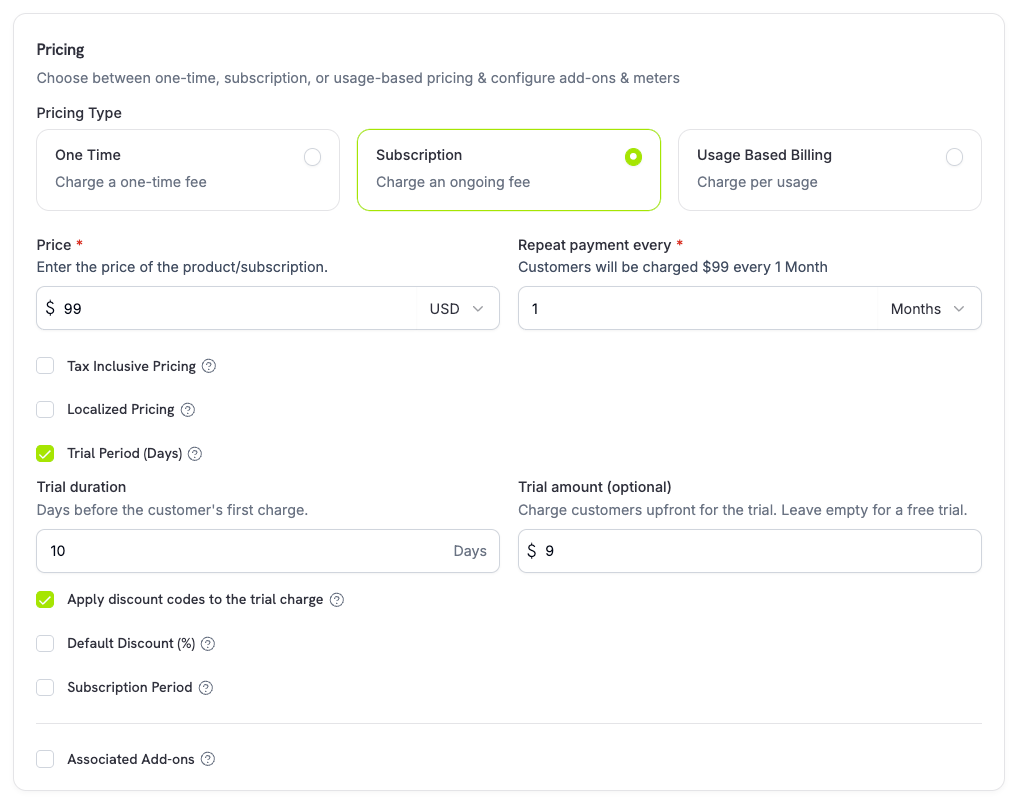
trial_amount and trial_period_days so you can show the amount due today before creating the subscription.
Card-Optional at Zero Price
Let customers start a subscription without adding a payment method when nothing is due today. Enable it per price in the product’s pricing section, with one checkbox for each case below.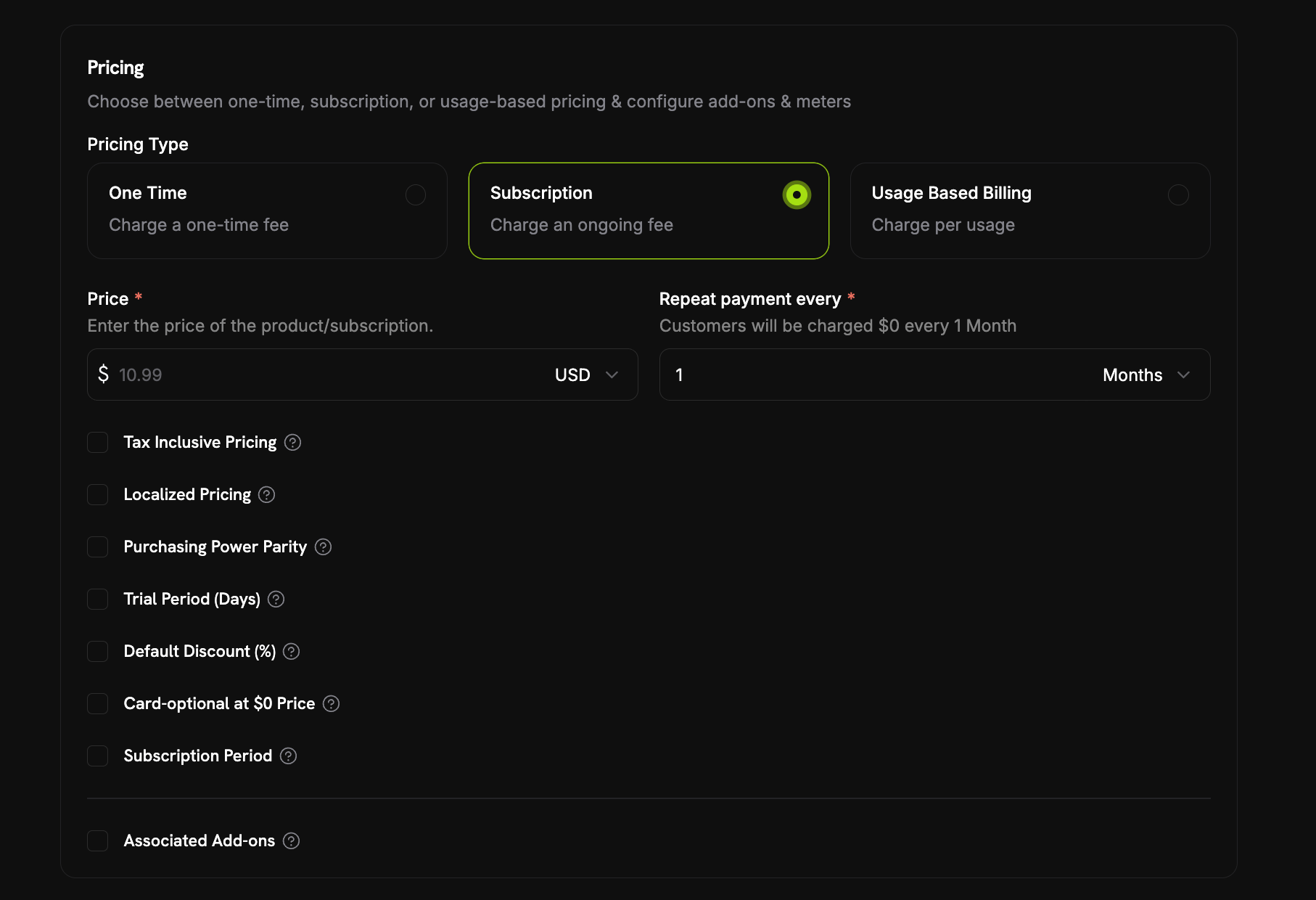
- A free trial:
trial_period_daysis set with notrial_amount, so the first charge is $0 while the trial runs. Check Start the trial without a card under Trial Period (Days). - A $0 recurring price: Either the price itself is $0, or a discount brings it to $0 (the product’s Default Discount (%) or a discount code stacked at checkout). Check Card-optional at $0 Price.
Each checkbox maps to its own API field:
trial_payment_method_optional (free trial case) and zero_amount_payment_method_optional ($0 price case). You can enable either one on its own.What Happens Without a Card
A card-optional subscription is created and activated immediately with no payment method on file. The create response returnspayment_method_required: false, and the subscription object shows has_payment_method: false. Then:
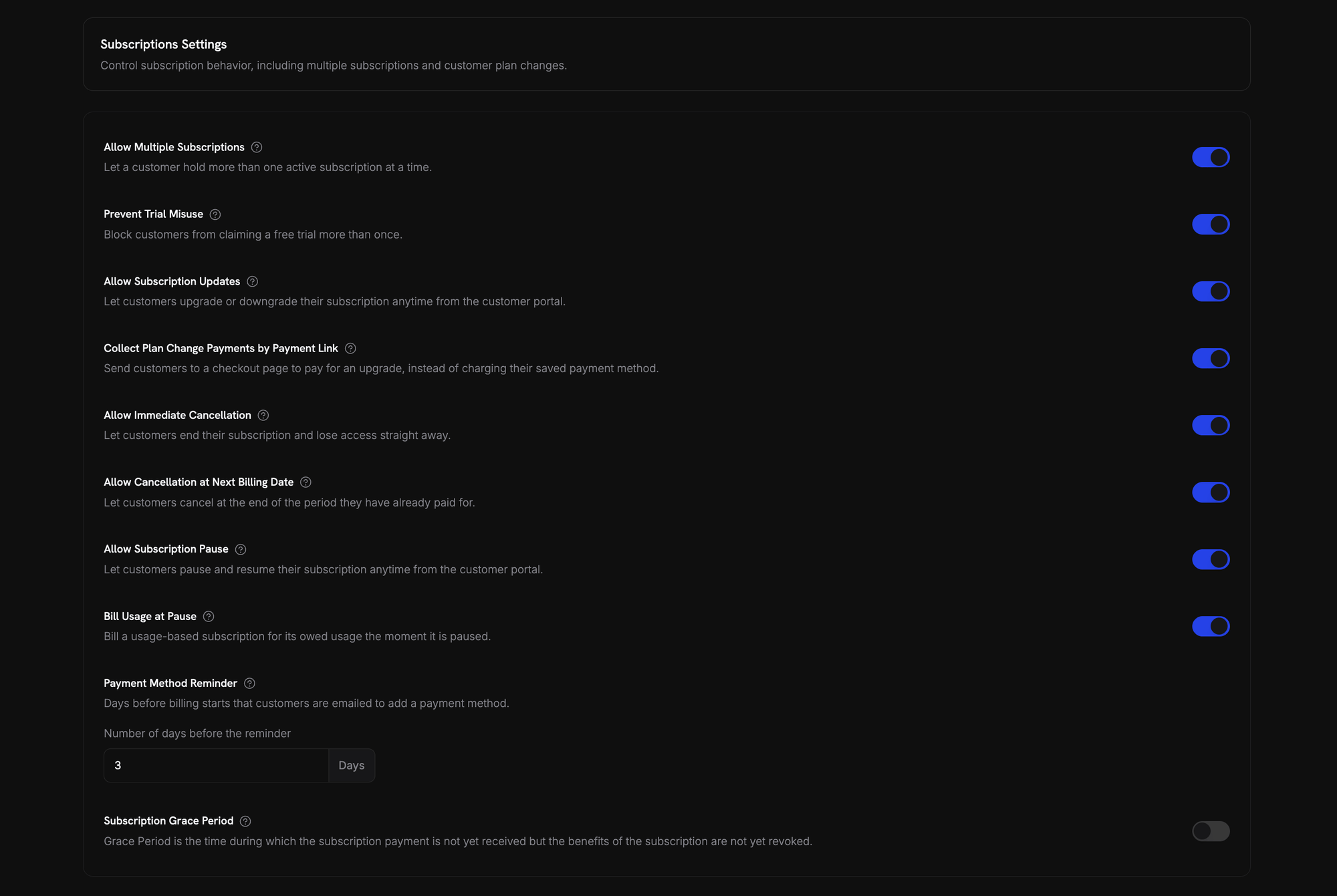
- A reminder email goes out before billing starts. The number of days is set in Settings → Subscriptions → Payment Method Reminder (see Subscription Settings). The Add Payment Method Reminder email (see Customer Emails) links the customer to the Customer Portal to add a card.
- If no card is added in time, the subscription goes
on_holdwhen the trial ends or the discounted period runs out and a real charge is due. The customer receives the Subscription On Hold, No Payment Method email. - Adding a payment method reactivates the subscription (see Reactivating from On Hold). A charge is created for the amount now due, and the subscription returns to
activeon success.
A card added before the trial or discounted period ends prevents the hold. The next renewal charges that card.
Preventing Trial Misuse
Stop customers from repeatedly claiming trials of the same product. When enabled, a customer who has already redeemed a trial of a product gets a paid subscription instead of a fresh trial of that product.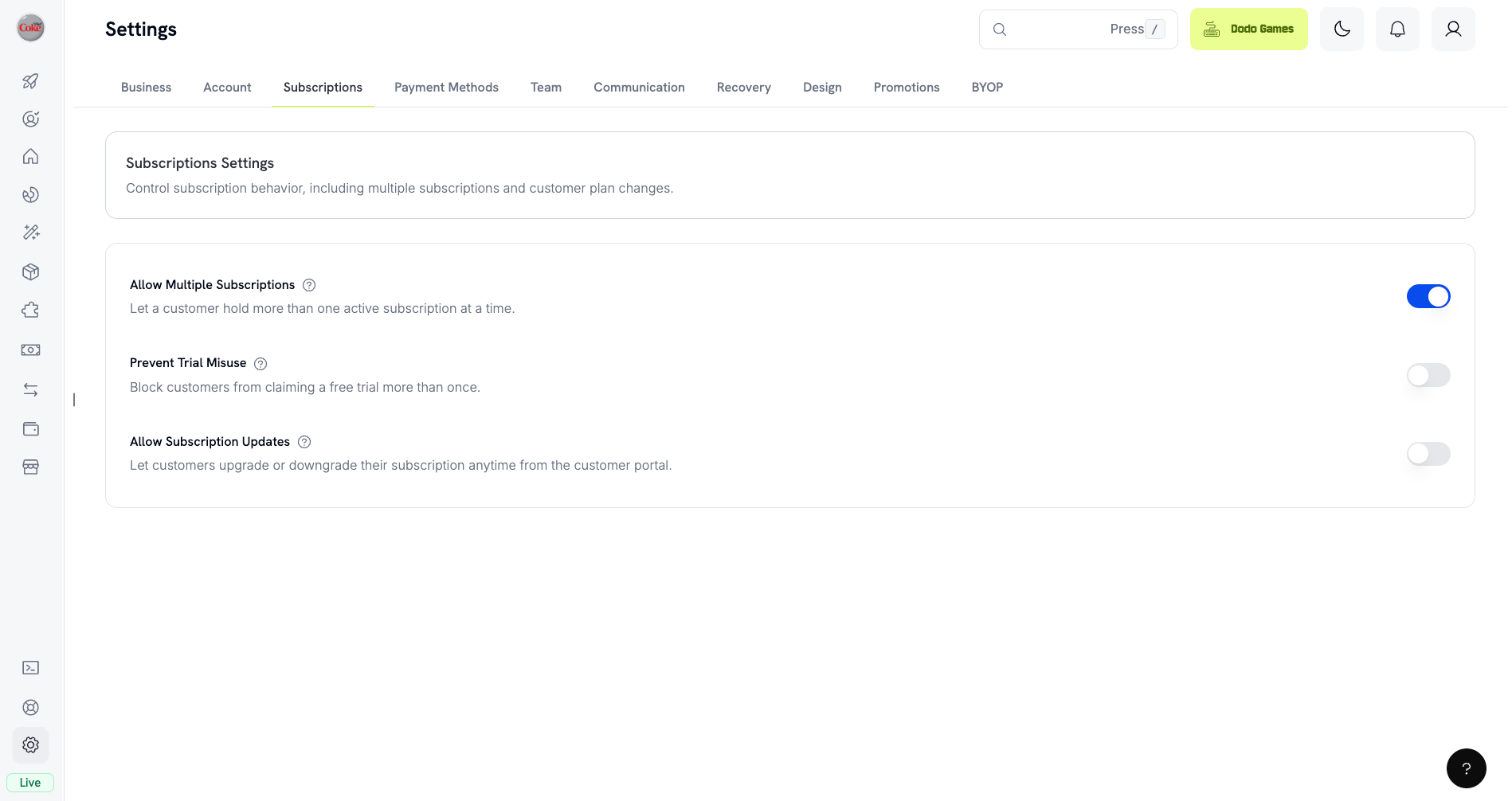
- Customers are matched by normalized email (plus-aliases stripped), so
user+trial@example.comanduser@example.comcount as the same person. - Redemptions are recorded at trial activation, so a customer who cancels the same day has still consumed their trial.
- Existing customers are backfilled from historical trials by email, so past trial users are recognized immediately.
- Passing
trial_period_daysexplicitly on a checkout session or subscription skips the check and grants that trial.
Off by default. See Subscription Settings for all business-level subscription controls.
Detecting Trial Status
The subscription object has no trial status field. For a free trial, retrieve the subscription’s payments: if there is exactly one payment with atotal_amount of 0, the subscription is in trial. This check doesn’t work for paid trials, where the first payment is the trial_amount.
Updating Trial Period
Extend the trial by updatingnext_billing_date:
Subscription Plan Changes
Upgrade or downgrade subscriptions, adjust quantities, or migrate to different products. Proration mode controls whether the change triggers an immediate charge, creates credit, or applies no billing adjustment. You can change plans and update the next billing date from the dashboard, or change plans with the API. To let customers change plans themselves, add subscription products to a Product Collection and enable Allow Subscription Updates in Settings → Subscriptions.Product Collections
Proration Modes
Choose how customers are billed when changing plans:prorated_immediately
Credits the unused portion of the current billing cycle, then charges a full cycle at the new plan. The new plan is never charged at a fraction of its price.
Net immediate charge = (full new cycle) minus (remaining fraction × full old cycle). If the credit exceeds the new cycle charge, the difference is held as subscription-scoped credit for future renewals. The billing cycle re-anchors to the change date.
difference_immediately
Charges the price difference immediately (upgrade) or adds credit for future renewals (downgrade).
Credits from downgrades are subscription-scoped and auto-applied to future renewals. They’re distinct from Credit-Based Billing entitlements.
difference_immediately, the unused value becomes a subscription-scoped credit that automatically offsets future renewals:
full_immediately
Charges the full new plan amount immediately, ignoring remaining time. Best for resetting billing cycles.
do_not_bill
Switches to the new plan immediately without any billing adjustment. No charges, no credits. The new plan is active as soon as the call succeeds but is not charged until the next renewal. The customer keeps the upgraded plan free for the rest of the current cycle. The original renewal date is preserved, and the new plan price applies at that renewal.
Example: Prorated upgrade calculation
Example: Prorated upgrade calculation
Scenario: Customer on Basic ($30/month) upgrades to Pro ($80/month) on day 16 of a 30-day cycle using The customer starts a full new month of Pro today, so Pro is charged in full and only the unused time on Basic is credited.Next renewal on February 15 (January 16 + 30 days): $80.00/month.
prorated_immediately.Example: Downgrade credit calculation
Example: Downgrade credit calculation
Scenario: Customer on Pro ($80/month) downgrades to Starter ($20/month) using The $60 credit auto-applies to future renewals:
difference_immediately.- Renewal 1: $20 − $20 (credit) = $0.00 ($40 credit remaining)
- Renewal 2: $20 − $20 (credit) = $0.00 ($20 credit remaining)
- Renewal 3: $20 − $20 (credit) = $0.00 (credit exhausted)
- Renewal 4: $20.00 (full price)
Learn more about how credits are managed in the Upgrade & Downgrade Guide.
Changing Plans with Add-ons
Modify add-ons when changing plans. Add-ons are included in proration calculations:By default (
effective_at: 'immediately') plan changes trigger immediate charges. Pass effective_at: 'next_billing_date' to schedule the change for the next billing date instead — the pending change is returned on the subscription as scheduled_change, and you can cancel it with Cancel Scheduled Plan Change. Failed charges may move the subscription to on_hold status, unless you pass on_payment_failure: 'prevent_change', which keeps the subscription on its current plan until payment succeeds. Track changes via subscription.plan_changed webhook events. Plan changes are rejected while a subscription is past_due — see Grace Period.Previewing Plan Changes
Preview the exact charge before committing:Preview Change Plan API
Pausing and Resuming Subscriptions
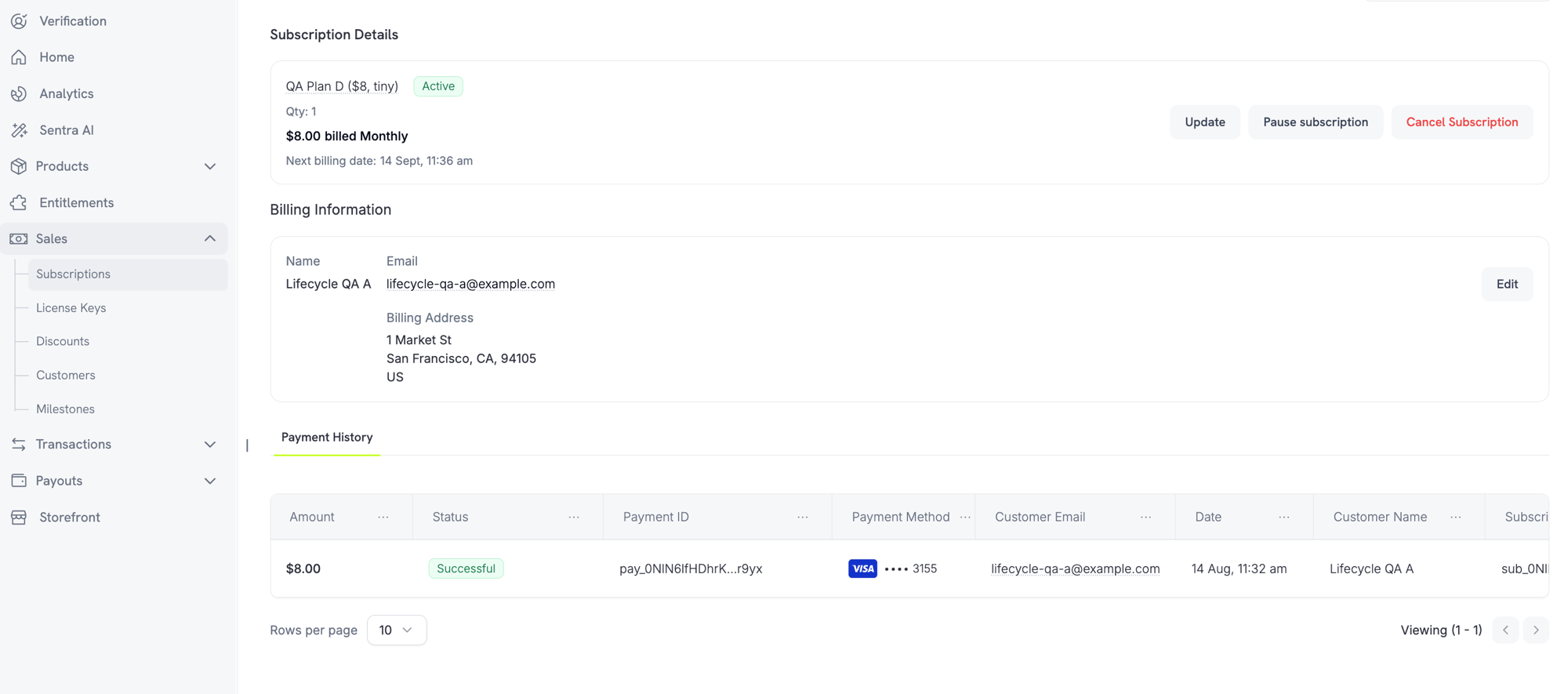
Pause a subscription to freeze it instead of ending it. Billing stops, access is revoked, and the subscription keeps its plan and history. Use it as a retention alternative to cancellation. Open any active subscription under Sales → Subscriptions and click Pause subscription. The status changes topaused and renewals stop until resumed.
What Happens When You Pause
- Renewals stop. No invoice is generated and no renewal charge is attempted while paused.
- Access is revoked immediately. Pausing revokes every delivered and pending entitlement grant, which disables license keys and stops new digital product download URLs. Resuming re-grants them.
- The billing clock freezes.
next_billing_dateandexpires_atboth move forward by the exact length of the pause, so the customer keeps the time they already paid for. - No pause duration limit. A paused subscription stays paused until resumed. You don’t set a pause length upfront.
active and restores entitlements. Because the clock was frozen, the next renewal lands the paused duration later than originally scheduled.
Pausing Usage-Based Subscriptions
A usage-based subscription can have usage recorded but not yet billed when paused. Bill Usage at Pause under Settings → Subscriptions controls what happens:
Only metered usage is settled this way. The recurring base fee is never charged at pause time. Standard and on-demand subscriptions have nothing to settle.
Bill Usage at Pause is recorded per billing cycle. Changing it mid-cycle doesn’t affect the cycle already in progress; the new value applies from the next cycle onward.
Resuming is a valid exit from this hold. You don’t have to collect the settlement invoice first. Resuming forgives the outstanding usage rather than deferring it.
Letting Customers Pause Their Own Subscriptions
Allow Subscription Pause under Settings → Subscriptions controls whether customers can pause and resume from the Customer Portal. Off by default, so self-service pause is opt-in.
Pausing from the Customer Portal
Pausing via API
Pause and resume run through thestatus field on the update subscription endpoint:
subscription.paused and resuming emits subscription.unpaused. Both carry the full subscription object, with paused_at set while paused and null once resumed.
Pause and Other Subscription Actions
- Cancellation still works. You can cancel a paused subscription exactly as you would an active one. Any open settlement invoice from the pause is voided.
- Scheduled plan changes are delayed, not dropped. A plan change scheduled for the next billing date sits untouched while paused, then applies at the shifted billing date once resumed. Its
scheduled_change.effective_atis a snapshot from when it was scheduled and is not adjusted for the pause. To drop the change, use Cancel Scheduled Plan Change.
Subscription States
A subscription moves through defined statuses over its lifetime:past_due and on_hold are both involuntary but differ in one way: past_due keeps the customer’s access, on_hold removes it. A subscription reaches past_due only when you enable a grace period. Without one, a failed renewal goes straight to on_hold.on_hold and paused are distinct. on_hold is involuntary (payment failed). paused is deliberate (you or the customer chose to freeze it). A usage-based subscription can still owe a settlement invoice at the moment it is paused (see Pausing Usage-Based Subscriptions).State Machine
On Hold State
A subscription enterson_hold when:
- A renewal payment fails (insufficient funds, expired card, etc.)
- A plan change charge fails
- Payment method authorization fails
- A pause settlement invoice for a usage-based subscription goes unpaid
- A grace period ends with renewal debt unpaid and expiry action is
on_hold - A Card-Optional at Zero Price subscription’s free trial or $0 period ends with no payment method ever added
If you set a grace period, a failed renewal moves the subscription to
past_due first. It reaches on_hold only when the window ends.Reactivating from On Hold
Update the payment method to reactivate a subscription fromon_hold. This automatically:
- Creates a charge for remaining dues
- Generates an invoice
- Processes the payment using the new payment method
- Reactivates the subscription to
activeon successful payment
The one exception is a hold caused by an unpaid pause settlement invoice. Clearing that invoice returns the subscription to
paused, not active, because pause is where it was before the payment failed. Resume it explicitly once the invoice is settled.After successfully updating the payment method for an
on_hold subscription, you’ll receive payment.succeeded followed by subscription.active webhook events.Grace Period
A grace period is a window between a failed renewal and loss of access. The subscription moves topast_due instead of on_hold, and the customer keeps everything they bought until the window ends. This gives them time to fix a card without losing your product.
Off by default. Enable one from Settings → Subscriptions → Subscription Grace Period.

Settings
What Happens During the Window
While a subscription ispast_due:
- The customer keeps access. Entitlement grants, license keys, and digital product downloads all stay live.
- Usage-based billing keeps recording usage.
- The subscription does not renew.
- The subscription cannot be paused.
- Dunning emails go out, and payment retries continue.
subscription.past_dueis emitted at entry.
subscription.past_due webhook carries the deadline as past_due_ends_at. Store it when the event arrives — the subscription API does not return this field. Every subscription webhook while the window is open carries the same value, next to a status of past_due.
The window is fixed when the subscription enters it. If you change the length or expiry action later, a window already open keeps its original values. New values apply to the next subscription that enters a window.
Recovery
The window closes when the renewal debt is settled through a successful retry or when the customer updates the payment method. The subscription returns toactive, and a subscription.active webhook is sent.
Only the failed renewal opens a window. An unrelated merchant charge that goes unpaid does not move a subscription to past_due.
When the Window Ends
If the renewal debt is still unpaid at the deadline, the subscription moves toon_hold or to cancelled, as you configured. At the same time:
- A scheduled plan change on the subscription is cancelled.
- A pending plan change whose invoice is still unpaid is cancelled.
cancel_subscription, open invoices are also voided, and their payment retries stop.
A pending plan change whose invoice was paid is applied while the window is still open, not at the deadline. A paid invoice settles the change whatever the subscription status.
Webhook Events by Transition
Each transition emits a webhook so you can drive entitlement logic without polling:Subscription Webhook Payloads
API Management
Create subscriptions
Create subscriptions
Use
POST /checkouts to create subscriptions programmatically from products, with optional trials (subscription_data.trial_period_days) and add-ons (product_cart[].addons).API Reference
Update subscriptions
Update subscriptions
Use
PATCH /subscriptions/{subscription_id} to cancel at the next billing date, extend the subscription period, update billing details, or modify metadata. To change quantity, use the Change Plan API instead.API Reference
Pause and resume subscriptions
Pause and resume subscriptions
Pause and resume run through the
status field on PATCH /subscriptions/{subscription_id}: status: paused pauses an active subscription and status: active resumes it. Neither value can be combined with any other field in the same request. See Pausing and Resuming Subscriptions for full behavior and billing effects.API Reference
Change plans (proration)
Change plans (proration)
Change the active product and quantities with proration controls.
API Reference
On-demand charges
On-demand charges
For on-demand subscriptions, charge specific amounts on demand.
API Reference
List and retrieve
List and retrieve
Use
GET /subscriptions to list all subscriptions and GET /subscriptions/{id} to retrieve one.API Reference
Usage history
Usage history
Fetch recorded usage for metered or hybrid pricing models.
API Reference
Update payment method
Update payment method
Update the payment method for a subscription. For active subscriptions, this updates the payment method for future renewals. For subscriptions in
on_hold, this reactivates the subscription by creating a charge for remaining dues.When generating a new payment-method link, you can pass allowed_payment_method_types to restrict which payment methods the customer sees. Customers will never see a method that isn’t in the list, though including a method does not guarantee it appears (availability depends on factors like customer location and your business settings).API Reference
Common Use Cases
- SaaS and APIs: Tiered access with add-ons for seats or usage
- Content and media: Monthly access with introductory trials
- B2B support plans: Annual contracts with premium support add-ons
- Tools and plugins: License keys and versioned releases
Integration Examples
Checkout Sessions (Subscriptions)
Create a checkout session with a subscription product and optional add-ons:Plan Changes with Proration
Upgrade or downgrade a subscription and control proration behavior:Cancel at Next Billing Date
Schedule a cancellation that takes effect at the end of the current billing period:Extend the Subscription Period
Extend how long a subscription runs by passing a newsubscription_period_count and subscription_period_interval to PATCH /subscriptions/{subscription_id}. The subscription’s expiry is recomputed from the new count and interval:
A subscription’s period can only be increased, never shortened.
On‑Demand Subscriptions
Create an on‑demand subscription and charge later as needed:Update Payment Method for Active Subscription
Update the payment method for an active subscription:on_hold のサブスクリプションを再開する
支払いの失敗によって保留状態になったサブスクリプションを再開します。RBI-Compliant Mandates を使用したサブスクリプション
UPI と Indian card のサブスクリプションは、特定の mandate 要件を伴う RBI(Reserve Bank of India)規制の対象となります。Mandate の上限
mandate のタイプと金額は、サブスクリプションの継続請求額によって異なります。- mandate floor 未満の請求(デフォルト ₹15,000): floor 金額の on-demand mandate を作成します。サブスクリプションの金額は、サブスクリプションの頻度に従って、mandate limit まで定期的に請求されます。
- mandate floor 以上の請求: サブスクリプションの正確な金額に対する subscription mandate(または on-demand mandate)を作成します。
mandate_min_amount_inr_paise(INR paise)を使用して、merchant 単位または request 単位で設定できます。銀行に登録される金額は max(mandate_floor, billing_amount) です。そのため、請求額がそれより低い場合、floor は実質的に顧客向けの authorization ceiling になります。
RBI-Compliant Mandates と設定可能な mandate floor の詳細については、India Payment Methods を参照してください。
Upgrade と Downgrade に関する考慮事項
サブスクリプションを upgrade または downgrade する際は、mandate の上限を考慮してください。- upgrade または downgrade によって請求額が mandate floor(デフォルト ₹15,000)を超え、既存の on-demand payment limit も超過する場合、transaction charge が失敗する可能性があります。
- 正しい limit で新しい mandate を確立するため、顧客による payment method の更新、またはサブスクリプションの再変更が必要になる場合があります。
高額請求の Authorization
₹15,000 以上のサブスクリプション請求の場合:- 顧客は銀行から transaction の authorization を求められます。
- 顧客が authorization に失敗すると、transaction は失敗し、サブスクリプションは保留状態になります。
48 時間の処理遅延
Indian card と UPI のサブスクリプションにおける継続請求は、独自の処理パターンに従います。- サブスクリプションの頻度に従い、scheduled date に請求が開始されます。
- 顧客の account から実際に引き落とされるのは、payment initiation から 48 時間後のみです。
- この 48 時間の期間は、bank API の応答によってさらに 2~3 時間延長される場合があります。
Mandate のキャンセル可能期間
48 時間の処理期間中:- 顧客は banking app から mandate をキャンセルできます。
- この期間中に顧客が mandate をキャンセルした場合、サブスクリプションは引き続き有効です(Indian card と UPI AutoPay サブスクリプションに固有の edge case です)。
- ただし、実際の引き落としは失敗する可能性があり、その場合はサブスクリプションを保留状態にします。
- payment confirmation まで benefit activation を遅延させる
- grace period または一時的な access を実装する
- mandate のキャンセルについてサブスクリプションの status を監視する
- アプリケーションの logic でサブスクリプションの hold state を処理する
ベストプラクティス
- 明確な tier から始める: 違いが明確な 2~3 個のプランを用意する
- 価格をわかりやすく伝える: 合計額、日割り計算、次回更新日を表示する
- トライアルを慎重に活用する: 単に期間を設けるのではなく、オンボーディングによって conversion につなげる
- add-on を活用する: 基本プランはシンプルに保ち、追加機能を upsell する
- 変更をテストする: test mode でプラン変更と日割り計算を検証する
サブスクリプションは、継続収益のための柔軟な基盤です。シンプルに始め、十分にテストし、adoption、churn、expansion の指標に基づいて改善を重ねてください。