

Le chiavi di licenza sono il tipo di entitlement License Key. Crea una volta un entitlement License Key con il limite di attivazione, la scadenza e il messaggio di attivazione desiderati, quindi collegalo a qualsiasi prodotto. Per impostazione predefinita, Dodo Payments genera e invia tramite email una chiave per ogni unità acquistata o per ogni posto dell’abbonamento.
Cosa sono le chiavi di licenza?
Una chiave di licenza è un token univoco che autorizza l’accesso al tuo prodotto. Usa le chiavi di licenza per:- Licenze software: app desktop, plugin e CLI.
- Controlli per posto: limita le attivazioni per utente o dispositivo.
- Prodotti digitali: limita l’accesso a download, aggiornamenti o funzionalità premium.
Create a License Key Entitlement
1
Open Entitlements
Vai a Entitlements nella dashboard e fai clic su + per creare un entitlement.
2
Choose License Key
Seleziona License Keys, inserisci un Name e configura il comportamento di ogni chiave emessa: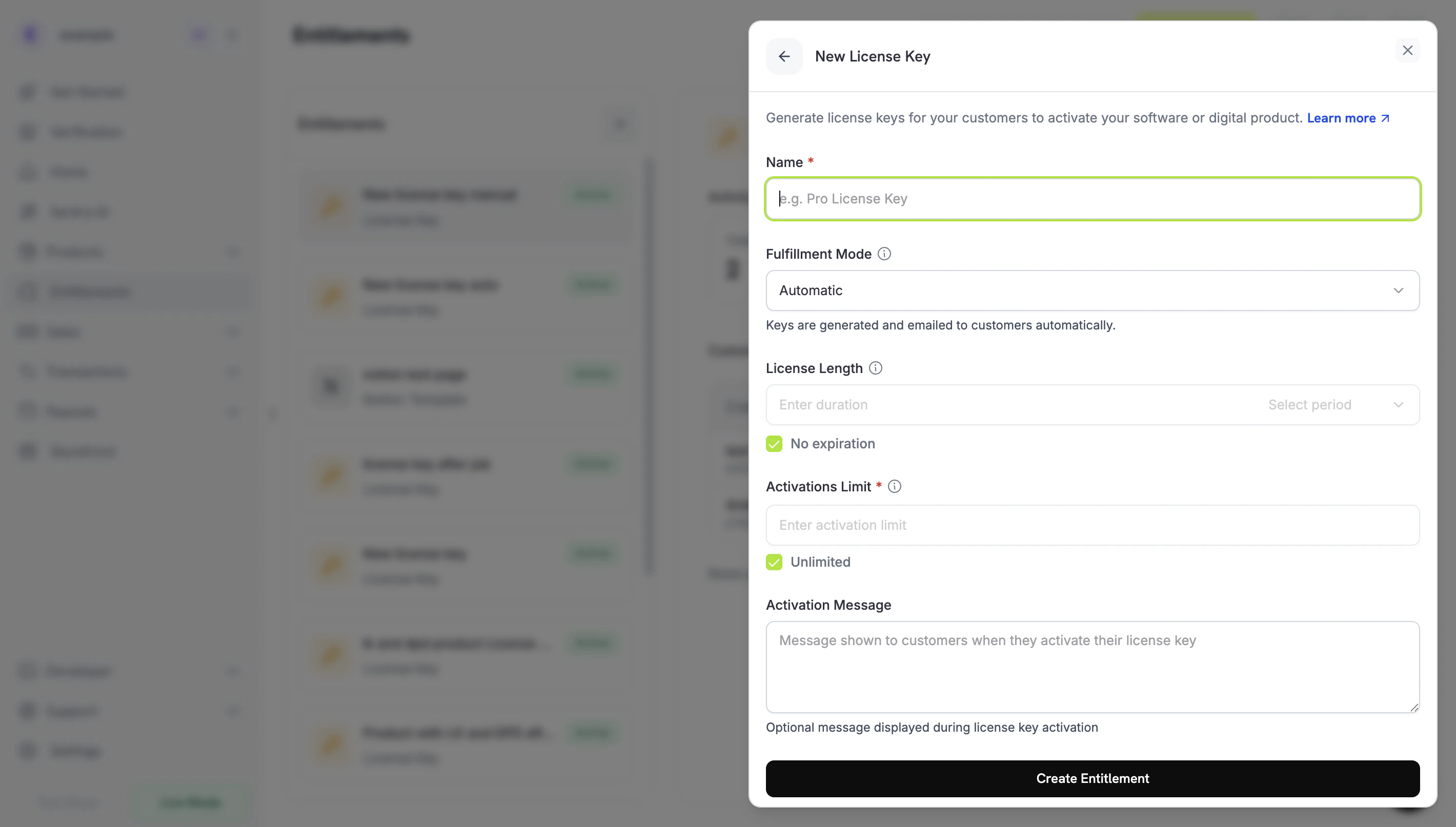
- Fulfillment Mode: Automatic (impostazione predefinita) genera e invia tramite email ogni chiave. Manual consente di fornire personalmente ogni chiave. Consulta Manual Fulfillment.
- Activations Limit: il numero massimo di attivazioni attive per chiave, ad esempio
1per un singolo utente o5per una licenza di team. Seleziona Unlimited per non applicare alcun limite. - License Length: per quanto tempo una chiave rimane valida dopo l’emissione, ad esempio 30 giorni o 1 anno, oppure No expiration. Per i prodotti in abbonamento, scegli No expiration: le chiavi emesse per un abbonamento non scadono e la loro validità segue lo stato dell’abbonamento.
- Activation Message: istruzioni opzionali rivolte al cliente, fino a 2.500 caratteri, incluse nell’email che consegna la chiave. Ad esempio:
Paste the key in Settings → LicenseoRun: mycli activate <key>.
3
Save the Entitlement
Fai clic su Create Entitlement. Ora puoi collegare l’entitlement a qualsiasi prodotto.
Attach to Products
Apri un prodotto, vai alla sezione Entitlements e seleziona il tuo entitlement License Key. Un prodotto può fornire una chiave di licenza insieme ad altri entitlement nello stesso acquisto, come l’accesso a Discord, il download di file o l’accesso a un repository GitHub.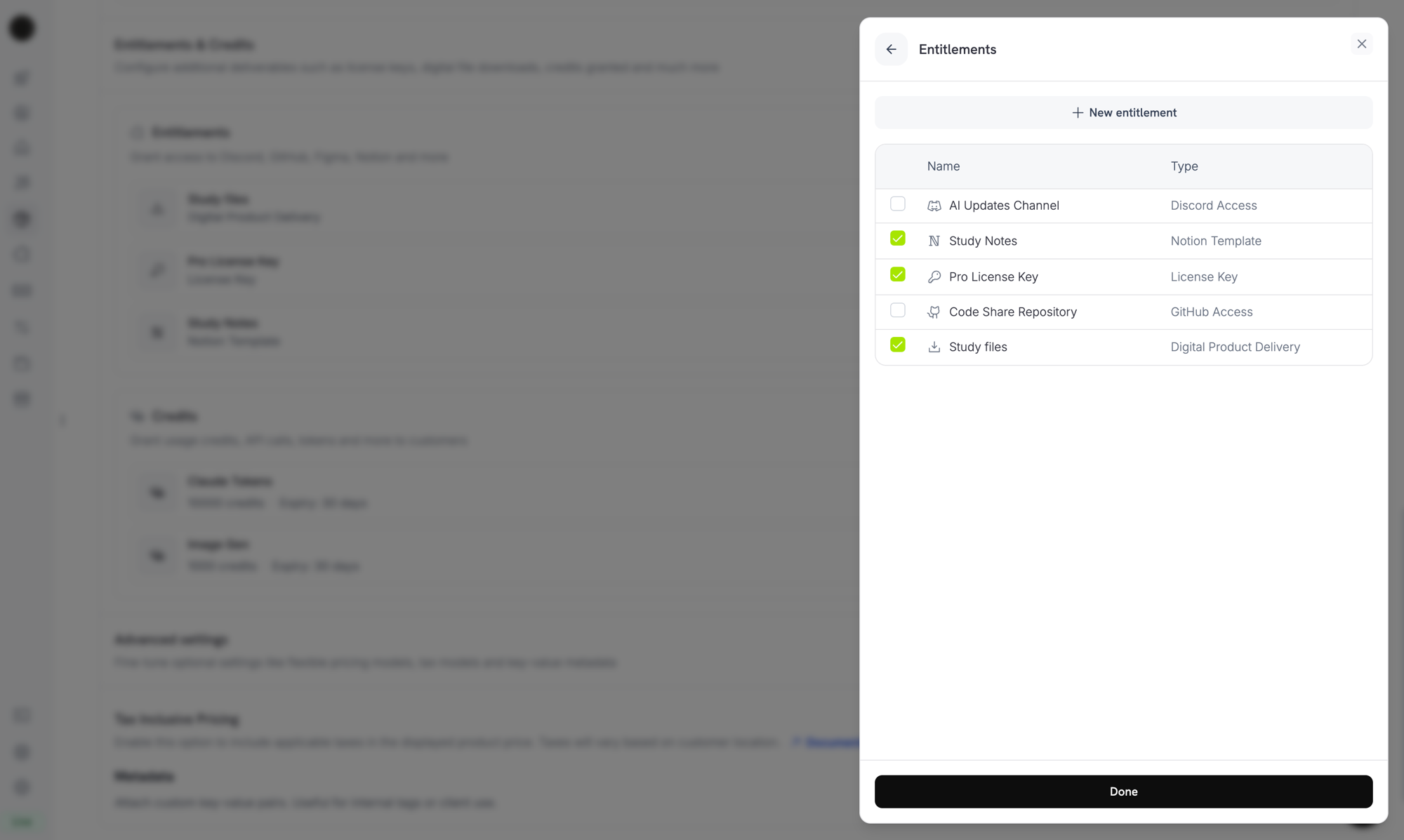
Selecting the License Key entitlement in the product entitlements panel.
How Keys Are Issued
L’emissione delle chiavi segue il normale ciclo di vita delle concessioni. Ogni evento influisce sulle chiavi di licenza come segue:Comportamento della quantità
Il numero di chiavi dipende dall’origine della concessione. Ogni chiave riceve la propria concessione.- Prodotti in abbonamento emettono una chiave per ogni posto (
subscriptions.quantity). - Prodotti una tantum emettono una chiave per ogni unità dell’articolo nella riga del carrello (
product_cart.quantity). - Concessioni API manuali emettono esattamente una chiave.
Modalità di evasione
Ogni entitlement License Key ha unfulfillment_mode che determina chi fornisce la chiave:
auto(predefinito, Automatic nella dashboard): Dodo Payments genera e invia tramite email la chiave al momento del pagamento o dell’abbonamento. Questo è il comportamento mostrato nella tabella precedente e si applica quandofulfillment_modeviene omesso.manual(Manual nella dashboard): ogni unità acquistata crea una concessionePendingsenza chiave e devi fornire il valore di ogni chiave. Consulta Manual Fulfillment.
Evasione manuale
Con l’evasione manuale, fornisci ogni chiave di licenza invece di lasciare che la generi Dodo Payments. L’acquisto crea una concessionePending senza chiave, ti invia una notifica tramite webhook e attende che tu invii il valore della chiave. Usala quando le chiavi provengono dal tuo sistema, da un fornitore di terze parti o da un insieme limitato di codici prestampati.
Per una procedura dettagliata, dalla creazione del prodotto alla consegna della chiave, consulta la Manual License Key Fulfillment Integration Guide.
Quando usarla
L’evasione automatica è adatta alla maggior parte delle licenze software. Scegli l’evasione manuale quando Dodo Payments non può generare direttamente la chiave:- Usa le tue chiavi: la tua applicazione, un prodotto desktop o il tuo license server genera la chiave.
- Fornitori di terze parti: rivendi chiavi emesse da un fornitore a monte, come una chiave di gioco, una credenziale API o una licenza per una piattaforma partner.
- Inventario limitato: distribuisci codici da un insieme pre-allocato e li assegni uno alla volta.
- Revisione manuale: vuoi controllare un acquisto prima di concedere l’accesso.
Abilitare l’evasione manuale
Per abilitare l’evasione manuale tramite API, impostafulfillment_mode: "manual" nell’integration_config dell’entitlement License Key. Nella dashboard, imposta Fulfillment Mode su Manual.
fulfillment_mode è retrocompatibile. Gli entitlement creati prima dell’introduzione di questa impostazione non hanno fulfillment_mode e si comportano come auto. Il passaggio a manual influisce solo sulle concessioni create dopo la modifica. Le chiavi già consegnate non cambiano.Trovare le concessioni in attesa di evasione
Quando un cliente acquista un prodotto con un entitlement in modalità manuale, Dodo Payments crea la concessione nello statoPending senza chiave e invia un webhook entitlement_grant.created con integration_type: "license_key" e status: "Pending". Rispondi a quel webhook oppure interroga l’endpoint List Customer Grants con i filtri integration_type e status:
Consegnare la chiave
Per consegnare una chiave, inviala all’endpoint Fulfill License Key Grant. La concessione passa aDelivered e Dodo Payments invia la chiave al cliente tramite email. È la stessa email che il cliente riceve con l’evasione automatica.
cURL
activations_limit e expires_at sono opzionali. Se li ometti, Dodo Payments usa la configurazione dell’entitlement. Ogni concessione può essere evasa una sola volta: riprovare con una concessione già evasa restituisce 409 invece di emettere una seconda chiave.
Non devi inviare personalmente la chiave tramite email. Dodo Payments la consegna quando la concessione viene evasa. L’importazione delle chiavi con
POST /license_keys funziona in modo diverso: non invia alcuna notifica al cliente.Attivazione, convalida e disattivazione
Il tuo software gestisce una chiave durante l’esecuzione tramite tre endpoint. L’attivazione registra un dispositivo o un’installazione associata alla chiave, la convalida verifica che la chiave sia utilizzabile e la disattivazione libera un’attivazione.Endpoint pubblici: gli endpoint pubblici per attivare, disattivare e convalidare le licenze non richiedono una API key. Chiamali direttamente da software desktop, CLI o client basati su browser senza esporre le credenziali API. I costruttori SDK richiedono comunque un valore bearer token, quindi gli esempi SDK passano un segnaposto.
Attivare una licenza
L’attivazione crea un’istanza di attivazione per la chiave e la restituisce con un IDlki_. Salva questo ID, perché ti serve per disattivare l’istanza. La richiesta restituisce 403 se la chiave non è attiva, 404 se la chiave non esiste e 422 se la chiave ha raggiunto il limite di attivazione.
Convalidare una licenza
La convalida restituiscevalid: true quando lo stato della chiave è active e la chiave non è scaduta. Per verificare anche che una specifica istanza di attivazione esista ancora, invia il relativo license_key_instance_id.
Disattivare un’istanza di attivazione
La disattivazione rimuove un’istanza di attivazione e libera un’attivazione sulla chiave. Invia la chiave e l’ID dell’istanza restituito dall’attivazione. La richiesta restituisce403 se l’istanza non appartiene alla chiave e 404 se la chiave non esiste.
Gestire le chiavi
Per visualizzare le chiavi emesse, apri l’entitlement License Key in Entitlements. L’elenco delle concessioni mostra una riga per ogni chiave cliente, con il cliente, la data di accesso, lo stato e un’azione Revoke. Per vedere la scadenza, il numero di attivazioni e il limite di attivazione di una chiave, aprila in Sales → License Keys. Per elencare programmaticamente le concessioni, chiama List Grants. In ogni concessione con chiave di licenza, l’oggettolicense_key contiene la chiave, lo stato, la scadenza, le attivazioni utilizzate e il limite di attivazioni. L’oggetto è null in una concessione in modalità manuale ancora Pending.
Importare chiavi di licenza esistenti tramite API
Per migrare le chiavi di licenza da un altro sistema, importale con l’API Create License Key. I tuoi clienti continuano ad attivare, convalidare e disattivare le stesse stringhe di chiave, quindi non devi emettere nuovamente le chiavi. La richiesta richiedekey, customer_id e product_id. Ometti activations_limit per attivazioni illimitate e ometti expires_at per una chiave che non scade mai. L’importazione di una stringa di chiave già esistente restituisce 409.
Differenze tra le chiavi in base all’origine
Il camposource registra come è stata creata ogni chiave di licenza:
Usa
source per distinguere le chiavi migrate ed evase manualmente da quelle generate da Dodo Payments, ad esempio durante la riconciliazione o l’audit delle chiavi. Il campo è presente nei record delle chiavi di licenza, come nella risposta POST /license_keys. L’oggetto license_key nelle concessioni restituite da List Grants non lo include. L’endpoint legacy GET /license_keys, che restituisce source e accetta un filtro source, è deprecato.
Chiavi di licenza nell’URL di ritorno
Quando un cliente acquista un prodotto con un entitlement License Key, Dodo Payments aggiunge la chiave generata areturn_url come parametro di query license_key. La pagina di successo può mostrare la chiave senza una chiamata API aggiuntiva:
%2C, quindi leggi il parametro con un parser URL, che la decodifica, prima di suddividerlo:
subscription_id e lo stato dell’abbonamento invece di payment_id:
Gestione API
Lifecycle Operations (Public Endpoints)
Lifecycle Operations (Public Endpoints)
L’attivazione, la disattivazione e la convalida sono pubbliche e non richiedono una API key.
Activate License
Deactivate License
Validate License
License Key Management
License Key Management
Crea, elenca, recupera e aggiorna singoli record di chiavi di licenza. Usa questi endpoint per importare chiavi esistenti o leggere i dettagli di utilizzo.
Create License Key
List License Keys
Get License Key
Update License Key
Entitlement Management
Entitlement Management
Gestisci direttamente l’entitlement License Key: il limite di attivazione, la durata della licenza e il messaggio di attivazione.
Create Entitlement
Update Entitlement
List Grants
Revoke Grant
Webhook
La consegna e la revoca delle chiavi di licenza inviano i quattro eventi webhookentitlement_grant.*. Per le concessioni con chiave di licenza, il payload include un oggetto license_key con la chiave, lo stato, la scadenza, le attivazioni utilizzate e il limite di attivazioni.
L’evento legacy license_key.created viene ancora attivato quando viene creato un record di chiave di licenza. Consulta la pagina del payload webhook License Key.
Chiavi di licenza legacy
I prodotti creati con il precedente flag
license_key_enabled sono stati migrati automaticamente a un entitlement License Key. La migrazione è trasparente: le chiavi dei clienti esistenti continuano a funzionare, gli endpoint pubblici /licenses/activate, /licenses/validate e /licenses/deactivate continuano a funzionare e gli endpoint API /license_keys/* leggono e scrivono nello stesso archivio delle chiavi.La sezione autonoma della dashboard Sales → License Keys rimane disponibile come elenco piatto di tutte le chiavi emesse, per audit e ricerca. Per modificare i limiti di attivazione, la durata della licenza o il messaggio di attivazione, modifica l’entitlement License Key migrato in Entitlements.Best practice
- Scegli limiti di attivazione chiari: seleziona valori predefiniti come 1 per le app per singolo utente o 3–5 per le licenze di team e documentali per i tuoi clienti.
- Scrivi messaggi di attivazione precisi: i clienti li copiano dall’email della chiave di licenza, quindi percorsi e comandi esatti evitano richieste all’assistenza.
- Convalida le chiavi tramite API: per i prodotti connessi alla rete, chiama
/licenses/validateinvece di affidarti a un’attivazione memorizzata localmente. - Usa i webhook per la revoca: gestisci
entitlement_grant.revokedper disabilitare le funzionalità nell’app quando un cliente annulla o riceve un rimborso. - Testa abbonamenti e acquisti una tantum: il comportamento delle chiavi di licenza differisce tra i due casi; ad esempio, le chiavi degli abbonamenti non scadono, quindi testali entrambi prima della pubblicazione.