

For supported and prohibited product categories and accepted business locations, see the Merchant Acceptance Policy.
Account Verification
The Verification section in your dashboard guides you through four steps: account type, product information, identity verification, and payout details.Account Type
Choose whether you’re an Individual or a Registered Entity before you start.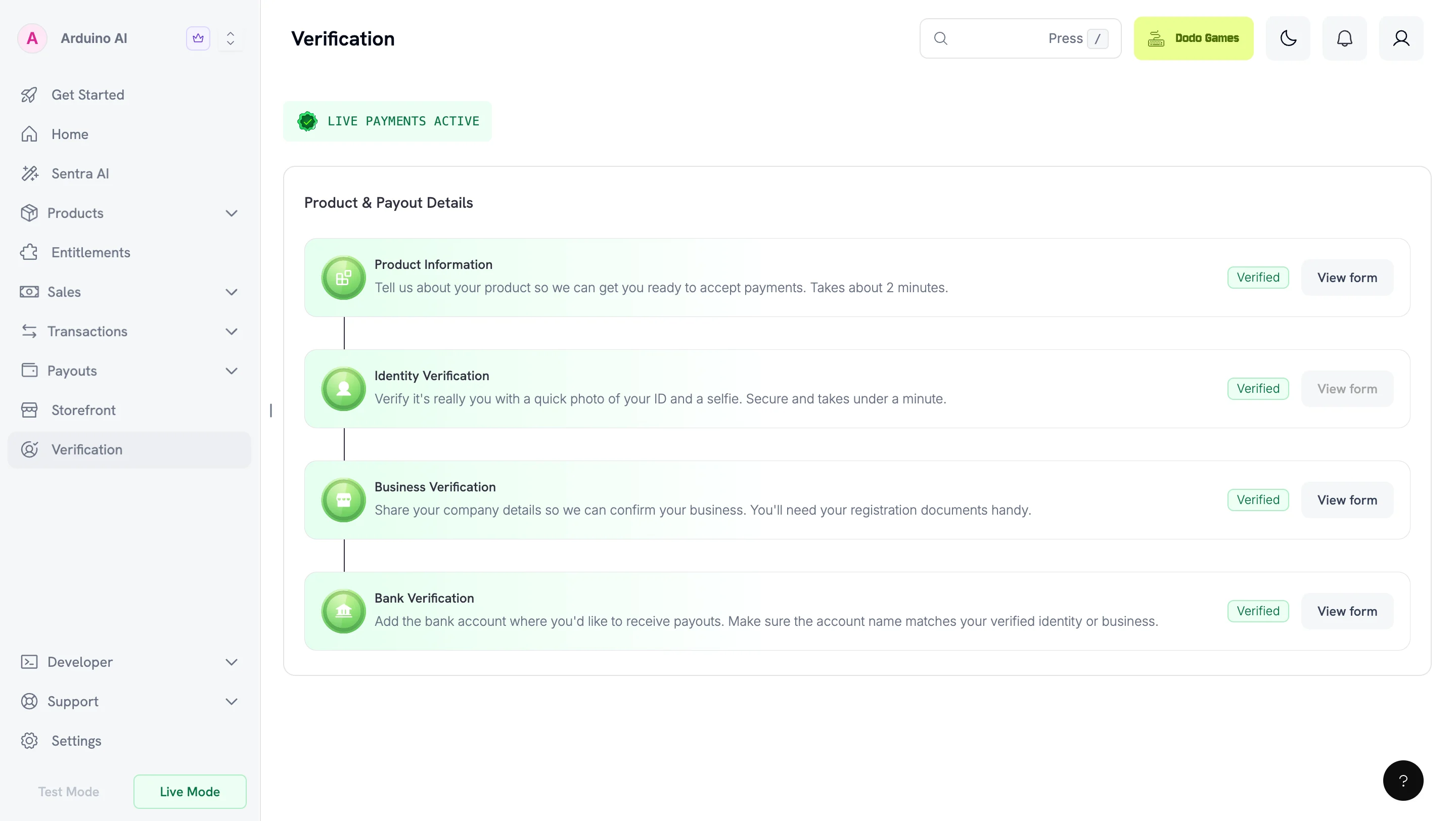
Verification Steps
1
Choose your account type
Select Individual or Registered Entity based on how you operate.
2
Submit product information
Complete the Product Information Form. Before you submit, publish your website and check that it matches what you enter. See Preparing Your Website.
3
Verify your identity
Complete identity verification (KYC) with a government-issued ID. Registered entities also complete business verification (KYB).
4
Submit payout details
Provide your bank account information. Forms unlock sequentially — complete each one before the next appears.
Most reviews finish within 1–3 business days.
Required Forms
Forms unlock sequentially. Complete each one before the next appears.
UK registered entities must also submit the W-8BEN-E tax form.
Changing Your Account Type
You can change your account type while all forms are under review. Once any form is approved, failed, or on hold, your choice becomes permanent. If you change your account type after you submit the bank form, while your forms are still under review, your bank verification goes on hold and you must resubmit. Switching from Individual to Registered Entity also requires the Business Verification form. Your Product Information and Identity Verification are preserved.Product Information Form
All merchants complete this form. To finish it later, select Save as Draft. Save as Draft is also available on the Bank Verification and Business Verification forms. The form collects:- Product website or landing page — where customers learn about or purchase your product
- Product description — one sentence explaining what it does
- Product category — SaaS, digital content, services, marketplace, or physical goods
- Delivery method — instant access, email, subscriptions, manual fulfillment, etc.
- Level of automation — fully automated, partially automated, or human-driven
- Compliance-sensitive areas — any regulated, restricted, or higher-risk product types
- Integration method — payment links, checkout sessions, APIs, SDKs, etc.
- Product stage and customer acquisition — maturity and go-to-market approach
- Social media presence — links to your product or founder profiles
- Confirmation — acknowledgement that information is accurate and policy-compliant
Preparing Your Website
Your form is reviewed against your live website. Publish your site before you submit. A URL the review team cannot open is a common reason for a hold. Before you submit, verify that a visitor with no account can reach your site and find:- Pricing — what you charge, including billing interval for recurring plans
- Terms of Service — the agreement customers accept when they buy
- Privacy Policy — how you collect, store, and use customer data
- Refund and Cancellation Policy — how customers request refunds or cancel subscriptions
- Contact route — a monitored support address or contact form
Identity Verification (KYC)
We use Persona, a global verification provider, to verify your government-issued ID and confirm liveness with a selfie. The process completes within minutes. Your ID must be issued by a country on our accepted countries list. This applies to you as an individual, and to every director and beneficial owner of a registered entity, regardless of where the entity is incorporated.Camera Access Issues
If you see “Can’t access your camera,” enable camera permissions for your device and browser:- Chrome: Enable through browser settings (Desktop, iPhone & iPad, or Android)
- Safari: Desktop — enable through preferences. Mobile — Settings → Safari → Camera, set to “Ask” or “Allow”
- iOS Apps: Settings → Apps → [Your App] → Allow Camera permissions. Ensure Lockdown Mode is not blocking the app
- Android Apps: Settings → Apps → [Your App] → Allow Camera permissions
If Identity Verification Fails
Verification can fail even with genuine documents if the capture doesn’t give Persona enough to work with. Common causes:- Your photo no longer matches your ID. An old ID may not match your current appearance closely enough for the selfie check.
- You captured from a screen or photocopy. Use the original physical document.
- The capture is blurry, cropped, or has glare. Every edge must be visible and all text readable.
- Your document has expired.
- Your ID is from an unsupported country. Check the accepted countries list.
Business Verification (KYB) — Registered Entities Only
Required only for registered entities. Complete this before Bank Verification.Required Details
Company Registration Number
Company Registration Number
Provide your Company Registration Number and supporting document (Certificate of Incorporation or equivalent for your jurisdiction).
Tax ID (Optional)
Tax ID (Optional)
If you want your tax number on payout invoices for tax benefits, provide a valid Tax ID and documents. Examples: EIN, CRN, VAT ID, GSTIN.
Directors and Beneficial Owners
Directors and Beneficial Owners
Provide details for all directors and beneficial owners.Beneficial Owner(s): Any natural person who owns or is entitled to 10% or more of shares, capital, or profits, or who exercises control through other means (including the right to appoint the majority of directors or control management or policy decisions). If there are multiple beneficial owners, provide documents for all.Business Director(s): Individuals currently serving as directors on the board in accordance with local laws. Provide government-issued IDs for all directors.
Bank Verification
Provide your bank account details and contact information. Bank account details must match the verified identity or registered entity name. For individuals, the account holder’s name must match your Identity Verification document. For registered entities, it must match your company’s legal name. Dodo Payments cannot process payouts to mismatched or third-party accounts.W-8BEN-E for UK Entities
UK registered entities must submit the W-8BEN-E form to comply with international tax reporting regulations. This ensures smooth payout processing and accurate tax documentation.Download W-8BEN-E Form
Official IRS W-8BEN-E form (PDF). Complete digitally before printing and signing.
What is W-8BEN-E?
The W-8BEN-E is an IRS form that foreign businesses file to verify their country of residence for tax purposes and certify they qualify for a lower rate of tax withholding.How to Fill Out W-8BEN-E
Part I – Identification of Beneficial Owner
Part I – Identification of Beneficial Owner
1. Name of OrganizationYour entity name.2. Country of Incorporation or OrganizationThe country where your business is registered. For a corporation, the country of incorporation. For other entity types, the country under whose laws you are created, organized, or governed.3. Chapter 3 StatusMost commonly “Corporation” or “Partnership”. For a Private Limited company, check Corporation. For a Limited Liability Partnership, check Partnership.4. Chapter 4 Status (FATCA Status)For SaaS/Digital Products, select “Active NFFE” (Active Non-Financial Foreign Entity).5. Permanent Residence AddressYour business’s permanent resident address in the country where you claim tax residence.8-10. Tax Identification InformationProvide your FTIN (if issued by your jurisdiction of tax residence) on line 9b for treaty benefits.
Part XXV – Active NFFE
Part XXV – Active NFFE
Check box 39 to certify:
- The entity is a foreign entity that is not a bank or financial institution.
- Less than 50% of gross income for the preceding calendar year is passive income.
- Less than 50% of assets held produce or are held for production of passive income.
Part XXX – Certification
Part XXX – Certification
Sign and date the form. The person signing must be authorized to sign for the beneficial owner.
Sample W-8BEN-E Forms
Private Limited Company
Private Limited Company
Example: ABC Technologies PVT LTD, SaaS / Digital Products, India, TIN: PANPage 1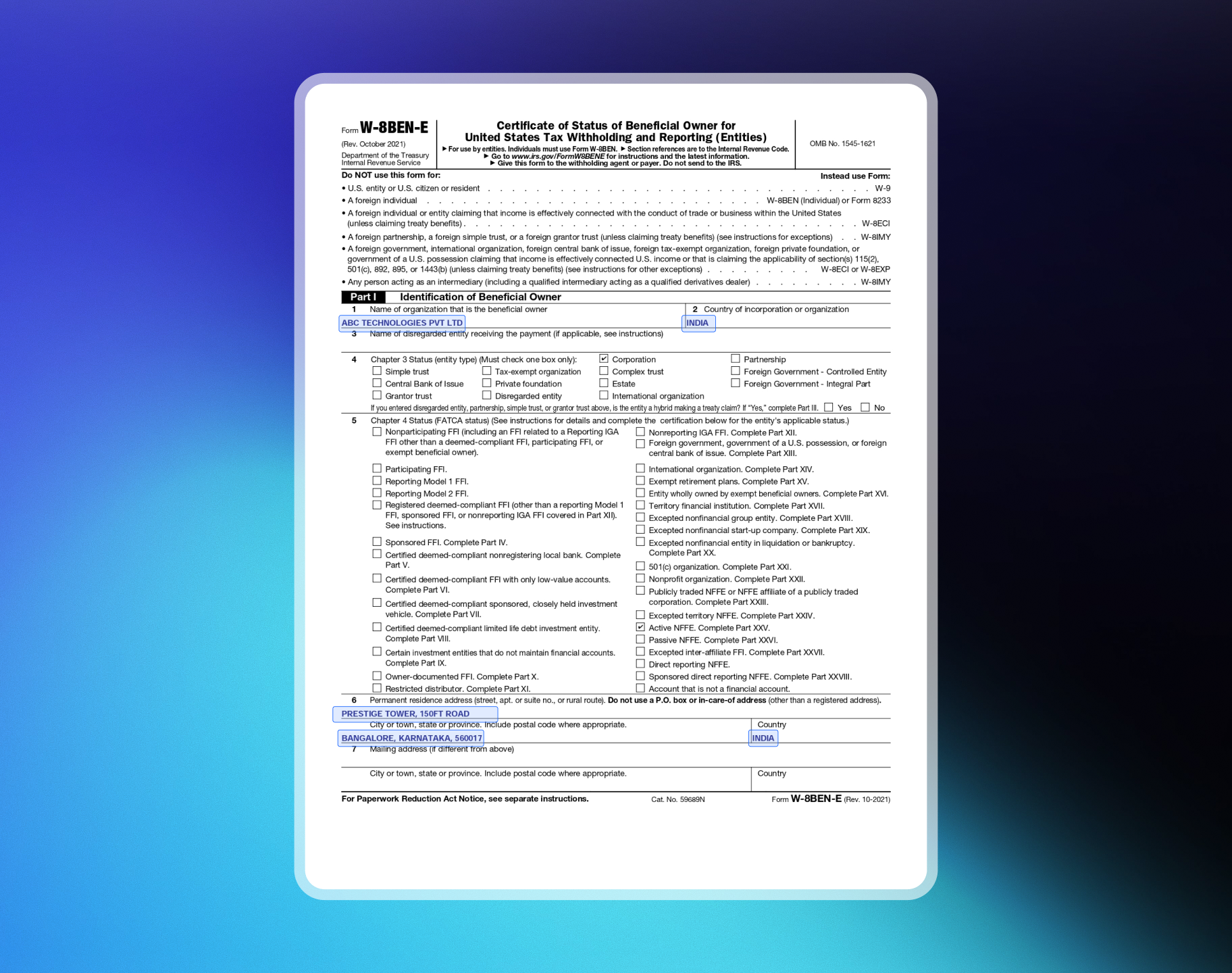
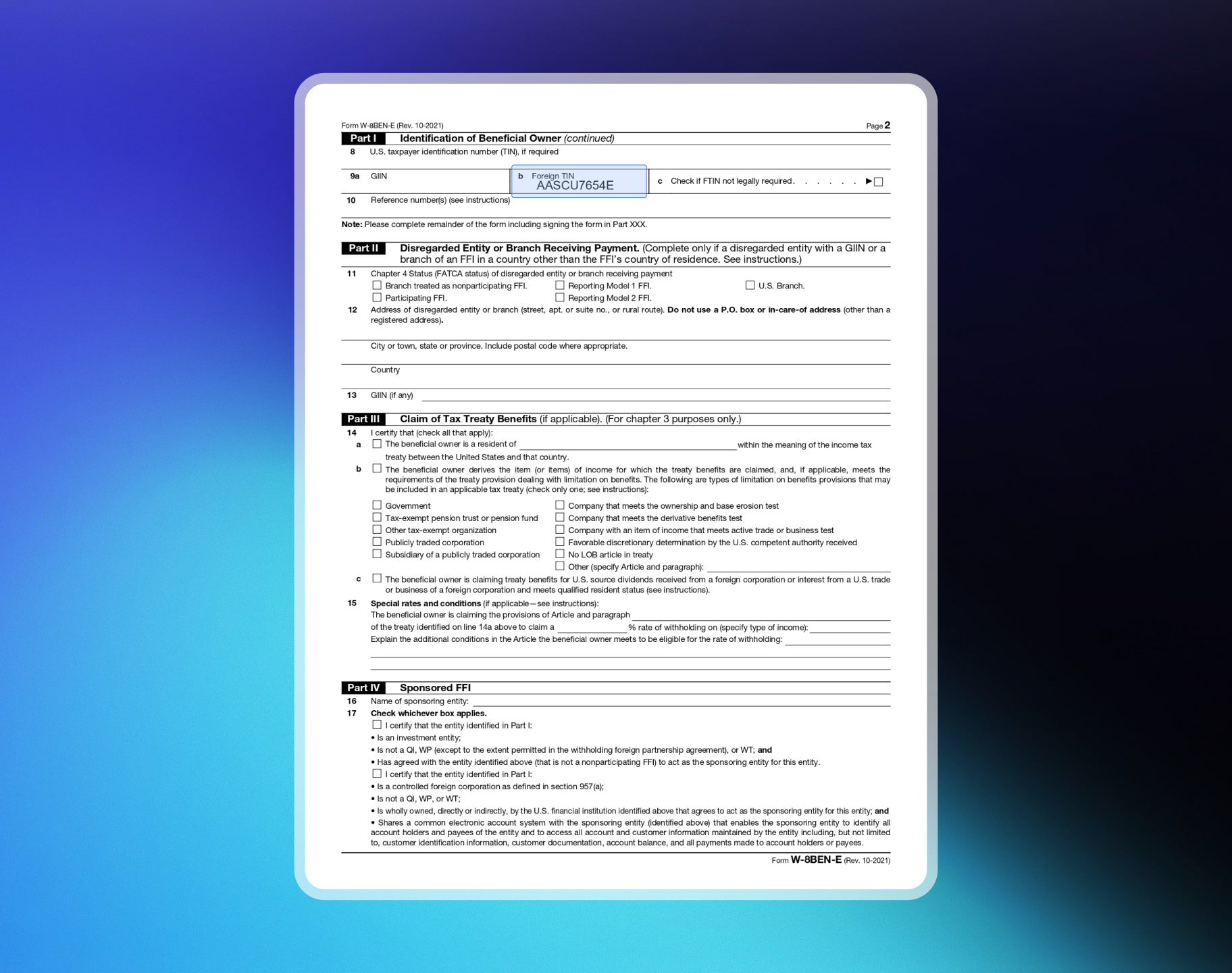
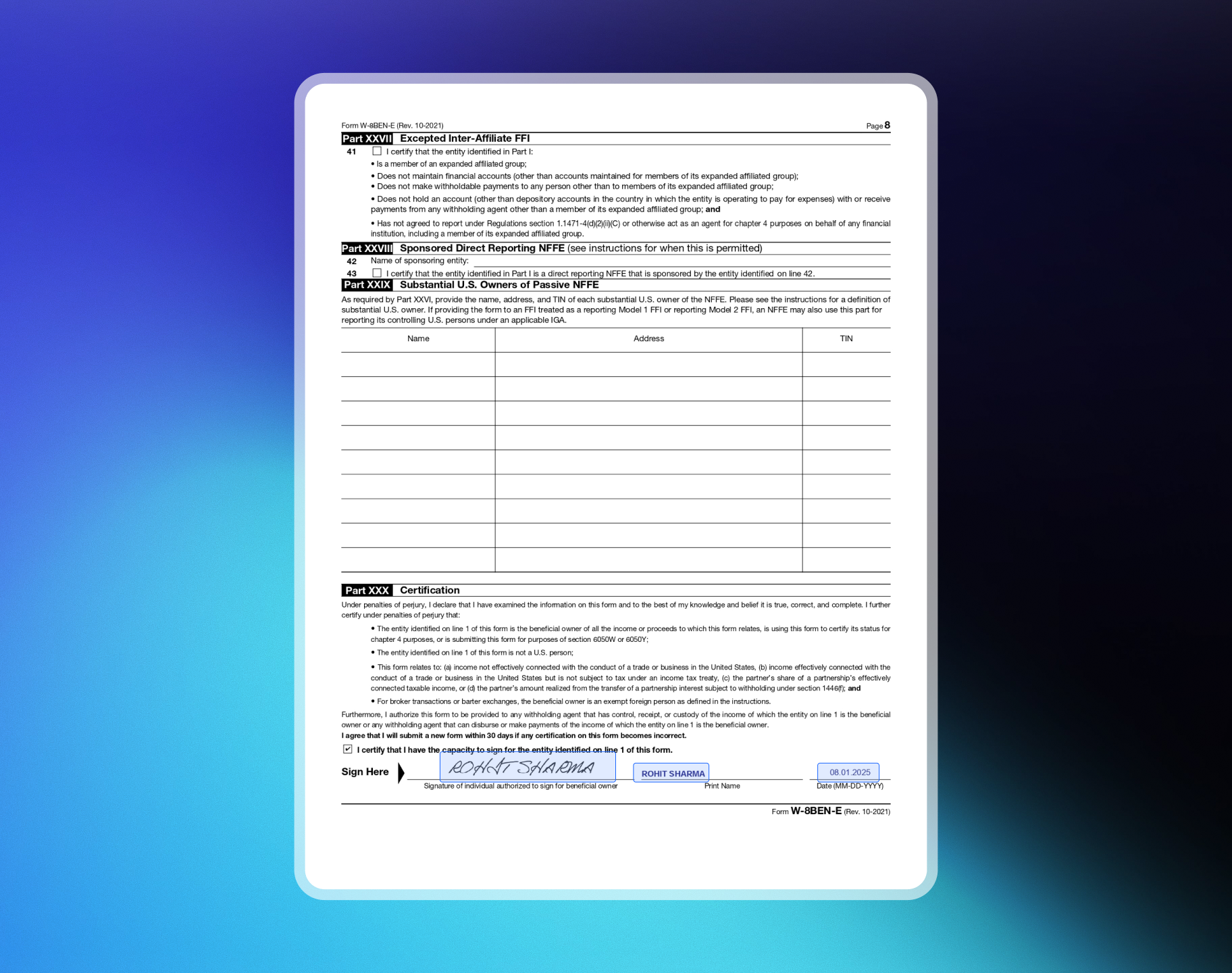
Limited Liability Partnership (LLP)
Limited Liability Partnership (LLP)
Example: ABC Technologies LLP, SaaS / Digital Products, India, TIN: PANPage 1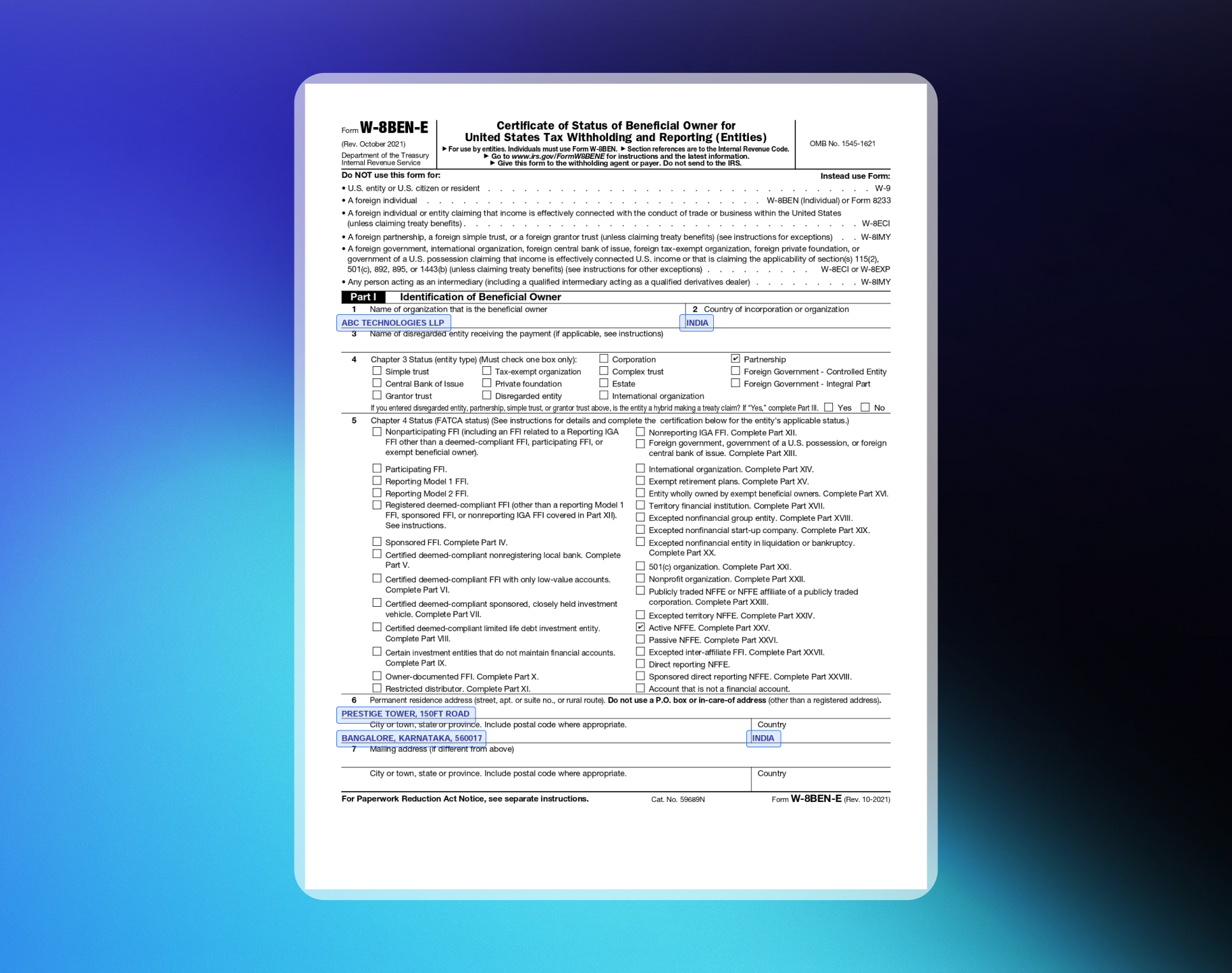
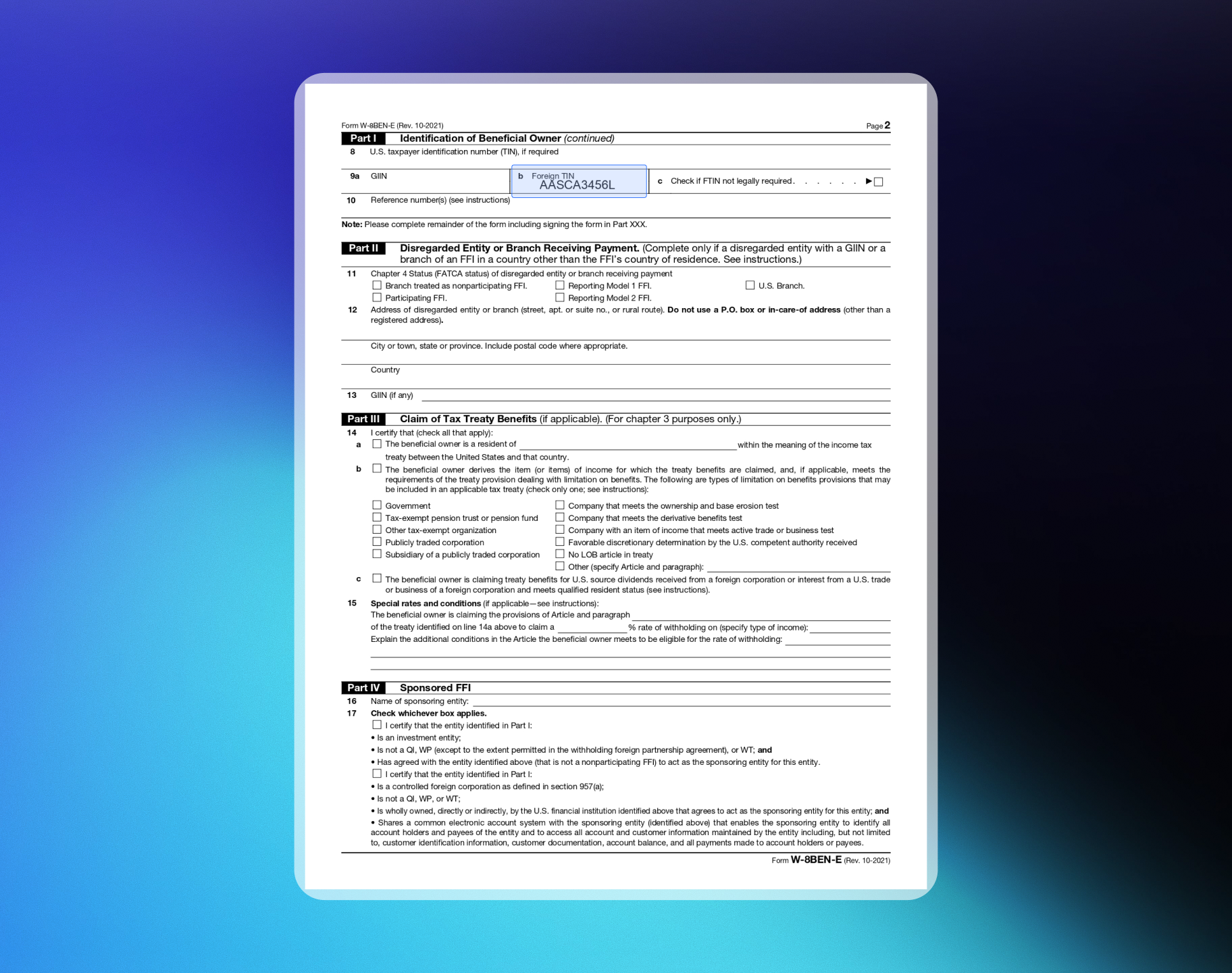
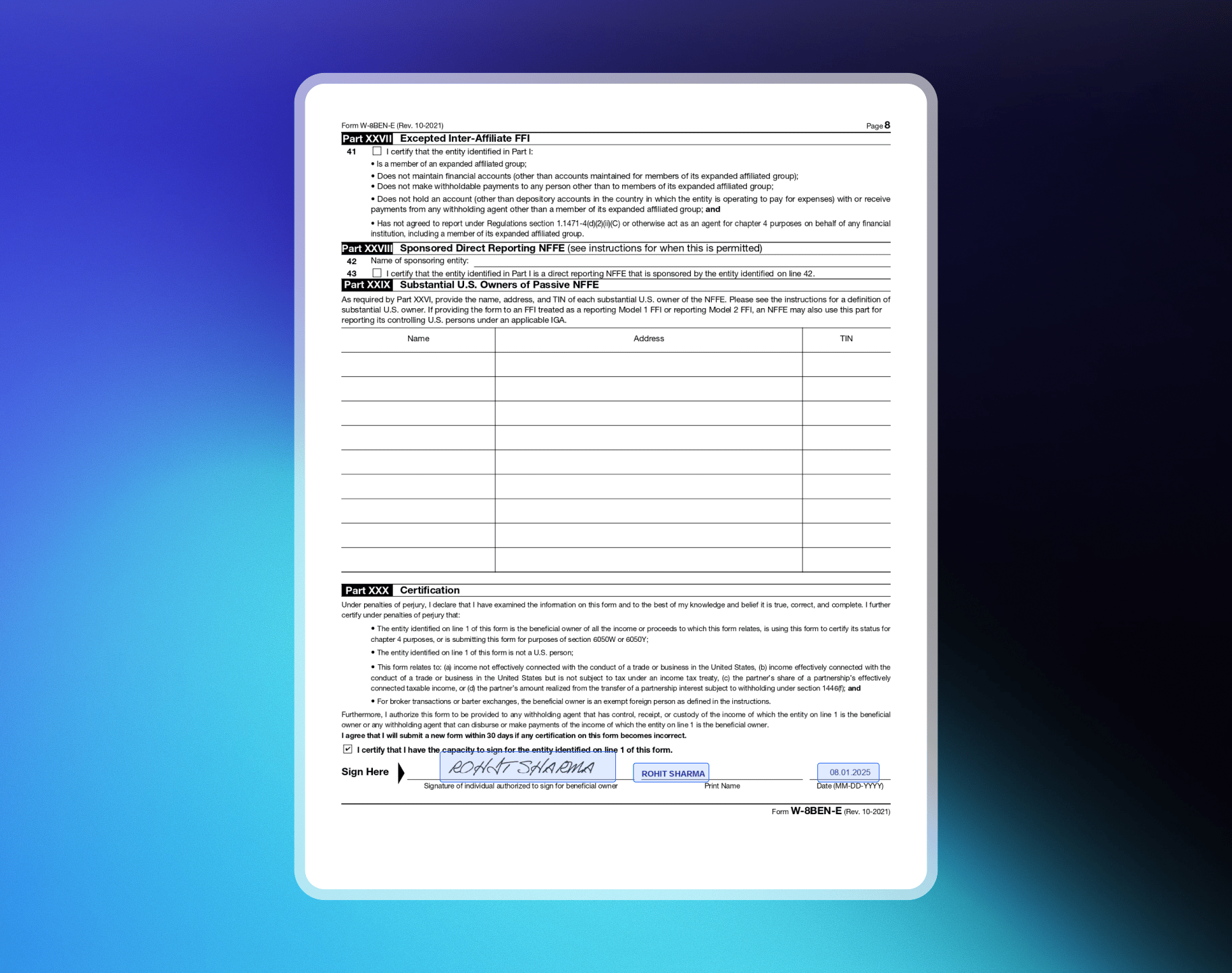
Compliance Review
After your payout details are approved, our compliance team performs a Monitoring Review per the Review & Monitoring Policy. This is a standard check for all merchants. We check for:- Compliance with the Merchant Acceptance Policy
- Card-network rules and AML regulations
- Potential fraud indicators or unusual activity patterns
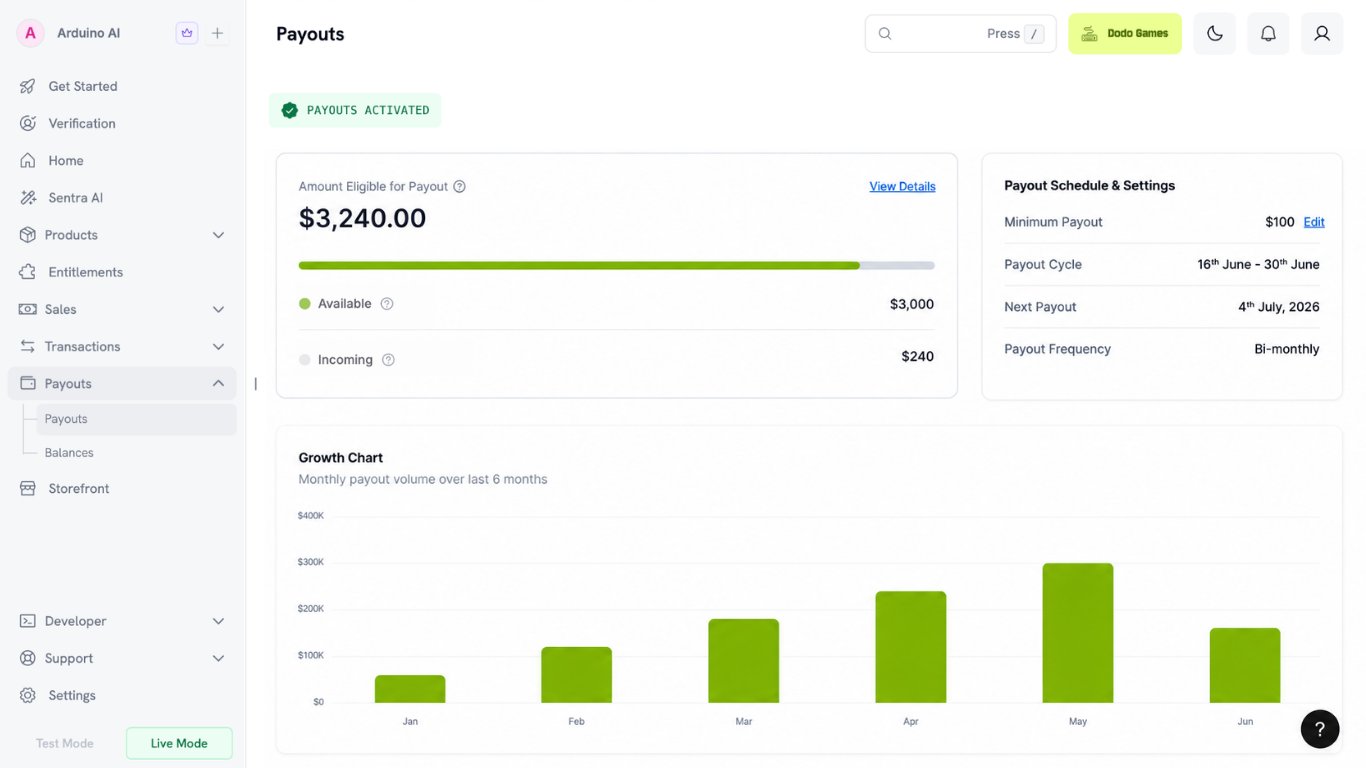
Live Payments vs. Payouts
Live payments and payouts turn on separately. It’s normal to accept live payments while payouts are still inactive. Live payments require every required form for your account type to be approved. See Required Forms. Payouts require:- Every required form approved, including Bank Verification
- Monitoring Review completed
Ongoing Monitoring
Dodo Payments performs ongoing monitoring periodically to keep accounts compliant over time. If your business remains compliant, you can continue operating without concern. If we have concerns, necessary action is taken per the Review & Monitoring Policy.Additional Information Requests
As part of ongoing monitoring, our compliance team may request additional information. These requests are completed from the dashboard and do not block payments or payouts, but failure to submit them may trigger pauses in processing, further reviews, or account restrictions. See the Review Monitoring Policy for details.Timeline and Support
- Typical verification time: 1–3 business days (excludes weekends and public holidays)
- If additional review is needed, you’ll be notified via email and dashboard
- For help, email support@dodopayments.com
Resubmitting Documents
If the Verification Team finds issues with your documents, they’ll request resubmission. Use the Resubmit option in your dashboard. Once you submit a form, you cannot edit or resubmit it yourself. The Resubmit option appears only after the Verification Team enables it.If a Form Is Placed On Hold
On Hold means our compliance team needs more information before finishing review. It’s not a rejection — your application stays open. When a form is on hold, we email you and raise an additional verification form in the Verification section. Complete that form to respond to the hold, not the Resubmit option. Your dashboard may show resubmissions are temporarily paused. That refers to your original form, which stays locked. If an additional verification form has been raised, complete that instead.1
Open the Verification section
Find the form marked On Hold. The reason is shown alongside it.
2
Fix the underlying issue first
Resolve what caused the hold before you respond. The most common reason is that the review team couldn’t open your website — see Preparing Your Website for the checklist.
3
Complete the additional verification form
Fill in the additional verification form and submit it. Answer the specific question raised, not just resubmit your original details unchanged.
If a Form Is Marked Failed
Failed status is not the same as a resubmission request. Resubmission is not reopened automatically, so there’s usually no Resubmit option. Identity Verification is the exception — it gives you three attempts. See If Identity Verification Fails. For a failed form, appeal from the Verification section:1
Read the failure reason
Open the Verification section to see why the form failed.
2
Fix the underlying issue first
Address what caused the failure before you appeal. For example, point your product URL at a public landing page rather than a login screen, or ensure your live website matches what you described in the form.
3
File your appeal
Submit the appeal with a detailed explanation. A one-line response is unlikely to change the outcome.
When Resubmission Is Requested
Resubmission is requested for:- Missing or incomplete information — identification numbers, business name, or other key data
- Document mismatch — documents don’t match the business or personal information provided
- Unreadable or expired documents — unclear, illegible, or expired uploads
- Additional clarification needed — further documentation to clarify identity or business information
How to Resubmit
1
Check your dashboard
Look for a resubmission request (you’ll also receive an email notification).
2
Access the resubmit option
The verification team will enable the Resubmit option.
3
Upload correct documents
Navigate to the Verification section and upload the correct documents.
4
Submit for review
Click Submit for Review.
Merchant Acceptance Policy
Review our comprehensive acceptance standards, including supported and prohibited products, and ensure your business is eligible for onboarding.
Review Monitoring Policy
Understand how ongoing compliance is monitored, learn about triggers for document review, and stay proactive with your account status.