

Permissions
A mapping issues tokens like an API key. Thus each scope of a mapping must be a scope that you hold. You cannot change a mapping that has a scope that you do not hold.
Create a Provider
1
Open Workload Identity
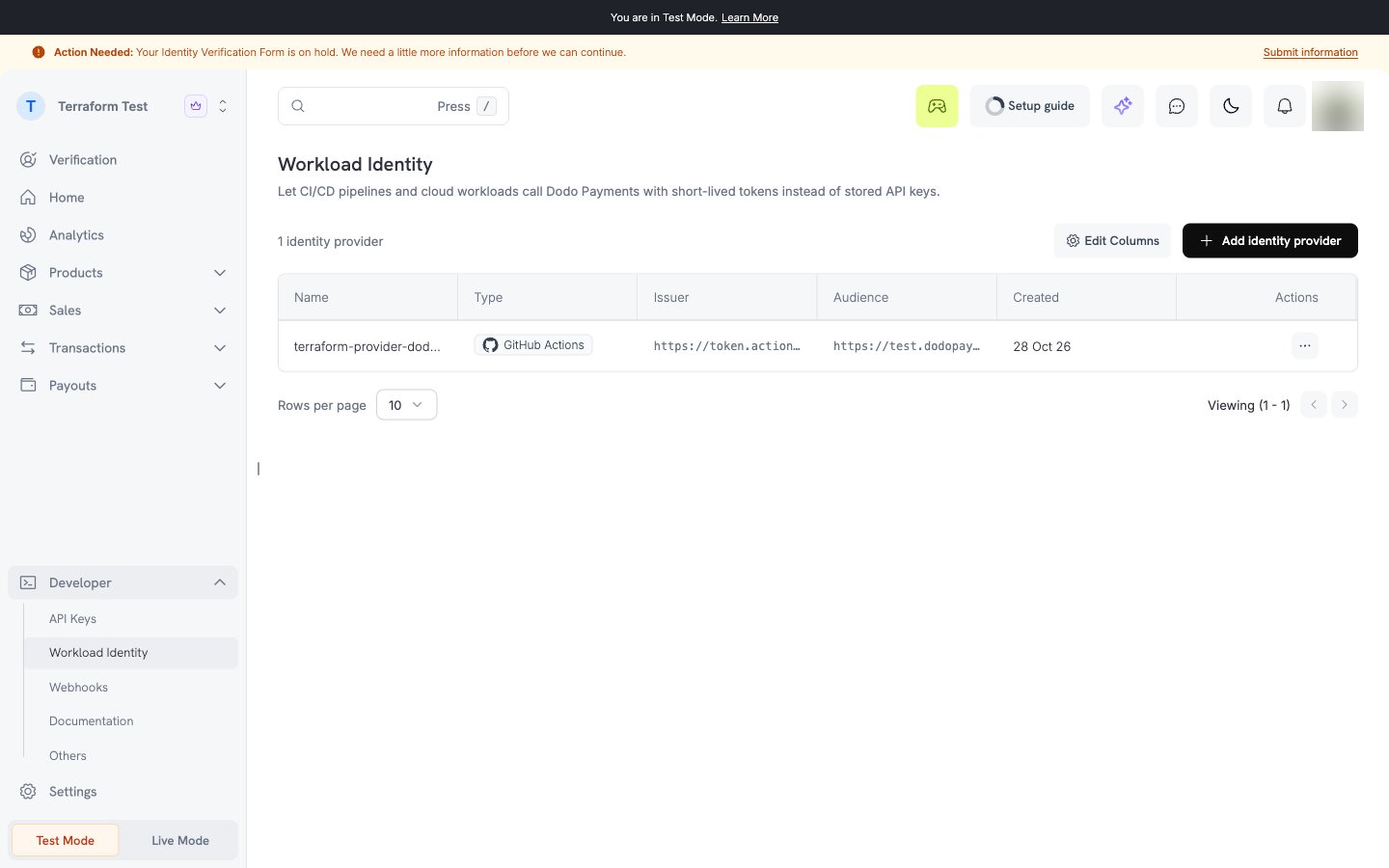
In the dashboard, go to Developer → Workload Identity. Make sure that the mode switch shows the mode that you want.
2
Select the provider type
Click Add Provider and select the platform of your workload.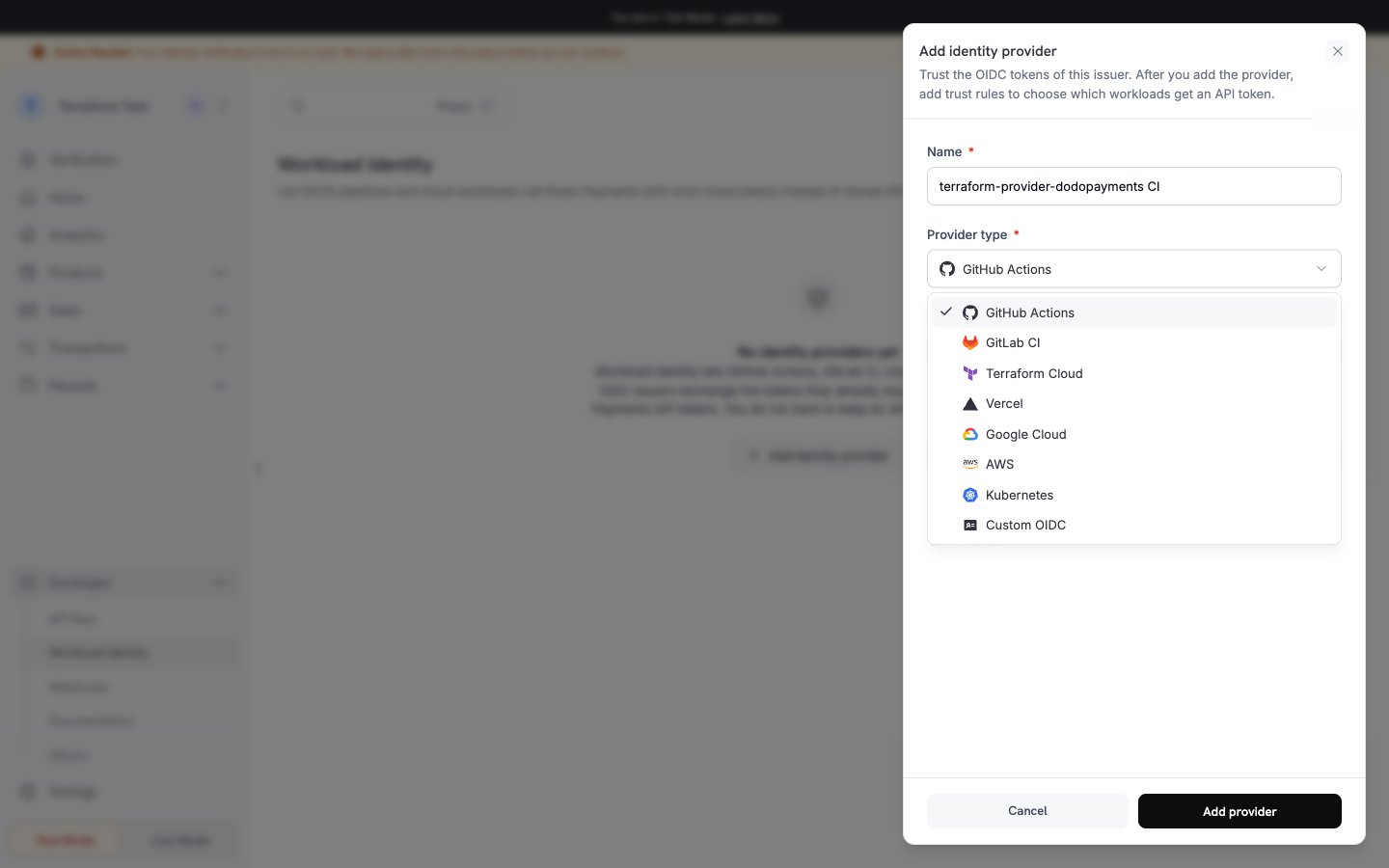
3
Enter the issuer and the audience
Enter a name for the provider. The issuer and the audience have default values for most types:
The default audience is
https://live.dodopayments.com in live mode and https://test.dodopayments.com in test mode. Keep the default unless your platform cannot use it.4
Save the provider
Click Create. Dodo Payments gets the discovery document and the JWKS of the issuer before it saves the provider. If the keys are not available, the dashboard shows an error that names the field.A
custom provider can have a discovery_url, or uploaded public keys (JWKS) for an issuer that does not publish its keys.5
Copy the provider id
Open the provider and copy its id (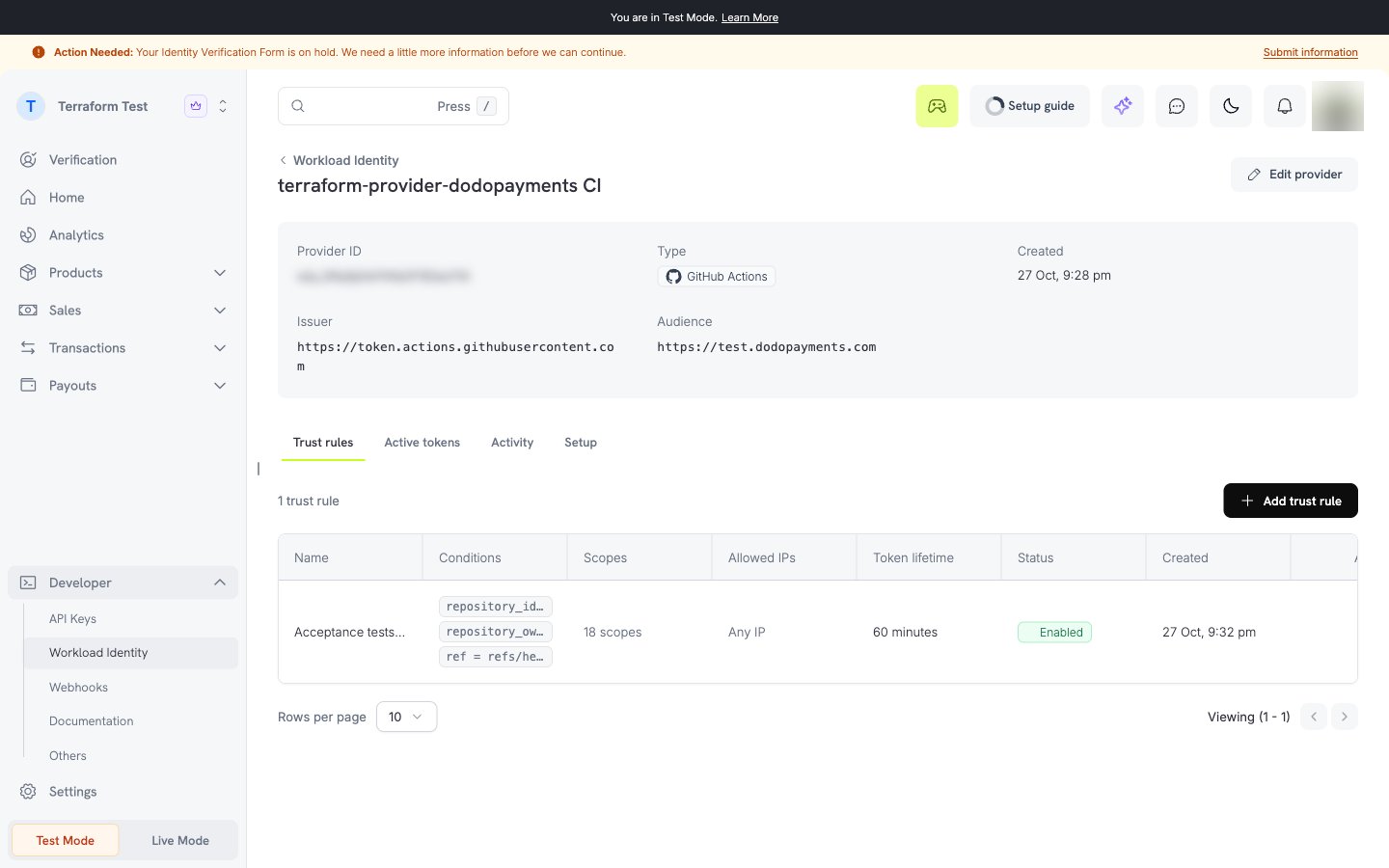
wip_...). Your workload uses this id. It is not a secret.Add a Mapping
A mapping tells Dodo Payments which JWTs to trust and which scopes to give them.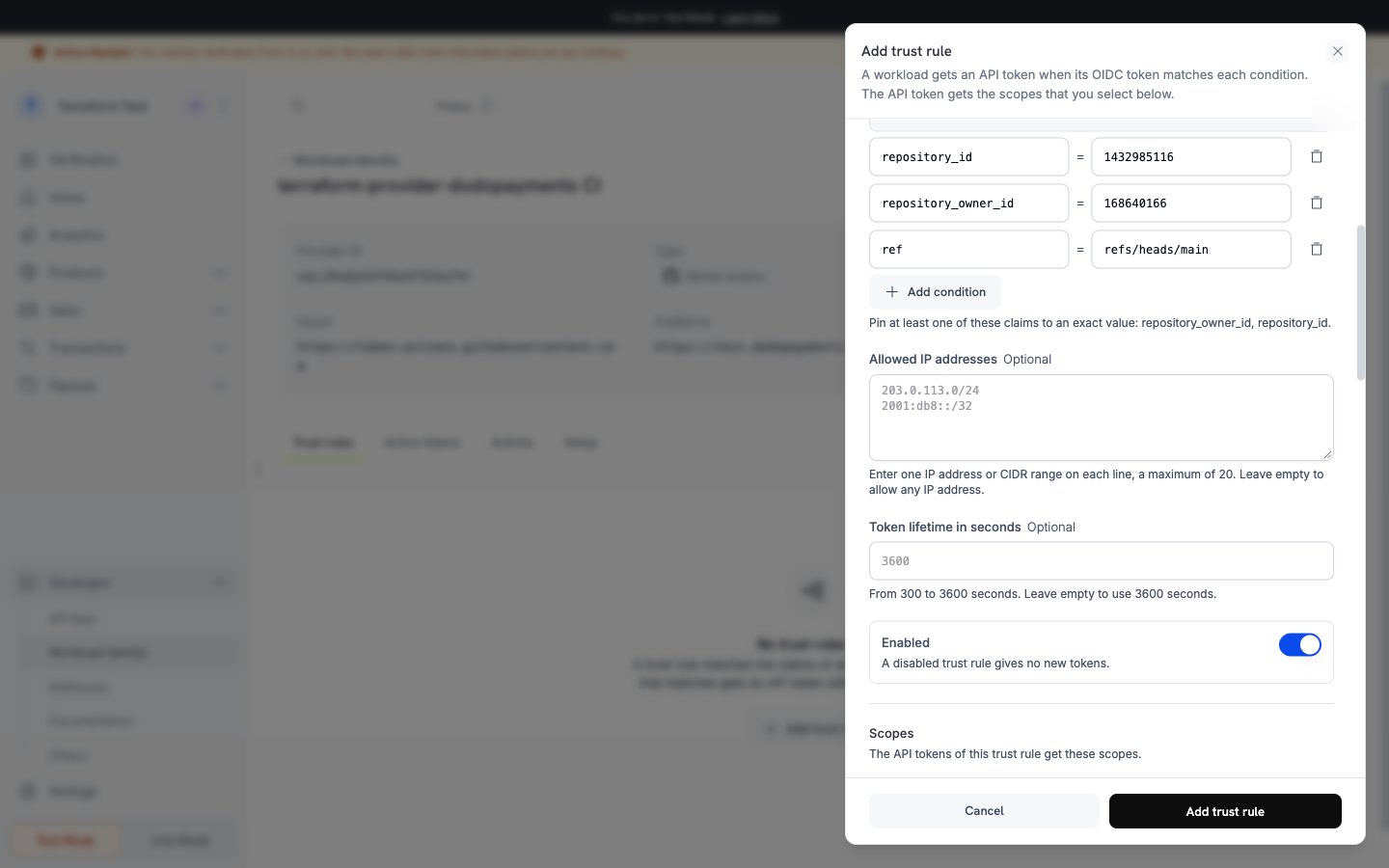
1
Open the provider
On the provider detail page, click Add Mapping.
2
Add the conditions
Each condition has a claim name and a value. All conditions must match (AND). A claim that is not in the JWT never matches.
- Add 1 to 20 conditions. A claim name has 128 characters or fewer. A value has 512 characters or fewer.
- A value can end with one
*after a prefix, for examplerepo:acme/billing:*. A value of only*, or a*in the middle, is not permitted. - Dodo Payments compares a number or a boolean claim in its JSON text form. Thus
"123456"matches the number123456. - Conditions read top-level claims only.
- Each provider type has required claims that you must pin with an exact value. Refer to the guide for your platform.
3
Select the scopes
Select the API scopes that the workload needs. Give the smallest set of scopes.
4
Add allowed CIDR ranges (optional)
Enter the IPv4 or IPv6 ranges of your workload, for example
203.0.113.0/24. The exchange and each API call must come from an IP in the list.5
Set the token lifetime (optional)
Enter a value between 300 and 3600 seconds. The default is 3600 seconds. The
terraform_cloud type ignores this value and uses the end of the run phase.6
Save the mapping
Click Create. The mapping is active immediately.
View and Revoke Tokens
Open a mapping to see its active tokens. The list shows the token prefix, the creation time, the expiry time, and the last use.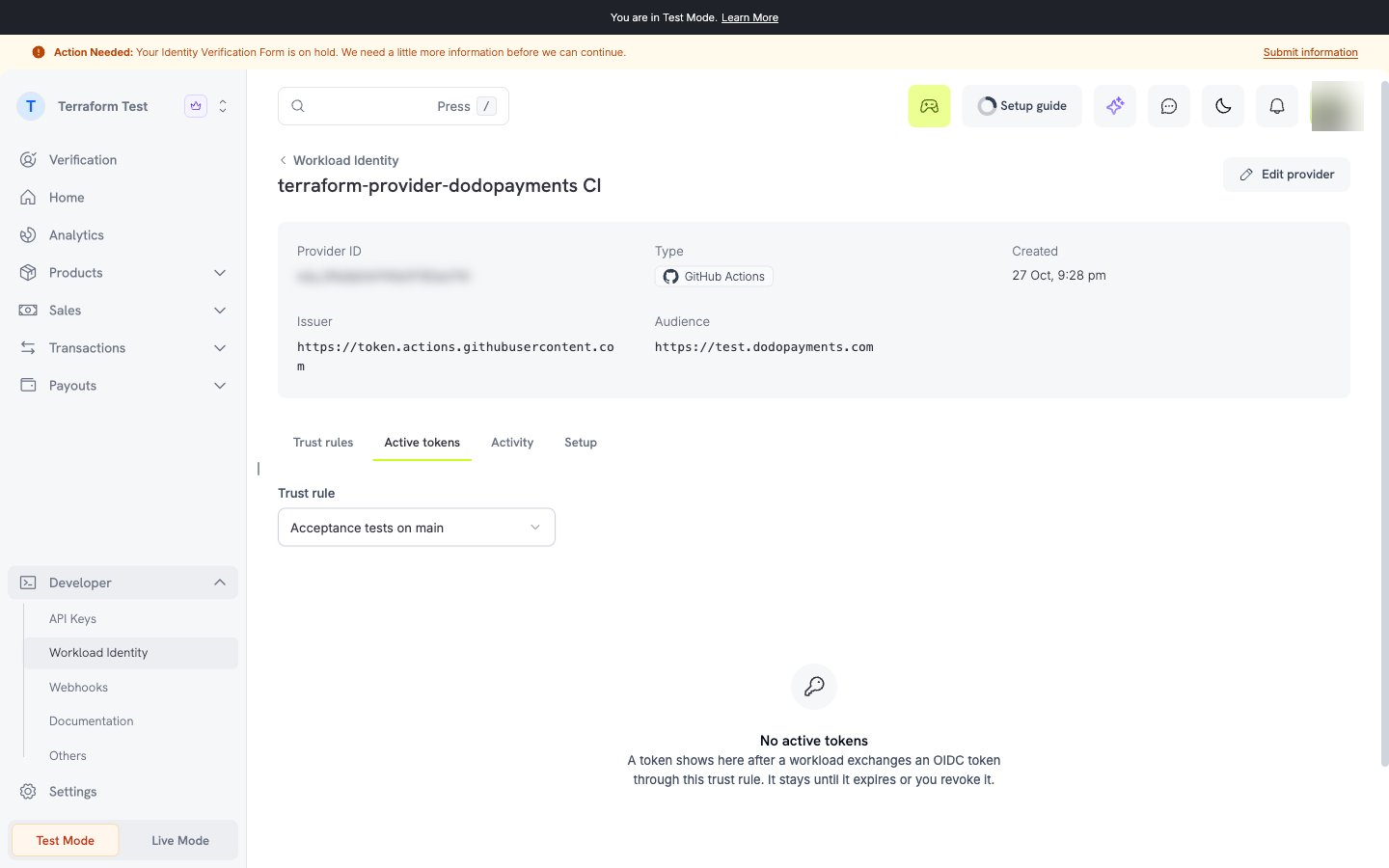
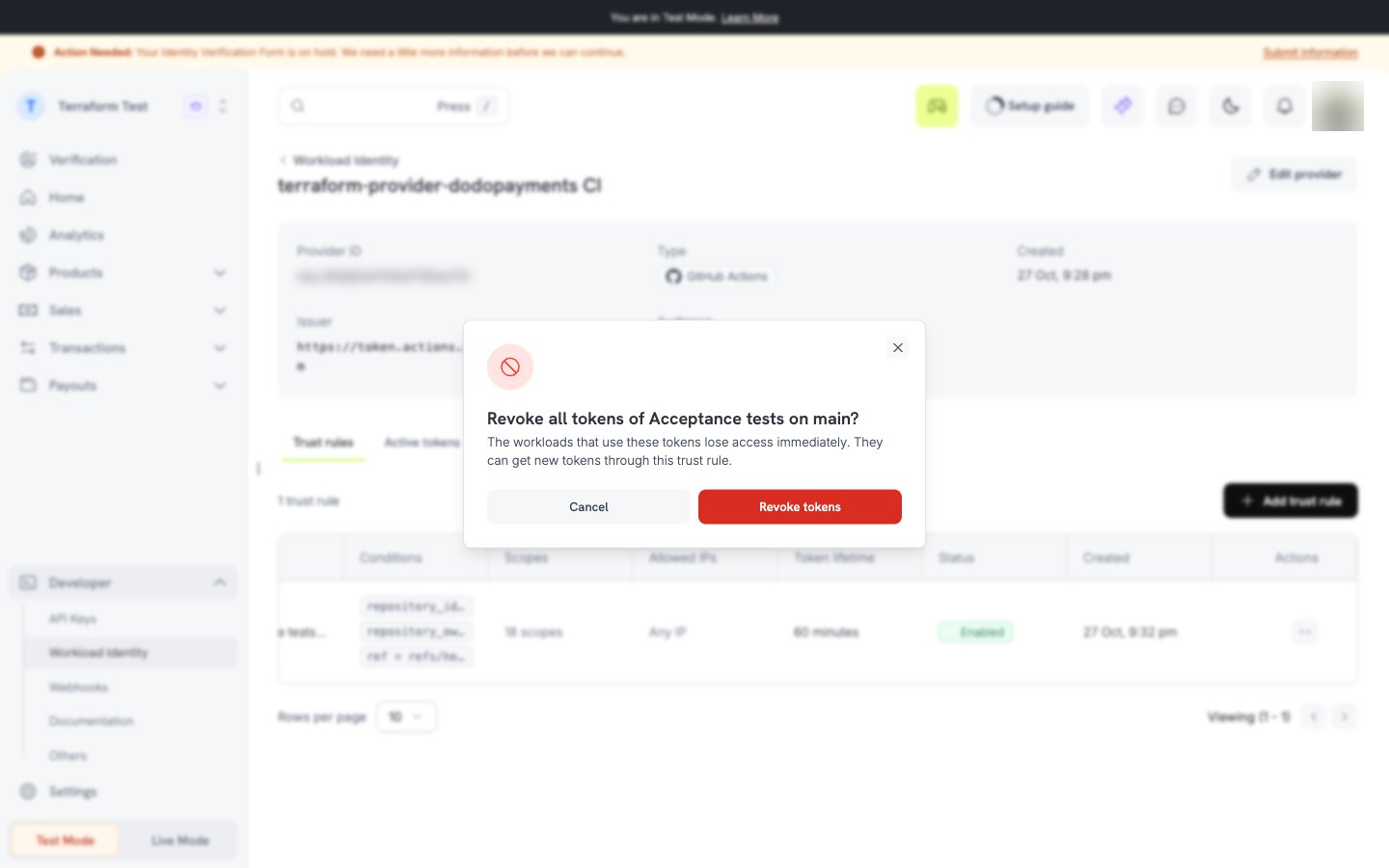
- To revoke one token, click Revoke on the row of the token.
- To revoke all tokens of the mapping, click Revoke All Tokens. The mapping stays, and the workload can do a new exchange.
View Events
The events list shows each exchange, failure, revocation, and configuration change for 90 days. Filter the list by provider, mapping, event type, or time range.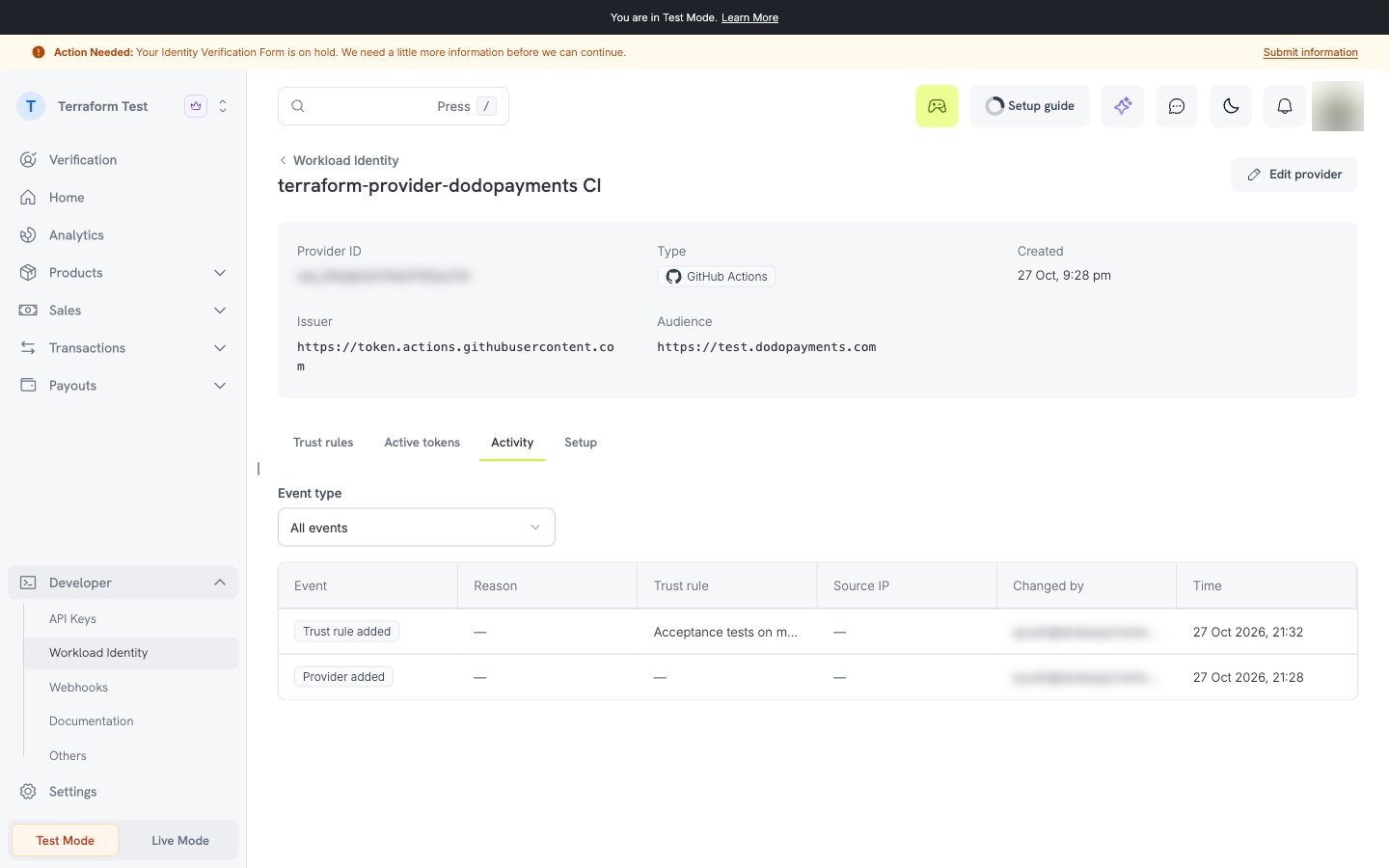
no_mapping means that no mapping condition matched, and audience_mismatch means that the workload requested the JWT with the wrong audience. Refer to Reason Codes for the full list.
SDK Usage
Configure your workload to use the provider.
Overview
Token lifetime, revocation, and audit rules.