

Subscriptions automate recurring revenue. Create flexible billing cycles, free or paid trials, plan changes with proration, and add-ons. Customers renew automatically until they cancel or the term ends.
Upgrade & Downgrade
On‑Demand Subscriptions
Customer Portal
Subscription Webhooks
What Are Subscriptions?
A subscription is a recurring product that charges customers on a schedule. Ideal for SaaS, memberships, digital content, and support plans.- SaaS licenses: Apps, APIs, or platform access
- Memberships: Communities, programs, or clubs
- Digital content: Courses, media, or premium content
- Support plans: SLAs, success packages, or maintenance
Key Benefits
- Predictable revenue: Recurring billing with automated renewals
- Flexible cycles: Monthly, annual, custom intervals, and trials
- Plan agility: Proration for upgrades and downgrades
- Add-ons and seats: Attach optional, quantifiable upgrades
- Hosted checkout: Checkout pages and Customer Portal
- Developer-first: Clear APIs for creation, changes, and usage tracking
Creating Subscriptions
Create subscription products in your Dodo Payments dashboard, then sell them through checkout or your API. Separating products from active subscriptions lets you version pricing, attach add-ons, and track performance independently.Subscription Product Creation
Configure the fields in the dashboard to define how your subscription sells, renews, and bills. The sections below map directly to what you see in the creation form.Product Details
- Nama Produk (wajib): Nama tampilan yang ditampilkan di checkout, Customer Portal, dan faktur.
- Deskripsi Produk (opsional): Pernyataan nilai yang jelas yang muncul di checkout dan faktur.
- Gambar Produk (opsional): PNG/JPG/WebP hingga 3 MB. Digunakan di checkout dan faktur.
- Brand: Kaitkan produk dengan brand tertentu untuk tema dan email.
- Kategori Pajak (wajib): Pilih kategori (misalnya, SaaS) untuk menentukan aturan pajak.
Pricing
- Pricing Type: Pilih Subscription (panduan ini). Alternatifnya adalah Single Payment dan Usage Based Billing.
- Price (wajib): Harga berulang dasar dengan mata uang. Harga non-nol harus memenuhi minimum subscription untuk mata uang yang digunakan customer untuk membayar: $1.00 untuk USD. Dalam mata uang selain USD, EUR, dan GBP, harga juga harus bernilai setidaknya $1.00. Misalnya, subscription dalam AED memerlukan sekitar 3.70 AED, bukan minimum 2.00 AED yang tercantum. EUR dan GBP menggunakan minimum masing-masing yang tercantum. Lihat Minimum Amounts. Jumlah di bawah minimum tidak didukung. Harga tepat $0 adalah kasus terpisah yang didukung; lihat Card-Optional at Zero Price.
- Discount Applicable (%): Diskon persentase opsional yang diterapkan pada harga dasar; tercermin di checkout dan invoice. Anda dapat memasukkan hingga dua angka desimal, seperti
10.5. Di API, gunakandiscount_bps(basis points, sehingga1050adalah 10.5%). - Repeat payment every (wajib): Interval untuk renewal, misalnya setiap 1 Month. Pilih cadence (bulan atau tahun) dan jumlahnya.
- Subscription Period (wajib): Total jangka waktu subscription tetap aktif (misalnya, 10 Years). Setelah periode ini berakhir, renewal akan berhenti kecuali diperpanjang.
- Trial Period Days (wajib): Tetapkan durasi trial dalam hari. Gunakan 0 untuk menonaktifkan trial. Charge pertama akan terjadi secara otomatis saat trial berakhir.
- Trial Amount: Charge di muka opsional untuk paid trial. Biarkan tidak diatur untuk free trial. Lihat Paid Trials.
- Card-optional at $0 Price: Izinkan customer memulai subscription tanpa menambahkan kartu ketika harganya $0 atau diskon membuat tidak ada jumlah yang harus dibayar hari ini. Free trial memiliki checkbox Start the trial without a card tersendiri. Lihat Card-Optional at Zero Price.
- Select add-on: Lampirkan hingga 10 add-on yang dapat dibeli customer bersama base plan.
Add-ons are ideal for quantifiable extras such as seats or storage. You can control allowed quantities and proration behavior when customers change them.
Advanced Settings
- Tax Inclusive Pricing: Tampilkan harga yang sudah termasuk pajak yang berlaku. Perhitungan pajak final tetap bervariasi berdasarkan lokasi customer.
- License key (dalam Entitlements): Terbitkan key unik untuk setiap customer setelah pembelian. Lihat panduan Kunci Lisensi.
- Digital Files (dalam Entitlements): Kirim file atau konten secara otomatis setelah pembelian. Pelajari lebih lanjut di Pengiriman Produk Digital.
- Metadata: Lampirkan pasangan key–value kustom untuk tagging internal atau integrasi client. Lihat Metadata.
Subscription Trials
Trials let customers evaluate a subscription before paying the full recurring price. A trial can be free (no charge until it ends) or paid (a reduced amount charged upfront). After the trial, the full price charges at the first renewal.Configuring Trials
Set Trial Period Days in the product’s pricing section (use0 to disable). Override it when creating a subscription:
Paid Trials
Charge a reduced amount upfront for the trial window. Set Trial Amount on the product’s price. The full recurring price charges at the first renewal.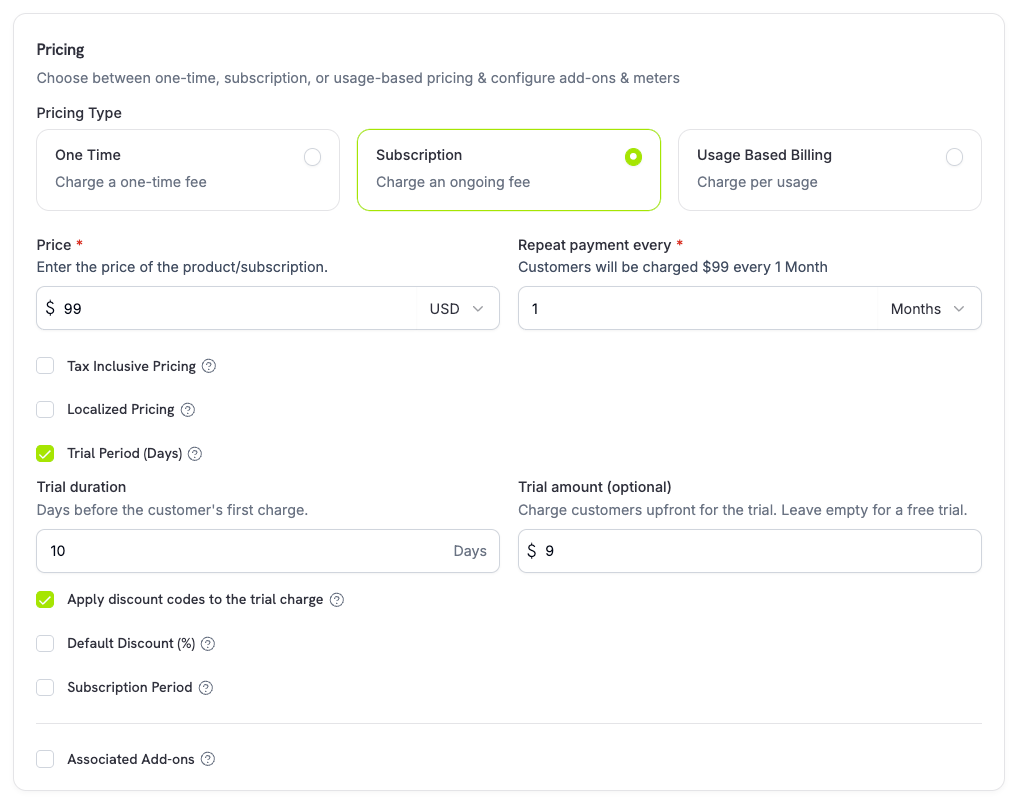
trial_amount and trial_period_days so you can show the amount due today before creating the subscription.
Card-Optional at Zero Price
Let customers start a subscription without adding a payment method when nothing is due today. Enable it per price in the product’s pricing section, with one checkbox for each case below.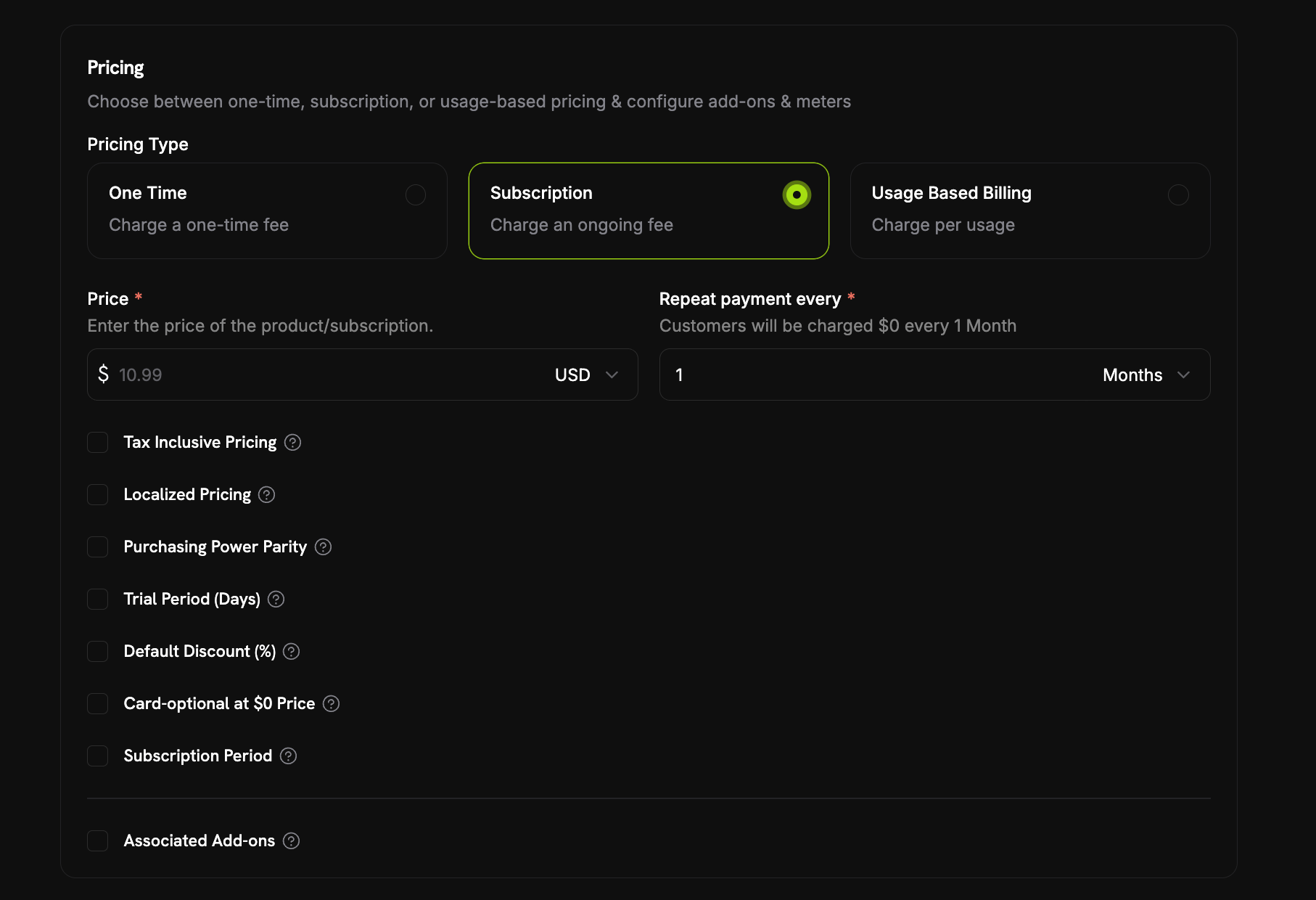
- A free trial:
trial_period_daysis set with notrial_amount, so the first charge is $0 while the trial runs. Check Start the trial without a card under Trial Period (Days). - A $0 recurring price: Either the price itself is $0, or a discount brings it to $0 (the product’s Default Discount (%) or a discount code stacked at checkout). Check Card-optional at $0 Price.
Each checkbox maps to its own API field:
trial_payment_method_optional (free trial case) and zero_amount_payment_method_optional ($0 price case). You can enable either one on its own.What Happens Without a Card
A card-optional subscription is created and activated immediately with no payment method on file. The create response returnspayment_method_required: false, and the subscription object shows has_payment_method: false. Then:
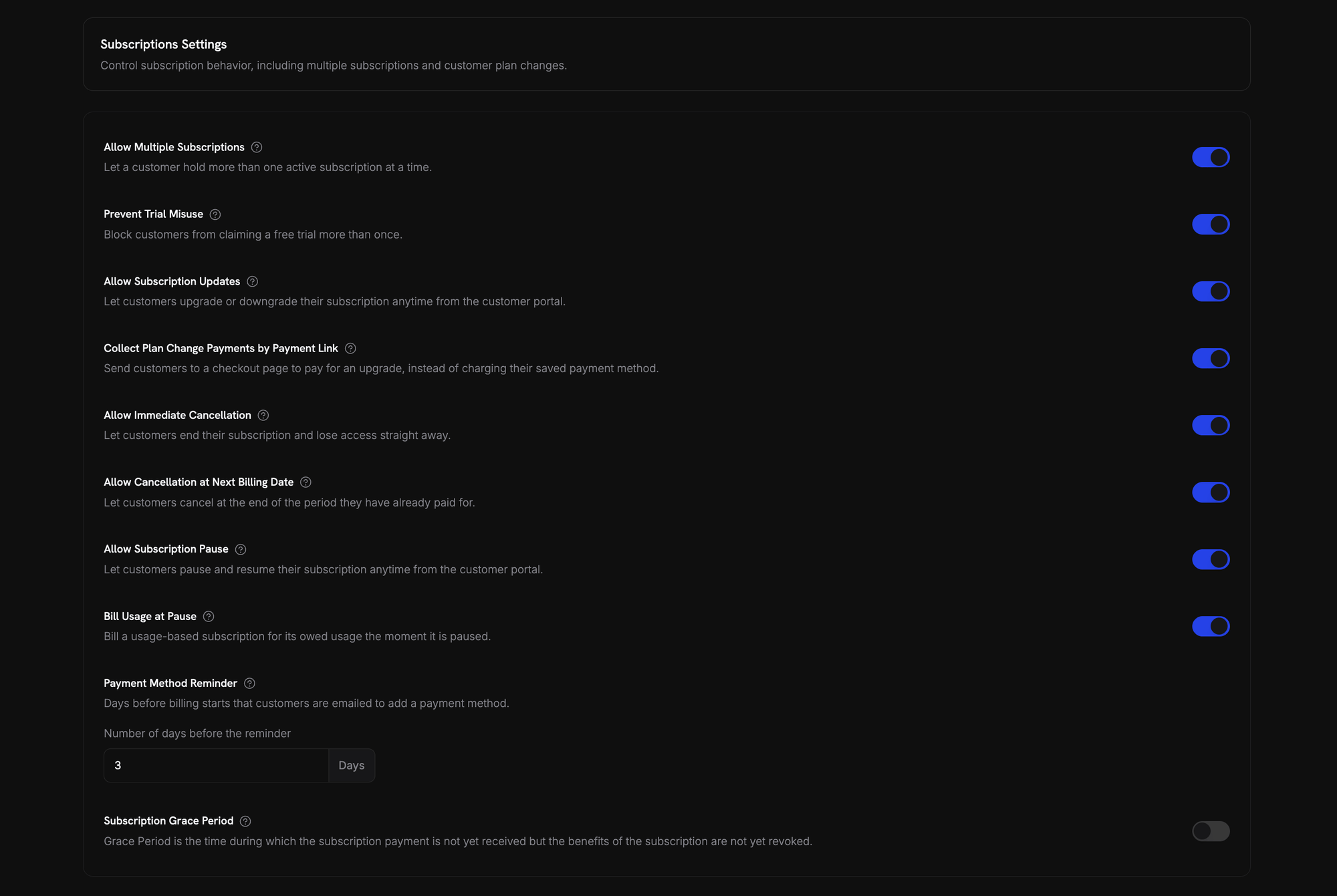
- A reminder email goes out before billing starts. The number of days is set in Settings → Subscriptions → Payment Method Reminder (see Subscription Settings). The Add Payment Method Reminder email (see Customer Emails) links the customer to the Customer Portal to add a card.
- If no card is added in time, the subscription goes
on_holdwhen the trial ends or the discounted period runs out and a real charge is due. The customer receives the Subscription On Hold, No Payment Method email. - Adding a payment method reactivates the subscription (see Reactivating from On Hold). A charge is created for the amount now due, and the subscription returns to
activeon success.
A card added before the trial or discounted period ends prevents the hold. The next renewal charges that card.
Preventing Trial Misuse
Stop customers from repeatedly claiming trials of the same product. When enabled, a customer who has already redeemed a trial of a product gets a paid subscription instead of a fresh trial of that product.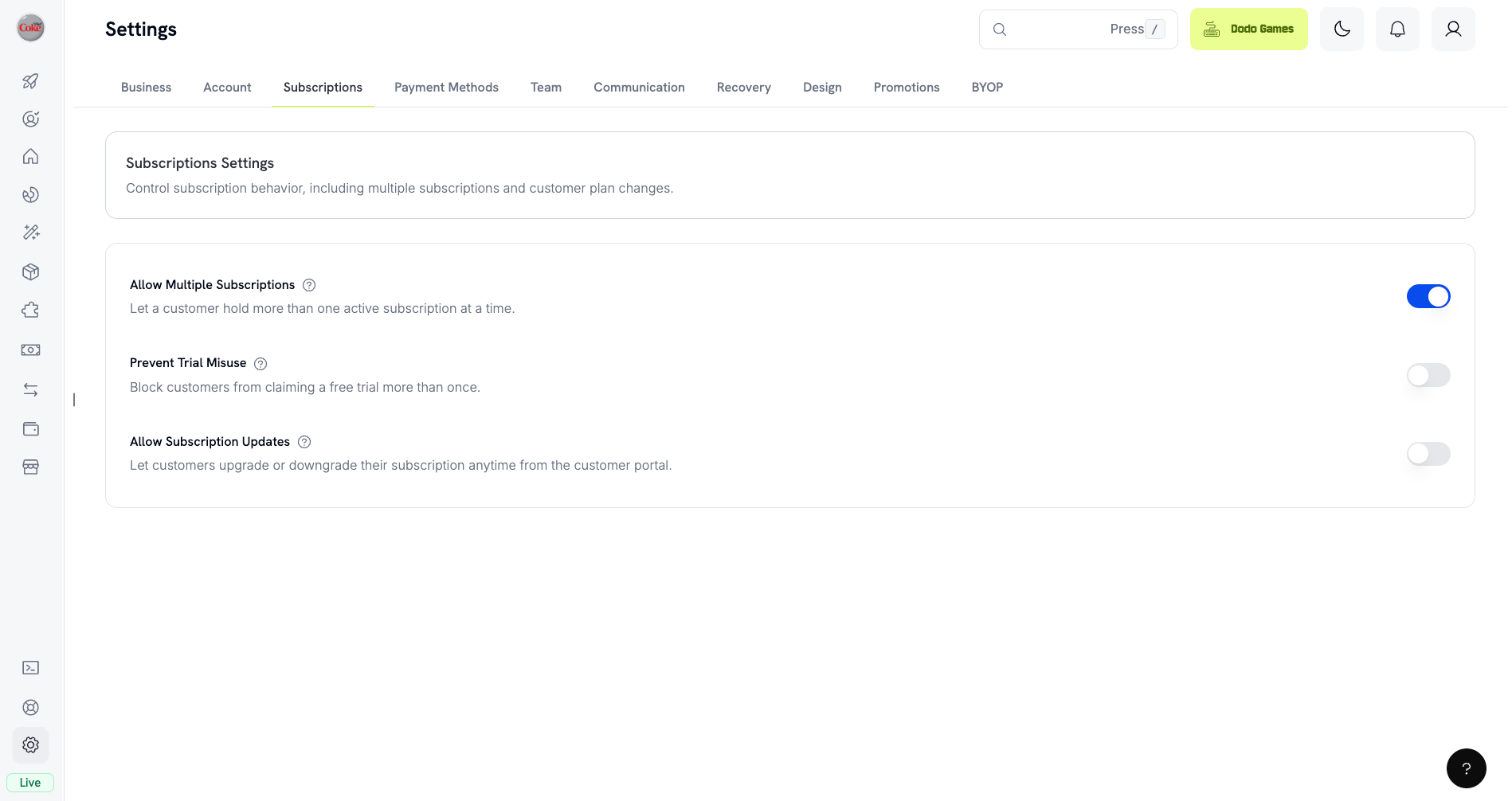
- Customers are matched by normalized email (plus-aliases stripped), so
user+trial@example.comanduser@example.comcount as the same person. - Redemptions are recorded at trial activation, so a customer who cancels the same day has still consumed their trial.
- Existing customers are backfilled from historical trials by email, so past trial users are recognized immediately.
- Passing
trial_period_daysexplicitly on a checkout session or subscription skips the check and grants that trial.
Off by default. See Subscription Settings for all business-level subscription controls.
Detecting Trial Status
The subscription object has no trial status field. For a free trial, retrieve the subscription’s payments: if there is exactly one payment with atotal_amount of 0, the subscription is in trial. This check doesn’t work for paid trials, where the first payment is the trial_amount.
Updating Trial Period
Extend the trial by updatingnext_billing_date:
Subscription Plan Changes
Upgrade or downgrade subscriptions, adjust quantities, or migrate to different products. Proration mode controls whether the change triggers an immediate charge, creates credit, or applies no billing adjustment. You can change plans and update the next billing date from the dashboard, or change plans with the API. To let customers change plans themselves, add subscription products to a Product Collection and enable Allow Subscription Updates in Settings → Subscriptions.Product Collections
Proration Modes
Choose how customers are billed when changing plans:prorated_immediately
Credits the unused portion of the current billing cycle, then charges a full cycle at the new plan. The new plan is never charged at a fraction of its price.
Net immediate charge = (full new cycle) minus (remaining fraction × full old cycle). If the credit exceeds the new cycle charge, the difference is held as subscription-scoped credit for future renewals. The billing cycle re-anchors to the change date.
difference_immediately
Charges the price difference immediately (upgrade) or adds credit for future renewals (downgrade).
Credits from downgrades are subscription-scoped and auto-applied to future renewals. They’re distinct from Credit-Based Billing entitlements.
difference_immediately, the unused value becomes a subscription-scoped credit that automatically offsets future renewals:
full_immediately
Charges the full new plan amount immediately, ignoring remaining time. Best for resetting billing cycles.
do_not_bill
Switches to the new plan immediately without any billing adjustment. No charges, no credits. The new plan is active as soon as the call succeeds but is not charged until the next renewal. The customer keeps the upgraded plan free for the rest of the current cycle. The original renewal date is preserved, and the new plan price applies at that renewal.
Example: Prorated upgrade calculation
Example: Prorated upgrade calculation
Scenario: Customer on Basic ($30/month) upgrades to Pro ($80/month) on day 16 of a 30-day cycle using The customer starts a full new month of Pro today, so Pro is charged in full and only the unused time on Basic is credited.Next renewal on February 15 (January 16 + 30 days): $80.00/month.
prorated_immediately.Example: Downgrade credit calculation
Example: Downgrade credit calculation
Scenario: Customer on Pro ($80/month) downgrades to Starter ($20/month) using The $60 credit auto-applies to future renewals:
difference_immediately.- Renewal 1: $20 − $20 (credit) = $0.00 ($40 credit remaining)
- Renewal 2: $20 − $20 (credit) = $0.00 ($20 credit remaining)
- Renewal 3: $20 − $20 (credit) = $0.00 (credit exhausted)
- Renewal 4: $20.00 (full price)
Learn more about how credits are managed in the Upgrade & Downgrade Guide.
Changing Plans with Add-ons
Modify add-ons when changing plans. Add-ons are included in proration calculations:By default (
effective_at: 'immediately') plan changes trigger immediate charges. Pass effective_at: 'next_billing_date' to schedule the change for the next billing date instead — the pending change is returned on the subscription as scheduled_change, and you can cancel it with Cancel Scheduled Plan Change. Failed charges may move the subscription to on_hold status, unless you pass on_payment_failure: 'prevent_change', which keeps the subscription on its current plan until payment succeeds. Track changes via subscription.plan_changed webhook events. Plan changes are rejected while a subscription is past_due — see Grace Period.Previewing Plan Changes
Preview the exact charge before committing:Preview Change Plan API
Pausing and Resuming Subscriptions
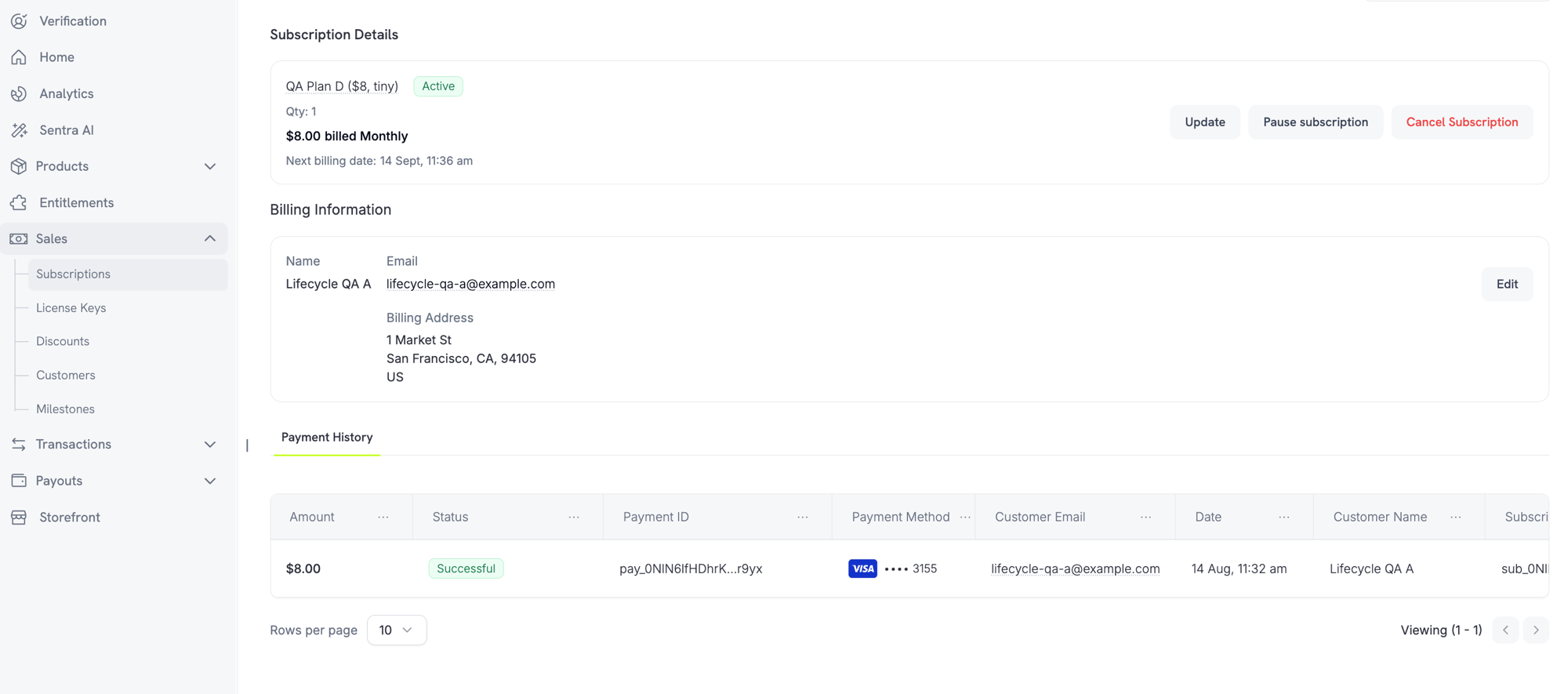
Pause a subscription to freeze it instead of ending it. Billing stops, access is revoked, and the subscription keeps its plan and history. Use it as a retention alternative to cancellation. Open any active subscription under Sales → Subscriptions and click Pause subscription. The status changes topaused and renewals stop until resumed.
What Happens When You Pause
- Renewals stop. No invoice is generated and no renewal charge is attempted while paused.
- Access is revoked immediately. Pausing revokes every delivered and pending entitlement grant, which disables license keys and stops new digital product download URLs. Resuming re-grants them.
- The billing clock freezes.
next_billing_dateandexpires_atboth move forward by the exact length of the pause, so the customer keeps the time they already paid for. - No pause duration limit. A paused subscription stays paused until resumed. You don’t set a pause length upfront.
active and restores entitlements. Because the clock was frozen, the next renewal lands the paused duration later than originally scheduled.
Pausing Usage-Based Subscriptions
A usage-based subscription can have usage recorded but not yet billed when paused. Bill Usage at Pause under Settings → Subscriptions controls what happens:
Only metered usage is settled this way. The recurring base fee is never charged at pause time. Standard and on-demand subscriptions have nothing to settle.
Bill Usage at Pause is recorded per billing cycle. Changing it mid-cycle doesn’t affect the cycle already in progress; the new value applies from the next cycle onward.
Resuming is a valid exit from this hold. You don’t have to collect the settlement invoice first. Resuming forgives the outstanding usage rather than deferring it.
Letting Customers Pause Their Own Subscriptions
Allow Subscription Pause under Settings → Subscriptions controls whether customers can pause and resume from the Customer Portal. Off by default, so self-service pause is opt-in.
Pausing from the Customer Portal
Pausing via API
Pause and resume run through thestatus field on the update subscription endpoint:
subscription.paused and resuming emits subscription.unpaused. Both carry the full subscription object, with paused_at set while paused and null once resumed.
Pause and Other Subscription Actions
- Cancellation still works. You can cancel a paused subscription exactly as you would an active one. Any open settlement invoice from the pause is voided.
- Scheduled plan changes are delayed, not dropped. A plan change scheduled for the next billing date sits untouched while paused, then applies at the shifted billing date once resumed. Its
scheduled_change.effective_atis a snapshot from when it was scheduled and is not adjusted for the pause. To drop the change, use Cancel Scheduled Plan Change.
Subscription States
A subscription moves through defined statuses over its lifetime:past_due and on_hold are both involuntary but differ in one way: past_due keeps the customer’s access, on_hold removes it. A subscription reaches past_due only when you enable a grace period. Without one, a failed renewal goes straight to on_hold.on_hold and paused are distinct. on_hold is involuntary (payment failed). paused is deliberate (you or the customer chose to freeze it). A usage-based subscription can still owe a settlement invoice at the moment it is paused (see Pausing Usage-Based Subscriptions).State Machine
On Hold State
A subscription enterson_hold when:
- A renewal payment fails (insufficient funds, expired card, etc.)
- A plan change charge fails
- Payment method authorization fails
- A pause settlement invoice for a usage-based subscription goes unpaid
- A grace period ends with renewal debt unpaid and expiry action is
on_hold - A Card-Optional at Zero Price subscription’s free trial or $0 period ends with no payment method ever added
If you set a grace period, a failed renewal moves the subscription to
past_due first. It reaches on_hold only when the window ends.Reactivating from On Hold
Update the payment method to reactivate a subscription fromon_hold. This automatically:
- Creates a charge for remaining dues
- Generates an invoice
- Processes the payment using the new payment method
- Reactivates the subscription to
activeon successful payment
The one exception is a hold caused by an unpaid pause settlement invoice. Clearing that invoice returns the subscription to
paused, not active, because pause is where it was before the payment failed. Resume it explicitly once the invoice is settled.After successfully updating the payment method for an
on_hold subscription, you’ll receive payment.succeeded followed by subscription.active webhook events.Grace Period
A grace period is a window between a failed renewal and loss of access. The subscription moves topast_due instead of on_hold, and the customer keeps everything they bought until the window ends. This gives them time to fix a card without losing your product.
Off by default. Enable one from Settings → Subscriptions → Subscription Grace Period.

Settings
What Happens During the Window
While a subscription ispast_due:
- The customer keeps access. Entitlement grants, license keys, and digital product downloads all stay live.
- Usage-based billing keeps recording usage.
- The subscription does not renew.
- The subscription cannot be paused.
- Dunning emails go out, and payment retries continue.
subscription.past_dueis emitted at entry.
subscription.past_due webhook carries the deadline as past_due_ends_at. Store it when the event arrives — the subscription API does not return this field. Every subscription webhook while the window is open carries the same value, next to a status of past_due.
The window is fixed when the subscription enters it. If you change the length or expiry action later, a window already open keeps its original values. New values apply to the next subscription that enters a window.
Recovery
The window closes when the renewal debt is settled through a successful retry or when the customer updates the payment method. The subscription returns toactive, and a subscription.active webhook is sent.
Only the failed renewal opens a window. An unrelated merchant charge that goes unpaid does not move a subscription to past_due.
When the Window Ends
If the renewal debt is still unpaid at the deadline, the subscription moves toon_hold or to cancelled, as you configured. At the same time:
- A scheduled plan change on the subscription is cancelled.
- A pending plan change whose invoice is still unpaid is cancelled.
cancel_subscription, open invoices are also voided, and their payment retries stop.
A pending plan change whose invoice was paid is applied while the window is still open, not at the deadline. A paid invoice settles the change whatever the subscription status.
Webhook Events by Transition
Each transition emits a webhook so you can drive entitlement logic without polling:Subscription Webhook Payloads
API Management
Create subscriptions
Create subscriptions
Use
POST /checkouts to create subscriptions programmatically from products, with optional trials (subscription_data.trial_period_days) and add-ons (product_cart[].addons).API Reference
Update subscriptions
Update subscriptions
Use
PATCH /subscriptions/{subscription_id} to cancel at the next billing date, extend the subscription period, update billing details, or modify metadata. To change quantity, use the Change Plan API instead.API Reference
Pause and resume subscriptions
Pause and resume subscriptions
Pause and resume run through the
status field on PATCH /subscriptions/{subscription_id}: status: paused pauses an active subscription and status: active resumes it. Neither value can be combined with any other field in the same request. See Pausing and Resuming Subscriptions for full behavior and billing effects.API Reference
Change plans (proration)
Change plans (proration)
Change the active product and quantities with proration controls.
API Reference
On-demand charges
On-demand charges
For on-demand subscriptions, charge specific amounts on demand.
API Reference
List and retrieve
List and retrieve
Use
GET /subscriptions to list all subscriptions and GET /subscriptions/{id} to retrieve one.API Reference
Usage history
Usage history
Fetch recorded usage for metered or hybrid pricing models.
API Reference
Update payment method
Update payment method
Update the payment method for a subscription. For active subscriptions, this updates the payment method for future renewals. For subscriptions in
on_hold, this reactivates the subscription by creating a charge for remaining dues.When generating a new payment-method link, you can pass allowed_payment_method_types to restrict which payment methods the customer sees. Customers will never see a method that isn’t in the list, though including a method does not guarantee it appears (availability depends on factors like customer location and your business settings).API Reference
Common Use Cases
- SaaS and APIs: Tiered access with add-ons for seats or usage
- Content and media: Monthly access with introductory trials
- B2B support plans: Annual contracts with premium support add-ons
- Tools and plugins: License keys and versioned releases
Integration Examples
Checkout Sessions (Subscriptions)
Create a checkout session with a subscription product and optional add-ons:Plan Changes with Proration
Upgrade or downgrade a subscription and control proration behavior:Cancel at Next Billing Date
Schedule a cancellation that takes effect at the end of the current billing period:Extend the Subscription Period
Extend how long a subscription runs by passing a newsubscription_period_count and subscription_period_interval to PATCH /subscriptions/{subscription_id}. The subscription’s expiry is recomputed from the new count and interval:
A subscription’s period can only be increased, never shortened.
On‑Demand Subscriptions
Create an on‑demand subscription and charge later as needed:Update Payment Method for Active Subscription
Update the payment method for an active subscription:Mengaktifkan Kembali Subscription dari on_hold
Aktifkan kembali subscription yang menjadi on hold karena payment gagal:Subscription dengan Mandate yang Mematuhi RBI
Subscription UPI dan kartu India beroperasi berdasarkan peraturan RBI (Reserve Bank of India) dengan persyaratan mandate tertentu.Batas Mandate
Jenis dan jumlah mandate bergantung pada recurring charge subscription Anda:- Charge di bawah batas minimum mandate (default ₹15,000): Kami membuat on-demand mandate untuk jumlah batas minimum tersebut. Jumlah subscription ditagihkan secara berkala sesuai frekuensi subscription Anda, hingga batas mandate.
- Charge yang sama dengan atau di atas batas minimum mandate: Kami membuat subscription mandate (atau on-demand mandate) untuk jumlah subscription yang tepat.
mandate_min_amount_inr_paise (INR paise). Jumlah yang didaftarkan ke bank adalah max(mandate_floor, billing_amount) — sehingga batas minimum tersebut secara efektif menjadi batas atas otorisasi yang dilihat customer setiap kali billing lebih rendah.
Lihat India Payment Methods untuk informasi mendetail tentang mandate yang mematuhi RBI dan batas minimum mandate yang dapat dikonfigurasi.
Pertimbangan Upgrade dan Downgrade
Saat melakukan upgrade atau downgrade subscription, pertimbangkan batas mandate berikut:- Jika upgrade/downgrade menghasilkan jumlah charge yang melebihi batas minimum mandate (default ₹15,000) dan melampaui batas payment on-demand yang ada, charge transaksi dapat gagal.
- Customer mungkin perlu memperbarui payment method atau mengubah subscription lagi untuk membuat mandate baru dengan batas yang benar.
Otorisasi untuk Charge Bernilai Tinggi
Untuk charge subscription sebesar ₹15,000 atau lebih:- Customer akan diminta oleh bank mereka untuk mengotorisasi transaksi.
- Jika customer gagal memberikan otorisasi, transaksi akan gagal dan subscription akan menjadi on hold.
Penundaan Pemrosesan 48 Jam
Recurring charge pada kartu India dan subscription UPI mengikuti pola pemrosesan yang unik:- Charge dimulai pada tanggal yang dijadwalkan sesuai frekuensi subscription Anda.
- Pemotongan aktual dari akun customer hanya terjadi setelah 48 jam sejak payment dimulai.
- Jangka waktu 48 jam ini dapat bertambah hingga 2–3 jam tambahan, bergantung pada respons API bank.
Jangka Waktu Pembatalan Mandate
Selama jangka waktu pemrosesan 48 jam:- Customer dapat membatalkan mandate melalui aplikasi perbankan mereka.
- Jika customer membatalkan mandate selama periode ini, subscription akan tetap aktif (kasus khusus untuk subscription Indian card dan UPI AutoPay).
- Namun, pemotongan aktual dapat gagal, dan jika demikian, kami akan membuat subscription menjadi on hold.
- Tunda aktivasi benefit hingga payment dikonfirmasi
- Terapkan grace period atau akses sementara
- Pantau status subscription untuk pembatalan mandate
- Tangani status subscription on hold dalam logic aplikasi Anda
Praktik Terbaik
- Mulai dengan tier yang jelas: 2–3 plan dengan perbedaan yang mudah dipahami
- Komunikasikan pricing: Tampilkan total, proration, dan tanggal renewal berikutnya
- Gunakan trial secara bijak: Dorong konversi dengan onboarding, bukan hanya waktu
- Manfaatkan add-on: Buat base plan tetap sederhana dan tawarkan tambahan sebagai upsell
- Uji perubahan: Validasi perubahan plan dan proration dalam test mode
Subscription adalah fondasi fleksibel untuk recurring revenue. Mulai dengan sederhana, lakukan pengujian secara menyeluruh, lalu lakukan iterasi berdasarkan metrik adoption, churn, dan expansion.