

订阅可自动化周期性收入。创建灵活的计费周期、免费或付费试用、支持按比例计费的套餐变更以及附加项。客户会自动续订,直到取消订阅或订阅期限结束。
Upgrade & Downgrade
On‑Demand Subscriptions
Customer Portal
Subscription Webhooks
What Are Subscriptions?
订阅是一种按计划向客户收取费用的周期性产品,适用于 SaaS、会员资格、数字内容和支持计划。- SaaS licenses: Apps, APIs, or platform access
- Memberships: Communities, programs, or clubs
- Digital content: Courses, media, or premium content
- Support plans: SLAs, success packages, or maintenance
Key Benefits
- 可预测的收入:通过自动续订实现周期性计费
- 灵活的周期:按月、按年、自定义间隔和试用
- 灵活的套餐管理:支持升级和降级时按比例计费
- 附加项和席位:添加可选且可量化的升级项
- 托管结账:结账页面和 Customer Portal
- 开发者优先:用于创建、变更和用量跟踪的清晰 API
Creating Subscriptions
在 Dodo Payments 控制面板中创建订阅产品,然后通过结账或 API 销售。将产品与活跃订阅分离后,您可以独立管理价格版本、添加附加项和跟踪性能。创建订阅产品
Configure the fields in the dashboard to define how your subscription sells, renews, and bills. The sections below map directly to what you see in the creation form.产品详情
- 产品名称(必填):在结账页面、Customer Portal 和发票中显示的名称。
- 产品描述(可选):显示在结账页面和发票中的清晰价值主张。
- 产品图片(可选):PNG/JPG/WebP,最大 3 MB。用于结账页面和发票。
- 品牌:将产品与特定品牌关联,以应用相应的主题和邮件样式。
- 税务类别(必填):选择类别(例如 SaaS)以确定税务规则。
Pricing
- 定价类型:选择 订阅(本指南)。可选项还包括单次付款和按使用量计费。
- 价格(必填):包含货币的基础周期性价格。非零价格必须满足客户付款货币对应的订阅最低金额:USD 为 $1.00。对于 USD、EUR 和 GBP 以外的货币,价格还必须至少价值 $1.00。例如,AED 订阅需要约 3.70 AED,而不是列出的 2.00 AED 最低金额。EUR 和 GBP 使用各自列出的最低金额。请参阅最低金额。不支持低于最低金额的价格。恰好为 $0 的价格属于另一种受支持的情况;请参阅零价格时可不添加卡片。
- 适用折扣(%):应用于基础价格的可选百分比折扣;该折扣会反映在结账和发票中。最多可输入两位小数,例如
10.5。在 API 中,请使用discount_bps(基点,因此1050表示 10.5%)。 - 每隔(必填):续期的间隔,例如每 1 个月一次。选择周期(月份或年份)和数量。
- 订阅期限(必填):订阅保持 active 的总期限(例如 10 年)。期限结束后,续期将停止,除非延长订阅期限。
- 试用期天数(必填):设置试用天数。使用 0 可禁用试用。试用结束时会自动进行首次扣款。
- 试用金额:付费试用的可选预付费用。免费试用请留空。请参阅付费试用。
- $0 价格时可不添加卡片:当价格为 $0 或折扣使今日应付金额为零时,允许客户在不添加卡片的情况下开始订阅。免费试用有单独的 不添加卡片开始试用 复选框。请参阅零价格时可不添加卡片。
- 选择附加项:最多关联 10 个客户可以与基础方案一起购买的附加项。
附加项非常适合席位或存储空间等可量化的额外内容。客户变更数量时,您可以控制允许的数量和按比例计费行为。
高级设置
- 含税定价:显示已包含适用税费的价格。最终税费计算仍取决于客户所在地。
- License key(位于 Entitlements 中):购买后向每位客户发放一个唯一密钥。请参阅 License Keys 指南。
- Digital Files(位于 Entitlements 中):购买后自动交付文件或内容。请在 Digital Product Delivery 中了解更多信息。
- Metadata:附加自定义键值对,用于内部标记或客户端集成。请参阅 Metadata。
订阅试用
试用让客户可以在支付完整的周期性价格之前评估订阅。试用可以是免费的(结束前不收费),也可以是付费的(预先收取折扣后的金额)。试用结束后,在首次续订时收取完整价格。配置试用
在产品的价格部分设置 Trial Period Days(使用0 停用)。创建订阅时可以覆盖此设置:
付费试用
在试用期间预先收取折扣后的金额。在产品价格中设置 Trial Amount。首次续订时收取完整的周期性价格。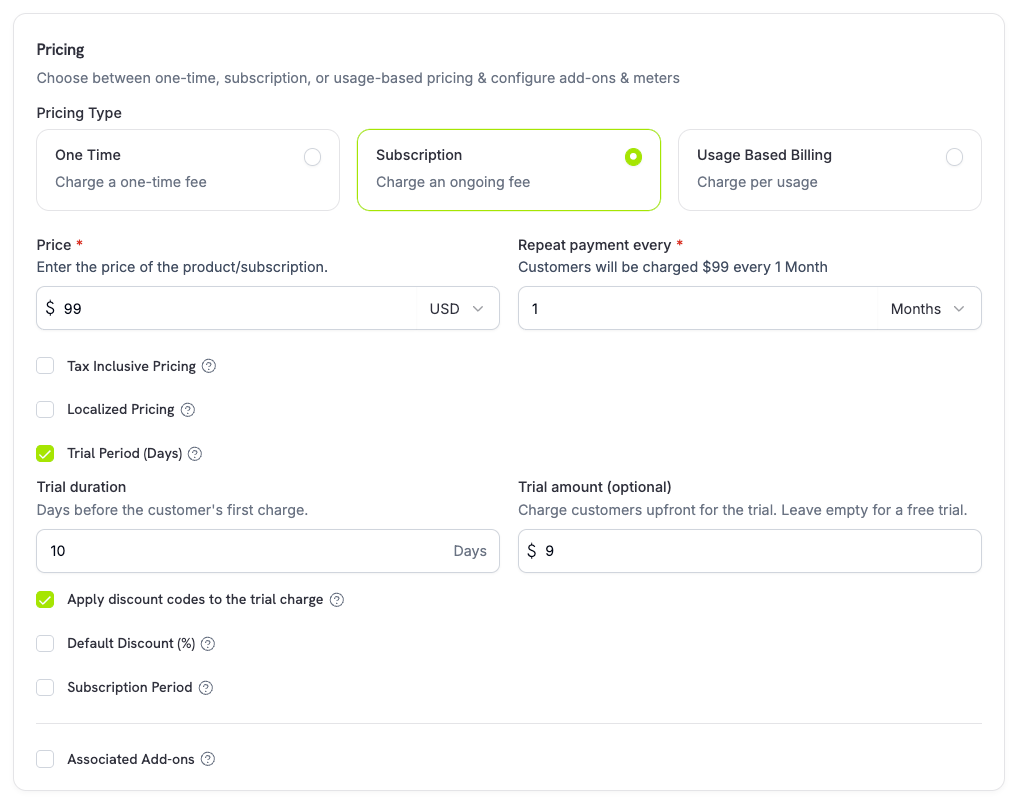
trial_amount 和 trial_period_days,因此您可以在创建订阅前向客户显示当天应付的金额。
零价格时可不填写卡片
当今天无需付款时,允许客户在不添加付款方式的情况下开始订阅。在产品的价格部分按价格启用此功能,以下每种情况分别对应一个复选框。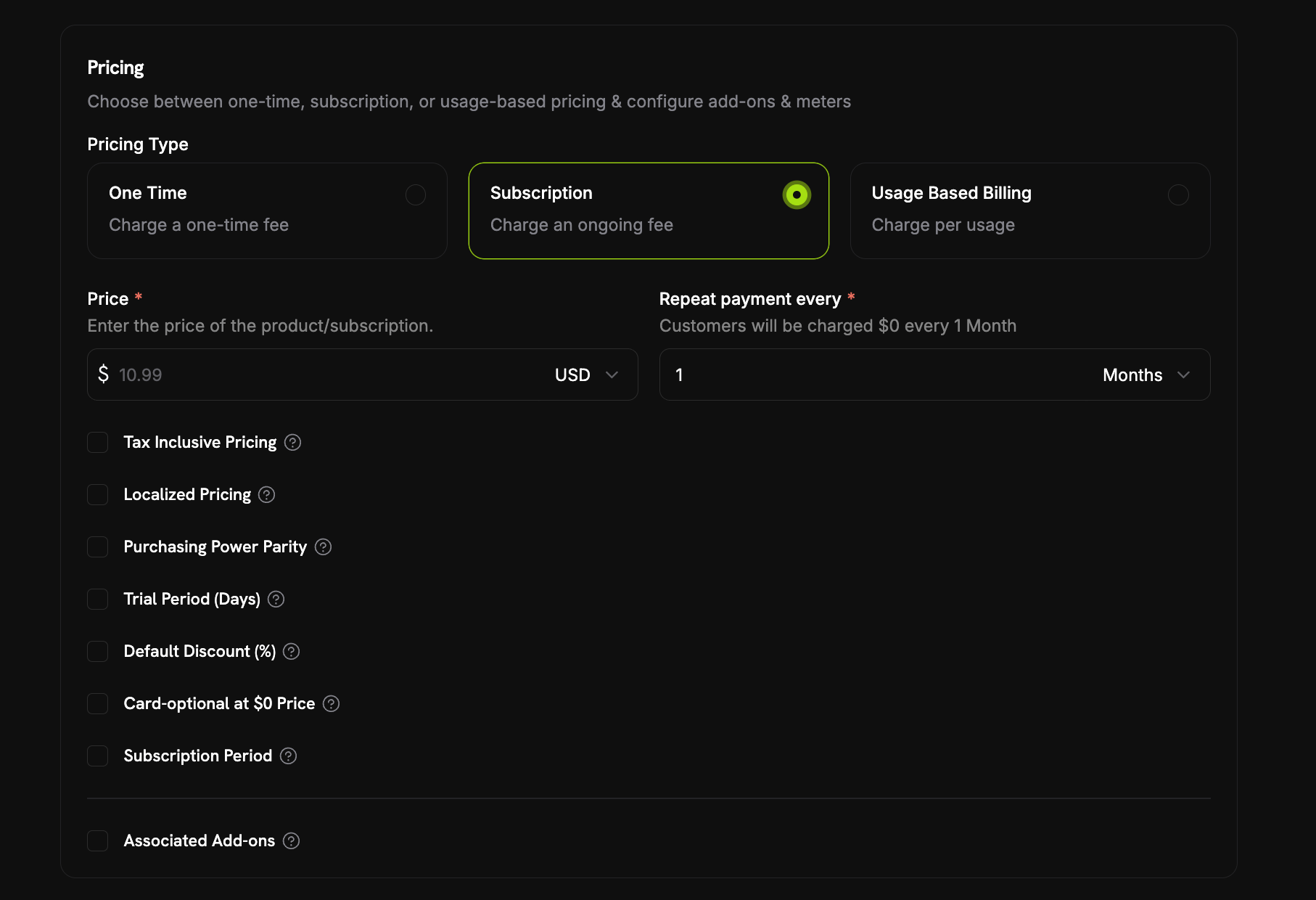
- 免费试用:设置
trial_period_days,且没有trial_amount,因此试用期间首次扣款为 $0。在 Trial Period (Days) 下选中 Start the trial without a card。 - $0 周期性价格:价格本身为 $0,或折扣将价格降至 $0(产品的 Default Discount (%),或结账时叠加的折扣码)。选中 Card-optional at $0 Price。
每个复选框分别对应一个 API 字段:
trial_payment_method_optional(免费试用情况)和 zero_amount_payment_method_optional($0 价格情况)。您可以单独启用其中任意一个。没有卡片时会发生什么
系统会立即创建并激活一个无需保存付款方式的可不填写卡片订阅。创建响应会返回payment_method_required: false,订阅对象会显示 has_payment_method: false。随后:
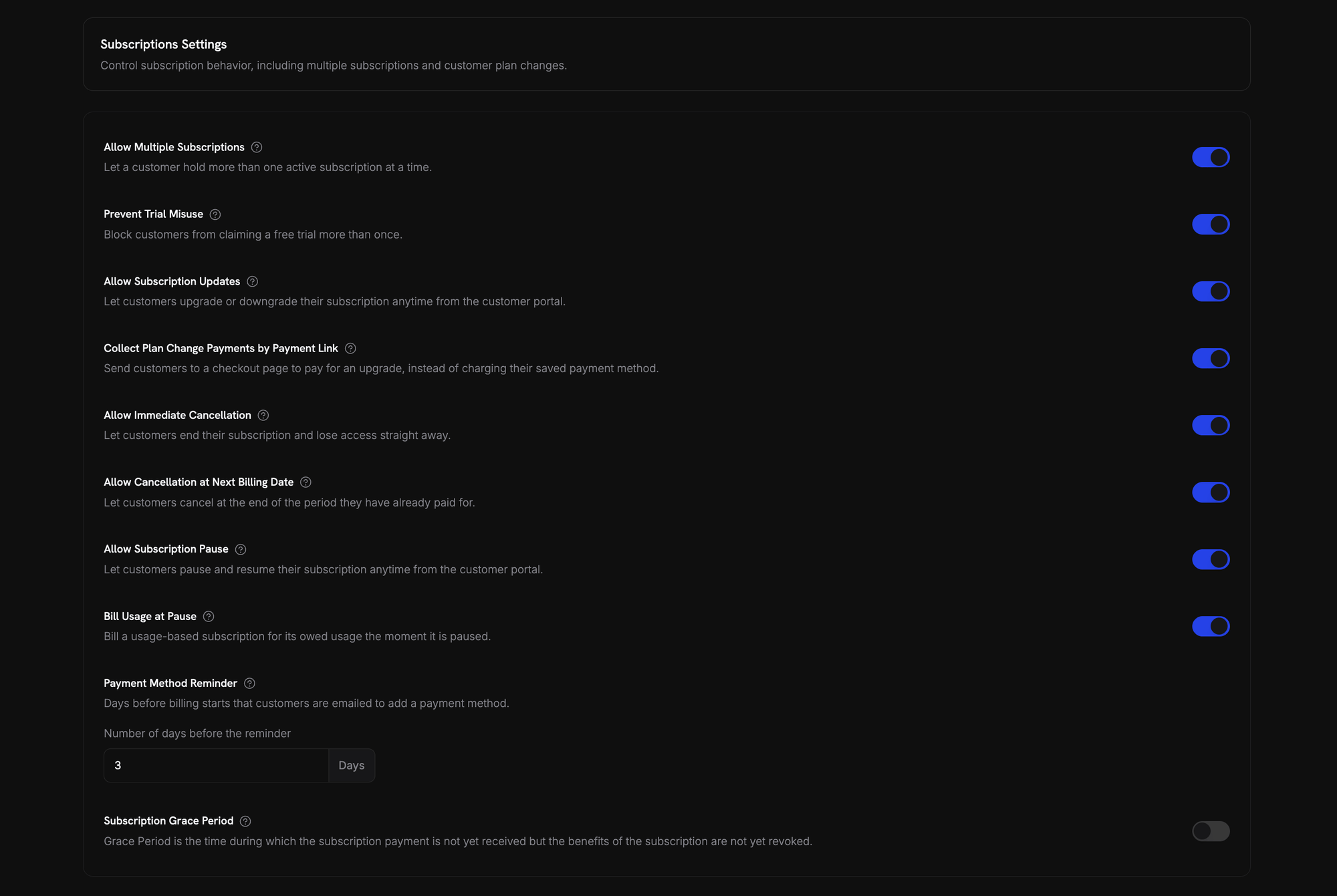
- 计费开始前会发送提醒邮件。 天数在 Settings → Subscriptions → Payment Method Reminder 中设置(请参阅订阅设置)。Add Payment Method Reminder 邮件(请参阅客户邮件)会将客户引导至 Customer Portal 以添加卡片。
- 如果客户未及时添加卡片,订阅会变为
on_hold。 当试用结束或折扣期间结束并产生实际应付款时,如果仍未添加付款方式,订阅会进入此状态。客户会收到 Subscription On Hold, No Payment Method 邮件。 - 添加付款方式会重新激活订阅(请参阅从暂停状态重新激活)。系统会针对当前应付金额创建扣款,成功后订阅会恢复为
active。
在试用或折扣期间结束前添加卡片,可以避免订阅进入暂停状态。下次续订时会从该卡片扣款。
防止滥用试用
防止客户反复领取同一产品的试用。启用后,已经兑换过某产品试用的客户将获得该产品的付费订阅,而不是新的试用。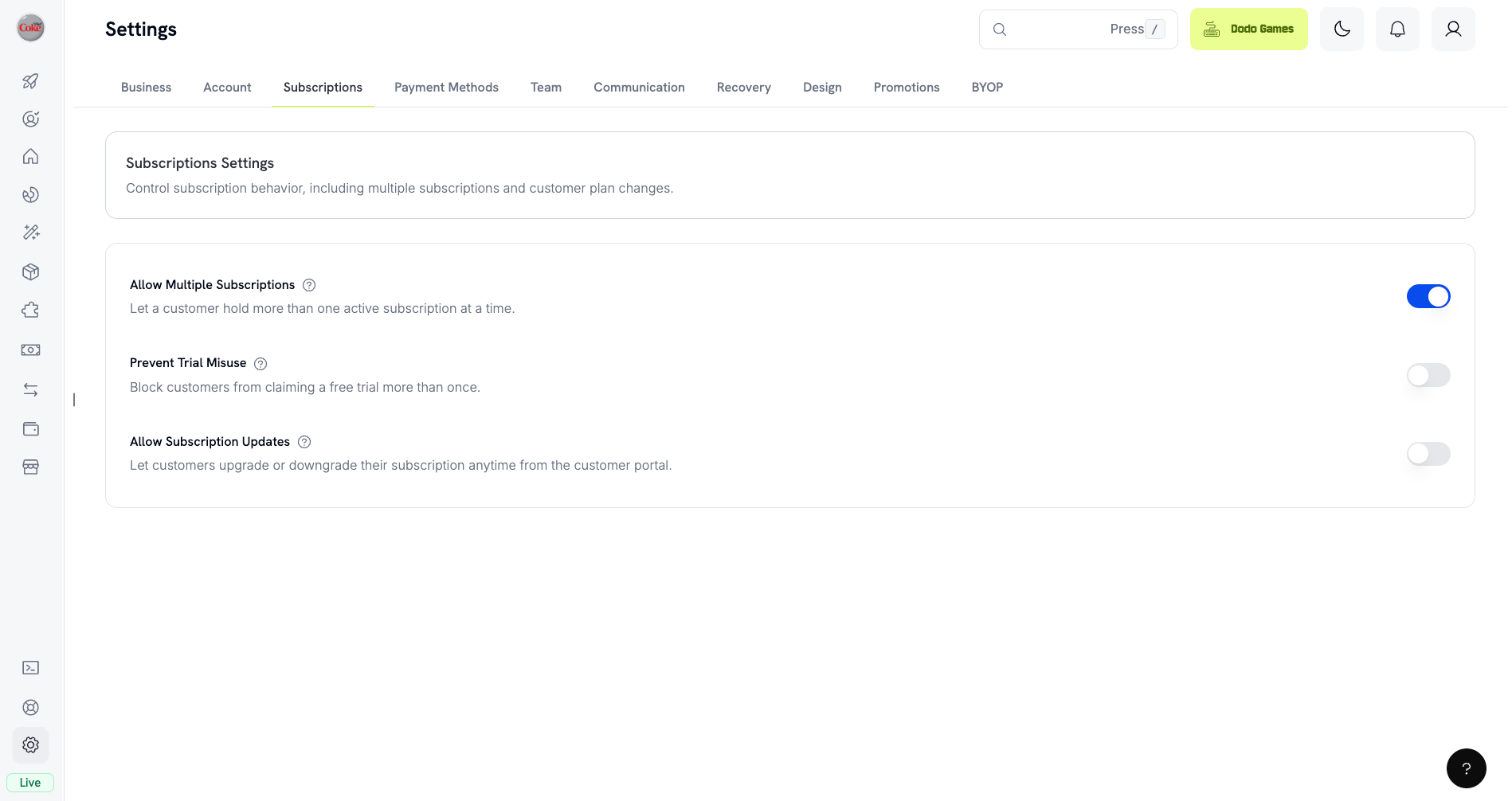
- 客户按标准化后的电子邮件地址匹配(去除加号别名),因此
user+trial@example.com和user@example.com会被视为同一人。 - 兑换记录在试用激活时写入,因此当天取消的客户仍然算作已使用试用。
- 系统会根据历史试用记录按电子邮件地址补录现有客户,因此过去使用过试用的客户会立即被识别。
- 在结账会话或订阅中明确传入
trial_period_days可跳过检查并授予该试用。
默认关闭。有关所有业务级订阅控制,请参阅订阅设置。
检测试用状态
订阅对象没有试用状态字段。对于免费试用,请获取订阅的付款记录:如果恰好有一笔付款,其total_amount 为 0,则订阅处于试用中。此检查不适用于付费试用,因为付费试用的首笔付款是 trial_amount。
更新试用期
通过更新next_billing_date 来延长试用期:
订阅套餐变更
升级或降级订阅、调整数量,或迁移到其他产品。按比例计费模式决定变更是否会立即产生扣款、创建抵扣额,或不进行计费调整。 您可以从控制面板更改套餐并更新下一次计费日期,也可以通过 API 更改套餐。若要让客户自行更改套餐,请将订阅产品添加到 Product Collection,并在 Settings → Subscriptions 中启用 Allow Subscription Updates。Product Collections
按比例计费模式
选择客户更改套餐时的计费方式:prorated_immediately
抵扣当前计费周期中未使用的部分,然后按新套餐收取一个完整周期的费用。新套餐不会按比例收取价格。
立即净扣款 =(新的完整周期费用)−(剩余比例 × 旧套餐的完整周期费用)。如果抵扣额超过新的周期费用,差额会作为订阅范围的抵扣额保留,用于未来续订。计费周期会重新锚定到变更日期。
difference_immediately
立即收取价格差额(升级),或为未来续订添加抵扣额(降级)。
降级产生的抵扣额仅适用于该订阅,并会自动应用于未来续订。它们不同于 Credit-Based Billing 权益。
difference_immediately 降级时,未使用的价值会变成订阅范围的抵扣额,并自动抵扣未来续订:
full_immediately
立即收取新套餐的全额金额,不考虑剩余时间。适合重置计费周期。
do_not_bill
立即切换到新套餐,不进行任何计费调整。不收费,也不产生抵扣额。调用成功后新套餐立即生效,但直到下次续订时才收费。客户在当前周期剩余时间内可免费使用升级后的套餐。原续订日期保持不变,新套餐价格在该日期续订时生效。
Example: Prorated upgrade calculation
Example: Prorated upgrade calculation
场景:客户使用 客户今天开始一个完整的新 Pro 月度周期,因此 Pro 全额收费,只有 Basic 的未使用时间会被抵扣。下一次续订日期为 2 月 15 日(1 月 16 日 + 30 天):$80.00/月。
prorated_immediately,在 30 天计费周期的第 16 天从 Basic($30/月)升级到 Pro($80/月)。Example: Downgrade credit calculation
Example: Downgrade credit calculation
场景:客户使用 $60 抵扣额会自动应用于未来续订:
difference_immediately,从 Pro($80/月)降级到 Starter($20/月)。- 续订 1:$20 − $20(抵扣额)= $0.00(剩余抵扣额 $40)
- 续订 2:$20 − $20(抵扣额)= $0.00(剩余抵扣额 $20)
- 续订 3:$20 − $20(抵扣额)= $0.00(抵扣额用尽)
- 续订 4:$20.00(全价)
有关抵扣额管理的更多信息,请参阅升级与降级指南。
更改套餐时管理附加项
更改套餐时修改附加项。附加项会计入按比例计费计算:默认情况下(
effective_at: 'immediately'),套餐变更会立即产生扣款。传入 effective_at: 'next_billing_date' 可将变更安排到下一个计费日期;待处理的变更会在订阅中以 scheduled_change 返回,您可以使用取消已安排的套餐变更将其取消。扣款失败可能会使订阅进入 on_hold 状态,除非传入 on_payment_failure: 'prevent_change';此参数会让订阅保持当前套餐,直到付款成功。通过 subscription.plan_changed webhook 事件跟踪变更。当订阅处于 past_due 状态时,套餐变更会被拒绝;请参阅宽限期。预览套餐变更
在提交前预览准确的扣款金额:Preview Change Plan API
暂停和恢复订阅
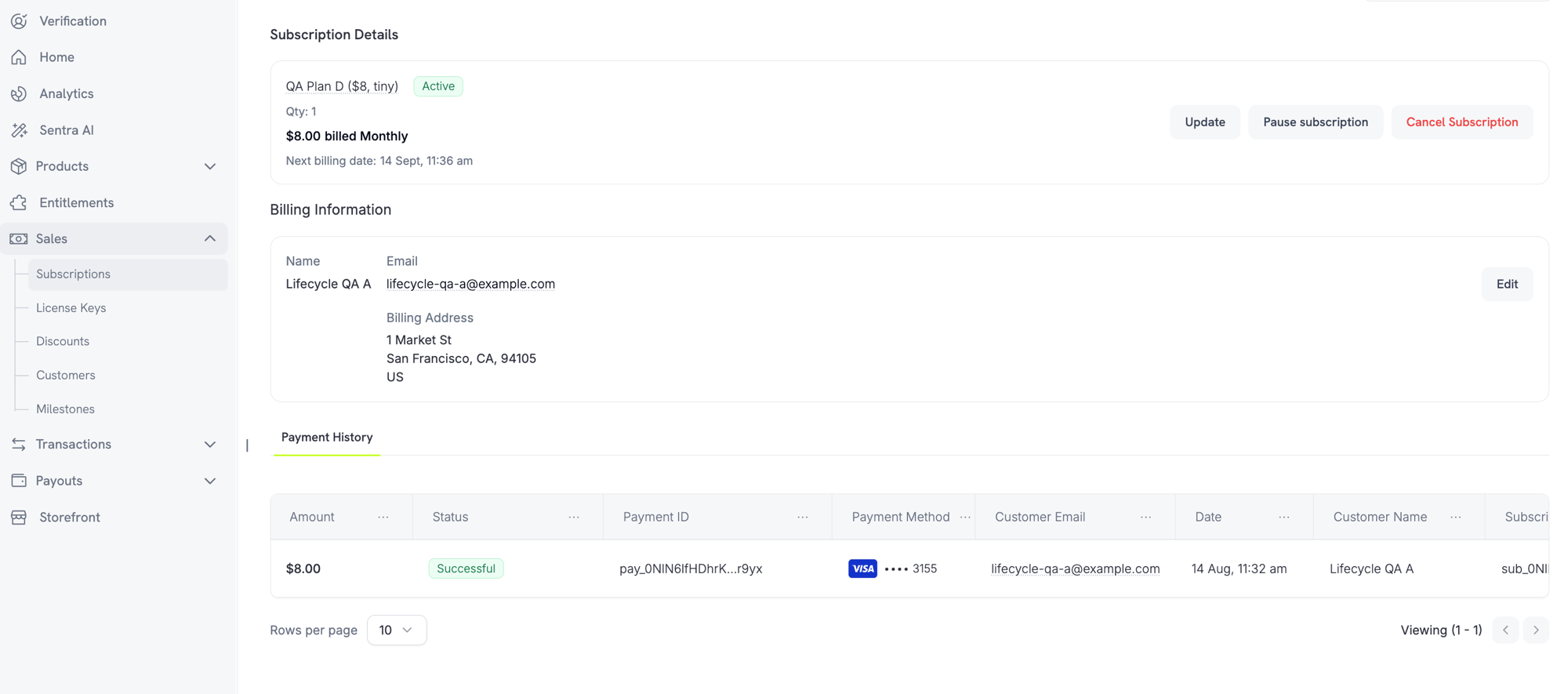
暂停订阅可以冻结订阅,而不是结束订阅。计费会停止,访问权限会被撤销,但订阅会保留其套餐和历史记录。您可以将其作为取消订阅之外的留存方案。 在 Sales → Subscriptions 下打开任意活跃订阅,然后点击 Pause subscription。状态会变为paused,并且在恢复之前停止续订。
暂停后会发生什么
- 续订停止。 暂停期间不会生成发票,也不会尝试收取续订费用。
- 访问权限立即撤销。 暂停会撤销所有已交付和待处理的权益授予,从而禁用许可证密钥并停止生成新的数字产品下载 URL。恢复后会重新授予这些权益。
- 计费时钟冻结。
next_billing_date和expires_at都会向后移动与暂停时长完全相同的时间,因此客户仍可享有已经支付的时间。 - 暂停时长没有限制。 暂停的订阅会一直保持暂停,直到恢复。您无需预先设置暂停时长。
active,权益也会恢复。由于计费时钟被冻结,下一次续订会比原计划晚暂停的时长。
暂停按用量计费的订阅
按用量计费的订阅在暂停时可能存在已记录但尚未计费的用量。Settings → Subscriptions 下的 Bill Usage at Pause 控制处理方式:
只有计量用量会以此方式结算。暂停时不会收取周期性基础费用。标准订阅和按需订阅没有需要结算的内容。
Bill Usage at Pause 按计费周期记录。周期中途更改此设置不会影响已经开始的周期;新值从下一个周期起生效。
恢复订阅是退出此暂停状态的有效方式。您无需先收取结算发票。恢复操作会免除未结用量,而不是将其延期。
允许客户自行暂停订阅
Settings → Subscriptions 下的 Allow Subscription Pause 控制客户是否可以从 Customer Portal 暂停和恢复订阅。默认关闭,因此自助暂停需要主动启用。
Pausing from the Customer Portal
通过 API 暂停
暂停和恢复通过更新订阅端点中的status 字段执行:
subscription.paused,恢复会发出 subscription.unpaused。两者都携带完整的订阅对象;暂停时 paused_at 会被设置,恢复后则为 null。
暂停与其他订阅操作
- 仍然可以取消。 您可以像取消活跃订阅一样取消已暂停的订阅。暂停产生的任何未结算发票都会被作废。
- 已安排的套餐变更会延迟,而不会丢失。 为下一次计费日期安排的套餐变更会在暂停期间保持不变,恢复后在调整后的计费日期应用。其
scheduled_change.effective_at是安排时的快照,不会因暂停而调整。要删除该变更,请使用取消已安排的套餐变更。
成功更新
on_hold 订阅的支付方式后,你会先收到 payment.succeeded,再收到 subscription.active webhook events。按状态转换划分的 Webhook Events
每次状态转换都会发出 webhook,便于你无需轮询即可驱动 entitlement 逻辑:Subscription Webhook Payloads
API 管理
Create subscriptions
Create subscriptions
使用
POST /checkouts 根据产品以编程方式创建订阅,并可选择添加试用(subscription_data.trial_period_days)和附加项(product_cart[].addons)。API Reference
Update subscriptions
Update subscriptions
使用
PATCH /subscriptions/{subscription_id} 在下一次计费日期取消订阅、延长订阅期限、更新计费详情或修改 metadata。要更改数量,请改用 Change Plan API——PATCH 不接受 quantity。API Reference
Pause and resume subscriptions
Pause and resume subscriptions
暂停和恢复使用同一个
PATCH /subscriptions/{subscription_id} endpoint,并通过 status 字段执行:status: paused 会暂停 active 订阅,而 status: active 会恢复订阅。同一请求中,这两个值都不能与任何其他字段组合使用。有关完整行为、计费影响及相关业务设置,请参阅暂停和恢复订阅。API Reference
Change plans (proration)
Change plans (proration)
通过 proration 控制项更改活跃产品和数量。
API Reference
On‑demand charges
On‑demand charges
对于 on-demand 订阅,按需收取指定金额。
API Reference
List and retrieve
List and retrieve
使用
GET /subscriptions 列出所有订阅,使用 GET /subscriptions/{id} 获取单个订阅。API Reference
Usage history
Usage history
获取计量或混合定价模式记录的用量。
API Reference
Update payment method
Update payment method
更新订阅的支付方式。对于活跃订阅,这会更新未来续订使用的支付方式。对于处于
on_hold 状态的订阅,这会通过为剩余应付款创建 charge 来重新激活订阅。生成新的 payment-method link(New request type)时,可以传入 allowed_payment_method_types,以限制客户在该页面上看到的支付方式。客户永远不会看到列表之外的支付方式,但列出某种方式并不保证它会显示(可用性仍取决于客户所在位置和你的业务设置等因素)。API Reference
常见用例
- SaaS 和 API:分层访问,并为席位或用量提供附加项
- 内容和媒体:提供带有 introductory trials 的月度访问权限
- B2B 支持方案:年度合同,并提供高级支持附加项
- 工具和插件:license keys 和版本化发布
集成示例
Checkout Sessions(订阅)
创建 checkout sessions 时,请包含订阅产品和可选附加项:使用 proration 进行方案变更
升级或降级订阅,并控制 proration 行为:在下一次计费日期取消
安排在当前计费周期结束时生效的取消操作:延长订阅期限
向PATCH /subscriptions/{subscription_id} 传入新的 subscription_period_count 和 subscription_period_interval,以延长订阅的运行时间。系统会根据新的数量和间隔重新计算订阅到期时间——例如,为客户当前方案额外授予一段时间:
订阅期限只能延长,不能缩短。
On-demand 订阅
创建 on-demand 订阅,并在需要时稍后收费:更新活跃订阅的支付方式
更新活跃订阅的支付方式:从 on_hold 重新激活订阅
重新激活因付款失败而进入暂停状态的订阅:使用符合 RBI 规范的 mandate 的订阅
UPI 和印度卡订阅受 RBI(Reserve Bank of India)法规约束,并具有特定的 mandate 要求:Mandate 限额
mandate 类型和金额取决于订阅的 recurring charge:- 低于 mandate 下限的费用(默认 ₹15,000): 我们会为下限金额创建 on-demand mandate。系统会根据订阅频率定期收取订阅金额,但不超过 mandate 限额。
- 达到或高于 mandate 下限的费用: 我们会为准确的订阅金额创建 subscription mandate(或 on-demand mandate)。
mandate_min_amount_inr_paise(INR paise)配置。向银行注册的金额为 max(mandate_floor, billing_amount)——因此,当计费金额较低时,该下限实际上会成为面向客户的授权上限。
有关符合 RBI 规范的 mandate 以及印度支付方式可配置 mandate 下限的详细信息,请参见 India Payment Methods 页面。
升级和降级注意事项
重要提示: 升级或降级订阅时,请仔细考虑 mandate 限额:- 如果升级/降级导致费用金额超过 Rs 15,000,并超出已有的 on-demand payment limit,交易费用可能会失败。
- 在这种情况下,客户可能需要更新支付方式,或再次更改订阅,以便建立具有正确限额的新 mandate。
高额费用的授权
对于金额为 Rs 15,000 或以上的订阅费用:- 银行会提示客户授权交易。
- 如果客户未能授权交易,交易会失败,订阅也会进入暂停状态。
48 小时处理延迟
处理时间线: 印度卡和 UPI 订阅的 recurring charge 遵循独特的处理模式:- 费用会根据订阅频率在计划日期发起。
- 客户账户中的实际扣款仅会在发起付款 48 小时后发生。
- 根据银行 API 的响应,这个 48 小时窗口可能会额外延长 2–3 小时。
Mandate 取消窗口
在 48 小时处理窗口期间:- 客户可以通过银行 app 取消 mandate。
- 如果客户在此期间取消 mandate,订阅仍会保持活跃(这是印度卡和 UPI AutoPay 订阅特有的边缘情况)。
- 但是,实际扣款可能会失败;在这种情况下,我们会将订阅置于暂停状态。
- 延迟权益激活,直到付款确认
- 实现宽限期或临时访问权限
- 监控订阅状态,以发现 mandate 取消
- 在应用逻辑中处理订阅暂停状态
最佳实践
- 从清晰的层级开始: 设置 2–3 个差异明显的方案
- 清楚传达价格: 展示总额、proration 和下一次续订
- 合理使用试用: 通过 onboarding 转化客户,而不只是延长时间
- 利用附加项: 保持基础方案简单,并通过额外功能进行 upsell
- 测试变更: 在 test mode 中验证方案变更和 proration
订阅是 recurring revenue 的灵活基础。先从简单方案开始,进行充分测试,再根据采用率、流失率和扩展指标持续迭代。
Plan changes with proration
Upgrade or downgrade a subscription and control proration behavior:Cancel at next billing date
Schedule a cancellation that takes effect at the end of the current billing period:Extend the subscription period
Extend how long a subscription runs by passing a newsubscription_period_count and subscription_period_interval to PATCH /subscriptions/{subscription_id}. The subscription’s expiry is recomputed from the new count and interval — for example, to grant a customer extra time on their current plan:
A subscription’s period can only be increased, never shortened.
On‑demand subscriptions
Create an on‑demand subscription and charge later as needed:Update payment method for active subscription
Update the payment method for an active subscription:Reactivate subscription from on_hold
Reactivate a subscription that went on hold due to failed payment:Subscriptions with RBI-Compliant Mandates
UPI and Indian card subscriptions operate under RBI (Reserve Bank of India) regulations with specific mandate requirements: 对于来自多订阅购物车的订阅,新付款方式也会应用到该购物车中具有相同结算货币和计费货币的其他订阅。购物车中的每个订阅最初都使用相同的货币组合。如果后续更改(例如方案变更)使其中一个订阅使用了其他结算货币或计费货币,请单独更新该订阅。从 on_hold 重新激活订阅
重新激活因付款失败而进入暂停状态的订阅:使用符合 RBI 规范的 Mandates 的订阅
UPI 和印度卡订阅受 RBI(Reserve Bank of India)法规约束,并有特定的 mandate 要求。Mandate 限额
Mandate 类型和金额取决于订阅的周期性扣款:- 低于 mandate 下限的扣款(默认 ₹15,000):我们会创建一项金额为下限的按需 mandate。系统会根据订阅频率定期收取订阅金额,最高不超过 mandate 限额。
- 达到或高于 mandate 下限的扣款:我们会按准确的订阅金额创建 subscription mandate(或按需 mandate)。
mandate_min_amount_inr_paise 按请求配置(以 INR 派士为单位)。向银行登记的金额为 max(mandate_floor, billing_amount) ——因此,只要计费金额较低,该下限实际上就会成为面向客户的授权上限。
有关符合 RBI 规范的 mandates 以及可配置 mandate 下限的详细信息,请参阅印度支付方式。
升级和降级注意事项
升级或降级订阅时,请考虑 mandate 限额:- 如果升级或降级导致扣款金额超过 mandate 下限(默认 ₹15,000),并超出已有按需付款限额,交易扣款可能会失败。
- 客户可能需要更新付款方式,或再次更改订阅,以使用正确的限额建立新的 mandate。
高额扣款的授权
对于金额为 ₹15,000 或更高的订阅扣款:- 客户的银行会提示其授权交易。
- 如果客户未能授权,交易将失败,订阅将进入暂停状态。
48 小时处理延迟
印度卡和 UPI 订阅的周期性扣款遵循独特的处理模式:- 系统会根据订阅频率,在计划日期发起扣款。
- 从发起付款起,客户账户实际扣款仅会在 48 小时后发生。
- 根据银行 API 的响应情况,这个 48 小时窗口可能额外延长 2-3 小时。
Mandate 取消窗口
在 48 小时处理窗口期间:- 客户可以通过银行应用取消 mandate。
- 如果客户在此期间取消 mandate,订阅仍会保持 active(这是印度卡和 UPI AutoPay 订阅特有的边缘情况)。
- 但是,实际扣款可能会失败;在这种情况下,我们会将订阅置于暂停状态。
- 延迟激活权益,直到付款得到确认
- 实施宽限期或临时访问权限
- 监控订阅状态,以便发现 mandate 取消
- 在应用逻辑中处理订阅暂停状态
最佳实践
- 从清晰的层级开始:提供 2-3 个差异明显的方案
- 清晰传达定价:显示总额、按比例计费金额和下一次续期日期
- 合理使用试用:通过 onboarding 促成转化,而不只是依靠时间
- 利用附加项:保持基础方案简单,并追加销售额外功能
- 测试更改:在测试模式下验证方案更改和按比例计费
订阅是周期性收入的灵活基础。先从简单方案开始,进行充分测试,并根据采用率、流失率和扩展指标持续迭代。