

Product Collections 可将相关产品(例如 Starter、Pro、Enterprise 方案)归入同一集合。在单个结账页面中显示所有选项,定义升级/降级路径,并允许客户直接从 Customer Portal 切换方案。
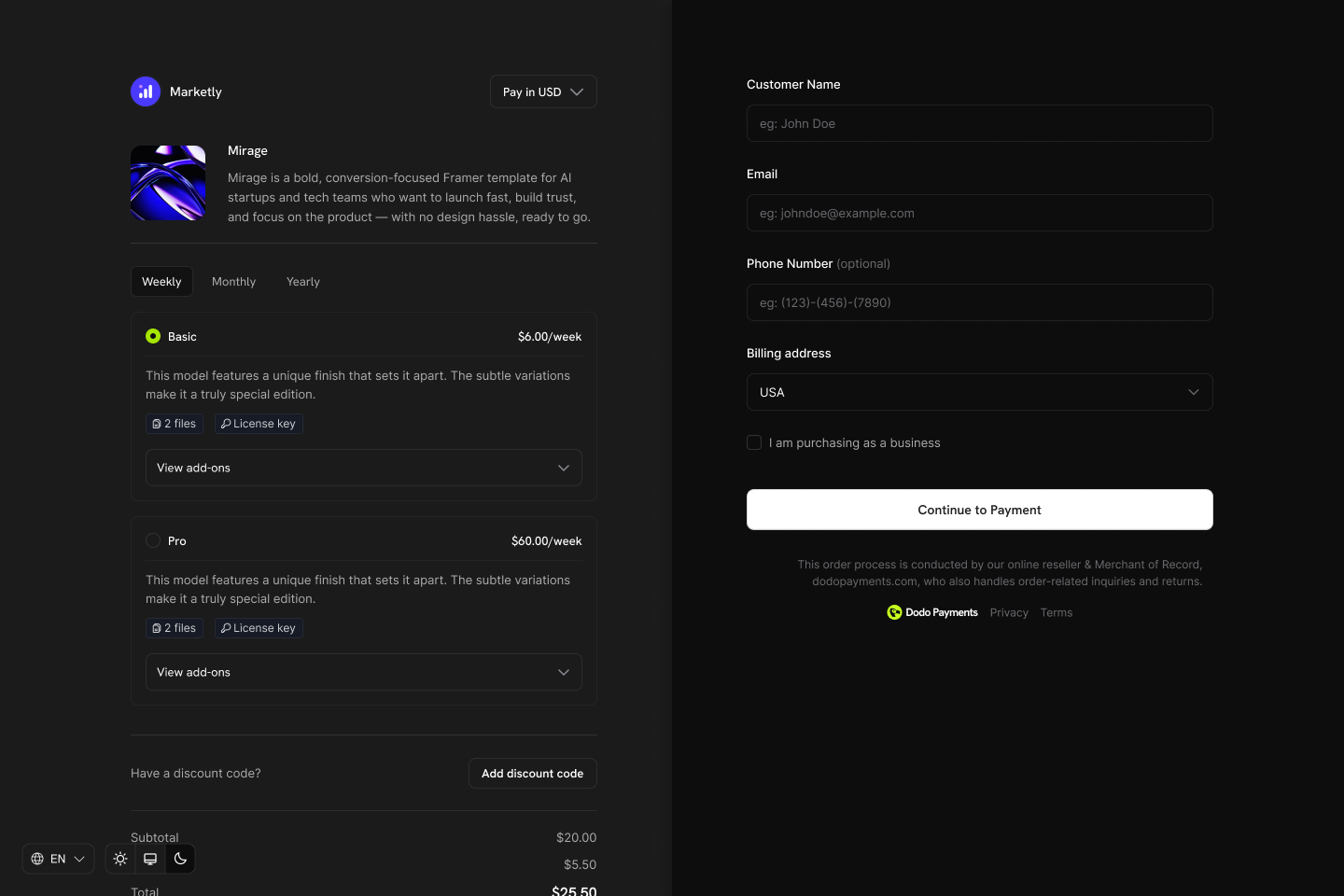
主要亮点
Product Collections 可让您:- 将相关产品(方案、层级、定价选项)分组,以便统一管理。
- 包含多个产品,例如 Starter、Pro 和 Lifetime,每个产品都可以使用自己的定价模式。
- 在一个结账视图中显示所有产品,方便客户比较并选择首选方案。
- 允许客户通过 Customer Portal 在同一集合中的产品之间升级或降级。
- 控制哪些产品可见、显示顺序以及结账时默认选中的产品。
创建 Product Collection
您可以从控制面板或通过 API 创建和管理集合。1
Create the collection
为集合定义名称和可选描述。上传一张图片,以便在结账时代表该集合。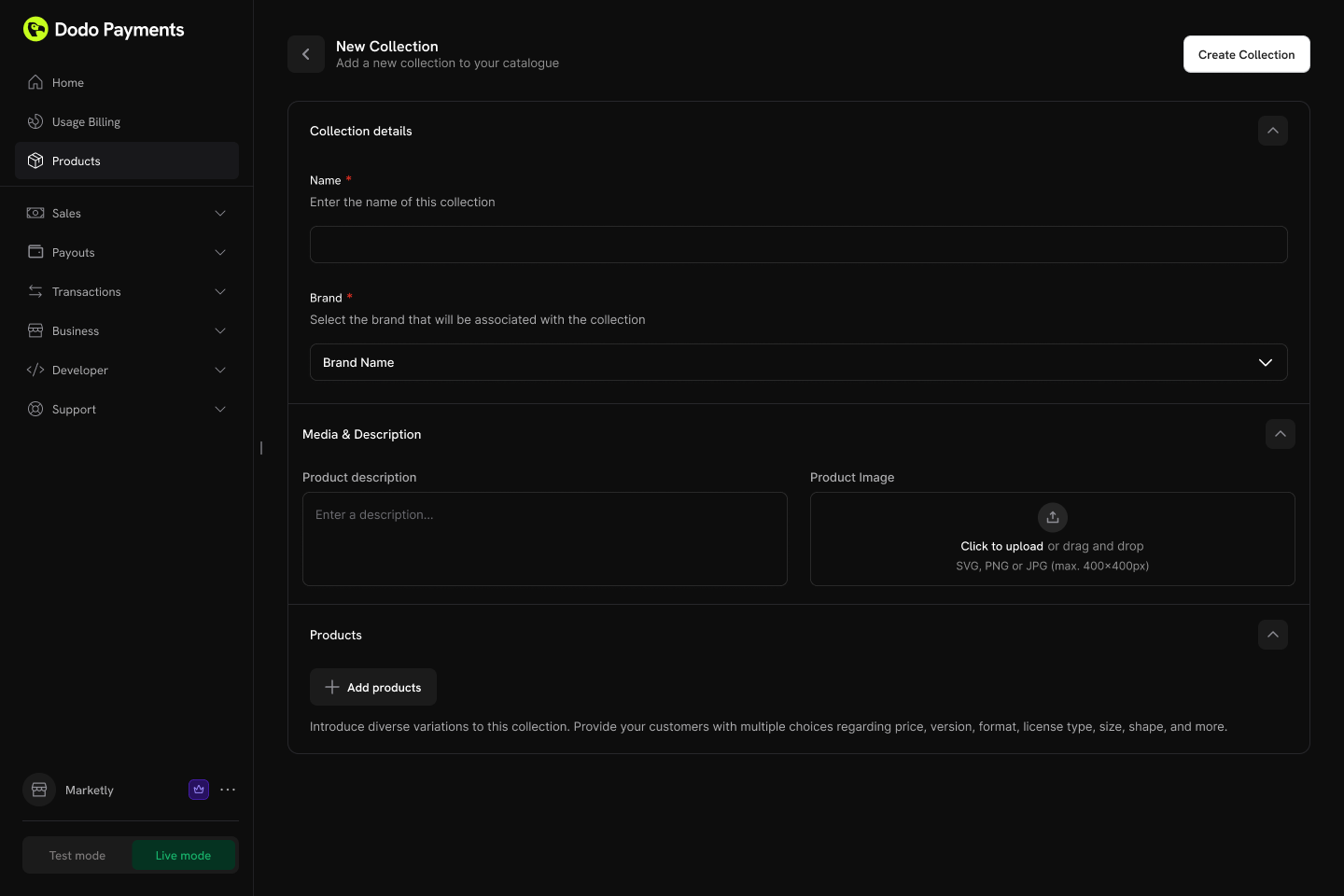
- Name(必填):显示名称(例如 “SaaS Plans”、“License Tiers”)。
- Description(可选):在结账时显示的简短说明。
- Image(可选):用于集合的视觉品牌元素。
2
Add products to the collection
将现有产品添加到集合中。将产品整理到不同组中,以获得更清晰的结构。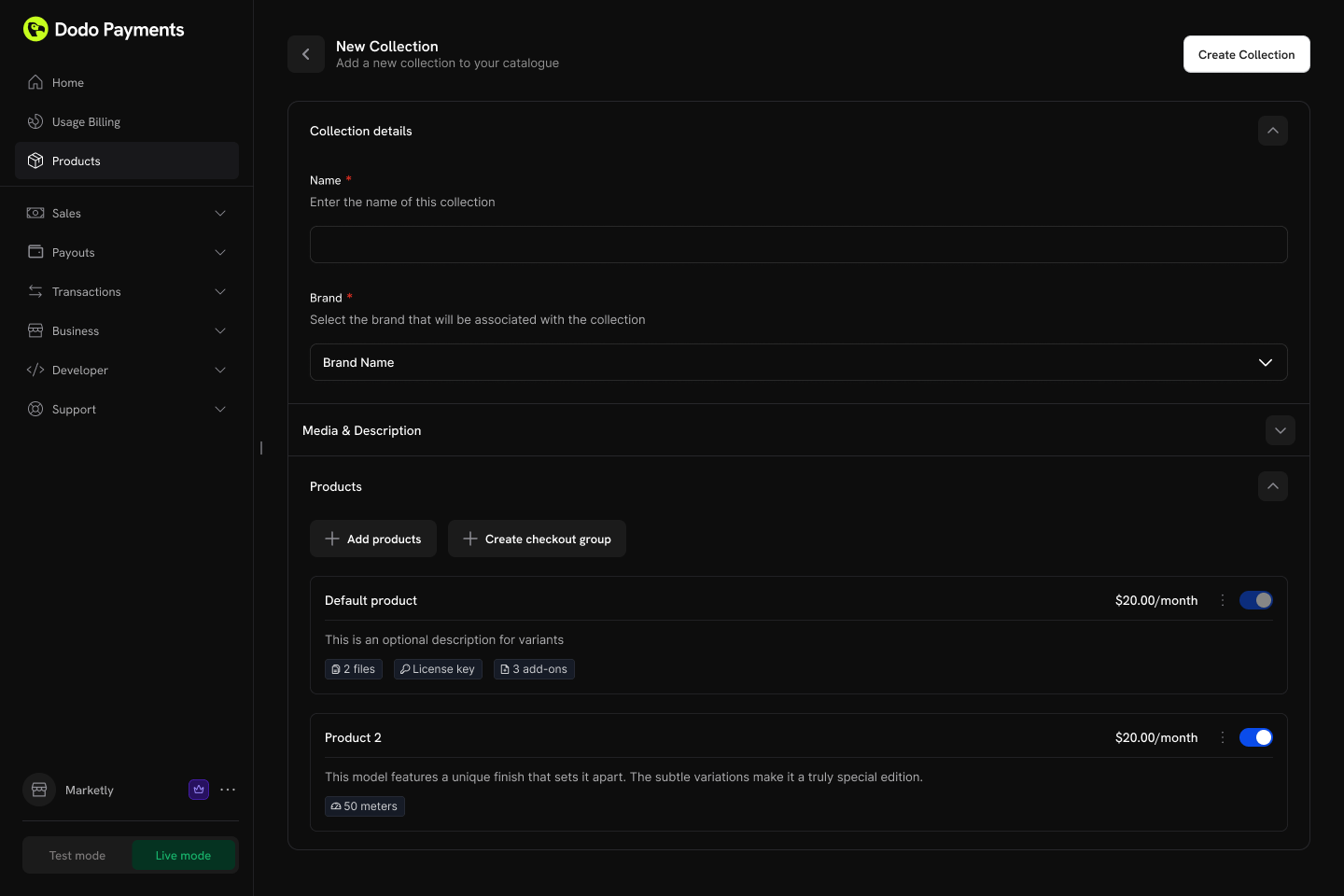
- Groups:可选地将产品整理到命名组中(例如 “Monthly Plans”、“Annual Plans”)。
- Ungrouped products:未分组的产品会显示在集合层级。
- Ordering:拖放以设置显示顺序。
3
Configure ordering and visibility
控制集合中产品的显示顺序和可见性。配置选项:
- Product status:启用或停用集合中的单个产品。
- Display order:拖放以设置产品在结账时的显示顺序。
集合中的第一个产品会在结账时自动预选。重新排列产品即可更改默认选中的产品。
集合结账
集合支持统一的结账体验,客户可以在一个位置查看并选择所有可用产品。结账类型
Collection Checkout 体验
使用集合结账时:- 集合中的所有活跃产品都会显示。
- 集合顺序中的第一个产品会自动预选。
- 每个产品都会显示其名称、描述和价格。
- 客户选择一个产品进行购买。
- 结账会使用所选产品的定价和计费设置继续进行。
API 集成
为集合创建结账会话:Customer Portal 集成
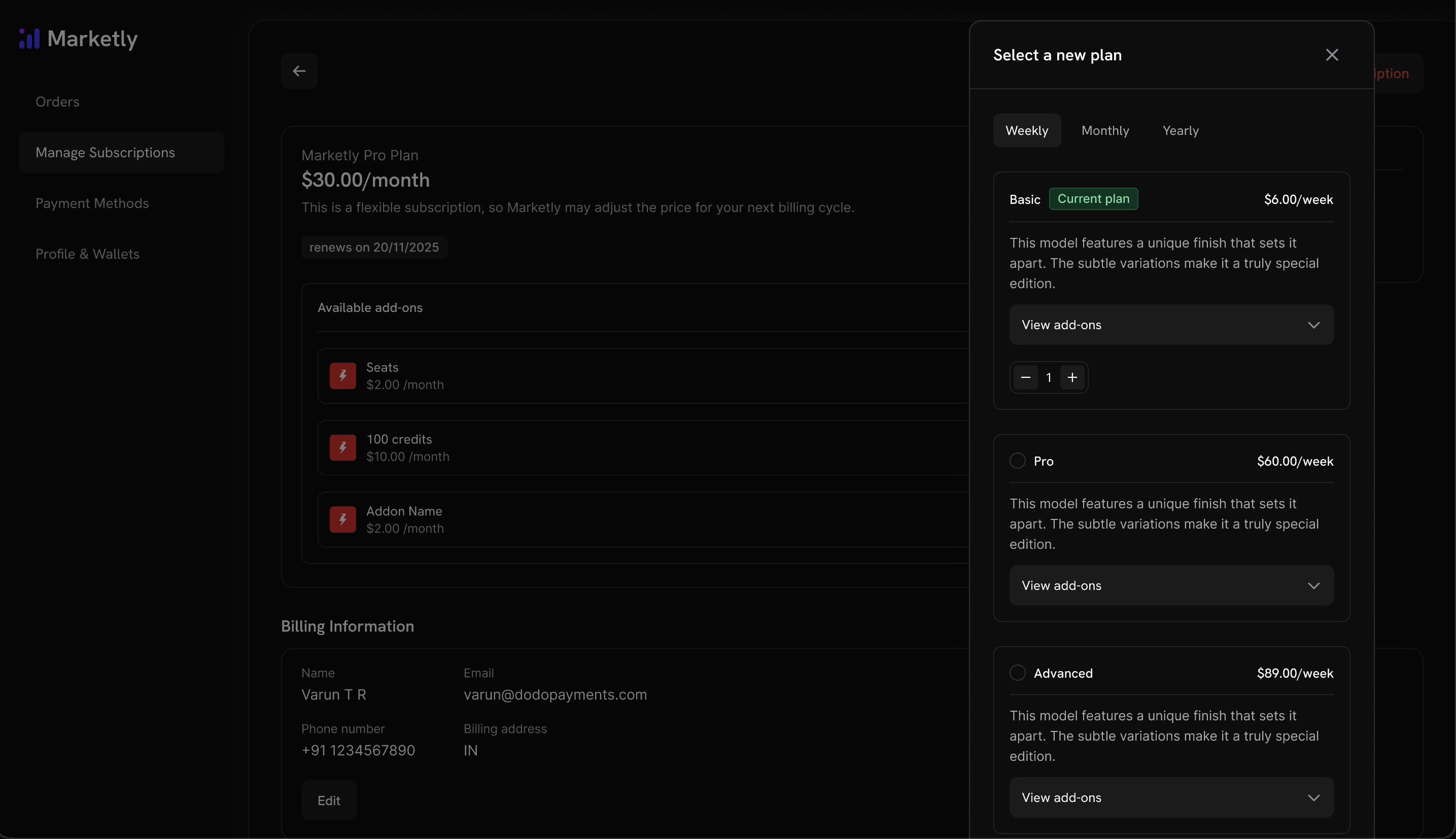
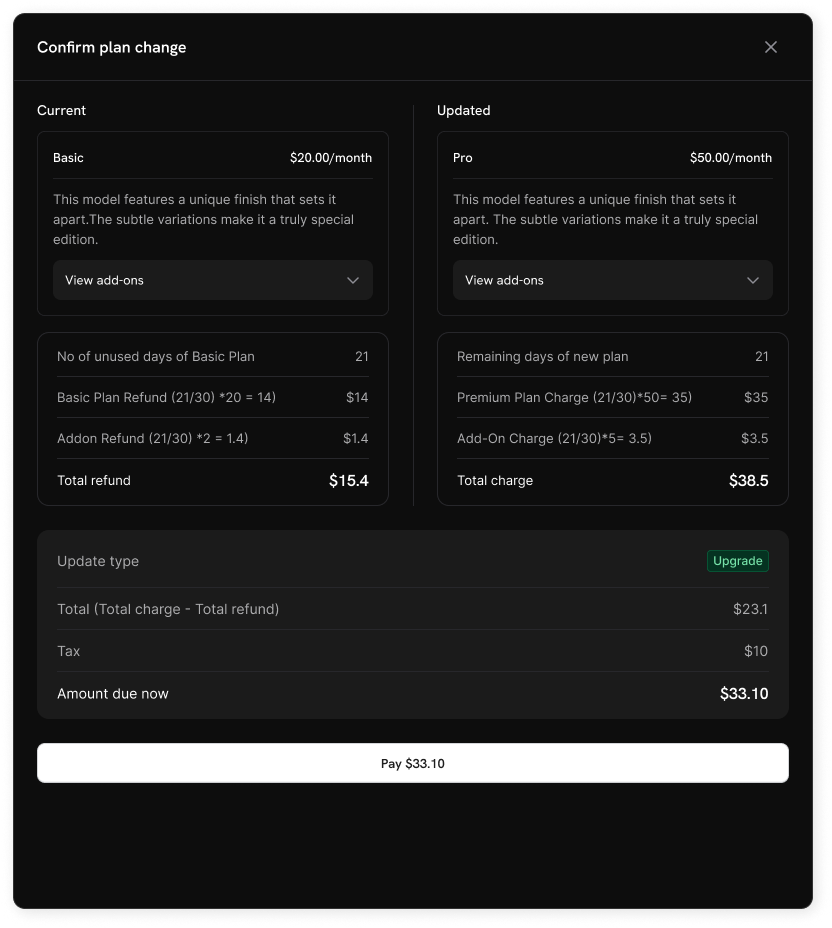
客户可以直接从 Customer Portal 在同一集合中的产品之间升级或降级。方案管理操作
升级/降级规则
- 只有同一集合中的产品之间支持升级和降级。
- Customer Portal 方案更改的按比例计费遵循 Settings → Subscriptions 中的默认升级和降级行为,每个集合都可以覆盖这些默认设置。通过 Change Plan API 进行的方案更改,会使用请求中发送的
proration_billing_mode。 - 每次升级、降级或取消时,都会向企业发送电子邮件通知。
客户无法切换到当前集合之外的产品。请为不同的产品线创建单独的集合。
订阅设置
您可以在控制面板的 Settings → Subscriptions 中配置企业范围内订阅和方案更改的工作方式。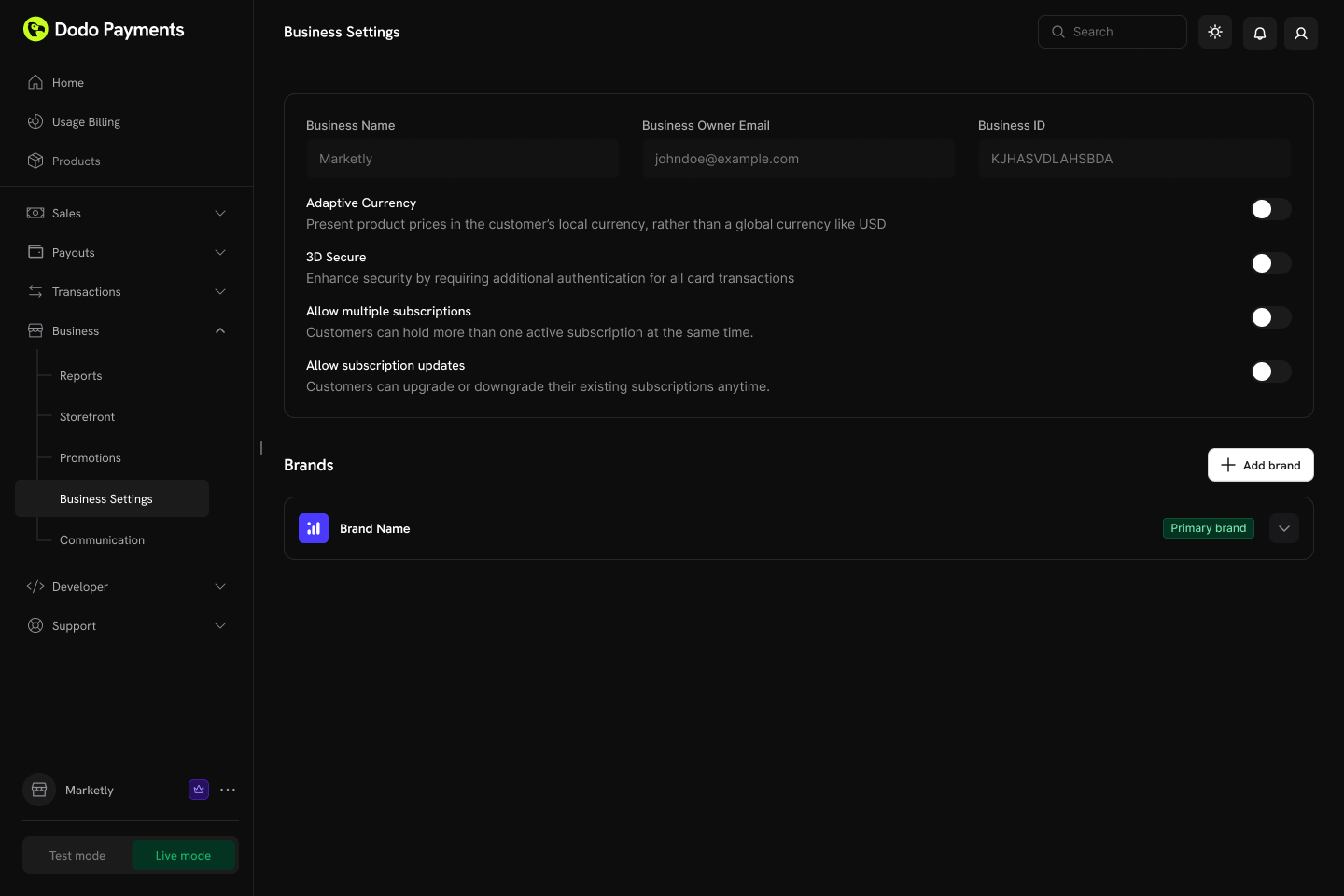
可用设置
默认情况下,通过 Customer Portal 进行的方案更改处于停用状态。请在 Settings → Subscriptions 中启用 “Allow Subscription Updates”,允许客户在同一集合中的产品之间升级或降级。
两个取消设置彼此独立,因此您可以允许客户使用已支付的剩余周期,同时仅保留即时取消给自己使用,也可以反过来设置。停用其中一个选项会在 Customer Portal 中隐藏该选项,并通过 Customer Portal API 拒绝相关请求。您在商户端发起的取消操作不受影响。请参阅取消订阅。
“Allow Subscription Pause” 仅控制 Customer Portal — 无论该设置如何配置,您都可以从控制面板或 API 暂停和恢复订阅。“Bill Usage at Pause” 仅适用于基于用量的订阅,并按计费周期记录,因此在周期中途更改该设置不会改变当前周期的结算方式。请参阅暂停和恢复订阅。
有关试用兑换如何匹配和记录的详细信息,请参阅防止试用滥用。
“Payment Method Reminder” 仅适用于启用了 Card-Optional at Zero Price 的订阅;对于已经要求添加卡片的订阅,该设置不会产生任何影响。完整流程(包括忽略提醒时会发生什么)请参阅没有卡片时会发生什么。
Subscription Plan Changes
管理集合
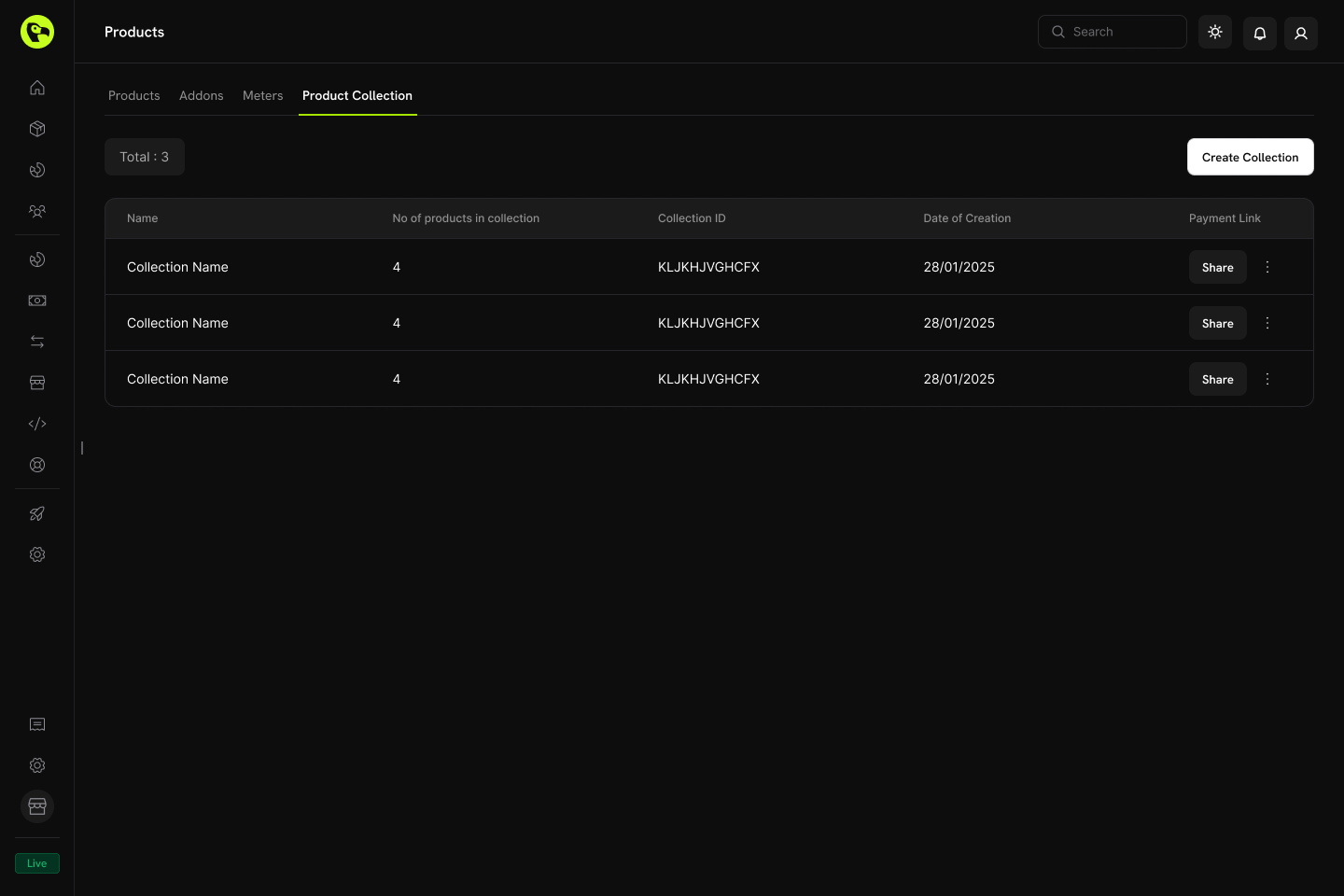
通过控制面板或以编程方式通过 API 管理集合。控制面板操作
- Create:使用产品和组设置新集合。
- Update:修改名称、描述、图片和产品组织方式。
- Reorder:拖放以更改产品显示顺序。
- Enable/Disable products:控制哪些产品显示在结账页面中。
- Archive:隐藏集合而不永久删除它(之后可以取消归档)。
API 管理
使用以下端点以编程方式创建、更新、获取、归档和组织 Product Collections,包括管理嵌套组和产品。Listing Product Collections
Listing Product Collections
使用
GET 请求 /product-collections 端点,获取与您账户关联的所有 Product Collections。支持分页、按品牌筛选以及包含已归档集合。List Product Collections API
Creating a Product Collection
Creating a Product Collection
通过向
/product-collections 端点发送 POST 请求,并提供产品的必填 name 和 groups,以及描述和品牌等可选详细信息,创建新的产品集合。Create Product Collection API
Retrieving a Product Collection
Retrieving a Product Collection
使用
GET 请求 /product-collections/{id} 端点,获取指定 Product Collection 的详细信息,包括其中的组和产品项。Get Product Collection API
Updating a Product Collection
Updating a Product Collection
通过向
/product-collections/{id} 端点发送 PATCH 请求,修改 Product Collection 的详细信息(名称、描述、品牌等)。Update Product Collection API
Uploading Collection Images
Uploading Collection Images
通过预签名 URL 上传图片,将图片与集合关联。向
/product-collections/{id}/images 端点请求上传 URL,然后在 60 秒内将图片 PUT 到返回的 URL。Update Collection Images API
Archiving a Product Collection
Archiving a Product Collection
向
/product-collections/{id} 端点发送 DELETE 请求,以归档集合。此操作会隐藏集合,使其无法用于新的用途,但不会永久删除它。Archive Product Collection API
Unarchiving a Product Collection
Unarchiving a Product Collection
向
/product-collections/{id}/unarchive 端点发送 POST 请求,以恢复已归档的集合。Unarchive Product Collection API
Managing Groups within a Collection
Managing Groups within a Collection
组可以帮助您整理集合中的产品(例如将 “Monthly Plans” 与 “Annual Plans” 区分开)。使用组端点在集合中添加、更新或移除组。
- Create a group:
POST /product-collections/{id}/groups - Update a group:
PATCH /product-collections/{id}/groups/{group_id} - Delete a group:
DELETE /product-collections/{id}/groups/{group_id}
Create Group
Update Group
Delete Group
Managing Products within a Group
Managing Products within a Group
管理组中的单个产品项 — 添加新产品、更新现有产品项(例如显示顺序),或将其完全移除。
- Add products to a group:
POST /product-collections/{id}/groups/{group_id}/items - Update a group item:
PATCH /product-collections/{id}/groups/{group_id}/items/{item_id} - Delete a group item:
DELETE /product-collections/{id}/groups/{group_id}/items/{item_id}
Add Products to Group
Update Group Item
Delete Group Item
最佳实践
- 合理分组:按计费周期(月度/年度)或功能层级(starter/pro/enterprise)组织产品。
- 策略性排序:将最受欢迎或推荐的方案放在首位,因为它会在结账时默认选中。
- 使用清晰的命名:产品名称应清楚传达价值差异。
- 启用双向更改:同时允许升级和降级,为客户提供灵活性。
- 考虑按比例计费:选择符合业务模式的按比例计费模式。
- 全面测试:在正式上线前,在测试模式下验证结账和方案更改流程。