Introduction

Multi-Brand lets you attach several brands, each with its own logo, descriptor, and website URL, to one verified business. Your payout account, fees, and KYC stay exactly the same, while every Product, Payment Link, Subscription, Invoice, and Transaction can now be filed under a specific brand. Use it to test new niches, localise a site, or separate B2B and B2C lines without opening extra business accounts.

Merchant Dashboard Flow

1

Open Settings → Business

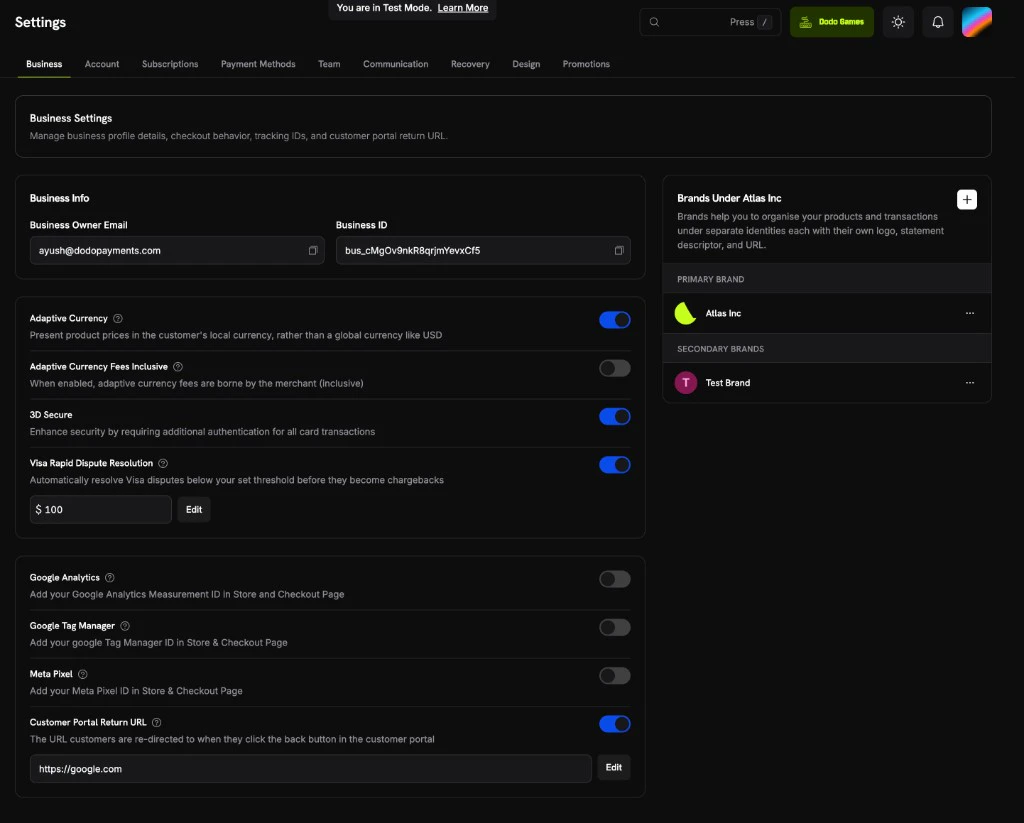
Navigate to Settings → Business. The Brands Under [Your Business] panel on the right lists your Primary brand and any Secondary brands.
Brands panel in Business Settings showing primary and secondary brands with a plus button to add a new brand
2

Click the '+' button

In the Brands panel, click the + button in the top-right corner to open the new brand form.
3

Fill in the brand details

Complete the following fields:
  • Brand Name (required): Enter your brand name.
  • Website URL (required): Your brand’s website, for example https://www.yourcompany.com.
  • Support Email: The email customers can use to reach support for this brand.
  • Brand Description (required): Describe your brand, products, and what makes it unique.
  • Brand Logo: Upload a logo to represent the brand on checkout, invoices, and payment links.
Submit the form to create the brand. Products can now be tagged to this brand and payment links will display its branding.
4

Brand Selector

A Brand filter is now visible on Product creation.
5

Brand ID in Transactions

Transactions and Subscriptions have a Brand ID to help you identify which brand the transaction belongs to.

Additional Points

  • No payout changes: All funds, payout cycles and fees still flow to the business-level wallet and merchant bank account.
  • Brand ID on webhooks: Payment, subscription, refund, dispute, license key, credit ledger entry, credit balance low, entitlement grant, dunning attempt, and abandoned checkout payloads all include a brand_id, so you can attribute them to a specific brand. Where an entity has no brand of its own, brand_id falls back to the business’s primary brand. Payout payloads are business-level and do not carry a brand_id.
  • Suspensions: If a brand is suspended, only its payment links stop. Other brands under the same business keep transacting.
  • No changes to Storefront, Invoices, License Keys, Discount Codes, Payout Settings and any other business level features.

Archiving a Brand

When a brand has run its course, archive it instead of leaving it dormant in your dashboard. Archiving retires the brand and hands its catalogue to another brand of the same business in a single step.
Archiving a brand is permanent. There is no way to restore an archived brand.

Archive a Brand from the Dashboard

1

Open the brand's actions menu

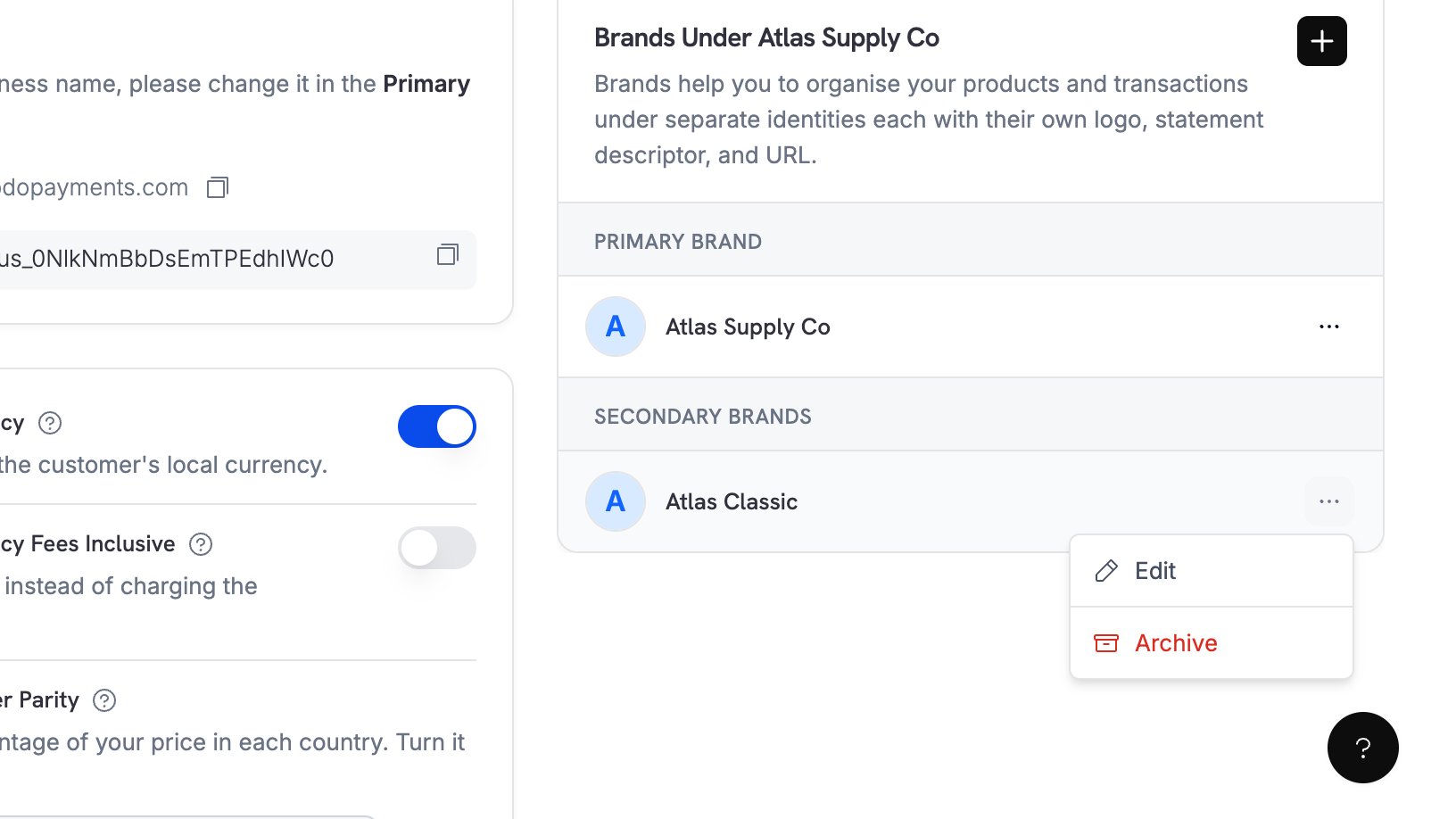
Go to Settings → Business. In the Brands Under [Your Business] panel, select the ... menu next to the secondary brand, then select Archive. The primary brand has no archive action.
Brand actions menu showing the Edit and Archive options for a secondary brand
2

Confirm the archive

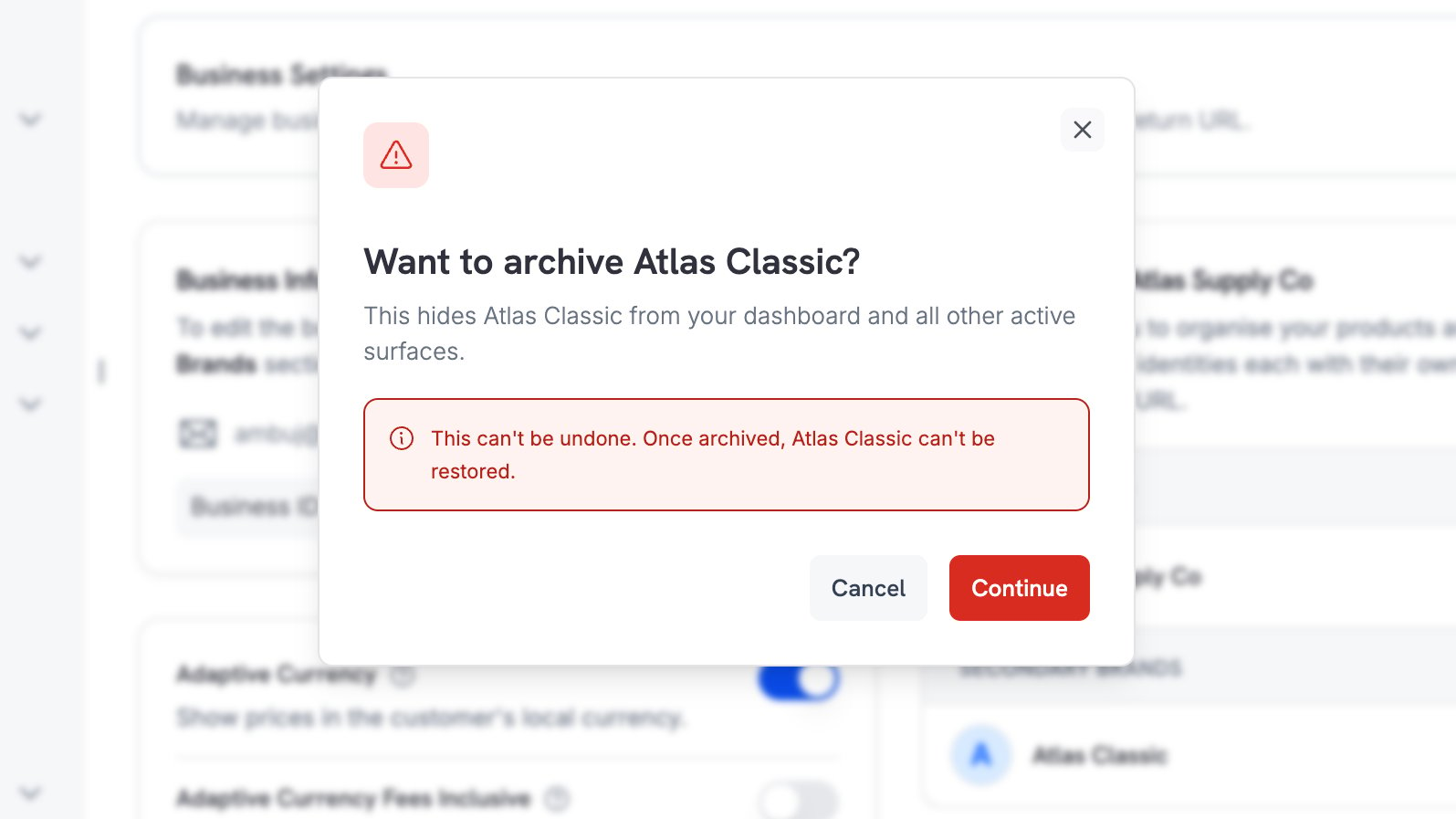
Read the warning and select Continue.
Dialog warning that the brand cannot be restored once archived
3

Choose the brand that takes over

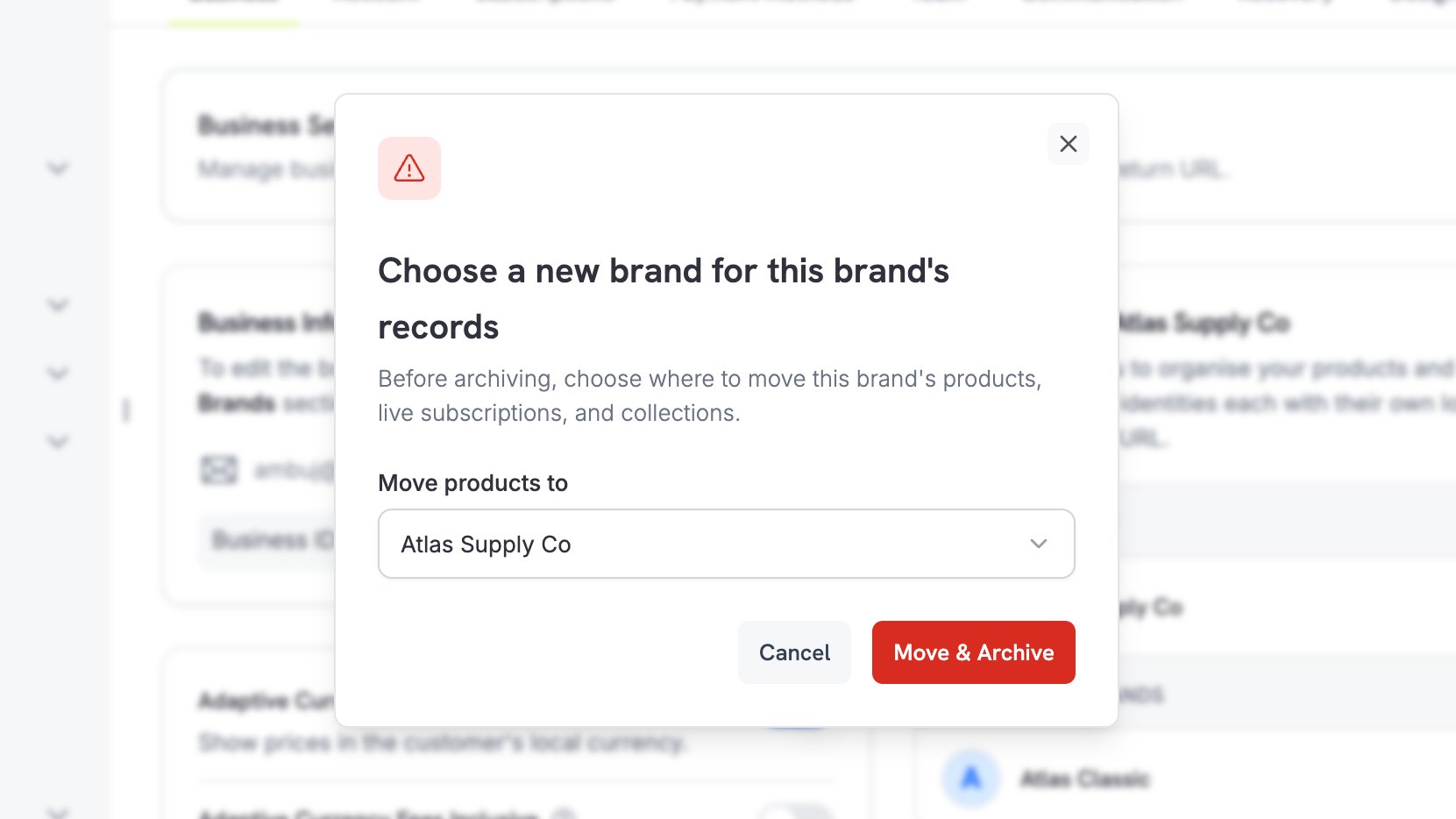
Select the brand that receives the products, live subscriptions, and collections. The primary brand is the default. Select Move & Archive to complete both actions together.
Dialog to choose the brand that receives the archived brand's records
4

Check the result

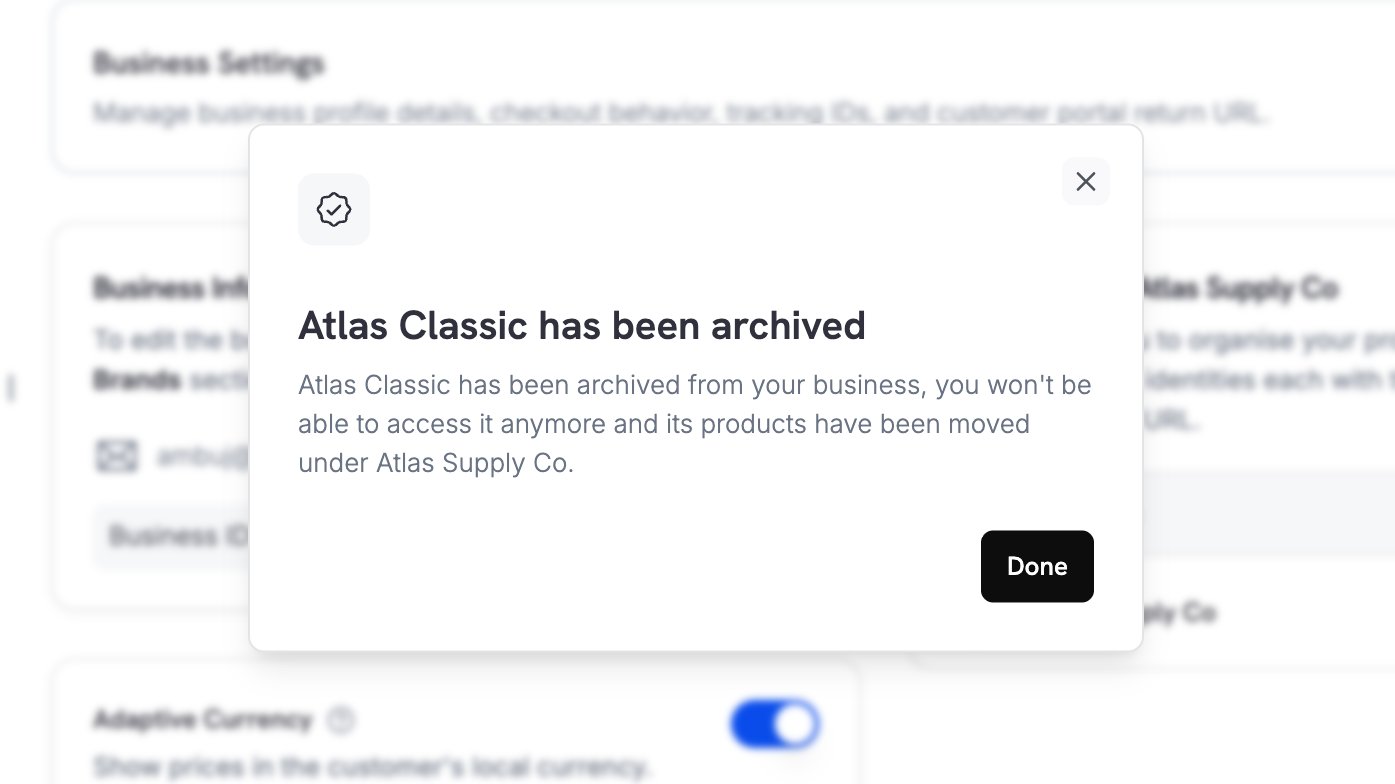
The confirmation names the brand that received the records.
Confirmation that the brand is archived and its products moved to the target brand
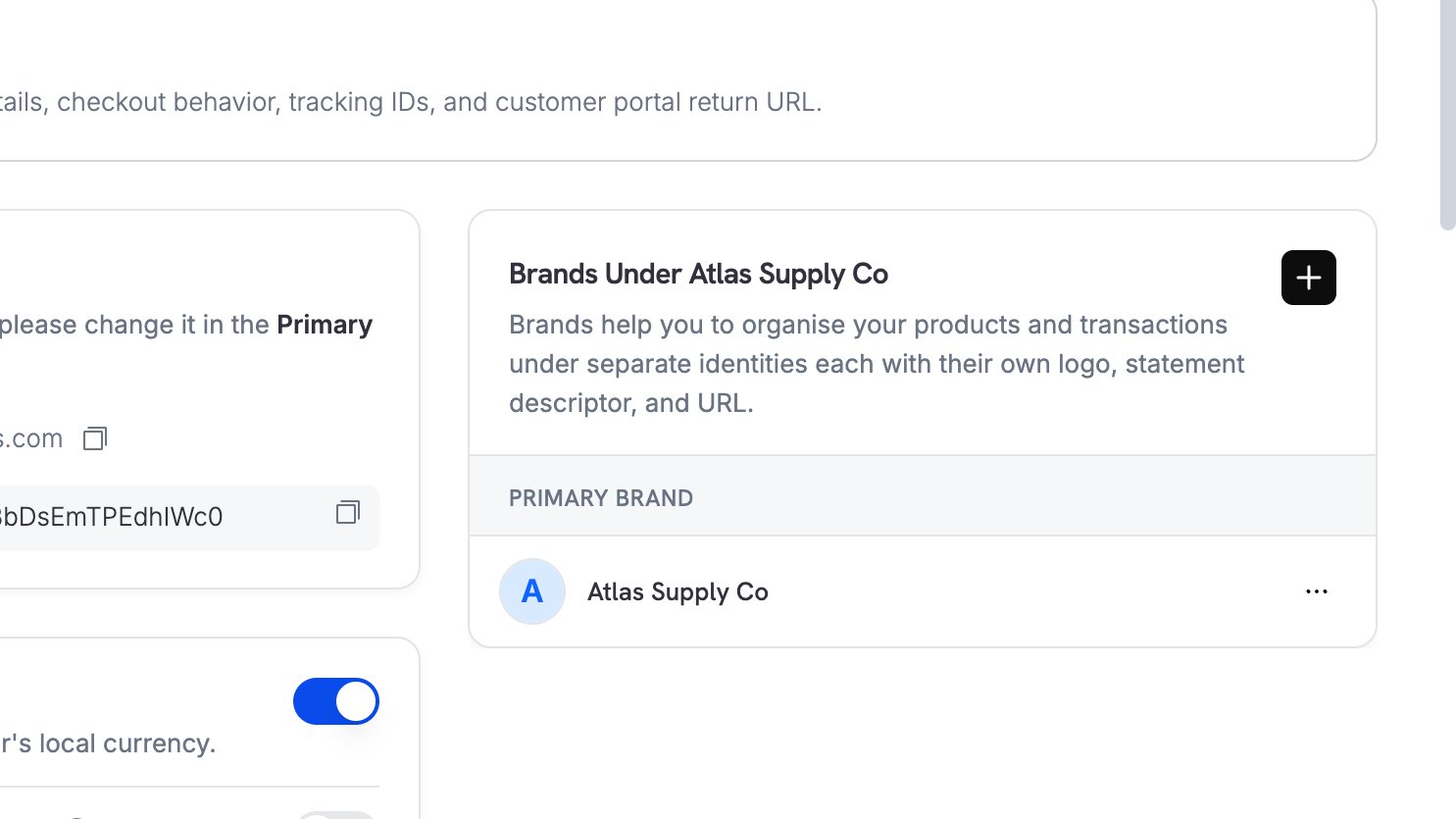
The archived brand leaves the Brands panel. When the business has no other secondary brand, the Secondary Brands group disappears with it.
Brands panel after the archive, showing only the primary brand

What Happens When You Archive

You nominate a target brand to take over from the brand you are archiving. The dashboard always asks for one, and the API takes it as move_products_to. In one atomic action, Dodo Payments:
  • Moves every product to the target brand.
  • Moves every live subscription to the target brand, so renewals continue to bill under it.
  • Moves every product collection to the target brand.
  • Archives and disables the original brand.
Your history is untouched. Payments, invoices, and finished subscriptions keep the brand they were created under, so past reporting stays accurate. The target brand must belong to the same business and must not itself be archived. Your primary brand is a valid target, and its brand ID is your business ID. You can omit the target only when the brand holds no products, no live subscriptions, and no product collections.
The primary brand can never be archived. It is the brand your business falls back to, so at least one brand always remains.

An Archived Brand Is Read-Only

Archived brands are hidden from brand pickers, so you cannot tag new records to them. They remain available as analytics filters, which keeps your per-brand reporting complete for the period the brand was trading. See Analytics.

Archiving Through the API

Call the archive endpoint with the brand you are retiring and the brand that takes over:
The response reports what moved, so you can confirm the outcome:
To list brands including the archived ones, set include_archived on the list endpoint. Archived brands are excluded by default. Every brand carries an archived_at field, which is null while the brand is active.
cURL
See the Archive Brand API reference for the full request and response schema, and Error Codes for the errors this endpoint returns.
最后修改于 2026年8月23日