Breaking Changes
The booleanpause field on PATCH /subscriptions/{subscription_id} has been removed. It now always fails with 422 instead of silently doing nothing, so an integration still sending it gets a loud error rather than a subscription that never pauses.
Pause and resume moved to the status field: send {"status": "paused"} to pause and {"status": "active"} to resume. There is no separate pause endpoint. Either value must be sent on its own — combining it with any other field is also rejected with 422.
If you integrated against the pause API as previously documented, update those calls before upgrading.
Learn more: Pausing and Resuming Subscriptions
New Features
1. Subscription Pause & Resume
Merchants can now pause and resume subscriptions directly from the subscription detail page in the dashboard. Customers can pause from the Customer Portal when allowed by your business settings. Merchant controls Pause or resume a subscription using the Pause subscription or Resume subscription button on the subscription detail page.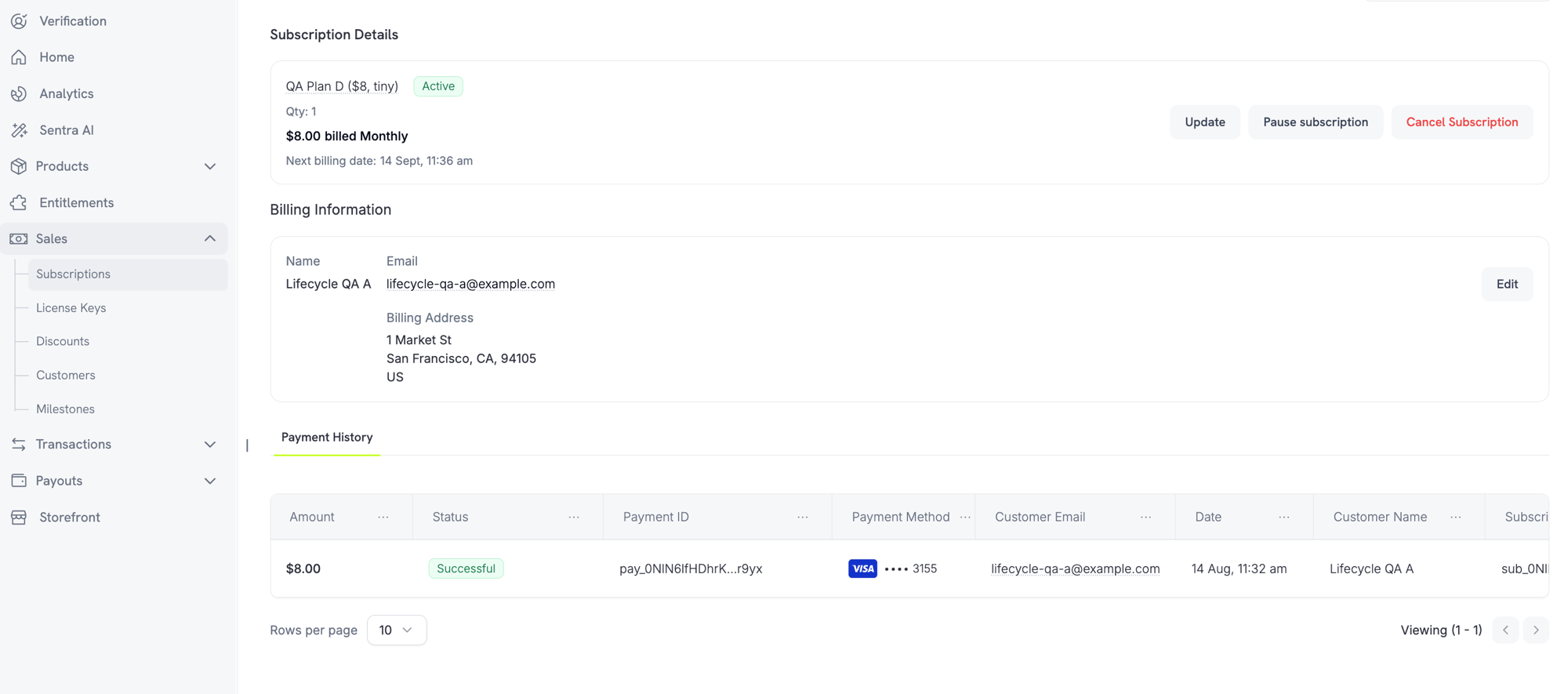
- Allow Subscription Pause — “Let customers pause and resume their subscription anytime from the customer portal”
- Bill Usage at Pause — “Bill a usage-based subscription for its owed usage the moment it is paused”
2. Purchasing Power Parity
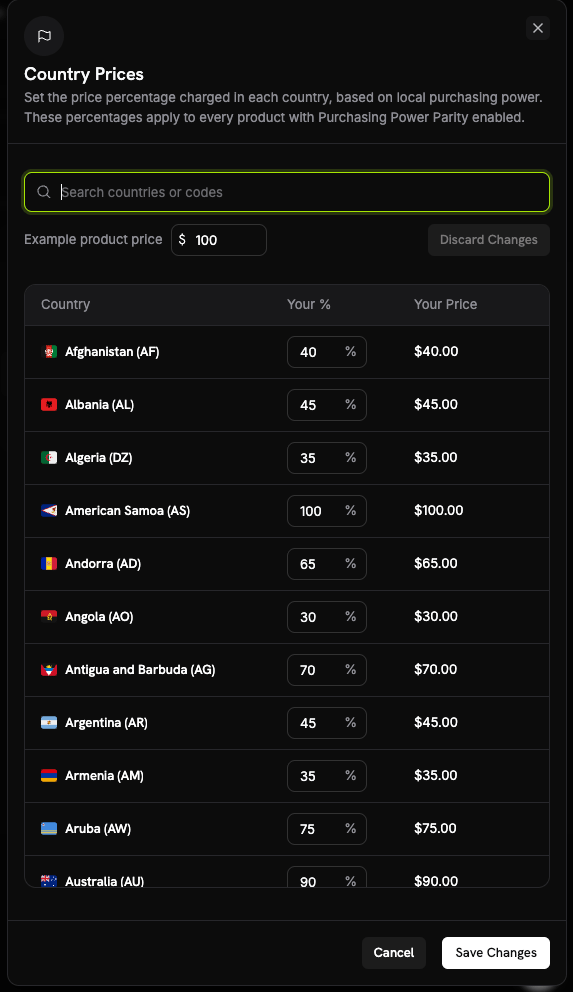
Native PPP replaces relying on third-party tools. Set a percentage per country, business-wide, from the Country Prices sheet in Business Settings. Those percentages apply to every product with PPP enabled. How it works- Each product opts in individually via a Purchasing Power Parity checkbox in the product’s pricing section.
- PPP requires Adaptive Currency to be enabled. If Adaptive Currency is off for the business, product opt-in is rejected.
3. Charm Pricing
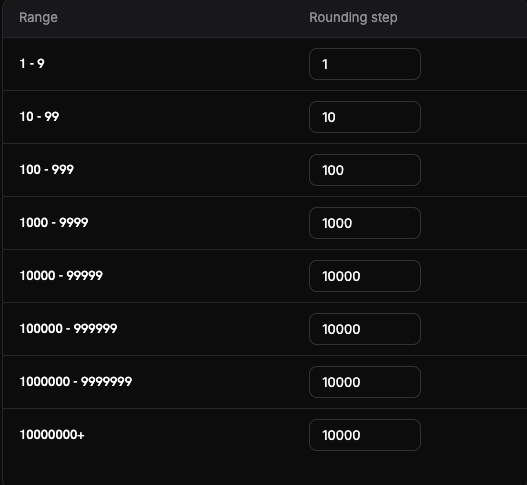
Round converted prices to psychologically appealing values, configured from the Set up Charm Pricing sheet in Business Settings. A rounding step is set per price range (band), so small and large prices round differently. Rounding types Choose from four rounding types (Nearest is the recommended starting point):- Nearest — round to the nearest step
- Floor — round down
- Ceiling — round up
- Whole — round to whole numbers
4. Archive Businesses & Brands
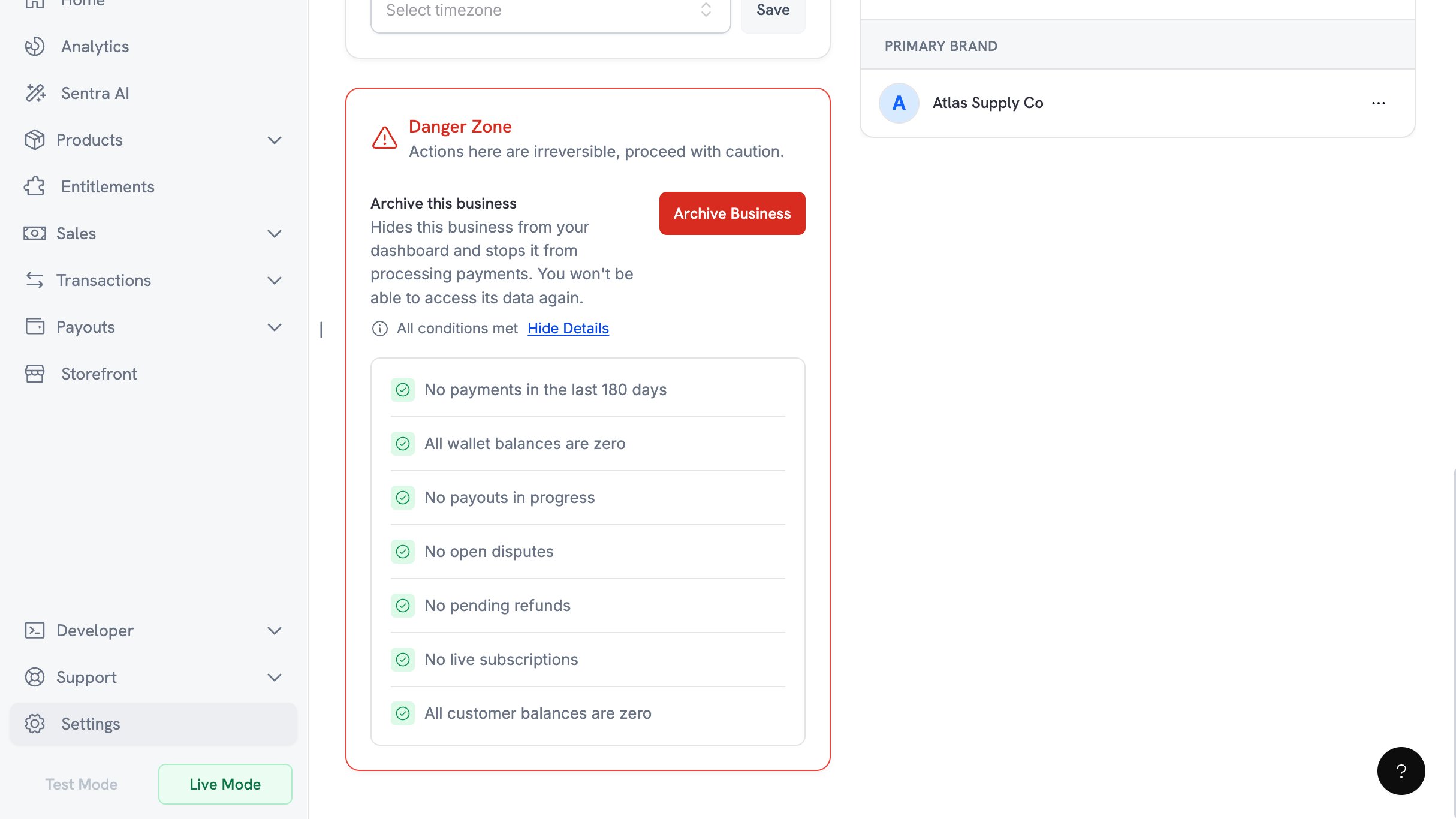
Archive a business you no longer trade under, from Business Settings → Danger Zone → Archive Business. This action is owner-only and cannot be undone. Eligibility checklist Seven conditions must all pass before archiving is allowed:- No payments in the last 180 days
- All wallet balances are zero
- No payouts in progress
- No open disputes
- No pending refunds
- No live subscriptions
- All customer balances are zero
5. Milestones
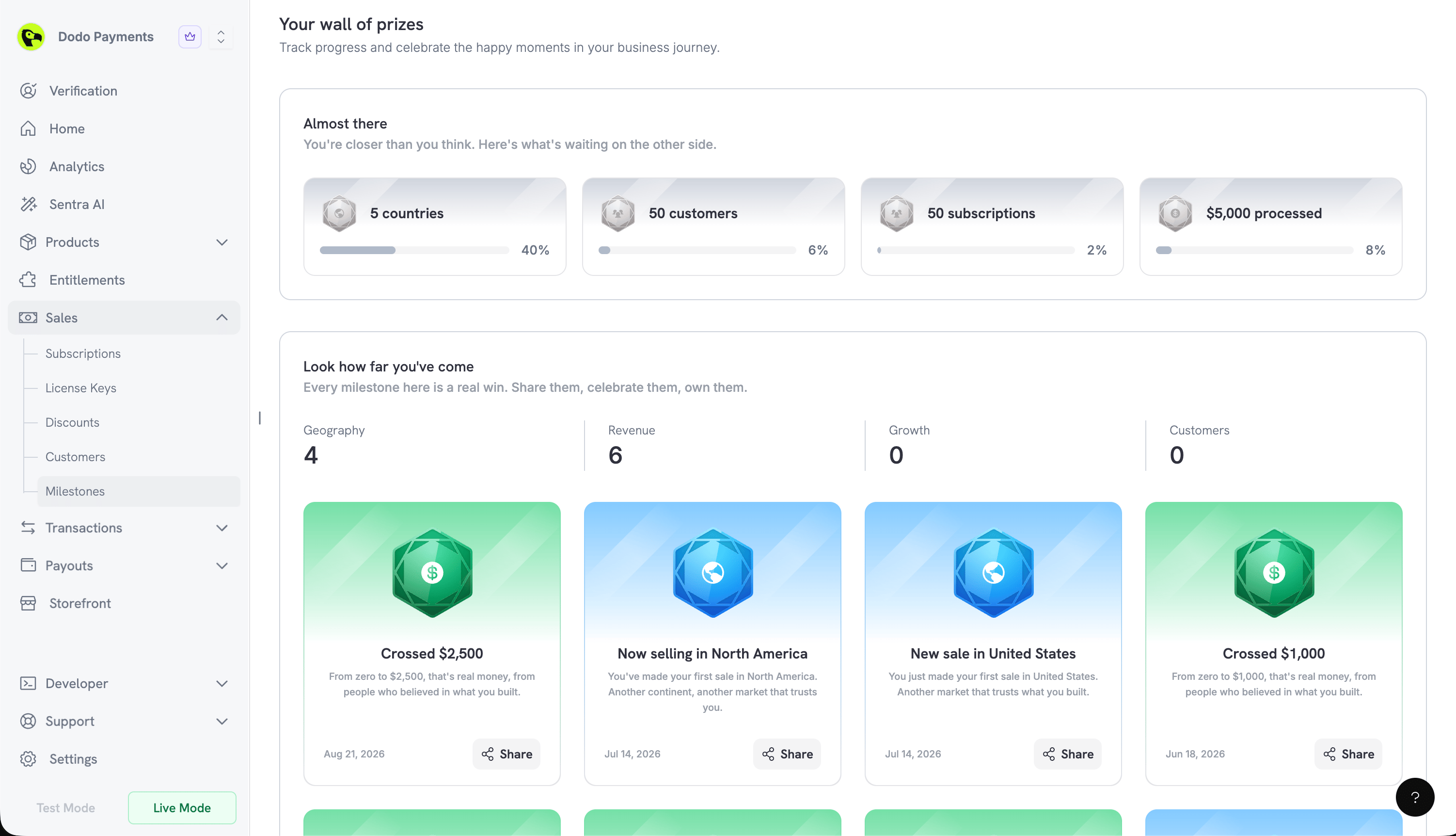
A new Milestones page celebrates your business growth, at Sales → Milestones in the dashboard. Four categories track your progress: Geography, Revenue, Growth, and Customers. Progress and achievement cards- Almost there shows the milestones within reach, each with a percentage complete
- Look how far you’ve come celebrates the ones you have already earned