Documentation Index
Fetch the complete documentation index at: https://docs.dodopayments.com/llms.txt
Use this file to discover all available pages before exploring further.
New Features
1. Subscription Payment Retries
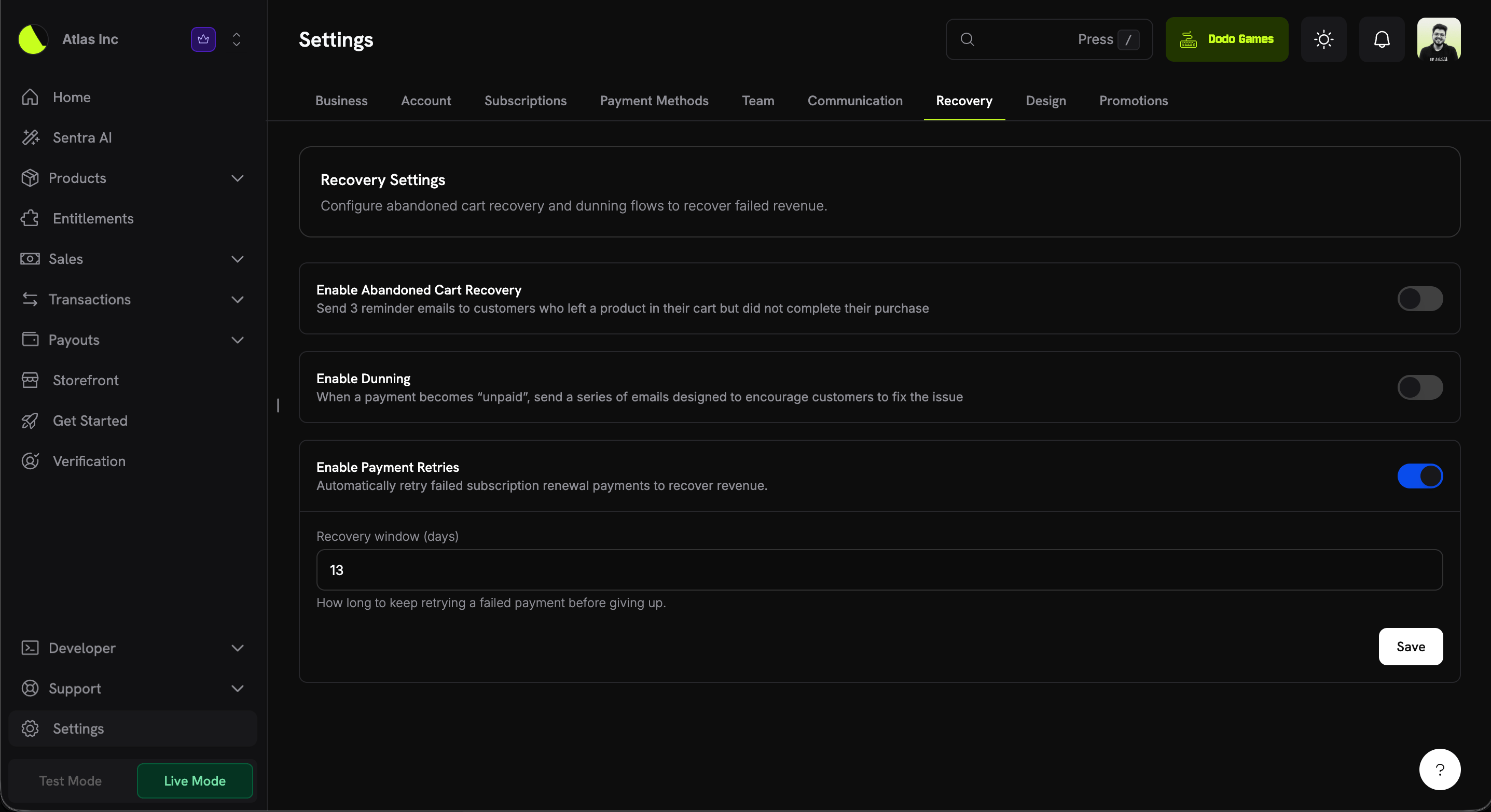
Failed subscription renewal payments can now be retried automatically to recover revenue, with no integration work required. Enable it from Settings → Recovery, set a recovery window, and Dodo Payments retries the renewal on a smart schedule until it succeeds or the window closes.
| Setting | Description | Default |
|---|
| Enable Payment Retries | Automatically retry failed subscription renewal payments to recover revenue. | Off (opt-in) |
| Recovery window (days) | How long to keep retrying a failed payment before giving up (1–30). | 13 |
- A subscription renewal payment fails and the subscription moves to
on_hold.
- If the decline is retryable (a soft decline such as insufficient funds or a temporary network error), the next attempt is scheduled automatically.
- Retries fire off-session on a back-off schedule, bounded by your recovery window.
- On the first successful retry, the subscription returns to
active and the next billing date is advanced as normal.
Retry schedule
Retries back off progressively, anchored to the time the failed invoice was created. Up to 8 attempts are made, as long as they fit inside your recovery window:
| Attempt | Delay after previous |
|---|
| 1 | 12 hours |
| 2 | 24 hours |
| 3 | 48 hours |
| 4 | 72 hours |
| 5 | 96 hours |
| 6 | 120 hours |
| 7 | 7 days |
| 8 | 7 days |
Only soft declines are retried (e.g. insufficient funds, generic decline, processing or network errors). Hard declines end the retry chain immediately, since retrying won’t change the outcome.
2. Business Proration Settings
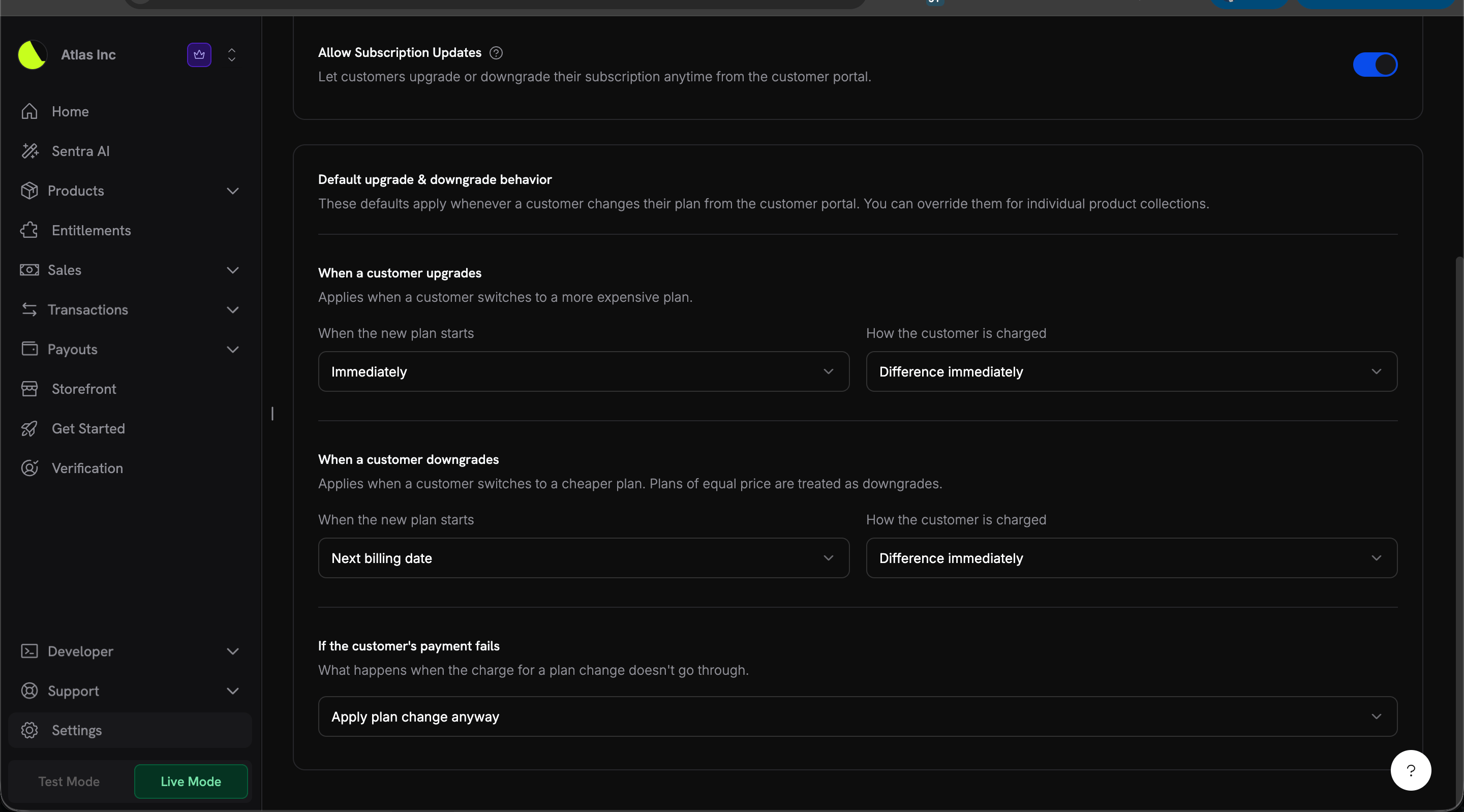
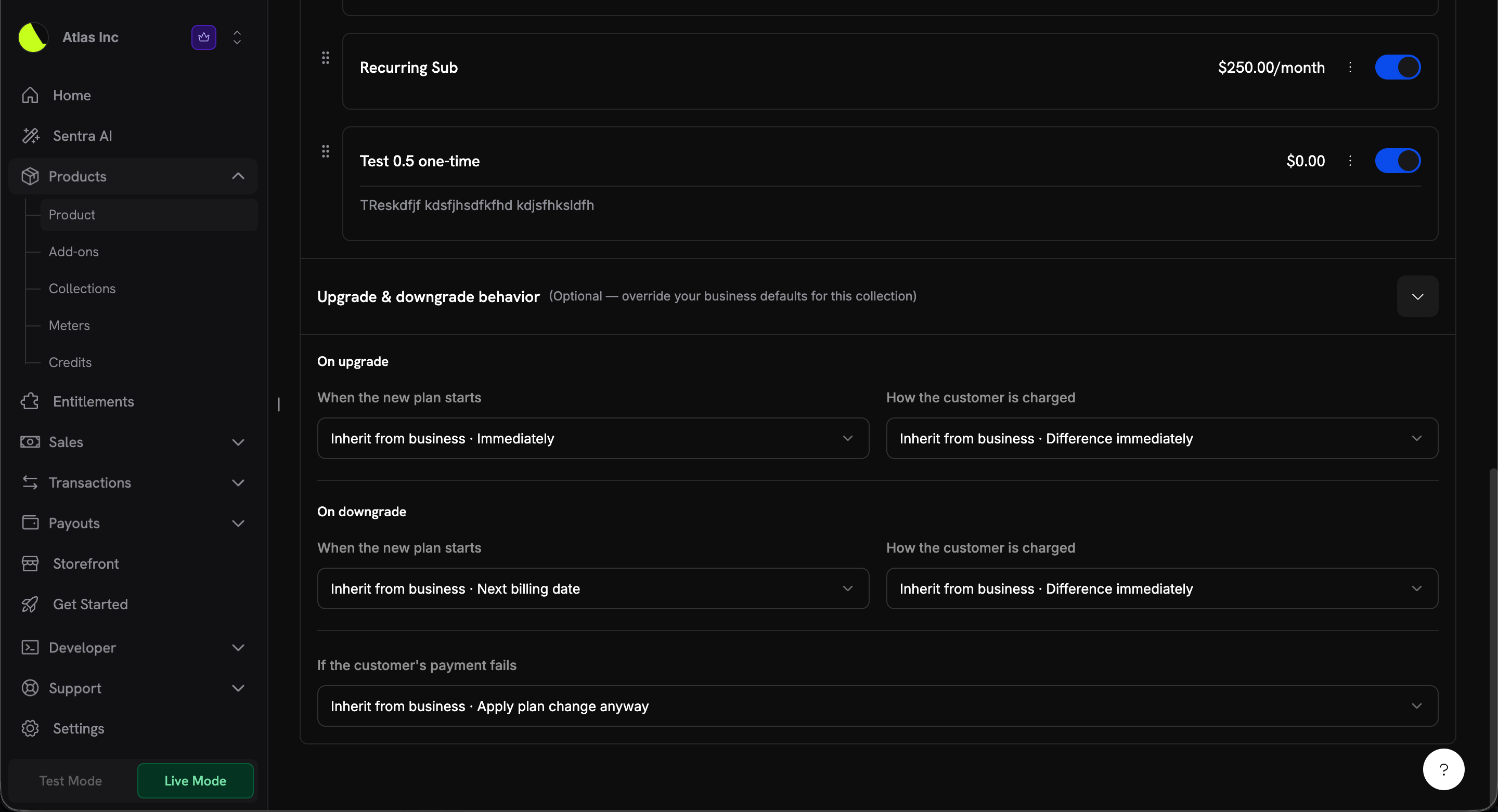
You can now set default upgrade & downgrade behavior once at the business level instead of passing proration parameters on every plan change. These defaults apply whenever a customer changes their plan from the customer portal, and you can override them per product collection.
Each direction (upgrade and downgrade) has two independent controls, plus a shared payment-failure policy:
| Setting | Field | Default (upgrade) | Default (downgrade) |
|---|
| When the new plan starts | effective_at_on_upgrade / effective_at_on_downgrade | immediately | next_billing_date |
| How the customer is charged | proration_billing_mode_on_upgrade / proration_billing_mode_on_downgrade | difference_immediately | difference_immediately |
| If the customer’s payment fails | on_payment_failure | apply_change | apply_change |
effective_at)
| Value | Behavior |
|---|
immediately | The customer moves to the new plan right away. |
next_billing_date | The customer stays on their current plan until the next billing date, then switches to the new one. |
proration_billing_mode)
| Value | Behavior |
|---|
prorated_immediately | Charge a prorated amount now, based on the time left in the current billing cycle. |
full_immediately | Charge the full price of the new plan right now. |
difference_immediately | Charge only the price difference between the new plan and the current one. |
do_not_bill | Don’t charge anything now. Any adjustment is applied on the next invoice. |
on_payment_failure)
| Value | Behavior |
|---|
prevent_change | Keep the customer on their current plan if the payment doesn’t go through. |
apply_change | Move the customer to the new plan even if the payment doesn’t go through. You can collect the amount later. |
per-request value (Change Plan API) → collection field (if set) → business field → system default
A per-request value passed to the Change Plan API (proration_billing_mode, effective_at, on_payment_failure) always takes precedence over both the collection and business defaults. The new settings only change what happens when no explicit value is supplied — which is the case for all customer-portal plan changes. 3. Collect Business Name for B2B Invoices
B2B customers can now have their legal business name rendered on the invoice instead of the buyer’s personal name. When a valid Tax ID is supplied at checkout, you can also collect the associated customer_business_name so the invoice reflects the purchasing entity.
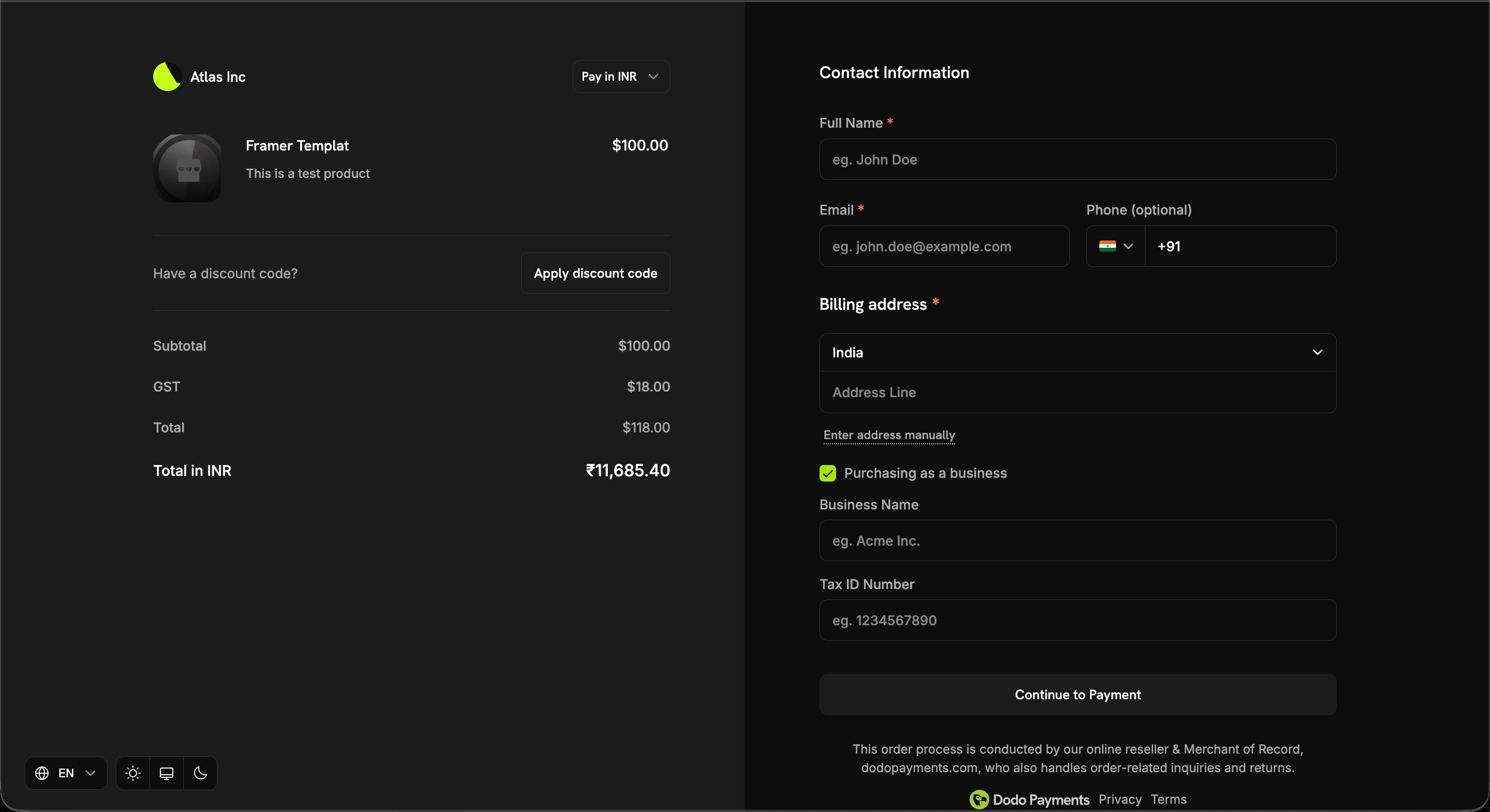
When the customer selects Purchasing as a business at checkout, they’re prompted for both a Business Name and a Tax ID Number.
The business name appears on the invoice only when all three conditions are met:
- The transaction is B2B (
b2b = true)
- A
tax_id is present
- A non-empty
customer_business_name is supplied
Otherwise the customer’s personal name is used.
Collecting it at checkout
Set customer_business_name directly, and/or enable allow_customer_editing_business_name to let the customer enter or edit it on the checkout page alongside their Tax ID:
const session = await client.checkoutSessions.create({
  product_cart: [{ product_id: 'prod_abc', quantity: 1 }],
  customer: { email: 'buyer@acme.com' },
  tax_id: 'GB123456789',
  customer_business_name: 'Acme Corp Ltd',
  feature_flags: {
    allow_tax_id: true,
    allow_customer_editing_business_name: true // let the customer enter/edit it
  },
  return_url: 'https://yoursite.com/return'
});
| Surface | Field | Notes |
|---|
| Checkout Sessions | customer_business_name, feature_flags.allow_customer_editing_business_name | Max 250 chars; flag defaults to false |
| Payments | customer_business_name | Max 250 chars |
| Subscriptions | customer_business_name | Set or clear via PATCH /subscriptions/{id} |
customer_business_name cannot be set without a tax_id. Sending a business name with no Tax ID is rejected. Clearing the tax_id also clears the business name, since the two are coupled on the invoice.
Surrounding whitespace is trimmed, and whitespace-only values are treated as an explicit clear — so stored data always matches what’s rendered on the invoice.
Bug Fixes & Improvements
- Minor bug fixes and stability improvements across the platform.