

Introduction
Multi-Brand låter dig köra flera varumärken under ett verifierat företag. Varje varumärke har eget namn, egen logotyp, eget kontoutdragsnamn och egen URL. Ditt utbetalningskonto, dina avgifter och din KYC förblir gemensamma på företagsnivå, medan varje produkt, betalningslänk, prenumeration, faktura och transaktion registreras under ett specifikt varumärke. Använd varumärken för att testa en ny nisch, driva en lokaliserad webbplats eller separera B2B- och B2C-produktlinjer utan att öppna ytterligare ett företagskonto. Ett varumärke som behöver en egen juridisk enhet, KYC eller ett eget utbetalningskonto behöver i stället ett separat företag. Se Hantera flera företag.Flöde i Merchant Dashboard
1
Open Settings → Business
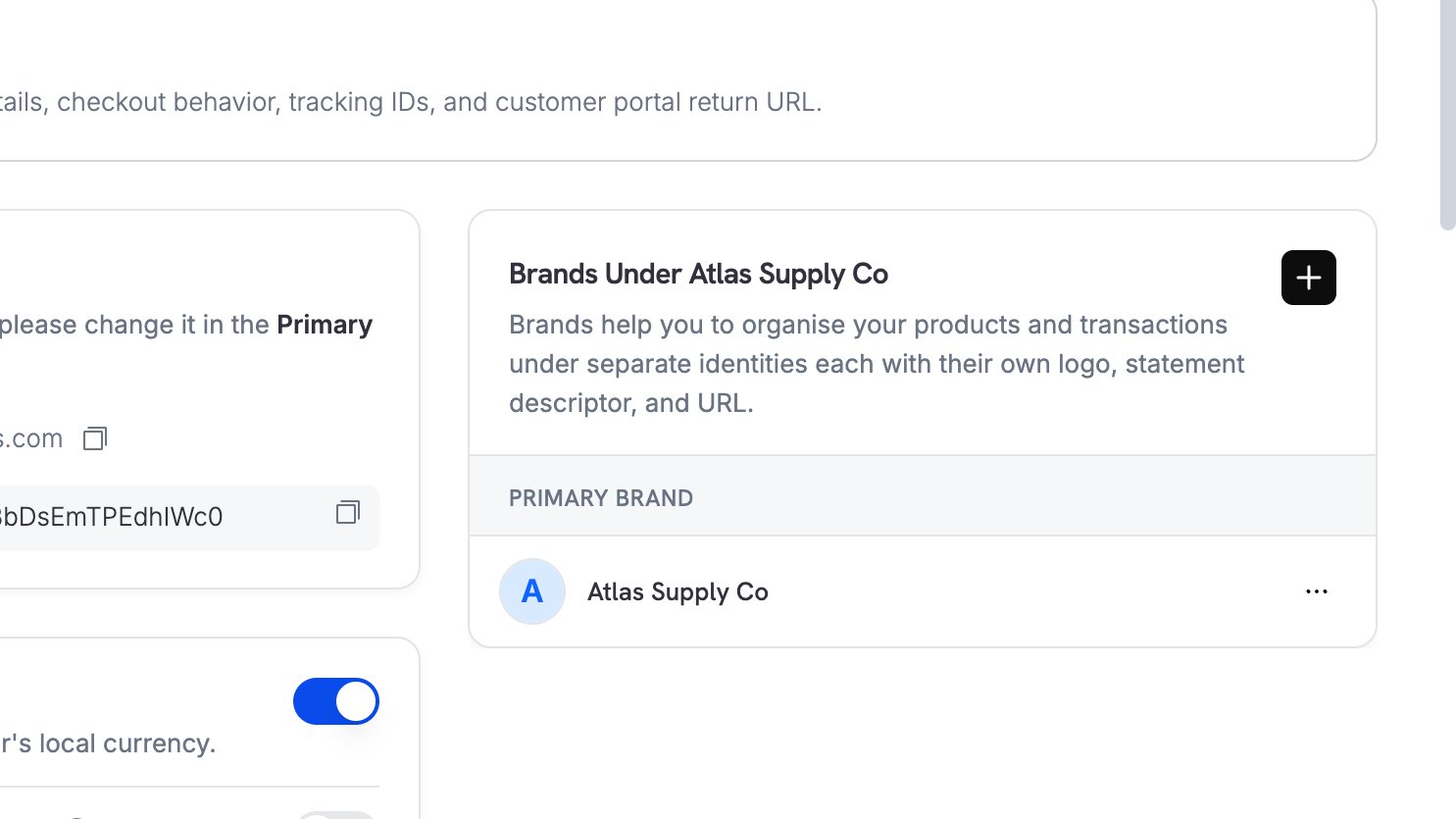
Gå till Settings → Business. Panelen Brands Under [Your Business] visar ditt Primary Brand och eventuella Secondary Brands.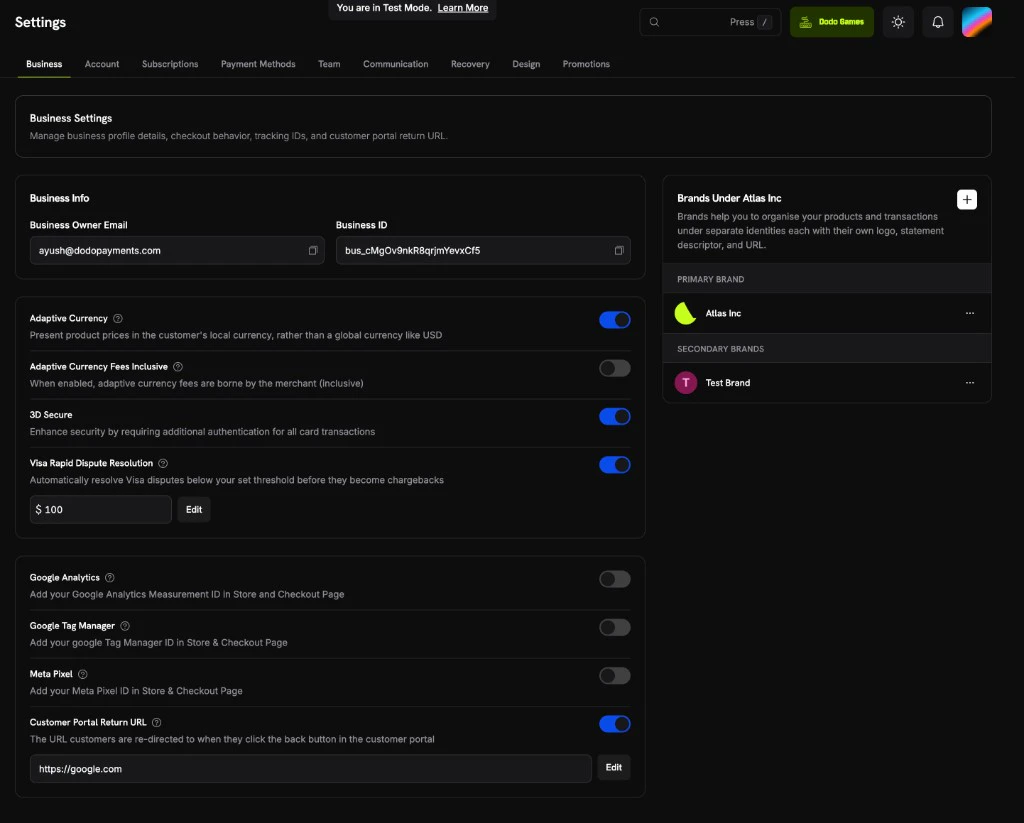
2
Click the + Button
Klicka på knappen + längst upp till höger i panelen Brands för att öppna formuläret för ett nytt varumärke.
3
Fill In the Brand Details
Fyll i följande fält:
- Brand Name (obligatoriskt): Minst 2 tecken och måste skilja sig från namnen på dina andra varumärken.
- Support Email: Den adress som kunder använder för att kontakta supporten för detta varumärke.
- Brand Description (obligatoriskt): Minst 10 tecken. Beskriv varumärket, dess produkter och vad som skiljer det från andra.
- Brand Logo: Representerar varumärket i checkout, fakturor och betalningslänkar. Godkända format är PNG, JPEG, GIF, WebP, ICO och SVG. Alla andra format avvisas med ett
422-fel.
...-meny och väljer Edit.4
Select the Brand on Products
När du skapar en produkt väljer du dess varumärke i fältet Brand.
5
Find the Brand ID in Transactions
Transaktioner och prenumerationer visar ett Brand ID, så att du kan se vilket varumärke varje post tillhör.
Ytterligare information
- Inga ändringar av utbetalningar: Medel, utbetalningscykler och avgifter förblir på företagsnivå och går till företagets plånbok och ditt bankkonto.
- Varumärkes-ID i webhooks: Nyttolaster för betalningar, prenumerationer, återbetalningar, licensnycklar, poster i kreditreskontran, lågt kreditsaldo, beviljande av behörigheter, kravförsök och övergivna kassor innehåller ett
brand_id, så att du kan koppla varje händelse till ett varumärke. När en entitet inte har ett eget varumärke ärbrand_idföretagets primära varumärke. Nyttolaster för tvister innehåller ingetbrand_id, så använd deraspayment_idför att hitta varumärket för betalningen. Nyttolaster för utbetalningar är på företagsnivå och innehåller ingetbrand_id. - Avstängningar: Om ett varumärke stängs av kan det inte ta emot nya betalningar, kassasessioner eller prenumerationer. Andra varumärken under samma företag kan fortsätta att genomföra transaktioner.
- Fakturor: Varje faktura visar namnet och logotypen för det varumärke som betalningen tillhör.
- Butik, licensnycklar, rabattkoder, utbetalningsinställningar och andra funktioner på företagsnivå fungerar på samma sätt som med ett enda varumärke.
Arkivera ett varumärke
Arkivera ett varumärke som du inte längre säljer under. Arkivering avslutar varumärket och flyttar dess produkter, aktiva prenumerationer och produktsamlingar till ett annat varumärke inom samma företag i ett enda steg.Arkivera ett varumärke från Dashboard
1
Open the Brand's Actions Menu
Gå till Settings → Business. Öppna 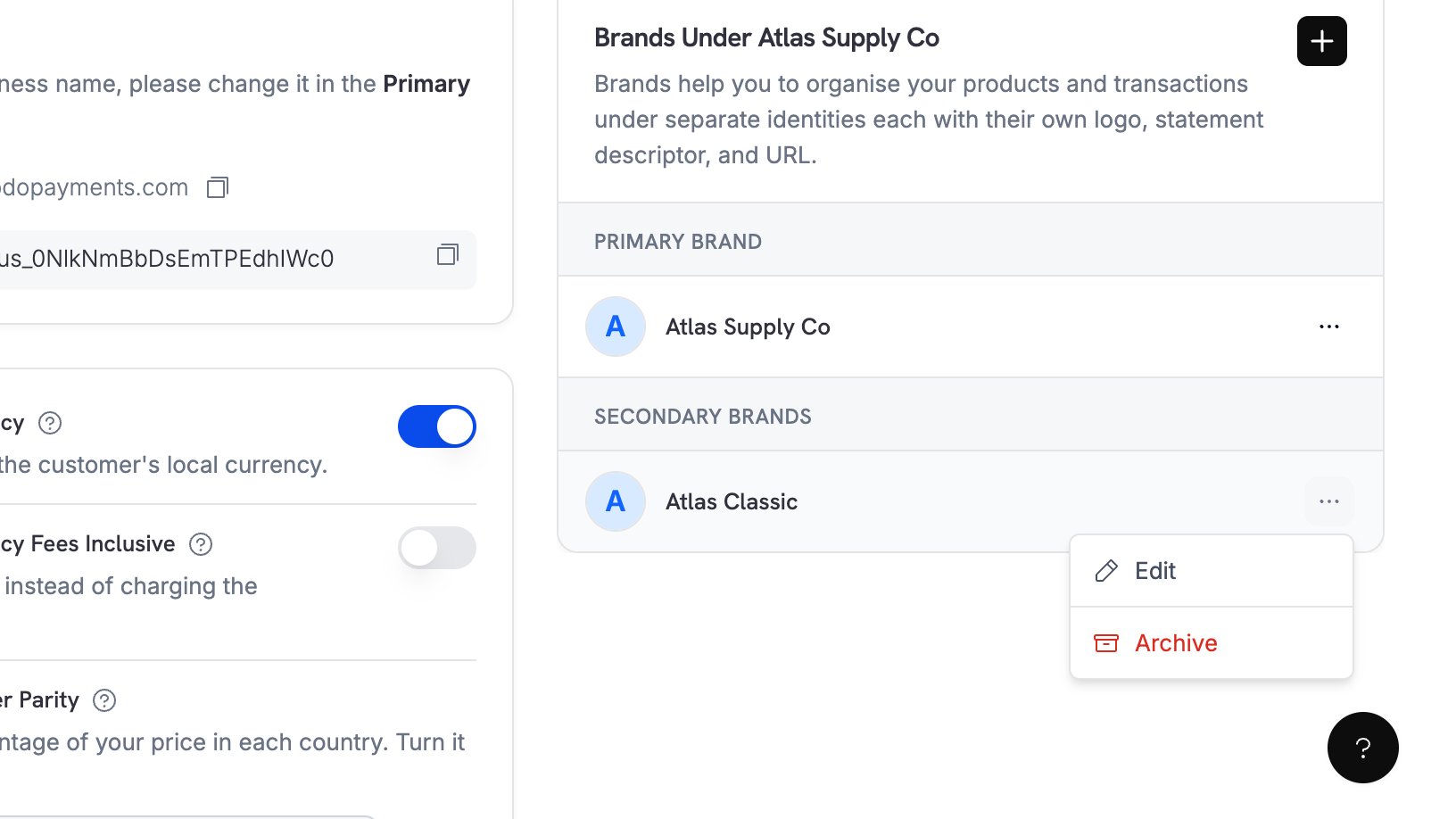
...-menyn bredvid det sekundära varumärket i panelen Brands Under [Your Business] och välj Archive. Det primära varumärket har inget alternativ för Archive.2
Confirm the Archive
Läs varningen och välj Continue.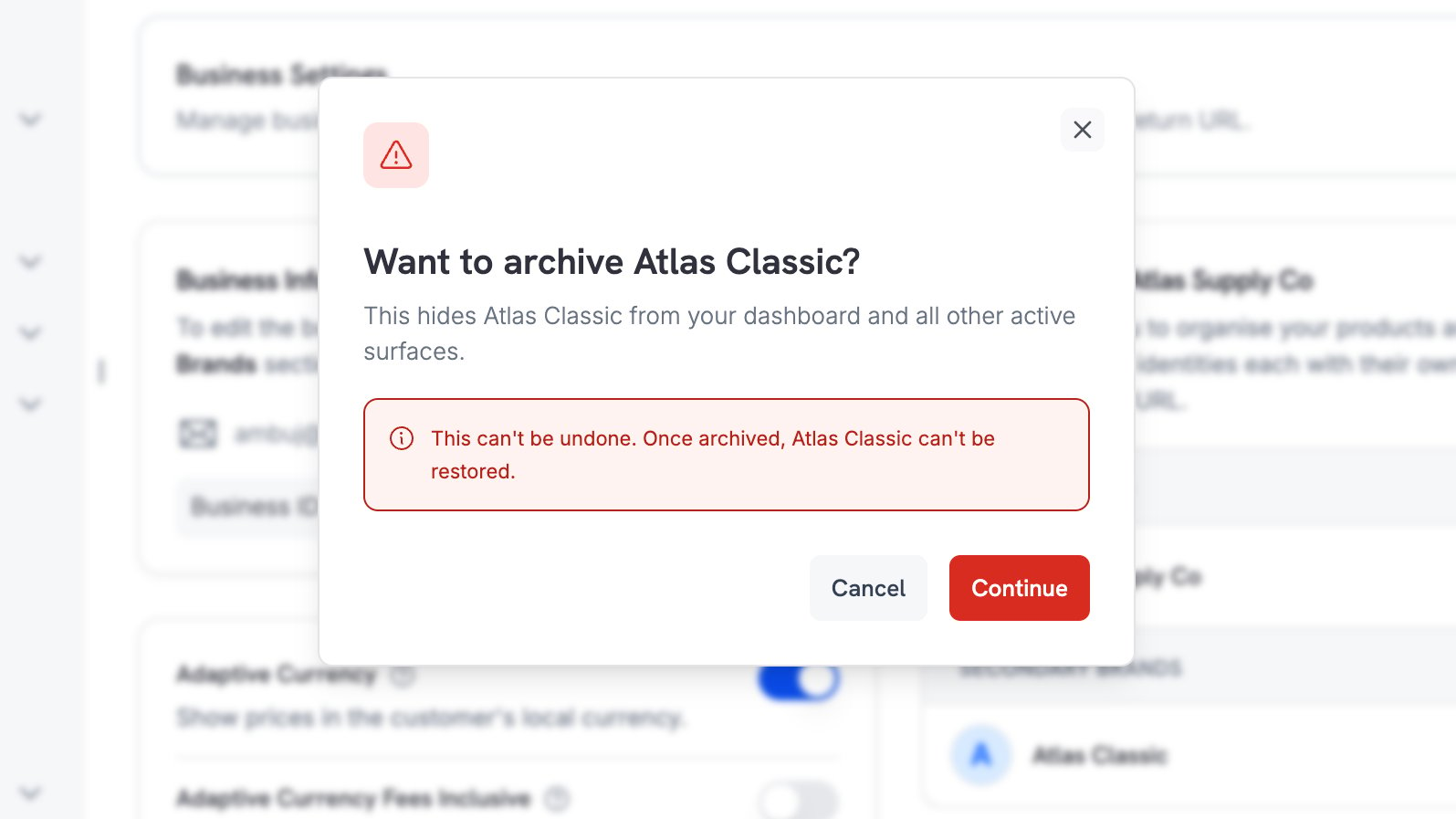
3
Choose the Brand That Takes Over
I Move products to väljer du varumärket som tar emot produkterna, de aktiva prenumerationerna och samlingarna. Det primära varumärket är standardvalet. Välj Move & Archive för att flytta posterna och arkivera varumärket i samma åtgärd.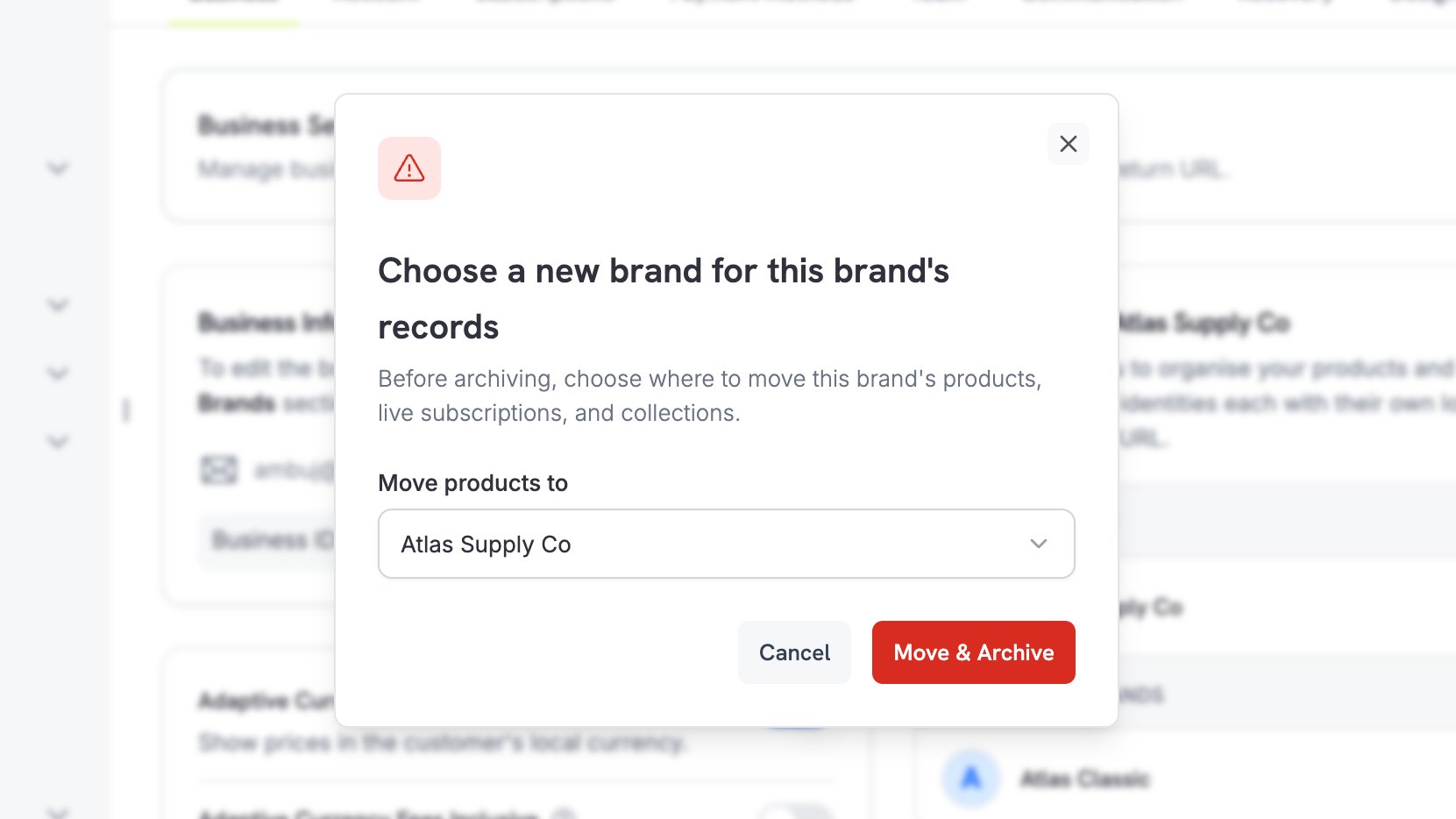
4
Check the Result
Bekräftelsen anger vilket varumärke som tog emot posterna.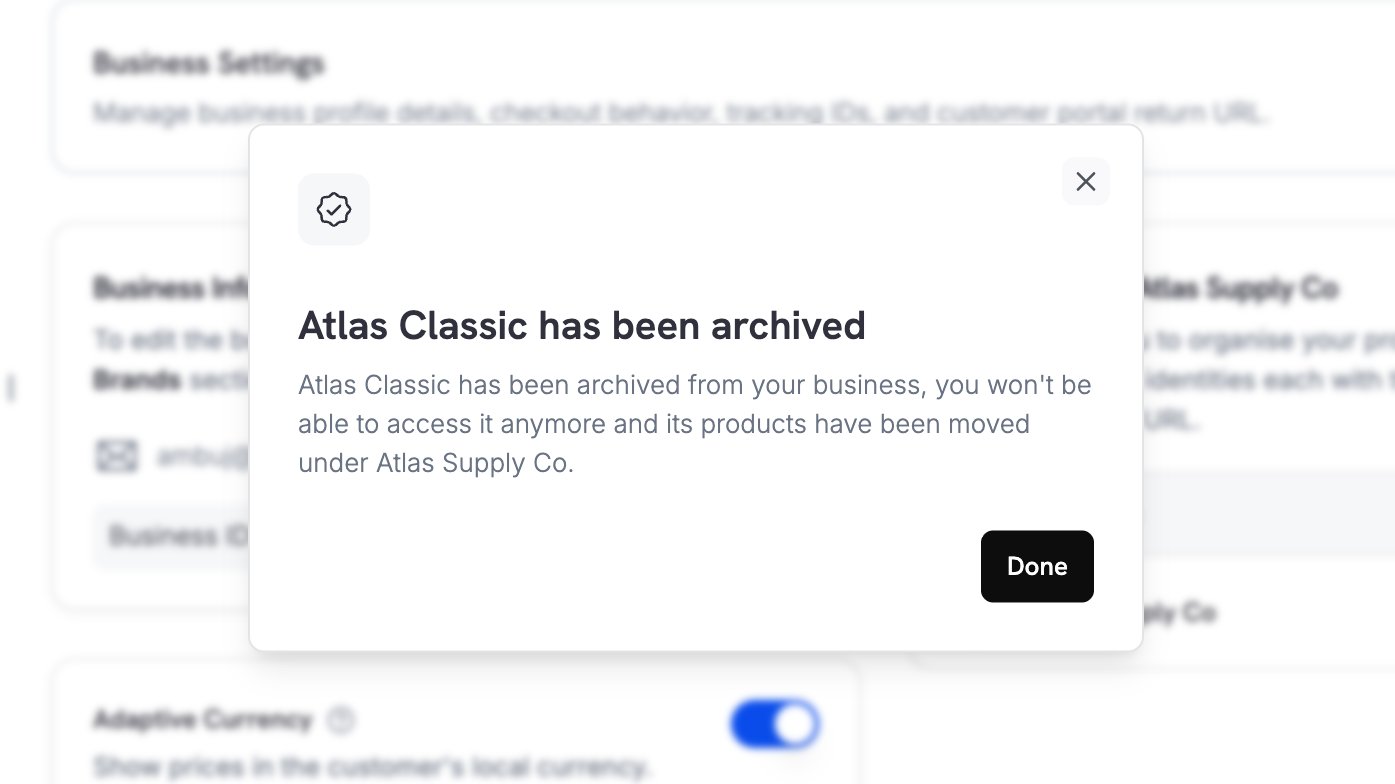
Vad händer när du arkiverar
Du väljer ett målvarumärke som tar över från varumärket du arkiverar. Dashboard frågar alltid efter ett, och API:t tar emot det sommove_products_to. I en atomisk åtgärd gör Dodo Payments följande:
- Flyttar varje produkt till målvarumärket.
- Flyttar varje aktiv prenumeration till målvarumärket, så att förnyelser debiteras under det.
- Flyttar varje produktsamling till målvarumärket.
- Arkiverar och inaktiverar det ursprungliga varumärket.
Det primära varumärket kan inte arkiveras, och API:t avvisar begäran med
CANNOT_ARCHIVE_PRIMARY_BRAND. Det är varumärket som företaget faller tillbaka på, så minst ett varumärke finns alltid kvar.Ett arkiverat varumärke är skrivskyddat
API:t avvisar alla ändringar av ett arkiverat varumärke och alla nya poster under det:
Arkiverade varumärken är dolda i varumärkesväljare, så du kan inte tilldela nya poster till dem. De finns fortfarande tillgängliga som analysfilter, vilket gör att din rapportering per varumärke förblir fullständig för den period då varumärket var aktivt. Se Analytics.
Arkivera via API:t
Om du vill arkivera ett varumärke anropar du archive-endpointen med varumärket som du avslutar och varumärket som tar över:moved_to_brand_id är null när du arkiverar utan ett mål.
403 för det primära varumärket, 404 för ett okänt varumärke, 409 för ett varumärke som redan har arkiverats och 422 för ett saknat eller ogiltigt move_products_to-mål.
Om du vill lista varumärken inklusive de arkiverade anger du include_archived på list-endpointen. Arkiverade varumärken är exkluderade som standard. Varje varumärke har ett archived_at-fält, som är null medan varumärket är aktivt.
cURL