

Route by Geography
Invia i pagamenti provenienti da paesi specifici al tuo processor e tutto il resto a Dodo Payments.
Keep Your Processor Accounts
Continua a utilizzare i tuoi account e le tue relazioni esistenti con Stripe o Adyen.
Stay the Merchant of Record
Sulle tue route, rimani il venditore legale e gestisci imposte, contestazioni e payout.
One Billing Layer
Dodo Payments gestisce prodotti, abbonamenti, fatture e analisi su entrambe le route.
BYOP vs. Dodo come Merchant of Record
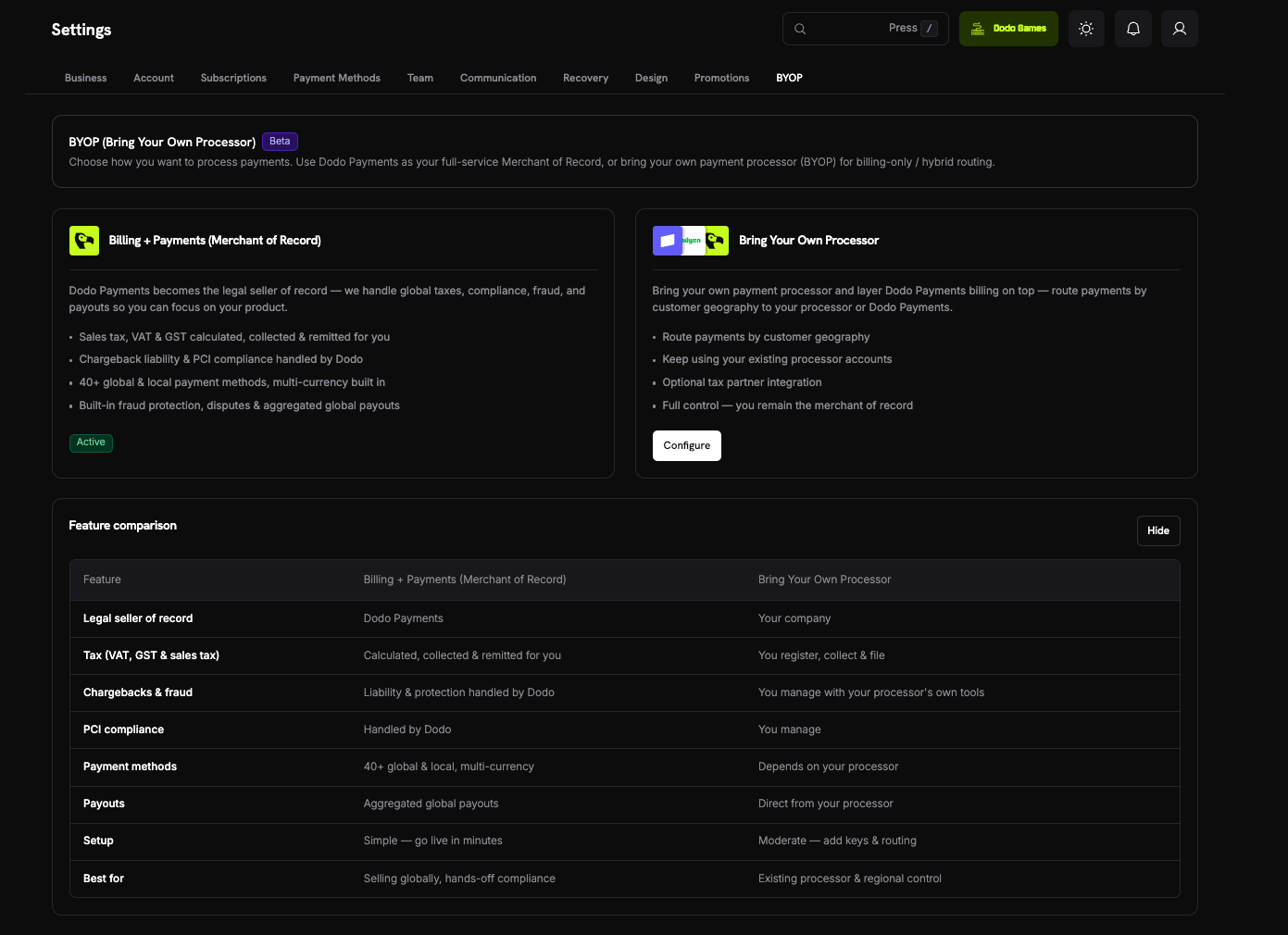
I due modelli funzionano fianco a fianco. Ogni pagamento segue la route configurata per il paese del cliente. Per visualizzare questo confronto nella dashboard, seleziona Show Comparison in Settings → BYOP.Processor supportati
Puoi collegare Stripe e Adyen.Stripe

Adyen
Configura BYOP
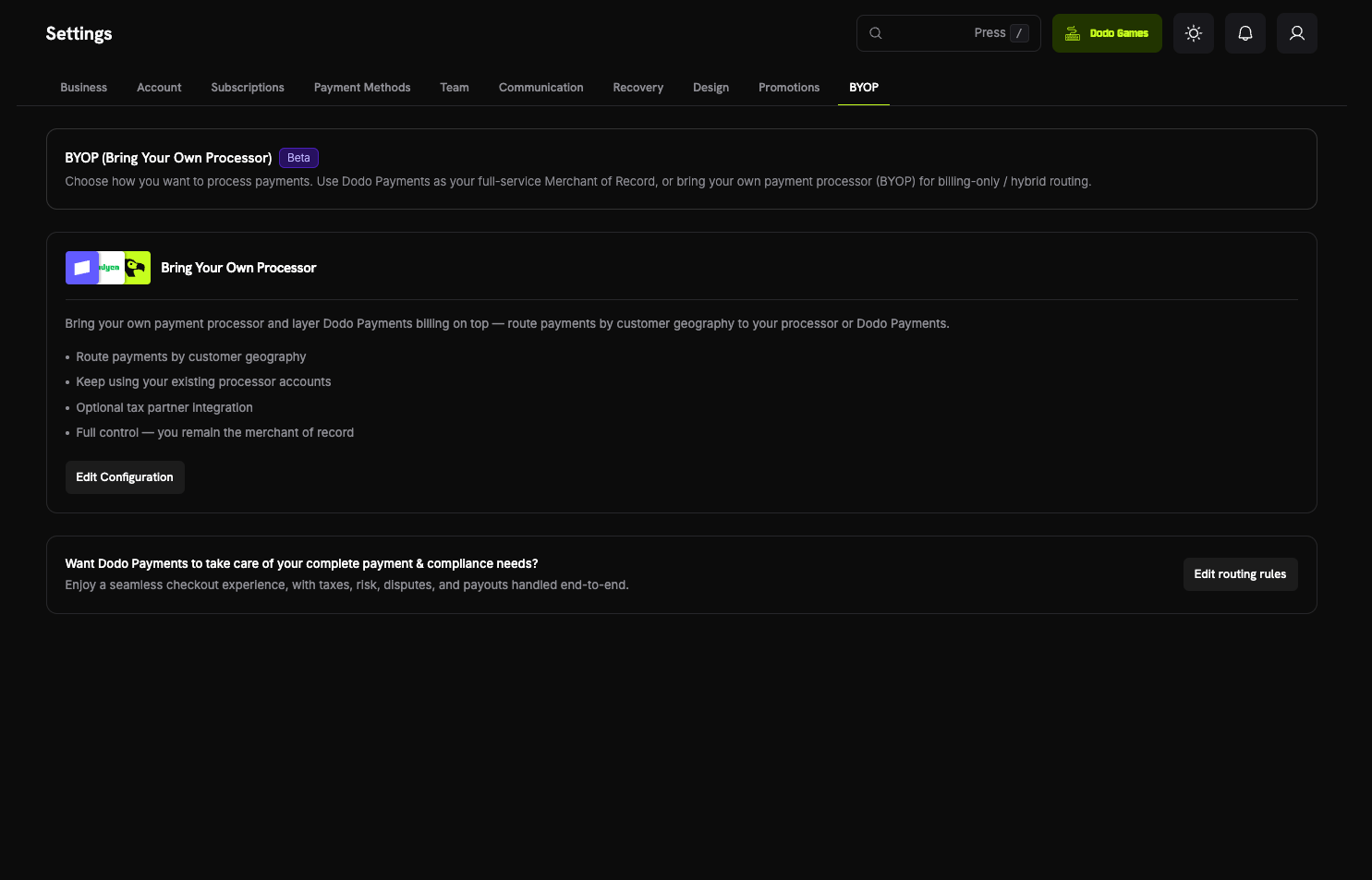
Per avviare la procedura guidata di configurazione, apri Settings → BYOP nella dashboard e seleziona Configure nella scheda Bring Your Own Processor.Le connessioni vengono configurate per ambiente. Un processor collegato in modalità test (indicato come Sandbox) è separato da uno collegato in modalità live (indicata come Production). Per eseguire i test prima di andare in produzione, configura entrambi. La procedura guidata di configurazione utilizza la modalità impostata dall’interruttore Live Mode nella barra laterale.
1
Choose a Payment Processor
In Select Payment Processor, seleziona Stripe o Adyen, quindi seleziona Continue.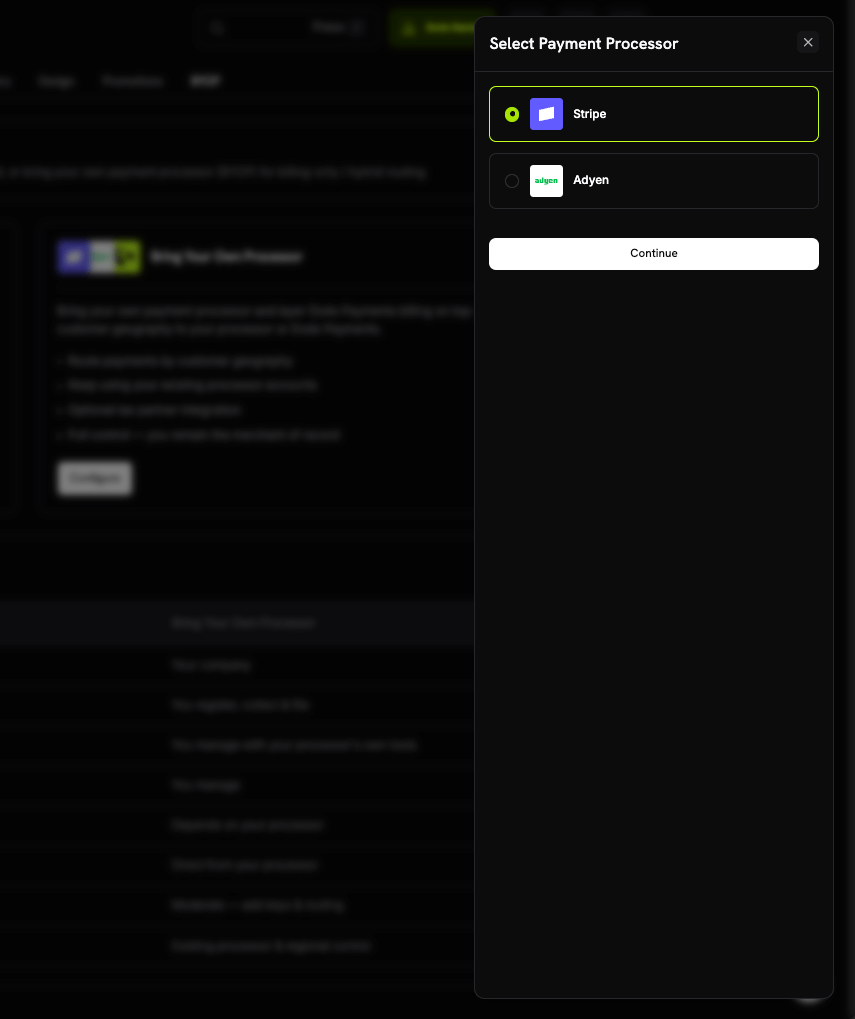
2
Connect Your Account
Inserisci i dettagli della connessione, quindi seleziona Connect processor: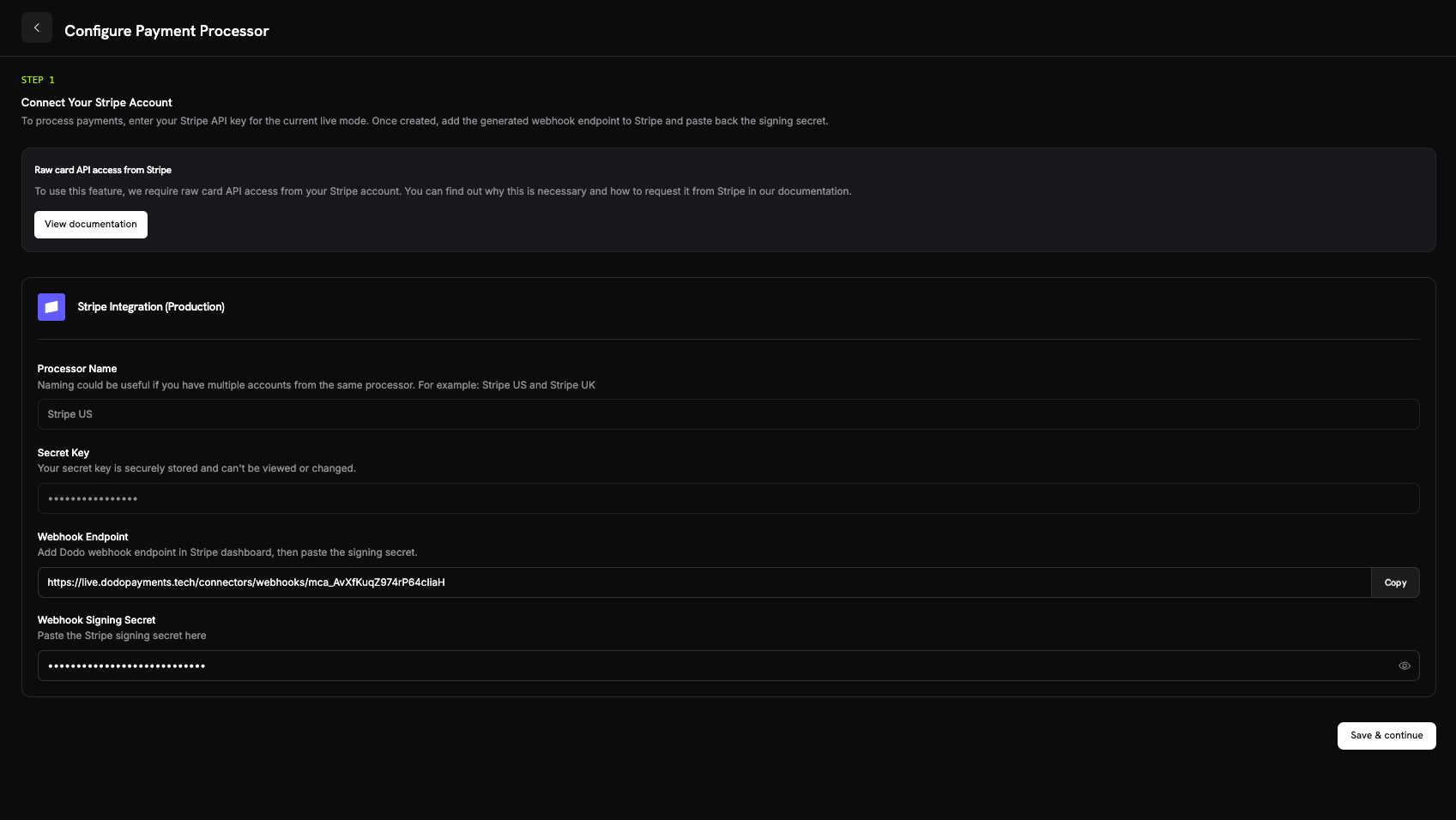
- Processor Name: un nome per questa connessione, composto da 2–75 caratteri. Un nome è utile quando colleghi più account dello stesso processor, ad esempio Stripe US e Stripe UK.
- Secret Key: la API key del processor per la modalità corrente. Per Stripe, si tratta della secret key
sk_.... - Merchant Account (solo Adyen): l’identificatore del merchant account Adyen.
- Stripe: il signing secret dell’endpoint webhook che hai aggiunto.
- Adyen: la HMAC key da Customer Area → Webhooks.
Dopo il collegamento, la secret key viene archiviata in modo sicuro e non può essere visualizzata o modificata. Anche il merchant account Adyen non può essere modificato dopo la configurazione. Nel tuo processor, configuri solo l’URL webhook generato da Dodo Payments; non interagisci mai direttamente con l’infrastruttura sottostante.
3
Configure Payment Routing
Aggiungi routing rules che associano i paesi dei clienti a un processor. Ogni paese viene instradato verso un solo processor: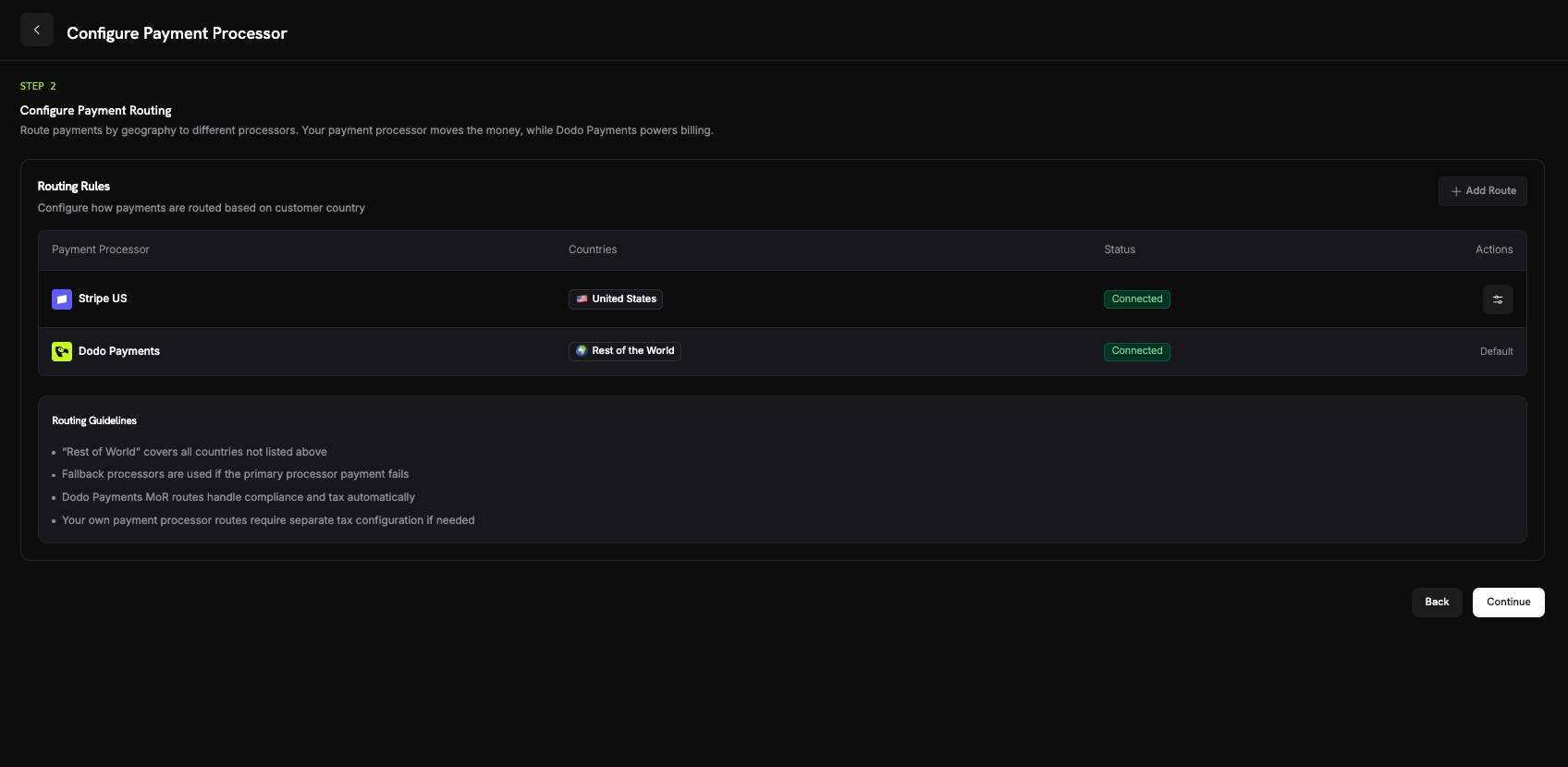
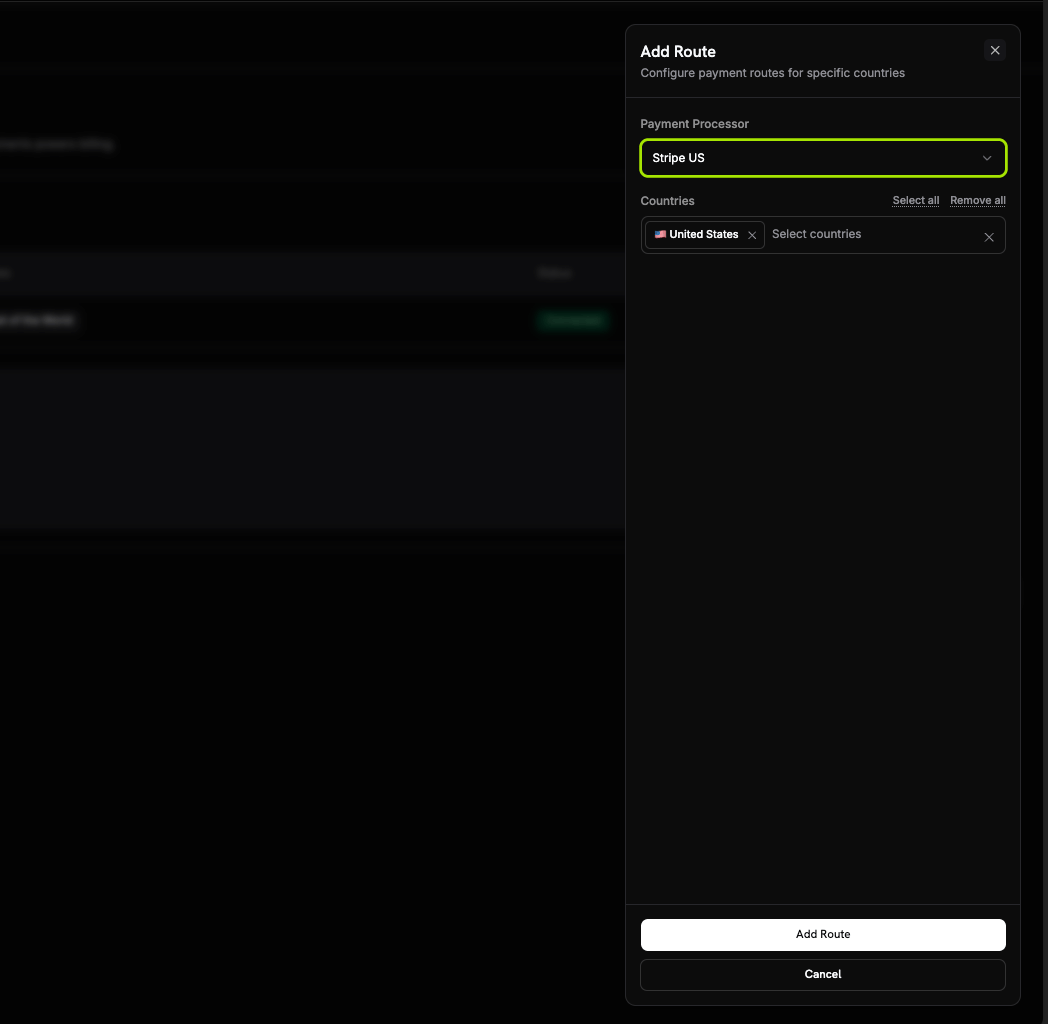
- Il tuo processor gestisce i pagamenti provenienti dai paesi che gli assegni.
- Dodo Payments gestisce Rest of the World, ovvero ogni paese che non instradi, come Merchant of Record.
Linee guida per il routing
- Rest of the World comprende ogni paese senza una route.
- Le route di Dodo Payments come Merchant of Record gestiscono automaticamente conformità e imposte.
- Le route sul tuo processor di pagamento richiedono una configurazione fiscale separata, se necessaria.
4
Configure Invoice Information
Per i pagamenti instradati tramite il tuo processor, tu sei il venditore indicato sulla fattura. Inserisci i dati aziendali per queste fatture: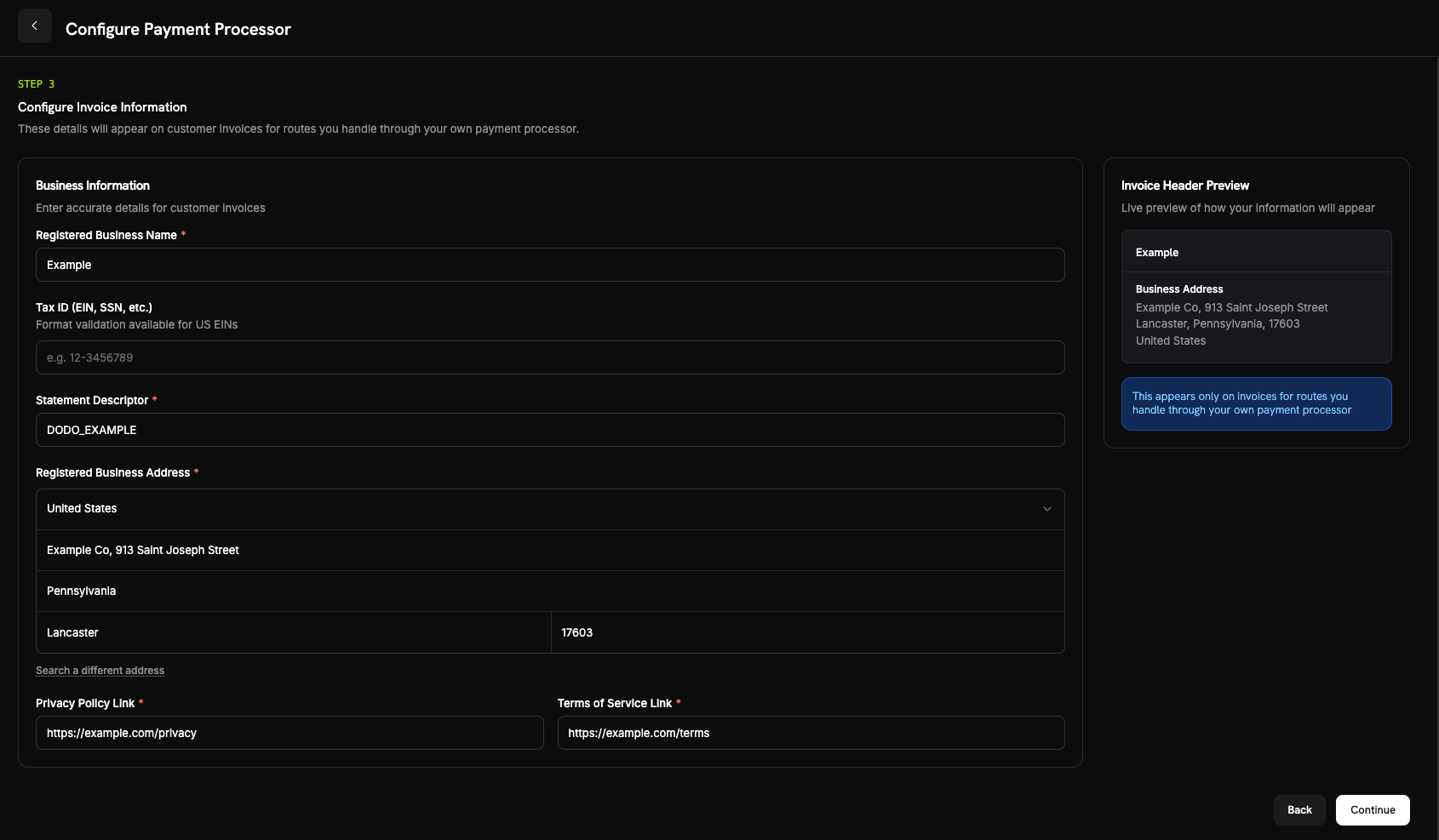
- Nome dell’attività registrata (obbligatorio).
- Tax ID (EIN, SSN, ecc.) (facoltativo): da 3 a 32 lettere, numeri o trattini. È disponibile la convalida del formato per gli EIN statunitensi.
- Descrittore dell’estratto conto (obbligatorio): usa da 5 a 22 lettere, numeri, spazi,
_o-. I pagamenti sul tuo processor inviano il descrittore dell’estratto conto del tuo brand al processor, non questo valore. - Indirizzo dell’attività registrata (obbligatorio): inizia a digitare per cercare il tuo indirizzo oppure inseriscilo manualmente.
- Link all’informativa sulla privacy e Link ai Termini di servizio (obbligatori).
5
Review and Finish
Esamina la connessione al processor, le routing rules e i dettagli delle fatture. Seleziona I confirm that the routing and billing details are correct, quindi seleziona Finish setup.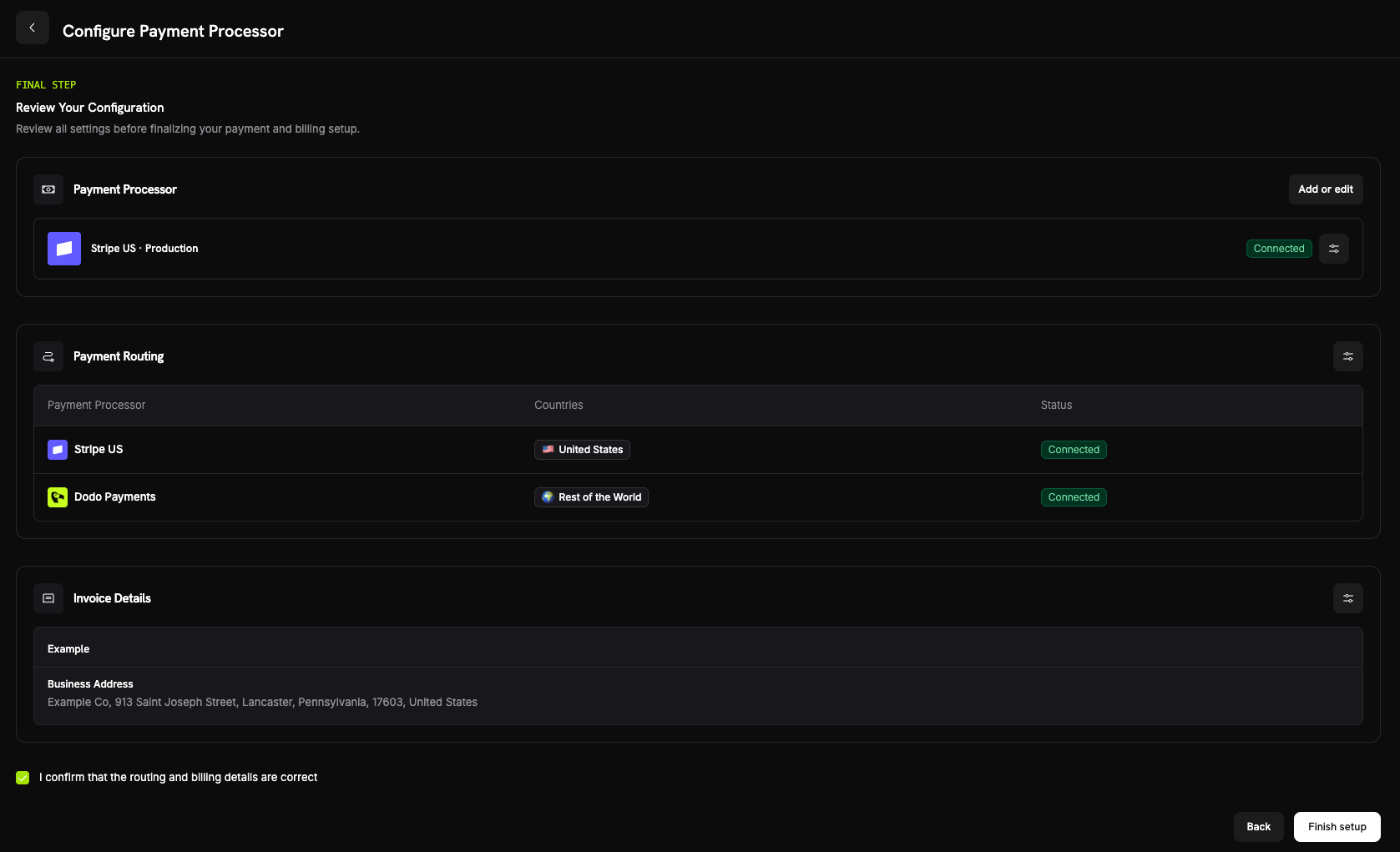
Come funziona il routing
Dodo Payments sceglie la route in base al paese di fatturazione del cliente quando viene creato il pagamento. La stessa regola si applica ai pagamenti una tantum, alle checkout session e ai nuovi abbonamenti. I rinnovi riutilizzano il processor su cui è stato creato l’abbonamento (vedi Subscriptions). Su una route gestita dal tuo processor:- Il pagamento viene elaborato sul tuo account del processor, nella valuta di fatturazione.
- Dodo Payments non calcola né riscuote le imposte. Sei responsabile delle imposte su quella route.
- Le fatture mostrano i dati aziendali e lo statement descriptor che hai configurato, senza i dati Merchant of Record di Dodo Payments.
- Il tuo processor ti accredita il pagamento direttamente. L’importo del pagamento non entra mai nel tuo saldo Dodo Payments; lì viene registrata solo la BYOP billing fee.
Abbonamenti
Un abbonamento rimane sul processor su cui è stato creato. Al rinnovo, Dodo Payments addebita lo stesso processor utilizzando il payment mandate memorizzato quando il cliente si è abbonato e non rivaluta le routing rules. Gli aggiornamenti del metodo di pagamento dell’abbonamento passano dallo stesso processor. Anche il fatto che Dodo Payments calcoli o meno le imposte su un abbonamento viene fissato al momento della sua creazione.Visualizzare quale processor ha gestito un pagamento
Dopo aver configurato BYOP, le tabelle Payments e Disputes mostrano un’icona del processor (Stripe, Adyen o Dodo Payments) su ogni riga. Le pagine dei dettagli del pagamento e della contestazione aggiungono un campo Payment Processor, così puoi sapere quale route ha gestito una transazione.Rimborsi, contestazioni e payout
- Refunds
- Disputes
- Payouts
Avvia i rimborsi dalla dashboard di Dodo come di consueto. Per un pagamento instradato tramite il tuo processor, Dodo Payments invia il rimborso a quel processor, che restituisce i fondi; il rimborso non utilizza il tuo saldo Dodo Payments. Per un pagamento instradato verso Dodo, Dodo Payments elabora il rimborso.
Analisi
Le analisi di ricavi, imposte e abbonamenti includono entrambi i percorsi, così puoi visualizzare tutta la fatturazione in un unico posto. I widget relativi a contestazioni e payout mostrano solo l’attività elaborata da Dodo. L’attività sul tuo processor appare anche nella dashboard di quel processor.Billing Fee
Dodo Payments applica una BYOP billing fee su ogni pagamento instradato tramite il tuo processor, perché Dodo Payments continua a gestire prodotti, abbonamenti, fatturazione e analisi relativi a tali pagamenti. La tariffa predefinita è pari allo 0,5% dell’importo del pagamento equivalente in USD e la tariffa esatta viene confermata quando BYOP viene abilitato per il tuo account. La commissione appare come una vocebyop_fee nel tuo ledger del saldo. Per discutere la tua tariffa, contatta il team.
Domande frequenti
Which processors can I connect?
Which processors can I connect?
Can I route only some countries to my processor?
Can I route only some countries to my processor?
Sì. Assegna paesi specifici al tuo processor e lascia il resto come Rest of the World, che Dodo Payments gestisce come Merchant of Record. Ogni paese viene instradato verso un solo processor.
Who is the Merchant of Record on BYOP routes?
Who is the Merchant of Record on BYOP routes?
Sì. Sulle route gestite dal tuo processor, rimani il venditore legale e sei responsabile delle imposte, dei chargeback, della conformità PCI e dei payout relativi a tali transazioni.
Does Dodo calculate tax on my processor's routes?
Does Dodo calculate tax on my processor's routes?
No. Dodo Payments non calcola né riscuote le imposte sulle route gestite dal tuo processor; gestisci tu le imposte relative a tali transazioni. Dodo Payments continua a gestire le imposte sui pagamenti instradati verso Dodo Payments come Merchant of Record.
What happens to active subscriptions if I disable a processor?
What happens to active subscriptions if I disable a processor?
I rinnovi su quel processor non vanno a buon fine mentre è disabilitato, perché ogni abbonamento viene rinnovato sul processor su cui è stato creato. Questi rinnovi vengono visualizzati come pagamenti non riusciti nella dashboard.
Dodo Payments mette inoltre in pausa le email di recupero dei pagamenti per questi abbonamenti. Riabilita il processor per ripristinare i rinnovi; i tentativi di recupero messi in pausa riprenderanno quindi.
Inizia
What is Merchant of Record?
Scopri come funziona il modello Merchant of Record a servizio completo di Dodo Payments.