

License key adalah jenis entitlement License Key. Buat entitlement License Key satu kali dengan batas aktivasi, masa berlaku, dan pesan aktivasi yang Anda inginkan, lalu lampirkan ke produk apa pun. Secara default, Dodo Payments membuat dan mengirim melalui email satu key untuk setiap unit yang dibeli atau setiap seat subscription.
Apa Itu License Key?
License key adalah token unik yang mengizinkan akses ke produk Anda. Gunakan license key untuk:- Lisensi software: aplikasi desktop, plugin, dan CLI.
- Kontrol per-seat: membatasi aktivasi per pengguna atau perangkat.
- Produk digital: membatasi akses ke download, pembaruan, atau fitur premium.
Create a License Key Entitlement
1
Open Entitlements
Buka Entitlements di dashboard dan klik + untuk membuat entitlement.
2
Choose License Key
Pilih License Keys, masukkan Name, lalu konfigurasikan perilaku setiap key yang diterbitkan: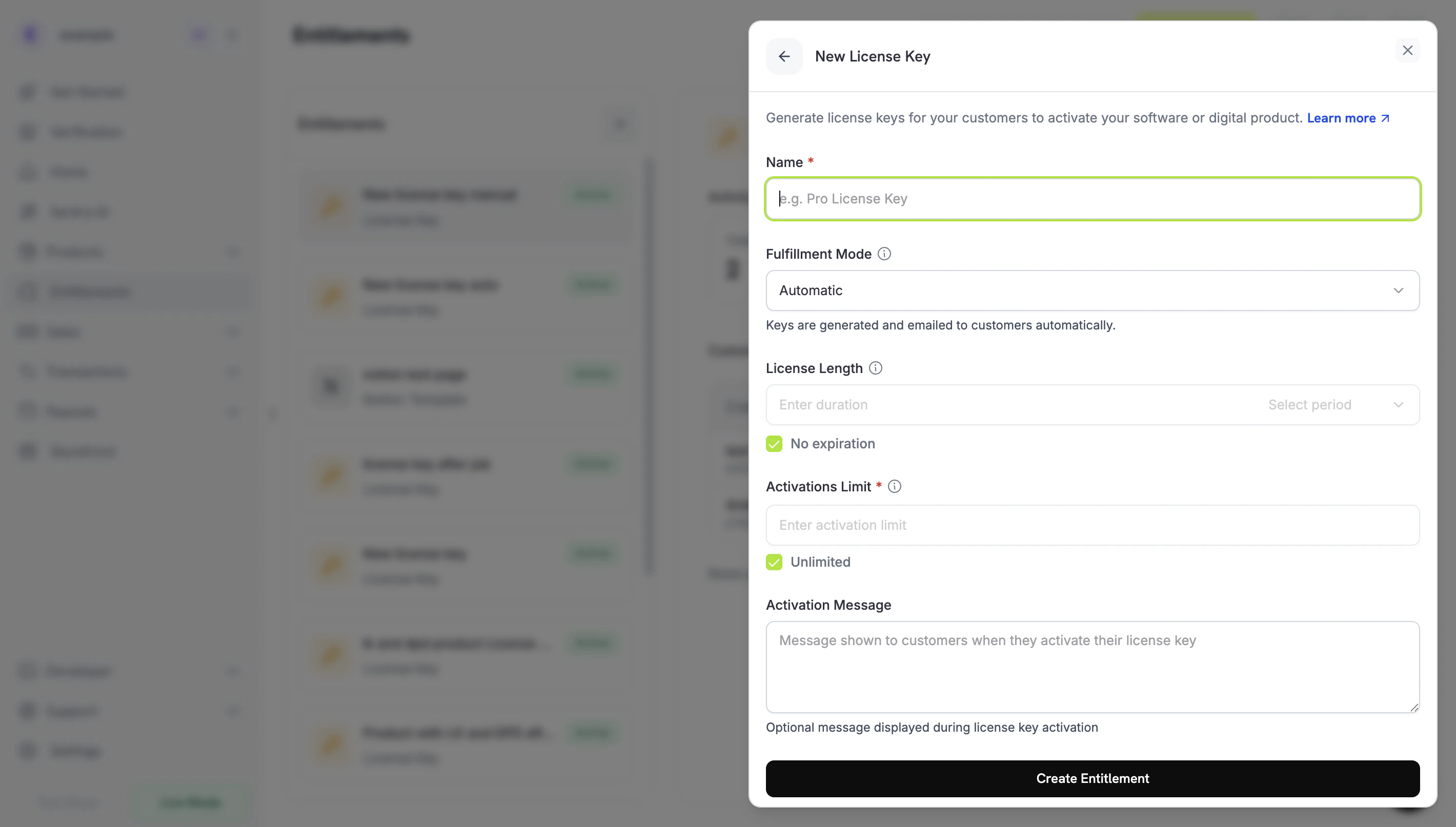
- Fulfillment Mode: Automatic (default) membuat dan mengirim setiap key melalui email. Manual memungkinkan Anda memasok setiap key sendiri. Lihat Manual Fulfillment.
- Activations Limit: jumlah maksimum aktivasi aktif per key, misalnya
1untuk satu pengguna atau5untuk lisensi tim. Pilih Unlimited tanpa batas. - License Length: berapa lama key tetap valid setelah diterbitkan, misalnya 30 hari atau 1 tahun, atau No expiration. Untuk produk subscription, pilih No expiration: key yang diterbitkan untuk subscription tidak memiliki masa kedaluwarsa, dan validitasnya mengikuti status subscription.
- Activation Message: instruksi opsional yang ditujukan kepada customer, hingga 2.500 karakter, yang disertakan dalam email pengiriman key. Contoh:
Paste the key in Settings → LicenseatauRun: mycli activate <key>.
3
Save the Entitlement
Klik Create Entitlement. Kini Anda dapat melampirkan entitlement ke produk apa pun.
Attach to Products
Buka produk, buka bagian Entitlements, lalu pilih entitlement License Key Anda. Satu produk dapat mengirimkan license key bersama entitlement lain dalam pembelian yang sama, seperti akses Discord, download file, atau akses repository GitHub.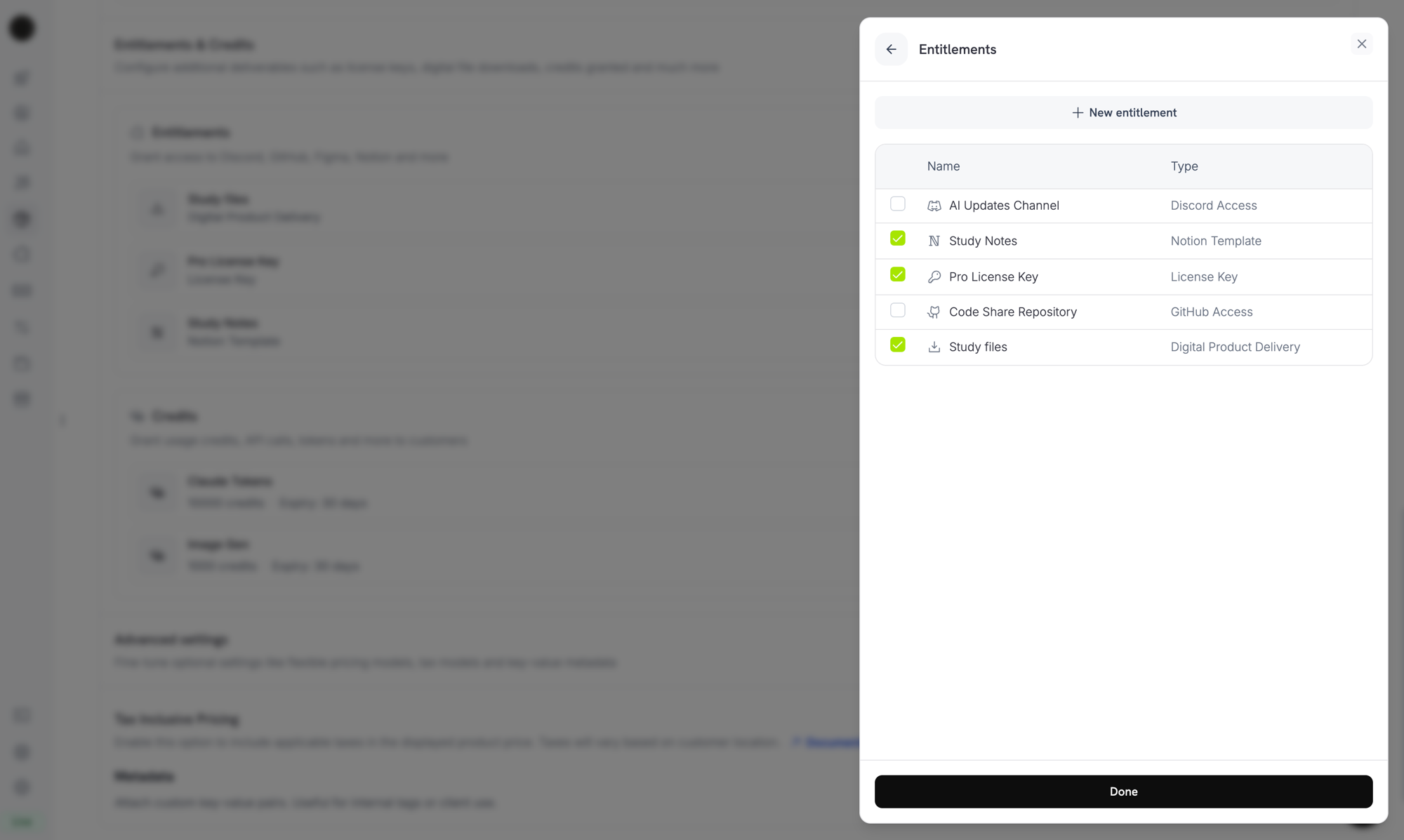
Selecting the License Key entitlement in the product entitlements panel.
How Keys Are Issued
Penerbitan key mengikuti grant lifecycle standar. Setiap event memengaruhi license key sebagai berikut:Perilaku Quantity
Jumlah key bergantung pada sumber grant. Setiap key memiliki grant sendiri.- Produk subscription menerbitkan satu key per seat (
subscriptions.quantity). - Produk one-time menerbitkan satu key per unit cart line item (
product_cart.quantity). - Grant API manual menerbitkan tepat satu key.
Fulfillment Mode
Setiap entitlement License Key memilikifulfillment_mode yang menentukan pihak yang memasok key:
auto(default, Automatic di dashboard): Dodo Payments membuat dan mengirim key melalui email saat payment atau subscription. Ini adalah perilaku pada tabel di atas dan berlaku ketikafulfillment_modetidak disertakan.manual(Manual di dashboard): setiap unit yang dibeli membuat grantPendingtanpa key, dan Anda memasok setiap nilai key. Lihat Manual Fulfillment.
Manual Fulfillment
Dengan manual fulfillment, Anda memasok setiap license key alih-alih Dodo Payments yang membuatnya. Pembelian membuat grantPending tanpa key, memberi tahu Anda melalui webhook, dan menunggu Anda mengirimkan nilai key. Gunakan ini ketika key berasal dari sistem Anda sendiri, vendor pihak ketiga, atau kumpulan kode pre-printed yang jumlahnya terbatas.
Untuk panduan langkah demi langkah, mulai dari pembuatan produk hingga pengiriman key, lihat Manual License Key Fulfillment Integration Guide.
Kapan Menggunakannya
Automatic fulfillment sesuai untuk sebagian besar lisensi software. Pilih manual fulfillment ketika Dodo Payments tidak dapat membuat key sendiri:- Gunakan key Anda sendiri: aplikasi, produk desktop, atau license server Anda sendiri yang membuat key.
- Vendor pihak ketiga: Anda menjual kembali key yang diterbitkan provider upstream, seperti game key, kredensial API, atau lisensi platform partner.
- Inventaris terbatas: Anda membagikan kode dari kumpulan yang telah dialokasikan dan menetapkannya satu per satu.
- Peninjauan manual: Anda ingin memeriksa pembelian sebelum memberikan akses.
Mengaktifkan Manual Fulfillment
Untuk mengaktifkan manual fulfillment melalui API, tetapkanfulfillment_mode: "manual" di integration_config entitlement License Key. Di dashboard, tetapkan Fulfillment Mode ke Manual.
fulfillment_mode kompatibel dengan versi sebelumnya. Entitlement yang dibuat sebelum pengaturan ini tersedia tidak memiliki fulfillment_mode dan berperilaku sebagai auto. Peralihan ke manual hanya memengaruhi grant yang dibuat setelah perubahan. Key yang sudah dikirim tidak berubah.Menemukan Grant yang Menunggu Fulfillment
Saat customer membeli produk dengan entitlement mode manual, Dodo Payments membuat grant dalam statusPending tanpa key dan mengirim webhook entitlement_grant.created dengan integration_type: "license_key" dan status: "Pending". Tanggapi webhook tersebut, atau lakukan polling pada endpoint List Customer Grants dengan filter integration_type dan status:
Mengirimkan Key
Untuk mengirimkan key, kirim key ke endpoint Fulfill License Key Grant. Grant berpindah keDelivered, dan Dodo Payments mengirim key melalui email kepada customer. Emailnya sama dengan yang diterima customer dalam automatic fulfillment.
cURL
activations_limit dan expires_at bersifat opsional. Jika tidak disertakan, Dodo Payments menggunakan konfigurasi entitlement. Setiap grant hanya dapat dipenuhi satu kali: mencoba ulang grant yang sudah dipenuhi akan mengembalikan 409 alih-alih menerbitkan key kedua.
Anda tidak perlu mengirim key melalui email sendiri. Dodo Payments mengirimkannya ketika grant dipenuhi. Importing keys dengan
POST /license_keys bekerja secara berbeda: proses ini tidak memberi tahu customer.Aktivasi, Validasi, Deaktivasi
Software Anda mengelola key saat runtime melalui tiga endpoint. Aktivasi mencatat perangkat atau instalasi terhadap key, validasi memeriksa apakah key dapat digunakan, dan deaktivasi membebaskan sebuah aktivasi.Public Endpoints: Endpoint activate, deactivate, dan validate license bersifat public dan tidak memerlukan API key. Panggil endpoint tersebut langsung dari software desktop, CLI, atau client berbasis browser tanpa mengekspos kredensial API Anda. Konstruktor SDK tetap memerlukan nilai bearer token, sehingga contoh SDK menggunakan placeholder.
Mengaktifkan License
Aktivasi membuat activation instance untuk key dan mengembalikannya dengan IDlki_. Simpan ID tersebut karena Anda membutuhkannya untuk menonaktifkan instance. Request mengembalikan 403 jika key tidak aktif, 404 jika key tidak ada, dan 422 jika key telah mencapai batas aktivasinya.
Memvalidasi License
Validasi mengembalikanvalid: true ketika status key adalah active dan key belum kedaluwarsa. Untuk sekaligus memeriksa apakah activation instance tertentu masih ada, kirim license_key_instance_id.
Menonaktifkan Activation Instance
Deaktivasi menghapus activation instance dan membebaskan satu aktivasi pada key. Kirim key dan instance ID yang dikembalikan oleh aktivasi. Request mengembalikan403 jika instance bukan milik key tersebut, dan 404 jika key tidak ada.
Mengelola Key
Untuk melihat key yang diterbitkan, buka entitlement License Key di bawah Entitlements. Daftar grant menampilkan satu baris untuk setiap key customer, dengan customer, tanggal akses, status, dan tindakan Revoke. Untuk melihat masa kedaluwarsa, jumlah aktivasi, dan batas aktivasi key, buka key tersebut di Sales → License Keys. Untuk membuat daftar grant secara programatis, panggil List Grants. Pada setiap grant license key, objeklicense_key memuat key, status, masa kedaluwarsa, aktivasi yang digunakan, dan batas aktivasi. Objek tersebut bernilai null pada grant mode manual yang masih berstatus Pending.
Mengimpor License Key yang Ada melalui API
Untuk memigrasikan license key dari sistem lain, impor key tersebut dengan API Create License Key. Customer Anda tetap mengaktifkan, memvalidasi, dan menonaktifkan string key yang sama, sehingga Anda tidak perlu menerbitkan ulang key. Request memerlukankey, customer_id, dan product_id. Hilangkan activations_limit untuk aktivasi tanpa batas, dan hilangkan expires_at untuk key yang tidak pernah kedaluwarsa. Mengimpor string key yang sudah ada akan mengembalikan 409.
Perbedaan Key Berdasarkan Sumber
Fieldsource mencatat cara setiap license key dibuat:
Gunakan
source untuk membedakan key yang dimigrasikan dan dipenuhi secara manual dari key yang dibuat oleh Dodo Payments, misalnya saat merekonsiliasi atau mengaudit key. Field ini terdapat pada record license key, seperti response POST /license_keys. Objek license_key pada grant dari List Grants tidak menyertakannya. Endpoint lama GET /license_keys, yang mengembalikan source dan menerima filter source, sudah deprecated.
License Key dalam Return URL
Ketika customer membeli produk dengan entitlement License Key, Dodo Payments menambahkan key yang dibuat kereturn_url Anda sebagai query parameter license_key. Success page Anda dapat menampilkan key tanpa API call tambahan:
%2C, jadi baca parameter dengan URL parser yang mendekodenya sebelum memisahkan nilainya:
subscription_id dan status subscription, bukan payment_id:
Manajemen API
Lifecycle Operations (Public Endpoints)
Lifecycle Operations (Public Endpoints)
Aktivasi, deaktivasi, dan validasi bersifat public dan tidak memerlukan API key.
Activate License
Deactivate License
Validate License
License Key Management
License Key Management
Buat, tampilkan, ambil, dan perbarui record license key individual. Gunakan endpoint ini untuk mengimpor key yang ada atau membaca detail penggunaan.
Create License Key
List License Keys
Get License Key
Update License Key
Entitlement Management
Entitlement Management
Kelola entitlement License Key itu sendiri: batas aktivasi, masa berlaku license, dan pesan aktivasi.
Create Entitlement
Update Entitlement
List Grants
Revoke Grant
Webhook
Pengiriman dan pencabutan license key mengirimkan empatentitlement_grant.* webhook events. Untuk grant license key, payload menyertakan objek license_key dengan key, status, masa kedaluwarsa, aktivasi yang digunakan, dan batas aktivasi.
Event lama license_key.created tetap berjalan ketika record license key dibuat. Lihat License Key webhook payload page.
License Key Lama
Produk yang dibuat dengan flag
license_key_enabled lama telah dimigrasikan secara otomatis ke entitlement License Key. Migrasi ini transparan: key customer yang ada tetap berfungsi, endpoint public /licenses/activate, /licenses/validate, dan /licenses/deactivate tetap berfungsi, dan endpoint API /license_keys/* membaca serta menulis key store yang sama.Bagian dashboard Sales → License Keys yang berdiri sendiri tetap tersedia sebagai daftar datar setiap key yang diterbitkan, untuk audit dan pencarian. Untuk mengubah batas aktivasi, masa berlaku license, atau pesan aktivasi, edit entitlement License Key yang telah dimigrasikan di bawah Entitlements.Praktik Terbaik
- Pilih batas aktivasi yang jelas: pilih default seperti 1 untuk aplikasi satu pengguna atau 3–5 untuk lisensi tim, lalu dokumentasikan untuk customer Anda.
- Tulis pesan aktivasi yang tepat: customer menyalinnya dari email license key, jadi path dan command yang akurat dapat mencegah tiket dukungan.
- Validasi key terhadap API: untuk produk yang terhubung ke network, panggil
/licenses/validatealih-alih mengandalkan aktivasi yang di-cache secara lokal. - Gunakan webhook untuk pencabutan: tangani
entitlement_grant.revokeduntuk menonaktifkan fitur dalam aplikasi ketika customer membatalkan atau menerima refund. - Uji subscription dan pembelian one-time: perilaku license key berbeda di antara keduanya; misalnya, key subscription tidak kedaluwarsa, jadi uji keduanya sebelum go live.