

许可证密钥属于 License Key entitlement 类型。创建 License Key entitlement 时,一次性设置所需的激活次数限制、有效期和激活消息,然后将其附加到任意产品。默认情况下,Dodo Payments 会为每个购买的单位或每个订阅席位生成并发送一封包含一个密钥的电子邮件。
什么是许可证密钥?
许可证密钥是用于授权访问您的产品的唯一令牌。许可证密钥适用于:- 软件许可:桌面应用、插件和 CLI。
- 按席位控制:限制每个用户或设备的激活次数。
- 数字商品:控制下载、更新或高级功能的访问权限。
Create a License Key Entitlement
1
Open Entitlements
前往控制面板中的 Entitlements,然后点击 + 创建 entitlement。
2
Choose License Key
选择 License Keys,输入 Name,并配置每个已发放密钥的行为: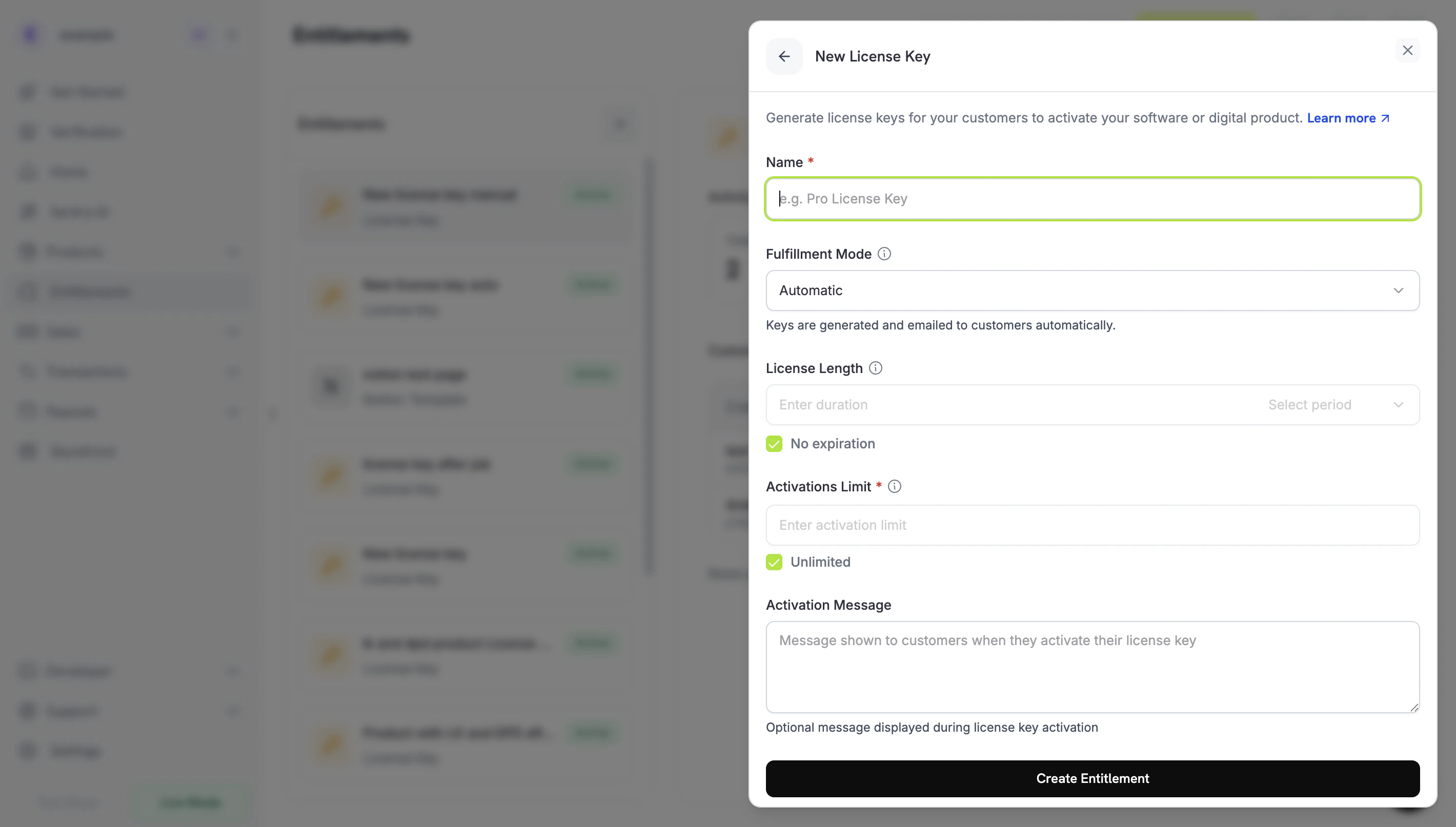
- Fulfillment Mode:Automatic(默认)会生成并发送每个密钥。Manual 允许您自行提供每个密钥。请参阅 Manual Fulfillment。
- Activations Limit:每个密钥可进行的最大有效激活次数,例如
1表示单个用户,或5表示团队许可证。选择 Unlimited 表示不限制次数。 - License Length:密钥在发放后保持有效的时长,例如 30 天或 1 年,也可以选择 No expiration。对于订阅产品,请选择 No expiration:为订阅发放的密钥不会过期,其有效性遵循订阅状态。
- Activation Message:可选的面向客户的说明,最多 2,500 个字符,会包含在发送密钥的电子邮件中。例如:
Paste the key in Settings → License或Run: mycli activate <key>。
3
Save the Entitlement
点击 Create Entitlement。现在,您可以将该 entitlement 附加到任意产品。
Attach to Products
打开产品,前往其 Entitlements 部分,然后选择您的 License Key entitlement。一次购买可以同时交付许可证密钥和其他 entitlement,例如 Discord 访问权限、文件下载或 GitHub 仓库访问权限。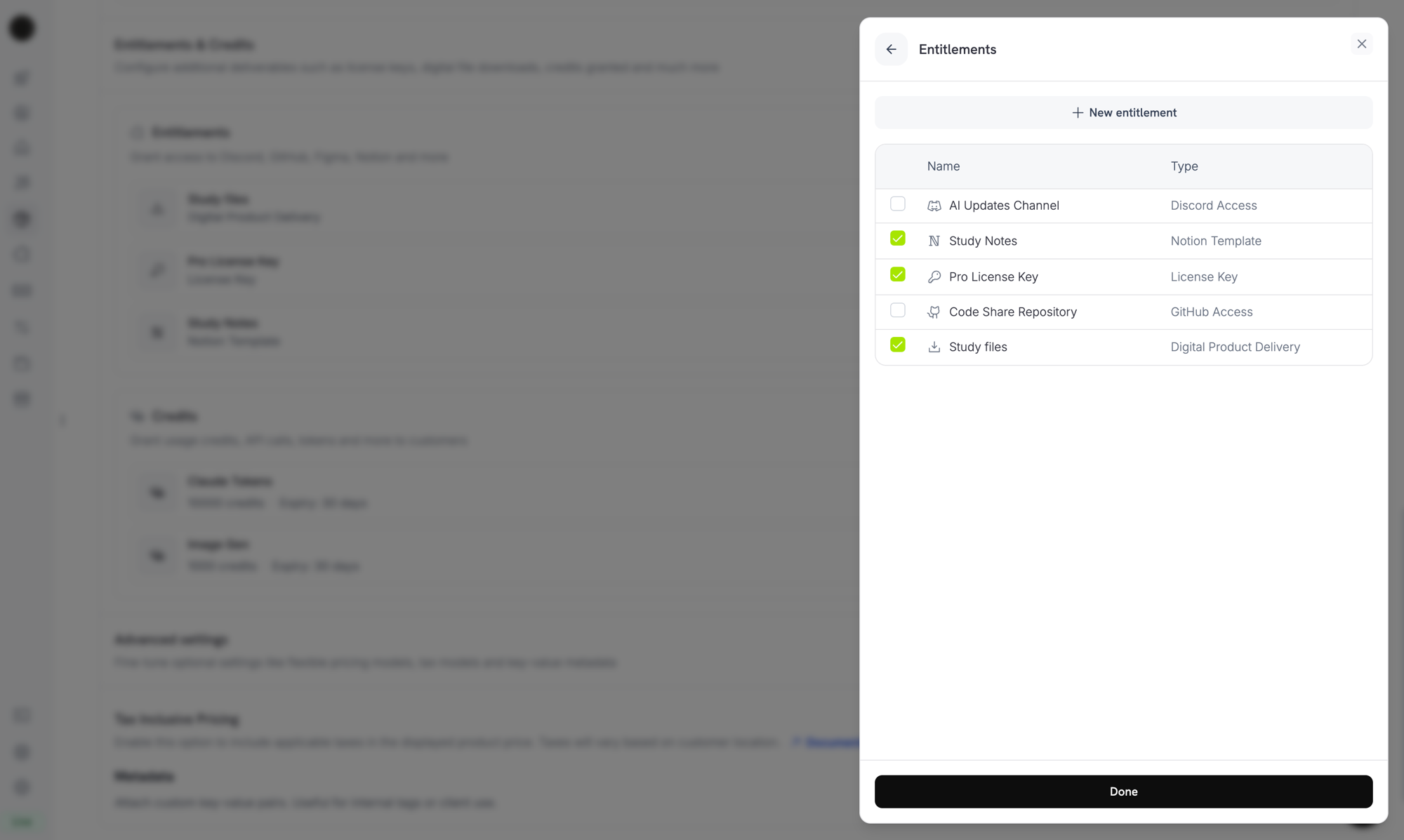
Selecting the License Key entitlement in the product entitlements panel.
How Keys Are Issued
密钥发放遵循标准的 grant lifecycle。每个事件对许可证密钥的影响如下:数量行为
密钥数量取决于 grant 的来源。每个密钥都有自己的 grant。- 订阅产品:每个席位发放一个密钥(
subscriptions.quantity)。 - 一次性产品:购物车行项目中的每个单位发放一个密钥(
product_cart.quantity)。 - 手动 API grant:恰好发放一个密钥。
Fulfillment Mode
每个 License Key entitlement 都有一个fulfillment_mode,用于控制由谁提供密钥:
auto(默认,在控制面板中显示为 Automatic):Dodo Payments 会在付款或订阅时生成并发送密钥。这就是上表中的行为;当省略fulfillment_mode时,会应用此行为。manual(在控制面板中显示为 Manual):每个购买的单位都会创建一个没有密钥的Pendinggrant,由您提供每个密钥值。请参阅 Manual Fulfillment。
Manual Fulfillment
使用手动 fulfillment 时,您需要提供每个许可证密钥,而不是由 Dodo Payments 生成密钥。购买会创建一个没有密钥的Pending grant,向您发送 webhook 通知,并等待您提交密钥值。当密钥来自您自己的系统、第三方供应商或预先打印代码的有限池时,可以使用此方式。
如需查看从创建产品到交付密钥的分步构建流程,请参阅 Manual License Key Fulfillment Integration Guide。
何时使用
Automatic fulfillment 适用于大多数软件许可场景。当 Dodo Payments 无法自行生成密钥时,请选择 manual fulfillment:- 使用您自己的密钥:由您的应用、桌面产品或自有许可证服务器生成密钥。
- 第三方供应商:转售上游供应商发放的密钥,例如游戏密钥、API 凭据或合作伙伴平台许可证。
- 有限库存:从预先分配的代码池中逐个发放代码。
- 人工审核:在授予访问权限前检查购买。
启用 Manual Fulfillment
要通过 API 启用 manual fulfillment,请在 License Key entitlement 的integration_config 中设置 fulfillment_mode: "manual"。在控制面板中,将 Fulfillment Mode 设置为 Manual。
fulfillment_mode 向后兼容。在此设置存在之前创建的 entitlement 没有 fulfillment_mode,并且其行为如同 auto。切换到 manual 只会影响更改后创建的 grant。已经交付的密钥不会改变。查找等待 fulfillment 的 Grant
当客户购买包含 manual-mode entitlement 的产品时,Dodo Payments 会创建处于Pending 状态且没有密钥的 grant,并发送包含 integration_type: "license_key" 和 status: "Pending" 的 entitlement_grant.created webhook。您可以响应此 webhook,或使用 integration_type 和 status 过滤条件轮询 List Customer Grants endpoint:
交付密钥
要交付密钥,请将其发送到 Fulfill License Key Grant endpoint。grant 会转为Delivered,Dodo Payments 会通过电子邮件将密钥发送给客户。这与 automatic fulfillment 下客户收到的电子邮件相同。
cURL
activations_limit 和 expires_at 是可选的。省略它们时,Dodo Payments 会使用 entitlement 的配置。每个 grant 只能 fulfillment 一次:重试已经 fulfillment 的 grant 会返回 409,而不会发放第二个密钥。
您无需自行通过电子邮件发送密钥。grant fulfillment 后,Dodo Payments 会交付密钥。使用
POST /license_keys 导入密钥 的行为不同:它不会通知客户。激活、验证和停用
您的软件在运行时通过三个 endpoint 管理密钥。激活会将设备或安装记录到密钥中,验证会检查密钥是否可用,停用则会释放一次激活。Public Endpoints:激活、停用和验证许可证的 endpoint 是公开的,不需要 API key。您可以直接从桌面软件、CLI 或基于浏览器的客户端调用它们,而无需暴露 API 凭据。SDK 构造函数仍然需要 bearer token 值,因此 SDK 示例会传入一个占位符。
激活许可证
激活会为密钥创建一个激活实例,并通过lki_ ID 返回该实例。请保存此 ID,因为停用实例时需要使用它。如果密钥未激活,请求会返回 403;如果密钥不存在,则返回 404;如果密钥已达到激活次数限制,则返回 422。
验证许可证
当密钥状态为active 且密钥尚未过期时,验证会返回 valid: true。若还要检查特定激活实例是否仍然存在,请传入其 license_key_instance_id。
停用激活实例
停用会移除一个激活实例,并释放密钥上的一次激活。请传入密钥以及激活时返回的实例 ID。如果实例不属于该密钥,请求会返回403;如果密钥不存在,则返回 404。
管理密钥
要查看已发放的密钥,请在 Entitlements 下打开 License Key entitlement。Grant 列表会为每个客户密钥显示一行,其中包含客户、访问日期、状态以及 Revoke 操作。要查看密钥的有效期、激活次数和激活次数限制,请在 Sales → License Keys 下打开该密钥。 要以编程方式列出 grant,请调用 List Grants。对于每个 license-key grant,license_key 对象会携带密钥、状态、有效期、已使用激活次数和激活次数限制。对于仍处于 Pending 状态的 manual-mode grant,该对象为 null。
通过 API 导入现有许可证密钥
要从其他系统迁移许可证密钥,请使用 Create License Key API 导入。您的客户可以继续激活、验证和停用相同的密钥字符串,因此无需重新发放密钥。 请求需要key、customer_id 和 product_id。对于无限激活次数,请省略 activations_limit;对于永不过期的密钥,请省略 expires_at。导入已存在的密钥字符串会返回 409。
不同来源的密钥差异
source 字段会记录每个许可证密钥的创建方式:
使用
source 区分迁移的密钥和手动 fulfillment 的密钥与 Dodo Payments 生成的密钥,例如在对账或审计密钥时。该字段位于许可证密钥记录中,例如 POST /license_keys 响应。来自 List Grants 的 grant 中的 license_key 对象不包含此字段。旧版 GET /license_keys endpoint 会返回 source 并接受 source 过滤条件,该 endpoint 已弃用。
Return URL 中的许可证密钥
当客户购买包含 License Key entitlement 的产品时,Dodo Payments 会将生成的密钥作为license_key query parameter 附加到您的 return_url。您的成功页面无需额外 API 调用即可显示密钥:
%2C,因此请先使用 URL parser 读取并解码参数,然后再进行拆分:
subscription_id 和订阅状态,而不是 payment_id:
API 管理
Lifecycle Operations (Public Endpoints)
Lifecycle Operations (Public Endpoints)
激活、停用和验证均为公开操作,不需要 API key。
Activate License
Deactivate License
Validate License
License Key Management
License Key Management
创建、列出、检索和更新单个许可证密钥记录。使用这些 endpoint 导入现有密钥或读取使用详情。
Create License Key
List License Keys
Get License Key
Update License Key
Entitlement Management
Entitlement Management
管理 License Key entitlement 本身:其激活次数限制、许可证时长和激活消息。
Create Entitlement
Update Entitlement
List Grants
Revoke Grant
Webhooks
许可证密钥的交付和撤销会发送四个entitlement_grant.* webhook events。对于许可证密钥 grant,payload 包含一个 license_key 对象,其中包含密钥、状态、有效期、已使用激活次数和激活次数限制。
创建许可证密钥记录时,旧版 license_key.created event 仍会触发。请参阅 License Key webhook payload page。
旧版许可证密钥
使用旧版
license_key_enabled flag 创建的产品已自动迁移到 License Key entitlement。迁移过程是透明的:现有客户的密钥继续有效,公开的 /licenses/activate、/licenses/validate 和 /licenses/deactivate endpoint 继续有效,/license_keys/* API endpoint 也会读取和写入同一个密钥存储。独立的 Sales → License Keys 控制面板部分仍然可用,其中以平面列表形式显示所有已发放的密钥,便于审计和搜索。要更改激活次数限制、许可证时长或激活消息,请在 Entitlements 下编辑迁移后的 License Key entitlement。最佳实践
- 选择明确的激活次数限制:为单用户应用选择 1 等默认值,为团队许可证选择 3–5 等默认值,并向客户说明这些限制。
- 编写准确的激活消息:客户会从许可证密钥电子邮件中复制这些内容,因此准确的路径和命令可以减少支持请求。
- 通过 API 验证密钥:对于联网产品,请调用
/licenses/validate,而不要依赖本地缓存的激活状态。 - 使用 webhooks 处理撤销:处理
entitlement_grant.revoked,以便客户取消或获得退款时停用应用内功能。 - 测试订阅和一次性购买:两者的许可证密钥行为不同,例如订阅密钥不会过期,因此上线前请分别测试这两种场景。