

Einführung
Die Microsoft Teams-Integration veröffentlicht Dodo Payments-Ereignisse als Adaptive Cards in einem Teams-Kanal, damit Ihr Team Zahlungen, Abonnementänderungen und Disputes unmittelbar sieht. Verwenden Sie sie, wenn Ihr Geschäftsteam in Teams arbeitet.Diese Anleitung setzt voraus, dass Sie Administratorrechte haben, um Webhooks in Ihrem Microsoft Teams-Arbeitsbereich zu erstellen.
Erste Schritte
1
Open the Webhook Section
Gehe im Dodo Payments-Dashboard zu Developer → Webhooks und klicke auf Add endpoint.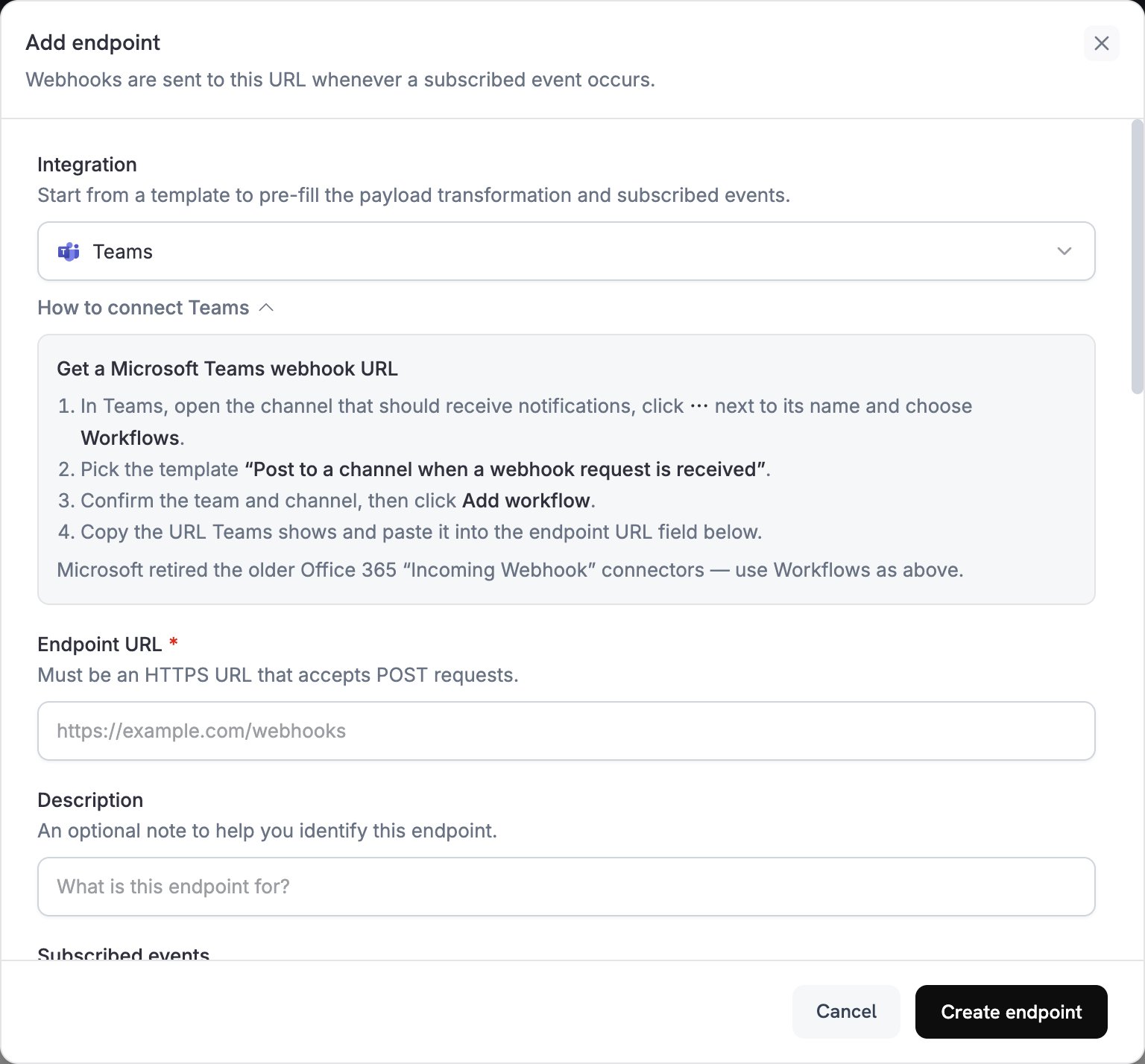
2
Select Microsoft Teams
Wählen Sie in der Liste Integration die Option Teams aus.
3
Create Teams Webhook
Microsoft hat die Incoming Webhook-Konnektoren von Office 365 in Teams eingestellt. Erstellen Sie den Webhook daher mit der Workflows-App:
- Öffnen Sie in Teams den Kanal, der Benachrichtigungen empfangen soll.
- Klicken Sie neben dem Kanalnamen auf ⋯ und wählen Sie Workflows aus.
- Wählen Sie die Vorlage Post to a channel when a webhook request is received aus.
- Bestätigen Sie Team und Kanal und klicken Sie anschließend auf Add workflow.
- Kopieren Sie die von Teams angezeigte Webhook-URL.
4
Paste Webhook URL
Fügen Sie die Teams-Webhook-URL in das Feld Endpoint URL ein.
5
Customize Transformation
Bearbeiten Sie den Code unter Transformation code, um jedes Ereignis als Adaptive Card zu formatieren. Verwenden Sie die folgenden Beispiele als Ausgangspunkt.
6
Test & Create
Führen Sie unter Test this code die Transformation mit einer Beispiel-Payload aus und klicken Sie anschließend auf Create endpoint.
7
Done
Ihr Teams-Kanal empfängt nun Dodo Payments-Ereignisse als Adaptive Cards.
Beispiele für Transformationscode
Jedes Beispiel ersetzt die Ereignis-Payload durch eine Teams-Nachricht mit einem Adaptive-Card-Anhang.Basiskarte für Zahlungen
Dieses Beispiel veröffentlicht den Betrag, die E-Mail-Adresse des Kunden und die Zahlungs-ID, wenn eine Zahlung erfolgreich ist.payment_card.js
Abonnementverwaltung
Dieses Beispiel veröffentlicht eine Karte, wenn ein Abonnement aktiv wird, und eine weitere, wenn es gekündigt wird.subscription_card.js
Dispute-Benachrichtigungen
Dieses Beispiel veröffentlicht für jedesdispute.*-Ereignis eine Karte. Titel und Farbe ändern sich, wenn ein Dispute gewonnen oder verloren wird.
dispute_card.js
Tipps
- Verwenden Sie Adaptive Cards für eine ansprechende, interaktive Formatierung.
- Wählen Sie Farben nach ihrer Bedeutung:
Good(grün),Warning(gelb) undAttention(rot). - Halten Sie Faktensammlungen kurz und übersichtlich.
- Öffnen Sie vor der Verwendung des Endpunkts dessen Registerkarte Testing und klicken Sie auf Send example, um eine Beispielkarte in Ihrem Kanal zu veröffentlichen.
Fehlerbehebung
No Messages in Teams
No Messages in Teams
- Überprüfen Sie, ob die Webhook-URL korrekt ist und der Workflow aktiviert wurde.
- Überprüfen Sie, ob die Transformation gültiges Adaptive-Card-JSON zurückgibt.
- Überprüfen Sie, ob der Workflow die Berechtigung hat, im Kanal zu veröffentlichen.
Card Formatting Issues
Card Formatting Issues
- Führen Sie die Transformation unter Test this code aus und überprüfen Sie das Ergebnis anhand des Adaptive-Card-Schemas.
- Überprüfen Sie, ob alle erforderlichen Felder vorhanden sind.
- Überprüfen Sie, ob die Farbwerte gültig sind, z. B.
Default,Good,WarningoderAttention.