

Introduzione
L’integrazione con Microsoft Teams pubblica gli eventi di Dodo Payments in un canale Teams come Adaptive Cards, così il tuo team può vedere pagamenti, modifiche agli abbonamenti e contestazioni mentre si verificano. Usala quando Teams è l’ambiente di lavoro del tuo team aziendale.Questa guida presuppone che tu abbia accesso amministrativo per creare webhook nel tuo workspace Microsoft Teams.
Iniziare
1
Open the Webhook Section
Nel dashboard di Dodo Payments, vai su Sviluppatore → Webhooks e fai clic su Aggiungi endpoint.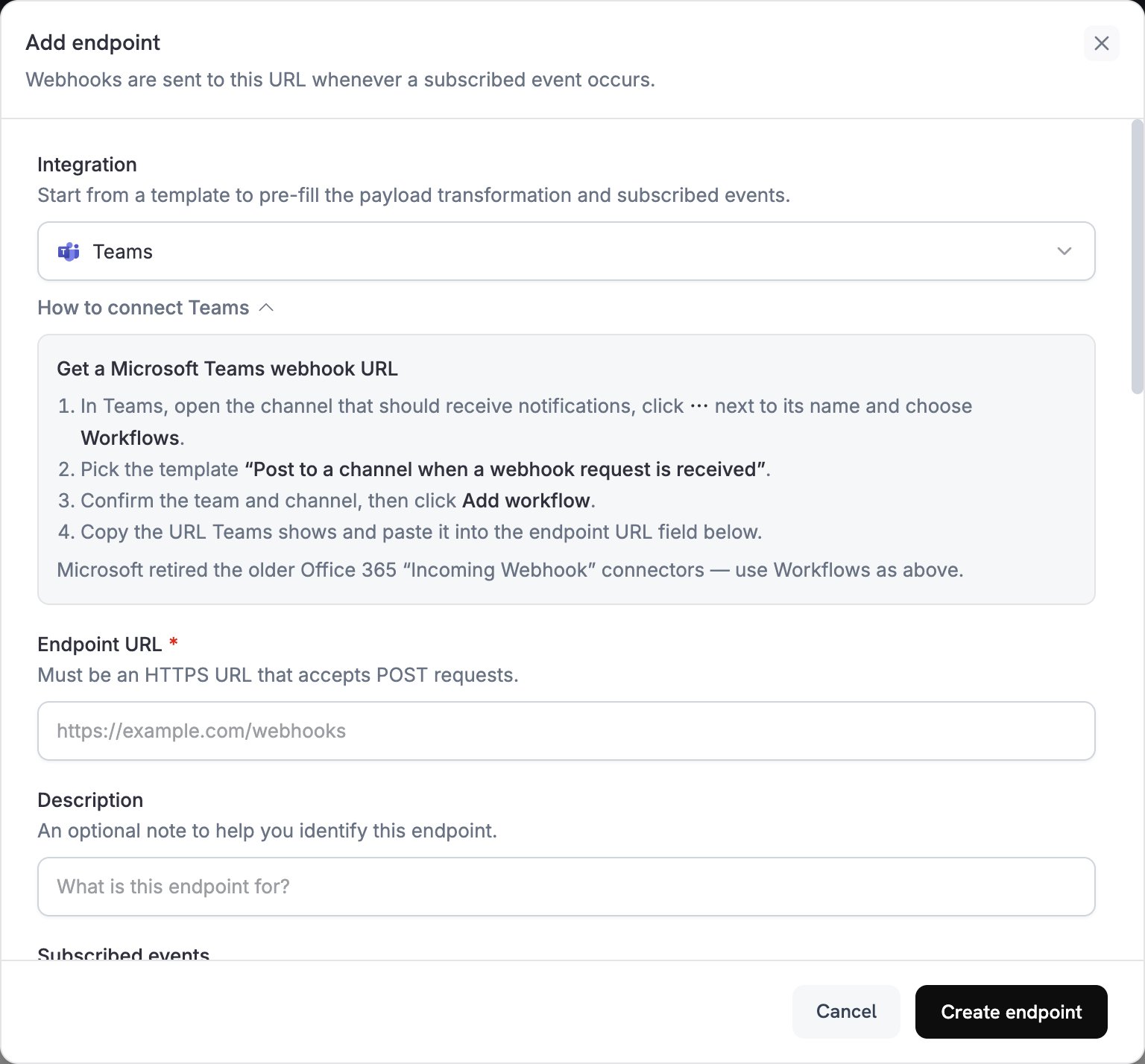
2
Select Microsoft Teams
Nell’elenco Integration, seleziona Teams.
3
Create Teams Webhook
Microsoft ha ritirato i connettori Incoming Webhook di Office 365 in Teams, quindi crea il webhook con l’app Workflows:
- In Teams, apri il canale che deve ricevere le notifiche.
- Fai clic su ⋯ accanto al nome del canale e scegli Workflows.
- Seleziona il modello Post to a channel when a webhook request is received.
- Conferma il team e il canale, quindi fai clic su Add workflow.
- Copia l’URL del webhook mostrato da Teams.
4
Paste Webhook URL
Incolla l’URL del webhook Teams nel campo Endpoint URL.
5
Customize Transformation
Modifica il codice in Transformation code per formattare ogni evento come Adaptive Card. Inizia dagli esempi riportati di seguito.
6
Test & Create
In Test this code, esegui la trasformazione su un payload di esempio, quindi fai clic su Create endpoint.
7
Done
Il tuo canale Teams ora riceve gli eventi di Dodo Payments come Adaptive Cards.
Esempi di codice di trasformazione
Ogni esempio sostituisce il payload dell’evento con un messaggio Teams che contiene un allegato Adaptive Card.Scheda di pagamento di base
Questo esempio pubblica l’importo, l’email del cliente e l’ID del pagamento quando un pagamento va a buon fine.payment_card.js
Gestione degli abbonamenti
Questo esempio pubblica una scheda quando un abbonamento diventa attivo e un’altra quando viene annullato.subscription_card.js
Avvisi sulle contestazioni
Questo esempio pubblica una scheda per ogni eventodispute.*. Il titolo e il colore cambiano quando una contestazione viene vinta o persa.
dispute_card.js
Suggerimenti
- Usa le Adaptive Cards per una formattazione avanzata e interattiva.
- Scegli i colori in base al significato:
Good(verde),Warning(giallo) eAttention(rosso). - Mantieni brevi e leggibili gli insiemi di dati.
- Prima di affidarti all’endpoint, apri la scheda Testing e fai clic su Send example per pubblicare una scheda di esempio nel tuo canale.
Risoluzione dei problemi
No Messages in Teams
No Messages in Teams
- Verifica che l’URL del webhook sia corretto e che il workflow sia attivo.
- Verifica che la trasformazione restituisca JSON valido per una Adaptive Card.
- Verifica che il workflow disponga dell’autorizzazione per pubblicare nel canale.
Card Formatting Issues
Card Formatting Issues
- Esegui la trasformazione in Test this code e verifica il risultato rispetto allo schema Adaptive Card.
- Verifica che siano presenti tutti i campi obbligatori.
- Verifica che i valori dei colori siano validi, ad esempio
Default,Good,WarningoAttention.