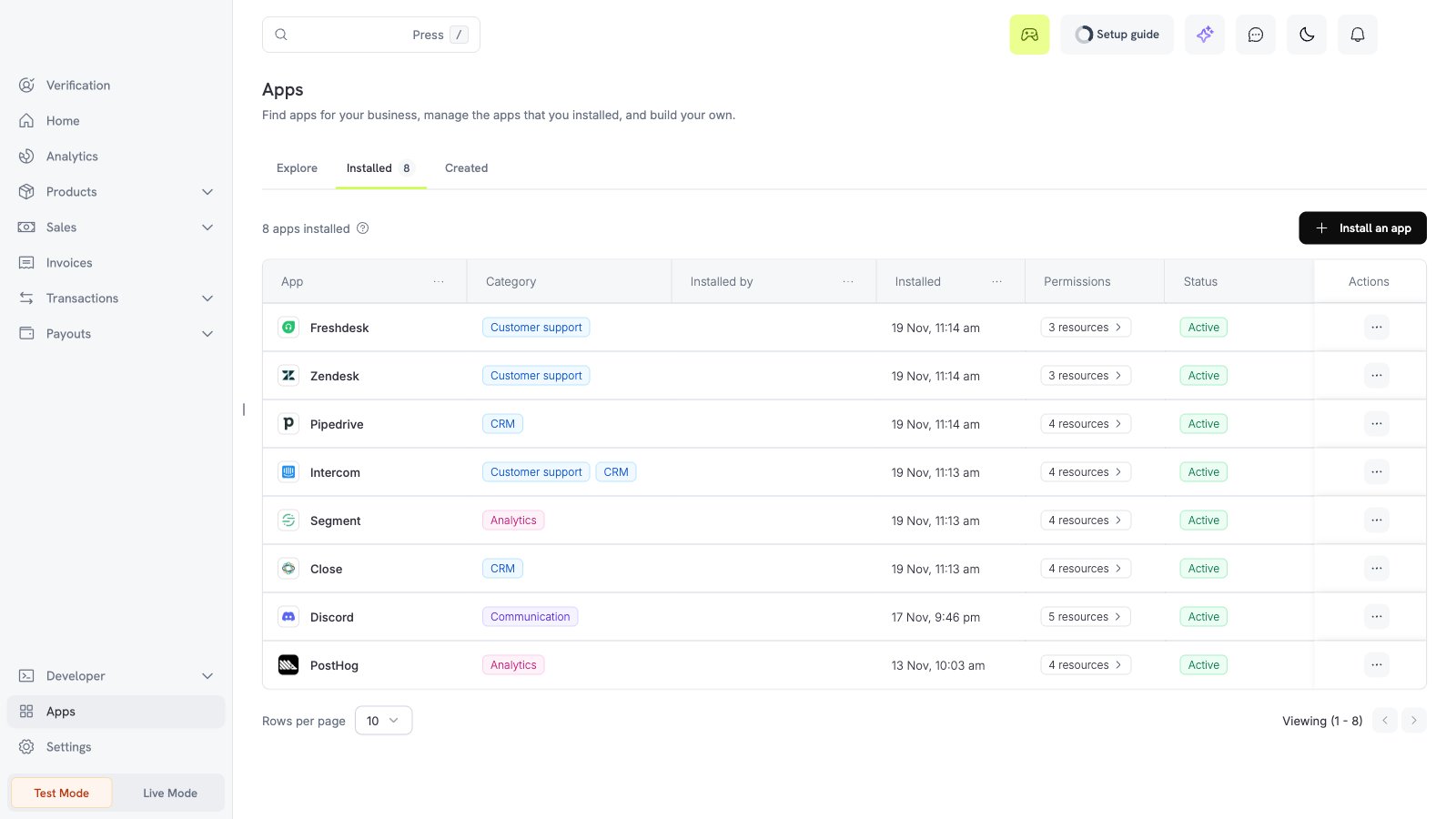
What the Segment app does
The Segment app sends events from your business to Segment. Each event has a name likedodo_payment_succeeded. You select the events and the filters.
To send events to Segment through your webhook endpoint and your transformation code, use the Segment webhook connector.
Before you start
- You are an owner or an admin of the Dodo Payments business.
- You have a Segment HTTP API source and its write key.
Install, connect, and configure
1
Install the app
Open Apps, then Explore. Open Segment (publisher Dodo Payments) and select Install app.
2
Connect Segment
Select Connect. Enter the Region: leave it empty for the US, or enter 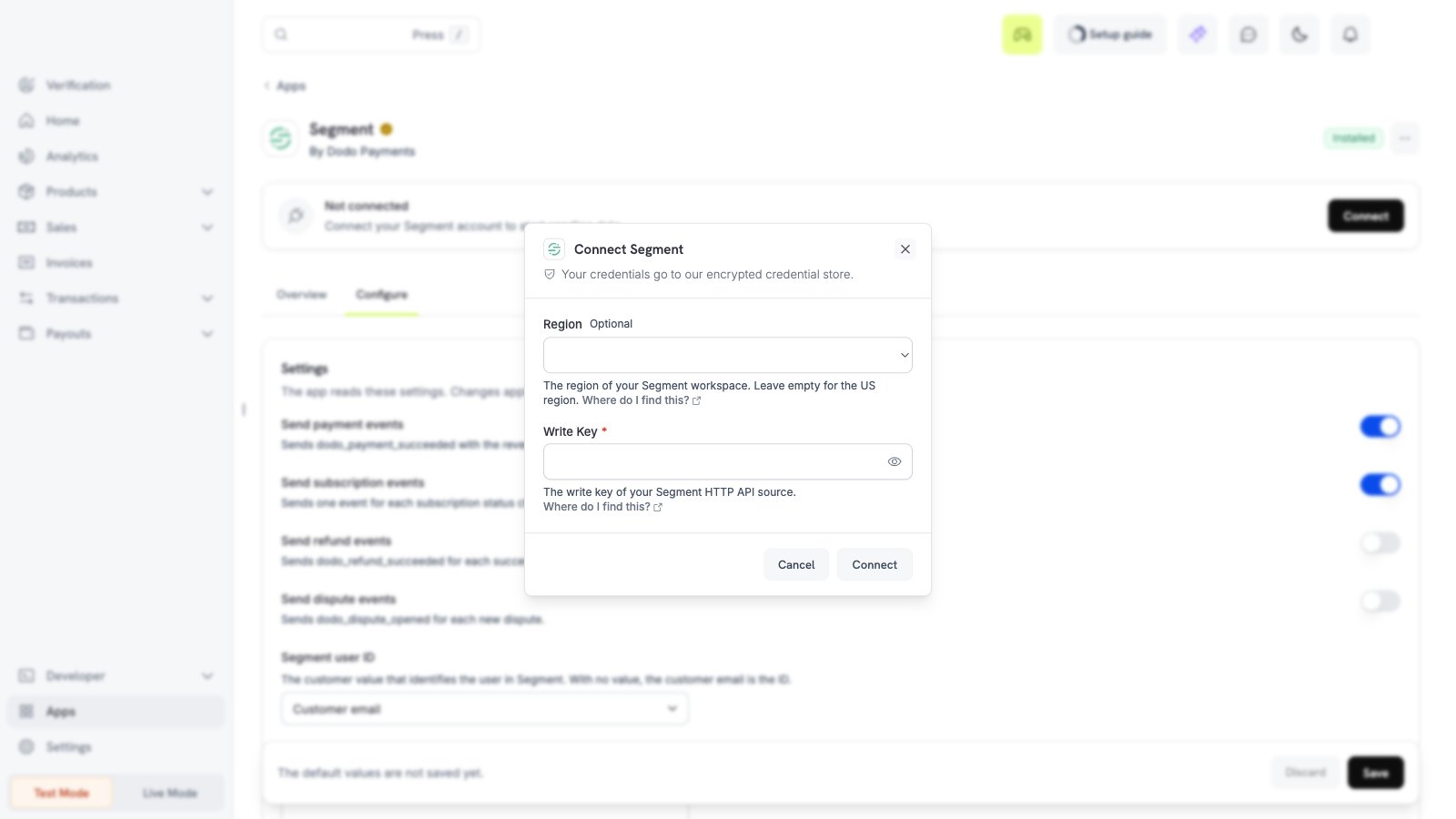
eu for the EU. Paste the write key of a Segment HTTP API source. Leave the password empty. Then select Connect. Dodo Payments sends the event dodo_payments_connected one time.3
Choose the events
Open the Configure tab. Turn on the events that you need.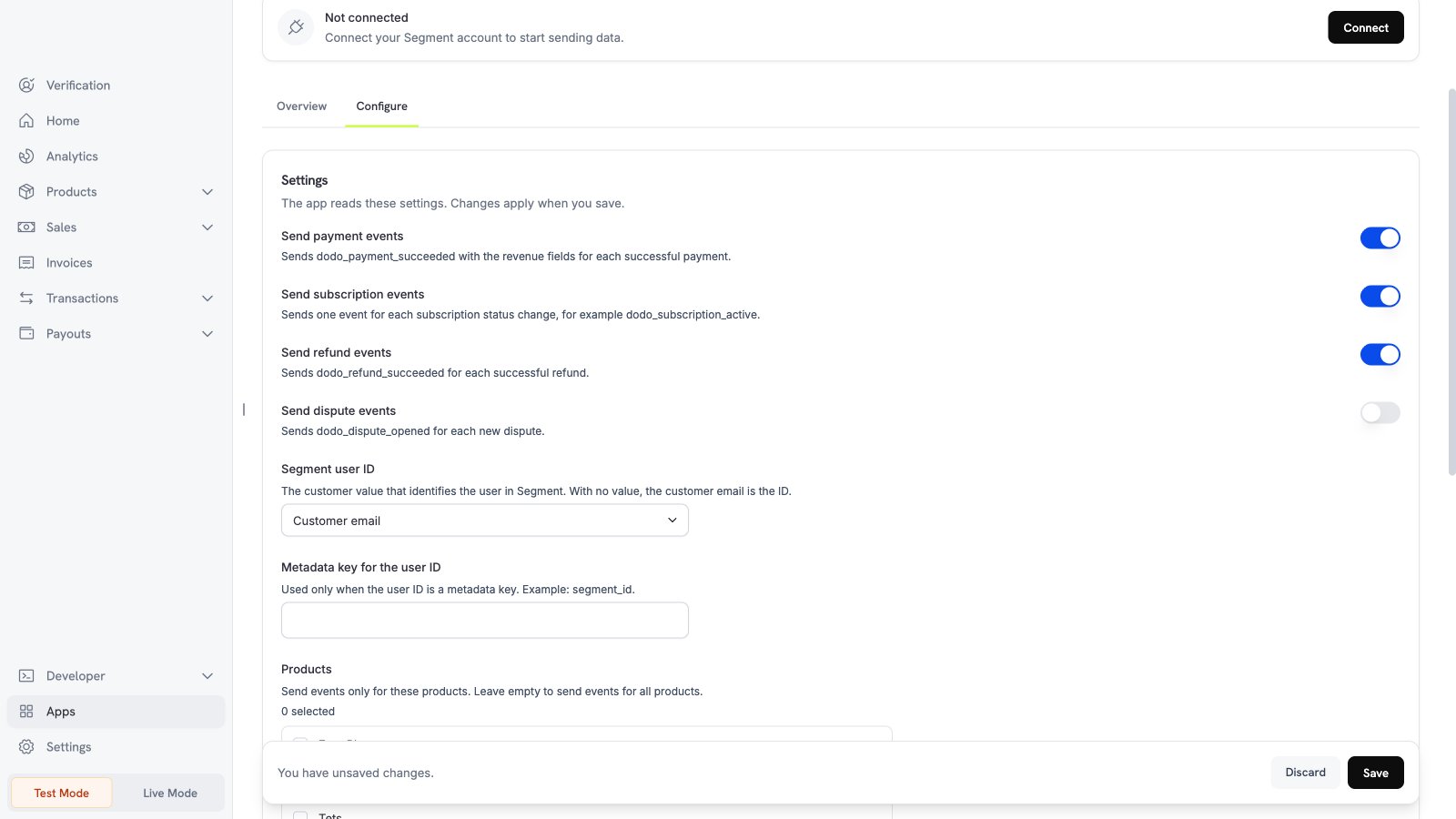
4
Set the filters and save
Scroll down. Select the products and currencies, and enter a minimum amount if you need one. Then select Save.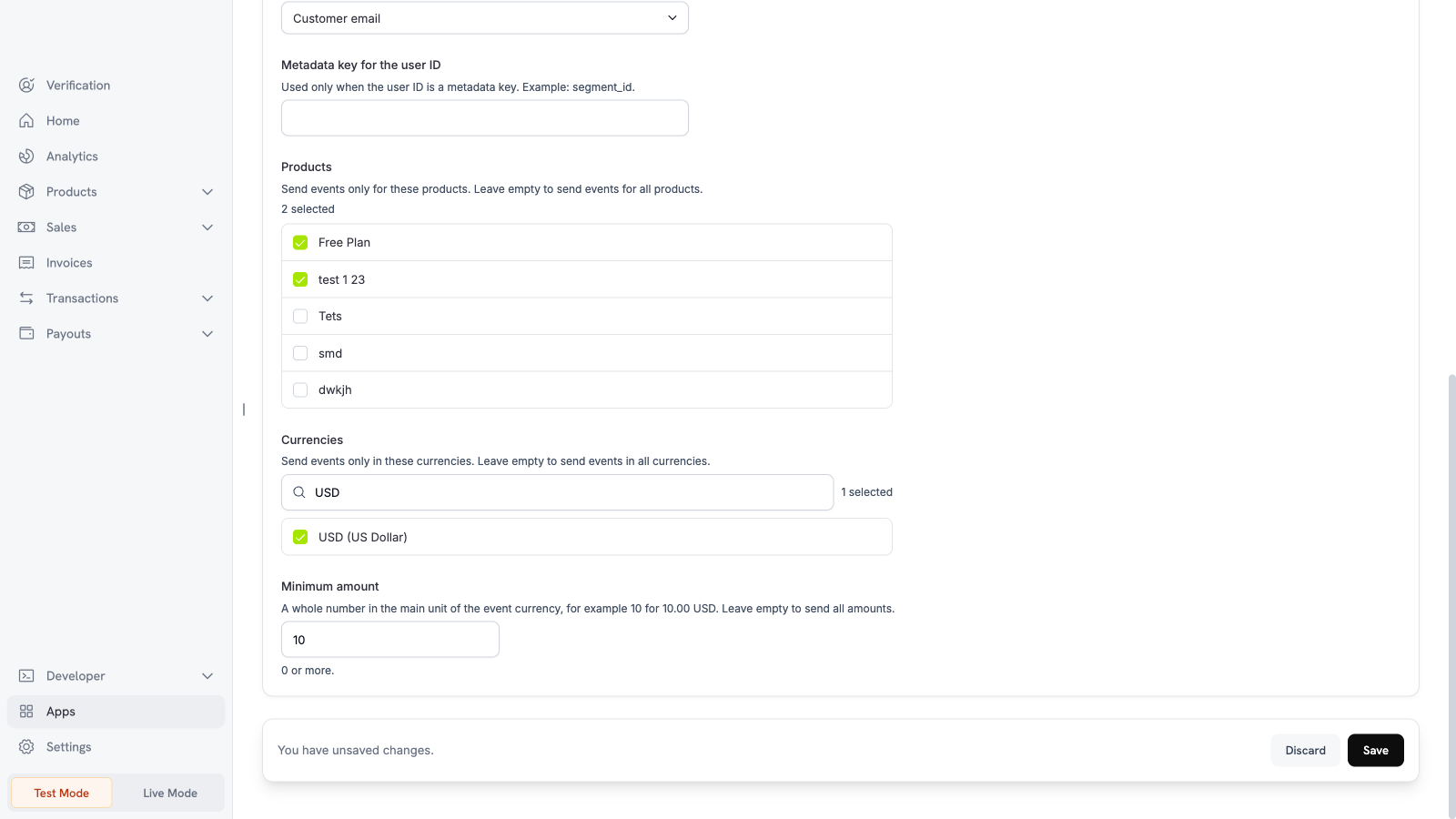
Settings
What is sent and when
Dodo Payments sends one Segment event for each Dodo Payments event, after the event happens. The user ID of each event is the customer email, unless you select a different value. A payment event also sends the revenue and the currency. The event properties are the object ID, the customer ID, the product IDs, the amount, the currency code, the status, and the mode. The events contain no card data, no address, and no customer name. The app sets the IP address to 0.0.0.0, so Segment does not find a location. Each event has a fixed ID, so a retry does not add a copy. The app sends no identify call, so it does not update user profiles.Test the app
1
Use test mode
Install and connect the app in test mode. Turn on Send payment events.
2
Make a test payment
Create a test payment.
3
Check Segment
Open the live event view of your Segment project. A
dodo_payment_succeeded event appears.Troubleshooting
Disconnect and uninstall
Turn off the events on the Configure tab to stop sending data. Uninstall the app to delete the Segment connection. See Manage and uninstall.