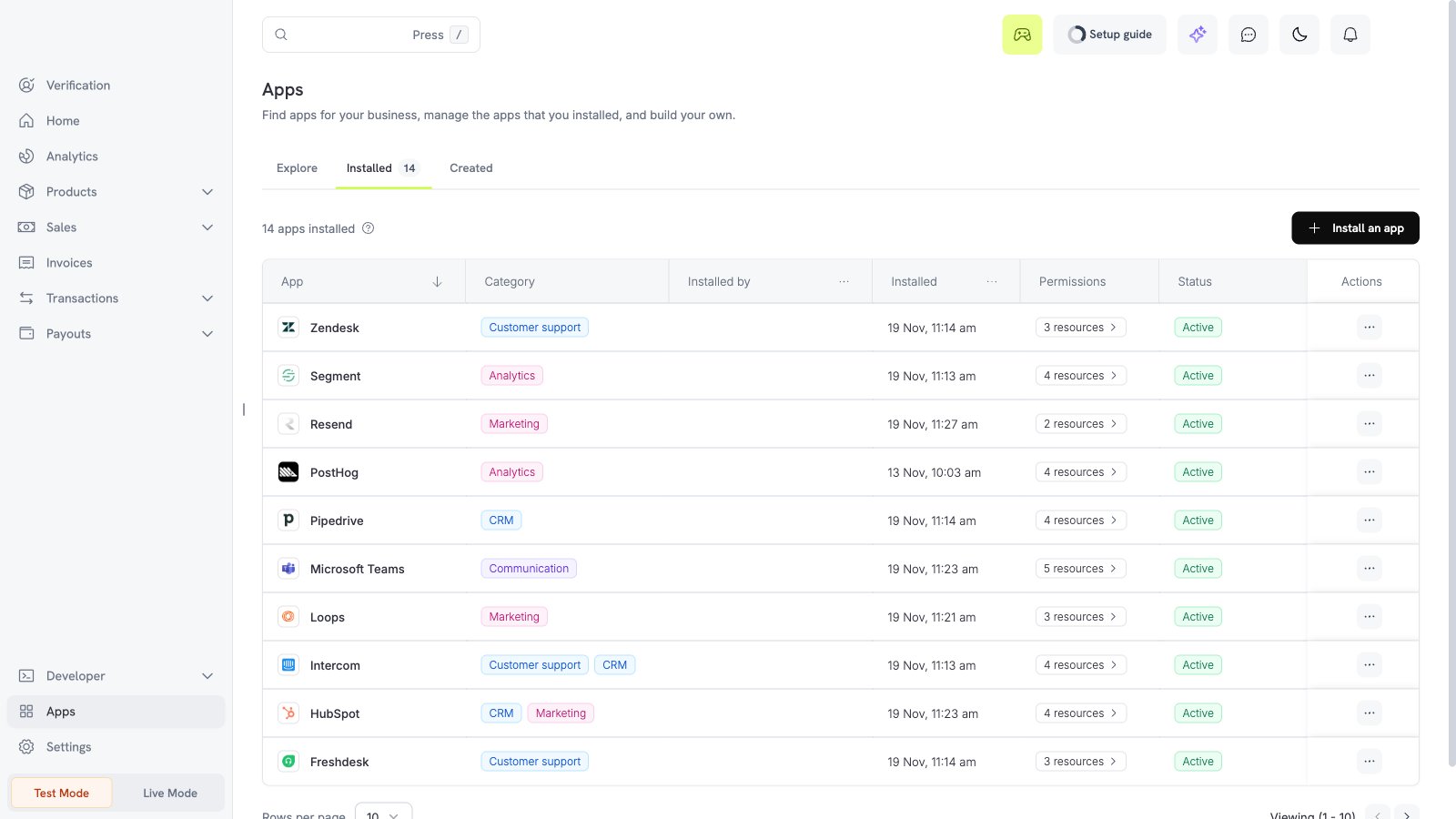
What the Resend app does
The Resend app adds a customer to your Resend contacts after a successful payment and when a subscription starts or renews. It can also write the subscription status to the contact. The app sends no email.To send events to Resend through your webhook endpoint and your transformation code, use the Resend webhook connector.
Before you start
- You are an owner or an admin of the Dodo Payments business.
- You have a Resend account.
- You have a Resend API key with Full access. A key with Sending access cannot change contacts.
Install, connect, and configure
1
Install the app
Open Apps, then Explore. Open Resend (publisher Dodo Payments) and select Install app.
2
Connect Resend
In Resend, open API Keys and make a key with Full access. Copy the key. It starts with 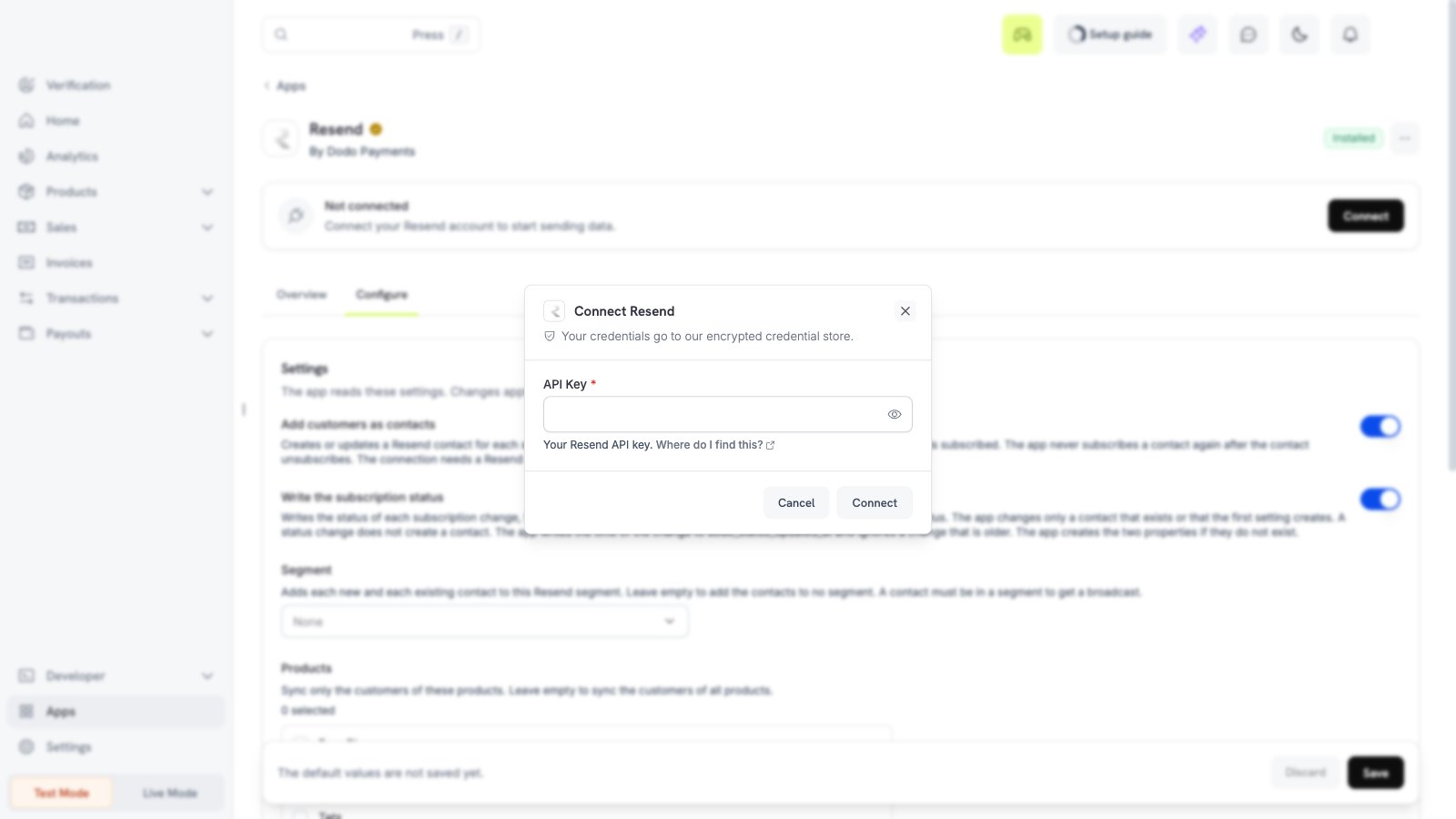
re_. In Dodo Payments, select Connect, paste the key in the API Key field, then select Connect. Dodo Payments tests the key.3
Choose the sync options
Open the Configure tab. Turn on the settings that you need and select the segment.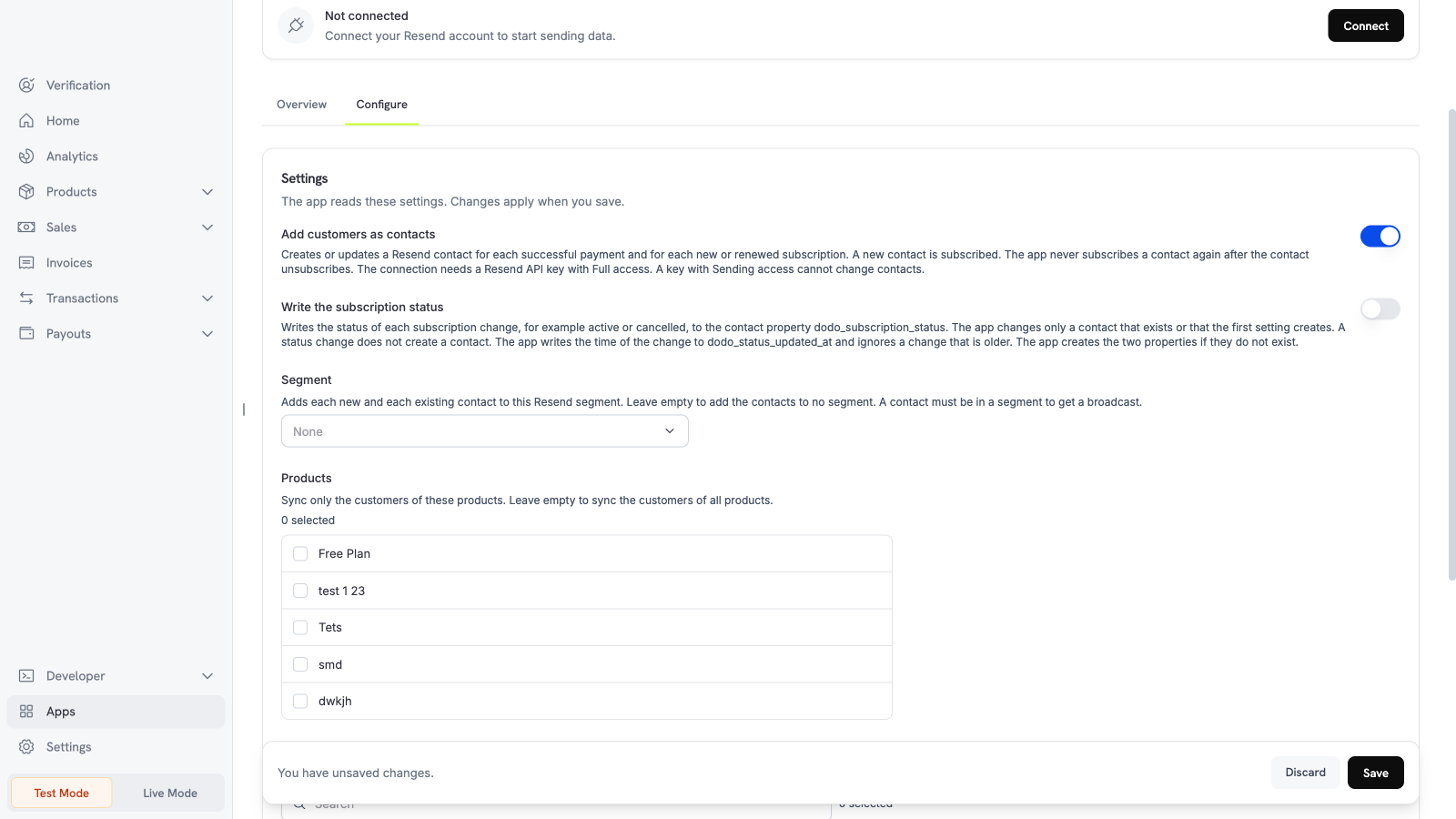
4
Set the filters and save
Scroll down. Select the currencies if you need them. Then select Save.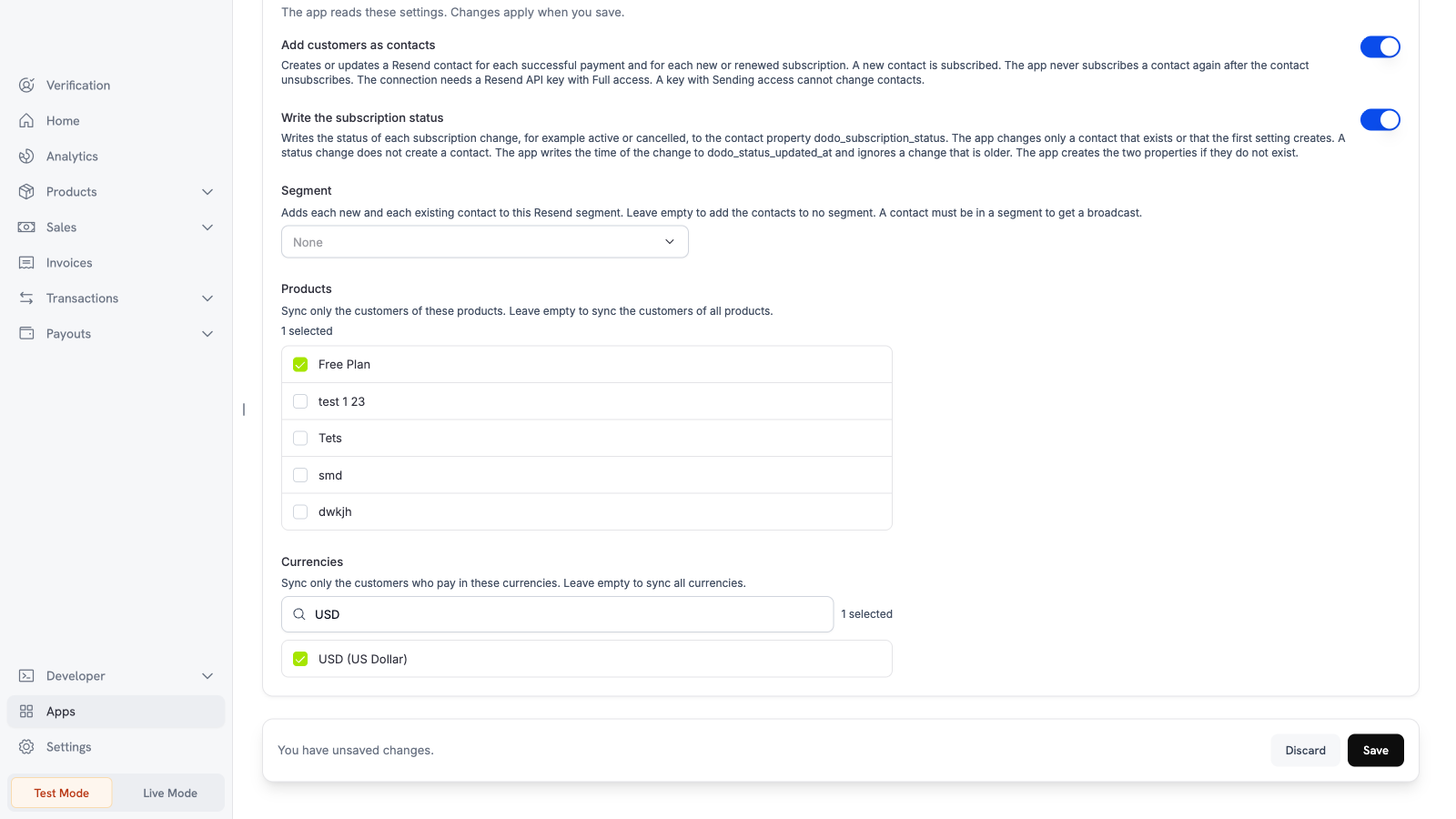
Settings
What is sent and when
Dodo Payments updates Resend after a successful payment, after a new or renewed subscription, and after a subscription status change. The app sends the email address, the first name, and the last name of the customer. It also sends the subscription status and the time. The app sends no card data and no address. The app writes the time of each status change to the contact propertydodo_status_updated_at. It ignores a change that is older. The app creates the two properties in Resend if they do not exist. The app changes only a contact that exists, or that Add customers as contacts creates.
Test the app
1
Use test mode
Install and connect the app in test mode. Turn on Add customers as contacts.
2
Make a test payment
Create a test payment.
3
Check Resend
Open Audience in Resend. The customer appears as a contact.
Troubleshooting
Disconnect and uninstall
Turn off the settings on the Configure tab to stop the sync. Uninstall the app to delete the Resend connection. The contacts stay in Resend. See Manage and uninstall.