

What the Loops app does
The Loops app adds a customer to Loops as a contact after a successful payment and when a subscription starts or renews. It can also send Dodo Payments events to Loops, for examplepayment_succeeded. A Loops workflow can start on an event. The app sends no email.
To send events to Loops through your webhook endpoint and your transformation code, use the Loops webhook connector.
Before you start
- You are an owner or an admin of the Dodo Payments business.
- You have a Loops account and an API key.
Install, connect, and configure
1
Install the app
Open Apps, then Explore. Open Loops (publisher Dodo Payments) and select Install app.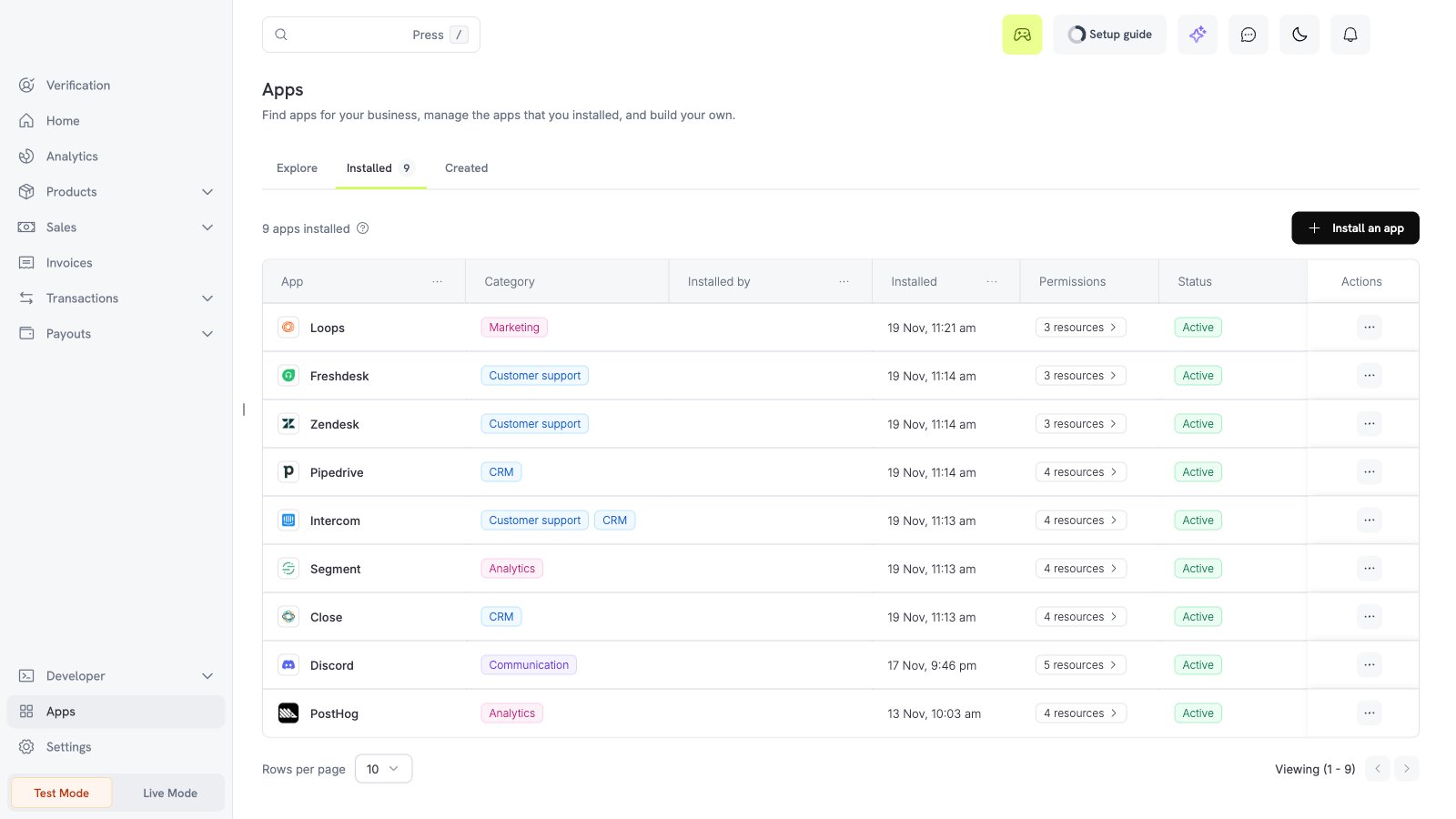
2
Connect Loops
Select Connect. In Loops, open the settings, then API, and copy the API key. Enter the key in the API Key field, then select Connect.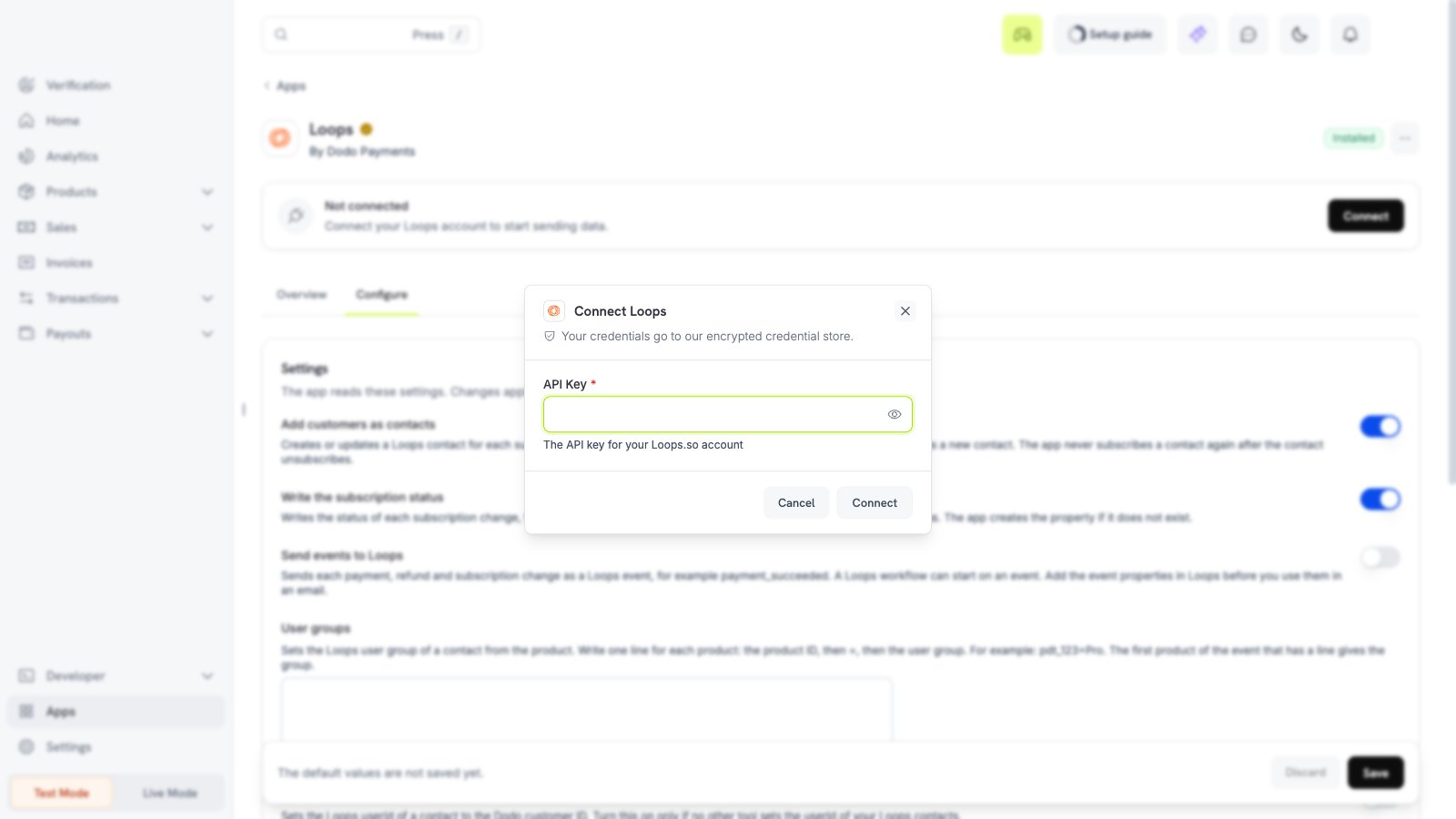
3
Choose the settings
Open the Configure tab, set the options, and select Save.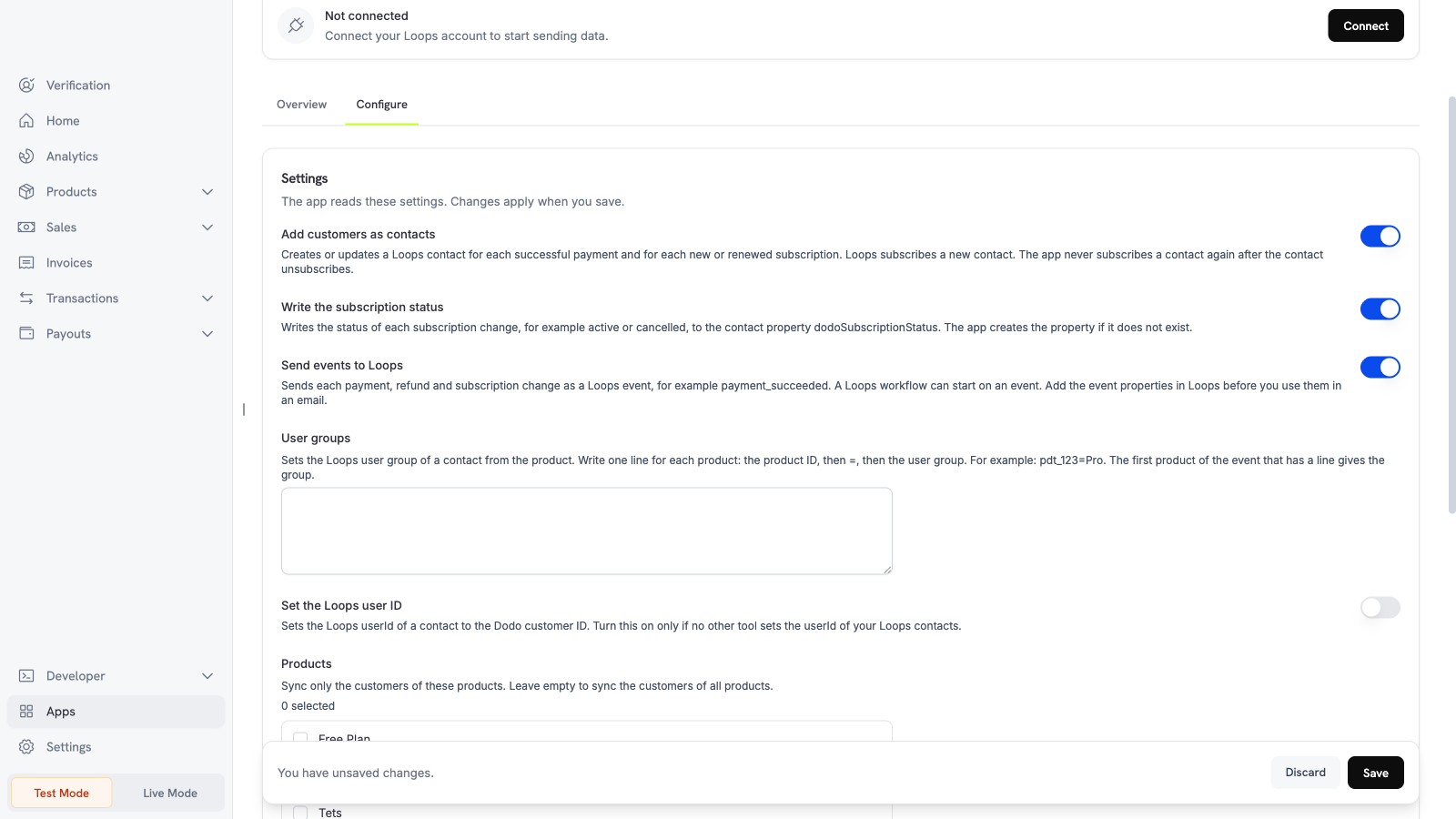
4
Set the user groups and the filters (optional)
To set the Loops user group from the product, write one line for each product in User groups. Use the form 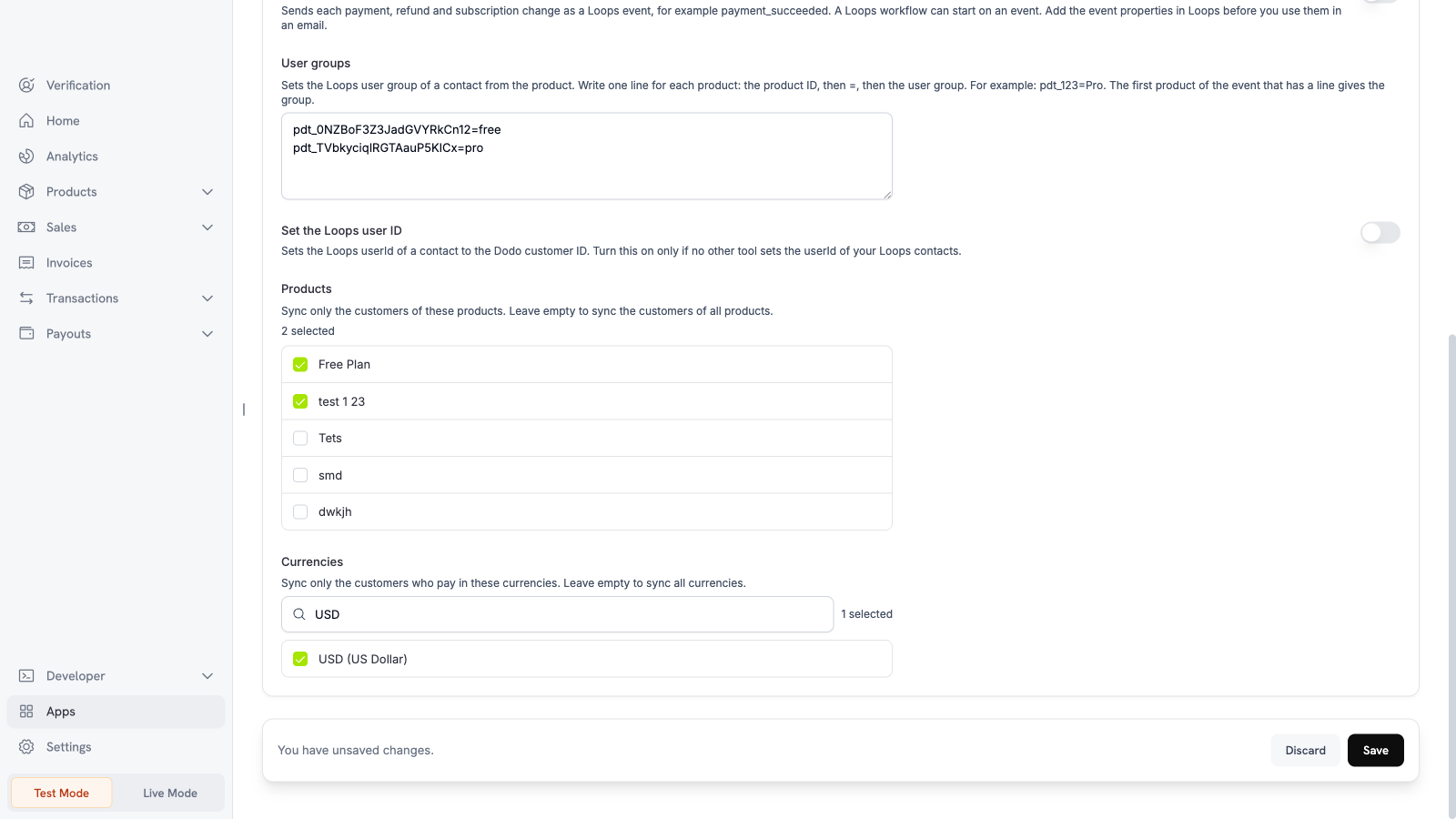
pdt_123=Pro. Then pick the products and currencies.Settings
What is sent and when
Dodo Payments sends data after the Dodo Payments event happens. The app sends the email address, the name, and the Dodo customer ID of the customer. It also sends the subscription status and the user group. An event also sends the amount, the currency code, the product IDs, and the object ID. The app sends no card data and no address. Loops subscribes a new contact. The app never subscribes a contact again after the contact unsubscribes. When a contact does not exist, an event creates it and Loops subscribes it. The app updates the name of an existing contact at each payment. A name that you changed in Loops changes back to the name in Dodo Payments. Add each event property in Loops before you use it in an email. If Set the Loops user ID is on, Loops can refuse the update when a different contact has the sameuserId.
Test the app
1
Use test mode
Install and connect the app in test mode.
2
Make a test payment
Create a test payment with a test customer email.
3
Check Loops
Open Audience in Loops. The contact of the test customer appears. If Send events to Loops is on, the
payment_succeeded event appears on the contact.