What the Microsoft Teams app does
The Microsoft Teams app posts a card to one Microsoft Teams channel when an event occurs in your Dodo Payments business. You select the events and the filters.To send events to Microsoft Teams through your webhook endpoint and your transformation code, use the Microsoft Teams webhook connector.
Before you start
- You are an owner or an admin of the Dodo Payments business.
- You can add a Workflows template to the Teams channel that you want to use.
Install, connect, and configure
1
Install the app
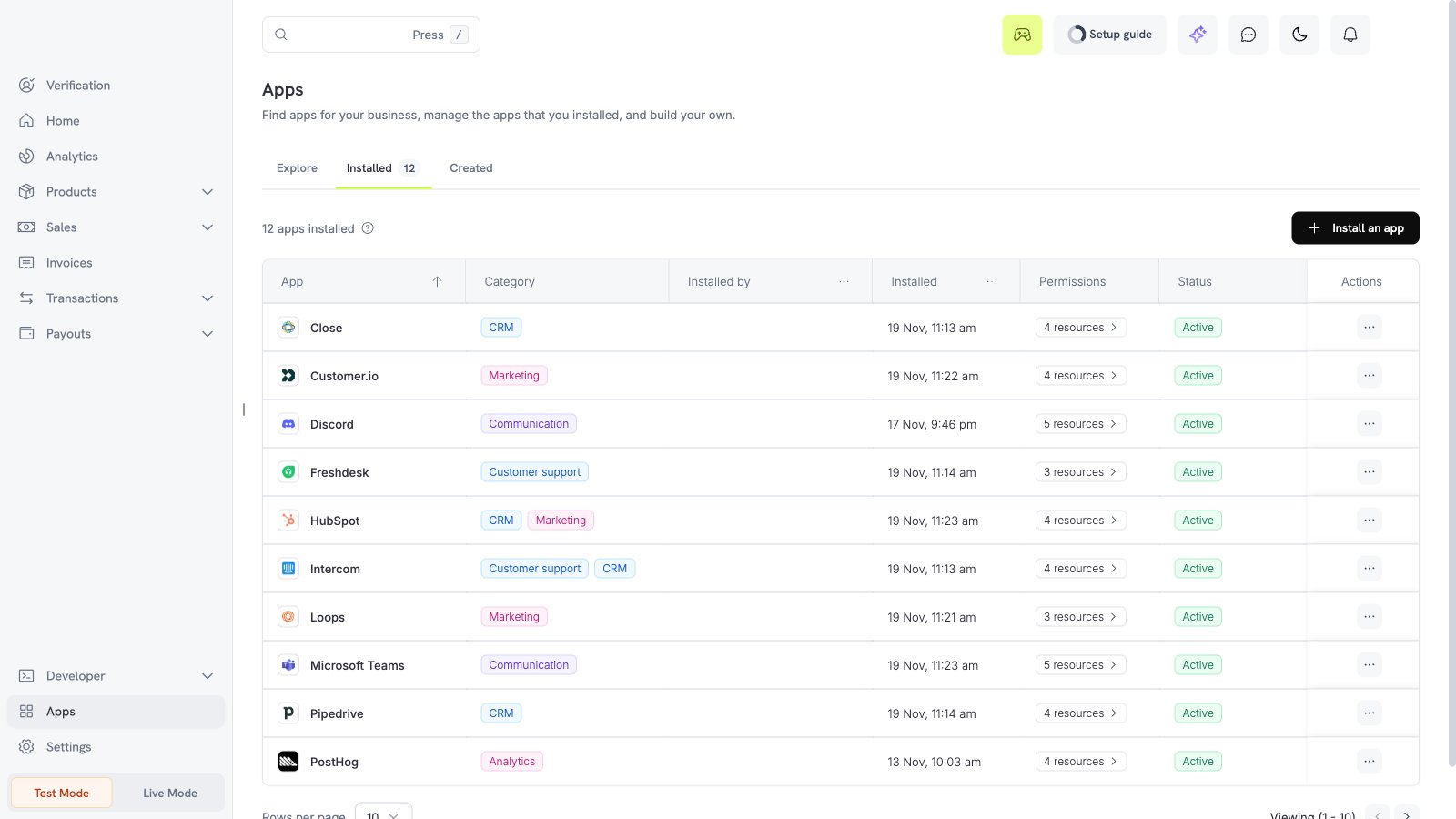
Open Apps, then Explore. Open Microsoft Teams (publisher Dodo Payments) and select Install app.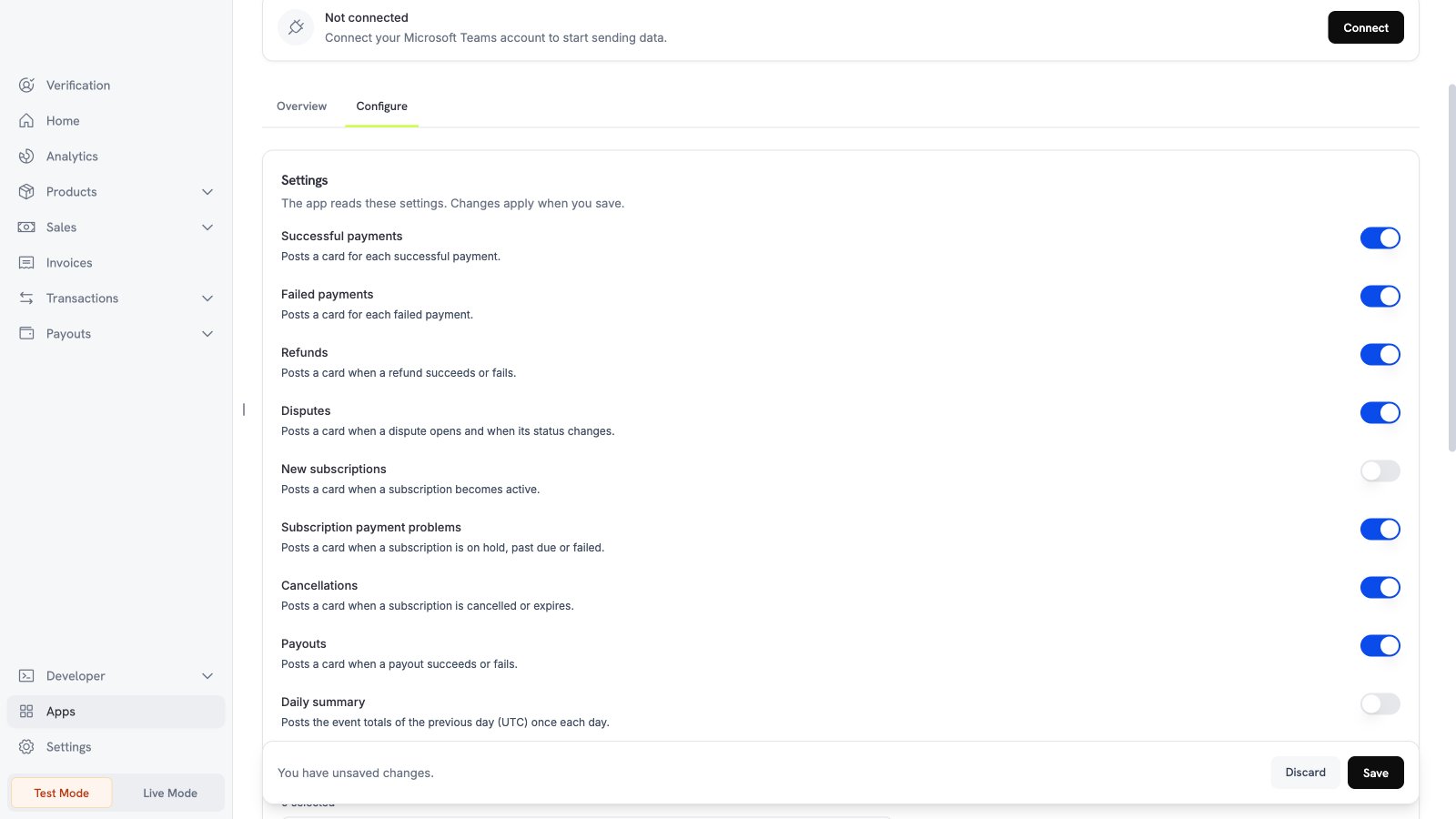
2
Make the workflow in Teams
In Microsoft Teams, add the Workflows template Send webhook alerts to a channel to the channel for the cards. It uses the trigger When a Teams webhook request is received. Copy the HTTP URL of the trigger.The URL is a secret, because it lets a person post in the channel.
3
Connect Microsoft Teams
In Dodo Payments, select Connect. Paste the URL in the Workflow URL field, then select Connect. Dodo Payments posts a welcome card to the channel.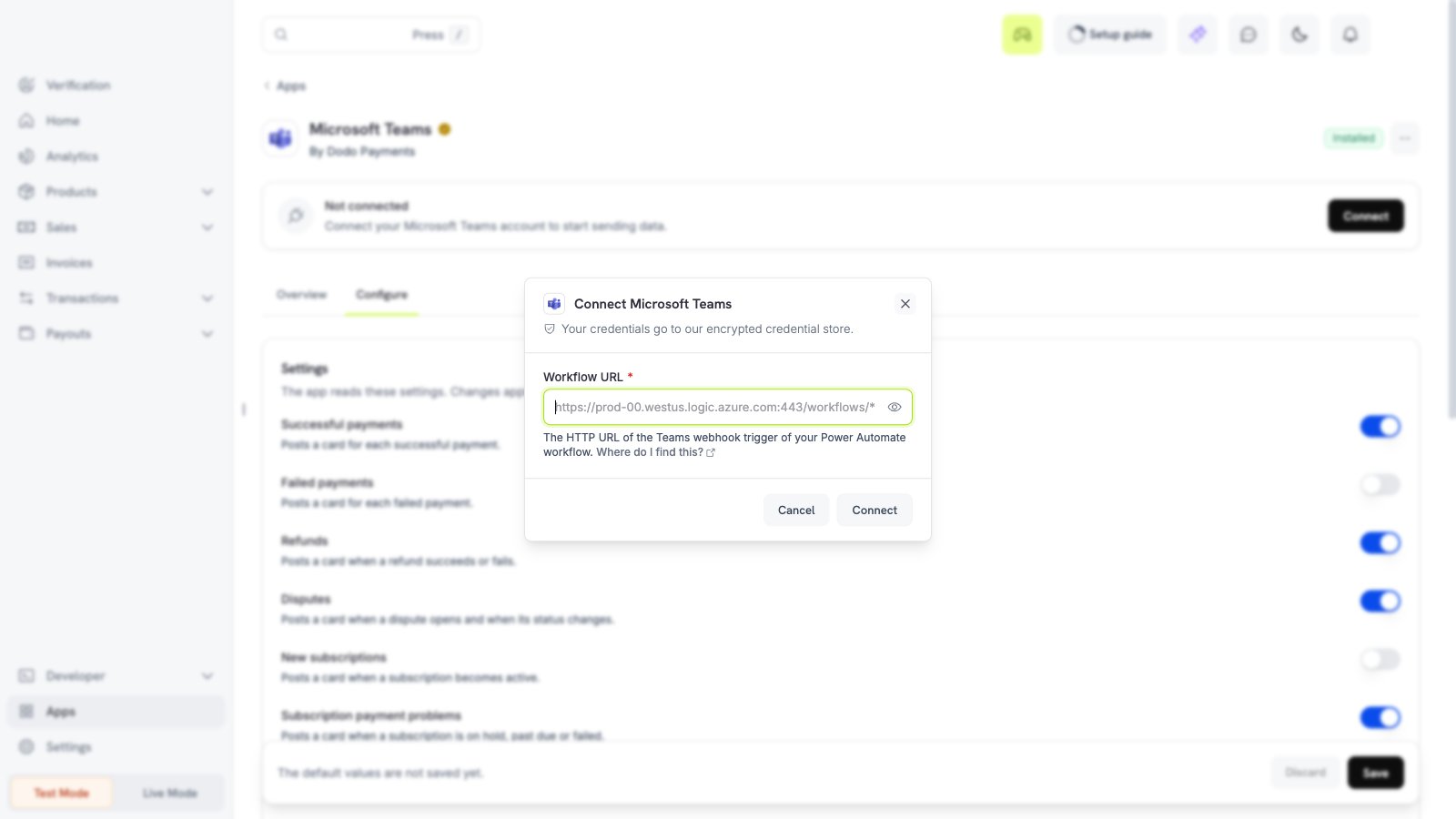
4
Choose the alerts and filters
Open the Configure tab. Turn on the alerts that you need. Scroll down, set the filters, then select Save.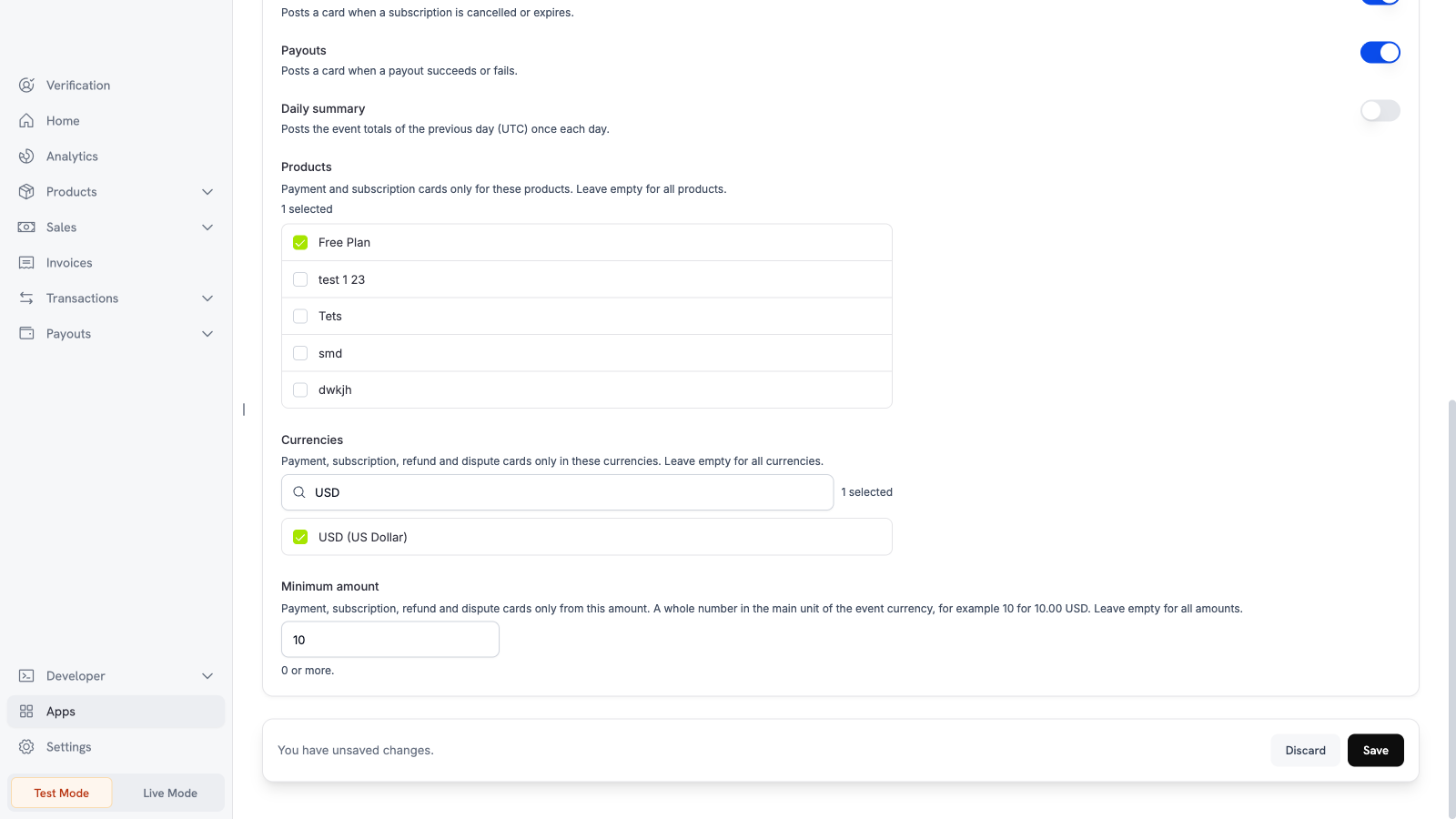
Settings
What is sent and when
Dodo Payments posts a card after the event occurs. Each card shows the event type, the amount in the major unit, and the currency code. It can also show the customer email (or the customer ID), the product names, the ID of the object, the dispute status, and the dispute reason. The cards contain no card data, no address, and no customer name. Test mode and live mode use different connections. To use a different channel, connect the app again. Workflows has no duplicate check for a card. In rare cases, a retry can post the same card two times.Test the app
1
Use test mode
Install and connect the app in test mode. Turn on Successful payments.
2
Make a test payment
Create a test payment.
3
Check Teams
Open the channel. A payment card appears.
Troubleshooting
Disconnect and uninstall
Turn off the alerts on the Configure tab to stop the cards. Uninstall the app to delete the Microsoft Teams connection. See Manage and uninstall.