Pular para o conteúdo principal

Introdução

Mantenha sua equipe de negócios informada com notificações de pagamento em tempo real no Microsoft Teams. A integração entrega eventos de pagamento como cartões adaptativos ricos—perfeito para ambientes empresariais onde o Teams é a principal ferramenta de colaboração.
Este guia assume que você tem acesso de administrador para criar webhooks em seu espaço de trabalho do Microsoft Teams.

Começando

1

Abra a Seção de Webhook

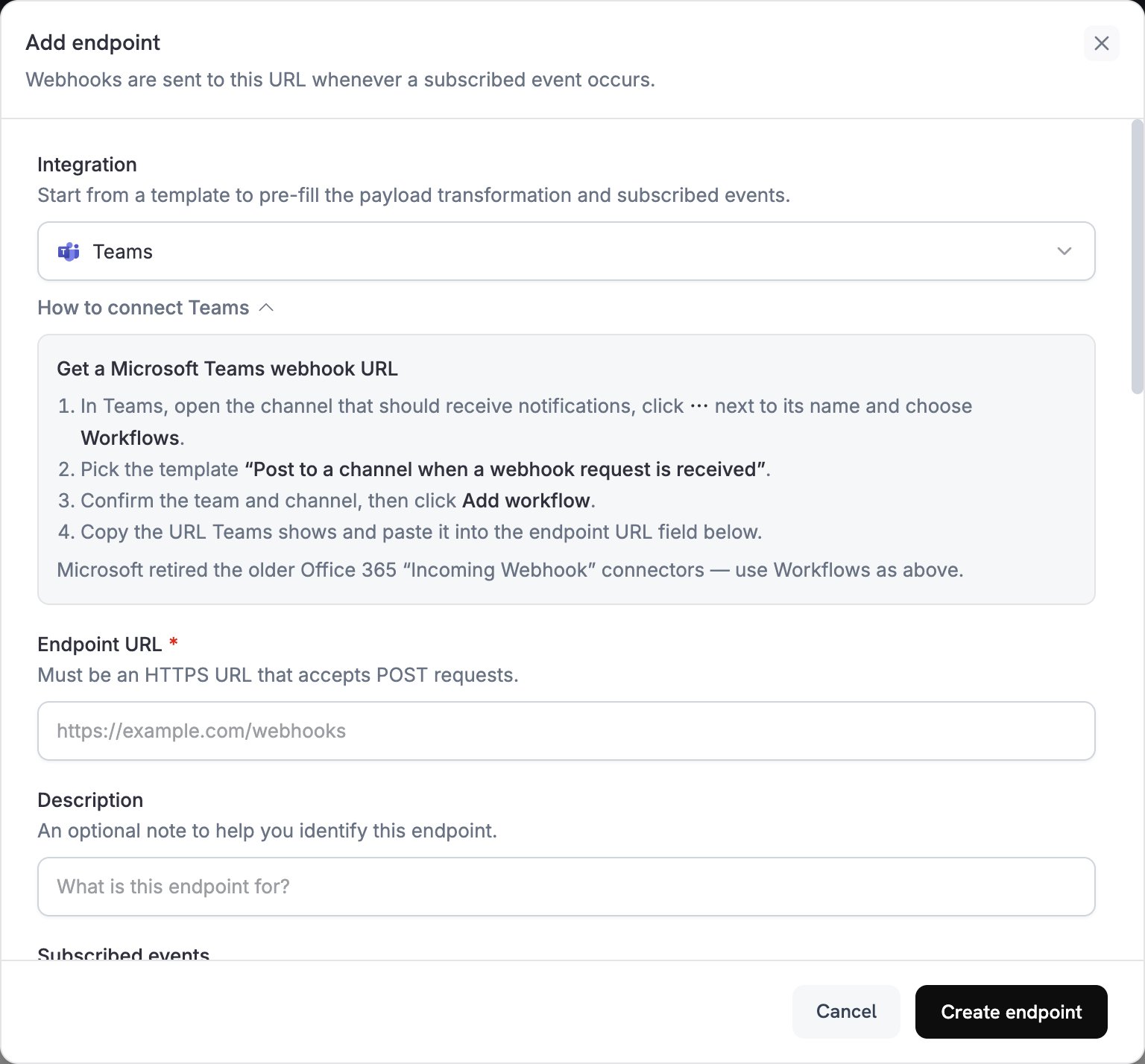
No seu painel do Dodo Payments, navegue até Webhooks → + Adicionar Endpoint e expanda o dropdown de integrações.
Adicionar Endpoint e dropdown de integrações
2

Selecione Microsoft Teams

Escolha o cartão de integração Microsoft Teams.
3

Crie o Webhook do Teams

No Teams, vá para seu canal → ⋯ → Conectores → Webhook de Entrada → Configurar. Copie a URL do webhook.
4

Cole a URL do Webhook

Cole a URL do webhook do Teams na configuração do endpoint.
5

Personalize a Transformação

Edite o código de transformação para formatar mensagens como cartões adaptativos para o Teams.
6

Teste e Crie

Teste com cargas úteis de exemplo e clique em Criar para ativar.
7

Pronto!

🎉 Seu canal do Teams agora receberá atualizações do Dodo Payments como cartões adaptativos.

Exemplos de Código de Transformação

Cartão de Pagamento Básico

payment_card.js
function handler(webhook) {
  if (webhook.eventType === "payment.succeeded") {
    const p = webhook.payload.data;
    webhook.payload = {
      type: "message",
      attachments: [{
        contentType: "application/vnd.microsoft.card.adaptive",
        content: {
          type: "AdaptiveCard",
          body: [
            {
              type: "TextBlock",
              text: "✅ Payment Successful",
              weight: "Bolder",
              size: "Medium"
            },
            {
              type: "FactSet",
              facts: [
                { title: "Amount", value: `$${(p.total_amount / 100).toFixed(2)}` },
                { title: "Customer", value: p.customer.email },
                { title: "Payment ID", value: p.payment_id }
              ]
            }
          ]
        }
      }]
    };
  }
  return webhook;
}

Gerenciamento de Assinaturas

subscription_card.js
function handler(webhook) {
  const s = webhook.payload.data;
  switch (webhook.eventType) {
    case "subscription.active":
      webhook.payload = {
        type: "message",
        attachments: [{
          contentType: "application/vnd.microsoft.card.adaptive",
          content: {
            type: "AdaptiveCard",
            body: [
              {
                type: "TextBlock",
                text: "📄 Subscription Activated",
                weight: "Bolder",
                color: "Good"
              },
              {
                type: "FactSet",
                facts: [
                  { title: "Customer", value: s.customer.email },
                  { title: "Product", value: s.product_id },
                  { title: "Amount", value: `$${(s.recurring_pre_tax_amount / 100).toFixed(2)}/${s.payment_frequency_interval}` },
                  { title: "Next Billing", value: new Date(s.next_billing_date).toLocaleDateString() }
                ]
              }
            ]
          }
        }]
      };
      break;
    case "subscription.cancelled":
      webhook.payload = {
        type: "message",
        attachments: [{
          contentType: "application/vnd.microsoft.card.adaptive",
          content: {
            type: "AdaptiveCard",
            body: [
              {
                type: "TextBlock",
                text: "⚠️ Subscription Cancelled",
                weight: "Bolder",
                color: "Warning"
              },
              {
                type: "FactSet",
                facts: [
                  { title: "Customer", value: s.customer.email },
                  { title: "Product", value: s.product_id },
                  { title: "Cancelled At", value: new Date(s.cancelled_at).toLocaleDateString() }
                ]
              }
            ]
          }
        }]
      };
      break;
  }
  return webhook;
}

Alertas de Disputa

dispute_card.js
function handler(webhook) {
  if (webhook.eventType.startsWith("dispute.")) {
    const d = webhook.payload.data;
    const color = d.dispute_status === "won" ? "Good" : d.dispute_status === "lost" ? "Attention" : "Warning";
    const title = d.dispute_status === "won" ? "🏆 Dispute Won" : d.dispute_status === "lost" ? "❌ Dispute Lost" : "🚨 Dispute Update";
    
    webhook.payload = {
      type: "message",
      attachments: [{
        contentType: "application/vnd.microsoft.card.adaptive",
        content: {
          type: "AdaptiveCard",
          body: [
            {
              type: "TextBlock",
              text: title,
              weight: "Bolder",
              color: color
            },
            {
              type: "FactSet",
              facts: [
                { title: "Payment ID", value: d.payment_id },
                { title: "Amount", value: `$${(d.amount / 100).toFixed(2)}` },
                { title: "Status", value: d.dispute_status },
                { title: "Stage", value: d.dispute_stage }
              ]
            }
          ]
        }
      }]
    };
  }
  return webhook;
}

Dicas

  • Use cartões adaptativos para formatação rica e interativa
  • Escolha cores apropriadas: Bom (verde), Aviso (amarelo), Atenção (vermelho)
  • Mantenha conjuntos de fatos concisos e legíveis
  • Teste com o testador de webhook do Teams antes de implantar

Solução de Problemas

  • Verifique se a URL do webhook está correta e ativa
  • Verifique se a transformação retorna um JSON de Cartão Adaptativo válido
  • Certifique-se de que o webhook tem permissão para postar no canal
  • Valide o esquema do Cartão Adaptativo no testador de webhook do Teams
  • Verifique se todos os campos obrigatórios estão presentes
  • Certifique-se de que os valores de cor são válidos (Bom, Aviso, Atenção, Padrão)