メインコンテンツへスキップ
Sentraに統合コードを作成させましょう。
VS Code、Cursor、またはWindsurfでAIアシスタントを使用して、SDK/APIコード、LLM Blueprint統合コード、Webhookなどを生成できます - ただし、必要な内容を説明するだけで済みます。
Sentraを試す: AI駆動の統合 →
このチュートリアルでは、自動使用ベースの請求を備えたAIチャットアプリケーションを構築します。請求メーター、製品設定、会話を駆動し、リアルタイムでトークン使用を追跡するアプリケーションコードをすべてゼロから作成します。
このチュートリアルでは、バックエンドとフロントエンドの両方を備えた完全な動作アプリケーションを提供します。チャットアプリはGoogleのGemini AIを使用し、手動でのカウントなしで自動的にトークン使用を追跡します。
このチュートリアルの終わりまでに、次の機能を持つ動作するチャットアプリケーションが完成します:
  • Google Geminiを使用してAI会話を駆動する(AI SDK)
  • 自動的にトークン使用を追跡する(手動コードなし)
  • 実際のトークン消費に基づいて顧客に請求する
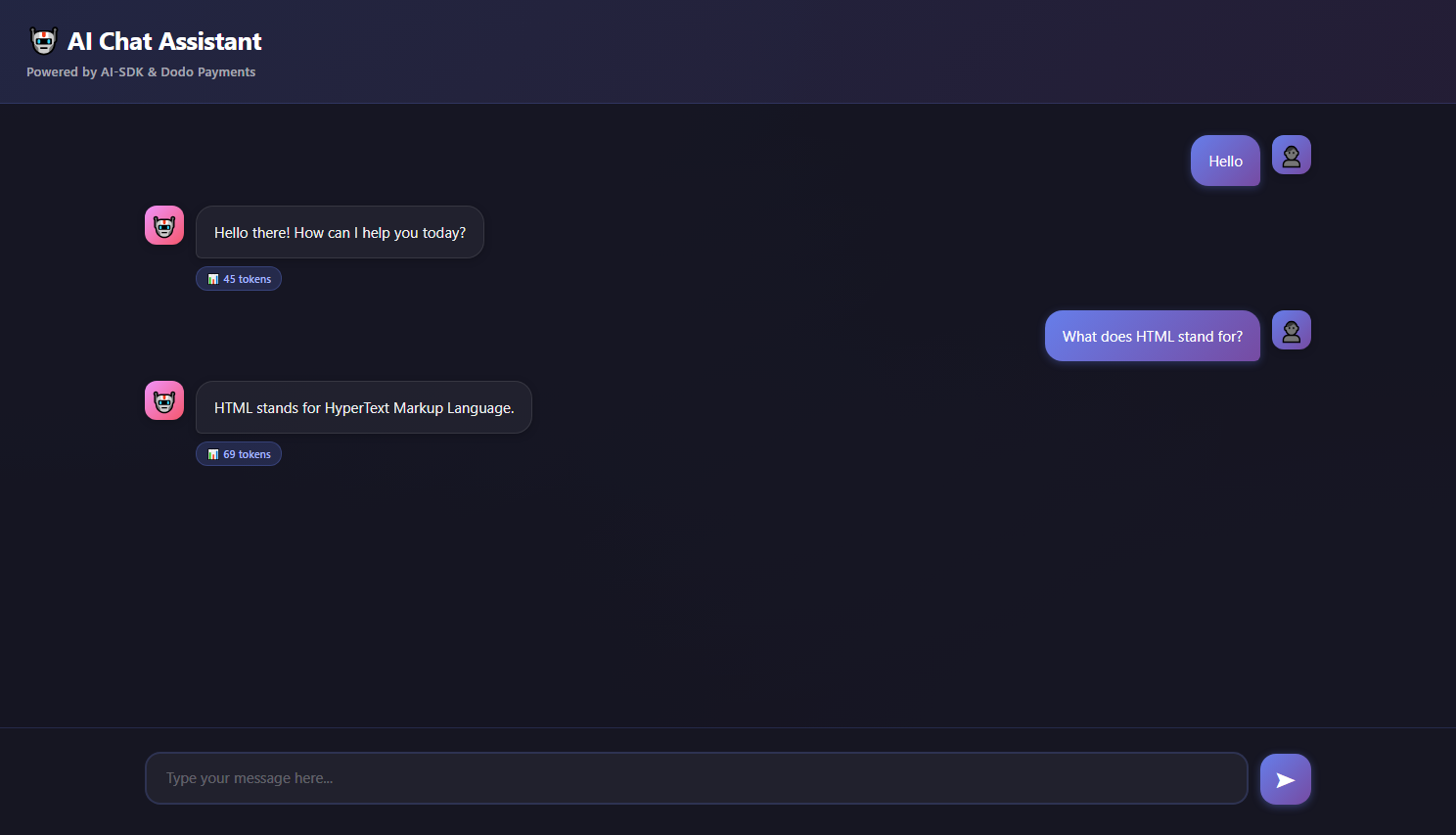
  • 美しいチャットインターフェースを含む
AIチャットデモ

構築するもの

まず、私たちのAIチャットサービスを理解しましょう:
  • サービス: Google Geminiを使用したAI駆動のチャット(AI SDK)
  • 価格モデル: トークンごとの支払い(1,000トークンあたり$0.01)
  • 無料枠: 顧客ごとに月10,000トークンの無料提供
  • 機能: 会話履歴、自動トークントラッキング
始める前に、次のものを用意してください:
  • Dodo Paymentsアカウント
  • Google AI APIキー(aistudioから取得
  • Node.js v16+がインストールされていること

ステップ1: 使用メーターを作成する

Dodo PaymentsダッシュボードでAIトークン使用を追跡するメーターを作成します。
構築するもの: チャット会話で消費されたすべてのトークンを合計する「AIトークン使用メーター」という名前のメーター。
1

メーターセクションを開く

  1. Dodo Paymentsダッシュボードにログインします
  2. 左のサイドバーで「製品」をクリックします
  3. メーターをクリックします
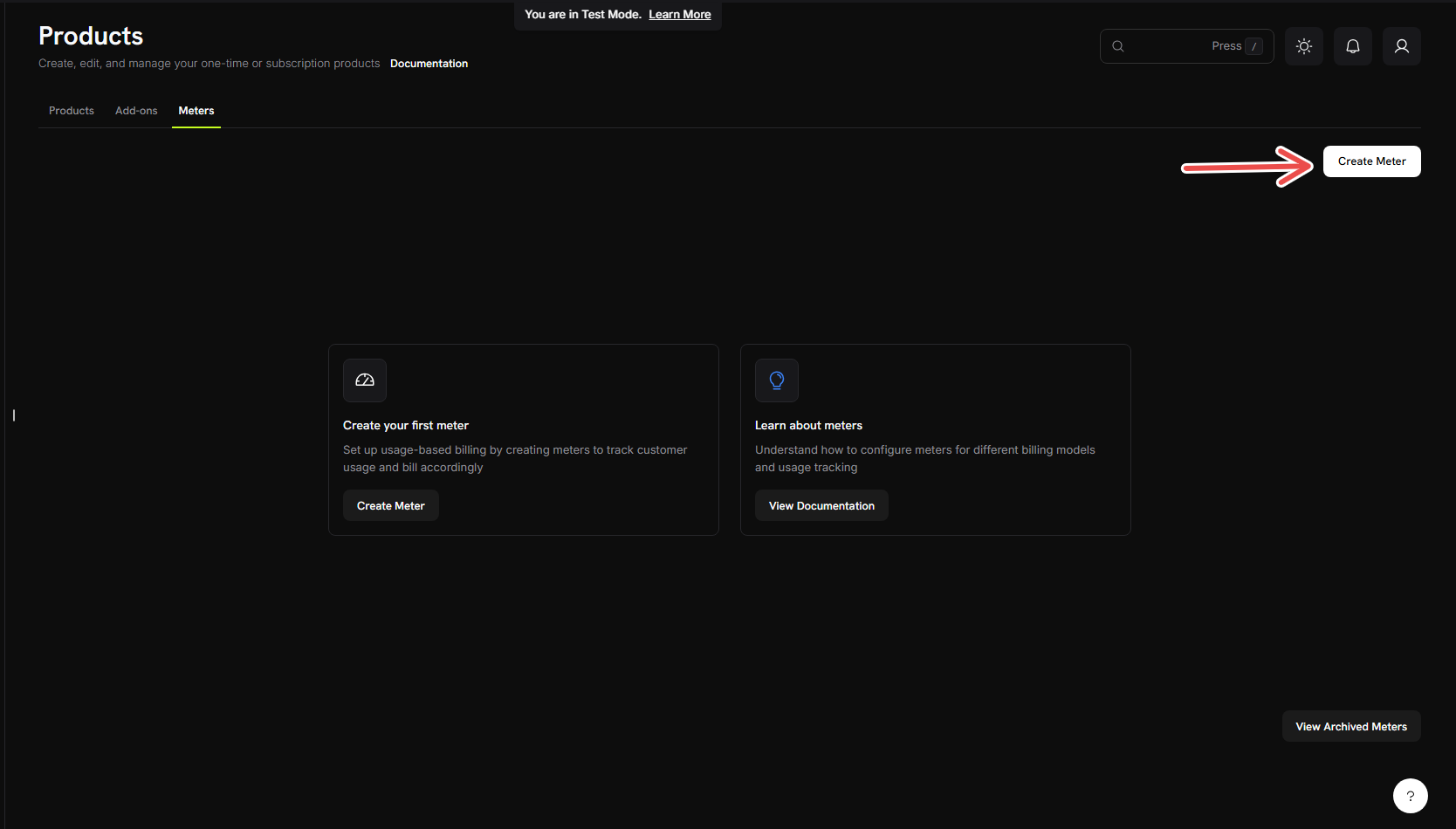
  4. メーターを作成ボタンをクリックします
メーターを作成
トークン追跡を設定するフォームが表示されるはずです。
2

基本的なメーター情報を入力する

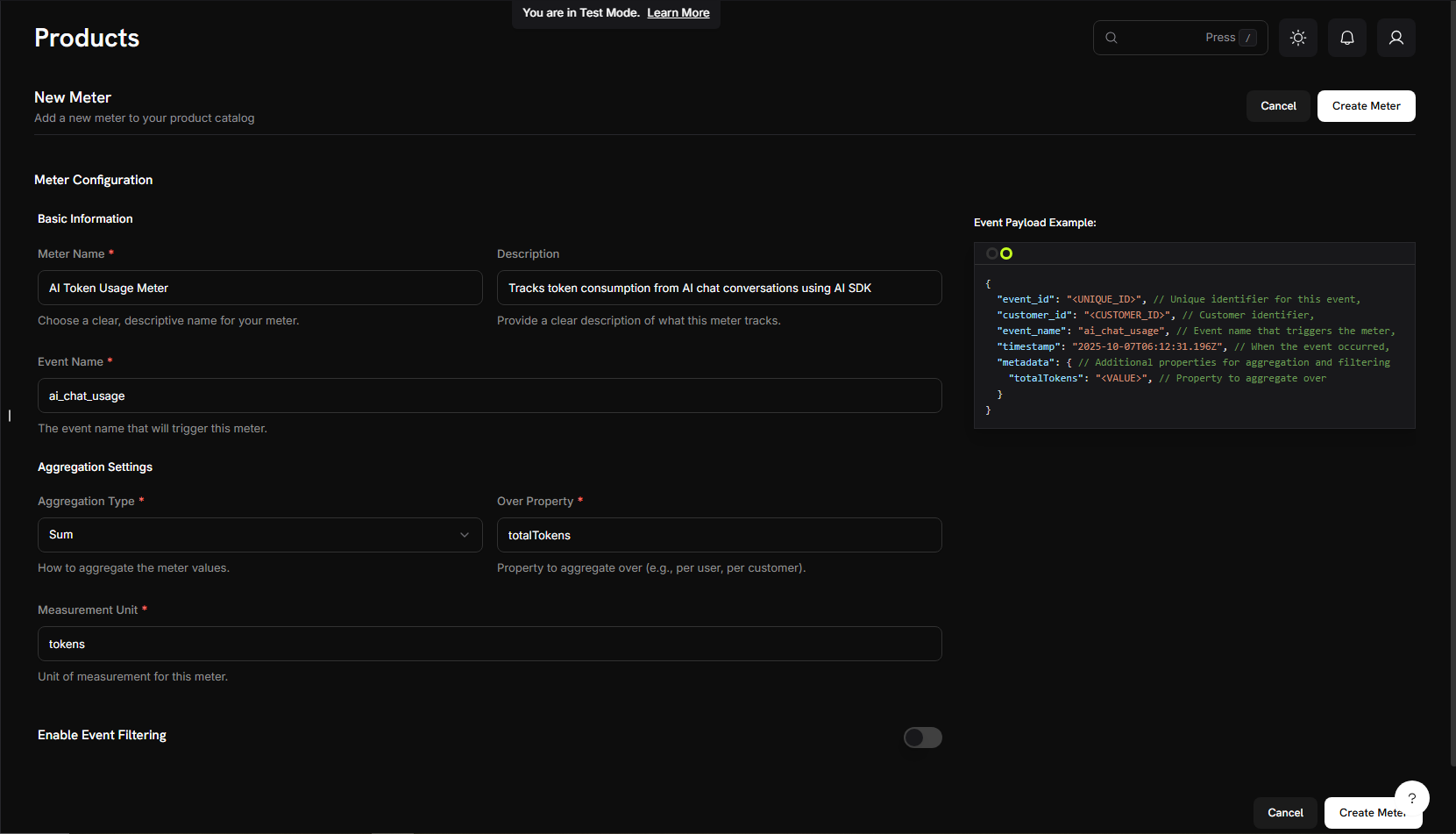
今、私たちのAIチャットサービスの具体的な詳細を入力します:メーター名AI Token Usage Meter説明Tracks token consumption from AI chat conversations using AI SDKイベント名ai_chat_usage
イベント名 ai_chat_usage は、後でアプリケーションコードから送信する内容と正確に一致する必要があります。イベント名は大文字と小文字を区別します!
3

トークンのカウント方法を設定する

集計の設定(メーターがイベントをカウントする方法):集計タイプ: ドロップダウンから合計を選択集計対象: タイプ → totalTokens測定単位: タイプ → tokens
「合計」を使用しているのは、複数のチャットメッセージで消費されたすべてのトークンを合計したいからです。SDKは各イベントでtotalTokensを自動的に送信します。
4

メーターを作成する

  1. すべての設定が上記の値と一致していることを再確認します
  2. メーターを作成をクリックします
メーター設定
メーターが作成されました! あなたの「AIトークン使用メーター」は、トークンのカウントを開始する準備が整いました。次に、請求製品に接続します。

ステップ2: APIキーを取得する

アプリを構築する前に、必要なAPIキーを集めましょう。
1

Dodo Payments APIキーを取得する

  1. Dodo Paymentsダッシュボードで、開発者APIキーに移動します
  2. APIキーを作成をクリックします
  3. APIキーをコピーします - それはtest_abc123...のように見えます
このAPIキーを保存してください - 後で.envファイルに追加します。
2

Google AI APIキーを取得する

  1. aistudio.google.comを訪問します
  2. APIキーを取得をクリックします
  3. 新しいAPIキーを作成するか、既存のものを使用します
  4. キーをコピーします
このキーを安全に保管してください - 後で.envファイルにも追加します。

ステップ3: 請求製品を作成する

次に、価格を定義する製品を作成する必要があります(1,000トークンあたり$0.01、10,000トークンの無料提供)。これにより、メーターが実際の請求に接続されます。
構築するもの: トークン消費に基づいて請求する「AIチャットサービス」という製品で、寛大な無料枠を提供します。
1

製品に移動する

  1. Dodo Paymentsダッシュボードで、左のサイドバーの製品をクリックします
  2. 製品を作成をクリックします
  3. 製品タイプとして使用ベースを選択します
これにより、Dodo Paymentsに請求がメーターの使用に基づくことが伝えられます。固定サブスクリプションではありません。
2

製品の詳細を入力する

必要な詳細を入力します:製品名: → AI Chat Service説明: → AI-powered chat service with automatic token-based billing製品画像: 関連する画像をアップロードします
これらは顧客の請求書に表示されるため、明確でプロフェッショナルにしてください。
3

メーターを接続する

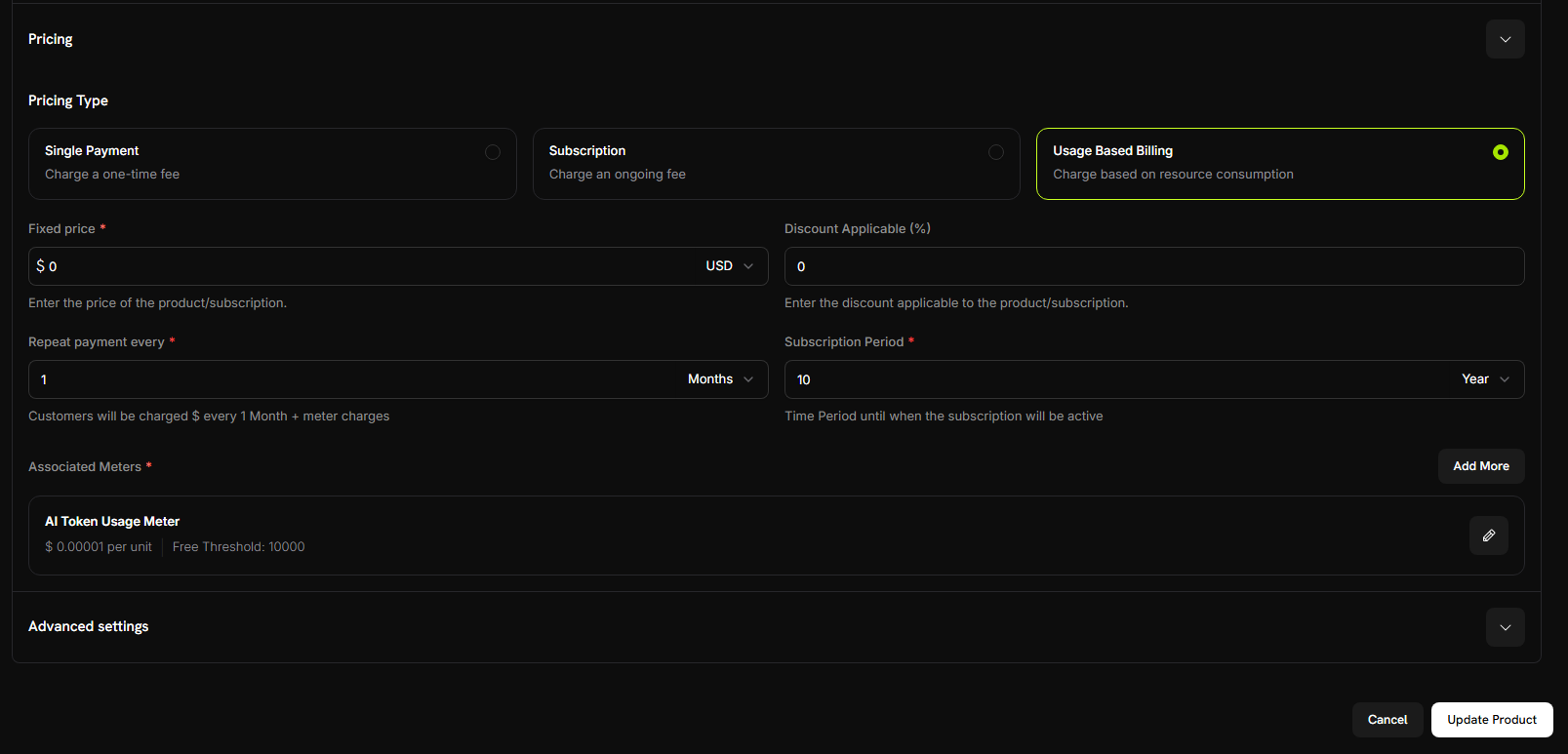
メーターを接続する前に、製品の価格タイプとして使用ベースの請求を選択していることを確認してください。さらに、固定価格0に設定して、顧客が使用に基づいてのみ請求され、基本料金が発生しないようにします。次に、先ほど作成したメーターをリンクします:
  1. 関連メーターセクションまでスクロールします
  2. メーターを追加をクリックします
  3. ドロップダウンから**「AIトークン使用メーター」**(先ほど作成したもの)を選択します
  4. 製品設定に表示されていることを確認します
メーターがこの製品に正常に接続されました。
4

価格を設定する

ここでビジネスモデルを定義します:単位あたりの価格: 入力 → 0.00001(これは1,000トークンあたり0.01またはトークンあたり0.01またはトークンあたり0.00001です)無料閾値: 入力 → 10000(顧客は月に10,000トークンの無料提供を受けます)
製品価格
請求の仕組み: 顧客が1か月に25,000トークンを使用した場合、15,000トークン(25,000 - 10,000の無料分)に対して請求されます = 15,000 × 0.00001=0.00001 = 0.15
5

製品を保存する

  1. すべての設定を確認します:
    • 名前: AIチャットサービス
    • メーター: AIトークン使用メーター
    • 価格: 1,000トークンあたり$0.01
    • 無料枠: 10,000トークン
  2. 変更を保存をクリックします
製品が作成されました! あなたの請求が設定されました。顧客は自動的にトークン使用に基づいて請求されます。

ステップ4: テスト購入を行う

アプリを構築する前に、購入を行ってテスト顧客を作成しましょう。
1

支払いリンクを取得する

  1. Dodo Paymentsダッシュボードで、製品に移動します
  2. 「AIチャットサービス」製品を見つけます
  3. 製品の隣にある共有ボタンをクリックします
  4. 表示される支払いリンクをコピーします
2

テスト購入を完了する

  1. 新しいブラウザタブで支払いリンクを開きます
  2. テスト支払い詳細を入力し、購入を完了します
支払いが成功すると、アプリケーションコードで使用する顧客IDが得られます。
3

顧客IDを見つける

  1. Dodo Paymentsダッシュボードに戻ります
  2. 左のサイドバーで販売 -> 顧客に移動します
  3. 先ほど作成した顧客(テストメールを持つ)を見つけます
  4. 顧客IDをコピーします - それはcus_123のように見えます
この顧客IDを保存してください - チャットアプリケーションをテストする際に使用します。

ステップ5: チャットアプリケーションを構築する

請求設定が完了し、テスト顧客が作成されました。自動トークントラッキングを備えたAIチャットアプリケーションを構築しましょう。
1

プロジェクトをセットアップする

新しいディレクトリを作成し、プロジェクトを初期化します:
mkdir ai-chat-app
cd ai-chat-app
npm init -y
2

依存関係をインストールする

必要なパッケージをインストールします:
npm install express ai @ai-sdk/google @dodopayments/ingestion-blueprints dotenv
npm install --save-dev typescript @types/express @types/node tsx
3

TypeScriptを設定する

tsconfig.jsonを作成します:
tsconfig.json
{
  "compilerOptions": {
    "target": "ES2020",
    "module": "ESNext",
    "moduleResolution": "node",
    "esModuleInterop": true,
    "strict": true,
    "skipLibCheck": true,
    "outDir": "./dist",
    "rootDir": "./src"
  },
  "include": ["src/**/*"],
  "exclude": ["node_modules"]
}
package.jsonを更新して、モジュールタイプとスクリプトを追加します:
package.json
{
  "type": "module",
  "scripts": {
    "dev": "tsx src/server.ts",
    "build": "tsc",
    "start": "node dist/server.js"
  }
}
4

プロジェクト構造を作成する

フォルダーとファイルを作成します:
mkdir src public
5

環境変数を設定する

プロジェクトのルートに.envファイルを作成します:
.env
DODO_PAYMENTS_API_KEY=your_dodo_api_key_here
DODO_ENVIRONMENT=test_mode
GOOGLE_GENERATIVE_AI_API_KEY=your_google_api_key_here
PORT=3000
プレースホルダー値をステップ2からの実際のAPIキーに置き換えます。
6

バックエンドサーバーを作成する

src/server.tsを作成し、この完全なサーバーコードをコピーします:
統合請求を備えた完全なAIチャットサーバーは次のとおりです:
import express, { Request, Response } from 'express';
import { generateText } from 'ai';
import { google } from '@ai-sdk/google';
import { createLLMTracker } from '@dodopayments/ingestion-blueprints';
import 'dotenv/config';

const app = express();
app.use(express.json());
app.use(express.static('public'));

// Replace with your test customer ID
const CUSTOMER_ID = 'cus_123';

// Create tracker once with your meter event name
const llmTracker = createLLMTracker({
  apiKey: process.env.DODO_PAYMENTS_API_KEY!,
  environment: process.env.DODO_ENVIRONMENT as 'test_mode' | 'live_mode',
  eventName: 'ai_chat_usage', // Must match your meter configuration
});

// Chat endpoint with conversation support
app.post('/chat', async (req: Request, res: Response) => {
  try {
    const { messages } = req.body;

    if (!messages || !Array.isArray(messages)) {
      return res.status(400).json({ 
        error: 'Missing required field: messages (array)' 
      });
    }

    // Wrap AI SDK with automatic token tracking
    const trackedClient = llmTracker.wrap({
      client: { generateText },
      customerId: CUSTOMER_ID
    });

    // Generate AI response - tokens are automatically tracked!
    const response = await trackedClient.generateText({
      model: google('gemini-2.5-flash'),
      messages: messages
    });

    res.json({
      message: response.text,
      usage: {
        totalTokens: response.usage.totalTokens
      }
    });

  } catch (error: any) {
    console.error('Chat error:', error);
    res.status(500).json({ 
      error: 'Failed to process chat',
      details: error.message 
    });
  }
});

const PORT = process.env.PORT || 3000;
app.listen(PORT, () => {
  console.log(`🚀 Server running at http://localhost:${PORT}`);
  console.log(`📊 Tracking event: ai_chat_usage`);
  console.log(`👤 Customer ID: ${CUSTOMER_ID}`);
  console.log(`🔧 Environment: ${process.env.DODO_ENVIRONMENT}`);
});

ステップ6: チャットインターフェースを追加する

美しいチャットインターフェースを追加し、完全な会話履歴を持ちましょう!public/index.htmlを作成します:
public/index.html
<!DOCTYPE html>
<html lang="en">
  <head>
    <meta charset="UTF-8" />
    <meta name="viewport" content="width=device-width, initial-scale=1.0" />
    <title>AI Chat with Usage Billing</title>
    <style>
      * {
        margin: 0;
        padding: 0;
        box-sizing: border-box;
      }

      body {
        font-family: "Inter", -apple-system, BlinkMacSystemFont, "Segoe UI",
          Roboto, sans-serif;
        background: #0f0f1e;
        background-image: radial-gradient(
            at 0% 0%,
            rgba(102, 126, 234, 0.15) 0px,
            transparent 50%
          ),
          radial-gradient(
            at 100% 100%,
            rgba(118, 75, 162, 0.15) 0px,
            transparent 50%
          ),
          radial-gradient(
            at 50% 50%,
            rgba(102, 126, 234, 0.05) 0px,
            transparent 50%
          );
        height: 100vh;
        display: flex;
        justify-content: center;
        align-items: center;
        padding: 0;
        position: relative;
        overflow: hidden;
        margin: 0;
      }

      .chat-container {
        background: rgba(22, 22, 35, 0.95);
        border: 1px solid rgba(102, 126, 234, 0.2);
        border-radius: 0;
        box-shadow: 0 10px 40px rgba(0, 0, 0, 0.5);
        width: 100%;
        max-width: 100%;
        height: 100vh;
        display: flex;
        flex-direction: column;
        overflow: hidden;
        position: relative;
        z-index: 1;
      }

      .chat-header {
        background: linear-gradient(
          135deg,
          rgba(102, 126, 234, 0.15) 0%,
          rgba(118, 75, 162, 0.15) 100%
        );
        border-bottom: 1px solid rgba(102, 126, 234, 0.2);
        color: white;
        padding: 24px 28px;
        position: relative;
        overflow: hidden;
      }

      .chat-header h1 {
        font-size: 26px;
        margin-bottom: 6px;
        font-weight: 700;
        letter-spacing: -0.5px;
        color: #fff;
      }

      .chat-header p {
        font-size: 13px;
        opacity: 0.6;
        font-weight: 500;
        letter-spacing: 0.3px;
      }

      .chat-messages {
        flex: 1;
        overflow-y: auto;
        padding: 32px 10%;
        background: transparent;
        will-change: scroll-position;
        scroll-behavior: smooth;
      }

      .chat-messages::-webkit-scrollbar {
        width: 6px;
      }

      .chat-messages::-webkit-scrollbar-track {
        background: rgba(255, 255, 255, 0.05);
      }

      .chat-messages::-webkit-scrollbar-thumb {
        background: rgba(102, 126, 234, 0.3);
        border-radius: 3px;
      }

      .chat-messages::-webkit-scrollbar-thumb:hover {
        background: rgba(102, 126, 234, 0.5);
      }

      .message {
        margin-bottom: 20px;
        display: flex;
        gap: 12px;
        animation: slideIn 0.2s ease-out;
      }

      @keyframes slideIn {
        from {
          opacity: 0;
          transform: translateY(10px);
        }

        to {
          opacity: 1;
          transform: translateY(0);
        }
      }

      .message.user {
        flex-direction: row-reverse;
      }

      .message-avatar {
        width: 40px;
        height: 40px;
        border-radius: 12px;
        display: flex;
        align-items: center;
        justify-content: center;
        font-size: 20px;
        flex-shrink: 0;
        box-shadow: 0 2px 8px rgba(0, 0, 0, 0.2);
      }

      .message.user .message-avatar {
        background: linear-gradient(135deg, #667eea 0%, #764ba2 100%);
      }

      .message.assistant .message-avatar {
        background: linear-gradient(135deg, #f093fb 0%, #f5576c 100%);
      }

      .message-content {
        max-width: 65%;
      }

      .message-bubble {
        padding: 14px 18px;
        border-radius: 18px;
        line-height: 1.6;
        word-wrap: break-word;
        font-size: 15px;
        position: relative;
      }

      .message.user .message-bubble {
        background: linear-gradient(135deg, #667eea 0%, #764ba2 100%);
        color: white;
        border-bottom-right-radius: 6px;
        box-shadow: 0 2px 8px rgba(102, 126, 234, 0.3);
      }

      .message.assistant .message-bubble {
        background: rgba(255, 255, 255, 0.05);
        color: rgba(255, 255, 255, 0.95);
        border: 1px solid rgba(255, 255, 255, 0.1);
        border-bottom-left-radius: 6px;
        box-shadow: 0 2px 8px rgba(0, 0, 0, 0.2);
      }

      .message-meta {
        display: flex;
        gap: 10px;
        margin-top: 8px;
        font-size: 11px;
        color: rgba(255, 255, 255, 0.4);
        font-weight: 500;
      }

      .message.user .message-meta {
        justify-content: flex-end;
      }

      .token-badge {
        background: rgba(102, 126, 234, 0.2);
        color: #a8b9ff;
        padding: 4px 10px;
        border-radius: 12px;
        font-weight: 600;
        border: 1px solid rgba(102, 126, 234, 0.3);
      }

      .chat-input-area {
        padding: 24px 10% 32px;
        background: rgba(22, 22, 35, 0.95);
        border-top: 1px solid rgba(102, 126, 234, 0.2);
      }

      .input-wrapper {
        display: flex;
        gap: 12px;
        align-items: flex-end;
      }

      #messageInput {
        flex: 1;
        background: rgba(255, 255, 255, 0.05);
        border: 2px solid rgba(102, 126, 234, 0.2);
        border-radius: 16px;
        padding: 14px 20px;
        font-size: 15px;
        font-family: inherit;
        resize: none;
        max-height: 120px;
        transition: border-color 0.2s ease, background 0.2s ease;
        color: white;
        will-change: border-color;
        overflow: hidden;
        scrollbar-width: none;
        /* Firefox */
      }

      #messageInput::-webkit-scrollbar {
        display: none;
      }

      #messageInput::placeholder {
        color: rgba(255, 255, 255, 0.3);
      }

      #messageInput:focus {
        outline: none;
        border-color: #667eea;
        background: rgba(255, 255, 255, 0.08);
      }

      #sendBtn {
        background: linear-gradient(135deg, #667eea 0%, #764ba2 100%);
        color: white;
        border: none;
        width: 52px;
        height: 52px;
        border-radius: 16px;
        cursor: pointer;
        display: flex;
        align-items: center;
        justify-content: center;
        font-size: 22px;
        transition: transform 0.1s ease, box-shadow 0.1s ease;
        flex-shrink: 0;
        box-shadow: 0 2px 8px rgba(102, 126, 234, 0.4);
        position: relative;
      }

      #sendBtn:hover:not(:disabled) {
        transform: translateY(-1px);
        box-shadow: 0 4px 12px rgba(102, 126, 234, 0.5);
      }

      #sendBtn:active:not(:disabled) {
        transform: translateY(0);
      }

      #sendBtn:disabled {
        opacity: 0.4;
        cursor: not-allowed;
        box-shadow: none;
      }

      .typing-indicator {
        display: none;
        padding: 14px 18px;
        background: rgba(255, 255, 255, 0.05);
        border: 1px solid rgba(255, 255, 255, 0.1);
        border-radius: 18px;
        border-bottom-left-radius: 6px;
        box-shadow: 0 2px 8px rgba(0, 0, 0, 0.2);
        width: fit-content;
      }

      .typing-indicator.show {
        display: block;
      }

      .typing-dots {
        display: flex;
        gap: 6px;
      }

      .typing-dots span {
        width: 10px;
        height: 10px;
        border-radius: 50%;
        background: #667eea;
        animation: typing 1.4s infinite ease-in-out;
        will-change: transform, opacity;
      }

      .typing-dots span:nth-child(2) {
        animation-delay: 0.2s;
      }

      .typing-dots span:nth-child(3) {
        animation-delay: 0.4s;
      }

      @keyframes typing {
        0%,
        60%,
        100% {
          transform: translateY(0) scale(1);
          opacity: 0.6;
        }

        30% {
          transform: translateY(-12px) scale(1.1);
          opacity: 1;
        }
      }

      .error-message {
        background: rgba(239, 68, 68, 0.15);
        color: #fca5a5;
        padding: 14px 18px;
        border-radius: 12px;
        margin-bottom: 12px;
        display: none;
        border: 1px solid rgba(239, 68, 68, 0.3);
        font-size: 14px;
        font-weight: 500;
      }

      .error-message.show {
        display: block;
        animation: slideIn 0.3s ease;
      }

      .empty-state {
        text-align: center;
        padding: 80px 20px;
        color: rgba(255, 255, 255, 0.5);
      }

      .empty-state-icon {
        font-size: 72px;
        margin-bottom: 20px;
        animation: float 3s ease-in-out infinite;
      }

      @keyframes float {
        0%,
        100% {
          transform: translateY(0px);
        }

        50% {
          transform: translateY(-10px);
        }
      }

      .empty-state h2 {
        font-size: 24px;
        margin-bottom: 10px;
        color: rgba(255, 255, 255, 0.9);
        font-weight: 700;
        letter-spacing: -0.5px;
      }

      .empty-state p {
        font-size: 15px;
        color: rgba(255, 255, 255, 0.4);
        font-weight: 500;
      }
    </style>
  </head>

  <body>
    <div class="chat-container">
      <div class="chat-header">
        <h1>🤖 AI Chat Assistant</h1>
        <p>Powered by AI-SDK & Dodo Payments</p>
      </div>

      <div class="chat-messages" id="chatMessages">
        <div class="empty-state" id="emptyState">
          <div class="empty-state-icon">💬</div>
          <h2>Start a Conversation</h2>
          <p>Ask me anything! Your token usage is automatically tracked.</p>
        </div>
      </div>

      <div class="chat-input-area">
        <div class="error-message" id="errorMessage"></div>
        <div class="input-wrapper">
          <textarea
            id="messageInput"
            placeholder="Type your message here..."
            rows="1"
          ></textarea>
          <button id="sendBtn" onclick="sendMessage()"></button>
        </div>
      </div>
    </div>

    <script>
      let conversationHistory = [];

      const messageInput = document.getElementById("messageInput");
      let resizeTimeout;
      messageInput.addEventListener("input", function () {
        clearTimeout(resizeTimeout);
        resizeTimeout = setTimeout(() => {
          this.style.height = "auto";
          this.style.height = Math.min(this.scrollHeight, 120) + "px";
        }, 10);
      });

      // Send message on Enter (Shift+Enter for new line)
      messageInput.addEventListener("keydown", function (e) {
        if (e.key === "Enter" && !e.shiftKey) {
          e.preventDefault();
          sendMessage();
        }
      });

      async function sendMessage() {
        const input = document.getElementById("messageInput");
        const message = input.value.trim();

        if (!message) return;

        // Hide empty state
        document.getElementById("emptyState").style.display = "none";

        // Hide error
        document.getElementById("errorMessage").classList.remove("show");

        // Add user message to UI
        addMessage("user", message);

        // Add to conversation history
        conversationHistory.push({
          role: "user",
          content: message,
        });

        // Clear input
        input.value = "";
        input.style.height = "auto";

        // Show typing indicator
        showTypingIndicator();

        // Disable send button
        const sendBtn = document.getElementById("sendBtn");
        sendBtn.disabled = true;

        try {
          const response = await fetch("/chat", {
            method: "POST",
            headers: {
              "Content-Type": "application/json",
            },
            body: JSON.stringify({
              messages: conversationHistory,
            }),
          });

          const data = await response.json();

          if (!response.ok) {
            throw new Error(data.error || "Failed to get response");
          }

          // Hide typing indicator
          hideTypingIndicator();

          // Add assistant response to UI
          addMessage("assistant", data.message, data.usage);

          // Add to conversation history
          conversationHistory.push({
            role: "assistant",
            content: data.message,
          });
        } catch (error) {
          hideTypingIndicator();
          showError(error.message);
          // Remove the last user message from history since it failed
          conversationHistory.pop();
        } finally {
          sendBtn.disabled = false;
        }
      }

      function addMessage(role, content, usage = null) {
        const messagesDiv = document.getElementById("chatMessages");

        const messageDiv = document.createElement("div");
        messageDiv.className = `message ${role}`;

        const avatar = role === "user" ? "👤" : "🤖";

        let metaHTML = "";
        if (usage) {
          metaHTML = `
                    <div class="message-meta">
                        <span class="token-badge">📊 ${usage.totalTokens} tokens</span>
                    </div>
                `;
        }

        messageDiv.innerHTML = `
                <div class="message-avatar">${avatar}</div>
                <div class="message-content">
                    <div class="message-bubble">${escapeHtml(content)}</div>
                    ${metaHTML}
                </div>
            `;

        messagesDiv.appendChild(messageDiv);
        requestAnimationFrame(() => {
          messagesDiv.scrollTop = messagesDiv.scrollHeight;
        });
      }

      function showTypingIndicator() {
        const messagesDiv = document.getElementById("chatMessages");

        const typingDiv = document.createElement("div");
        typingDiv.className = "message assistant";
        typingDiv.id = "typingIndicator";
        typingDiv.innerHTML = `
                <div class="message-avatar">🤖</div>
                <div class="typing-indicator show">
                    <div class="typing-dots">
                        <span></span>
                        <span></span>
                        <span></span>
                    </div>
                </div>
            `;

        messagesDiv.appendChild(typingDiv);
        requestAnimationFrame(() => {
          messagesDiv.scrollTop = messagesDiv.scrollHeight;
        });
      }

      function hideTypingIndicator() {
        const typingIndicator = document.getElementById("typingIndicator");
        if (typingIndicator) {
          typingIndicator.remove();
        }
      }

      function showError(message) {
        const errorDiv = document.getElementById("errorMessage");
        errorDiv.textContent = "❌ " + message;
        errorDiv.classList.add("show");
      }

      function escapeHtml(text) {
        const div = document.createElement("div");
        div.textContent = text;
        return div.innerHTML.replace(/\n/g, "<br>");
      }
    </script>
  </body>
</html>

ステップ7: チャットアプリケーションをテストする

AIチャットアプリをテストし、請求が機能するか確認する時間です!すべてがエンドツーエンドで機能することを確認しましょう。
テストする内容: AIとの会話を行い、トークンイベントがDodo Paymentsに到達することを確認し、請求計算が正しいことを確認します。
1

サーバーを起動する

まず、すべてが設定されていることを確認します:
  1. .envファイルにステップ2からのすべてのAPIキーが含まれていることを確認します
  2. 開発サーバーを起動します:
npm run dev
次のように表示されるはずです:
🚀 Server running at http://localhost:3000
📊 Tracking event: ai_chat_usage
👤 Customer ID: {YOUR CUSTOMER_ID}
🔧 Environment: test_mode
サーバーが実行中です!チャットの時間です。
2

チャットインターフェースを開く

  1. ブラウザを開きます
  2. http://localhost:3000に移動します
  3. 美しいチャットインターフェースが表示されるはずです
server.tsCUSTOMER_IDを、ステップ4からの実際のテスト顧客IDで更新してください。
3

最初の会話をする

テストしてみましょう!次のメッセージを試してください:
  1. 「人工知能とは何ですか?」
  2. 「機械学習はどのように機能しますか?」
  3. 「ニューラルネットワークを説明できますか?」
各応答の後にトークン使用量が表示されるのを見てください!
AIが応答し、トークンカウントが表示されている場合、アプリは正常に動作しています!
4

Dodo Paymentsダッシュボードを確認する

イベントが受信されているか確認しましょう:
  1. Dodo Paymentsダッシュボードを開きます
  2. 使用請求AIトークン使用メーターに移動します
  3. イベントタブをクリックします
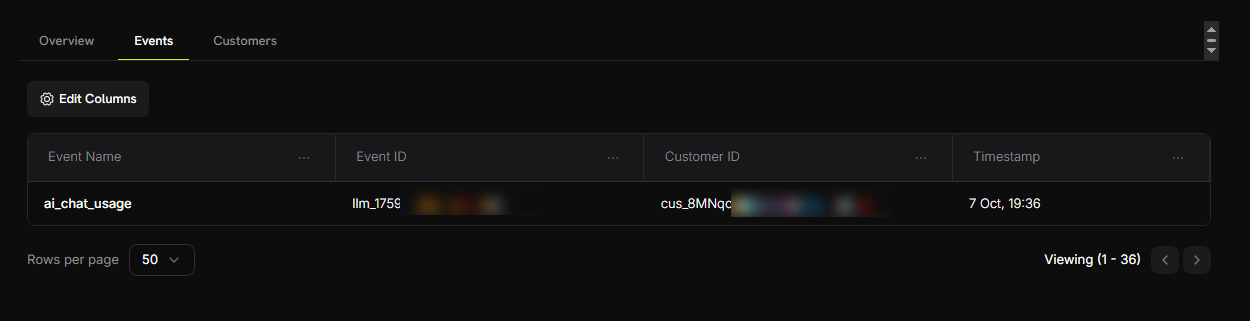
  4. チャットイベントがリストされているはずです
確認する内容:
  • イベント名: ai_chat_usage
  • 顧客ID: あなたのテスト顧客ID
メーターイベント
送信した各メッセージに対して1つのイベントが表示されるはずです!
5

トークンカウントを確認する

さらにメッセージを送信し、トークン集計が機能しているか確認しましょう:
  1. メーターで、顧客タブに移動します
  2. テスト顧客を見つけます
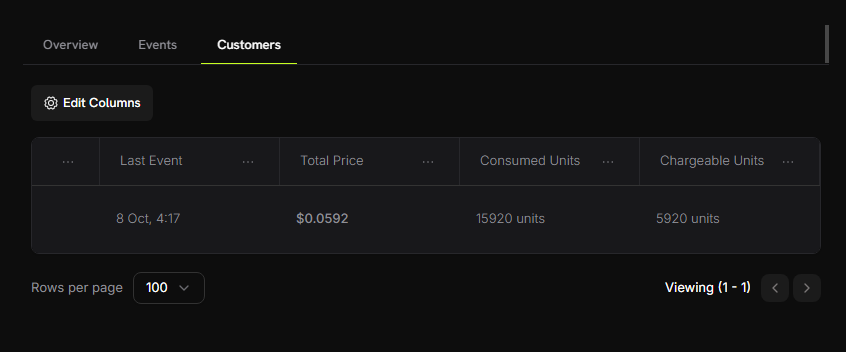
  3. 「消費単位」列を確認します - 使用されたトークンの合計が表示されるはずです
メーター顧客トークン
メーターはすべてのtotalTokens値を自動的に合計しています!
6

無料枠をテストする

無料枠を超えるトークンを使用してみましょう:
  1. さらにいくつかの会話を行います(合計で~15,000トークン以上を目指します)
  2. メーターダッシュボードの顧客タブを再度確認します
  3. 次の内容が表示されるはずです:
    • 消費単位: 15,000+トークン
    • 請求可能単位: 5,000(10,000の無料トークンが適用されました)
    • 合計価格: ~$0.05
無料枠テスト
成功! 使用ベースの請求が完璧に機能しています。顧客は実際のトークン消費に基づいて自動的に請求されます。

トラブルシューティング

一般的な問題とその解決策:
考えられる原因:
  • イベント名がメーター設定と正確に一致しない
  • 顧客IDがアカウントに存在しない
  • APIキーが無効または期限切れ
  • ネットワーク接続の問題
解決策:
  1. イベント名がメーター設定と正確に一致することを確認します(大文字と小文字を区別します: ai_chat_usage
  2. 顧客IDがDodo Paymentsダッシュボードに存在することを確認します
  3. 簡単なAPI呼び出しでAPIキーをテストします
  4. サーバーログでエラーメッセージを確認します
考えられる原因:
  • モデルが使用情報を返さない
  • SDKのバージョンが不正確
解決策:
  1. モデルが使用を返すかテストします:
const response = await generateText({...});
console.log('Usage:', response.usage);
  1. 最新のBlueprints SDKに更新します: npm install @dodopayments/ingestion-blueprints@latest
考えられる原因:
  • 環境に対して間違ったAPIキー
  • .envファイルに余分なスペースや引用符がある
解決策:
  • テストキーがtest_で始まることを確認し、ライブキーがlive_で始まることを確認します
  • .envファイル内のキーの周りの引用符を削除します
  • 必要に応じて新しいキーを生成します
助けが必要ですか?

おめでとうございます!AIチャットアプリを構築しました

自動トークン使用追跡と請求を備えた完全に機能するAIチャットアプリケーションが完成しました。🎉

さらに学ぶ