

What the Zendesk app does
The Zendesk app creates or updates a Zendesk end user for each customer. It also adds a ticket for each dispute that opens. A payment or a refund makes no ticket.Before you start
- You are an owner or an admin of the Dodo Payments business.
- You have a Zendesk account. You have the email address of a Zendesk admin and an API token of that admin.
Install, connect, and configure
1
Install the app
Open Apps, then Explore. Open Zendesk (publisher Dodo Payments) and select Install app.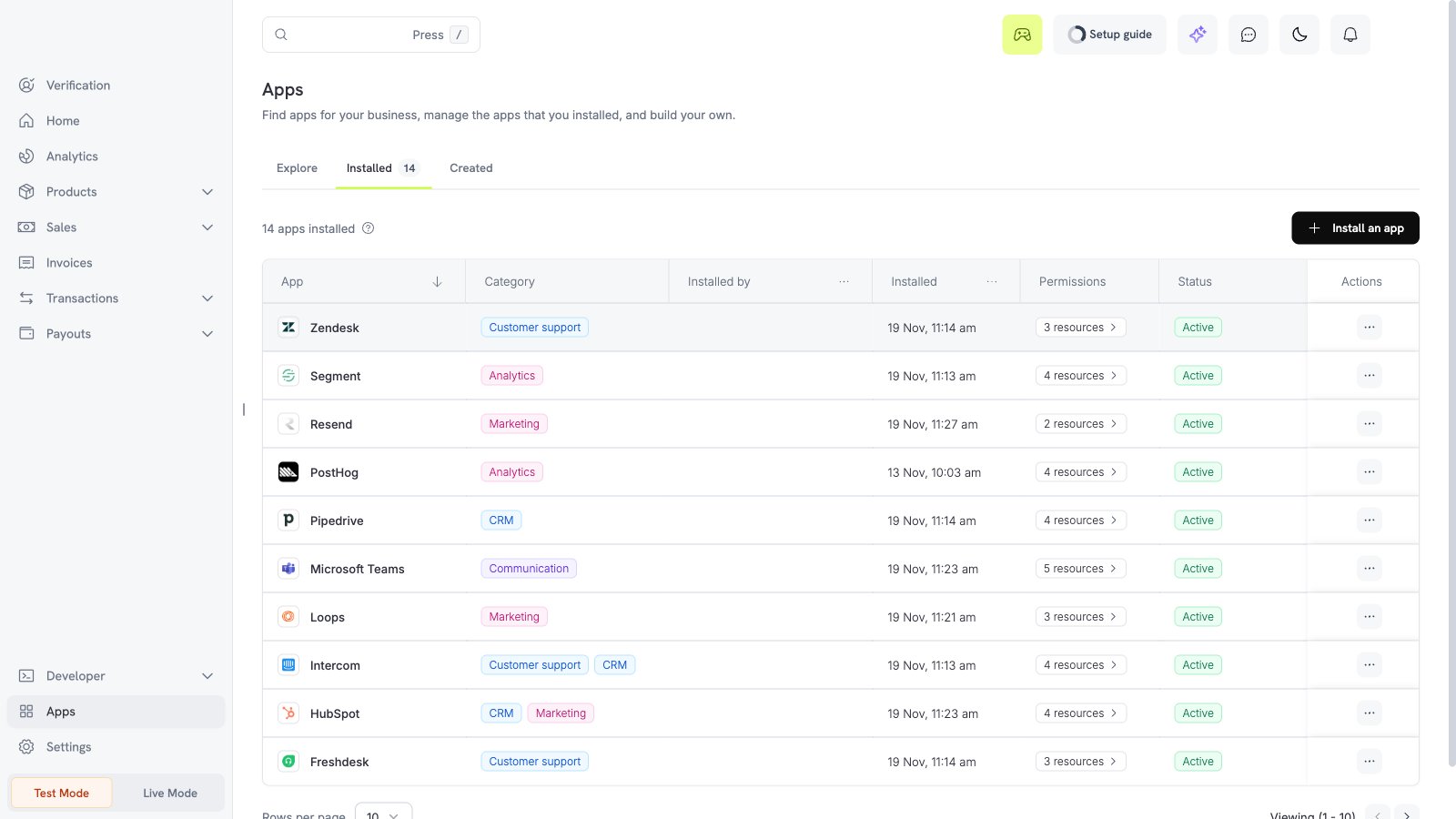
2
Connect Zendesk
Select Connect. Enter the Zendesk subdomain, for example 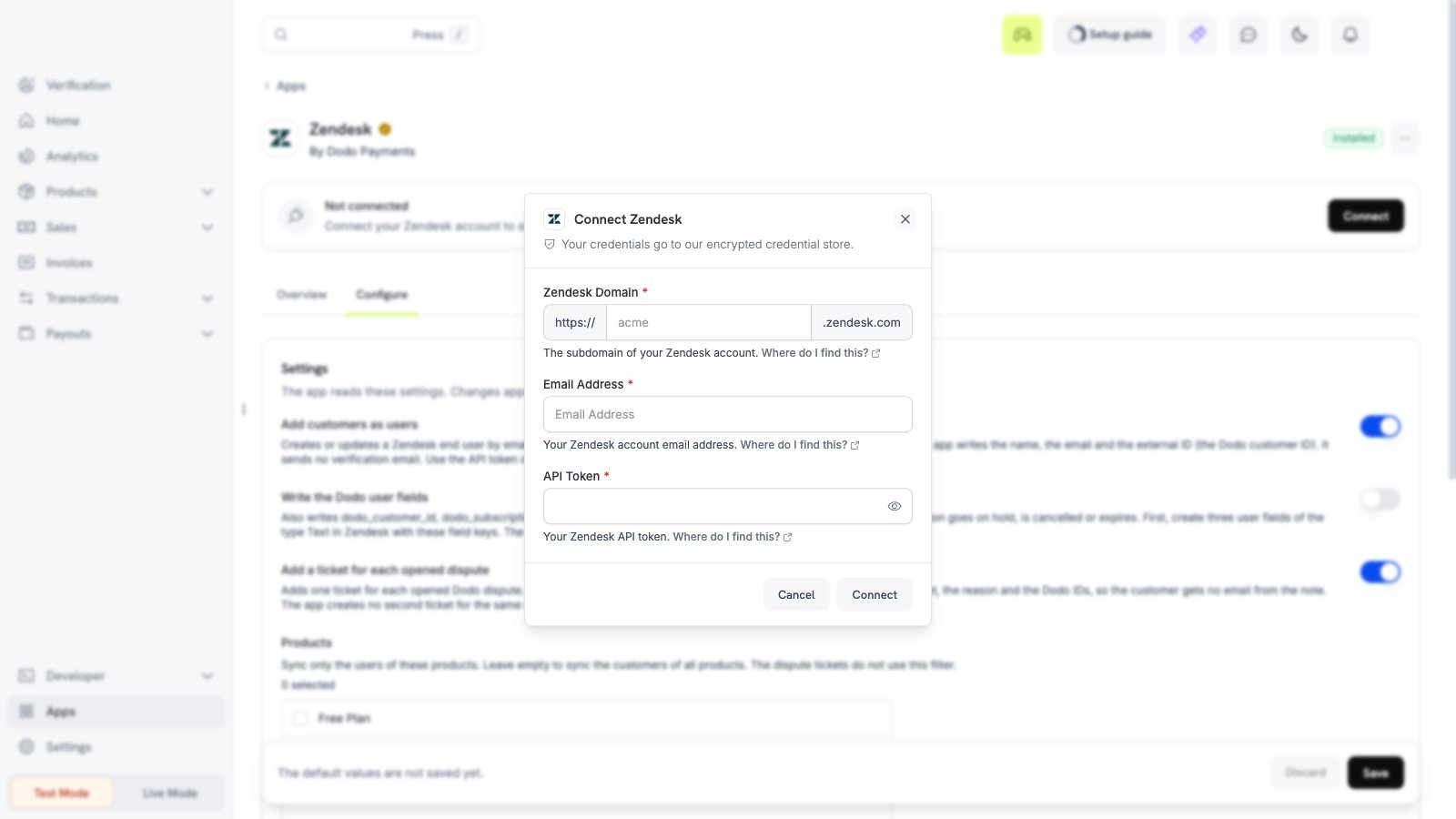
acme for https://acme.zendesk.com. Enter the email address of a Zendesk admin. In Zendesk, open Admin Center, then Apps and integrations, then Zendesk API, and make an API token. Paste it in the API Token field, then select Connect.3
Make the user fields (optional)
To use Write the Dodo user fields, open Admin Center, then People, then User fields in Zendesk. Make three Text fields with the field keys
dodo_customer_id, dodo_subscription_status, and dodo_status_updated_at. The app refuses the write when a field does not exist.4
Choose the settings
Open the Configure tab, set the options, and select Save.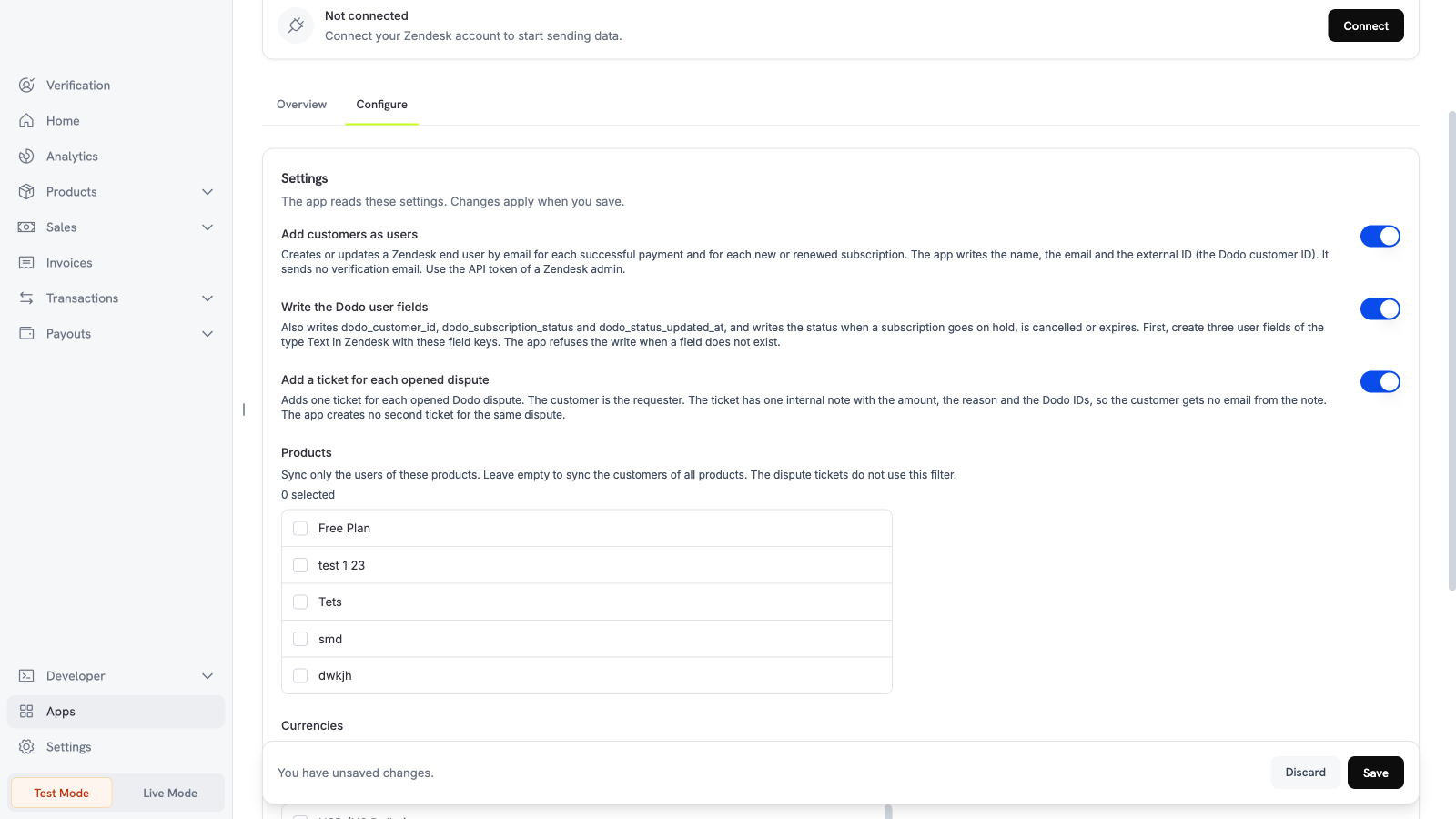
5
Pick the filters
Pick the products and currencies, then select Save.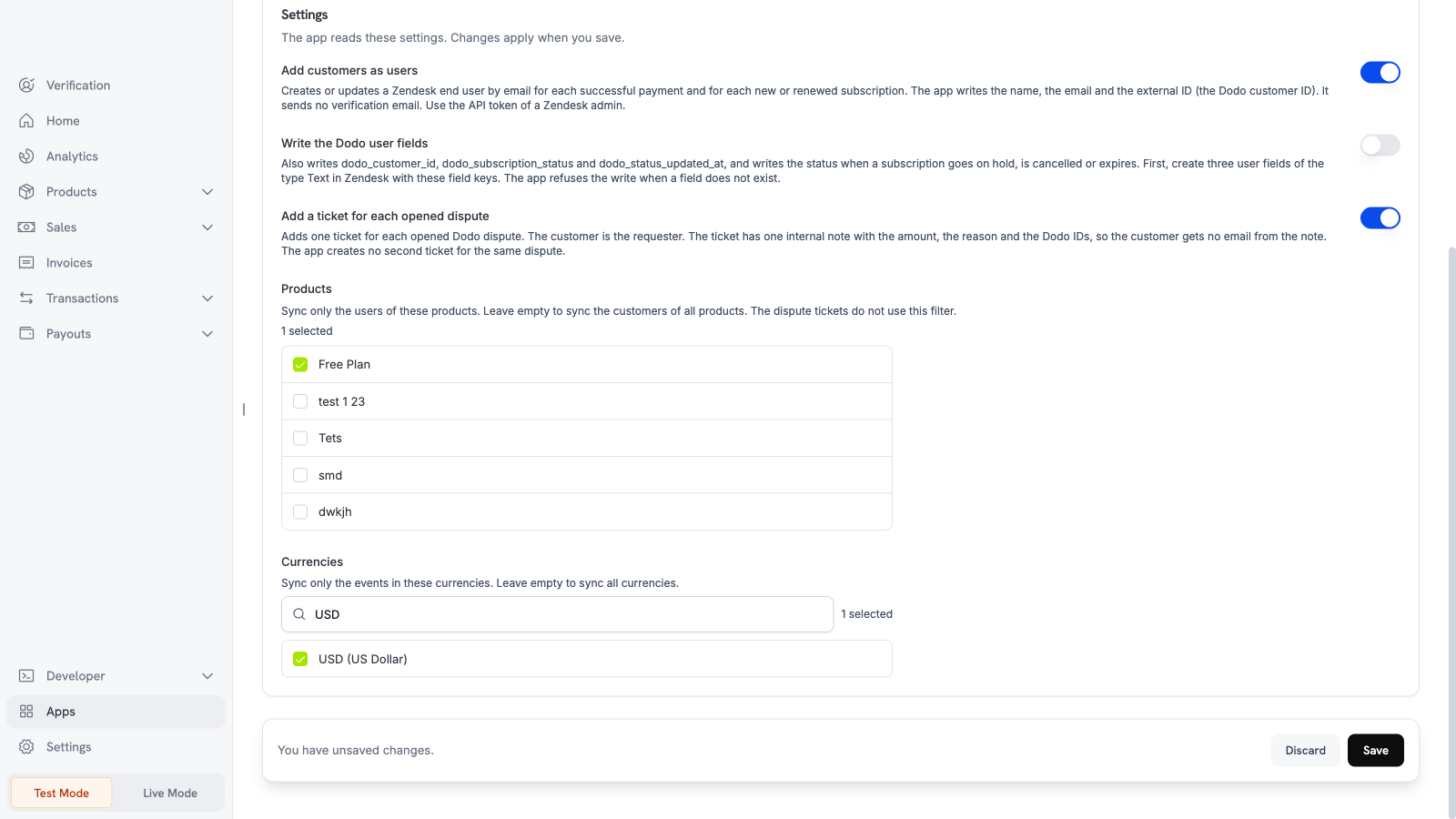
Settings
What is sent and when
Dodo Payments sends data after the Dodo Payments event happens. The app sends the email address, the name, and the Dodo customer ID of the customer. With Write the Dodo user fields on, it also sends the subscription status and the time. A dispute ticket shows the amount, the reason, the dispute status, the payment ID, and the Dodo ID. The app sends no card data and no address. The app updates the name of an existing user at each payment. A name that you changed in Zendesk changes back to the name in Dodo Payments. The Zendesk user search can be late for a new user. Then the app can create a second user for the same email. Also, a status update can skip that user. Merge the duplicate users in Zendesk.Test the app
1
Use test mode
Install and connect the app in test mode.
2
Make a test dispute
Open a test dispute for a test payment with a test customer email.
3
Check Zendesk
Open Tickets in Zendesk. The ticket for the dispute appears with one internal note. Open Customers to see the test customer.